Building a container running SQL Server 2014 SP2 Developer

One of the things about working with SQL in Docker is that you kinda have to use the images that are on the Docker Hub. Now this is great if you want SQL Server 2016 or 2017 but what about earlier versions?

Now, this is a bit involved so I should point out WinDocks.com. They have a great product which allows earlier versions of SQL Server to run in containers on earlier versions of Windows Server which means you don’t have to go through all this.

But I wanted to try this to see if I could get it done. I’ve noticed that there aren’t any images for SQL Server 2014 SP2 Developer Edition on the Docker Hub (not that I can find anyway) so I thought I’d build one myself.


TL;DR – If you want to skip all of this you can download the image I’ve build from the Docker Hub by running:-

docker pull dbafromthecold/sqlserver2014dev:sp2

I’m running all of this on my Windows 10 machine but there are a few things you’ll need before we get started: –

Pre-requisites

  • The microsoft/windowsservercore image downloaded from the Docker Hub
  • Windows Server 2016 installation media extracted to
    C:\Docker\Builds\Windows
  • SQL Server 2014 SP2 Developer Edition installation media extracted to C:\Docker\Builds\SQLServer2014\sql_server_2014_dev_sp2

First thing to do is build an image of Windows Server 2016 Core with .Net 3.5 installed. So first we will create a container running windows server 2016 with the installation media copied into it. Then we’ll install .Net 3.5.

So, build the container: –

docker run -it -v C:\Docker\Builds\Windows\en_windows_server_2016_x64_dvd_9718492\sources:C:\install --name buildcontainer1 microsoft/windowsservercore

This will copy the files under the source folder to C:\install within the container. Once the container is up and running, the -it switch will open a remote session into the container. So then we run: –

cd c:\install

powershell

Install-WindowsFeature –name NET-Framework-Core –source c:\install\sources\sxs 

Cool, so exit out of that container and commit it as a new image: –

docker commit buildcontainer1 windowscorenet

I then tagged the image with my docker repository name so that I could push it to the cloud (so that you can use it): –

docker tag windowscorenet dbafromthecold/windowsservercore:v1

Now that we have the base image created we can build an image running SQL Server 2014 from a dockerfile.

Here’s the code in the dockerfile: –

# using my windows server core image
FROM dbafromthecold/windowsservercore:v1

LABEL maintainer "Andrew Pruski"

# create directory to hold iso
RUN powershell -Command (mkdir C:\SQL2014)

# copy media into container
COPY sql_server_2014_dev_sp2 C:\SQL2014

# install SQL Server
RUN C:\SQL2014\setup.exe /q /ACTION=Install /FEATURES=SQLENGINE /INSTANCENAME=MSSQLSERVER /SECURITYMODE=SQL /SAPWD=Testing1122 /SQLSVCACCOUNT="NT AUTHORITY\System" /SQLSYSADMINACCOUNTS="BUILTIN\Administrators" /TCPENABLED=1 /IACCEPTSQLSERVERLICENSETERMS

# remove installation media
RUN powershell -Command (rm C:\SQL2014 -recurse)

# make sure service is set to automatic
RUN powershell -Command (set-service MSSQLSERVER -StartupType Automatic)

# switch shell to powershell
SHELL ["powershell", "-Command", "$ErrorActionPreference = 'Stop'; $ProgressPreference = 'SilentlyContinue';"]

COPY start.ps1 /
WORKDIR /

ENV SA_PASSWORD _
ENV ACCEPT_EULA _

# run start.ps1
CMD .\start -sa_password $env:SA_PASSWORD -ACCEPT_EULA $env:ACCEPT_EULA -Verbose

N.B. – this is available on my Github here

Most of the code is self-explanatory but I do want to mention the final few lines: –

# switch shell to powershell
SHELL ["powershell", "-Command", "$ErrorActionPreference = 'Stop'; $ProgressPreference = 'SilentlyContinue';"]

COPY start.ps1 /
WORKDIR /

ENV SA_PASSWORD _
ENV ACCEPT_EULA _

# run start.ps1
CMD .\start -sa_password $env:SA_PASSWORD -ACCEPT_EULA $env:ACCEPT_EULA -Verbose

This switches the shell to use powershell. I didn’t do this earlier in the dockerfile as trying to install SQL 2014 using powershell kept throwing errors. Once we’re using powershell it then copies a script called start.ps1 into the container.

This script is a slightly modified version of the script from the official Microsoft Github repository

Here’s the code for the script: –

# script from offical MS repo: - https://github.com/Microsoft/mssql-docker/blob/master/windows/mssql-server-windows/start.ps1

param(
[Parameter(Mandatory=$false)]
[string]$sa_password,

[Parameter(Mandatory=$false)]
[string]$ACCEPT_EULA
)


if($ACCEPT_EULA -ne "Y" -And $ACCEPT_EULA -ne "y")
{
	Write-Verbose "ERROR: You must accept the End User License Agreement before this container can start."
	Write-Verbose "Set the environment variable ACCEPT_EULA to 'Y' if you accept the agreement."

    exit 1
}

# start the service
Write-Verbose "Starting SQL Server"
start-service MSSQLSERVER

if($sa_password -ne "_")
{
    Write-Verbose "Changing SA login credentials"
    $sqlcmd = "ALTER LOGIN sa with password=" +"'" + $sa_password + "'" + ";ALTER LOGIN sa ENABLE;"
    & sqlcmd -Q $sqlcmd
}


Write-Verbose "Started SQL Server."

$lastCheck = (Get-Date).AddSeconds(-2) 
while ($true) 
{ 
    Get-EventLog -LogName Application -Source "MSSQL*" -After $lastCheck | Select-Object TimeGenerated, EntryType, Message	 
    $lastCheck = Get-Date 
    Start-Sleep -Seconds 2 
}

The script runs when a container starts and performs the following actions: –
– Checks that the end user licence agreement has been accepted
– Changes the SA password
– Start a infinite loop

Now, what’s with the infinite loop? Well, without this the container (when spun up with the -d flag) will auto-close immediately. Docker containers need some defined process to be running otherwise they will shut down.

I fully admit that this is kinda hacky and not great. But that’s how Microsoft have stopped containers from auto-closing and I’ve been looking into this quite a bit and haven’t been able to come up with any other ways.

Also, it does mean that we can run SQL commands automatically when a container starts up (that’s how the SA password is changed). I’m going to have a think on that as I’m pretty sure there’s some cool stuff that can be done.

Anyway now we can build the image, so run: –

docker build -t sqlserver2014dev:sp2 C:\Docker\Builds\SQLServer2014

Awesome stuff! But has it worked? Can we spin up a new container and have SQL 2014 up and running? Let’s give it a whirl: –

docker run -d -i -p 14567:1433 --env ACCEPT_EULA=Y --SA_PASSWORD=Testing1122 --name testcontainer2014 sqlserver2014dev:sp2

Now we need to get the IP address that the container is listening on: –

Update – April 2018
Loopback has now been enabled for Windows containers, so we can use localhost,14567 to connect locally. You can read more about it here

docker inspect testcontainer2014

My container is listening on port 172.26.126.99 so I’ll open up SSMS on my local machine, enter the sa username/password and: –

SQL Server 2014 SP2 Developer Edition running in a container that’s been build from a custom image. Cool, eh?

What I like is that I’ve used this dockerfile as a base to build a SQL Server 2012 image as well. You can view all the images I’ve pushed to the Docker Hub by running: –

docker search dbafromthecold

And if you want to build an image yourself, all the different dockerfiles I’ve created are on my Github

Thanks for reading!

Connecting a powershell session to a container

One of the questions that I was asked at SQL Saturday Iceland was “how can I view the filesystem within a container?”.

This is a great question as one of the things that people find off-putting about containers is their opaqueness. It’s not obvious where everything lives within the container or how we can view the files within it.

Thankfully there’s a simple docker command that allows us to open a powershell session within a container, that command is docker exec.

Let’s run through an example. Firstly I’m going to spin up a new container running an instance of SQL Server: –

docker run -d -p 15777:1433 --env ACCEPT_EULA=Y --env sa_password=Testing11@@ --name testcontainer microsoft/mssql-server-windows

Then verify that the container is running: –

docker ps

Now, to open up the powershell session inside run: –

docker exec -it testcontainer powershell

N.B. – the -i flag keeps the powershell session open, otherwise it will immediately exit. The -t flag creates a pseudo terminal, you don’t have to include it tbh but the examples I’ve seen online always include it.

Ok, we know have a powershell session within the container and we can execute commands as normal, for example: –

get-psdrive

This will allow us to explore what the filesystem is within the container and run powershell commands as needed. In the screenshot above it’s interesting to see the space available/used on the C: drive. Have a dig around within your containers and let me know if you find anything interesting 🙂

Thanks for reading!

Summary of my Container Series


All my blogs posts about running SQL Server in a Docker container have been collated into The SQL Server and Containers Guide.

If you’re working with SQL Server and want to get started with containers, check it out!


Getting Started

Running your first container

Building a custom image

Pushing images to the Docker Hub

Using WinDocks to run earlier versions of SQL Server in Containers

Creating SQL Containers from a Dockerfile

Running Linux Containers on Windows 10

SQL Server in Kubernetes on Docker for Windows


SQL Server 2019

Running SQL Server 2019 CTP in a Docker container

Displaying the tags within the SQL Server docker repository

Running SQL Server containers as non-root

Using volumes in SQL Server 2019 non-root containers


Webinars

GroupBy Conference – SQL Server & Containers

24HOP – Manage SQL Server in Linux Containers using dbatools


Docker Commands

Viewing container logs

Sharing Container Images

Copying files from/to a container

Parsing Docker Commands

Connecting a powershell session to a container

Automatically restarting Docker Containers

The Docker kill command

Docker Debug


Configuration & Administration

Attaching databases via a Dockerfile

Attaching databases via a Dockerfile – UPDATE

SQL Containers and Networking

Portainer – A GUI for Container Administration

Changing default location of docker containers

Changing the location of docker named volumes

Remotely Administering the Docker Engine on Windows Server 2016

Building a container running SQL Server 2014 SP2

Automating installation of Docker & SQL command line tools on Linux

Limiting resources available to containers

Enabling the SQL Server Agent in Linux Containers

Default resource limits for Windows vs Linux containers in Docker Desktop

Using Windows stored credentials to connect to SQL in containers

Loopback available for Windows Containers

Setting up SQL Server replication in containers

Using the GitHub Package Registry to store container images

Updating SQL Server container memory limits on the fly

Running a SQL Server container from scratch

Using environment variable files for SQL Server in containers

Building a Docker image from a Github repository


Docker Compose

Creating SQL Server containers with Docker Compose

SQL Server & Docker Compose


Persisting Data Series

Persisting data in docker containers – Part One

Persisting data in docker containers – Part Two

Persisting data in docker containers – Part Three

Using docker named volumes to persist databases in SQL Server


Docker Swarm

Running SQL Server in Docker Swarm

Using Secrets in Docker Swarm for SQL Server

Persisting data for SQL Server on Docker Swarm with Portworx


Kubernetes

A shell for working with Kubernetes

Running SQL Server in Kubernetes on Azure Container Services – LEGACY

Running SQL Server in Kubernetes on Azure Kubernetes Services (AKS)

Exploring the Kubernetes dashboard in Azure Container Services

Configuring Persistent Storage for SQL Server in Azure Kubernetes Services

Changing the port for SQL Server in Azure Kubernetes Services

Azure Kubernetes Service Error – LoadBalancer type service external IP stays pending

Creating a custom kubectl plugin to connect to SQL Server in Kubernetes

Chaos engineering for SQL Server running on AKS using KubeInvaders

Converting SQL Server docker compose files for Kubernetes with Kompose

Use port forwarding to access SQL Server running in Kubernetes

Adjusting pod eviction time in Kubernetes

Differences between using a Load Balanced Service and an Ingress in Kubernetes

A storage failover issue with SQL Server on Kubernetes

Overcoming a storage failover issue with SQL Server on Kubernetes using Portworx


Helm

Deploying SQL Server to Kubernetes using Helm

Creating custom SQL Server Helm charts

Using Github as a repository for SQL Server Helm Charts

Decoding Helm Secrets

A kubectl plugin to decode secrets created by Helm


Azure

Pushing SQL Server images to the Azure Container Registry

Deploying Azure Container Instances

Running a SQL Server Azure Container Instance in a virtual network

Creating SQL images in Azure with ACR Build – Part One

Creating SQL images in Azure with ACR Build – Part Two


Terraform

Deploying SQL Server to an Azure Container Instance using Terraform – Part One

Deploying SQL Server to an Azure Container Instance using Terraform – Part Two


Raspberry Pi

Running Azure SQL Database Edge on a Raspberry Pi

Building a Raspberry Pi cluster to run Azure SQL Edge on Kubernetes

Updating my Kubernetes Raspberry Pi Cluster to containerd

Provisioning storage for Azure SQL Edge running on a Raspberry Pi Kubernetes cluster


External Articles

Running SQL Server Containers on Windows Server 2016 Core

Refreshing SQL Containers automatically using Watchtower

Streamlining QA with SQL Server Containers


Exporting Container Images

I’ve already covered how to push images to the Docker hub here but what if we only want to share a custom image in-house?

Well, it’s really simple to do by using the docker save and load commands. I’ll run through the process.

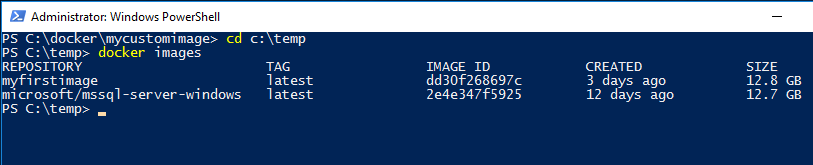
What I’ve done is created a custom image following the instructions here. Here’s my custom image: –

dockercustomimage

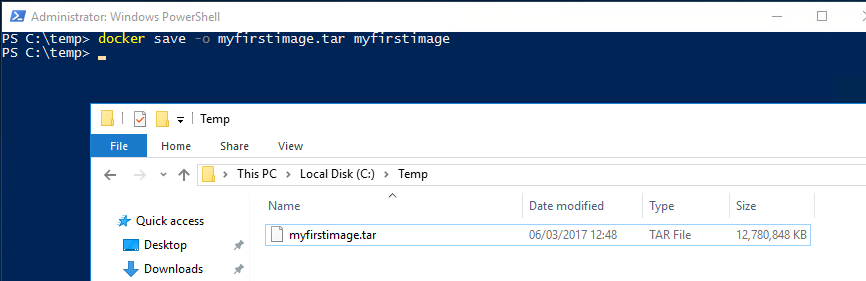
What I’m going to do now is save my custom image to a location [C:\temp] on my host server. So I’ll run: –

docker save -o myfirstimage.tar myfirstimage

N.B. – I’m saving the file as a .tar as this seems to be the format that works best for loading the image. I’ve tried exporting to other formats (.zip) but it always seems to become corrupt. The .tar format has always worked for me so I’ll stick with it.

Now the SQL images aren’t the smallest so this could take some time. But once it’s complete you’ll see the save .tar file: –

dockersavedimage

This can now be copied over to another server running the Docker engine and loaded into the local registry by running:-

docker load -i myfirstimage.tar

dockerloadimage

This will take some time but once it’s complete the exported image will be available in the server’s Docker registry. So that image was built on one server, exported and then loaded on another server. It’s an easy way to share images without having to push up to the Docker Hub.

By doing this you can ensure that every one of your team is using the same configured instance of SQL Server. Hopefully an end to “well it worked on my machine”…

Thanks for reading!

A GUI for Docker Container Administration

I’ve been working with containers for a while now and one of the questions that always gets asked when I demo the technology to people is, is there a graphical user interface out there that can be used to manage containers?

Now, I’m happy with working on the command line and in many ways, I prefer it. But everyone has different preferences so I went out and had a look to see what’s available. It didn’t take me long to run into Portainer who have built exactly what I was looking for. A management UI for Docker.

So let’s run through the setup and then look at the system. There’s a couple of pre-requisities to this I’m afraid, the first one is that you must setup remote administration using TLS on the Docker host that you want to manage via Portainer. I’ve detailed how to do this here.

Also, Portainer doesn’t support managing a local Docker Engine running on Windows so the way I’ve set it up is to run Portainer locally on Windows 10 and then point it at a server running the Docker Engine I want to manage. This means that you’ll need to install Docker locally, you can do that here.

EDIT: Anthony Lapenna (t) has let me know that you can run Portainer outside of docker, so you don’t need to have the engine running on your Windows 10 machine if you don’t want to. Instructions are here (at the bottom of the page).

Ok, so once you’ve got Docker running locally, run the following to see the Portainer image in the Docker Hub: –

docker search portainer

dockersearchportainer

There’s the image that we need at the top, so pull that image down to your local repository: –

docker pull portainer/portainer

dockerpullportainer

Once the image is down, verify that you can connect to the Docker Engine on the remote server from a powershell window on your local machine: –

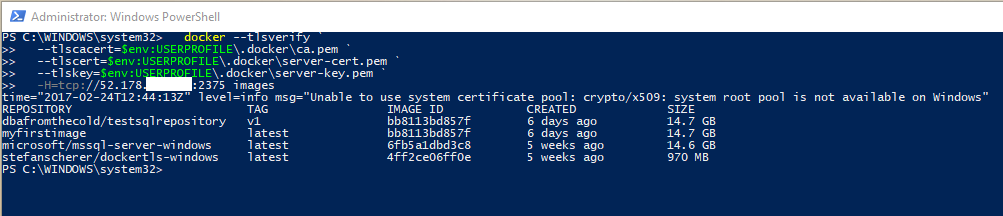
docker --tlsverify `
  --tlscacert=$env:USERPROFILE\.docker\ca.pem `
  --tlscert=$env:USERPROFILE\.docker\server-cert.pem `
  --tlskey=$env:USERPROFILE\.docker\server-key.pem `
  -H=tcp://XX.XX.XX.XX:2375 images

What I’ve done here is copy the TLS certs generated on the server to my local machine and reference them via $env:USERPROFILE. Full details on setting this up is here.

Also, ignore the warning “Unable to use system certificate pool: crypto/x509: system root pool is not available on Windows“. Apparently it’s benign

If everything is working you should see the same output as running docker images on the server: –
dockerconnectremotely

OK, next step is to copy the certs into your C:\temp folder as the following script will copy them from that location into the container running Portainer. This is needed so that Portainer can connect to the Docker Engine running on the server.

copy-item $env:USERPROFILE\.docker\ca.pem C:\Temp
copy-item $env:USERPROFILE\.docker\server-cert.pem C:\Temp
copy-item $env:USERPROFILE\.docker\server-key.pem C:\Temp

Now we can create and run our Portainer container!

docker run -d -p 9000:9000 --name portainer1 -vC:/temp:C:/temp portainer/portainer -H tcp://XX.XX.XX.XX:2375 --tlsverify --tlscacert=C:/temp\ca.pem --tlscert=C:/temp\server-cert.pem --tlskey=C:/temp\server-key.pem

dockerrunportainer2

Once you’ve verified that the container is up and running you need to grab the private IP assigned to it: –

docker inspect portainer1

dockerinspectportainer

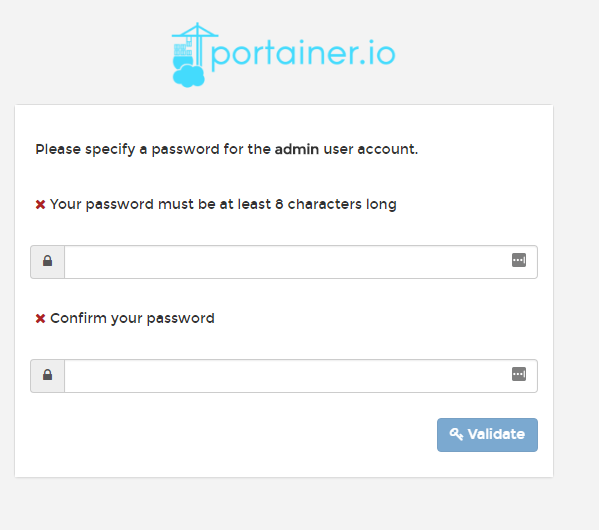
So the private IP address assigned to the container I’ve built is 172.26.17.197 so I’ll enter http://172.26.17.197:9000 into my web browser. If all has gone well you should see: –

portainersetpassword

Specify a password and then login. You will then see the Portainer dashboard:-

portainerdashboard

Viewing Containers: –

viewingcontainers

Viewing Images: –

viewingimages

It’s a pretty cool UI. Not only can you start/stop existing containers, you can pull new images down. I know it’s a bit fiddly to setup but if you can do this and hand it off to your users (don’t run it on your desktop though)…how much are they going to love you? 🙂

Thanks for reading!