Persisting data in docker containers – Part One

Normally when I work with SQL instances within containers I treat them as throw-away objects. Any modifications that I make to the databases within will be lost when I drop the container.

However, what if I want to persist the data that I have in my containers? Well, there are options to do just that. One method is to mount a directory from the host into a container.

Full documentation can be found here but I’ll run through an example step-by-step here.

First create a directory on the host that we will mount into the container: –

mkdir D:\SQLServer

And now build a container using the -v flag to mount the directory: –

docker run -d -p 15789:1433 -v D:\SQLServer:C:\SQLServer --env ACCEPT_EULA=Y --env sa_password=Testing11@@ --name testcontainer microsoft/mssql-server-windows


So that’s built us a container running an empty instance of SQL Server with the D:\SQLServer directory on the host mounted as C:\SQLServer in the container.

Update – April 2018
Loopback has now been enabled for Windows containers, so we can use localhost,15789 to connect locally. You can read more about it here

Now, let’s create a database on the drive that we’ve mounted in the container. First grab the container private IP (as we’re connecting locally on the host): –

docker inspect testcontainer
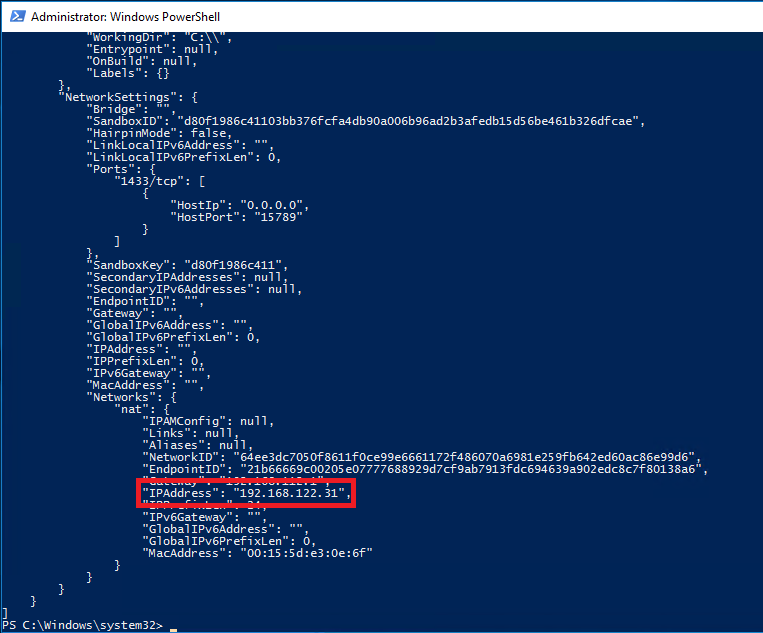

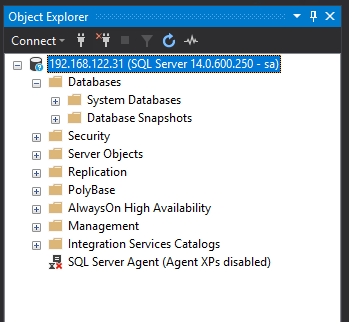
And use it to connect to the SQL instance within the container:-

Now create the database with its files in the mounted directory : –

USE [master];
GO

CREATE DATABASE [TestDB]
	ON PRIMARY 
(NAME = N'TestDB', FILENAME = N'C:\SQLServer\TestDB.mdf')
	LOG ON 
(NAME = N'TestDB_log', FILENAME = N'C:\SQLServer\TestDB_log.ldf')
GO

And let’s create a simple table with some data: –

USE [TestDB];
GO

CREATE TABLE dbo.testtable
(ID INT);
GO

INSERT INTO dbo.testtable
(ID)
VALUES
(10);
GO 100

Cool, if we check the directory on the host, we’ll see the database’s files: –
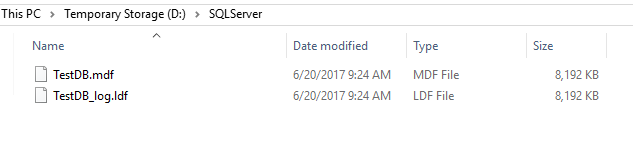

OK, now let’s blow that container away: –

docker stop testcontainer

docker rm testcontainer

If you check the host, the directory with the database files should still be there.

Now, let’s create another container, mounting the directory back in: –

docker run -d -p 15799:1433 -v D:\SQLServer:C:\SQLServer --env ACCEPT_EULA=Y --env sa_password=Testing11@@ --name testcontainer2 microsoft/mssql-server-windows

Same as before, grab the private IP and connect into SQL Server: –


No database! Of course, we need to attach it! So…
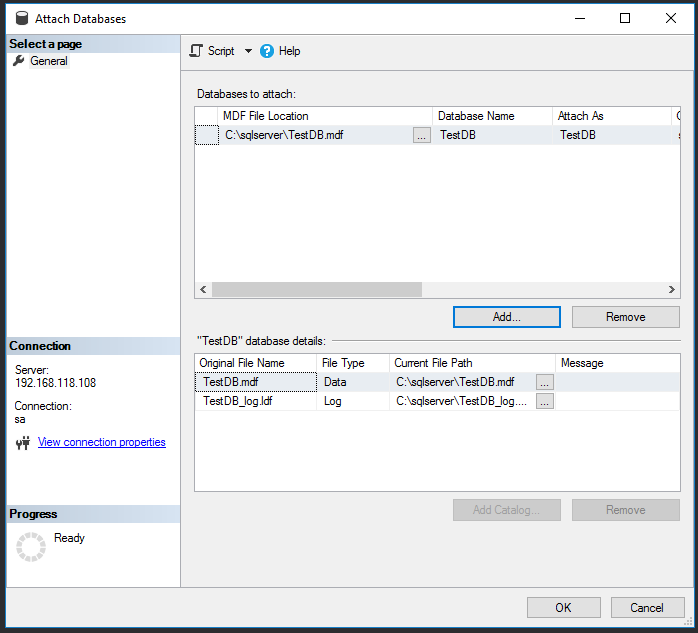

And there it is!
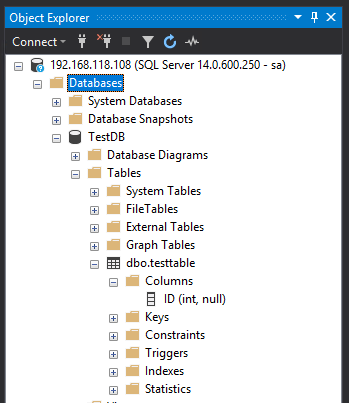

Cool, so a database created in one container has been attached into a SQL instance running in another. Notice that I didn’t detach the database before stopping and then dropping the container. Now, that doesn’t mean that the process of shutting down a container stops the SQL instance gracefully. It’d be interesting to see what happens if a container is stopped whilst queries are running, I bet if we deleted the container without stopping it first the database would be corrupt.

Anyway, using the -v flag to mount directories from the host into a container is one way of persisting data when using docker.

Thanks for reading!

Changing default location for docker containers

A question that regularly comes up when I talk about containers is, “can you specify where the containers/images live on the host?”

This is a good question as the install for docker is great because it’s so simple but bad because well, you don’t get many options to configure.

It makes sense that you’d want to move the containers/images off the C:\ drive for many reasons such as leaving the drive for the OS only but also, say you have a super fast SSD on your host that you want to utilise? OK, spinning up containers is quick but that doesn’t mean we can’t make it faster!

So, can you move the location of container and images on the host?

Well, yes!

There’s a switch that you can use when starting up the docker service that will allow you to specify the container/image backend. That switch is -g

Now, I’ve gone the route of not altering the existing service but creating a new one with the -g switch. Mainly because I’m testing and like rollback options but also because I found it easier to do it this way.

So the default location for containers and images is: – C:\ProgramData\docker

OK, let’s run through the commands to create a new service pointing the container/images backend to a custom location.

First we’ll create a new directory on the new drive to host the containers (I’m going to use a location on the E: drive on my host as I’m working in Azure and D: is assigned to the temporary storage drive): –

new-item E:\Containers -type directory

Now stop the existing docker service and disable it: –

stop-service Docker

set-service Docker -StartupType Disabled

get-service Docker

Now we’re going to create a new service pointing the container backend to the new location: –

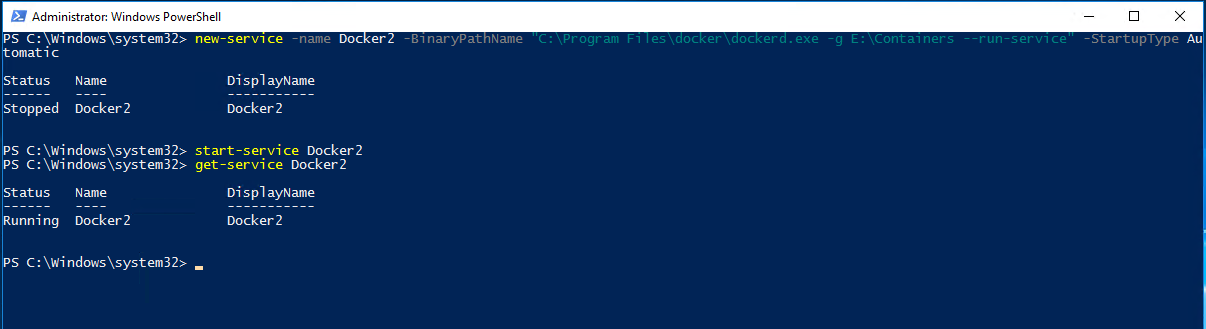
new-service -name Docker2 -BinaryPathName "C:\Program Files\docker\dockerd.exe -g E:\Containers --run-service" -StartupType Automatic

Now start the new service up: –

start-service Docker2

get-service Docker2

And check the new location: –

Cool, the service has generated the required folder structure upon startup and any new images/containers will be stored here.

Once thing to mention is that if you have images and containers in the old location they won’t be available to the new service. I’ve tried copying the files and folder in C:\ProgramData\docker to the new location but keep getting access denied errors on the windowsfilter folder.

To be honest, I haven’t spent much time on that as if you want to migrate your images from the old service to the new one you can export out and then load in by following the instructions here.

Thanks for reading!

GroupBy Conference – SQL Server & Containers

Morning all, busy week last week as I was lucky enough to have my session on SQL Server & Containers in the top ten voted for sessions in GroupBy’s June conference.

This was my first webinar and even though it was nerve wracking, I’m really glad I did it. An online presentation is (of course) very different to presenting in person as you don’t have an audience to gauge how things are going, you just keep ploughing ahead and trust that what you’re presenting works.

I’ve done this session a couple of times beforehand so I know that it works so was happy to chat away in my living room and take questions at the end.

One really cool thing about the session was having Rob Sewell (b|t) & James Anderson (b|t) involved, chatting with them and Brent Ozar at the end was probably the highlight for me.

By the way, both James and Rob presented sessions as well, you can find on the main GroupBy page.

Anyway, in case you missed it, here’s the video: –

Parsing Docker Commands

Bit of a powershell themed post this week as I haven’t had that much time to research so this one falls firmly into the “what I’ve been doing this week” category.

My company moved to using containers a while ago now, it’s been really fun setting up and I’ve written about the architecture and process (here)

But, so that you don’t have to click the above link, I’ll quickly recap what we’re doing now.

We use containers but aren’t on Windows Server 2016 or SQL Server 2016 so we’re using a product called Windocks that allows earlier versions of SQL Server to run in containers on earlier versions of Windows Server.

We have a physical host running the Windocks daemon and all our app VMs contact the host to build and reference SQL instances within containers. Each container is built from a custom image that contains stripped down versions of our production databases that we call baselines.

Each month (it’ll be more frequent soon) we update the custom image by: –

  • Creating new baselines of our production databases from backups
  • Committing those backups to TFS
  • Deleting the old image from docker repository
  • Building a new image from a dockerfile referencing those backups
  • Committing the new image

What I’ve been working on is the automation of the new image once new baselines are checked into source control.

One of the requirements that’s come out of this is the ability to parse the docker images & docker ps commands.

These commands give you an overview of what’s on your docker host, the images you have in your repository and what containers you have (and what state they’re in).

What I needed to do was parse those commands so I could work out things like: –

  • What images do we have available?
  • What version are those images (when were they built)?
  • What size are the images?
  • How many containers have been built?
  • When were the containers built?
  • What state are the containers in?

I needed to be able to gather this information and pass it into commands so that my scripts would be able to work out how to proceed. So I’ve written a bit of code in order to do just that.

This is a bit of a change for me, I usually just drop code into my posts but as it’s still a work in process, what I’ve done is create a GitHub account and uploaded the script. You can find it here: – https://github.com/dbafromthecold/parsedockercommands

Really simple to use, just change the variables at the top to your environment and you’re off. The only slightly tricky bit is making sure that your docker engine is configured for remote administration but I’ve also fully detailed how to set that up here.

What you’ll end up with is two arrays holding details of all the images and containers on your host which you can then use for, well, whatever!

There’s probably better ways of doing this but it’s always fun to work out how to do this yourself. I’m more than open to suggestions on how to improve the script so let me know if you have anything. 🙂

Thanks for reading!

Copying files from/to a container

Last week I was having an issue with a SQL install within a container and to fix I needed to copy the setup log files out of the container onto the host so that I could review.

But how do you copy files out of a container?

Well, thankfully there’s the docker cp command. A really simple command that let’s you copy whatever files you need out of a running container into a specified directory on the host.

I’ll run through a quick demo but I won’t install SQL, I’ll use an existing SQL image and grab its Summary.txt file.

If you don’t have the 2017 SQL image, you can pull it from the docker hub by running: –

docker pull microsoft/mssql-server-windows

Once you have the image, execute the following to spin up a container: –

docker run -d -p 15789:1433 --env ACCEPT_EULA=Y --env sa_password=Testing11@@ --name testcontainer microsoft/mssql-server-windows

Excellent! Now we can open up a powershell session within the container: –

docker exec -it testcontainer powershell

Once we’re in we can verify where the file is: –

cd "C:\Program Files\Microsoft SQL Server\140\Setup Bootstrap\Log\"

ls

Now exit out of the powershell session within the container. What we’re going to do is copy the Summary.txt file from the container into the C:\temp directory on the host. To do this run (on the host): –

docker cp testcontainer:"C:\Program Files\Microsoft SQL Server\140\Setup Bootstrap\Log\Summary.txt" C:\temp

Cool! Now we have the file on the host and can review.

Of course this also works for copying files into a container. Say we want to copy test.txt from C:\temp on our host into C:\ in the container. We simply run: –

docker cp C:\temp\test.txt testcontainer:C:\

Nice and easy! All we need to remember is that we always specify the source directory in the cp command first.

Thanks for reading!