Summary of my Container Series


All my blogs posts about running SQL Server in a Docker container have been collated into The SQL Server and Containers Guide.

If you’re working with SQL Server and want to get started with containers, check it out!


Getting Started

Running your first container

Building a custom image

Pushing images to the Docker Hub

Using WinDocks to run earlier versions of SQL Server in Containers

Creating SQL Containers from a Dockerfile

Running Linux Containers on Windows 10

SQL Server in Kubernetes on Docker for Windows


SQL Server 2019

Running SQL Server 2019 CTP in a Docker container

Displaying the tags within the SQL Server docker repository

Running SQL Server containers as non-root

Using volumes in SQL Server 2019 non-root containers


Webinars

GroupBy Conference – SQL Server & Containers

24HOP – Manage SQL Server in Linux Containers using dbatools


Docker Commands

Viewing container logs

Sharing Container Images

Copying files from/to a container

Parsing Docker Commands

Connecting a powershell session to a container

Automatically restarting Docker Containers

The Docker kill command

Docker Debug


Configuration & Administration

Attaching databases via a Dockerfile

Attaching databases via a Dockerfile – UPDATE

SQL Containers and Networking

Portainer – A GUI for Container Administration

Changing default location of docker containers

Changing the location of docker named volumes

Remotely Administering the Docker Engine on Windows Server 2016

Building a container running SQL Server 2014 SP2

Automating installation of Docker & SQL command line tools on Linux

Limiting resources available to containers

Enabling the SQL Server Agent in Linux Containers

Default resource limits for Windows vs Linux containers in Docker Desktop

Using Windows stored credentials to connect to SQL in containers

Loopback available for Windows Containers

Setting up SQL Server replication in containers

Using the GitHub Package Registry to store container images

Updating SQL Server container memory limits on the fly

Running a SQL Server container from scratch

Using environment variable files for SQL Server in containers

Building a Docker image from a Github repository


Docker Compose

Creating SQL Server containers with Docker Compose

SQL Server & Docker Compose


Persisting Data Series

Persisting data in docker containers – Part One

Persisting data in docker containers – Part Two

Persisting data in docker containers – Part Three

Using docker named volumes to persist databases in SQL Server


Docker Swarm

Running SQL Server in Docker Swarm

Using Secrets in Docker Swarm for SQL Server

Persisting data for SQL Server on Docker Swarm with Portworx


Kubernetes

A shell for working with Kubernetes

Running SQL Server in Kubernetes on Azure Container Services – LEGACY

Running SQL Server in Kubernetes on Azure Kubernetes Services (AKS)

Exploring the Kubernetes dashboard in Azure Container Services

Configuring Persistent Storage for SQL Server in Azure Kubernetes Services

Changing the port for SQL Server in Azure Kubernetes Services

Azure Kubernetes Service Error – LoadBalancer type service external IP stays pending

Creating a custom kubectl plugin to connect to SQL Server in Kubernetes

Chaos engineering for SQL Server running on AKS using KubeInvaders

Converting SQL Server docker compose files for Kubernetes with Kompose

Use port forwarding to access SQL Server running in Kubernetes

Adjusting pod eviction time in Kubernetes

Differences between using a Load Balanced Service and an Ingress in Kubernetes

A storage failover issue with SQL Server on Kubernetes

Overcoming a storage failover issue with SQL Server on Kubernetes using Portworx


Helm

Deploying SQL Server to Kubernetes using Helm

Creating custom SQL Server Helm charts

Using Github as a repository for SQL Server Helm Charts

Decoding Helm Secrets

A kubectl plugin to decode secrets created by Helm


Azure

Pushing SQL Server images to the Azure Container Registry

Deploying Azure Container Instances

Running a SQL Server Azure Container Instance in a virtual network

Creating SQL images in Azure with ACR Build – Part One

Creating SQL images in Azure with ACR Build – Part Two


Terraform

Deploying SQL Server to an Azure Container Instance using Terraform – Part One

Deploying SQL Server to an Azure Container Instance using Terraform – Part Two


Raspberry Pi

Running Azure SQL Database Edge on a Raspberry Pi

Building a Raspberry Pi cluster to run Azure SQL Edge on Kubernetes

Updating my Kubernetes Raspberry Pi Cluster to containerd

Provisioning storage for Azure SQL Edge running on a Raspberry Pi Kubernetes cluster


External Articles

Running SQL Server Containers on Windows Server 2016 Core

Refreshing SQL Containers automatically using Watchtower

Streamlining QA with SQL Server Containers

Exporting Container Images

I’ve already covered how to push images to the Docker hub here but what if we only want to share a custom image in-house?

Well, it’s really simple to do by using the docker save and load commands. I’ll run through the process.

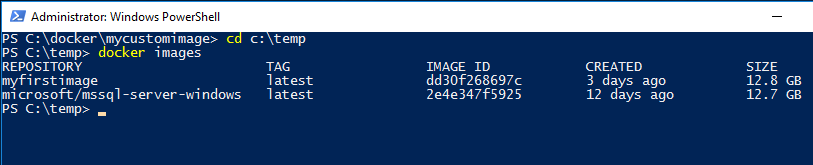
What I’ve done is created a custom image following the instructions here. Here’s my custom image: –

dockercustomimage

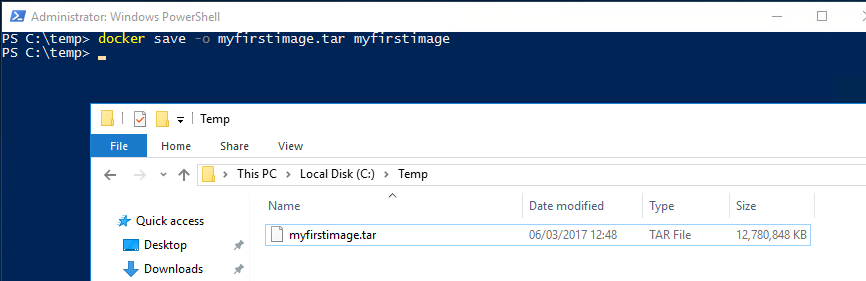
What I’m going to do now is save my custom image to a location [C:\temp] on my host server. So I’ll run: –

docker save -o myfirstimage.tar myfirstimage

N.B. – I’m saving the file as a .tar as this seems to be the format that works best for loading the image. I’ve tried exporting to other formats (.zip) but it always seems to become corrupt. The .tar format has always worked for me so I’ll stick with it.

Now the SQL images aren’t the smallest so this could take some time. But once it’s complete you’ll see the save .tar file: –

dockersavedimage

This can now be copied over to another server running the Docker engine and loaded into the local registry by running:-

docker load -i myfirstimage.tar

dockerloadimage

This will take some time but once it’s complete the exported image will be available in the server’s Docker registry. So that image was built on one server, exported and then loaded on another server. It’s an easy way to share images without having to push up to the Docker Hub.

By doing this you can ensure that every one of your team is using the same configured instance of SQL Server. Hopefully an end to “well it worked on my machine”…

Thanks for reading!

Viewing container logs

I’ve been going over some demos for a presentation that I’ll be giving this year and I thought I’d write this quick post about something that keeps catching me out…


…but first, a bit of shameless self promotion. I’ll be giving my session on an Introduction to SQL Server & Containers at the following events this year:-

SQL Saturday Iceland on the 18th of March
SQLBits on the 8th of April
SQL Saturday Dublin on the 17th of June

Really looking forward to all three events, containers are a technology that I’ve become quite a fan of and I’m looking forward to sharing what I’ve learnt. So if you’re about at these events come and give my session a visit! 🙂


Anyway as I was running through my demos and building containers I was running the following code: –

docker run -d -p 15999:1433 --name testcontainer microsoft/mssql-server-windows

run-container

All looks good, apart from when I go to check to see if the container is running: –

view-container

I have to run the docker ps command with the -a flag (to show all containers, the default is to only show running containers). Which means my container isn’t running, something’s gone wrong.

So to see what’s happening I can run the docker logs command to see what’s up: –

container-accept-eula

ARGH! I forgot to specify -e ACCEPT_EULA=Y when building the container! This has caught me out more times than I care to admit but it’s cool that there’s a simple command that I can run in order to see what the issue is.

Or I could just build a custom image from a dockerfile and specify -e ACCEPT_EULA=Y in that and not have to worry anymore. I’ve detailed how to do that here.

Thanks for reading!

Creating SQL Containers from a Dockerfile

I’ve been playing around with SQL containers on Windows Sever 2016 a lot recently and well, building empty SQL containers is all fine and dandy but it’s kinda missing the point. What containerization allows you to do is build custom images that are designed for your environment, say with a bunch of databases ready to go (for QA, dev, testing etc.) from which containers can be built in a very short amount of time.

So if you need a new SQL instance spun up for testing? Having a pre-built custom image ready will allow you to do that very rapidly and the simplest way to build a custom image is from a dockerfile.

So let’s go through the process.

This post assumes that you have the docker engine already installed on Windows Server 2016. If you haven’t set that up you can following the instructions on how to do it here.

I’m also going to be running all my powershell commands in a remote session, if you don’t know how to set that up the instructions are here.

First thing to do is verify that your docker engine is running:-

docker version

dockerversion

And that you have a vanilla SQL Server image available:-

docker images

dockerimages

If you don’t you can follow the instructions here to pull an image from the docker repository here.

Now create a directory on your server to hold your dockerfile and database files. I’m going to create C:\Docker\Demo

mkdir c:\docker\demo

Ok, your server is all good to go. What I’m going to do now is:-

  • jump onto my local instance of SQL 2016
  • create a few databases
  • shutdown my instance of SQL
  • copy the database files to my server
  • create a dockerfile to build an SQL container image with those databases available
  • build a new SQL container

Ok, so in my instance of SQL I’m going to run:-

USE [master]
GO

CREATE DATABASE [DatabaseA] ON PRIMARY 
(	NAME		= N'DatabaseA'
	,FILENAME	= N'C:\SQLServer\SQLData\DatabaseA.mdf'
	,SIZE		= 8192 KB
	,MAXSIZE	= UNLIMITED
	,FILEGROWTH = 65536 KB) 
LOG ON 
(	NAME		= N'DatabaseA_log'
	,FILENAME	= N'C:\SQLServer\SQLLog\DatabaseA_log.ldf'
	,SIZE		= 8192 KB
	,MAXSIZE	= 2048 GB
	,FILEGROWTH = 65536 KB)
GO

CREATE DATABASE [DatabaseB] ON PRIMARY
(	NAME		= N'DatabaseB'
	,FILENAME	= N'C:\SQLServer\SQLData\DatabaseB.mdf'
	,SIZE		= 8192 KB
	,MAXSIZE	= UNLIMITED
	,FILEGROWTH = 65536 KB) ,
(	NAME		= N'DatabaseB_Data'
	,FILENAME	= N'C:\SQLServer\SQLData\DatabaseB_Data.ndf'
	,SIZE		= 8192 KB
	,MAXSIZE	= UNLIMITED
	,FILEGROWTH = 65536 KB)
LOG ON 
(	NAME		= N'DatabaseB_log'
	,FILENAME	= N'C:\SQLServer\SQLLog\DatabaseB_log.ldf'
	,SIZE		= 8192 KB
	,MAXSIZE	= 2048 GB
	,FILEGROWTH = 65536 KB)
GO

CREATE DATABASE [DatabaseC] ON PRIMARY 
(	NAME		= N'DatabaseC'
	,FILENAME	= N'C:\SQLServer\SQLData\DatabaseC.mdf'
	,SIZE		= 8192 KB
	,MAXSIZE	= UNLIMITED
	,FILEGROWTH = 65536 KB) 
LOG ON 
(	NAME		= N'DatabaseC_log'
	,FILENAME	= N'C:\SQLServer\SQLLog\DatabaseC_log.ldf'
	,SIZE		= 8192 KB
	,MAXSIZE	= 2048 GB
	,FILEGROWTH = 65536 KB)
GO

Really simple code just to create three databases, one (DatabaseB) has an extra data file as I want to show how to add databases with multiple data files to a SQL container via a docker file.

Once the databases are created, shutdown the instance either through the SQL config manager or run:-

SHUTDOWN WITH NOWAIT

N.B.- This is my local dev instance! Do not run this on anything other than your own dev instance!

Next thing to do is create our dockerfile. Open up your favourite text editor (mine is Notepad++, I’ve tried others but it simply is the best imho) and drop in:-

# using vNext image
FROM microsoft/mssql-server-windows

# create directory within SQL container for database files
RUN powershell -Command (mkdir C:\\SQLServer)

#copy the database files from host to container
COPY DatabaseA.mdf C:\\SQLServer
COPY DatabaseA_log.ldf C:\\SQLServer

COPY DatabaseB.mdf C:\\SQLServer
COPY DatabaseB_Data.ndf C:\\SQLServer
COPY DatabaseB_log.ldf C:\\SQLServer

COPY DatabaseC.mdf C:\\SQLServer
COPY DatabaseC_log.ldf C:\\SQLServer

# set environment variables
ENV sa_password=Testing11@@

ENV ACCEPT_EULA=Y

ENV attach_dbs="[{'dbName':'DatabaseA','dbFiles':['C:\\SQLServer\\DatabaseA.mdf','C:\\SQLServer\\DatabaseA_log.ldf']},{'dbName':'DatabaseB','dbFiles':['C:\\SQLServer\\DatabaseB.mdf','C:\\SQLServer\\DatabaseB_Data.ndf','C:\\SQLServer\\DatabaseB_log.ldf']},{'dbName':'DatabaseC','dbFiles':['C:\\SQLServer\\DatabaseC.mdf','C:\\SQLServer\\DatabaseC_log.ldf']}]"

What this file is going to do is create a container based on the lines of code in the file and then save it as a new custom image (the intermediate container is deleted at the end of the process). Let’s go through it line by line…

FROM microsoft/mssql-server-windows
This is saying to base our image on the original image that we pulled from the docker hub.

RUN powershell -Command (mkdir C:\\SQLServer)
Within the container create a directory to store the database files

COPY DatabaseA.mdf C:\\SQLServer…
Each one of these lines copies the database files into the container

ENV sa_password=Testing11@@
Set the SQL instance’s SA password

ENV ACCEPT_EULA=Y
Accept the SQL Server licence agreement (your container won’t run without this)

ENV attach_dbs=”[{‘dbName’:’DatabaseA’,’dbFiles’:[‘C:\\SQLServer\\DatabaseA.mdf’…
And finally, attach each database to the SQL instance


Name the file dockerfile (no extension), then copy it and the database files to your server into the directory created earlier.

demodirectory

Now we can build our custom image. So in your powershell command window, navigate to the directory with the dockerfile in and run:-

docker build -t demo .

This will build a custom docker image running SQL with our databases. The -t flag will tag the image as demo and don’t forget to include the . as this tells the docker engine to look for a file in the directory called dockerfile.

Once that’s complete, verify the image has been created:-

docker images

dockercustomimage

Awesome stuff! We have our custom image. So let’s create a container from it:-

docker run -d -p 15788:1433 --name democontainer demo

This will create and run a new container based off our image with the host server’s port 15788 mapped to the port 1433 within the container. Once that’s complete, verify that the container is running:-

docker ps

dockercontainer

Haha! Cool! Also, how quick was that??

We have our container up and running. Let’s connect to it remotely via SSMS and check that the databases are there. So use the host server’s IP address and the custom port that we specified when creating the container:-

connectssmstocontainer

And then have a look in object explorer:-

verifydatabasesincontainer

And there you have it. One newly built SQL container from a custom image running our databases.

Imagine being able to spin up new instances of SQL with a full set of databases ready to go in minutes. This is main advantage that container technology gives you, no more waiting to install SQL and then restore databases. Your dev or QA person can simply run one script and off they go.

I really think this could be of significant benefit to many companies and we’re only just starting to explore what this can offer.

Thanks for reading!

Presenting with SQL Server Management Studio

Short one this week as it’s the usual madness on the lead up to Xmas!

One of the cool things that was mentioned in the AMA that the SQL Server Team did back in November was a quick and easy way to setup SSMS for presenting.

N.B. – This only works with v17.0 which can be grabbed in the usual place.

Load up SSMS and hit Ctrl + Q to take you to the quick launch bar. Then type PresentON and that’s it! You’re setup for using SSMS whilst presenting!

So here’s a screen shot of SSMS with a simple query in it:-

presenting1

And this is the same query after running PresentON:-

presenting2

To reverse the process, simply type PresentOFF into the quick launch bar!

From what I can see, the main difference is that the text size has been taken up to 14 from 10, which may not be enough but it’s a start. Be pretty cool if, in a future version, you could customise this!

Of course, if you don’t have v17.0 (and I must admit, the part about it not being recommended for production use is a bit worrying) you can always follow Paul Randal’s guide on how manually setup SSMS for presenting and then save it as a template.