Summary of my Container Series


All my blogs posts about running SQL Server in a Docker container have been collated into The SQL Server and Containers Guide.

If you’re working with SQL Server and want to get started with containers, check it out!


Getting Started

Running your first container

Building a custom image

Pushing images to the Docker Hub

Using WinDocks to run earlier versions of SQL Server in Containers

Creating SQL Containers from a Dockerfile

Running Linux Containers on Windows 10

SQL Server in Kubernetes on Docker for Windows


SQL Server 2019

Running SQL Server 2019 CTP in a Docker container

Displaying the tags within the SQL Server docker repository

Running SQL Server containers as non-root

Using volumes in SQL Server 2019 non-root containers


Webinars

GroupBy Conference – SQL Server & Containers

24HOP – Manage SQL Server in Linux Containers using dbatools


Docker Commands

Viewing container logs

Sharing Container Images

Copying files from/to a container

Parsing Docker Commands

Connecting a powershell session to a container

Automatically restarting Docker Containers

The Docker kill command

Docker Debug


Configuration & Administration

Attaching databases via a Dockerfile

Attaching databases via a Dockerfile – UPDATE

SQL Containers and Networking

Portainer – A GUI for Container Administration

Changing default location of docker containers

Changing the location of docker named volumes

Remotely Administering the Docker Engine on Windows Server 2016

Building a container running SQL Server 2014 SP2

Automating installation of Docker & SQL command line tools on Linux

Limiting resources available to containers

Enabling the SQL Server Agent in Linux Containers

Default resource limits for Windows vs Linux containers in Docker Desktop

Using Windows stored credentials to connect to SQL in containers

Loopback available for Windows Containers

Setting up SQL Server replication in containers

Using the GitHub Package Registry to store container images

Updating SQL Server container memory limits on the fly

Running a SQL Server container from scratch

Using environment variable files for SQL Server in containers

Building a Docker image from a Github repository


Docker Compose

Creating SQL Server containers with Docker Compose

SQL Server & Docker Compose


Persisting Data Series

Persisting data in docker containers – Part One

Persisting data in docker containers – Part Two

Persisting data in docker containers – Part Three

Using docker named volumes to persist databases in SQL Server


Docker Swarm

Running SQL Server in Docker Swarm

Using Secrets in Docker Swarm for SQL Server

Persisting data for SQL Server on Docker Swarm with Portworx


Kubernetes

A shell for working with Kubernetes

Running SQL Server in Kubernetes on Azure Container Services – LEGACY

Running SQL Server in Kubernetes on Azure Kubernetes Services (AKS)

Exploring the Kubernetes dashboard in Azure Container Services

Configuring Persistent Storage for SQL Server in Azure Kubernetes Services

Changing the port for SQL Server in Azure Kubernetes Services

Azure Kubernetes Service Error – LoadBalancer type service external IP stays pending

Creating a custom kubectl plugin to connect to SQL Server in Kubernetes

Chaos engineering for SQL Server running on AKS using KubeInvaders

Converting SQL Server docker compose files for Kubernetes with Kompose

Use port forwarding to access SQL Server running in Kubernetes

Adjusting pod eviction time in Kubernetes

Differences between using a Load Balanced Service and an Ingress in Kubernetes

A storage failover issue with SQL Server on Kubernetes

Overcoming a storage failover issue with SQL Server on Kubernetes using Portworx


Helm

Deploying SQL Server to Kubernetes using Helm

Creating custom SQL Server Helm charts

Using Github as a repository for SQL Server Helm Charts

Decoding Helm Secrets

A kubectl plugin to decode secrets created by Helm


Azure

Pushing SQL Server images to the Azure Container Registry

Deploying Azure Container Instances

Running a SQL Server Azure Container Instance in a virtual network

Creating SQL images in Azure with ACR Build – Part One

Creating SQL images in Azure with ACR Build – Part Two


Terraform

Deploying SQL Server to an Azure Container Instance using Terraform – Part One

Deploying SQL Server to an Azure Container Instance using Terraform – Part Two


Raspberry Pi

Running Azure SQL Database Edge on a Raspberry Pi

Building a Raspberry Pi cluster to run Azure SQL Edge on Kubernetes

Updating my Kubernetes Raspberry Pi Cluster to containerd

Provisioning storage for Azure SQL Edge running on a Raspberry Pi Kubernetes cluster


External Articles

Running SQL Server Containers on Windows Server 2016 Core

Refreshing SQL Containers automatically using Watchtower

Streamlining QA with SQL Server Containers

Monday Coffee 2017-03-13

Less than a week to go until SQLSaturday Iceland now, it’s going to be a busy couple of months for me but am looking forward to it. I’ll get my slides and demos uploaded here at some point.

I’ve been debating whether or not to do demos live when I’m speaking. In the past I’ve everything live but certain presentations make that a little risky. I’ve done lightening talks where I’ve performed the demo then and there but that’s because I know that the risk of something going wrong is minimal. I’m working on a local instance of SQL and am not depending on anything else (e.g. – an internet connection).

It also depends on what the demo actually is, if it’s code based then running it live means that you can talk about the code but if the code is simple and the demo is more about the process, running it live really doesn’t add anything to the table.

For my session on containers, the demos will be videos. This is in part to reduce the risk of something going wrong but mainly it’s because the code is very simple, what’s happening when I’m running it is what I want to talk about. A video demo means that I don’t have to concentrate on typing the code (you really should never type in demos, copy & paste) and can talk about what’s happening.

Doing it this way will be beneficial as I can focus entirely on the audience and not be staring at my screen. I want to engage with the audience as much as possible and make the session as good as it can be.

Have a good week!

Friday Reading 2017-03-10

Just over a week to go until SQL Saturday Iceland! Really looking forward to presenting my session and then I have four days to explore!

Building the Terminator Vision HUD in HoloLens
Because why not?

The $650 SQL Saturday
Steve Jones talks about running a SQLSat event on a budget

Azure Marketplace
Can someone find the Windows Server 2016 Core image please?

xp_cmdshell – Naming, Shaming and Taming
Setting up a SQL Server Audit to capture xp_cmdshell usage

TEN BUCKS! TEN FREAKIN’ BUCKS! ZERO W AFTERMATH
Old news really but have you all got your Raspberry Pi Zero W?

Also – v 7.3.3 – Fix CIA Hacking Notepad++ Issue

Enjoy the rugby and have a good weekend!

Exporting Container Images

I’ve already covered how to push images to the Docker hub here but what if we only want to share a custom image in-house?

Well, it’s really simple to do by using the docker save and load commands. I’ll run through the process.

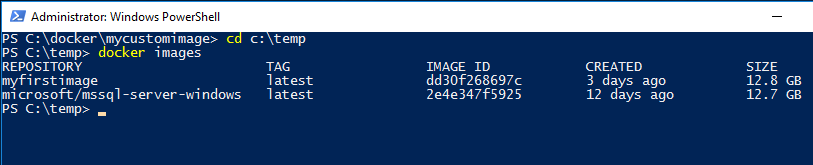
What I’ve done is created a custom image following the instructions here. Here’s my custom image: –

dockercustomimage

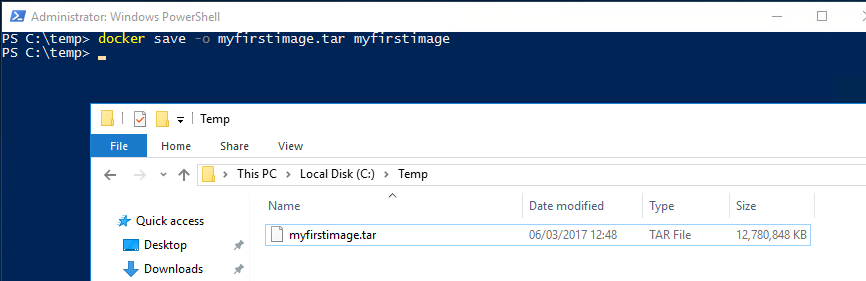
What I’m going to do now is save my custom image to a location [C:\temp] on my host server. So I’ll run: –

docker save -o myfirstimage.tar myfirstimage

N.B. – I’m saving the file as a .tar as this seems to be the format that works best for loading the image. I’ve tried exporting to other formats (.zip) but it always seems to become corrupt. The .tar format has always worked for me so I’ll stick with it.

Now the SQL images aren’t the smallest so this could take some time. But once it’s complete you’ll see the save .tar file: –

dockersavedimage

This can now be copied over to another server running the Docker engine and loaded into the local registry by running:-

docker load -i myfirstimage.tar

dockerloadimage

This will take some time but once it’s complete the exported image will be available in the server’s Docker registry. So that image was built on one server, exported and then loaded on another server. It’s an easy way to share images without having to push up to the Docker Hub.

By doing this you can ensure that every one of your team is using the same configured instance of SQL Server. Hopefully an end to “well it worked on my machine”…

Thanks for reading!

Monday Coffee 2017-03-06

Last week Docker announced the availablity of Docker Enterprise Edition. The existing version of Docker that I’ve been using has now been renamed to the Docker Community Edition.

So what does this mean for us Windows people hacking around with Docker on our local Windows 10 boxes? Very little it seems. The Community Edition will have access to the full Docker platform and (if needed) can be added to with paid-for addons from the Docker cloud. I haven’t had a chance to look over all the paid offerings but they seem to be mainly cloud based services, so I doubt I’ll need them (at the moment).

The Enterprise Edition is interesting as it raises the question, is Docker suitable for SQL Server in production environments? Now, I’m a big fan of Docker and have been using it extensively in my dev/test environments but I’m still not sure about production.

If you think about the advantages running SQL Server in containers brings; simple to setup, quick to deploy; are they relevant to production? I want to spend time setting up my 24/7 critical SQL Server instance, speed of build doesn’t really matter.

There may be other advantages that Docker Enterprise Edition brings so I’m definitely going to check it out but there’ll have to be something pretty good in there to convince me SQL Server containers are for production.

Have a good week!