Friday Reading 2017-09-01

Going to be a busy few weeks as conference season gets into full swing. Really looking forward to the next couple of months, lots to do and lots of places to visit. 🙂

Anyway this week I’ve been reading/watching…

HASSP-2 Has Returned to Earth!
The second launch of the really cool High Altitude SQL Server Project took place last Saturday. Drew Furgiuele (t) talks about the day and the results

HASSP-2 – Side Facing Camera Footage
Pretty cool footage on youtube from one of the cameras

Offline Microsoft Documentation? Download it!
Cláudio Silva (t) shows us how to download MS docs with PoSH

Creating Continuous Integration Build Pipelines With Jenkins, Docker and SQL Server
Chris Adkin (t) shows us how to build CI pipelines utilising SQL Server containers

SQL Server on Linux Engineering Town Hall: Introduction to SQL Server on Linux in Docker Containers
The next MS Town Hall focuses on SQL Server running in Linux containers. Interested to see the best practices section

Kubernetes Meets High-Performance Computing
Cool post discussing the challenges of running high performance computing workloads with Kubernetes

Have a good weekend!

Running SQL Server in Kubernetes on Azure Container Services

NOVEMBER 2017 UPDATE – Microsoft has now released a new version of Azure Container Services (AK) specifically for Kubernetes. I’ve blogged about it here


I’ve been meaning to get to grips with Kubernetes for a while now but I have to admit, I was completely overwhelmed when I first approached the subject. There’s so much information and documentation out there, it’s difficult to know where to start.

What really helped was James Anderson’s (t) excellent post on Orchestrating SQL Server with Kubernetes

After working through the instructions in James’ post and playing with Minikube for a while, I wanted to try setting up and configuring a larger Kubernetes cluster.

Back in July Microsoft announced Azure Container Services (ACS) so I started learning how to spin up SQL Server containers in a Kubernetes cluster in that environment.

This post will detail how to build a three node Kubernetes cluster, running a SQL Server container in ACS.

In order to follow the steps in this post you will need Bash on Windows installed and a Azure account

The first thing to do is install azure-cli: –

echo "deb [arch=amd64] https://packages.microsoft.com/repos/azure-cli/ wheezy main" | \
     sudo tee /etc/apt/sources.list.d/azure-cli.list
	 
sudo apt-key adv --keyserver packages.microsoft.com --recv-keys 417A0893
sudo apt-get install apt-transport-https
sudo apt-get update && sudo apt-get install azure-cli	 

Confirm the install: –

az --version

Now log in to Azure by running the following: –

az login

Bit of an odd login process imho. Copy the link into a web browser and then enter the code when prompted. You’ll then be taken to the Azure login page, enter your details and then close the page when prompted.

I don’t really understand why a username and password aren’t enough but anyway, once logged in we can then start building a cluster.

First thing to create is a resource group to hold all the objects in the cluster: –

az group create --name apresgroup --location westeurope

Now the cluster can be created.

The following script will create a three node Kubernetes cluster. With one linux master node and two windows nodes (where we will run our SQL container).

To setup the cluster run (this will take some time as it’s creating VMs and all the other object required for the cluster): –

az acs create --orchestrator-type=kubernetes \
    --resource-group apresgroup \
    --name=myK8sSQLCluster \
    --agent-count=2 \
    --generate-ssh-keys \
    --windows --admin-username andrew \
    --admin-password Testing1122

Great stuff, we have a three node cluster up and running in ACS! The next thing to do is install kubectl which is a command line interface for managing Kubernetes clusters.

To install kubectl run: –

az acs kubernetes install-cli

Verify the install (don’t worry about the error): –

kubectl version

Cool, so far so good. Next thing to do is connect kubectl to the cluster.

To allow kubectl to connect to cluster: –

az acs kubernetes get-credentials --resource-group=apresgroup --name=myK8sSQLCluster

Ok, we’re connected. Let’s have a look at the cluster nodes.

To view the nodes in the cluster run:-

kubectl get nodes

Excellent we have our three node cluster, our master and two agents. Now we can build our container running SQL Server.

To do this we will create a yaml file locally which will contain the configuration of our container.

So create a yaml file that will spin up the containers in a Kubernetes pod: –

nano sqlserver.yaml

And enter the following into the file: –

apiVersion: v1
kind: Pod
metadata:
  name: sqlserver
  labels:
    name: sqlserver
spec:
  containers:
  - name: sqlserver1
    image: microsoft/mssql-server-windows:latest
    ports:
    - containerPort: 1433
    env:
    - name: SA_PASSWORD
      value: "Testing1122"
    - name: ACCEPT_EULA
      value: "Y"
  nodeSelector:
    beta.kubernetes.io/os: windows

This will create one pod which will have one container running SQL Server 2017. We can use the file to spin up the pod with the container by running: –

kubectl apply -f sqlserver.yaml

The pod will be created quite quickly but it takes a bit of time for the container within it to be spun up (9 minutes in my setup). This is probably due to the fact that the process has to pull the container image down from the docker hub.

To check the status of the pod/container run: –

kubectl get pods

Once the container has been spun up, the pod will have a status of running: –

Great stuff! All looks good! We have a pod up and running. But is SQL Server?

The following script will check that SQL is running within the pod: –

kubectl logs sqlserver

Looks pretty good to me! SQL is up and has accepted the config value within our yaml file to change the SA password. But how are we going to connect to it?

What we need to do now is define a Kubernetes service. A service is a level of abstraction over pods to allow connections to the containers within the pods regardless of where the pod is located in the cluster. So let’s setup a service.

To do this, create a yaml file locally to define the service: –

nano service.yaml

Enter the following code into the yaml file: –

kind: Service
apiVersion: v1
metadata:
  name: sqlserver-service
spec:
  ports:
  - name: sqlserver
    port: 1433
    targetPort: 1433
  selector:
    name: sqlserver
  type: LoadBalancer

Note the type of service we’re creating. A type of LoadBalancer does exactly what you expect. It creates a Azure Load Balancer to allow external connections into the pods mapped to the service.

Also note that with the all these objects I’m not trying to do anything fancy with the ports that they’re listening on. I’m setting all the ports to the SQL Server default of 1433.

OK, run the following to create the service: –

kubectl create -f service.yaml

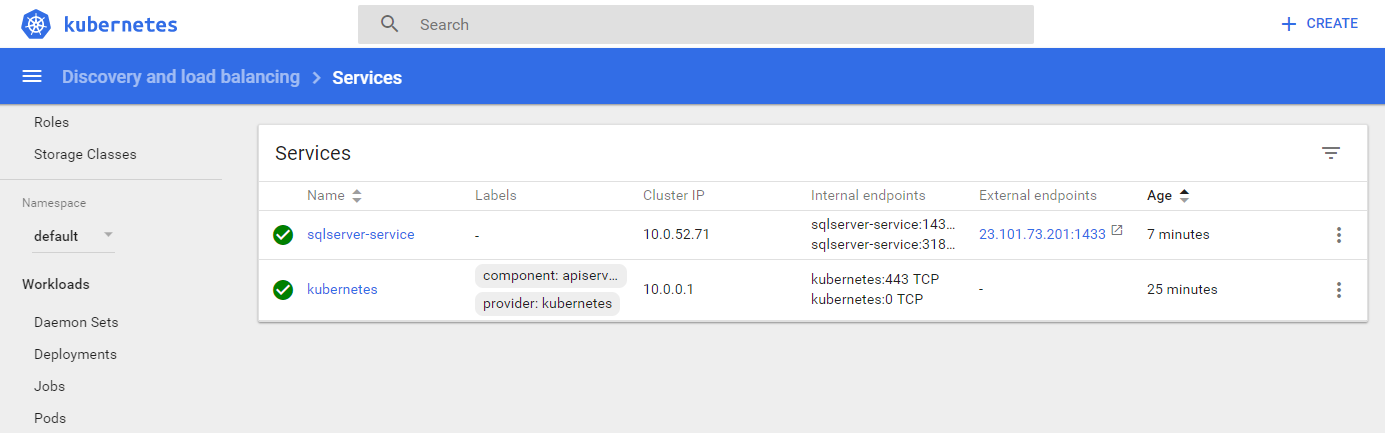
Now we’re waiting for the service to be assigned an external IP that we can use to connect to SQL Server.

To check the status of the service: –

kubectl get svc

After a period of time (7 minutes in my setup) the service will be assigned an external IP address: –

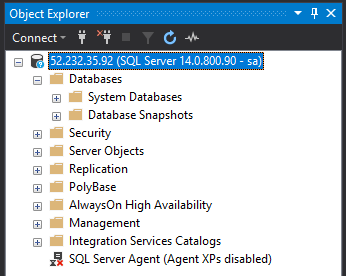
Excellent stuff! We can now drop that external IP into SSMS to connect to SQL: –

Enter in the sa username and password that we defined in the yaml file used to create the pod and boom!

We’re connected 🙂

So that’s how to setup SQL Server running in a container on a Kubernetes cluster in Azure Container Services. Phew!

This is a really simple setup, there’s so much more to explore with Kubernetes and ACS but I hope that gives you a good grounding to be able to play around with this yourself.

Hopefully in the next few weeks I’ll be able to write a couple more posts about exploring what this technology stack has to offer.

By the way, if you don’t want to leave everything running after following these steps there’s a simple command that will delete all the objects created: –

az group delete --name apresgroup

Thanks for reading!

Monday Coffee: Follow the instructions

Last week I was working on an upgrade and ran into a few issues. Whilst waiting for the company’s support team to come back to me I had a few attempts on my own to resolve the problem but had no luck.

When the support team came back it didn’t take them long to uncover the problem, me.

I’d tried to be a bit clever at the start of the upgrade and made a change to the system that I thought would be of no impact. As soon as that change was reversed, surprise! The issue was resolved.

After eating quite a lot of humble pie I got to thinking about my problem solving process. To be honest, I’d forgotten about the initial change that I’d made and spent too long focusing on other areas. What I should have done is gone back to the start of the process, detailed each step I’d taken and what impact those steps could have had.

Now, I was going to give the advice of “Always follow the instructions” but, I’m a tinkerer by nature and not likely to change.

So with that in mind, here’s the advice I’m going to give to any fellow tinkerers out there: –

  • Read the instructions
  • Note any changes that you want to make
  • Test those changes on a development system
  • Does the system still work?
  • Roll back those changes
  • Does the system still work?

Hopefully following that advice will prevent you (and me) from repeating the mistake that I made last week.

By noting down any changes that you’ve made, when you encounter issues you will know where to start. Sounds simple huh? Yeah, I know…

Still not going to stop tinkering though 🙂

Have a good week!

Friday Reading 2017-08-25

Great week this week as I’ve been selected to speak at 4 of the SQL Relay events in October! Really chuffed with that as it’s a whole week of talking about SQL Server & Containers! Anyway this week I’ve been reading…

The Trillion Row Table
What happens when you load one trillion rows into a table in SQL Server?

Docker images for custom SQL Server Installations
James Anderson (t) shows us how to run a SQL Server in a container with the Advanced Analytics features enabled. I was asked about this awhile ago and it really cool to see that James has worked out how to get it setup.

The Evolution of Container Usage at Netflix
Netflix launches one million container per week!

HASSP-2 Launch Details
Details of the second launch of SQL Server in SPAAAAAAAAAAAAAACE! (well, nearly)

Your Serverless Raspberry Pi cluster with Docker
Cool article about running Docker in Swarm mode on multiple Raspberry Pis

Have a good weekend!

Monday Coffee: Posting error messages

I posted a couple of messages on twitter over the weekend giving any new bloggers advice that was given to me when I was starting out writing and struggling to find topics: –

William Durkin (b|t) then added: –

This is a really really good tip. I’m very guilty of posting screenshots of errors: –

When really I should be doing this: –

Msg 50000, Level 16, State 1, Line 1
This is an example error

If you’re writing about an error you’ve encountered and how you fixed it, of course you should quote the error instead of taking a screenshot. People won’t just randomly find your blog, they’ll be googling the error and they won’t come across your blog if it’s only in a screenshot.

Have a good week!