Friday Reading 2017-09-15

Excited for next week as I’m heading down to Cork to speak at the User Group there. Over 3 years in Ireland and I haven’t been yet, it’s about time.

This week I’ve been reading…

What does this little check box do?
Monica Rathbun (t) explains what checking the query governor to prevent long running queries tick box does

Your PASS Summit 2017 Speaker Idol Contestants Are…
Denny Cherry (t) details the line-up for this year’s Speaker Idol competition at Pass Summit

Sneak peek #3: Windows Server, version 1709 for developers
Official MS blog post explaining that the new insider version of Windows Server allows linux containers to run, very cool!

Running Ubuntu Containers with Hyper-V Isolation on Windows
And here’s a step-by-step guide on how to set that up!

Have a good weekend!

Creating Hyper-V VMs with Powershell

This month’s T-SQL Tuesday is hosted by Rob Sewell (b|t) and surprise, surprise, it focuses on Powershell 🙂 so I thought I’d write a quick post on how I’ve streamlined a pretty much weekly task that I perform, creating VMs.

I’m constantly spinning up VMs and then blowing them away. Ok, using the Hyper-V GUI isn’t too bad but when I’m creating multiple machines it can be a bit of a pain.

So here’s the details on the script I’ve written, hopefully it could be of some use to you too.

First check that your machine has the Hyper-V powershell module installed: –

Get-Module

If it’s not installed, you can either enable through the GUI: –

Or via script: –

Install-WindowsFeature -Name Hyper-V-PowerShell

N.B. – You won’t need to do this if, like me, you’re working with Hyper-V Server 2012 R2

Then you’re good to go creating VMs! All you need is the ISO for the OS that you want the machine to run.

Here’s the code: –

$BootDevice     = Read-Host -Prompt "Set VM boot device"
$ServerName     = Read-Host -Prompt "Enter VM Name"
$VMGeneration   = Read-Host -Prompt "Enter VM Generation"
[int]$VMMemoryGB= Read-Host -Prompt "Set VM Memory (GB)"
$VMCPU          = Read-Host -Prompt "Set Number of CPUs"
$NetworkAdapter = Read-Host -Prompt "Set Network Adapter"
$VHDPath        = Read-Host -Prompt "Set VHD Path"
[int]$VHDSizeGB = Read-Host -Prompt "Set VHD Size (GB)" 
$SecureBoot     = Read-Host -Prompt "Secure Boot On/Off"
$ISOPath        = Read-Host -Prompt "Set ISO Path"


$VMMemory  = ((($VMMemoryGB*1024)*1024)*1024)
$VHDSize   = ((($VHDSizeGB*1024)*1024)*1024)


New-VM -BootDevice $BootDevice -Name $ServerName -Generation $VMGeneration -MemoryStartupBytes $VMMemory -SwitchName $NetworkAdapter -NewVHDPath $VHDPath -NewVHDSizeBytes $VHDSize

Set-VMProcessor $ServerName -Count $VMCPU

Set-VMFirmware -VMName $ServerName -EnableSecureBoot $SecureBoot

Set-VMDvdDrive -VMName $ServerName -Path $ISOPath

Either copy the script here or download it from my GitHub.

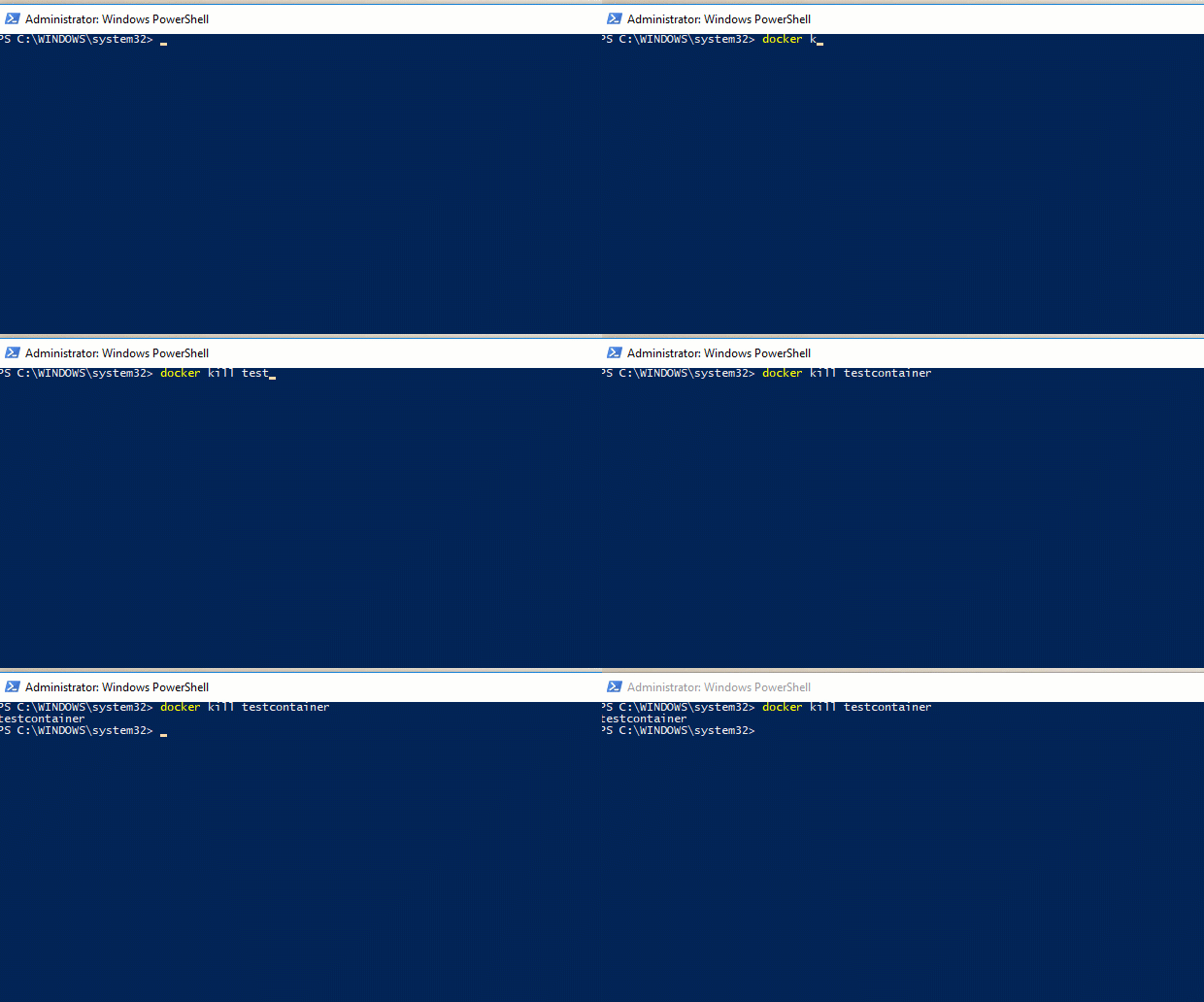
Now, I’ve got this saved on my Hyper-V host as CreateNewVM.ps1 and I execute it through a remote powershell session. Here it is in action: –

Thanks for reading!

Friday Reading 2017-09-08

It’s going to be a fun weekend as it’s SQLSaturday Cambridge tomorrow! Haven’t been to this event before, it looks like it’s kinda big. I’ve got the slot just after lunch so hopefully everyone will manage to stay awake during my presentation 🙂

This week I’ve been reading…

Please Don’t Do This!
Monica Rathbun (t) asks us all not to leave the default fill factor setting at zero

Containers are not VMs
Old post on the Docker blog detailing the differences between containers and VMs

Why I joined Heptio
Dave Cheney (t) talks about virtualisation, containers and orchestration

DBA Fundamentals September 2017
Shane O’Neill (t) details what sessions the DBA Fundamentals VG has in September

GroupBy – September Sessions
The second round of GroupBy webinars in September is today. I can’t make it as I’ll be travelling but bookmarked and will come back to them.

Have a good weekend!

Exploring the Kubernetes dashboard in Azure Container Services

Last week I went through how to run SQL Server in Kubernetes on Azure Container Services (ACS)

This week I want to explore the built-in Kubernetes dashboard which is available in ACS by default. (N.B. – You will need to have run through the steps in my last post to follow here)

The Kubernetes dashboard is available in a pod but can only be seen by running an additional flag with the kubectl get pods command: –

kubectl get pods --all-namespaces

In order to access the dashboard the kubectl proxy command needs to be run which starts a proxy to the Kubernetes API server:-

kubectl proxy

The dashboard then becomes available at http://localhost:8001/ui

From the dashboard all the objects that were created in my last post can be viewed, such as the pod created (on the main page): –

The nodes of the cluster: –

And the service created in order to access SQL within the pod: –

But not only can existing objects be viewed, new ones can be created.

In my last post I created a single pod running SQL Server, I want to move on from that as you’d generally never just deploy one pod. Instead you would create what’s called a deployment.

The dashboard makes it really simple to create deployments. Just click Deployments on the right-hand side menu and fill out the details: –

Don’t forget to click on Advanced Details and enter in the environment variables required.

At a minimum variables for ACCEPT_EULA (otherwise the container will not run) and SA_PASSWORD (otherwise you will not be able to connect to SQL Server) need to be specified: –

Hit Deploy and then the following screen will show the progress of the deployment: –

The new objects will have a green tick next to them once the deployment is complete: –

The external IP used to connect to SQL within the pod created can be found by clicking on the newly created service (found on the right-hand side menu).

That IP can then be dropped into SSMS (along with the SA username and password set) and boom! A connection to SQL Server running in a Kubernetes pod that was created via a deployment from the dashboard: –

Thanks for reading!

Upcoming speaking events

Back in March I did my first “feature length” presentation at SQL Saturday Iceland

At that point I’d done a few lightening talks and wanted to see if I could move into hour long presentations. I was really nervous doing it but after the first 10 minutes I settled down and really enjoyed presenting.

Since then I’ve done a couple of online webinars, SQL Bits and have started sending abstracts to nearly every SQL event that I can attend.

I was expecting to only get a couple of sessions over the next few months but I have been blown away with the amount of sessions that I have been given.

Here’s the current list (hopefully there’ll be more): –

SQL Saturday Cambridge: 9th of September

Cork SQL User Group: 20th of September

SQL Saturday Holland: 30th of September

SQL Saturday Denmark: 7th of October

SQLRelay
Reading: 9th of October
Leeds: 11th of October
Birmingham: 12th of October
Bristol: 13th of October

If you’re at any of these locations and want to learn about SQL & Containers, come and jump into my session! Even if you can’t make it to my session, I’ll be at the event all day so just come up and say hi! 🙂

Have a good week!