0

Friday Reading 2016-12-02

Another week almost over so here’s a random selection of articles that I’ve been reading…

Changing the SQL Server port on Linux
Denis Gobo goes through the process of changing the port that an instance of SQL Server running on Linux is listening on

Reload a table quickly
Kenneth Fisher talks about how to reload a table’s data. It’s a really nice tip!

Free scripts and tools for SQL Server
Free scripts and tools from the Microsoft Tiger Team for monitoring SQL Server. Run them on a dev instance first!

Docker and Canonical Partner on CS Docker Engine
An agreement between Docker and Canonical means that stable, maintained releases of Docker will be available as snap packages on Ubuntu. Another step into making containers a viable production option (support being available is a big thing).

Capacity Planning Using Performance Data
Excellent article by Erin Stellato on capacity planning, with links to articles by the equally good Glen Berry.

Have a good weekend!

5

SQL Server & Containers – Part Three

This post follows on from Part Two in which we created a custom docker image. We’ll now look at pushing that custom image up to the Docker repository.

Let’s quickly check that we have our custom image, so run (in an admin powershell session):-

docker images

If you’ve followed Part One & Part Two you should see:-

customimagespart3

If you don’t have testimage there, go back to Part Two and follow the instructions. Don’t worry, we’ll wait 🙂

Ok, what we’re going to do now is push that image up to the Docker repository. You’ll need an account for this so go to https://cloud.docker.com/ and create an account (don’t worry, it’s free).
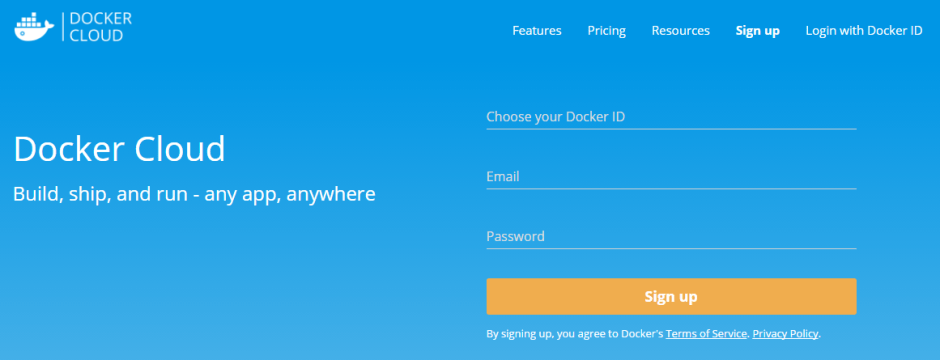
dockercloudsignup

Once you’re signed up and logged in, click on the Repositories link on the left hand side and then click on the Create button (over on the right): –
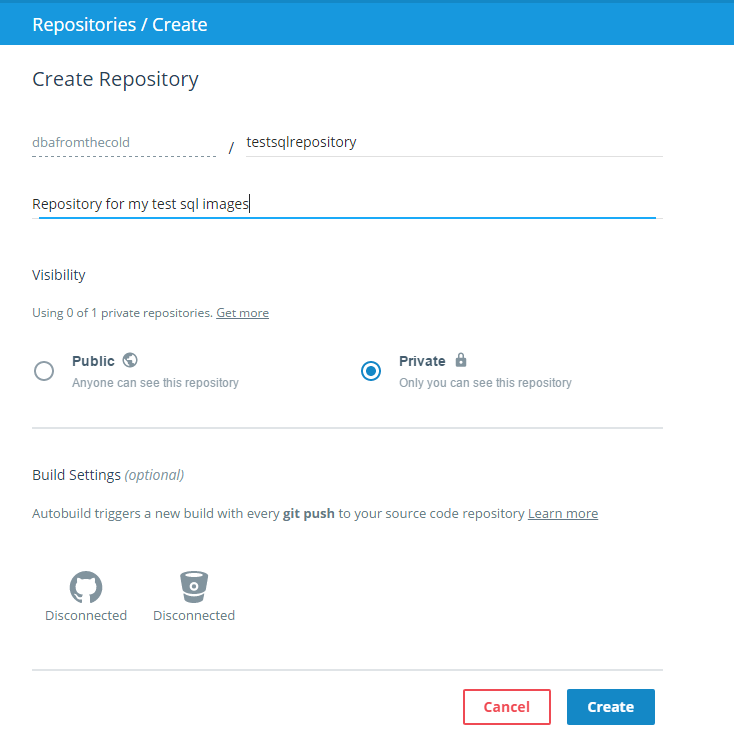
createrepository

Give your repository a name and then click the button to make it private (seriously, otherwise it’ll be available for everyone to download!) and hit Create.

On the next screen you should see the following over on the right:-
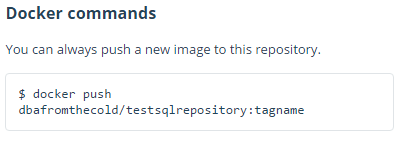
dockercommands

This is the code to push your custom image into your repository! Pretty cool but there’s a couple of things that we need to do first.

Back on your server we need to connect to the repository that we just setup. Really simple to do, just run the following:-

docker login

And enter in the login details that you specified when you created your Docker account.

dockerlogin

Ok, one more thing to do before we can push the image up to the repository. We need to “tag” the image. So run: –

docker tag testimage dbafromthecold/testsqlrepository:v1

N.B.- Replace my repository’s name with your own 🙂

What I’ve essentially done here is rebrand the custom image as a new image that belongs to my repository, tagged as v1. You can verify this by running:-

docker images

customimagespart3_2

You can see that a new image is there with the name of my repository.

Now that that’s all done we can push the image to the repository using the command that was given to us when we created our repository online:-

docker push dbafromthecold/testsqlrepository:v1
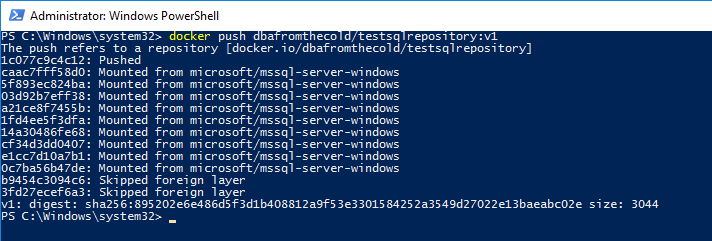
pushimage

Good stuff, we’ve successfully pushed a custom Docker image into our own Docker repository! We can check this online in our repository by hitting the Tags tab:-
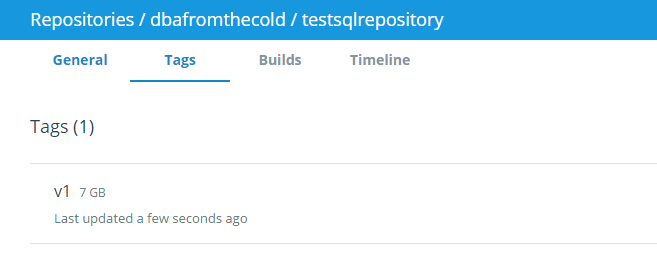
dockerrepository

And there it is, our image in our repository tagged as v1! The reason that I’ve tagged it as v1 is that if I make any changes to my image, I can push the updated image to my repository as v2, v3, v4 etc…

Still with me? Awesome. Final thing to do then is pull that image down from the repository on a different server. If you don’t have a different server don’t worry. What we’ll do is clean-up our existing server so it looks like a fresh install. If you do have a different server to use (lucky you) you don’t need to do this bit!

So first we’ll logout of docker:-

docker logout

dockerlogout

And then we’ll delete our custom images:-

docker rmi testimage dbafromthecold/testsqlrepository:v1

dockerdeleteimages

And now we have a clean docker daemon to test pulling images from the repository! If you have a new server to use, it’s time to jump back in!

So log into your repository:-

docker login

And now we can pull our image down from our repository: –

docker pull dbafromthecold/testsqlrepository:v1
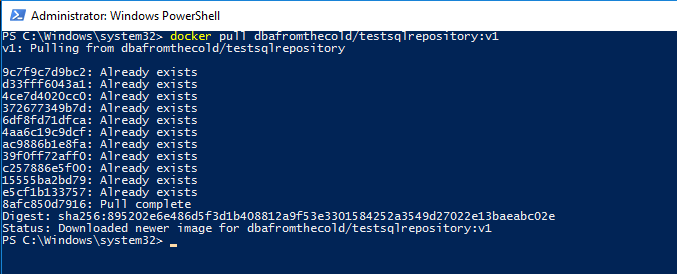
dockerpullimage
N.B.- I’m seeing “Already Exists” as I’m running this on the same server as I created and then deleted the image.

Once that has completed, you can check that the image is there by running:-

docker images

dockerviewimages2

And there’s the image that we’ve pulled from our repository! And we can use it to create containers!

So that’s how you can create a custom image that can be shared across multiple servers!

Hmmm, I can hear you saying (seriously??:-)). That’s all well and good but I’m not using SQL Server vNext in any of my test/dev/qa environment so this isn’t going to be of much use. Is there a way of getting earlier versions of SQL in containers?

Well, would you believe it? Yes there is! I’ll go over one such option in Part Four.

0

Monday Coffee 2016-11-28

MCSA SQL Server 2016

The new SQL 2016 MCSA exams are out and joy of joys, the DBA path no longer requires the Data Warehouse exam! I say this as a DBA who has had limited practical exposure to the topics covered by that exam so it’s always put me off going for the MCSA.

I feel that the MCSA should be a test of the knowledge that you’ve acquired through practical experience, so that the award is recognition of skills earned. Of course there’s going to be areas that you need to study as nobody works with every feature of SQL Server but having limited experience of the entire subject matter (such as mine with the subjects covered in the Data Warehousing path) is another thing completely.

So now I have no excuse to get certified. Well, the exams are still currently in beta so I might wait…

Or will I go for them at all? I’ve never had an employer ask if I have the MCSA and I’ve met lots of people who have various Microsoft certifications but got them not by studying, but by finding the exam questions online and practicing them. To me that vastly devalues the certifications but now that Microsoft no longer the MCM the MCSA (and subsequent MCSE) are all we have.

Looking at these exams and knowing myself, whether I do them or not solely depends on my workload next year. I’ve a few projects lined up so if they go smoothly and if I have time, I’ll go for them (maybe).

0

Friday Reading 2016-11-25

Friday again so before I spend a weekend watching sci-fi movies, I’ll be reading:-

Virtue in the Virtual
Tony Davies discusses containerisation and virtualisation technologies and how they could be used to benefit processes within RedGate

Query wait stats in SQL 2016 SP1 Execution Plans
What a cool feature!

Source Control in SSMS
Ken Van Hyning, Engineering Manager of SQL Server Client Tools at Microsoft discuss enabling TFS integration in SSMS
(N.B.- To get this to work you have to uncomment all the lines in the section specified and then run SSMS as administrator. Interestingly enough this unlocks the dark theme but it’s not complete, the custom areas of SSMS won’t change)

Giving back with code
Steph Locke talks about the reasons why you should make the code you write publicly available

SQL Server v.Next—Linux Preview and Ola Hallengren’s Jobs
Joey D’Antoni talks about SQL Server vNext on Linux and gives a quick intro into using Ola Hallengren’s maintenance scripts

4

SQL Server & Containers – Part Two

This post follows on from SQL Server & Containers – Part 1 and will go through how to build custom container images.

Since Part 1 came out Microsoft has released SQL Server vNext which is available in the Docker repository. I used the SQL 2016 Express image in Part 1 but that has now been deprecated so for this part we’ll use one of the new images.

To see what SQL Server images are available for you to download and run as containers, you can run:-

docker search microsoft/mssql-server

searchdockerrepository

So let’s crack on and build a container.

One word before we start however, this post assumes that you’ve installed the docker engine on a Windows Server 2016 installation as detailed in Part 1. If you haven’t installed the Docker engine, go back to Part 1 and follow the instructions, we’ll meet you here 🙂

As before to create a container, we first need to pull an image from the respository. Let’s go for the vNext image.

Open an admin powershell prompt and run:-

docker pull microsoft/mssql-server-windows

And now we can run a container from the image: –

docker run -d -p 15888:1433 -e sa_password=Testing11 -e ACCEPT_EULA=Y microsoft/mssql-server-windows

runningcontainer

We now have a running SQL Server vNext container. Note that the syntax to run the container has changed slightly from the code we ran in Part 1, the difference being
-e sa_password=Testing -e ACCEPT_EULA=Y instead of –env sa_password=Testing

Details of commands needed to run containers are documented in the Docker Hub which we’ll explore further in Part 3.

What we are going to do now is create a database within that container, then stop the container and create a new image from it.

So connect to the container (server IP address and the port we specified in the run command) and run the following SQL scripts:-

CREATE DATABASE [TESTDB];
GO
USE [TESTDB];
GO
CREATE TABLE dbo.DummyData
(PKID INT IDENTITY(1,1) PRIMARY KEY,
 ColA VARCHAR(10),
 ColB VARCHAR(10),
 ColC DATETIME);
GO
INSERT INTO dbo.DummyData
(ColA,ColB,ColC)
VALUES
(REPLICATE('A',10),REPLICATE('B',10),GETUTCDATE());
GO 10

This container now has a custom database in it with some random data. What we’re going to do now is stop that container and create a new image from it, so first run:-

docker stop b71

N.B. – b71 is the first three digits of my container ID. You’ll need to substitute for your container’s ID

Now that the container is stopped we can create a new image: –

docker commit b71 testimage

This will create a new image from our container called testimage which we can view by running:-

docker images

newimages

Great stuff, we’ve created a custom docker image! What’s really cool now is that we can create containers from that image, exactly the same as we did with the generic original image from the repository:-

docker run -d -p 15666:1433 -e sa_password=Testing22 -e ACCEPT_EULA=Y testimage

Once the command has executed you can connect remotely via SSMS using the server name and the port we specified above. The database that we created in the original image will be there, along with the data that we entered!

This is where containers start to come into their own in my opinion. You can build your own custom images and quickly spin up multiple instances that already have all the databases that you require!

Hmmm, you say. That’s great and all but are those custom images only available on the server that I’ve created them on?

Well, yes and no, but that’s something that’ll be covered in Part Three.