0

Friday Reading 2017-06-16

Been looking forward to this weekend for a while now as it’s SQLSaturday Dublin tomorrow. I did a lightening talk at SQLSat Dublin 2016 and am really chuffed to have a full session this year. There’s a whole bunch of great sessions, Bob and the team always put on a great event. It’s going to be good fun 🙂

Anway, this week I’ve been reading…

Orchestrating SQL Server with Kubernetes
James Anderson (t) shows us how to manage groups of containers with Kubernetes

DB in recovery pending after TLog backup
David Fowler takes us through how he resolved an issue with a db going into recovery pending after a log backup

Simple SQL: Attribute Splitting
Joe Celko takes us through why relational database design is so important

The SQL Hall of Shame
Adam Machanic (t) did a survey on twitter to find out the most useless feature that SQL has ever had. Here’s the results.

OK, I give up. Is Docker now Moby? And what is LinuxKit?
Nice article about Docker’s shift to Moby

Have a good weekend!

1

Changing default location for docker containers

A question that regularly comes up when I talk about containers is, “can you specify where the containers/images live on the host?”

This is a good question as the install for docker is great because it’s so simple but bad because well, you don’t get many options to configure.

It makes sense that you’d want to move the containers/images off the C:\ drive for many reasons such as leaving the drive for the OS only but also, say you have a super fast SSD on your host that you want to utilise? OK, spinning up containers is quick but that doesn’t mean we can’t make it faster!

So, can you move the location of container and images on the host?

Well, yes!

There’s a switch that you can use when starting up the docker service that will allow you to specify the container/image backend. That switch is -g

Now, I’ve gone the route of not altering the existing service but creating a new one with the -g switch. Mainly because I’m testing and like rollback options but also because I found it easier to do it this way.

So the default location for containers and images is: – C:\ProgramData\docker

OK, let’s run through the commands to create a new service pointing the container/images backend to a custom location.

First we’ll create a new directory on the new drive to host the containers (I’m going to use a location on the E: drive on my host as I’m working in Azure and D: is assigned to the temporary storage drive): –

new-item E:\Containers -type directory

Now stop the existing docker service and disable it: –

stop-service Docker

set-service Docker -StartupType Disabled

get-service Docker

Now we’re going to create a new service pointing the container backend to the new location: –

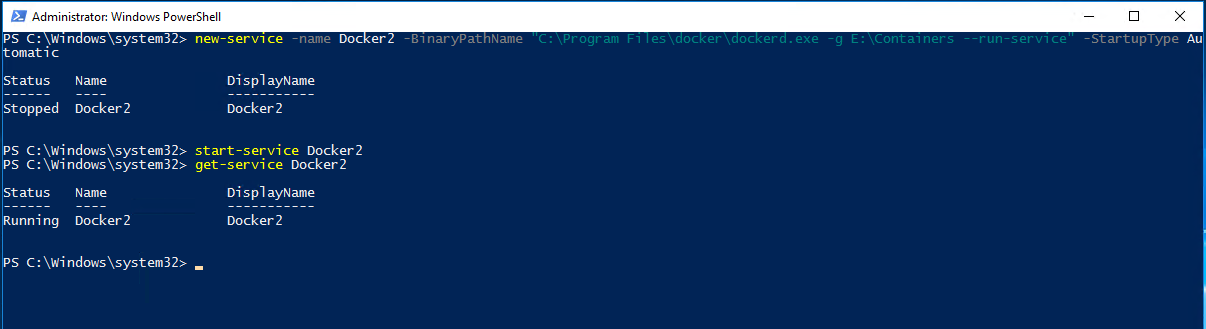
new-service -name Docker2 -BinaryPathName "C:\Program Files\docker\dockerd.exe -g E:\Containers --run-service" -StartupType Automatic

Now start the new service up: –

start-service Docker2

get-service Docker2

And check the new location: –

Cool, the service has generated the required folder structure upon startup and any new images/containers will be stored here.

Once thing to mention is that if you have images and containers in the old location they won’t be available to the new service. I’ve tried copying the files and folder in C:\ProgramData\docker to the new location but keep getting access denied errors on the windowsfilter folder.

To be honest, I haven’t spent much time on that as if you want to migrate your images from the old service to the new one you can export out and then load in by following the instructions here.

Thanks for reading!

0

GroupBy Conference – SQL Server & Containers

Morning all, busy week last week as I was lucky enough to have my session on SQL Server & Containers in the top ten voted for sessions in GroupBy’s June conference.

This was my first webinar and even though it was nerve wracking, I’m really glad I did it. An online presentation is (of course) very different to presenting in person as you don’t have an audience to gauge how things are going, you just keep ploughing ahead and trust that what you’re presenting works.

I’ve done this session a couple of times beforehand so I know that it works so was happy to chat away in my living room and take questions at the end.

One really cool thing about the session was having Rob Sewell (b|t) & James Anderson (b|t) involved, chatting with them and Brent Ozar at the end was probably the highlight for me.

By the way, both James and Rob presented sessions as well, you can find on the main GroupBy page.

Anyway, in case you missed it, here’s the video: –

0

Friday Reading 2017-06-09

Exciting day today as I’m presenting my first webinar on SQL Server & Containers in the GroupBy June conference! There’s a whole bunch of other great sessions going on there today, I highly recommend that you check them out.

Been a busy week but when I’ve had some time I’ve been reading…

Why I try to help with dbaools
Things like this are on my to-do list but I never really know how to approach it, so this is a cool post by Shane O’Neill (t) on how he got into working on dbatools.

Unable To Call Into C Compiler !?
Nice problem solving post by Arun Sirpal (t)

How I optimised my life to make my job redundant
An old post by Troy Hunt (t) but a good read.

var Microsoft Data Platform MVP = “Yip.”;
Hamish Watson (t) on becoming an MVP.

SETI “Wow!” Signal Wasn’t Chatty Aliens After All — It Was a Fizzing Comet
A 40 year old mystery explained!

Have a good weekend!

4

Identifying failed queries with extended events

Back to some core SQL this week and one of my favourite features, extended events.

Introduced in SQL Server 2008 they are a big improvement on SQL profiler, in the amount of information that can be tracked (more) and the impact that they have on the system (less).

If you are still using profiler, please stop now! 🙂

One of the sessions that I have constantly running on SQL Server instances that I monitor is one to capture information on failed queries. You need to know what queries are failing on your production instances and why.

So let’s go through setting the session up, here’s the script to setup the extended event (remember to change the file paths for the filename and meta-data file!): –

CREATE EVENT SESSION [FailedQueries] ON SERVER 
ADD EVENT sqlserver.error_reported 
	(ACTION(sqlserver.client_app_name, sqlserver.client_hostname,  
		sqlserver.database_name, sqlserver.sql_text, sqlserver.username) 
	WHERE ([package0].[greater_than_int64]([severity], (10)))) 

ADD TARGET package0.event_file (SET 
	filename = N'C:\SQLServer\XEvents\FailedQueries.xel'
	,metadatafile = N'C:\SQLServer\XEvents\FailedQueries.xem'
	,max_file_size = (5)
	,max_rollover_files = (10))

WITH (STARTUP_STATE = ON)
GO

The new extended event can be viewed under Object Explorer > Management > Extended Events in SSMS: –

What this is going to do is create an extended event that will automatically startup when the SQL instance starts and capture all errors recorded that have a severity level greater than 10.

Full documentation on severity levels can be found here but levels 1 through 10 are really just information and you don’t need to worry about them.

I’ve also added in some extra information in the ACTION section (for bits and bobs that aren’t automatically included) and have set the maximum number of files that can be generated to 10, each with a max size of 5MB.

I’ve left pretty much everything else out for clarity but more details on the options that are available when creating sessions can be found here.

Let’s start the session up: –

ALTER EVENT SESSION [FailedQueries] ON SERVER 
	STATE = START;
GO

Now you can watch the queries be recorded live by right clicking in SSMS and selecting “Watch Live Data”…

…but I want to show you how to parse the events recorded in the file. Let’s test the event by running: –

SELECT 1/0;

Which will obviously fail!

So now we can parse the event, this requires a little XQuery but it’s not too bad (also, remember to change the filepath!): –

SELECT
	[XML Data],
	[XML Data].value('(/event[@name=''error_reported'']/@timestamp)[1]','DATETIME')				AS [Timestamp],
	[XML Data].value('(/event/action[@name=''database_name'']/value)[1]','varchar(max)')		AS [Database],
	[XML Data].value('(/event/data[@name=''message'']/value)[1]','varchar(max)')				AS [Message],
	[XML Data].value('(/event/action[@name=''sql_text'']/value)[1]','varchar(max)')				AS [Statement]
FROM
	(SELECT 
		OBJECT_NAME				 AS [Event], 
		CONVERT(XML, event_data) AS [XML Data]
	FROM 
		sys.fn_xe_file_target_read_file
	('C:\SQLServer\XEvents\FailedQueries*.xel',NULL,NULL,NULL)) as FailedQueries;
GO

So there we have the XML generated by the extended event and we’ve parsed it into readable columns!

Now with larger files XQuery can be heavy intense on resources so what I tend to do is copy the event’s files to my local machine before parsing; so just be wary when running.

As I said earlier I always have this event running on instances of SQL that I monitor. There really shouldn’t be any impact in doing so as (hopefully) there aren’t that many queries that fail in the instance. As ever though, test this thoroughly before going anywhere near production with it.

Thanks for reading!