4

SQL Server & Containers – Part Four

In this final part of my series on SQL Server & Containers I’ll detail an option to run earlier versions of SQL Server in containers.

This post follows on from Part Three in which we uploaded a custom image to the docker repository.

The three previous posts have all been detailing how to run SQL Server 2016/vNext in containers on Windows Server 2016, but I’m guessing that a lot of people out there are using earlier versions of SQL Server in production. Containers can be a really handy tool for development and QA but there’s no point in running SQL in containers that’s a higher version that your production environment.

Say you’re running SQL Server 2012 in production and you want to be able to run containers with instances of SQL Server 2012. What options have you got? Well, one option is in the form of a custom port of the open source software that Docker have released to the community built by a company called WinDocks. WinDocks software allows earlier versions for SQL Server to run in containers on earlier versions of Windows Server.

They have a free community edition available here so that you can see the software in action.

Let’s go through creating containers with SQL Server 2012 instances on Windows Server 2012 R2.

So the first thing to do is get a new server with Windows Server 2012 R2 installed. Then once that’s up and running, you need to install SQL Server…

…wait, what??

The WinDocks software is different from the previous docker software that we’ve worked with in that it needs an instance of SQL installed on the host in order to use it’s binaries to create SQL within the containers. The instance won’t need to be running, it just needs to be installed.

So, the following SQL server features need to be installed on the server:-

windockssqlserverfeature

EDIT: The guys from WinDocks have informed me that the configuration of SQL is now handled by the WinDocks installer, so all you have to do is install SQL and then run the package. I’m leaving the below parts in this post so you know what the package is doing but it’s now all handled automatically

Once SQL Server is installed set all the services to manual, apart from the SQL Browser service which needs to be on automatic startup. The following also needs to be enabled:-

  • Mixed mode authentication
  • Remote connections
  • TCP ports
  • Named pipes

Then once SQL is installed and configured, run the WinDocks package that you downloaded from the link I specified earlier (it’ll take about 10 mins):-

windocksinstall

Reboot the server and once it’s back up open an administrative command prompt window (I’m also going to turn it into a PoSH window).

Navigate to C:\windocks\bin and run:-

docker -H tcp://0.0.0.0:2375 -d

This will start up the docker daemon, allowing you to send requests to it to create containers.
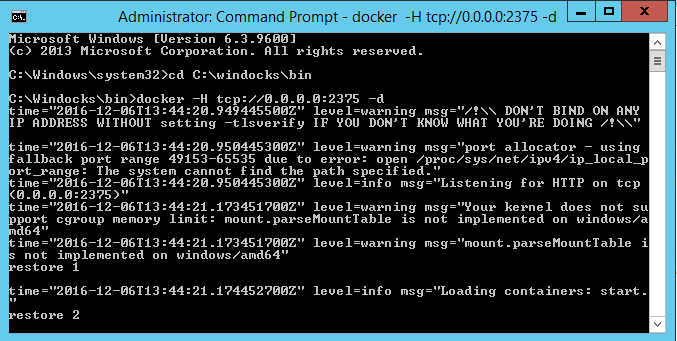
windocksdaemon

Once the daemon is up and running, open another command prompt and run: –

docker images

windocksimages

The WinDocks software comes with three images, the one we’re interested in is the mssql-2012. So let’s build a new container running an instance of SQL Server 2012!

First step is to run:-

docker create mssql-2012

windocksnewcontainer

What we’ve done here is create a new container from the mssql-2012 image that came with the WinDocks software (built from the instance of SQL that we installed).

Next thing is to start the container, so my container’s reference is ab3, so I’ll run:-

docker start ab3

Once you see something similar to below, your container is up and running:-

windocksstartcontainer

The container behaves like a named instance of SQL Server. To connect you need to enter the SERVERNAME,PORT. So for me to connect locally, using the sa credentials detailed when I created the container:-

ssmsconnect

And boom! I’m in:-

objectexplorerssms

So that’s how to get earlier versions of SQL Server running in containers on earlier versions of Windows!

Thanks for reading!

0

Monday Coffee 2016-12-05

You are the DBA your company makes you. Aren’t you?

SQL Server has such a wide range of features that no DBA role will implement all of them. So, you use a certain subset in each role that you occupy throughout your career. What those features are depends on the role.

However your job as a DBA is to (at the very least) be aware of the features that SQL Server has to offer. That way when you’re presented with an issue from your business you can suggest ideas based on your knowledge of those features.

Need an efficient archiving solution? Partitioning and stretched databases will help you out.
Need your systems to have 99.999% uptime? Always On availability groups are there.
Need a cold standby in your disaster recovery environment? Take a look at transaction log shipping.

The list goes on.

What the absolute best thing about working with SQL Server is, is the amazing community that has built up around it. Online communities like SQL Server Central, Stack Exchange and the #sqlhelp tag on twitter are brilliant resources filled with people who dedicate no small part of their free time to helping other data professionals out.

In addition to those resources there’s also a tonne of free training events on offer. In person events such as SQL Saturdays and online events such as the Pass Virtual Chapters.

Technology is always evolving and SQL Server is no exception. Just look at all the new features that have become available in the last month alone! It can feel like keeping up-to-date with everything that going on is impossible but with such great resources available to your average DBA, it needn’t be so taxing.

Thanks for reading.

0

Friday Reading 2016-12-02

Another week almost over so here’s a random selection of articles that I’ve been reading…

Changing the SQL Server port on Linux
Denis Gobo goes through the process of changing the port that an instance of SQL Server running on Linux is listening on

Reload a table quickly
Kenneth Fisher talks about how to reload a table’s data. It’s a really nice tip!

Free scripts and tools for SQL Server
Free scripts and tools from the Microsoft Tiger Team for monitoring SQL Server. Run them on a dev instance first!

Docker and Canonical Partner on CS Docker Engine
An agreement between Docker and Canonical means that stable, maintained releases of Docker will be available as snap packages on Ubuntu. Another step into making containers a viable production option (support being available is a big thing).

Capacity Planning Using Performance Data
Excellent article by Erin Stellato on capacity planning, with links to articles by the equally good Glen Berry.

Have a good weekend!

5

SQL Server & Containers – Part Three

This post follows on from Part Two in which we created a custom docker image. We’ll now look at pushing that custom image up to the Docker repository.

Let’s quickly check that we have our custom image, so run (in an admin powershell session):-

docker images

If you’ve followed Part One & Part Two you should see:-

customimagespart3

If you don’t have testimage there, go back to Part Two and follow the instructions. Don’t worry, we’ll wait 🙂

Ok, what we’re going to do now is push that image up to the Docker repository. You’ll need an account for this so go to https://cloud.docker.com/ and create an account (don’t worry, it’s free).

dockercloudsignup

Once you’re signed up and logged in, click on the Repositories link on the left hand side and then click on the Create button (over on the right): –

createrepository

Give your repository a name and then click the button to make it private (seriously, otherwise it’ll be available for everyone to download!) and hit Create.

On the next screen you should see the following over on the right:-

dockercommands

This is the code to push your custom image into your repository! Pretty cool but there’s a couple of things that we need to do first.

Back on your server we need to connect to the repository that we just setup. Really simple to do, just run the following:-

docker login

And enter in the login details that you specified when you created your Docker account.

dockerlogin

Ok, one more thing to do before we can push the image up to the repository. We need to “tag” the image. So run: –

docker tag testimage dbafromthecold/testsqlrepository:v1

N.B.- Replace my repository’s name with your own 🙂

What I’ve essentially done here is rebrand the custom image as a new image that belongs to my repository, tagged as v1. You can verify this by running:-

docker images

customimagespart3_2

You can see that a new image is there with the name of my repository.

Now that that’s all done we can push the image to the repository using the command that was given to us when we created our repository online:-

docker push dbafromthecold/testsqlrepository:v1

pushimage

Good stuff, we’ve successfully pushed a custom Docker image into our own Docker repository! We can check this online in our repository by hitting the Tags tab:-

dockerrepository

And there it is, our image in our repository tagged as v1! The reason that I’ve tagged it as v1 is that if I make any changes to my image, I can push the updated image to my repository as v2, v3, v4 etc…

Still with me? Awesome. Final thing to do then is pull that image down from the repository on a different server. If you don’t have a different server don’t worry. What we’ll do is clean-up our existing server so it looks like a fresh install. If you do have a different server to use (lucky you) you don’t need to do this bit!

So first we’ll logout of docker:-

docker logout

dockerlogout

And then we’ll delete our custom images:-

docker rmi testimage dbafromthecold/testsqlrepository:v1

dockerdeleteimages

And now we have a clean docker daemon to test pulling images from the repository! If you have a new server to use, it’s time to jump back in!

So log into your repository:-

docker login

And now we can pull our image down from our repository: –

docker pull dbafromthecold/testsqlrepository:v1

dockerpullimage
N.B.- I’m seeing “Already Exists” as I’m running this on the same server as I created and then deleted the image.

Once that has completed, you can check that the image is there by running:-

docker images

dockerviewimages2

And there’s the image that we’ve pulled from our repository! And we can use it to create containers!

So that’s how you can create a custom image that can be shared across multiple servers!

Hmmm, I can hear you saying (seriously??:-)). That’s all well and good but I’m not using SQL Server vNext in any of my test/dev/qa environment so this isn’t going to be of much use. Is there a way of getting earlier versions of SQL in containers?

Well, would you believe it? Yes there is! I’ll go over one such option in Part Four.

0

Monday Coffee 2016-11-28

MCSA SQL Server 2016

The new SQL 2016 MCSA exams are out and joy of joys, the DBA path no longer requires the Data Warehouse exam! I say this as a DBA who has had limited practical exposure to the topics covered by that exam so it’s always put me off going for the MCSA.

I feel that the MCSA should be a test of the knowledge that you’ve acquired through practical experience, so that the award is recognition of skills earned. Of course there’s going to be areas that you need to study as nobody works with every feature of SQL Server but having limited experience of the entire subject matter (such as mine with the subjects covered in the Data Warehousing path) is another thing completely.

So now I have no excuse to get certified. Well, the exams are still currently in beta so I might wait…

Or will I go for them at all? I’ve never had an employer ask if I have the MCSA and I’ve met lots of people who have various Microsoft certifications but got them not by studying, but by finding the exam questions online and practicing them. To me that vastly devalues the certifications but now that Microsoft no longer the MCM the MCSA (and subsequent MCSE) are all we have.

Looking at these exams and knowing myself, whether I do them or not solely depends on my workload next year. I’ve a few projects lined up so if they go smoothly and if I have time, I’ll go for them (maybe).