2

Pushing SQL Server images to the Azure Container Registry

The Azure Container Registry is an online repository for storing Docker images (think the Docker Hub).

What’s cool about this is that we can store our images in the same data centre as our deployments, so spinning up containers from the images should be pretty quick. Let’s run through setting up a Registry and pushing an image to it.

But first things first, a quick terminology reminder 🙂

Registry – this is a remote service that will store all our images
Repository – this is a collection of images

Cool, let’s run through setting up a Registry and pushing an image to it. I’ll be using the Azure-CLI and VS Code with the Azure-CLI plugin. However, I’ll be using a powershell terminal within VS Code. This is because I want to access Docker on my Windows 10 machine, so that I can push an image up to the ACR.

First thing to do is check that the azure-cli is installed: –

az --version

N.B. – You can install it from here if you don’t already have it

Then we need to log in to azure: –

az login

N.B. – You can specify a username and password with this command HOWEVER it doesn’t work for accounts with 2 factor authentication (I mean…really)

Anyway…now we can create a resource group for our registry: –

az group create --name apcontainers1 --location westus2

Then we can create the registry: –

az acr create --resource-group apcontainers1 --name ApContainerRegistry01 --sku Basic

I’m setting this up with the Basic SKU (as this is a demo). You can read more about the Registry SKU levels here

In order to be able to push to the registry, we need to log in: –

az acr login --name ApContainerRegistry01

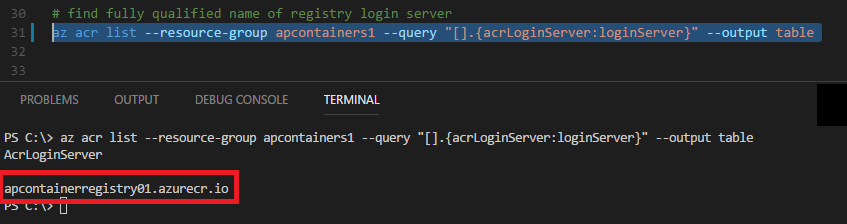
And we also need to get the login server of the registry: –

az acr list --resource-group apcontainers1 --query "[].{acrLoginServer:loginServer}" --output table

N.B. – save the output of this command.

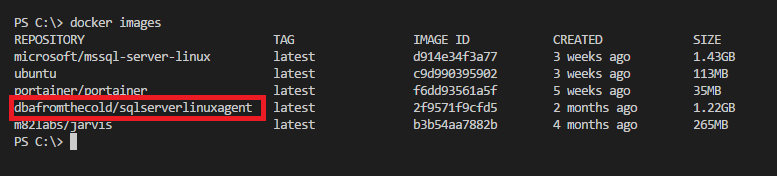
OK, now let’s look locally for an image that we want to push to our ACR: –

docker images

I’m going to push my custom dbafromthecold/sqlserverlinuxagent image. It’s a public image so if you want to use it, just run: –

docker pull dbafromthecold/sqlserverlinuxagent:latest

So similar to pushing to the Docker hub, we need to tag the image with the login server name that we retrieved a couple of commands ago and the name of the image: –

docker tag dbafromthecold/sqlserverlinuxagent apcontainerregistry01.azurecr.io/sqlserverlinuxagent:latest

We can see the new tag locally by running: –

docker images

Cool! Ok, so now we can push to the ACR: –

docker push apcontainerregistry01.azurecr.io/sqlserverlinuxagent:latest

And then confirm that the image is there: –

az acr repository list --name apcontainerregistry01 --output table

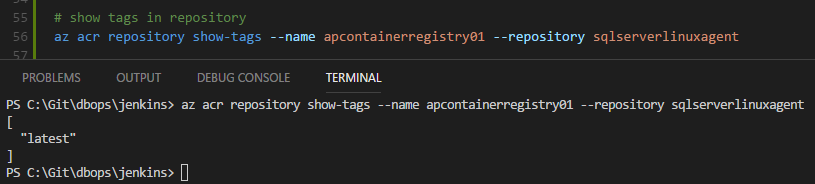
What this has done is create a repository called sqlserverlinuxagent with our image tagged underneath it. To see the image run: –

az acr repository show-tags --name apcontainerregistry01 --repository sqlserverlinuxagent

So we have a repository called sqlserverlinuxagent with one image tagged as latest underneath it.

Awesome, now that the image is there we can use it to deploy an Azure Container Instance. I’ll cover how to do that in my next post 🙂

To clean up, we delete the repository: –

az acr repository delete --name ApContainerRegistry01 --repository sqlserverlinuxagent

Oh, if you want to delete the registry…

az acr delete --name apcontainerregistry01

And a more nuclear option (which will delete the resource group): –

az group delete --name apcontainers1

Thanks for reading!

0

Loopback available for Windows Containers

The April 2018 update for Windows brought a few cool things but the best one (imho) is that now we can now connect to Windows containers locally using ‘localhost’ and the port specified upon container runtime.

Let’s have a look at how this works.

First, spin up a container:-

docker run -d -p 15789:1433 `
    --env ACCEPT_EULA=Y `
        --env SA_PASSWORD=Testing1122 `
            --name testcontainer `
                microsoft/mssql-server-windows-developer:latest

Previously, if we wanted to connect to the container locally, we would have had to grab its Private IP by running: –

docker inspect -f '{{range .NetworkSettings.Networks}}{{.IPAddress}}{{end}}' testcontainer

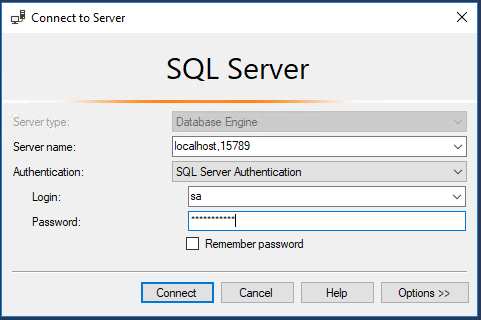
Not any more though! We can now use ‘localhost’ and the port number.

This update was available for a while in the Windows 10 insiders track but it’s now gone GA. Pretty cool as this functionality has been around for Linux containers since, well, forever. 🙂

Thanks for reading!

0

Friday Reading 2018-05-04

Phew, busy week. In the middle of updating presentations and making sure demos work!

Here’s a few of the articles that I’ve managed to read this week…

Containers: The Future of Database Infrastructure?
Joey D’Antoni (b|t) takes a look at containers

Open-sourcing gVisor, a sandboxed container runtime
Google have open-sourced gVisor, a sandboxing technology for containers

Network start-up and performance improvements in Windows 10 April 2018 Update and Windows Server, version 1803
MS Networking blog on the recent changes to Windows Containers

Microsoft’s Azure Container Service Goes GA
Azure Container Instances have gone out for GA!

Managing SQL Server in Linux Containers with dbatools
My 24 Hours of PASS Session

And this from XKCD 🙂

Have a good weekend!

7

Changing the location of docker named volumes

A few weeks ago I was presenting at SQL Saturday Raleigh and was asked a question that I didn’t know the answer to.

The question was, “can you change the location of named volumes in docker?”

This is one of the things that I love about presenting, being asked questions that I don’t know the answer to. They give me something to go away and investigate (many thanks to Dave Walden (b|t) for his help!)

N.B. – I’ve previously written about persisting data using named volumes here

First let’s have a look at a named volume. To create one, run: –

docker volume create sqlserver

And now let’s have a look at it: –

docker volume inspect sqlserver

You can see above where the named volume lives on the host. But what if we want to change that location?


UPDATE – February 2022

This article originally only talked about using a docker volume plugin called Local Persist to change the location of a named volume.

However, you can do this without using a plugin by using the docker local driver and the bind option, which I’ll go through here.

I’ve left the details of how to use the plugin below as it does work to move a named volume but the plugin has not been updated for a while so using the local driver is the preferred way.


So let’s create a directory to point our named volume to: –

mkdir /sqlserver

And now create the named volume using the local driver and the bind option, setting the device to our custom location: –

docker volume create --driver local -o o=bind -o type=none -o device=/sqlserver sqlserver

Let’s have a look at it: –

docker volume inspect sqlserver

There we can see the device listed, /sqlserver, and the mount point, /var/lib/docker/volumes/sqlserver/_data.

What will happen when this named volume is used in a container is that /sqlserver will be mounted to /var/lib/docker/volumes/sqlserver/_data

And there you have it, a named volume in a custom location


Original post using the docker volume plugin – 2018

Well, in order to do so we need to use a docker volume plugin. Which unfortunately means that this functionality is not available on Windows or on Macs (as plugins aren’t supported on those platforms). The workaround is to run the plugin from a container but I would just mount a volume from the host (see here).

The plugin that I’m going to use is the Local Persist Plugin

Really simple to install: –

curl -fsSL https://raw.githubusercontent.com/CWSpear/local-persist/master/scripts/install.sh | sudo bash

And we are good to go!

Ok, let’s create a directory to point our named volume to: –

mkdir /sqlserver

And now we can create our named volume: –

docker volume create -d local-persist -o mountpoint=/sqlserver --name=sqlserver2

Let’s have a look at it: –

docker volume inspect sqlserver2

And there you have it, the named volume pointing to a custom location.

Thanks for reading!

1

Shiny Tech Syndrome

This is the name I give to anyone who, whilst learning a new technology, suddenly thinks it’s the best thing since sliced bread and consequently wants to shoehorn it in to everything.

(think that person who just started learning NoSql)

I’m not singling anyone out here as we are all guilty of this at some point in our careers.

For me, it’s Linux. I’ve been interested in learning the platform for a while and have had tastes in the past when say, installing a redis cluster but I haven’t really delved that deep into it.

All that’s changed over the last year, with me digging into tech such as Kubernetes and of course, SQL on Linux being released. This has give me the chance (excuse?) and the opportunity to really start learning as there are now great resources for me in the shape of We Speak Linux and Anthony Nocentino’s (b|t) Plural Sight courses.

I have shiny tech syndrome so bad that I’m honestly considering buying a Dell XPS 13 with Ubuntu pre-installed as my next laptop.

At first that sounds a bit nuts for me. I’m a SQL Server DBA and want a lightweight laptop that I can use for presenting and writing blogs/demos.

But the more I think about it the more the XPS is appealing to me. I’ve been having some frustrations with Windows 10 recently (if I have to uninstall Candy Crush Saga after an update one more time I’m going to scream) and with the release of SQL Operations Studio & VS Code I can happily do everything that I need on a Linux laptop. Plus I have a Windows 10 Jump Box in Azure that I can always fall back to.

Are there any SQL Server DBAs out there who’ve used a Linux distro as their main working environment? Have you had any issues? I’d love to hear from you.

Have a good week!