1

Creating SQL images in Azure with ACR Build – Part One

EDIT – 2018-10 – ACR Build is now known as ACR Tasks

Whenever I’ve pushed images up to an Azure Container Registry I’ve been building them locally (using Docker for Windows) and then manually pushing them up. However, I don’t need to do this. What I can do instead is use the Azure Container Registry Build service.

Let’s have a look at how it works.


To follow along with the code here you will need the Azure-CLI installed and Docker for Windows running


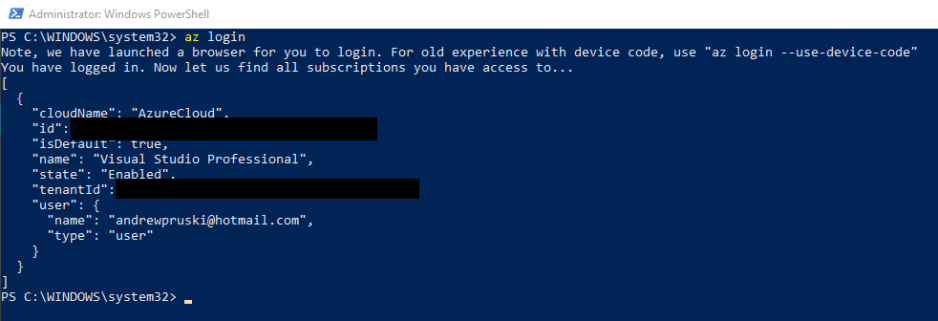
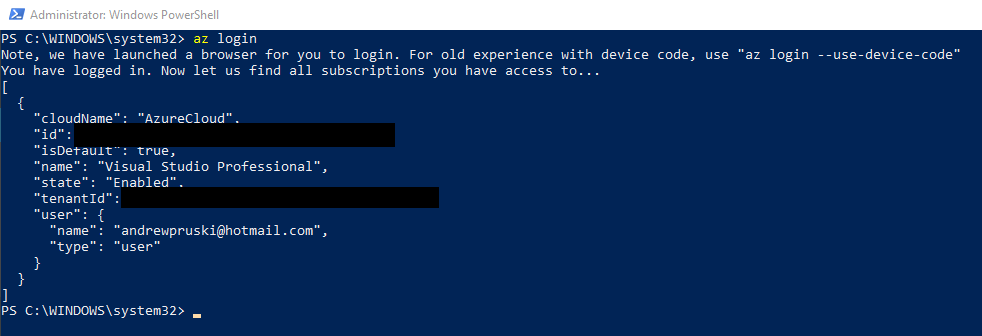
First things first, log into azure: –

az login
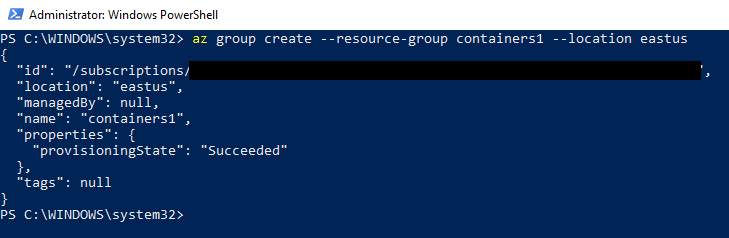
Then create a resource group: –

az group create --resource-group containers1 --location eastus
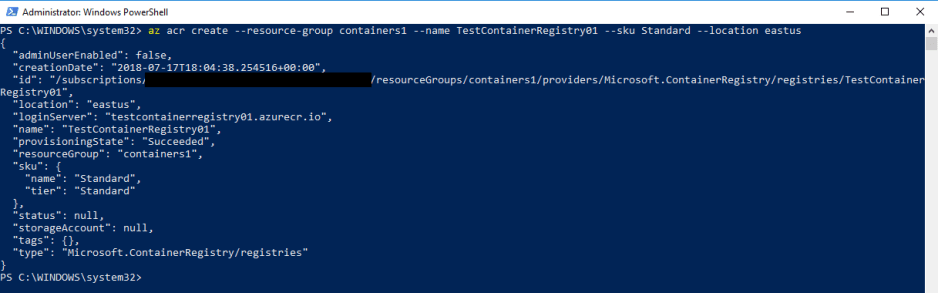
Create a registry (the ACR): –

az acr create --resource-group containers1 --name TestContainerRegistry01 --sku Standard --location eastus
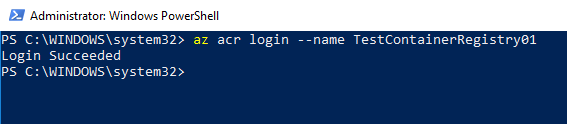
And then login to the registry: –

az acr login --name TestContainerRegistry01
Now create a directory on your local machine to hold the repo that we’re going to use to build the image: –

mkdir c:\git\dbafromthecold
cd c:\git\dbafromthecold

And then pull the repo down: –

git clone https://github.com/dbafromthecold/AzureContainerRegistryBuild.git
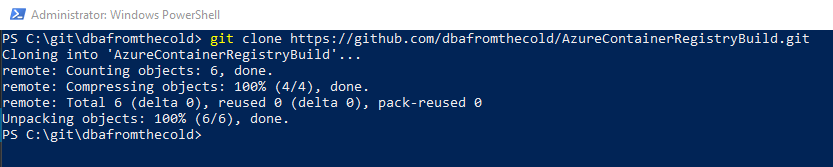

The dockerfile within this repo is pretty simple. All it’s going to do is build us an image that when run will have a database named TestDatabase already there. For more info on building images from a dockerfile, check out my blog here

Now navigate to the repo: –

cd c:\git\dbafromthecold\AzureContainerRegistryBuild

Great! We’re ready to build the image and push it to the Azure Container Registry.
To do this, run: –

az acr build --registry TestContainerRegistry01 --image testimage:latest .

Hmm…that does look like it hasn’t worked but trust me…it has (just wait a few minutes) πŸ™‚

To verify that the new repository has been created: –

az acr repository list --name TestContainerRegistry01 --output table

And to view the tagged image within it: –

az acr repository show-tags --name TestContainerRegistry01 --repository testimage

Awesome! Our custom image is in our ACR!

But has it worked? Has it really? Oh ye of little faith…

I guess the only way to find out is to run a container! So let’s run a Azure Container Instance from our new image.

I’ve already blogged about creating ACIs here so I’m just going to run through this quickly but don’t worry, everything you need to deploy an ACI is in the following code.

In order for the ACI to pull the image from our new ACR we need to store credentials that can be used to grant access. So first, create a keyvault: –

az keyvault create --resource-group containers1 --name aptestkeyvault01

Once the vault is created, we need to create a service principal with read permissions to the ACR and store its credentials in the vault: –

az keyvault secret set `
  --vault-name aptestkeyvault01 `
  --name testcontainerregistry-pull-pwd `
  --value $(az ad sp create-for-rbac `
  			--name testcontainerregistry-pull `
  			--scopes $(az acr show --name testcontainerregistry01 --query id --output tsv) `
  			--role reader `
  			--query password `
  			--output tsv)

Then we grab the service principal’s appId which will be the username passed to the Azure Container Registry: –

az keyvault secret set `
  --vault-name aptestkeyvault01 `
  --name testcontainerregistry-pull-usr `
  --value $(az ad sp show `
  		--id http://testcontainerregistry-pull --query appId --output tsv)

Ok, now we can run a Azure Container Instance from our custom image!

az container create `
    --resource-group containers1 `
    --image testcontainerregistry01.azurecr.io/testimage:latest `
	--registry-username $(az keyvault secret show `
						--vault-name aptestkeyvault01 `
						--name testcontainerregistry-pull-usr `
						--query value --output tsv) `
	--registry-password $(az keyvault secret show `
						--vault-name aptestkeyvault01 `
						--name testcontainerregistry-pull-pwd `
						--query value --output tsv) `
	--name testcontainer1 `
	--cpu 2 --memory 4 `
	--environment-variables SA_PASSWORD=Testing1122 `
	--ip-address public `
	--ports 1433

Ok, we need to wait for the ACI to spin up. We can monitor for this by running: –

az container show --name testcontainer1 --resource-group containers1
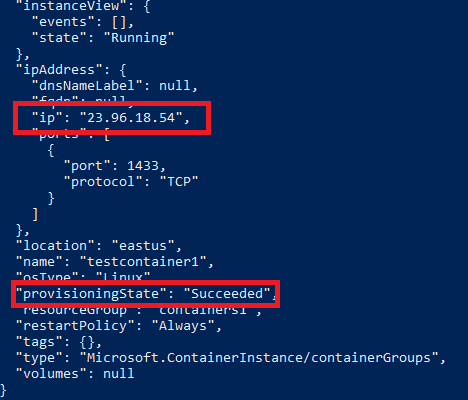
Once the above command comes back with a status of Succeeded and an IP address we can drop that into SSMS: –
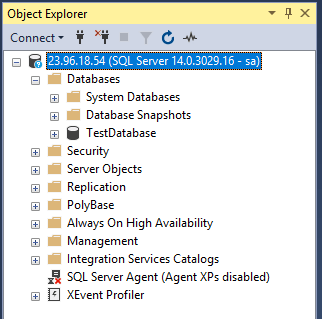
And boom! We’ve connected to an ACI created from our custom image built using Azure Container Registry Build!

So that’s an intro into ACR Build. There’s plenty more that we can do with it and I’ll explore that in future posts.

Thanks for reading!
0

Downtime

I was speaking at a conference recently and when I bumped into a friend, the first thing she said to me was “have you burnt out yet?”

Now this was a joke but it did get me thinking. I’ve been speaking at quite a few events this year and tbh I’ve loved it. However I am well aware that it has been taking up a significant part of my time and I never want to get to a point where I get fed up with going to events to speak.

Getting into technical presenting has been one of the best things that I’ve ever done.

So how do I prevent myself from becoming burnt out? I have a really busy schedule over the next few months so I can’t really go on any holidays.

The best way I’ve found is to take one day a week where I don’t touch a computer. Obviously on a weekend πŸ™‚

It may not sound like much but I’ve been working my day job, blogging during the evenings, and practicing sessions/researching topics on the weekends. It’s been pretty full on so taking one day to chill out and relax really has helped. (the world cup being on has made this a lot easier as well).

Taking one day out of a week has also allowed me to come back to issues that I’ve been faced with anew, and allowed me to resolve them.

So if you’re working all hours under the sun, I ask you to stop. Take a day for yourself. It may be hard at first but it will benefit you in the long run.

0

SQL Saturday Cork 2018

This coming weekend (9th of June) is SQL Saturday Cork!

I’ve been really looking forward to this SQL Sat as there’s only one in Ireland each year. I’m not from Ireland but have been here for over 4 years now and the User Group in Dublin is where I first started speaking.

I won best lighting talk at SQL Saturday Dublin in 2016 and that pretty much convinced me that I could go on and present full length sessions. So I owe a lot to the event in Ireland and consider it my “home” event.

It’s the first time that the event has been held in Cork and it looks to be a cracker. The venue is at University College Cork and there’s a great line-up of speakers (myself included πŸ™‚ )

There’s also two fantastic pre-cons on the Friday before: –

Move your database to the Cloud
by Jose Manuel Jurado & Roberto Cavalcanti

50 Things All SQL Server Developers Need to Know
by Kevin Kline

So if you’re based in Ireland (or even if you’re not) I highly recommend that you come for a weekend of fantastic SQL Server training.

Hope to see you there!

0

Deploying Azure Container Instances

In a previous post I went through how to Push an image to the Azure Container Registry

Now let’s look at using that image to create an Azure Container Image instance.

Azure Container Instances (ACI) are Microsoft’s serverless container technology. They allow us to spin up a container without having to manage the underlying infrastructure (VMs etc). Let’s run through spinning up an ACI now.

First off, I’ll be using the image I pushed up in my previous post. If you haven’t run through doing that, the link is here

OK, so let’s log in to Azure (using the Azure-CLI on Windows Subsystem for Linux): –

az login

In order to store credentials that can be used to access our Azure Container Registry and pull the container image, we first need to create a key vault: –

az keyvault create --resource-group apcontainers1 --name apkeyvault1

Now that the vault is created, we create a service principal and store its credentials in the vault: –

az keyvault secret set \
  --vault-name apkeyvault1 \
  --name ApContainerRegistry01-pull-pwd \
  --value $(az ad sp create-for-rbac \
                --name ApContainerRegistry01-pull \
                --scopes $(az acr show --name ApContainerRegistry01 --query id --output tsv) \
                --role reader \
                --query password \
                --output tsv)

Then we grab the service principal’s appId which will be the username passed to the Azure Container Registry: –

az keyvault secret set \
    --vault-name apkeyvault1 \
    --name ApContainerRegistry01-pull-usr \
    --value $(az ad sp show --id http://ApContainerRegistry01-pull --query appId --output tsv)

Great stuff. Now let’s confirm the repositories in our Azure Container Registry: –

az acr repository list --name apcontainerregistry01 --output table

We have the image that was pushed up to the ACR in my last post, so let’s deploy that to an Azure Container Instance: –

az container create \
    --resource-group apcontainers1 \
    --image apcontainerregistry01.azurecr.io/sqlserverlinuxagent:latest \
    --registry-login-server apcontainerregistry01.azurecr.io \
    --registry-username $(az keyvault secret show --vault-name apkeyvault1 -n ApContainerRegistry01-pull-usr --query value -o tsv) \
    --registry-password $(az keyvault secret show --vault-name apkeyvault1 -n ApContainerRegistry01-pull-pwd --query value -o tsv) \
    --name testcontainer1 \
    --cpu 2 --memory 4 \
    --environment-variables ACCEPT_EULA=Y SA_PASSWORD=Testing1122 \
    --ip-address public \
    --ports 1433

The code should be fairly self explanatory. I’m using the username and password created earlier to access the ACR and am then spin up a container from the sqlserverlinuxagent:latest image. The container has 2 CPUs and 4GB of memory available to it and it will be listening on a public IP address on port 1433 (be very careful with this).

At the time of writing, the only option available for ip-address is public, hopefully further options will be available soon. I will update this blog if/when that happens.

OK, let’s grab the container details: –

az container show --name testcontainer1 --resource-group apcontainers1

Once the provisioning state is succeeded and there’s an IP address, we are good to go.

If you want to view the logs of the container: –

az container logs --name testcontainer1 --resource-group apcontainers1

And we can also remote into the container: –

az container exec --resource-group apcontainers1 --name testcontainer1 --exec-command bash

Finally, to clean-up (delete the container): –

az container delete --name testcontainer1 --resource-group apcontainers1

So, that’s how to deploy a custom container image from the Azure Container Registry to an Azure Container Instance.

Thanks for reading!

0

Comparing two SQL instances

Last week I was working on a couple of SQL instances that contained databases which were part of an Always On availability group, with one server being the primary and the other the secondary.

I needed to make sure that the secondary had all the databases that were on the primary (darn you auto seeding!!). The problem was that these instances had over 200 databases which meant checking them was no simple task.

Now I know there’s a few ways to do this but the method I used is a simple & quick way of comparing databases on two SQL instances using the powershell cmdlet

Compare-Object

What this does is pretty much what it says on the tin. The cmdlet takes two objects and compares them based on a input property (in this case it’ll be database names).

Here’s the code: –

$InstanceA = ''
$InstanceB = ''

$SqlQuery = 'SELECT name FROM sys.databases'

$DatabasesA = Invoke-SqlCmd2 -sqlinstance $InstanceA -query $SqlQuery

$DatabasesB = Invoke-SqlCmd2 -SqlInstance $InstanceB -query $SqlQuery

Compare-Object -ReferenceObject $DatabasesA -DifferenceObject $DatabasesB -Property "name"

Let’s run a quick test to show the output. Say I have two SQL instances with the following databases: –

If I run the script, I will get the following: –

This is telling me that Databases C & G exist in Instance B but not Instance A and that Databases E & I exist in Instance A but not in Instance B.

The script runs very quickly (even with a large amount of dbs) and gives a nice, easy to understand output that allowed me to work out which databases needed to be reseeded in my AG.

Of course, the $SqlQuery variable can be changed so that it can return other properties of the instances for comparison so this really is a nice way to compare two SQL instances.

Thanks for reading!
