0

Friday Reading 2018-05-04

Phew, busy week. In the middle of updating presentations and making sure demos work!

Here’s a few of the articles that I’ve managed to read this week…

Containers: The Future of Database Infrastructure?
Joey D’Antoni (b|t) takes a look at containers

Open-sourcing gVisor, a sandboxed container runtime
Google have open-sourced gVisor, a sandboxing technology for containers

Network start-up and performance improvements in Windows 10 April 2018 Update and Windows Server, version 1803
MS Networking blog on the recent changes to Windows Containers

Microsoft’s Azure Container Service Goes GA
Azure Container Instances have gone out for GA!

Managing SQL Server in Linux Containers with dbatools
My 24 Hours of PASS Session

And this from XKCD 🙂

Have a good weekend!

7

Changing the location of docker named volumes

A few weeks ago I was presenting at SQL Saturday Raleigh and was asked a question that I didn’t know the answer to.

The question was, “can you change the location of named volumes in docker?”

This is one of the things that I love about presenting, being asked questions that I don’t know the answer to. They give me something to go away and investigate (many thanks to Dave Walden (b|t) for his help!)

N.B. – I’ve previously written about persisting data using named volumes here

First let’s have a look at a named volume. To create one, run: –

docker volume create sqlserver

And now let’s have a look at it: –

docker volume inspect sqlserver
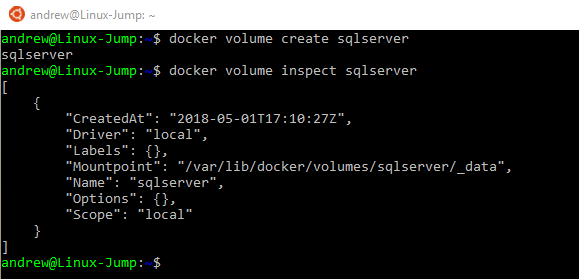
You can see above where the named volume lives on the host. But what if we want to change that location?


UPDATE – February 2022

This article originally only talked about using a docker volume plugin called Local Persist to change the location of a named volume.

However, you can do this without using a plugin by using the docker local driver and the bind option, which I’ll go through here.

I’ve left the details of how to use the plugin below as it does work to move a named volume but the plugin has not been updated for a while so using the local driver is the preferred way.


So let’s create a directory to point our named volume to: –

mkdir /sqlserver

And now create the named volume using the local driver and the bind option, setting the device to our custom location: –

docker volume create --driver local -o o=bind -o type=none -o device=/sqlserver sqlserver

Let’s have a look at it: –

docker volume inspect sqlserver
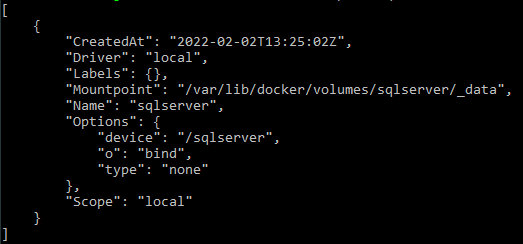
There we can see the device listed, /sqlserver, and the mount point, /var/lib/docker/volumes/sqlserver/_data.

What will happen when this named volume is used in a container is that /sqlserver will be mounted to /var/lib/docker/volumes/sqlserver/_data

And there you have it, a named volume in a custom location


Original post using the docker volume plugin – 2018

Well, in order to do so we need to use a docker volume plugin. Which unfortunately means that this functionality is not available on Windows or on Macs (as plugins aren’t supported on those platforms). The workaround is to run the plugin from a container but I would just mount a volume from the host (see here).

The plugin that I’m going to use is the Local Persist Plugin

Really simple to install: –

curl -fsSL https://raw.githubusercontent.com/CWSpear/local-persist/master/scripts/install.sh | sudo bash
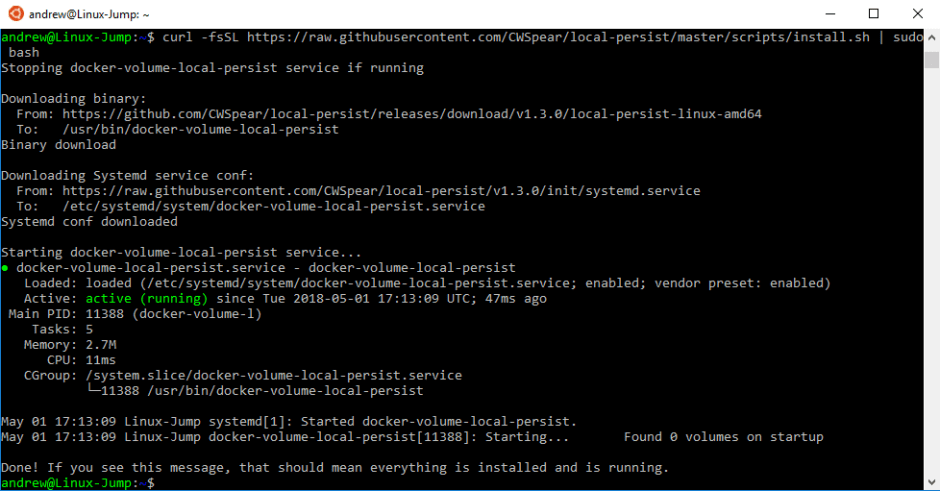
And we are good to go!

Ok, let’s create a directory to point our named volume to: –

mkdir /sqlserver

And now we can create our named volume: –

docker volume create -d local-persist -o mountpoint=/sqlserver --name=sqlserver2

Let’s have a look at it: –

docker volume inspect sqlserver2
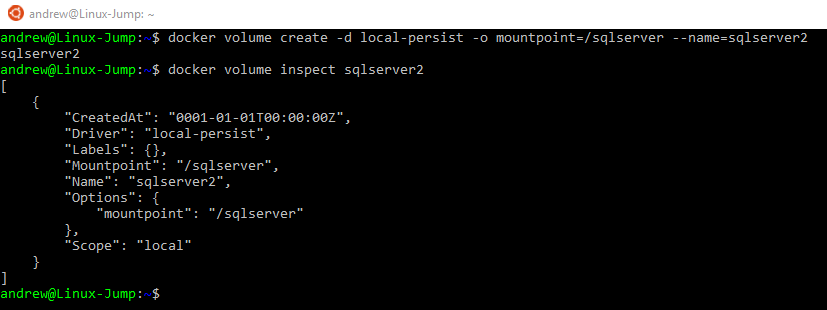
And there you have it, the named volume pointing to a custom location.

Thanks for reading!

1

Shiny Tech Syndrome

This is the name I give to anyone who, whilst learning a new technology, suddenly thinks it’s the best thing since sliced bread and consequently wants to shoehorn it in to everything.

(think that person who just started learning NoSql)

I’m not singling anyone out here as we are all guilty of this at some point in our careers.

For me, it’s Linux. I’ve been interested in learning the platform for a while and have had tastes in the past when say, installing a redis cluster but I haven’t really delved that deep into it.

All that’s changed over the last year, with me digging into tech such as Kubernetes and of course, SQL on Linux being released. This has give me the chance (excuse?) and the opportunity to really start learning as there are now great resources for me in the shape of We Speak Linux and Anthony Nocentino’s (b|t) Plural Sight courses.

I have shiny tech syndrome so bad that I’m honestly considering buying a Dell XPS 13 with Ubuntu pre-installed as my next laptop.

At first that sounds a bit nuts for me. I’m a SQL Server DBA and want a lightweight laptop that I can use for presenting and writing blogs/demos.

But the more I think about it the more the XPS is appealing to me. I’ve been having some frustrations with Windows 10 recently (if I have to uninstall Candy Crush Saga after an update one more time I’m going to scream) and with the release of SQL Operations Studio & VS Code I can happily do everything that I need on a Linux laptop. Plus I have a Windows 10 Jump Box in Azure that I can always fall back to.

Are there any SQL Server DBAs out there who’ve used a Linux distro as their main working environment? Have you had any issues? I’d love to hear from you.

Have a good week!

0

T-SQL Tuesday #101: My Essential SQL Server Tools


This month’s T-SQL Tuesday topic comes from Jens Vestergaard (b|t) who is asking us about our essential SQL Server Tools.

I’ve previously written about my Tools of the Trade but that was waaaay back in April 2016 and just after I published that blog, the tool that I am going to talk about here was released, Visual Studio Code.

At first I used it sparingly, mainly for when writing demos but over the last few months Visual Studio Code has become invaluable to me.

My work has a large SQL estate to look after and I’ve found SSMS very frustrating as of late. It freezes up when dealing with multiple connections so I switched to using VS Code combined with dbatools.

What’s really cool is that you can setup custom tasks to easily run code against SQL instances, I blogged about how to set that up here.

I still use SSMS when drilling into a single instance (although Operations Studio is rapidly becoming more appealing) but when I want to audit instances or deploy, VS Code is now my go-to application.

Another thing that I love is the amount of plugins available. The Docker explorer and Azure-Cli plugins are absolutely fantastic. Combine that with the fact that I’ve recently moved all my code to GitHub and VS Code has built-in source control management, I’m finding that I’m spending more and more time using the application.

I highly recommend checking it out (if you haven’t already).

Thanks for reading!

0

Friday Reading 2018-04-06

Feels like an age since I posted some links. So busy these days!

I’m really excited today as tomorrow I head to North Carolina for two weeks. My company’s HQ is out there and I’m also presenting at SQL Saturday Raleigh next weekend. My first American SQL Sat! 🙂

Recently, when I’ve had the chance, I’ve been reading…

Troubleshooting SQL Server Scheduling and Yielding
Good post on the MSDN blogs about an issue that I’ve had to deal with recently

How to recover/rebuild Master Database in Linux?
I’ve been reading everything I can get my hands on about SQL on Linux and this is a cool post by Max Trinidad (t)

Procedure to Create New Filegroups and Files
Tracy (t) with a nice post on a stored proc to create new files and filegroups

When to use Quotes in PowerShell Splatting
Shane (t) with a tip when splatting

Rob Sewell talks about dbatools on RunAs Radio
Rob (b|t) talks about dbatools on the RunAsRadio podcast

Have a great weekend!