Automating Container Image Builds with Docker Build Cloud and Github Actions

In a previous post we went through how to use Docker Build Cloud to remotely build a Docker container image from a Github repository.

In that example, we kicked off a build and pushed the image to a container registry using the syntax: –

docker buildx build https://github.com/dbafromthecold/sqlserver2022.git `
--builder cloud-dbafromthecold-default `
--tag dbafromthecold/sqlserver2022:latest `
--push

This all seems a bit manual, doesn’t it?

What if we could automate the building of the image and the push to the container registry when we commit to the Github repository?

Thankfully, with Github Actions…we can do just that!

I don’t really have much experience with Github Actions if I’m honest…but all the syntax needed is provided in the Docker Build Cloud: –

N.B. – this option is under the builder that you use to build the image (using the default one here)

This gives the following code: –

name: ci

on:
  push:
    branches:
      - "main"

jobs:
  docker:
    runs-on: ubuntu-latest
    steps:
      - name: Checkout
        uses: actions/checkout@v4
      - name: Log in to Docker Hub
        uses: docker/login-action@v3
        with:
          username: ${{ secrets.DOCKERHUB_USERNAME }}
          password: ${{ secrets.DOCKERHUB_TOKEN }}
      - name: Set up Docker Buildx
        uses: docker/setup-buildx-action@v3
        with:
          version: "lab:latest"
          driver: cloud
          endpoint: "dbafromthecold/default"
      - name: Build and push
        uses: docker/build-push-action@v5
        with:
          context: .
          tags: "dbafromthecold/sqlserver2022"
          outputs: ${{ github.event_name == 'pull_request' && 'type=cacheonly' || 'type=registry,push=true' }}

The only update I’ve had to make to the code provided is line 29 where I’ve changed the tag to “dbafromthecold/sqlserver2022”

OK, so let’s go and create this Github Action.

The first thing to do is create secrets in the Github repository to allow the action to connect to Docker Build Cloud.

For this example we’ll use the repo from the previous blog: –
https://github.com/dbafromthecold/sqlserver2022

In the repo, go to /settings/secrets/actions and create two repository secrets: –

These are your Docker Hub username and an access token created under your account (https://hub.docker.com/settings/security): –

Once the secrets are created, we can then create the workflow in Github.

In the repo, go to Actions and then select new workflow: –

Choose simple workflow: –

Remove the template code and replace with the code from Docker Build Cloud (remember to update the tag name on line 29!): –

Commit the changes and we’re good to go!

I have the repo locally so I’ll pull down the changes made in the web gui…

git pull

And now let’s test committing a change to the repo and pushing.

There’s a dockerfile in the repo (to build the image from)…I’ll make a simple change (adding a LABEL for example) and push: –

git add .
git commit -m "testing github action"
git push

And if we go back to Actions in the repo in Github we should see it working!

But did it build and push the image? Let’s check the Docker Hub: –

Awesome stuff, the image has been built and pushed to the Hub!

So by using Docker Build Cloud and Github Actions, we can push changes to a Github repository, remotely build a container image, and then push to a container registry without having to use any local resources!

Thanks for reading!

Building a Docker image with Docker Build Cloud

In a previous blog post we went through how to build a Docker container image from a remote (Github) repository.

Here we’re going to expand on that by actually building the image itself remotely, using Docker Build Cloud.

What we can do with Docker Build Cloud is instead of building the image locally and then having to push to a remote container registry (for example the Docker Hub), we can build remotely and then immediately push that image to the registry so that it is available for immediate use by say, our team members or deployment/testing pipelines.

This has advantages as we no longer are reliant on our local system. Build Cloud uses isolated Amazon EC2 instances so we’ll get a consistent build speed and if our images are large (I mainly work with SQL Server images, which are about 1.5GB in size), and we have a poor internet connection, we don’t have to wait for ages to push the image to the registry.

I have a remote repository that we’re going to use to build a SQL Server 2022 container image. Very simple repo, with just a dockerfile in it to build the image.

Now, to build an image from that remote repository locally, we would run: –

docker build -t dbafromthecold/sqlserver2022:latest https://github.com/dbafromthecold/sqlserver2022.git

But how do we use Build Cloud?

First thing to do is create a Docker account and sign up for Build Cloud.
Full directions are here: –
https://docs.docker.com/build/cloud/
N.B. – Docker Personal accounts are free and will give you 50 “build minutes” per month.

Once we have the account signed up we are good to go!

To build an image using the cloud builder we first need to log into Docker on the command line: –

docker login

Then we use the docker buildx build command to use Build Cloud: –

docker buildx build https://github.com/dbafromthecold/sqlserver2022.git `
--builder cloud-dbafromthecold-default `
--tag dbafromthecold/sqlserver2022:latest `
--load

Let’s break down what this is doing…

docker buildx build https://github.com/dbafromthecold/sqlserver2022.git
This is saying to use Build Cloud and pull the dockerfile from that repository on Github

–builder cloud-dbafromthecold-default
Use the default builder that is available in Build Cloud

–tag dbafromthecold/sqlserver2022:latest
Tag the build image with a name

–load
Once the image is built, pull it to the local machine (encrypted)

When executed, we can see the image being built and pulled to the local machine: –


N.B. – I built the image a few times to test before taking this screenshot, hence why there are cached layers in the build.

Once complete, we can check our local images: –

docker image ls

And there it is! But hang on, didn’t I say earlier we don’t want to have the image locally? We want to push it to a remote repository!

To to that, we need a remote repository in a registry. I’ve set up one in the Docker Hub for this example here but any other registry will work (just make sure you’re authenticated).

To use Build Cloud and push to a remote registry: –

docker buildx build https://github.com/dbafromthecold/sqlserver2022.git `
--builder cloud-dbafromthecold-default `
--tag dbafromthecold/sqlserver2022:latest `
--push

Only difference here is that we’re using –push instead of –load. And make sure that the tag used for the image matches the repository that you’re pushing to!

When executed, we’ll see something similar to: –

And if we check the repository in the registry: –

There’s the image! Available for our wider team to use or be utilised in a pipeline!

We can even use something like Github actions to trigger the build when we push to the GitHub repo, pretty cool…huh?

Thanks for reading!

The Docker debug command

In the latest version of Docker Desktop a new command has been included call docker debug.

Now this is only available with a Pro Docker licence but it’s an interesting command so I thought I’d run through what it can do here.

Typically when I’m testing SQL Server in containers I build my own images as sometimes I need tools that aren’t available in the sql images from the microsoft container registry.

One example of this is ping. When spinning up containers on a custom bridge network all containers on that network should be able to reference each other by container name (containers on the default bridge network can only communicate by IP address).

In order to confirm (or troubleshoot) connectivity between the containers, I built a custom image with ping installed.

But with the new docker debug command I no longer have to.

What docker debug does is open up a shell to any container (or image) with a whole load of tools available. You can also install more tools without affecting the running container!

So effectively, this replaces the need to exec into a container and install the tools there.

Let’s have a look at this in action. I’m going to spin up two SQL containers (from WSL on Windows) on custom brigde network.

So first thing to do is create the network: –

docker network create sqlserver

And then spin up the containers (using the SQL Server 2022 image in the MCR):-

docker container run -d \
--publish 15789:1433 \
--network sqlserver \
--env ACCEPT_EULA=Y \
--env MSSQL_SA_PASSWORD=Testing1122 \
--name sqlcontainer1 \
mcr.microsoft.com/mssql/server:2022-CU11-ubuntu-20.04

docker container run -d \
--publish 15790:1433 \
--network sqlserver \
--env ACCEPT_EULA=Y \
--env MSSQL_SA_PASSWORD=Testing1122 \
--name sqlcontainer2 \
mcr.microsoft.com/mssql/server:2022-CU11-ubuntu-20.04

Ok, once they’re up and running…let’s use docker debug to connect to sqlcontainer1: –

sudo docker debug sqlcontainer1

Note – using sudo here as it’ll throw an error in WSL without it

And now let’s try to ping the other container by name: –

ping sqlcontainer2 -c 4

Cool! That worked, so I’ve confirmed that my containers can talk to each other by name on my custom bridge network.

Docker debug also comes with a few custom tools, one of which is entrypoint. This let’s us see what the ENTRYPOINT and CMD statements are of the underlying image the container was built from. Let’s check it out with our sql container: –

entrypoint

Nice, ok that’ll be really handy when debugging!

All in all, this is a very useful tool when working with containers. It’ll help keep our container images as small as possible because, let’s be honest, as container images go…the sql server image are huge!

Thanks for reading!

Building a Docker image from a Github repository

To build a custom Docker image we create a docker file with instructions in it.

For example, a really simple custom SQL Server 2019 Docker image can be built with: –

FROM mcr.microsoft.com/mssql/server:2019-CU5-ubuntu-18.04

USER root

RUN mkdir /var/opt/sqlserver
RUN mkdir /var/opt/sqlserver/sqldata
RUN mkdir /var/opt/sqlserver/sqllog
RUN mkdir /var/opt/sqlserver/sqlbackups

RUN chown -R mssql /var/opt/sqlserver

USER mssql

CMD /opt/mssql/bin/sqlservr

We then build the image with: –

docker build -t <NEW IMAGE NAME> <PATH TO DOCKERFILE>

But if our dockerfile is hosted in a Github repository, we don’t need to manually pull the repo down and then run the build command.

We can reference the dockerfile in the repository directly in the build command with: –

docker build -t <NEW IMAGE NAME> <URL#BRANCH#PATH>

So for a docker file that’s in my dockerdeepdive repository, in the main branch, located at Demos/CustomImages/Image1/dockerfile: –

docker build -t testimage https://github.com/dbafromthecold/dockerdeepdive.git#main:Demos/CustomImages/Image1

N.B. – Ignore that error on line 2. It’s a known issue but the image has been successfully built.

Thanks for reading!

Persisting data for SQL Server on Docker Swarm with Portworx

In my last couple of blog posts (here and here) I talked about how to get SQL Server running in Docker Swarm. But there is one big (and show-stopping) issue that I have not covered. How do we persist data for SQL Server in Docker Swarm?

Docker Swarm, like Kubernetes, has no native method to persist data across nodes…so we need another option and one of the options available to us is Portworx.

So how can we use Portworx to persist SQL Server databases in the event of a node failure in Docker Swarm?

There are three steps to get this working: –

  1. Install a key value store that can be accessed by Portworx on each cluster node
  2. Install and configure Portworx on each of the nodes
  3. Deploy a volume for SQL Server using the Portworx driver

Let’s run through each of those steps.


Installing etcd

Portworx needs a key value store to be installed and reachable from all the nodes in the Docker Swarm cluster.

So what we’re going to do is install ETCD on the manager node of the cluster and configure it so that all the other nodes in the cluster can talk to it.

First thing to do is download a sample config file and the etcd binaries: –

ETCD_VER=v3.4.27
DOWNLOAD_URL=https://github.com/etcd-io/etcd/releases/download

curl -L https://raw.githubusercontent.com/etcd-io/etcd/main/etcd.conf.yml.sample -o /tmp/etcd-download-test/etcd.conf.yml
curl -L ${DOWNLOAD_URL}/${ETCD_VER}/etcd-${ETCD_VER}-linux-amd64.tar.gz -o /tmp/etcd-${ETCD_VER}-linux-amd64.tar.gz
tar xzvf /tmp/etcd-${ETCD_VER}-linux-amd64.tar.gz -C /tmp/etcd-download-test --strip-components=1

Move files to a location in our PATH environment variable: –

sudo cp /tmp/etcd-download-test/etcd /tmp/etcd-download-test/etcdctl /tmp/etcd-download-test/etcd.conf.yml /usr/local/bin 

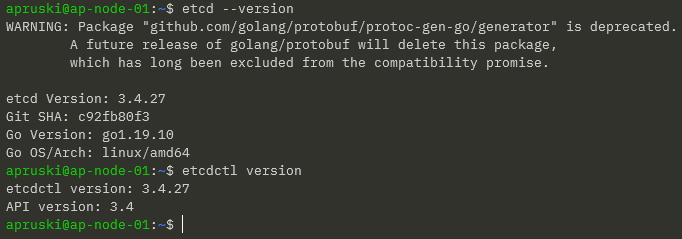
Confirm versions: –

etcd --version
etcdctl version
Create etcd user and group: –

sudo groupadd --system etcd
sudo useradd -s /sbin/nologin --system -g etcd etcd

Create etcd data and wal directories and configure permissions: –

sudo mkdir -p /var/lib/etcd/wal
sudo chown -R etcd:etcd /var/lib/etcd
sudo chmod -R 700 /var/lib/etcd

Update the sample configuration file: –

sudo vim /usr/local/bin/etcd.conf.yml

Here we are updating the following: –

  • line 4 – change name of etcd member to the server name
  • line 7 – add /var/lib/etcd as the data-dir
  • line 10 – add /var/lib/etcd/wal as the wal-dir
  • line 26/29/42/46 – change localhost to server IP address
  • line 62 – add initial-cluster: SERVERNAME=http://IPADDRESS:2380

The next thing to do is create a service to run etcd. So create a etcd.service file: –

echo "[Unit]
Description=etcd key-value store
Documentation=https://github.com/etcd-io/etcd
After=network.target

[Service]
User=etcd
Type=notify
ExecStart=/usr/local/bin/etcd --config-file=/usr/local/bin/etcd.conf.yml
Restart=always
RestartSec=10s
LimitNOFILE=40000

[Install]
WantedBy=multi-user.target" > etcd.service

And move it to the correct location: –

sudo mv etcd.service /etc/systemd/system

Reload systemd: –

sudo systemctl daemon-reload

Start etcd: –

sudo systemctl enable etcd
sudo systemctl start etcd

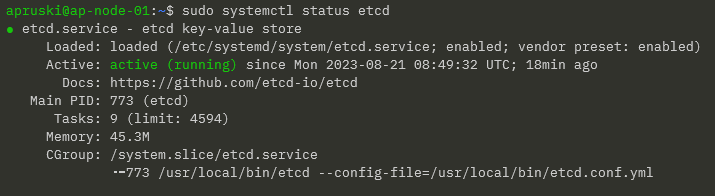
Confirm service: –

sudo systemctl status etcd
To check the endpoint and status of etcd: –

etcdctl --endpoints=10.0.0.40:2379 endpoint health
etcdctl --endpoints=10.0.0.40:2379 endpoint status

Great! That’s etcd up and running. Now we can install and configure Portworx.


Installing portworx

In order to get Portworx up and running, there are a couple of pre-requisities we need to consider: –

  • Swap is recommended to be disabled on each of the nodes
  • Each node should have a min of 4GB RAM
  • A block device available to be used as a storage pool for Portworx

Right, now we can install the Portworx binaries on our nodes To do this, we run a container with /opt/pwx and /etc/pwx mounted: –

REL="/3.0"  # Portworx v3.0 release

latest_stable=$(curl -fsSL "https://install.portworx.com$REL/?type=dock&stork=false&aut=false" | awk '/image: / {print $2}' | head -1)

sudo docker run --entrypoint /runc-entry-point.sh \
--rm -i --privileged=true \
-v /opt/pwx:/opt/pwx -v /etc/pwx:/etc/pwx \
$latest_stable

Once that’s complete we can finish the install with: –

sudo /opt/pwx/bin/px-runc install -k etcd://10.0.0.40:2379 -c AP-SWARM-01 -s /dev/sdb

Breaking this statement down: –

  • -k etcd://IPADDRESS:2379 – endpoint for our etcd cluster that we configured earlier
  • -c AP-SWARM-01 – name that we’re going to call our cluster in Portworx
  • -s /dev/sdb – block device on each node that will be used as a Portworx storage pool

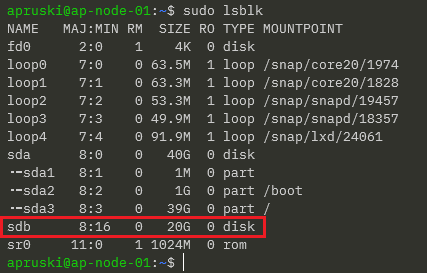
When I created my hyper-v VMs I added a 20GB disk, /dev/sdb, that will be used as the storage pool.

You can see the available devices on a server by running: –

sudo lsblk

So on my server: –
OK. Once the above statement has completed on all nodes of our cluster, we need to restart the Portworx service: –

sudo systemctl restart portworx

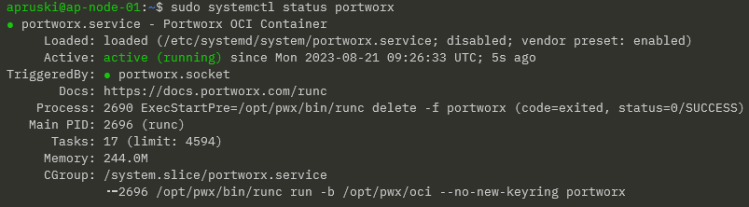
Then confirm the service status: –

sudo systemctl status portworx
Then enable the service to start on server reboot: –

sudo systemctl enable portworx

And finally, confirm the status of Portworx itself: –

sudo /opt/pwx/bin/pxctl status
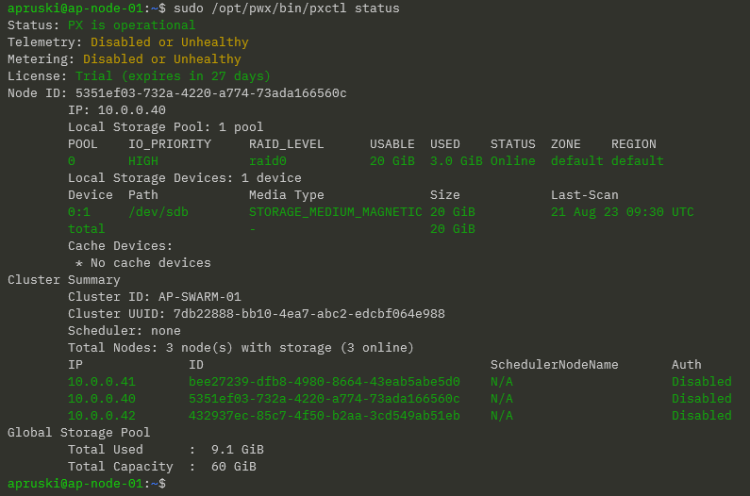
NOTE – Portworx will take around 5 minutes to come online.

Fantastic stuff! We have etcd and Portworx up and running. Now we can look at deploying SQL Server.


Deploying SQL Server

Ok phew…we’ve done all the hard work! Let’s have a look at deploying SQL Server using storage provisioned via Portworx in our Docker Swarm cluster.

So we need a volume to persist our data on: –

docker volume create -d pxd --name mssql_vol --opt repl=3 --opt fs=ext4 --opt sharedv4=true

Here we’re deploying a volume using the Portworx driver and using a replica count of 3 so that our volume is being replicated to each node in the cluster.

To confirm this, run: –

sudo /opt/pwx/bin/pxctl volume inspect mssql_vol
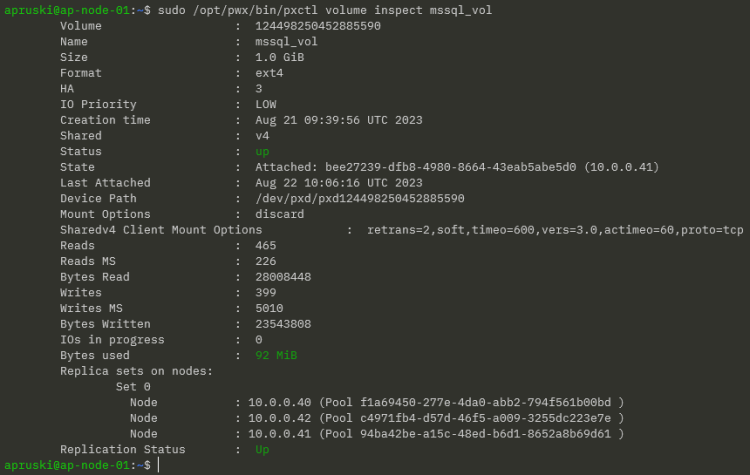
Here we can see the replica sets of the volume on each node and the node that the volume is currently attached to.

Now we can deploy SQL Server referencing that volume in the –mount flag: –

docker service create \
--name sqlswarm1 \
--replicas 1 \
--publish 15789:1433 \
--env ACCEPT_EULA=Y \
--env MSSQL_SA_PASSWORD=Testing1122 \
--mount type=volume,src=mssql_vol,dst=/var/opt/mssql,volume-driver=pxd \
mcr.microsoft.com/mssql/server:2022-CU4-ubuntu-20.04

We’re mounting the volume under /var/opt/mssql in the container, which is the default location for database data and log files.

So let’s create a database! I’m going to use the mssql-cli to do this but you can do this in SSMS using an IP address of a node in the cluster (I usually use the manager node’s IP address) and port 15789: –

mssql-cli -S 10.0.0.40,15789 -U sa -P Testing1122 -Q "CREATE DATABASE [testdatabase];"

Confirm the database: –

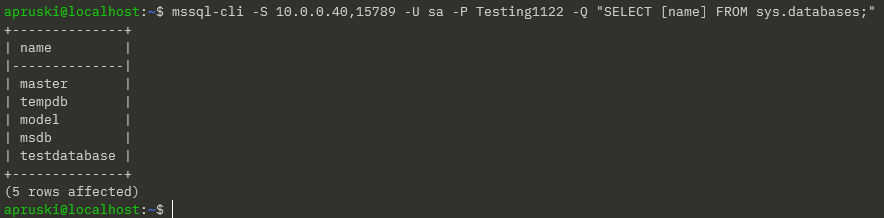
mssql-cli -S 10.0.0.40,15789 -U sa -P Testing1122 -Q "SELECT [name] FROM sys.databases;"
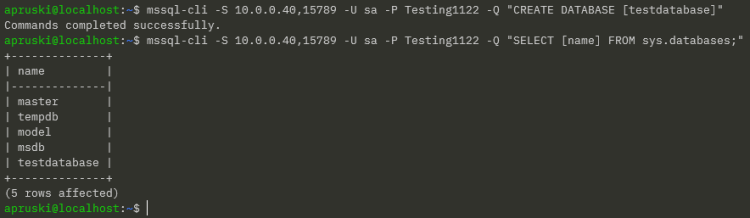
OK, now that we have a database in our SQL instance…let’s test failover! What we’re going to do is shut down the node that the container is running on and see what happens.

To find the node that the container is running on: –

docker service ps sqlswarm1

It’s running on AP-NODE-02, so let’s shut that node down!
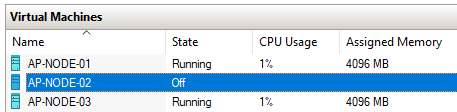
Let’s see what happened to our SQL container: –

docker service ps sqlswarm1

It’s now running on AP-NODE-03! But has our database survived?

mssql-cli -S 10.0.0.40,15789 -U sa -P Testing1122 -Q "SELECT [name] FROM sys.databases;"
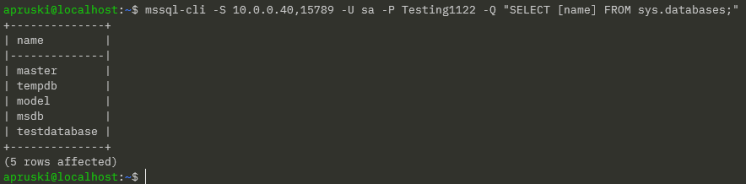
Yes! It’s there! We have persisted our database from one node to another in our Docker Swarm cluster!

Thanks for reading!