2

Identifying large queries using Extended Events

Following on from my last blog post I now want to run through how to identify large queries using Extended Events.

Extended Events were introduced in SQL Server 2008 and allow monitoring to be run against a server with a lower performance impact than profiler sessions and server side traces.

There’s now a nice GUI in SQL Server 2012 in which you can setup your Extended Event session but I always like to start with creating a session using T-SQL:-

USE [master];
GO

CREATE EVENT SESSION [QueriesWith200kReads] ON SERVER 
ADD EVENT sqlserver.sql_batch_completed(
    ACTION(sqlserver.client_hostname,sqlserver.database_name,sqlserver.session_id,sqlserver.sql_text,sqlserver.tsql_stack,sqlserver.username)
    WHERE ([logical_reads]>200000))
ADD TARGET package0.event_file(SET filename=N'C:\SQLServer\XEvents\QueriesWith200kReads.xel')
GO

The script above will capture all SQL batches executed on the server that perform over 200,000 reads. I’ve set the target as a .XEL file and have defined what information to capture.

The session can then be started:-

ALTER EVENT SESSION [QueriesWith200kReads]
ON SERVER
STATE = START;
GO

While the session is running, the following can be executed to see how many queries have been captured:-

SELECT COUNT(*)
FROM sys.fn_xe_file_target_read_file
 ('C:\SQLServer\XEvents\QueriesWith200kReads*.xel',NULL,NULL,NULL);
GO

To query the data, XQUERY can be used. The below script grabs all the data from the session in a CTE and then combines it to give an overall view so that we can see which queries are being executed the most and are causing the most pain!

WITH CTE_ExecutedSQLStatements AS
(SELECT
	[XML Data],
	[XML Data].value('(/event[@name=''sql_statement_completed'']/@timestamp)[1]','DATETIME')	AS [Time],
	[XML Data].value('(/event/data[@name=''duration'']/value)[1]','int')						AS [Duration],
	[XML Data].value('(/event/data[@name=''cpu_time'']/value)[1]','int')						AS [CPU],
	[XML Data].value('(/event/data[@name=''logical_reads'']/value)[1]','int')					AS [logical_reads],
	[XML Data].value('(/event/data[@name=''physical_reads'']/value)[1]','int')					AS [physical_reads],
	[XML Data].value('(/event/action[@name=''sql_text'']/value)[1]','varchar(max)')				AS [SQL Statement]
FROM
	(SELECT 
		OBJECT_NAME				 AS [Event], 
		CONVERT(XML, event_data) AS [XML Data]
	FROM 
		sys.fn_xe_file_target_read_file
	('C:\SQLServer\XEvents\QueriesWith200kReads*.xel',NULL,NULL,NULL)) as v)

SELECT
	[SQL Statement]		AS [SQL Statement],
	SUM(Duration)		AS [Total Duration],
	SUM(CPU)			AS [Total CPU],
	SUM(Logical_Reads)	AS [Total Logical Reads],
	SUM(Physical_Reads) AS [Total Physical Reads]
FROM
	CTE_ExecutedSQLStatements
GROUP BY
	[SQL Statement]
ORDER BY
	[Total Logical Reads] DESC
GO

But what if we want to change the session? In SQL Server 2012 a GUI was introduced so sessions can be setup and changed easily.

At the moment, the session picks up queries that are performing over 200,000 logical reads. What if we wanted to also include any queries that are performing a large amount of physical reads?

In order to do this, in Object Explorer go to Management > Extended Events > Sessions.

XEvents Blog - Pic 1

Right click the session and then go to properties.

XEvents Blog - Pic 2

Go to Events.

XEvents Blog - Pic 3

Click configure.

XEvents Blog - Pic 4

Click the filter tab.

XEvents Blog - Pic 5

Select OR in the And/Or box and then select Physical Reads, Greater than (>) and 10000 in the adjacent boxes.

XEvents Blog - Pic 6

Then either click OK or Script. I always script out the changes that I have made so that I can re-create the session if needed:-

ALTER EVENT SESSION [QueriesWith200kReads] ON SERVER 
DROP EVENT sqlserver.sql_batch_completed

ALTER EVENT SESSION [QueriesWith200kReads] ON SERVER 
ADD EVENT sqlserver.sql_batch_completed(
    ACTION(sqlserver.client_hostname,sqlserver.database_name,sqlserver.session_id,sqlserver.sql_text,sqlserver.tsql_stack,sqlserver.username)
    WHERE (([package0].[greater_than_uint64]([logical_reads],(200000))) OR ([physical_reads]>(10000))))
GO

Finally there is also the ability to watch events as they are captured (think profiler session with a lot less impact).

Again in Object Explorer go to Management > Extended Events > Sessions.
Right click the session and select Watch Live Data.

XEvents Blog - Pic 7

Columns can be added by right clicking the existing columns and selecting Choose Columns.

And there you have it, how to setup and alter an Extended Event session using scripts and/or the GUI.

4

Identifying large queries using Server Side Traces

Who are your worst offenders? By offenders I mean, queries that are consuming the most resources on your server(s).

I know Extended Events have a lower impact but I like server side traces. Not only because once you’ve set one up, setting up others is very simple but also because there’s a really good tool called ClearTrace that can be used to analyse the output.

I’ll cover using Extended Events in a future blog post.

So let’s go through a server side trace. First create the trace:-

DECLARE @TraceID		INT
DECLARE @MaxFileSize	BIGINT = 52 
DECLARE @EndTime		DATETIME = DATEADD (hour, 24, getdate());
DECLARE @FileName		NVARCHAR(200) = '<TRACE FILEPATH>'
DECLARE @options		INT = 0

EXEC sp_trace_create 
	@traceID OUTPUT,
	@options		= @options, 
	@tracefile		= @FileName, 
	@maxfilesize	= @MaxFileSize, 
	@stoptime		= @EndTime

PRINT @TraceID

Full details on the sp_trace_create stored procedure can be found here:- http://technet.microsoft.com/en-us/library/ms190362.aspx

The script above has created a trace, with a file in the specified location that will be a maximum size of 52MB and will run for 24 hours.

Store the output of PRINT @TraceID and replace in the following scripts with the value.

Next set the events that the trace will capture:-

--RPC:Completed [EventID 10]
EXEC sp_trace_setevent <TraceID>, 10, 1,  1 --TextData
EXEC sp_trace_setevent <TraceID>, 10, 2,  1 --BinaryData
EXEC sp_trace_setevent <TraceID>, 10, 6,  1 --NTUserName
EXEC sp_trace_setevent <TraceID>, 10, 9,  1 --ClientProcessID
EXEC sp_trace_setevent <TraceID>, 10, 10, 1 --ApplicationName
EXEC sp_trace_setevent <TraceID>, 10, 11, 1 --LoginName
EXEC sp_trace_setevent <TraceID>, 10, 12, 1 --SPID
EXEC sp_trace_setevent <TraceID>, 10, 13, 1 --Duration
EXEC sp_trace_setevent <TraceID>, 10, 14, 1 --StartTime
EXEC sp_trace_setevent <TraceID>, 10, 15, 1 --EndTime
EXEC sp_trace_setevent <TraceID>, 10, 16, 1 --Reads
EXEC sp_trace_setevent <TraceID>, 10, 17, 1 --Writes
EXEC sp_trace_setevent <TraceID>, 10, 18, 1 --CPU
EXEC sp_trace_setevent <TraceID>, 10, 35, 1 --DatabaseName

--SQL:BatchCompleted [EventID 12]
EXEC sp_trace_setevent <TraceID>, 12, 1,  1 --TextData
EXEC sp_trace_setevent <TraceID>, 12, 2,  1 --BinaryData
EXEC sp_trace_setevent <TraceID>, 12, 6,  1 --NTUserName
EXEC sp_trace_setevent <TraceID>, 12, 9,  1 --ClientProcessID
EXEC sp_trace_setevent <TraceID>, 12, 10, 1 --ApplicationName
EXEC sp_trace_setevent <TraceID>, 12, 11, 1 --LoginName
EXEC sp_trace_setevent <TraceID>, 12, 12, 1 --SPID
EXEC sp_trace_setevent <TraceID>, 12, 13, 1 --Duration
EXEC sp_trace_setevent <TraceID>, 12, 14, 1 --StartTime
EXEC sp_trace_setevent <TraceID>, 12, 15, 1 --EndTime
EXEC sp_trace_setevent <TraceID>, 12, 16, 1 --Reads
EXEC sp_trace_setevent <TraceID>, 12, 17, 1 --Writes
EXEC sp_trace_setevent <TraceID>, 12, 18, 1 --CPU
EXEC sp_trace_setevent <TraceID>, 12, 35, 1 --DatabaseName

Full details on the sp_trace_setevent stored procedure can be found here:- http://technet.microsoft.com/en-us/library/aa260314(v=sql.80).aspx

The scripts above will set the trace to capture the events RPC:completed & SQL:BatchCompleted. It will capture the TextData, BinaryData, NTUserName, ClientProcessID, ApplicationName, LoginName, SPID, Duration, StartTime, EndTime, Reads, Writes & CPU columns of each event.

Then filter the events:-

DECLARE @Value BIGINT = 500000

EXEC sp_trace_setfilter 2, 16, 0, 4, @Value

Full details on the sp_trace_setfilter stored procedure can be found here:- http://technet.microsoft.com/en-us/library/aa260322(v=SQL.80).aspx

The script above will filter all events captured, only retaining queries that perform over 500,000 reads. The trace can then be started:-

EXEC sp_trace_setstatus <TraceID>, 1

Whilst the trace is running it can be queried it by running the following:-

SELECT TOP (10)
	DatabaseName, LoginName, ApplicationName, Starttime, Endtime, 
	((Duration/1000)/1000)/60 AS [Duration (mins)], Reads,
	TextData
FROM 
	fn_trace_gettable('<TRACE FILEPATH>', DEFAULT)
ORDER BY 
	reads DESC;
GO

You can also get information on the traces running on the server:-

SELECT TraceID, Property, Value FROM ::fn_trace_getinfo(DEFAULT);
GO

Once the trace has completed, ClearTrace can be used to analyse the output:- http://www.scalesql.com/cleartrace/

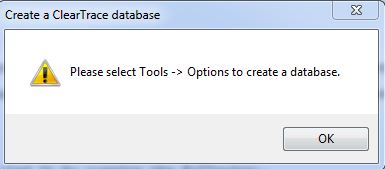
Download the .zip and extract the .exe. The program doesn’t require an install so double click and the program will ask you to setup the database connection:-

ClearTrace - Please choose database

Click on OK, then go to Tools > Options and enter the details of the server and database and then click Save.

ClearTrace - Main Screen

On the main screen, click Browse to navigate and then select your trace file. Click on OK and then Import Files.
Wait for the import to finish (which can take some time if it is a large file).

ClearTrace - Results Page

You then have several options for viewing the data. I won’t go through them all but I always tick the Display Averages box and start off by ordering by Reads.

And there you have it! The program gives a quick and easy way to view the most expensive queries captured allowing you to see what is happening on your server.

2

The Art of Performance Tuning

Performance tuning often gets called an art as people feel that a certain knack or innate talent comes into play. And whilst I don’t disagree that a certain level of knowledge is involved, I completely disagree that only certain people can performance tune.

Given the correct approach, anyone should be able to learn to effectively performance tune.

But how should performance tuning be approached? I’d like to take a step back from delving into specifics and define the process of performance tuning, a set of guidelines that can be used in any circumstance.

I believe that performance tuning should follow the scientific method, which is defined as:-

“A set of principles and procedures for the systematic pursuit of knowledge involving the recognition and formulation of a problem, the collection of data through observation and experiment, and the formulation and testing of hypotheses”

In practice, this can be broken down into the following steps:-

1) Observation
2) Declaration of the end goal or issue
3) Forming a hypothesis
4) Testing the hypothesis
5) Analysis of results
6) Conclusion
7) Further research

This way of approaching performance tuning comes into its own particularly when investigation is required in order to respond to issues in a live environment. The trick is to follow the method and not to go with “gut” feelings or guesses. Stick to what you know.

For example, your production server has started responding slowly, with queries taking longer than expected to complete. This could be due to memory pressure, but you are not sure. It would be better to start off by declaring “Performance of the server is poor”, which you know to be 100% correct, rather than declaring “Performance of the server is poor due to memory pressure”.

So the steps to follow would be:-

1. Observation
-Queries on production running for longer than expected
2. Declaration
-Performance of the server is poor
3. Hypothesis
-The poor performance of the server is due to memory pressure
4. Testing
-Running an extended events session on the server to catch incoming queries
5. Analysis
-Several queries performing scans of large tables
6. Conclusion
-Creation of a covering non-clustered index to prevent the table scans
7. Further Research
-Are there any other queries being executed that are performing table scans?

These steps may seem obvious but using the scientific method will prevent you from being lead down blind alleys and potentially missing the actual problem. What if the analysis in the example above indicated that memory pressure was not the cause of the poor performance of the server? If you had originally declared “Performance of the server is poor due to memory pressure” you could end up wasting valuable time and effort looking for other indications to back that statement up.

The scientific method provides a structure for the investigation of any performance issues you encounter. It’s very easy to feel under pressure when investigating performance issues, which can lead to mistakes being made or obvious problems being missed. Following the process of problem declaration, forming a hypothesis and then testing gives you a rigid structure to stick to when you’re feeling under the cosh, something to rely on as being a tried and tested method of investigation.

4

Partitioning Basics – Part 3 – Switching Data

This post follows on from Partitioning Basics – Part 2

In this final part, I want to go through how partitions can be used to archive data from a table. Firstly a table to archive the data from the primary table needs to be created:-

CREATE TABLE dbo.[DemoPartitionedTable_Archive]
(DemoID			INT IDENTITY(1,1),
 SomeData		SYSNAME,
 CaptureDate	DATE,

 CONSTRAINT [PK_DemoPartitionedTable_Archive] PRIMARY KEY CLUSTERED 
	(DemoID ASC, CaptureDate ASC) 

) ON DEMO;

I haven’t created this table on the partition scheme but it could be done because, according to Microsoft:-

“When a table and its indexes are aligned, then SQL Server can move partitions in and out of partitioned tables more effectively, because all related data and indexes are divided with the same algorithm.”

Reference:- Partitioned Tables and Indexes in SQL Server 2005

So if the archive table was on the partition scheme it would be “Aligned”. This means that moving data in and out would be more efficient. The only reason I haven’t done this here is because this is a basic demo.

Before the switch is performed the data in the partitions needs to be checked:-

SELECT 
	t.name AS TableName, i.name AS IndexName, p.partition_number, 
	r.value AS BoundaryValue, p.rows
FROM 
	sys.tables AS t
INNER JOIN
	sys.indexes AS i ON t.object_id = i.object_id
INNER JOIN
	sys.partitions AS p ON i.object_id = p.object_id AND i.index_id = p.index_id 
INNER JOIN
	sys.partition_schemes AS s ON i.data_space_id = s.data_space_id
INNER JOIN
	sys.partition_functions AS f ON s.function_id = f.function_id
LEFT OUTER JOIN 
	sys.partition_range_values AS r ON f.function_id = r.function_id AND r.boundary_id = p.partition_number
WHERE 
	t.name = 'DemoPartitionedTable'
AND 
	i.type <= 1
ORDER BY p.partition_number;

Here’s the data in the partitions:-

Partitions4

In order to switch the data from partition 1 in the primary table to the archive table, the following script needs to be run:-

ALTER TABLE dbo.[DemoPartitionedTable]
SWITCH PARTITION 1
TO dbo.[DemoPartitionedTable_Archive];
GO

Which makes the partitions look like this:-

Partitions6

Partition 1 has 0 rows and could be merged. The following script will merge the partition:-

ALTER PARTITION FUNCTION DemoPartitionFunction()
    MERGE RANGE ('2014-05-29');
GO

So now the partitions are:-

Partitions Final

The partition has had its data switched out to the archive table and then was merged into the above partition. Using the scripts in these three post will allow you to effectively manage partitioning in SQL Server.

I hope this series of posts has been helpful as an introduction into partitioning. Please let me know if you have any comments or questions.