12

Using docker named volumes to persist databases in SQL Server

I’ve previously talked about using named volumes to persist SQL Server databases but in that post I only used one named volume and I had to manually reattach the databases after the container spun up.

This isn’t really ideal, what we’d want is for the databases to automatically be attached to the new container. Thankfully there’s an easy way to do it, so let’s run through how here.

N.B. – Thanks to Anthony Nocentino (b|t) for pointing this out to me…it was a real d’oh moment 🙂

First thing, is to create two named volumes: –

docker volume create mssqlsystem
docker volume create mssqluser

And now spin up a container with the volumes mapped: –

docker container run -d -p 16110:1433 \
--volume mssqlsystem:/var/opt/mssql \
--volume mssqluser:/var/opt/sqlserver \
--env ACCEPT_EULA=Y \
--env SA_PASSWORD=Testing1122 \
--name testcontainer \
mcr.microsoft.com/mssql/server:2019-CTP2.3-ubuntu

The mssqluser named volume is going to be mounted as /var/opt/sqlserver and the mssqlsystem volume is going to be mounted as /var/opt/mssql. This is the key to the databases automatically being attached in the new container, /var/opt/mssql is the location of the system databases.

If we didn’t mount a named volume for the system databases any changes to those databases (particularly for the master database) would not be persisted so the new container would have no record of any user databases created.

By persisting the location of the system databases, when SQL starts up in the new container the changes made to the master database are retained and therefore has a record of the user databases. This means the user databases will be in the new instance in the new container (as long as we’ve persisted the location of those databases, which we’re doing with the mssqluser named volume).

Let’s create a database on the mssqluser named volume: –

USE [master];
GO

CREATE DATABASE [testdatabase]
ON PRIMARY
    (NAME = N'testdatabase', FILENAME = N'/var/opt/sqlserver/testdatabase.mdf')
LOG ON
    (NAME = N'testdatabase_log', FILENAME = N'/var/opt/sqlserver/testdatabase_log.ldf');
GO

And now blow the container away: –

docker kill testcontainer
docker rm testcontainer

That container is gone, but we still have our named volumes: –

docker volume ls

So we can now spin up another container, using those volumes: –

docker container run -d -p 16120:1433 \
--volume mssqlsystem:/var/opt/mssql \
--volume mssqluser:/var/opt/sqlserver \
--name testcontainer2 \
mcr.microsoft.com/mssql/server:2019-CTP2.3-ubuntu

UPDATE – As pointed out in the comments by Patrick Flynn, the environment variables ACCEPT_EULA and SA_PASSWORD do not need to be set for the second container as we have persisted the system databases so their values have been retained

Connect to the SQL instance in the new container…

And boom! The database is there!

Thanks for reading!

0

Using Github as a repository for SQL Server Helm Charts

In a previous post I ran through how to create a custom SQL Server Helm chart.

Now that the chart has been created, we need somewhere to store it.

We could keep it locally but what if we wanted to use our own Helm chart repository? That way we wouldn’t have to worry about deleting the chart on our local machine.

I use Github to store all my code to guard against accidentally deleting it (I’ve done that more than once) so why not use Github to store my Helm charts?

Let’s run through setting up a Github repo to store our Helm charts.

First thing to do is create a new Github repo: –

Clone the new repo down:-

git clone https://github.com/dbafromthecold/SqlServerHelmCharts.git

Navigate to the repo:-

cd C:\git\dbafromthecold\SqlServerHelmCharts

And now package the SQL Server Helm chart and copy it to the cloned, empty repo:-

helm package C:\Helm\testsqlchart \

Now create the index.yaml file in the repo (this is what we’ll link to in order to identify the repo locally):-

helm repo index .

Commit the changes and push to GitHub:-

git add .
git commit -m 'Added testsqlchart to repo'
git push

Go back to the Github repo and view the raw index.yaml file: –

Grab the HTTPS address (removing the index.yaml from the end) and drop it into the helm repo add statement:-

helm repo add dbafromthecold https://raw.githubusercontent.com/dbafromthecold/SqlServerHelmCharts/master

To confirm the repo has been added:-

helm repo list

To see if all is well:-

helm repo update

If you’re using VS Code and have the Kubernetes extension, you will be able to view the new repo under the Helm section: –

Final test is to perform a dry run:-

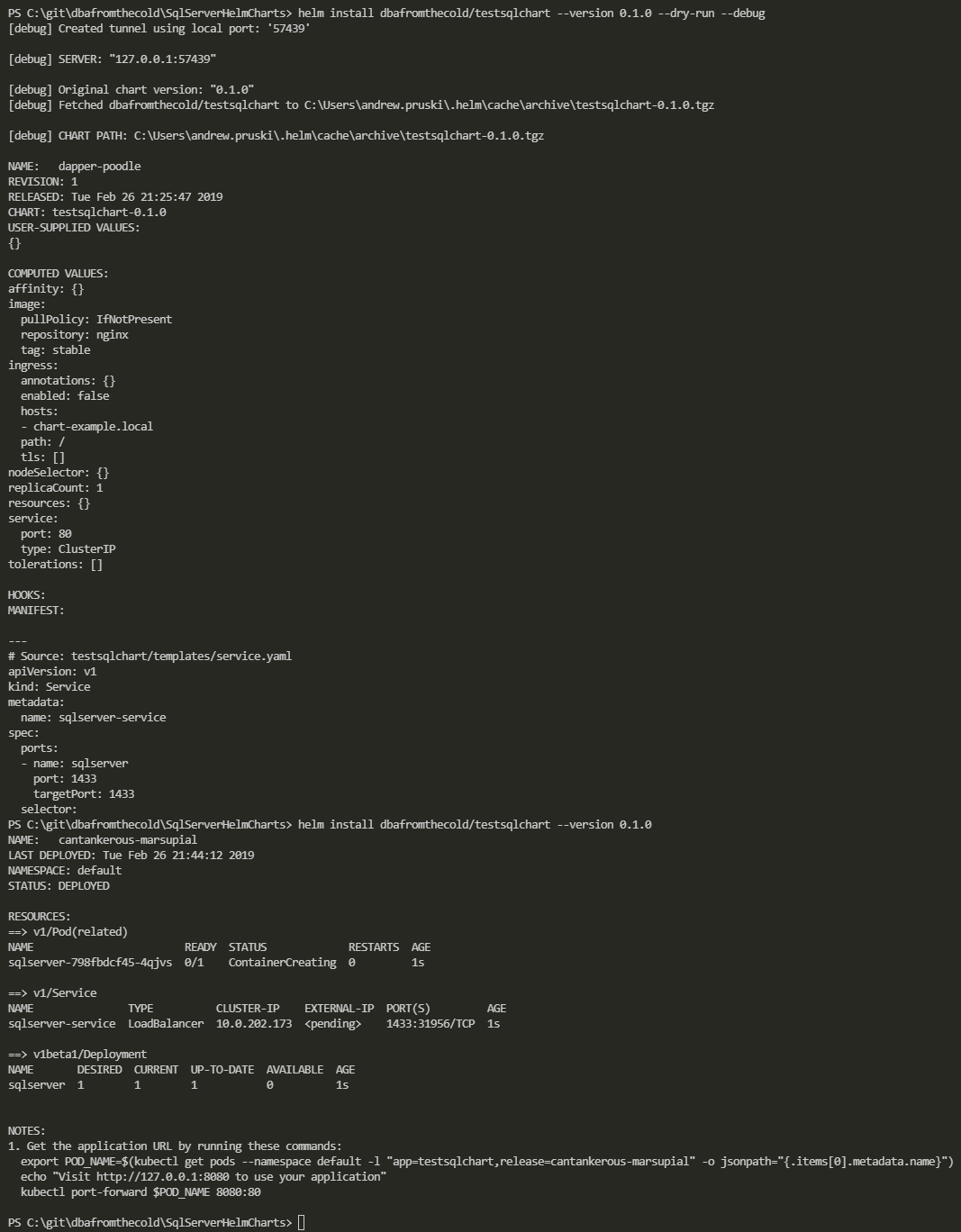
helm install dbafromthecold/testsqlchart --version 0.1.0 --dry-run --debug

If all looks good, then deploy!

helm install dbafromthecold/testsqlchart --version 0.1.0

To check your helm deployments: –

helm list

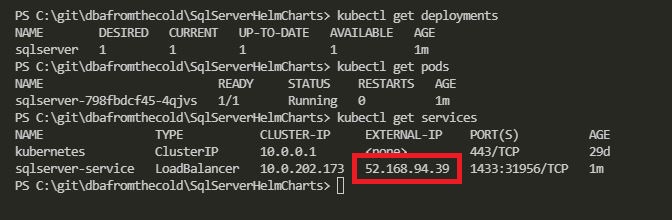
To check on the deployment/pod/service created by the helm chart: –

kubectl get deployments

kubectl get pods

kubectl get services

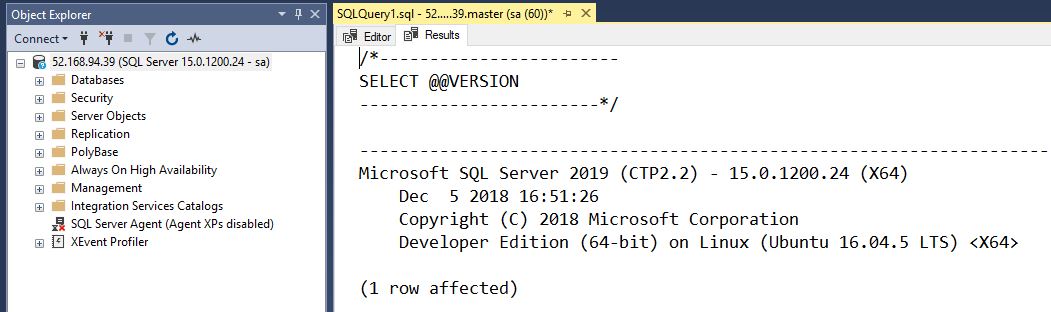
Once that external IP comes up it can be dropped into SSMS to connect: –

And BOOM! Connected to SQL Server running in Kubernetes deployed via a Helm package from a custom repo! 🙂

N.B. – To delete the deployment (deployment name grabbed from helm list): –

helm delete cantankerous-marsupial

Thanks for reading!

0

Displaying the tags within the SQL Server docker repository

A while back Microsoft moved all their SQL images to their new registry mcr.microsoft.com which means that we can no longer see the SQL repository when running docker search

Error response from daemon: Unexpected status code 404

To be honest, this isn’t really that much of an issue for me. I know the name of the repository that has the SQL Server images in it. What I really want to be able to do is view the tags of the images within it (this was a pain point with the images in the mssql-server-linux repository as well).

So I was pretty excited when a few days ago I saw this tweet by Tobias Fenster which said that mcr.microsoft.com supports the hub catalog API.

The hub catalog API allows us to view the tags of images within a repository!

It’s really simple to get the tags (the trick was finding the correct HTTP address): –

$repo = invoke-webrequest https://mcr.microsoft.com/v2/mssql/server/tags/list
$repo.content

And there we have it, all the tags listed for the SQL Server images within the repository.

Thanks for reading!

0

Creating custom SQL Server Helm charts

In my previous post I went through how to deploy SQL Server to Kubernetes using Helm in which I used the SQL Server chart that is available in the Helm Hub.

That’s great but what if we want to create our own charts? Let’s run through creating a simple SQL Server chart and deploying to Kubernetes (AKS).

First, ensure that Tiller (the server-side component of Helm) is installed on your cluster: –

helm init

Then create a directory to deploy the new chart into: –

mkdir C:\Helm

Navigate to the new directory: –

cd C:\Helm

And now create the new chart!

helm create testsqlchart

OK, what that has done is create an empty chart so we need to drop in our yaml configuration files.

Navigate to templates directory: –

cd testsqlchart/templates

Remove the template yaml files: –

rm deployment.yaml
rm service.yaml
rm ingress.yaml

Re-create deployment.yaml: –

apiVersion: apps/v1beta1
kind: Deployment
metadata:
  name: sqlserver
spec:
  replicas: 1
  template:
    metadata:
      labels:
        name: sqlserver
    spec:
      containers:
      - name: sqlserver1
        image: mcr.microsoft.com/mssql/server:2019-CTP2.2-ubuntu
        ports:
        - containerPort: 1433
        env:
        - name: SA_PASSWORD
          value: "Testing1122"
        - name: ACCEPT_EULA
          value: "Y"

Re-create service.yaml file: –

apiVersion: v1
kind: Service
metadata:
  name: sqlserver-service
spec:
  ports:
  - name: sqlserver
    port: 1433
    targetPort: 1433
  selector:
    name: sqlserver
  type: LoadBalancer

N.B. – Be careful when doing this, I’ve found that sometimes that Helm doesn’t like the format of the files. Re-creating in VS Code seems to do the trick.

Go back one directory: –

cd C:\Helm

And now we can test a deployment with –dry-run: –

helm install --dry-run --debug ./testsqlchart

If you get the following error: –

Tiller needs to be re-initialised: –

# delete current tiller deployment
kubectl delete deployment tiller-deploy --namespace kube-system

# create a service account
kubectl create serviceaccount --namespace kube-system tiller

# create clusterrolebinding
kubectl create clusterrolebinding tiller-cluster-rule --clusterrole=cluster-admin --serviceaccount=kube-system:tiller

# re-initialise tiller
helm init --service-account tiller --upgrade

Once the dry run returns no errors, you’re good to go!

helm install ./testsqlchart --name testsqlserver

To check the status: –

helm list

And you can monitor the creation of the deployment/service by running the usual kubectl commands: –

kubectl get deployments

kubectl get pods

kubectl get services

And that’s a custom SQL Server chart deployed into Kubernetes. SQL can be accessed by using the external IP of the service created.

Finally, to delete the deployed chart: –

helm delete testsqlserver

Thanks for reading!

7

Azure Kubernetes Service Error – LoadBalancer type service external IP stays pending

Last week I was working on my Azure Kubernetes Service cluster when I ran into a rather odd issue. I’d created a service with a type of LoadBalancer in order to get an external IP to connect to SQL Server running in a pod from my local machine.

I’ve done this quite a few times at this point so wasn’t expecting anything out of the ordinary.

However, my service never got it’s external IP address. It remained in a state of pending: –

N.B. – The images in this post are taken after the issue was resolved as I didn’t think at the time to screen shot everything 😦

I knew something was wrong after about 20 minutes as the IP should have definitely come up by then.

So I delved into the service by running: –

kubectl describe service sqlserver-service

And was greeted with the following: –

Error creating load balancer (will retry): failed to ensure load balancer for service default/sqlserver-service: azure.BearerAuthorizer#WithAuthorization: Failed to refresh the Token for request to https://management.azure.com/subscriptions/subscriptionID/resourceGroups/MC_containers1_SQLK8sCluster1_eastus/providers/Microsoft.Network/loadBalancers?api-version=2017-09-01: StatusCode=0 — Original Error: adal: Refresh request failed. Status Code = ‘401’. Response body: {“error”:”invalid_client”,”error_description”:”AADSTS70002: Error validating credentials. AADSTS50012: Invalid client secret is provided.\r\nTrace ID: 17d1f0ce-6c11-4f8e-895d-29194d973900\r\nCorrelation ID: 3e11d85c-77bf-4041-a41d-267bfd5f066c\r\nTimestamp: 2019-01-23 18:58:59Z”,”error_codes”:[70002,50012],”timestamp”:”2019-01-23 18:58:59Z”,”trace_id”:”17d1f0ce-6c11-4f8e-895d-29194d973900″,”correlation_id”:”3e11d85c-77bf-4041-a41d-267bfd5f066c”}

Yikes! What’s happened there?

I logged a case with MS Support and when they came back to me, they advised that the service principal that is spun up in the background had expired. This service principal is required to allow the cluster to interact with the Azure APIs in order to create other Azure resources.

When a service is created within AKS with a type of LoadBalancer, a Load Balancer is created in the background which provides the external IP I was waiting on to allow me to connect to the cluster.

Because this principal had expired, the cluster was unable to create the Load Balancer and the external IP of the service remained in the pending state.

So I needed to update the service principal so that it was no longer expired. In order to update the service principal I needed two pieces of information. The clientId of the cluster and a secret used for the service principal password. This wasn’t the easiest process in the world so I’ll run through how to do it here.

First, log into Azure:-

az login

Then get the clientId of your cluster: –

az aks show --resource-group RESOURCEGROUPNAME --name CLUSTERNAME --query "servicePrincipalProfile.clientId" --output tsv

To confirm that the principal is expired: –

az ad sp credential list --id CLIENTID

Check the endDate value highlighted above. If it’s past the current date, that’s your issue!

You may have noticed that mine is set 10 years from now. This is because I’m running these commands to get screenshots after I’ve fixed the issue…I figured 10 years should be long enough 🙂

The way I got the secret was to ssh onto one of the nodes in my cluster. This is a little involved but I’ll go through it step-by-step.

Resources for an AKS cluster are created in a separate resource group (for….reasons). To get that resource group name run: –

az aks show --resource-group RESOURCEGROUPNAME --name CLUSTERNAME --query nodeResourceGroup -o tsv

Then grab the nodes in the cluster (RESOURCEGROUPNAME2 is the output of the above command): –

az vm list --resource-group RESOURCEGROUPNAME2 -o table

And then get the IP address of each node: –

az vm list-ip-addresses --resource-group RESOURCEGROUPNAME2 -o table

OK, now that I had the node details I could copy my SSH public key into one of them.

The ssh keys were generated when I created the cluster using the –generate-ssh-keys flag. If you didn’t specify this you’ll need to generate the keys before continuing on.

So I copied my public key into one of the nodes: –

az vm user update \
  --resource-group RESOURCEGROUPNAME2 \
  --name NODENAME \
  --username azureuser \
  --ssh-key-value id_rsa.pub

N.B. – I found it easiest to navigate to the directory that held my ssh keys before running this script

Then I spun up a pod with openssh-client installed so that I could ssh into one of the nodes from within the cluster (the nodes aren’t accessible externally).

To do this I created a docker image from the Alpine:latest image and installed the client. Pushed it to the Docker Hub and then ran: –

kubectl run -it --rm aks-ssh --image=dbafromthecold/alpine_ssh:latest

N.B. – the dbafromthecold/alpine_ssh:latest image is public so this will work for you as well

In a separate command prompt I got the name of the pod:-

kubectl get pods

And then copied my private ssh key into the pod:-

kubectl cp id_rsa PODNAME:/id_rsa

Once the key was copied in, I closed that window and went back to the original window where I had run the pod and changed the permissions on the private key: –

chmod 0600 id_rsa

And then I was able to ssh into one of the nodes:-

ssh -i id_rsa azureuser@NODEIPADDRESS

The secret is contained in a json file (as aadClientSecret). To grab it I ran: –

sudo cat /etc/kubernetes/azure.json

Once I had that information I could exit the node, then the pod, and update the service principal: –

az ad sp credential reset --name CLIENTID--password SECRET --years 10

I confirmed that the service principal had been updated: –

az ad sp credential list --id CLIENTID

And was then able to deploy a loadbalancer type service, and get an external IP!

kubectl get services

Phew 🙂

Hope that helps anyone who runs into the same issue!