There are new Ubuntu Pro 20.04 images available in the Azure marketplace with SQL Server 2019 pre-installed so I thought I’d run through how to create a three node pacemaker cluster with these new images in order to deploy a SQL Server availability group.
Disclaimer – The following steps will create the cluster but will not have been tested in a production environment. Any HA configuration for SQL Server needs to be thoroughly tested before going “live”.
Ok, in order to get started we will need the azure-cli installed locally in order to create our VMs for the cluster.
The steps that we are going to run through to create the cluster and deploy an availability group are: –
1. Create VMs in Azure
2. Install and configure pacemaker cluster
3. Create the availability group
4. Add colocation and promotion constraints
5. Configure fencing resource on pacemaker cluster
6. Test manual failover of availability group
All the code for these steps is also available in a Github repo here
Creating the VMs
First thing to do is login to azure locally in a powershell window: –
az login
We can check which VM images are available: –
az vm image list --all --offer "sql2019-ubuntupro2004"
az vm image list --all --offer "windows-11"
Set resource group name: –
$resourceGroup = "linuxcluster"
Set a username and password for access to VMs: –
$Username = "dbafromthecold"
$Password = "XXXXXXXXXXXXX"
Create the resource group: –
az group create --name $resourceGroup --location eastus
Create availability set for the VMs: –
az vm availability-set create `
--resource-group $resourceGroup `
--name $resourceGroup-as1 `
--platform-fault-domain-count 2 `
--platform-update-domain-count 2
Create a virtual network: –
az network vnet create `
--resource-group $resourceGroup `
--name $resourceGroup-vnet `
--address-prefix 192.168.0.0/16 `
--subnet-name $resourceGroup-vnet-sub1 `
--subnet-prefix 192.168.0.0/24
Create the VMs for the cluster using the Ubuntu Pro 20.04 image with SQL Server 2019 CU13 Developer Edition: –
$Servers=@("ap-server-01","ap-server-02","ap-server-03")

foreach($Server in $Servers){
az vm create `
--resource-group "$resourceGroup" `
--name $server `
--availability-set "$resourceGroup-as1" `
--size "Standard_D4s_v3" `
--image "MicrosoftSQLServer:sql2019-ubuntupro2004:sqldev_upro:15.0.211020" `
--admin-username $Username `
--admin-password $Password `
--authentication-type password `
--os-disk-size-gb 128 `
--vnet-name "$resourceGroup-vnet" `
--subnet "$resourceGroup-vnet-sub1" `
--public-ip-address '""'
}
Now that we have the three VMs for the cluster, we need to create a jump box so that we can access them as the three servers do not have a public IP address (generally speaking, opening up SQL Server to the internet is a bad idea, and we’re not going to do that here)
So create a public IP address for jump box: –
az network public-ip create `
--name "ap-jump-01-pip" `
--resource-group "$resourceGroup"
And then create the jump box running Windows 11: –
az vm create `
--resource-group "$resourceGroup" `
--name "ap-jump-01" `
--availability-set "$resourceGroup-as1" `
--size "Standard_D4s_v3" `
--image "MicrosoftWindowsDesktop:windows-11:win11-21h2-pro:22000.318.2111041236" `
--admin-username $Username `
--admin-password $Password `
--os-disk-size-gb 128 `
--vnet-name "$resourceGroup-vnet" `
--subnet "$resourceGroup-vnet-sub1" `
--public-ip-address "ap-jump-01-pip"
Once the jump box is up, RDP to it using the public IP address and install the following: –
– Visual Studio Code
– SQL Server Management Studio
– Azure-Cli
Install and configure pacemaker
Now we’re almost ready to create the pacemaker cluster. But before that, we need to configure the SQL instances.
On the jump box, ssh into each of the three servers. Once connected, enable the SQL Server Agent and enable availability groups: –
sudo /opt/mssql/bin/mssql-conf set sqlagent.enabled true
sudo /opt/mssql/bin/mssql-conf set hadr.hadrenabled 1
sudo systemctl restart mssql-server
Set the sa password for the SQL instances: –
sudo systemctl stop mssql-server
sudo /opt/mssql/bin/mssql-conf set-sa-password
sudo systemctl start mssql-server
Check status of firewall, it’s disabled by default and we’re going to leave it that way (for this lab setup): –
sudo ufw status
Add records of other servers in the cluster to /etc/hosts: –
sudo vim /etc/hosts
So for example, on ap-server-01: –
192.168.0.4 ap-server-01
192.168.0.5 ap-server-02
192.168.0.6 ap-server-03
192.168.0.10 ap-server-10
N.B. – ap-sever-10 is going to be the listener name for the availability group.
Now we can install the required packages to create the cluster: –
sudo apt-get install -y pacemaker pacemaker-cli-utils crmsh resource-agents fence-agents csync2 python3-azure
Create an authentication key on the primary server: –
sudo corosync-keygen
Copy the key generated to other servers: –
sudo scp /etc/corosync/authkey dbafromthecold@ap-server-02:~
sudo scp /etc/corosync/authkey dbafromthecold@ap-server-03:~
Move the key from the home directory to /etc/corosync on other servers: –
sudo mv authkey /etc/corosync/authkey
OK now we can create the cluster. We do this by editing the /etc/corosync/corosync.conf file on the primary server: –
sudo vim /etc/corosync/corosync.conf
The corosync.conf file should look like this: –
totem {
version: 2
cluster_name: ap-cluster-01
transport: udpu
crypto_cipher: none
crypto_hash: none
}

logging {
fileline: off
to_stderr: yes
to_logfile: yes
logfile: /var/log/corosync/corosync.log
to_syslog: yes
debug: off
logger_subsys {
subsys: QUORUM
debug: off
}
}

quorum {
provider: corosync_votequorum
}

nodelist {
node {
name: ap-server-01
nodeid: 1
ring0_addr: 10.0.0.4
}
node {
name: ap-server-02
nodeid: 2
ring0_addr: 10.0.0.5
}
node {
name: ap-server-03
nodeid: 3
ring0_addr: 10.0.0.6
}
}
N.B. – I’ve stripped out all the comments from the file. The nodelist section is essentially where we are configuring our cluster, make sure that is correct.
Copy the corosync.conf file to other nodes: –
sudo scp /etc/corosync/corosync.conf dbafromthecold@ap-server-02:~
sudo scp /etc/corosync/corosync.conf dbafromthecold@ap-server-03:~
Replace the default corosync.conf file on other nodes: –
sudo mv corosync.conf /etc/corosync/
Restart pacemaker and corosync: –
sudo systemctl restart pacemaker corosync
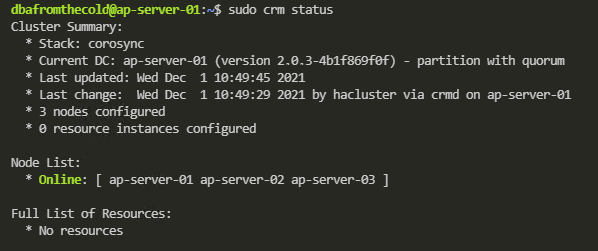
Then confirm the status of the cluster: –
sudo crm status
Creating the availability group
Now that the cluster has been built, we can create the availability group.
First thing is to start the availability group extended event on each of the servers: –
ALTER EVENT SESSION AlwaysOn_health ON SERVER WITH (STARTUP_STATE=ON);
GO
Create a certificate on primary server: –
CREATE MASTER KEY ENCRYPTION BY PASSWORD = 'PASSWORD';
CREATE CERTIFICATE dbm_certificate WITH SUBJECT = 'dbm';
BACKUP CERTIFICATE dbm_certificate
TO FILE = '/var/opt/mssql/data/dbm_certificate.cer'
WITH PRIVATE KEY (
FILE = '/var/opt/mssql/data/dbm_certificate.pvk',
ENCRYPTION BY PASSWORD = 'PASSWORD'
);
Copy the certificate to other servers: –
sudo su
cd /var/opt/mssql/data
scp dbm_certificate.* dbafromthecold@ap-server-02:~
scp dbm_certificate.* dbafromthecold@ap-server-03:~
exit
Copy the cert to /var/opt/mssql/data on the other servers and grant the mssql user access: –
sudo su
cp /home/dbafromthecold/dbm_certificate.* /var/opt/mssql/data/
chown mssql:mssql /var/opt/mssql/data/dbm_certificate.*
exit
Back in SQL, create the certificate on the other servers: –
CREATE MASTER KEY ENCRYPTION BY PASSWORD = 'PASSWORD';
CREATE CERTIFICATE dbm_certificate
FROM FILE = '/var/opt/mssql/data/dbm_certificate.cer'
WITH PRIVATE KEY (
FILE = '/var/opt/mssql/data/dbm_certificate.pvk',
DECRYPTION BY PASSWORD = 'PASSWORD'
);
Now, create the availability group endpoints on all three servers: –
CREATE ENDPOINT [Hadr_endpoint]
AS TCP (LISTENER_PORT = 5022)
FOR DATABASE_MIRRORING (
ROLE = ALL,
AUTHENTICATION = CERTIFICATE dbm_certificate,
ENCRYPTION = REQUIRED ALGORITHM AES
);
ALTER ENDPOINT [Hadr_endpoint] STATE = STARTED;
Create a login for pacemaker on all three servers: –
USE [master]
GO
CREATE LOGIN [pacemakerLogin] with PASSWORD= N'PASSWORD';
ALTER SERVER ROLE [sysadmin] ADD MEMBER [pacemakerLogin];
GO
Create password file on all three servers so that pacemaker can retrieve the credentials and connect to the SQL instances: –
echo 'pacemakerLogin' >> ~/pacemaker-passwd
echo 'PASSWORD' >> ~/pacemaker-passwd
sudo mv ~/pacemaker-passwd /var/opt/mssql/secrets/passwd
sudo chown root:root /var/opt/mssql/secrets/passwd
sudo chmod 400 /var/opt/mssql/secrets/passwd
N.B. – pacemaker runs as root so that’s why we’re setting the owner of the file to root and restricting permissions
Now we can go ahead and create the availability group with 3 nodes to provide quorum. There’s no concept of file share or disk witnesses in pacemaker so that’s why the cluster has to have an odd number of nodes. SQL Standard edition only allows for 2 nodes but you can deploys a “configuration only” SQL Express instance. This instance acts similarly to a witness instance in database mirroring. It’ll never host the availability group but has a vote in the cluster.
But here we’re running the Developer Edition of SQL so we will go ahead and deploy the three node availability group.
Run this on the primary server: –
CREATE AVAILABILITY GROUP [ag1]
WITH (CLUSTER_TYPE = EXTERNAL)
FOR REPLICA ON
N'ap-server-01'
WITH (
ENDPOINT_URL = N'tcp://ap-server-01:5022',
AVAILABILITY_MODE = SYNCHRONOUS_COMMIT,
FAILOVER_MODE = EXTERNAL,
SEEDING_MODE = AUTOMATIC
),
N'ap-server-02'
WITH (
ENDPOINT_URL = N'tcp://ap-server-02:5022',
AVAILABILITY_MODE = SYNCHRONOUS_COMMIT,
FAILOVER_MODE = EXTERNAL,
SEEDING_MODE = AUTOMATIC
),
N'ap-server-03'
WITH(
ENDPOINT_URL = N'tcp://ap-server-03:5022',
AVAILABILITY_MODE = SYNCHRONOUS_COMMIT,
FAILOVER_MODE = EXTERNAL,
SEEDING_MODE = AUTOMATIC
);
ALTER AVAILABILITY GROUP [ag1] GRANT CREATE ANY DATABASE;
GO
Then join the secondaries to the availability group: –
ALTER AVAILABILITY GROUP [ag1] JOIN WITH (CLUSTER_TYPE = EXTERNAL);
ALTER AVAILABILITY GROUP [ag1] GRANT CREATE ANY DATABASE;
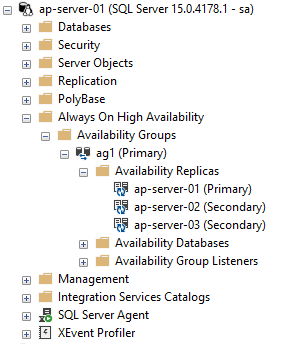
The primary SQL instance should now look like this: –
Grant the pacemaker login permissions to availability group: –
GRANT ALTER, CONTROL, VIEW DEFINITION ON AVAILABILITY GROUP::ag1 TO [pacemakerLogin];
GRANT VIEW SERVER STATE TO [pacemakerLogin];
GO
Before we create the availability group resource in pacemaker, we need to disable STONITH: –
sudo crm configure property stonith-enabled=false
N.B. – I’ll cover what this is later in the setup, ignore any warnings for this on the following commands.
Ok, now we have the availability group in SQL we need to create the availability group resource in pacemaker.
To do this we’re going to jump into the crm shell and create a couple of resources: –
sudo crm

configure

primitive ag1_cluster \
ocf:mssql:ag \
params ag_name="ag1" \
meta failure-timeout=60s \
op start timeout=60s \
op stop timeout=60s \
op promote timeout=60s \
op demote timeout=10s \
op monitor timeout=60s interval=10s \
op monitor timeout=60s on-fail=demote interval=11s role="Master" \
op monitor timeout=60s interval=12s role="Slave" \
op notify timeout=60s

ms ms-ag1 ag1_cluster \
meta master-max="1" master-node-max="1" clone-max="3" \
clone-node-max="1" notify="true"

commit
The first resource created [ag1_cluster] is the availability group resource. After that, we’re creating a primary/secondary resource [ms-ag1] in pacemaker and adding the availability group resource to it. What this will do is say that the availability group resource will run on all three servers in the cluster but only one of those servers will be the primary.
To view availability group resource: –
sudo crm resource status ms-ag1

Now we can check the status of the cluster: –
sudo crm status
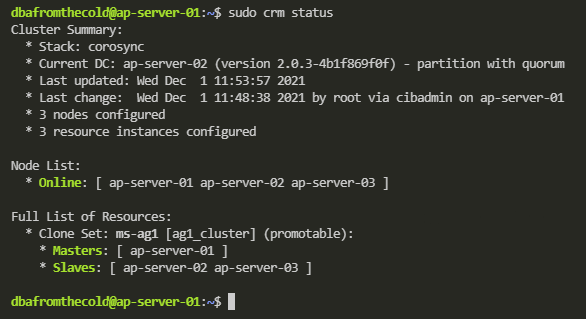
N.B. – Pacemaker still uses outdated terminology to refer to the primary and secondary servers in the cluster. Hopefully this will be updated in the future.
OK, we have our availability group created in both SQL and pacemaker. Let’s test adding database to it (running on the primary SQL instance): –
USE [master];
GO

CREATE DATABASE [testdatabase1];
GO

BACKUP DATABASE [testdatabase1] TO DISK = N'/var/opt/mssql/data/testdatabase1.bak';
BACKUP LOG [testdatabase1] TO DISK = N'/var/opt/mssql/data/testdatabase1.trn';
GO

ALTER AVAILABILITY GROUP [ag1] ADD DATABASE [testdatabase1];
GO
Once that’s complete we should see the database on all three servers in the cluster: –
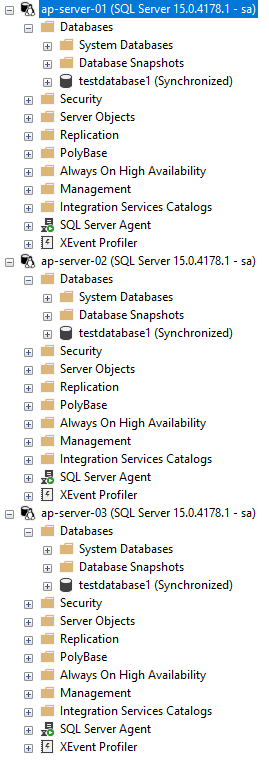
Ok, next thing to do is create the listener resource in pacemaker: –
sudo crm configure primitive virtualip \
ocf:heartbeat:IPaddr2 \
params ip=192.168.0.10
Now go and create an internal load balancer in Azure the same way that one is created when deploying SQL Server availability groups on Windows: –
https://docs.microsoft.com/en-us/azure/azure-sql/virtual-machines/windows/availability-group-load-balancer-portal-configure
N.B. – the Load Balancer requirement will be removed in the future (blog is for Windows but the option for Linux is coming): –
https://techcommunity.microsoft.com/t5/azure-sql-blog/simplify-azure-sql-virtual-machines-ha-and-dr-configuration-by/ba-p/2882897
Now create the load balancer resource in pacemaker: –
sudo crm configure primitive azure-load-balancer azure-lb params port=59999
We’re going to be applying colocation and promotion constraints to the listener and load balancer resources in the pacemaker cluster. In order to not have to apply the constraints individually to both resources, we’re going to create a group resource and add both the listener and load balancer resources to it: –
sudo crm configure group virtualip-group azure-load-balancer virtualip
Now confirm the cluster status: –
sudo crm status
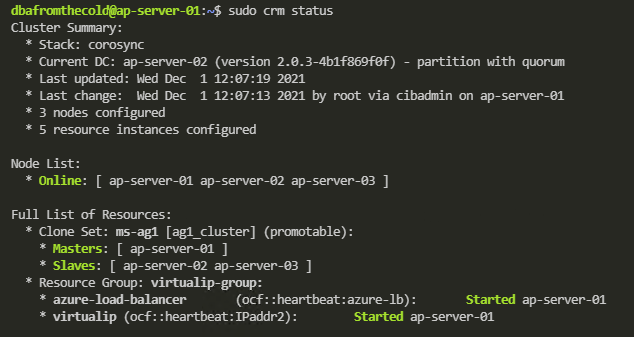
And then create the listener on the primary SQL instance: –
ALTER AVAILABILITY GROUP [ag1] ADD LISTENER N'ap-server-10' (
WITH IP
((N'192.168.0.10', N'255.255.255.0')), PORT=1433);
GO
Once this is complete we can now connect to the listener in SQL Server via the IP address (an entry in the jumpbox’s hosts file will be needed to connect via the listener name)
Adding colocation and promotion constraints to the pacemaker cluster
In order to ensure that the listener and availability group resources always run on the same server in the cluster we are going to create a colocation constraint: –
sudo crm configure colocation ag-with-listener INFINITY: virtualip-group ms-ag1:Master
What this is doing is saying that the group containing the listener and load balancer resource will always run on the server that is the primary node in the availability group.
OK, now we are going to create a promotion/ordering constraint: –
sudo crm configure order ag-before-listener Mandatory: ms-ag1:promote virtualip-group:start
What this is doing is saying that when a failover occurs, bring the availability group online on the new primary server and then start the listener on that server.
To view the constraints: –
sudo crm configure show ag-with-listener
sudo crm configure show ag-before-listener
Install and configure fencing on the cluster
What we’re going to do now is configure fencing on the cluster. Fencing is the isolation of a failed node in a cluster which is performed by a STONITH resource. STONITH stands for, Shoot the other node in the head, a bit melodramtic maybe but, that’s exactly what it does. It’ll restart the failed node, allowing to go down, reset, come back up and rejoin the cluster, hopefully bringing the cluster into a healthy state
Register a new application in Azure Active Directory and create a secret: –
1. Go to Azure Active Directory in the portal and make a note of the Tenant ID.
2. Click “App Registrations” on the left hand side menu and then click “New Registration”
3. Enter a Name and then select “Accounts in this organization directory only”
4. Select Application Type Web, enter http://localhost as a sign-on URL then click “Register”
5. Click “Certificates and secrets” on the left hand side menu, then click “New client secret”
6. Enter a description and select an expiry period
7. Make a note of the value of the secret, it is used as the password below and the secret ID, it is used as the username below.
8. Click “Overview” and make a note of the Application ID. It is used as the login below
Create a json file called fence-agent-role.json and add the following (adding your subscription id): –
{
"Name": "Linux Fence Agent Role-ap-server-01-fence-agent",
"Id": null,
"IsCustom": true,
"Description": "Allows to power-off and start virtual machines",
"Actions": [
"Microsoft.Compute/*/read",
"Microsoft.Compute/virtualMachines/powerOff/action",
"Microsoft.Compute/virtualMachines/start/action"
],
"NotActions": [
],
"AssignableScopes": [
"/subscriptions/XXXXXXXX-XXXX-XXXX-XXXX-XXXXXXXXXXXX"
]
}
Create a custom role from the json file in a powershell session on the jumpbox: –
az role definition create --role-definition fence-agent-role.json
Now assign role and application to the VMs in the cluster: –
1. For each of the VMs in the cluster, click “Access Control (IAM)” left hand side menu.
2. Click Add a role assignment (use the classic experience).
3. Select the role created above.
4. In the Select list, enter the name of the application created earlier.
OK, now we can create the STONITH resource using values from above and your subscription ID: –
sudo crm configure primitive fence-vm stonith:fence_azure_arm \
params \
action=reboot \
resourceGroup="linuxcluster" \
username="XXXXXXXX-XXXX-XXXX-XXXX-XXXXXXXXXXXX" \
login="XXXXXXXX-XXXX-XXXX-XXXX-XXXXXXXXXXXX" \
passwd="XXXXXXXX-XXXX-XXXX-XXXX-XXXXXXXXXXXX" \
tenantId="XXXXXXXX-XXXX-XXXX-XXXX-XXXXXXXXXXXX" \
subscriptionId="XXXXXXXX-XXXX-XXXX-XXXX-XXXXXXXXXXXX" \
pcmk_reboot_timeout=900 \
power_timeout=60 \
op monitor \
interval=3600 \
timeout=120
And finally, set the STONITH properties: –
sudo crm configure property cluster-recheck-interval=2min
sudo crm configure property start-failure-is-fatal=true
sudo crm configure property stonith-timeout=900
sudo crm configure property concurrent-fencing=true
sudo crm configure property stonith-enabled=true
Confirm cluster status: –
sudo crm status
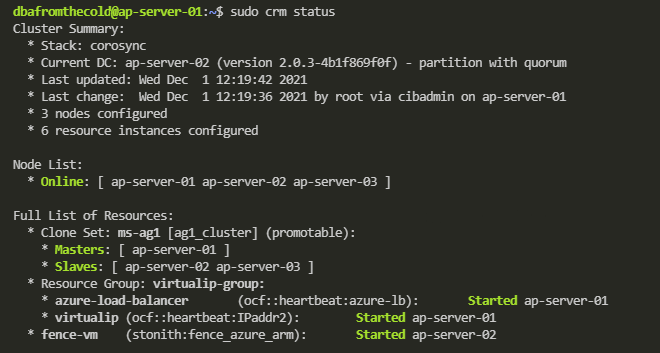
And there we have the fencing agent.
Performing a manual failover
Now we have all the resources configured on the cluster, we can test failing over the availability group. In a pacemaker cluster, we can’t failover the availability group using t-sql: –
ALTER AVAILABILITY GROUP [ag1] FAILOVER
We have to do it in pacemaker: –
sudo crm resource move ms-ag1 ap-server-02
What this will do is create a move constraint on the availability group resource, saying that it needs to be on ap-server-02. Once the availability group has moved, the group containing the listener and load balancer resources will also move (if we have our colocation and promotion constraints right).
Once the failover is complete, confirm the status of the cluster: –
sudo crm status
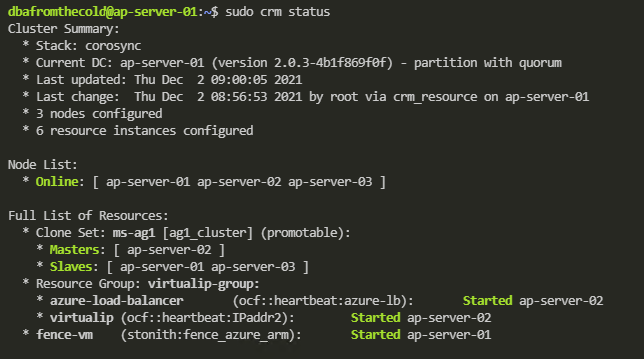
Now we can see that all the resources (barring the fencing resource which has moved to ap-server-01) are on the new primary! Manual failover complete!
One final thing to do is remove that move constraint from the availability group resource.
To view the constraint: –
sudo crm resource constraints ms-ag1
And then to delete the constraint: –
sudo crm configure delete cli-prefer-ms-ag1
And that’s it! We have successfully deployed an availability group to a pacemaker cluster in Azure and tested a manual failover.
Thanks for reading!