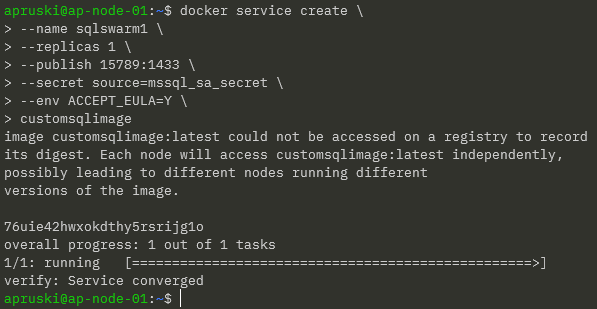
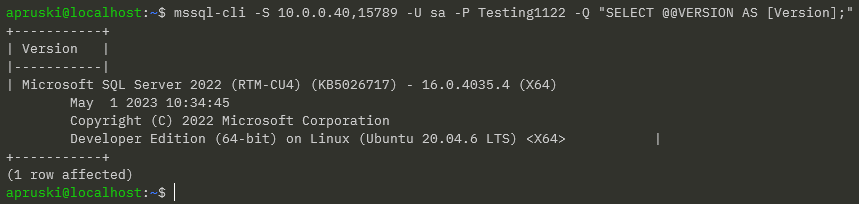
In my last couple of blog posts (here and here) I talked about how to get SQL Server running in Docker Swarm. But there is one big (and show-stopping) issue that I have not covered. How do we persist data for SQL Server in Docker Swarm?
Docker Swarm, like Kubernetes, has no native method to persist data across nodes…so we need another option and one of the options available to us is Portworx.
So how can we use Portworx to persist SQL Server databases in the event of a node failure in Docker Swarm?
There are three steps to get this working: –
- Install a key value store that can be accessed by Portworx on each cluster node
- Install and configure Portworx on each of the nodes
- Deploy a volume for SQL Server using the Portworx driver
Let’s run through each of those steps.
Installing etcd
Portworx needs a key value store to be installed and reachable from all the nodes in the Docker Swarm cluster.
So what we’re going to do is install ETCD on the manager node of the cluster and configure it so that all the other nodes in the cluster can talk to it.
First thing to do is download a sample config file and the etcd binaries: –
ETCD_VER=v3.4.27
DOWNLOAD_URL=https://github.com/etcd-io/etcd/releases/download

curl -L https://raw.githubusercontent.com/etcd-io/etcd/main/etcd.conf.yml.sample -o /tmp/etcd-download-test/etcd.conf.yml
curl -L ${DOWNLOAD_URL}/${ETCD_VER}/etcd-${ETCD_VER}-linux-amd64.tar.gz -o /tmp/etcd-${ETCD_VER}-linux-amd64.tar.gz
tar xzvf /tmp/etcd-${ETCD_VER}-linux-amd64.tar.gz -C /tmp/etcd-download-test --strip-components=1
Move files to a location in our PATH environment variable: –
sudo cp /tmp/etcd-download-test/etcd /tmp/etcd-download-test/etcdctl /tmp/etcd-download-test/etcd.conf.yml /usr/local/bin
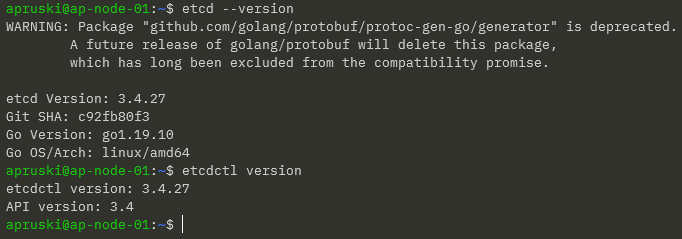
Confirm versions: –
etcd --version
etcdctl version
Create etcd user and group: –
sudo groupadd --system etcd
sudo useradd -s /sbin/nologin --system -g etcd etcd
Create etcd data and wal directories and configure permissions: –
sudo mkdir -p /var/lib/etcd/wal
sudo chown -R etcd:etcd /var/lib/etcd
sudo chmod -R 700 /var/lib/etcd
Update the sample configuration file: –
sudo vim /usr/local/bin/etcd.conf.yml
Here we are updating the following: –
- line 4 – change name of etcd member to the server name
- line 7 – add /var/lib/etcd as the data-dir
- line 10 – add /var/lib/etcd/wal as the wal-dir
- line 26/29/42/46 – change localhost to server IP address
- line 62 – add initial-cluster: SERVERNAME=http://IPADDRESS:2380
The next thing to do is create a service to run etcd. So create a etcd.service file: –
echo "[Unit]
Description=etcd key-value store
Documentation=https://github.com/etcd-io/etcd
After=network.target

[Service]
User=etcd
Type=notify
ExecStart=/usr/local/bin/etcd --config-file=/usr/local/bin/etcd.conf.yml
Restart=always
RestartSec=10s
LimitNOFILE=40000

[Install]
WantedBy=multi-user.target" > etcd.service
And move it to the correct location: –
sudo mv etcd.service /etc/systemd/system
Reload systemd: –
sudo systemctl daemon-reload
Start etcd: –
sudo systemctl enable etcd
sudo systemctl start etcd
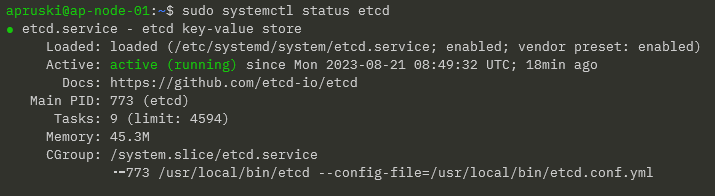
Confirm service: –
sudo systemctl status etcd
To check the endpoint and status of etcd: –
etcdctl --endpoints=10.0.0.40:2379 endpoint health
etcdctl --endpoints=10.0.0.40:2379 endpoint status

Great! That’s etcd up and running. Now we can install and configure Portworx.
Installing portworx
In order to get Portworx up and running, there are a couple of pre-requisities we need to consider: –
- Swap is recommended to be disabled on each of the nodes
- Each node should have a min of 4GB RAM
- A block device available to be used as a storage pool for Portworx
Right, now we can install the Portworx binaries on our nodes To do this, we run a container with /opt/pwx and /etc/pwx mounted: –
REL="/3.0"  # Portworx v3.0 release

latest_stable=$(curl -fsSL "https://install.portworx.com$REL/?type=dock&stork=false&aut=false" | awk '/image: / {print $2}' | head -1)

sudo docker run --entrypoint /runc-entry-point.sh \
--rm -i --privileged=true \
-v /opt/pwx:/opt/pwx -v /etc/pwx:/etc/pwx \
$latest_stable
Once that’s complete we can finish the install with: –
sudo /opt/pwx/bin/px-runc install -k etcd://10.0.0.40:2379 -c AP-SWARM-01 -s /dev/sdb
Breaking this statement down: –
- -k etcd://IPADDRESS:2379 – endpoint for our etcd cluster that we configured earlier
- -c AP-SWARM-01 – name that we’re going to call our cluster in Portworx
- -s /dev/sdb – block device on each node that will be used as a Portworx storage pool
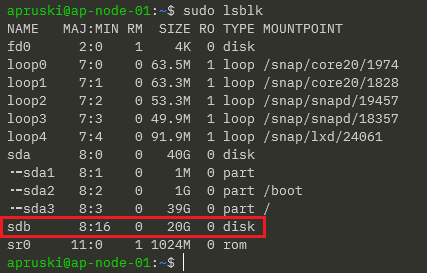
When I created my hyper-v VMs I added a 20GB disk, /dev/sdb, that will be used as the storage pool.
You can see the available devices on a server by running: –
sudo lsblk
So on my server: –
OK. Once the above statement has completed on all nodes of our cluster, we need to restart the Portworx service: –
sudo systemctl restart portworx
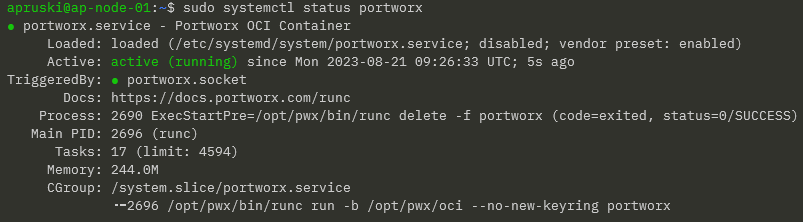
Then confirm the service status: –
sudo systemctl status portworx
Then enable the service to start on server reboot: –
sudo systemctl enable portworx
And finally, confirm the status of Portworx itself: –
sudo /opt/pwx/bin/pxctl status
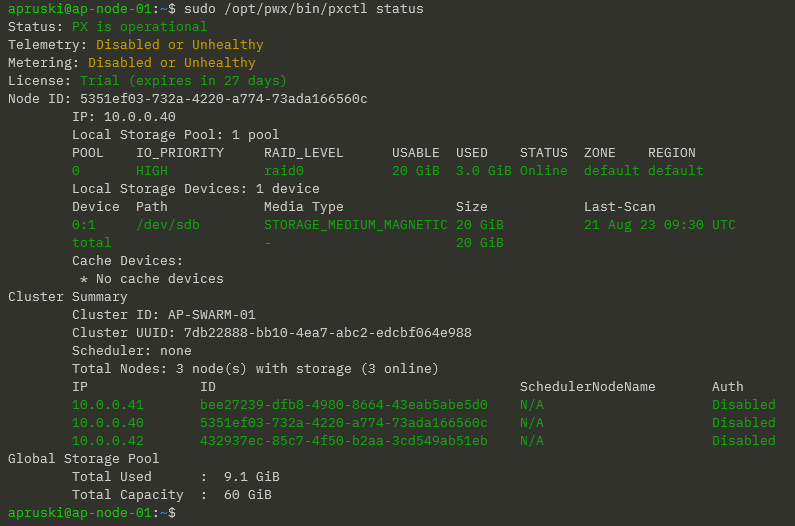
NOTE – Portworx will take around 5 minutes to come online.
Fantastic stuff! We have etcd and Portworx up and running. Now we can look at deploying SQL Server.
Deploying SQL Server
Ok phew…we’ve done all the hard work! Let’s have a look at deploying SQL Server using storage provisioned via Portworx in our Docker Swarm cluster.
So we need a volume to persist our data on: –
docker volume create -d pxd --name mssql_vol --opt repl=3 --opt fs=ext4 --opt sharedv4=true
Here we’re deploying a volume using the Portworx driver and using a replica count of 3 so that our volume is being replicated to each node in the cluster.
To confirm this, run: –
sudo /opt/pwx/bin/pxctl volume inspect mssql_vol
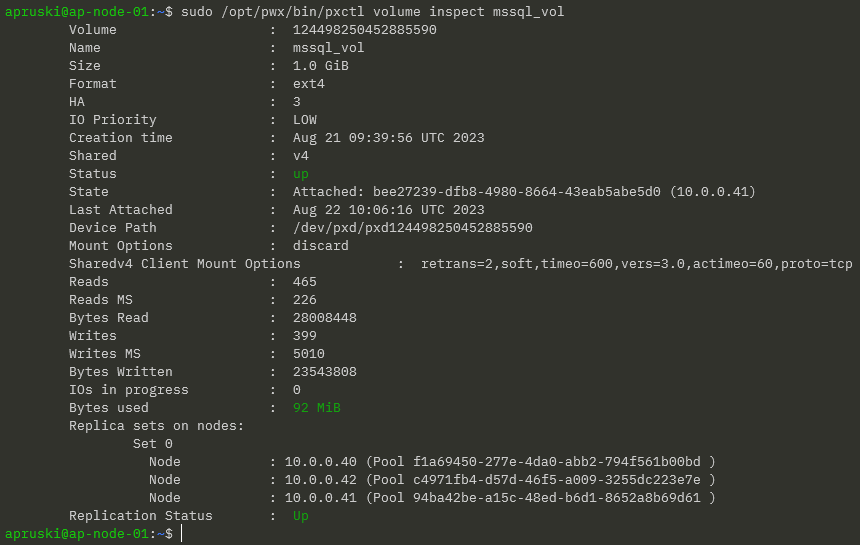
Here we can see the replica sets of the volume on each node and the node that the volume is currently attached to.
Now we can deploy SQL Server referencing that volume in the –mount flag: –
docker service create \
--name sqlswarm1 \
--replicas 1 \
--publish 15789:1433 \
--env ACCEPT_EULA=Y \
--env MSSQL_SA_PASSWORD=Testing1122 \
--mount type=volume,src=mssql_vol,dst=/var/opt/mssql,volume-driver=pxd \
mcr.microsoft.com/mssql/server:2022-CU4-ubuntu-20.04
We’re mounting the volume under /var/opt/mssql in the container, which is the default location for database data and log files.
So let’s create a database! I’m going to use the mssql-cli to do this but you can do this in SSMS using an IP address of a node in the cluster (I usually use the manager node’s IP address) and port 15789: –
mssql-cli -S 10.0.0.40,15789 -U sa -P Testing1122 -Q "CREATE DATABASE [testdatabase];"
Confirm the database: –
mssql-cli -S 10.0.0.40,15789 -U sa -P Testing1122 -Q "SELECT [name] FROM sys.databases;"
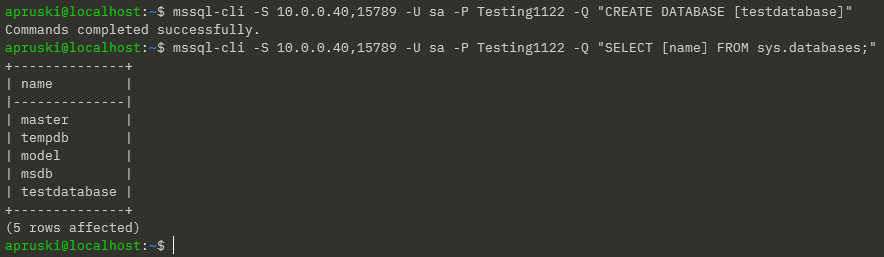
OK, now that we have a database in our SQL instance…let’s test failover! What we’re going to do is shut down the node that the container is running on and see what happens.
To find the node that the container is running on: –
docker service ps sqlswarm1

It’s running on AP-NODE-02, so let’s shut that node down!
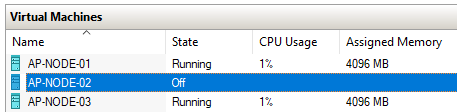
Let’s see what happened to our SQL container: –
docker service ps sqlswarm1

It’s now running on AP-NODE-03! But has our database survived?
mssql-cli -S 10.0.0.40,15789 -U sa -P Testing1122 -Q "SELECT [name] FROM sys.databases;"
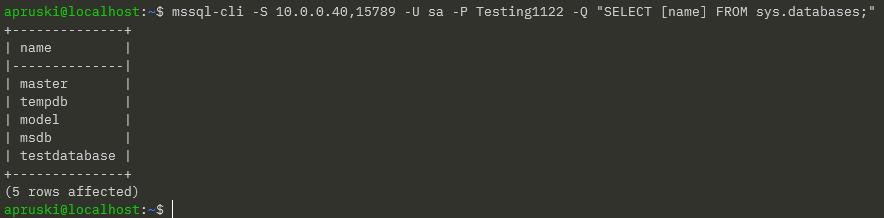
Yes! It’s there! We have persisted our database from one node to another in our Docker Swarm cluster!
Thanks for reading!