0

The Docker debug command

In the latest version of Docker Desktop a new command has been included call docker debug.

Now this is only available with a Pro Docker licence but it’s an interesting command so I thought I’d run through what it can do here.

Typically when I’m testing SQL Server in containers I build my own images as sometimes I need tools that aren’t available in the sql images from the microsoft container registry.

One example of this is ping. When spinning up containers on a custom bridge network all containers on that network should be able to reference each other by container name (containers on the default bridge network can only communicate by IP address).

In order to confirm (or troubleshoot) connectivity between the containers, I built a custom image with ping installed.

But with the new docker debug command I no longer have to.

What docker debug does is open up a shell to any container (or image) with a whole load of tools available. You can also install more tools without affecting the running container!

So effectively, this replaces the need to exec into a container and install the tools there.

Let’s have a look at this in action. I’m going to spin up two SQL containers (from WSL on Windows) on custom brigde network.

So first thing to do is create the network: –

docker network create sqlserver

And then spin up the containers (using the SQL Server 2022 image in the MCR):-

docker container run -d \
--publish 15789:1433 \
--network sqlserver \
--env ACCEPT_EULA=Y \
--env MSSQL_SA_PASSWORD=Testing1122 \
--name sqlcontainer1 \
mcr.microsoft.com/mssql/server:2022-CU11-ubuntu-20.04

docker container run -d \
--publish 15790:1433 \
--network sqlserver \
--env ACCEPT_EULA=Y \
--env MSSQL_SA_PASSWORD=Testing1122 \
--name sqlcontainer2 \
mcr.microsoft.com/mssql/server:2022-CU11-ubuntu-20.04

Ok, once they’re up and running…let’s use docker debug to connect to sqlcontainer1: –

sudo docker debug sqlcontainer1

Note – using sudo here as it’ll throw an error in WSL without it

And now let’s try to ping the other container by name: –

ping sqlcontainer2 -c 4

Cool! That worked, so I’ve confirmed that my containers can talk to each other by name on my custom bridge network.

Docker debug also comes with a few custom tools, one of which is entrypoint. This let’s us see what the ENTRYPOINT and CMD statements are of the underlying image the container was built from. Let’s check it out with our sql container: –

entrypoint

Nice, ok that’ll be really handy when debugging!

All in all, this is a very useful tool when working with containers. It’ll help keep our container images as small as possible because, let’s be honest, as container images go…the sql server image are huge!

Thanks for reading!

0

Building a Docker image from a Github repository

To build a custom Docker image we create a docker file with instructions in it.

For example, a really simple custom SQL Server 2019 Docker image can be built with: –

FROM mcr.microsoft.com/mssql/server:2019-CU5-ubuntu-18.04

USER root

RUN mkdir /var/opt/sqlserver
RUN mkdir /var/opt/sqlserver/sqldata
RUN mkdir /var/opt/sqlserver/sqllog
RUN mkdir /var/opt/sqlserver/sqlbackups

RUN chown -R mssql /var/opt/sqlserver

USER mssql

CMD /opt/mssql/bin/sqlservr

We then build the image with: –

docker build -t <NEW IMAGE NAME> <PATH TO DOCKERFILE>

But if our dockerfile is hosted in a Github repository, we don’t need to manually pull the repo down and then run the build command.

We can reference the dockerfile in the repository directly in the build command with: –

docker build -t <NEW IMAGE NAME> <URL#BRANCH#PATH>

So for a docker file that’s in my dockerdeepdive repository, in the main branch, located at Demos/CustomImages/Image1/dockerfile: –

docker build -t testimage https://github.com/dbafromthecold/dockerdeepdive.git#main:Demos/CustomImages/Image1

N.B. – Ignore that error on line 2. It’s a known issue but the image has been successfully built.

Thanks for reading!

0

BUILTIN\Administrators in SQL Server on Linux

When I first started working with SQL on Linux one of the first things I did was to remove the default the [BUILTIN\Administrators] login. This is pretty much standard practice with SQL on Windows as we don’t want administrators on the server to have automatic sysadmin rights into the SQL instance.

But this login makes no sense on Linux as there is no administrators group, so it should be dropped…right?

However, there’s a catch. In the Frequently Asked Questions about SQL Server on Linux here: –

Dropping Builtin\administrators for SQL Server on Linux breaks execution of some of the system stored procedures. We suggest to not remove or drop the Builtin\administrator account from SQL Server on Linux/containers.

One of these stored procedures is sp_readerrorlog. Let’s see what happens.

I’m connected into my SQL on Linux instance in SSMS and am going to drop the login: –

DROP LOGIN [BUILTIN\Administrators];

And now try to read the error log: –

EXEC sp_readerrorlog;

And we get the following error: –
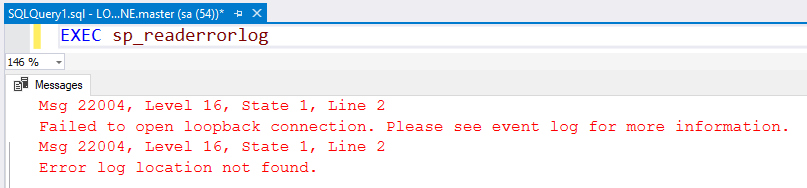
Argh! OK, let’s try to recreate: –

CREATE LOGIN [BUILTIN\Administrators] FROM WINDOWS;

And we get another error: –

That’s pretty much expected but, how can we fix this?

To get the login back, we need to rebuild the system databases. Not ideal I know!

So stop the SQL instance: –

sudo systemctl stop mssql-server

Rebuild the system databases: –

sudo -u mssql /opt/mssql/bin/sqlservr --force-setup

Control+C once the setup has completed and restart the SQL instance: –

sudo systemctl start mssql-server

However, if we now try connecting to the SQL instance: –
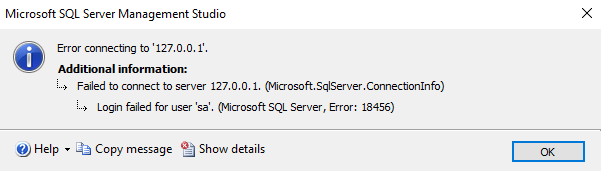
Bah, we need to set the SA password again! Stop the instance: –

sudo systemctl stop mssql-server

Set the SA password: –

sudo /opt/mssql/bin/mssql-conf set-sa-password
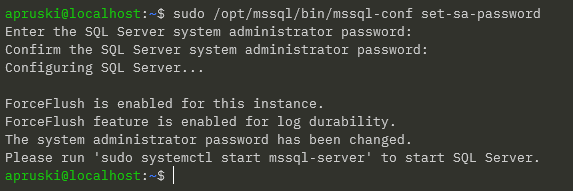
Btw, if you see an error saying that the SA password was unable to be set, try logging in anyway as sometimes the errors lie! 🙂


EDIT – 2023-12-18 – The false error message is documented here: –
https://learn.microsoft.com/en-us/sql/linux/sql-server-linux-release-notes-2022

Thanks Randolph!


Now start the SQL instance again: –

sudo systemctl start mssql-server

And now you should be able to log in and see that the [BUILTIN\Administrators] login is back: –
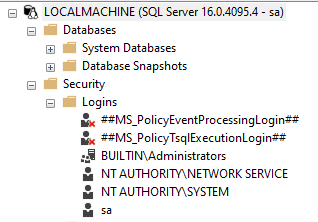
You will now also be able to run sp_readerrorlog. The sysadmin rights can be removed from that login and sp_readerrorlog will continue to run, so that’s at least one thing that can be restricted.

Something to watch out for when working with SQL on Linux.

Thanks for reading!

0

BUILTIN\Administrators in SQL Server on Linux

When I first started working with SQL on Linux one of the first things I did was to remove the default the [BUILTIN\Administrators] login. This is pretty much standard practice with SQL on Windows as we don’t want administrators on the server to have automatic sysadmin rights into the SQL instance.

But this login makes no sense on Linux as there is no administrators group, so it should be dropped…right?

However, there’s a catch. In the Frequently Asked Questions about SQL Server on Linux here: –

Dropping Builtin\administrators for SQL Server on Linux breaks execution of some of the system stored procedures. We suggest to not remove or drop the Builtin\administrator account from SQL Server on Linux/containers.

One of these stored procedures is sp_readerrorlog. Let’s see what happens.

I’m connected into my SQL on Linux instance in SSMS and am going to drop the login: –

DROP LOGIN [BUILTIN\Administrators];

And now try to read the error log: –

EXEC sp_readerrorlog;

And we get the following error: –

Argh! OK, let’s try to recreate: –

CREATE LOGIN [BUILTIN\Administrators] FROM WINDOWS;

And we get another error: –

That’s pretty much expected but, how can we fix this?

To get the login back, we need to rebuild the system databases. Not ideal I know!

So stop the SQL instance: –

sudo systemctl stop mssql-server

Rebuild the system databases: –

sudo -u mssql /opt/mssql/bin/sqlservr --force-setup

Control+C once the setup has completed and restart the SQL instance: –

sudo systemctl start mssql-server

However, if we now try connecting to the SQL instance: –

Bah, we need to set the SA password again! Stop the instance: –

sudo systemctl stop mssql-server

Set the SA password: –

sudo /opt/mssql/bin/mssql-conf set-sa-password

Btw, if you see an error saying that the SA password was unable to be set, try logging in anyway as sometimes the errors lie! 🙂


EDIT – 2023-12-18 – The false error message is documented here: –
https://learn.microsoft.com/en-us/sql/linux/sql-server-linux-release-notes-2022

Thanks Randolph!


Now start the SQL instance again: –

sudo systemctl start mssql-server

And now you should be able to log in and see that the [BUILTIN\Administrators] login is back: –

You will now also be able to run sp_readerrorlog. The sysadmin rights can be removed from that login and sp_readerrorlog will continue to run, so that’s at least one thing that can be restricted.

Something to watch out for when working with SQL on Linux.

Thanks for reading!

0

VMUG Ireland End of Year Event

This Thursday, November 30th, is the next VMUG Ireland event…our end of year social meetup!

We’re going to be down in BrewDog Dublin: –
THREE LOCKS SQUARE, 4, DUBLIN DOCKLANDS, DUBLIN 2, D02 E5R7 Dublin

This is a more informal event to round the year out. We’ll have two amazing speakers and then break out into groups to focus on specific tech areas, each hosted by an expert in the field (and yours truly! 🙂 )

The full agenda is: –

Time Session
14:00 – 14:30 Registration, Welcome Refreshments & Networking
14:30 – 15:15 VMware, Ed Hoppitt- VMware Explore 2023 – “Behind the Headlines”
15:15 – 16:00 Sponsor Session – Runecast
16:00 – 16:45 Round Table Breakout Groups
16:45 – 17:00 Raffle Results and Wrap Up
17:00 vBeers

Registration is completely free and available here: –
https://my.vmug.com/s/community-event?id=a1Y4x000003rmAOEAY

Hope to see you there!