0

Friday Reading 2017-07-21

Fun week! I moderated a couple of great sessions for 24 Hours of PASS: Summit Preview. As someone getting into presenting, watching the Pros do it is invaluable.

Here’s the sessions that I moderated: –

PowerShell for DBAs, What’s in it For Me?
Ben Miller gave a great overview of the powershell for DBAs out there just getting into it

Becoming Proficient with Columnstore Indexes
Niko Neugebauer with an introduction to Columnstore Indexes – really handy if you haven’t used them before

On Transactions and Atomic Operations
Gail Shaw with a cool back to basics sessions on how transactions within SQL Server work

Recordings should be up in a week.

I’m also speaking for the PASS Virtualisation chapter next month, at 17:00 (UTC) on the 9th of August. Details are here, hope you can join in!

Have a good weekend!

2

Running Linux Containers on Windows

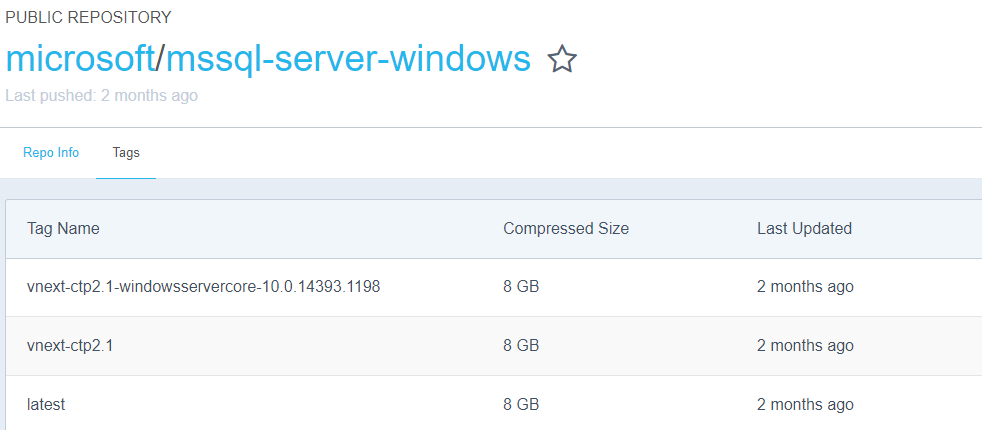
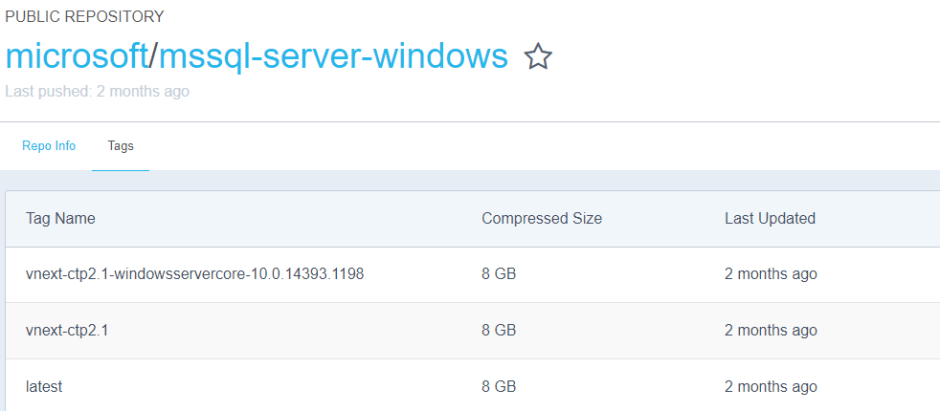
Microsoft have announced the availability of SQL Server 2017 RC1 and I wanted to check it out in a container however it seems that the Windows image hasn’t been updated on the Docker Hub: –
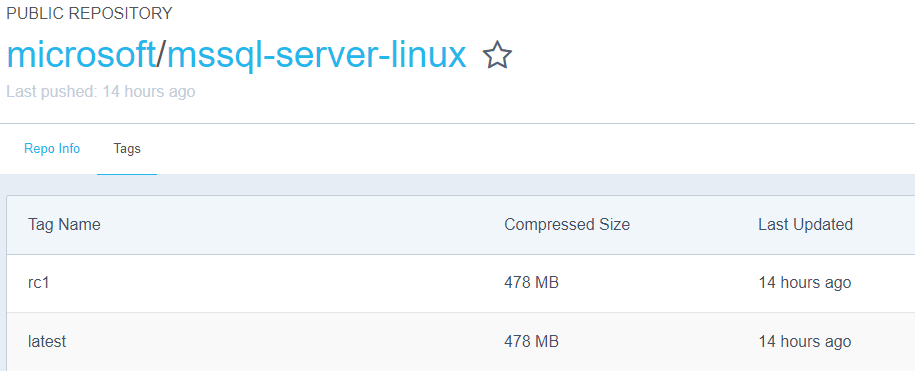
But no matter, running Docker on Windows 10 gives me the option to run Linux containers and the SQL Server 2017 RC1 Linux container image is available on the Docker Hub: –
This post is a step-by-step guide to getting Linux containers running on your Windows 10 machine. The first thing to do is install the Docker Engine.

Installing Docker on Windows 10 is different than installing on Windows Server 2016, you’ll need to grab the Community Edition installer from the Docker Store.

Once installed, you’ll then need to switch the engine from Windows Container to Linux Containers by right-clicking the Docker icon in the taskbar and selecting “Switch to Linux Containers…” : –

The way Linux containers run on Windows is that they run in a virtual machine, you can see this by opening up Hyper-V Manager: –
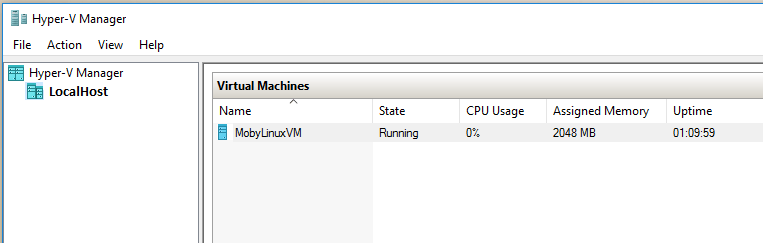
Now the linux image can be pulled from the Docker Hub. To search for the image run: –

docker search microsoft/mssql-server-linux
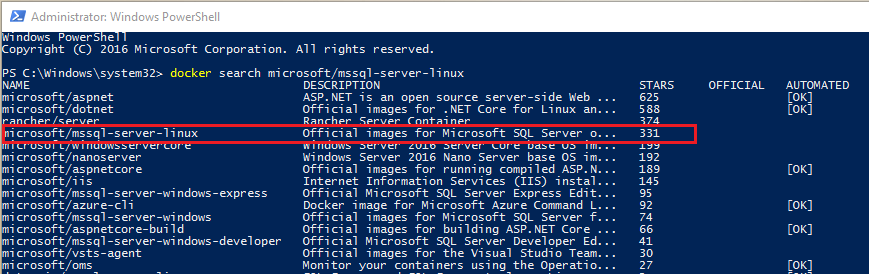
To pull the image down: –

docker pull microsoft/mssql-server-linux:rc1
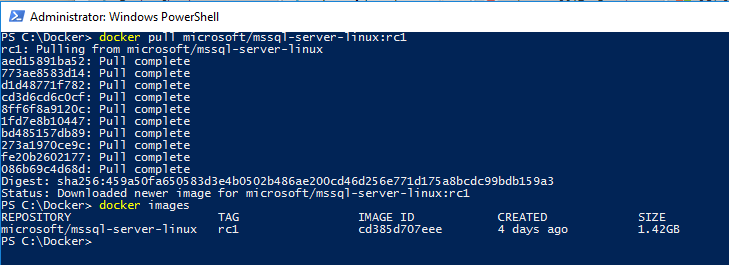
The first thing I noticed when I did this was, how quick was it to pull the image down? If you’ve pulled the SQL Server Windows images down you’ll know that it takes a bit of time. The Linux image is significantly smaller than the Windows image (1.42GB compared to ~12GB), no idea why that is tbh.

Anyway, a container can be run once the image is down: –

docker run -d -p 15789:1433 --env ACCEPT_EULA=Y --env SA_PASSWORD=Testing1122 --name testcontainer microsoft/mssql-server-linux:rc1

N.B. – both the ACCEPT_EULA and SA_PASSWORD environment variables need to be upper case for the values passed to be accepted. Linux is case sensitive!

To confirm the container is up, run: –

docker ps -a

Hmm, something’s gone wrong for me: –

I need to view the container logs in order to find out what’s happened: –

docker logs testcontainer
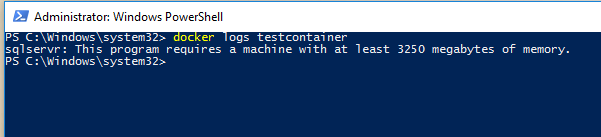
Oh, the VM that the container is running in only has 2048MB of memory available!
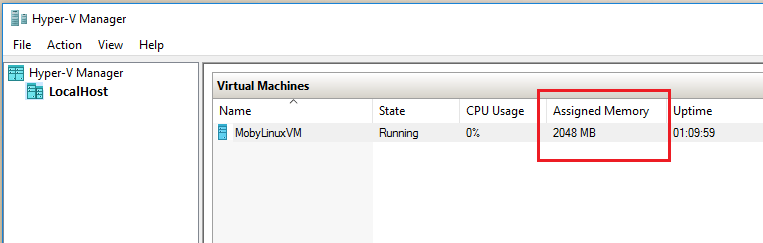
Don’t adjust the memory allocation in Hyper-V Manager however, the changes won’t persist. Instead right-click on the Docker icon in the Taskbar and choose Settings then Advanced: –
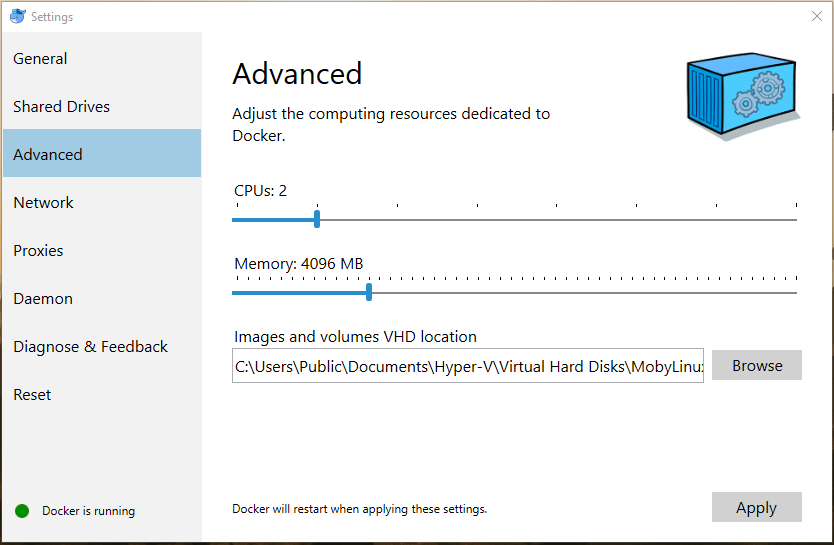
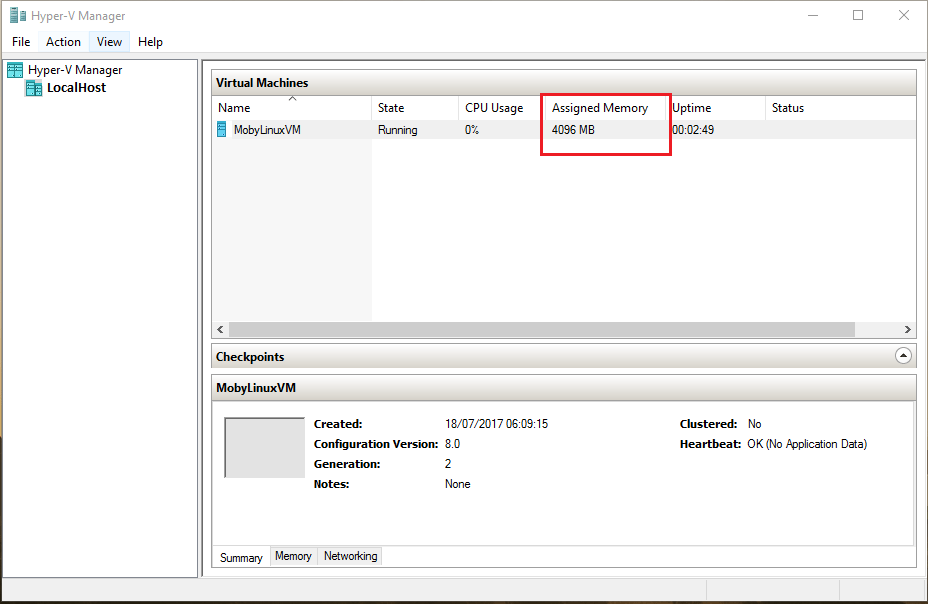
The Docker Engine will restart to apply the changes, which can be confirmed in Hyper-V Manager: –
And now the container can be started: –

docker start testcontainer

docker ps

Cool, the container is up and running! Connecting locally is different than connecting to a SQL instance in a Windows container. With Windows containers I would use the docker inspect command to find the private IP address assigned to the container and use that to connect via SSMS.

However with linux containers we use the host’s IP address/name and the port number than was specified upon container runtime: –
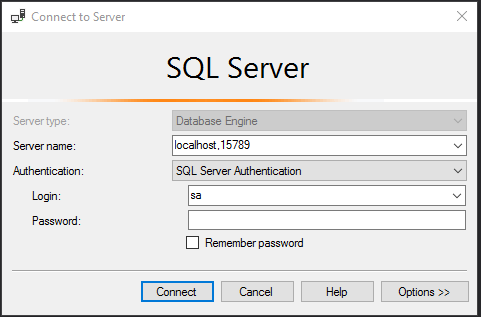
Enter in the sa password that was specified and: –
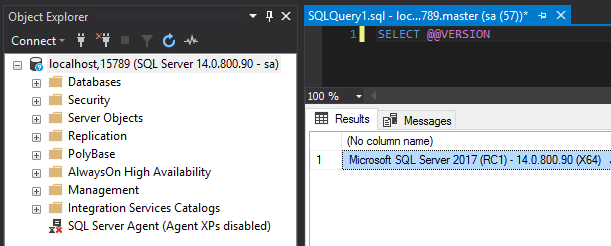
SQL Server 2017 RC1 on Linux running in a container on Windows 10!

I think that’s pretty cool πŸ™‚

Thanks for reading!

0

Monday Coffee: 24 Hours of Pass – Summit Preview

Starting at 12pm (UTC) this Wednesday is the online event 24 Hours of PASS – Summit Preview

For anyone out there who doesn’t know, PASS is the world’s largest community for professional who work with SQL Server. PASS is the organisation which all SQL Saturdays are affiliated too and they have a huge online community in the form of virtual chapters.

Every year they also run PASS Summit in the Autumn, one of the biggest technology conferences in the world.

In the build up to the Summit, the Summit Preview online event offers a “sneak peek” at the content that you’ll find at the Summit with many of the Speakers running one hour webinars over the course of the event.

The full line up is here and it’s completely free, I highly recommend that you check it out.

See you there!

0

Friday Reading 2017-07-14

Fun week, and what a Lions final test last weekend. Still can’t believe it!

Here’s what I’ve been reading…

STOPAT And Date Formats
Dave Mason tests if different date formats are compatible with point-in-time database restores

How the SQLCAT Customer Lab is Monitoring SQL on Linux
Post on the SQLCAT Team using apps in containers to monitor SQL on Linux

Various Dockerfiles for Windows
Stefan Scherer’s github with a load dockerfiles

Docker on a Raspberry Pi
Step-by-step guide to getting Docker up-and-running on a Raspberry Pi

NASA’s Juno Spacecraft Spots Jupiter’s Great Red Spot
NASA’s Juno probe has sent back some stunning photos

Have a good weekend!

4

Creating SQL Server containers with docker compose

Up until now my posts about containers have been talking about working with one container only. In the real world this will never be the case, at any one time there will be multiple containers (I have over 30) running on a host.

I need a way to get multiple containers up and running easily. There are two different approaches to doing this: –

  • Application server driven
  • Container host driven

In the application server driven approach, the application server will contact the container host, build & run a container and capture details of the container (such as the port number) in order for the application(s) to connect.

This ad-hoc approach works well as containers are only spun up and used when needed, conserving resources on the host. However, this does mean that the applications will have to wait until the containers come online.

Ok, I know that spinning up containers is a short process, but I’m all about reducing deployment time.

What if we know how many containers will be needed? What if we want our applications to instantly connect to containers the second they are deployed?

This post is going to go through the steps needed in order to use docker compose to build multiple containers at once. Compose is a tool defined as: –

A tool for defining and running multi-container Docker applications.

As SQL Server people we’re only going to be interested in one application but that doesn’t mean we can’t use compose to our advantage.

What I’m going to do is go through the steps to spin up 5 containers running SQL Server, all listening on different ports with different sa passwords.

Bit of prep before we run any commands. I’m going to create a couple of folders on my C:\ drive that’ll hold the compose and dockerfiles: –

mkdir C:\docker
mkdir C:\docker\builds\dev1
mkdir C:\docker\compose

Within the C:\docker\builds\dev1 directory, I’m going to drop my database files and my dockerfile: –

N.B. – note the name of the dockerfile (dockerfile.dev1)

Here’s the code within my dockerfile: –

# building our new image from the microsft SQL 2017 image
FROM microsoft/mssql-server-windows


# creating a directory within the container
RUN powershell -Command (mkdir C:\\SQLServer)


# copying the database files into the container
# no file path for the files so they need to be in the same location as the dockerfile
COPY DevDB1.mdf C:\\SQLServer
COPY DevDB1_log.ldf C:\\SQLServer

COPY DevDB2.mdf C:\\SQLServer
COPY DevDB2_log.ldf C:\\SQLServer

COPY DevDB3.mdf C:\\SQLServer
COPY DevDB3_log.ldf C:\\SQLServer

COPY DevDB4.mdf C:\\SQLServer
COPY DevDB4_log.ldf C:\\SQLServer

COPY DevDB5.mdf C:\\SQLServer
COPY DevDB5_log.ldf C:\\SQLServer


# attach the databases into the SQL instance within the container
ENV attach_dbs="[{'dbName':'DevDB1','dbFiles':['C:\\SQLServer\\DevDB1.mdf','C:\\SQLServer\\DevDB1_log.ldf']}, \ 
	{'dbName':'DevDB2','dbFiles':['C:\\SQLServer\\DevDB2.mdf','C:\\SQLServer\\DevDB2_log.ldf']}, \ 
	{'dbName':'DevDB3','dbFiles':['C:\\SQLServer\\DevDB3.mdf','C:\\SQLServer\\DevDB3_log.ldf']}, \ 
	{'dbName':'DevDB4','dbFiles':['C:\\SQLServer\\DevDB4.mdf','C:\\SQLServer\\DevDB4_log.ldf']}, \ 
	{'dbName':'DevDB5','dbFiles':['C:\\SQLServer\\DevDB5.mdf','C:\\SQLServer\\DevDB5_log.ldf']}]"

In the C:\docker\compose directory, I’m going to create one file called
docker-compose.yml which is a file for defining the services I want to run in my containers.

The code inside that file is: –

# specify the compose file format
# this depends on what version of docker is running
version: '3'


# define our services, all database containers
# each section specifies a container... 
# the dockerfile name and location...
# port number & sa password
services:
  db1:
    build:
        context: C:\docker\builds\dev1
        dockerfile: dockerfile.dev1
    environment:
      SA_PASSWORD: "Testing11@@"
      ACCEPT_EULA: "Y"
    ports:
      - "15785:1433"
  db2:
    build:
        context: C:\docker\builds\dev1
        dockerfile: dockerfile.dev1
    environment:
      SA_PASSWORD: "Testing22@@"
      ACCEPT_EULA: "Y"
    ports:
      - "15786:1433"
  db3:
    build:
        context: C:\docker\builds\dev1
        dockerfile: dockerfile.dev1
    environment:
      SA_PASSWORD: "Testing33@@"
      ACCEPT_EULA: "Y"
    ports:
      - "15787:1433"
  db4:
    build:
        context: C:\docker\builds\dev1
        dockerfile: dockerfile.dev1
    environment:
      SA_PASSWORD: "Testing44@@"
      ACCEPT_EULA: "Y"
    ports:
      - "15788:1433"
  db5:
    build:
        context: C:\docker\builds\dev1
        dockerfile: dockerfile.dev1
    environment:
      SA_PASSWORD: "Testing55@@"
      ACCEPT_EULA: "Y"
    ports:
      - "15789:1433"

N.B. – To check which versions of docker are compatible with which compose file formats, there is a compatibility matrix here

Now that we have our files created, let’s run our first compose command. To check if it’s installed run: –

docker-compose

N.B. – this is a test command, you should see a help reference output if it is installed (and you can skip the next part).

Hmm…

So we need to install. To do this, run:-

Invoke-WebRequest "https://github.com/docker/compose/releases/download/1.14.0/docker-compose-Windows-x86_64.exe" -UseBasicParsing -OutFile $Env:ProgramFiles\docker\docker-compose.exe

The 1.14.0 in the command above is the latest version. To check what the latest version, jump onto this GitHub page.

Once the install has finished, verify the version: –

docker-compose version

We need to navigate to the C:\docker\compose directory before we run our first compose command: –

cd C:\docker\compose

And now we can run our compose command. The command to utilise compose to build our containers is very simple: –

docker-compose up -d

This script has worked through the docker-compose.yml file and built 5 containers referencing dockerfile.dev1

I can confirm this by running: –

docker ps

Excellent, five containers up and running! By using docker compose we can build multiple containers running SQL with one command. Very useful for building a development environment, once our applications are deployed they can connect to SQL within the containers instantly.

Final note

One thing to mention, you may come across this error: –

The way I got around this was to disable the existing vEthernet (HNS Internal NIC) adapter in my network connections. Running compose seems to create a new virtual NIC, so you will end up with: –

Let me know if you come across any other issues and I’ll investigate πŸ™‚

Thanks for reading!