Deploying SQL Server to an Azure Container Instance using Terraform – Part Two

In a previous post I went through how to deploy SQL Server running in an Azure Container Instance using Terraform.

In that post, I used hardcoded variables in the various .tf files. This isn’t great to be honest as in order to change those values, we’d need to update each .tf file. It would be better to replace the hardcoded values with variables whose values can be set in one separate file.

So let’s update each value with a variable in the .tf files.

First file to update is the providers.tf file: –

provider "azurerm" {
version         = "1.24.0"
subscription_id = "aaaaaaaa-aaaa-aaaa-aaaa-aaaaaaaaaaaa"
tenant_id       = "bbbbbbbb-bbbb-bbbb-bbbb-bbbbbbbbbbbb"
client_id       = "cccccccc-cccc-cccc-cccc-cccccccccccc"
client_secret   = "dddddddd-dddd-dddd-dddd-dddddddddddd"
}

Replace the values in the file with the following: –

provider "azurerm" {
version         = "1.24.0"
subscription_id = "${var.subId}"
tenant_id       = "${var.tenantId}"
client_id       = "${var.clientId}"
client_secret   = "${var.clientSecret}"
}

Now that we have referenced variables in the files we need to define those variables. First create a file to hold the variables: –

mkdir variables.tf

And then drop in the following: –

variable "subId" {
description = "please provide subscription Id"
type        = "string"
}

variable "tenantId" {
description = "please provide tenant Id"
type        = "string"
}

variable "clientId" {
description = "please provide client Id"
type        = "string"
}

variable "clientSecret" {
description = "please provide client secret"
type        = "string"
}

OK, so we have defined the variables that we referenced in the providers.tf file. However, we haven’t set any values for those variables.

If we left the files like this, when we deploy we would be asked to manually enter values for the variables. What we now need to do is create another file where we can set the variable values.

First thing to do is create a directory called vars: –

new-item vars -type directory

And now create a file to hold the values (notice that its extension is .tfvars to distinguish it from the other files): –

cd vars
new-item aci.tfvars

Drop the original hardcoded values in: –

subId = "aaaaaaaa-aaaa-aaaa-aaaa-aaaaaaaaaaaa"
tenantId = "bbbbbbbb-bbbb-bbbb-bbbb-bbbbbbbbbbbb"
clientId = "cccccccc-cccc-cccc-cccc-cccccccccccc"
clientSecret = "dddddddd-dddd-dddd-dddd-dddddddddddd"

And now we’re good to go! But before we deploy, let’s have another look at the azurecontainerinstance.tf file: –

resource "azurerm_container_group" "testcontainergroup1" {
name                = "testcontainergroup1"
location            = "${azurerm_resource_group.azurecontainerinstances.location}"
resource_group_name = "${azurerm_resource_group.azurecontainerinstances.name}"
ip_address_type     = "public"
dns_name_label      = "testcontainergroup1"
os_type             = "Linux"

container {
name   = "testcontainer"
image  = "mcr.microsoft.com/mssql/server:2019-CTP2.5-ubuntu"
cpu    = "1.0"
memory = "2.0"

ports {
port     = 1433
protocol = "TCP"
}

environment_variables = {
"ACCEPT_EULA" = "Y"
"SA_PASSWORD" = "Testing1122"
}
}
}

We’re already using variables for the resource group and location (which reference the resource group created in the resourcegroup.tf file) but let’s add in variables for the container name, image, and sa password: –

resource "azurerm_container_group" "testcontainergroup1" {
name                = "testcontainergroup1"
location            = "${azurerm_resource_group.azurecontainerinstance2.location}"
resource_group_name = "${azurerm_resource_group.azurecontainerinstance2.name}"
ip_address_type     = "public"
dns_name_label      = "testcontainergroup1"
os_type             = "Linux"

container {
name   = "${var.containerName}"
image  = "${var.containerImage}"
cpu    = "1.0"
memory = "2.0"

ports {
port     = 1433
protocol = "TCP"
}

environment_variables = {
"ACCEPT_EULA" = "Y"
"SA_PASSWORD" = "${var.saPassword}"
}
}
}

Cool, now we need to update the variables.tf file: –

variable "subId" {
description = "please provide subscription Id"
type        = "string"
}

variable "clientId" {
description = "please provide client Id"
type        = "string"
}

variable "clientSecret" {
description = "please provide client secret"
type        = "string"
}

variable "tenantId" {
description = "please provide tenant Id"
type        = "string"
}

variable "saPassword" {
description = "please provide an SA password"
type        = "string"
}

variable "containerImage" {
description = "please provide container image"
type        = "string"
}

variable "containerName" {
description = "please provide container name"
type        = "string"
}

And drop in the values to the aci.tfvars file: –

subId = "aaaaaaaa-aaaa-aaaa-aaaa-aaaaaaaaaaaa"
tenantId = "bbbbbbbb-bbbb-bbbb-bbbb-bbbbbbbbbbbb"
clientId = "cccccccc-cccc-cccc-cccc-cccccccccccc"
clientSecret = "dddddddd-dddd-dddd-dddd-dddddddddddd"
saPassword = "Testing1122"
containerImage = "mcr.microsoft.com/mssql/server:2019-CTP2.5-ubuntu"
containerName = "testcontainer1"

Before we deploy, let’s format these files: –

terraform fmt

Really love that feature. If you run it at the root of your project it will format all your files for you 🙂

Now we can test the deployment (notice we’re referencing the aci.tfvars file): –

terraform plan -var-file "./vars/aci.tfvars"

If all looks good (the values for the variables are being picked up), we can deploy: –

terraform apply -var-file "./vars/aci.tfvars"

What’s great about using variables like this is that we now don’t have to touch the .tf files where we define our resources. If we want to say, deploy a different image to an ACI we just have to update the containerImage variable in the aci.tfvars file.

This also means that if we push this project to a github repo we can ignore the vars directory, so no sensitive information is exposed (such as the sa password for our SQL instance).

Thanks for reading!
Deploying SQL Server to an Azure Container Instance using Terraform – Part One

A couple of weeks ago I attended John Martin’s (t) Terraform pre-con at Data in Devon. I’ve been hearing about Terraform recently so was excited to check it out.

John’s pre-con was absolutely fantastic, he provided a great insight into Terraform and I highly recommend it to anyone who’s looking at learning it to sign up if you see it at a future event.

So armed with my new found knowledge, I wanted to go about deploying SQL Server into an Azure Container Instance using Terraform. This blog is the first in a series where I’ll go through how to use Terraform. This post will get SQL Server up and running in an ACI and then future posts will go a bit deeper.

To follow along with this blog you will need the following tools: –

Terraform
Azure CLI
VSCode
Terraform extension for VSCode
Azure Terraform extension for VSCode

OK, let’s go through building the required Terraform files to deploy SQL Server to an Azure Container Instance.

First, log into your Azure account: –

az login

az-login.JPG

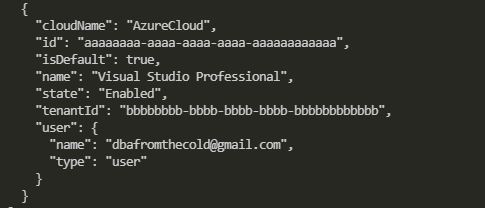
Make a note of the id and tenantId.

Next, create a service principal which we will reference to allow Terraform to create resources in Azure. Make a note of the appid and secret: –

az ad sp create-for-rbac --role="Contributor" --scopes="/subscriptions/aaaaaaaa-aaaa-aaaa-aaaa-aaaaaaaaaaaa"

Create service principal.JPG

Ok, now we can start creating Terraform files.

Let’s create a directory for the terraform files and navigate to it: –

mkdir Terraform-ACI

cd Terraform-ACI

The first file to create is a providers file. This tells Terraform that we will be working in Azure so it will pull down the relevant plugin: –

new-item providers.tf

Now drop the following into the providers.tf file (using the values you noted above): –

provider "azurerm" {
version = "1.24.0"
subscription_id = "aaaaaaaa-aaaa-aaaa-aaaa-aaaaaaaaaaaa"
tenant_id = "bbbbbbbb-bbbb-bbbb-bbbb-bbbbbbbbbbbb"
client_id = "cccccccc-cccc-cccc-cccc-cccccccccccc"
client_secret = "dddddddd-dddd-dddd-dddd-dddddddddddd"
}

The first resource we’ll create in Azure is a resource group to hold the ACI: –

new-item resourcegroup.tf

Drop the following into the resource group file

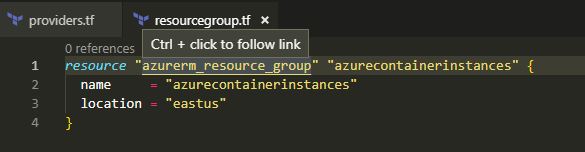
resource "azurerm_resource_group" "azurecontainerinstances" {
name = "azurecontainerinstances"
location = "eastus"
}

Note the format of the file, it’s laid out as: –

resource "RESOURCE_TYPE" "RESOURCE_NAME" {
attribute_name = "attribute_value"
}

The RESOURCE_NAME is the name of the resource that will be referenced in Terraform. It can look a little confusing as in the code above I’ve called the resource name in Terraform the same name as the name of the resource group in Azure (the name attribute).

What’s cool is with the Azure Terraform VSCode extension, we can click on the RESOURCE_TYPE field and it will take us to the documentation for that resource. Makes things a lot easier!

Resource Group.JPG

Ok, now that we have a resource group we can create the Terraform file to deploy the Azure Container Instance into it: –

new-item azurecontainerinstance.tf

Drop the following into the file: –

resource "azurerm_container_group" "testcontainergroup1" {
name = "testcontainergroup1"
location = "${azurerm_resource_group.azurecontainerinstances.location}"
resource_group_name = "${azurerm_resource_group.azurecontainerinstances.name}"
ip_address_type = "public"
dns_name_label = "testcontainergroup1"
os_type = "Linux"

container {
name = "testcontainer"
image = "mcr.microsoft.com/mssql/server:2019-CTP2.5-ubuntu"
cpu = "1.0"
memory = "2.0"

ports {
port = 1433
protocol = "TCP"
}

environment_variables = {
"ACCEPT_EULA" = "Y"
"SA_PASSWORD" = "Testing1122"
}
}
}

What this is going to do is create an Azure Container Instance Group with one container it in, running SQL Server 2019 CTP 2.5. It’ll be publicly exposed to the internet on port 1433 (I’ll cover fixing that in a future post) so we’ll get a public IP that we can use to connect to.

Notice that the location and resource_group_name are set using variables that retrieve the values of the resource group are going to create.

Cool! We are ready to go!

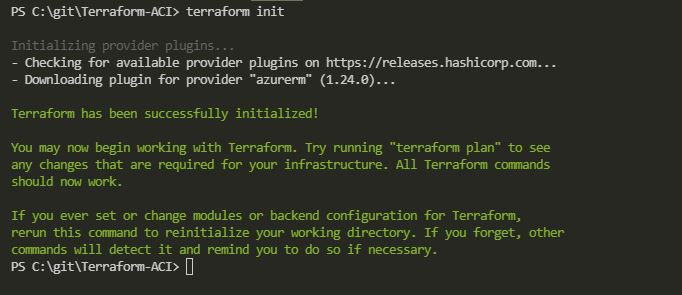
Initialise the directory: –

terraform init

Terraform init.JPG

One cool feature of Terraform is the ability to format all the files (seriously love this): –

terraform fmt

And now we can test the deployment (also love this feature): –

terraform plan

Terraform Plan.JPG

If all looks good, we can deploy!

terraform apply

Awesome stuff. Terraform will give us updates on how the deployment is doing: –

Terraform-ACI-1.gif

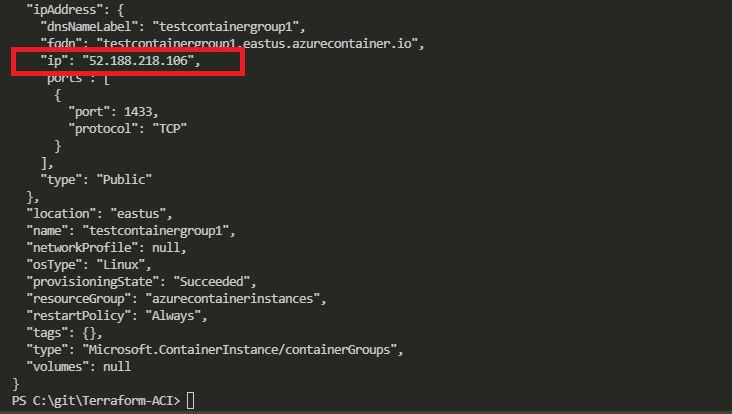
To get the IP address of the new Azure Container Instance: –

az container show --name testcontainergroup1 --resource-group azurecontainerinstances

Show Container Details.JPG

Drop that IP Address into SSMS or ADS: –

Azure Data Studio.JPG

And boom! We are connected to SQL Server 2019 CTP2.5 running in an Azure Container Instance deployed with Terraform.

If you want to tear down what’s just been built, you can run: –

terraform destroy

Thanks for reading!

Creating a custom kubectl plugin to connect to SQL Server in Kubernetes

One of the really cool things about kubectl (pronounced cube control) is the ability to extend it’s functionality with custom plugins.

These plugins are simply files named kubectl-xxx dropped into a PATH directory on your local machine that contain some code. Let’s have a go building a couple here.


N.B. – Try as I might I could not get this to work from a powershell session (where I usually run all my kubectl commands). It either wouldn’t recognise the new plugin or threw unsupported on windows at me. To get plugins to work on Windows I used the Windows Subsystem for Linux


OK, let’s create a file called kubectl-foo that’ll return Hello SQL Server folks! when executed: –

echo '#!/bin/bash
echo "Hello SQL Server folks!"' > kubectl-foo

Make the file executable: –

chmod +x kubectl-foo

And then copy it into one of your PATH locations (I’m using /usr/local/bin): –

sudo cp kubectl-foo /usr/local/bin

Now we can test to see if kubectl is picking it up: –

kubectl plugin list

Cool! Now we can run it: –

kubectl foo

Great stuff! Let’s build another one but this time a little more complicated.

When I deploy SQL Server to Kubernetes I usually create a load balanced service so that I can get an external IP to connect from my local machine to SQL running in the cluster. So how about creating a plugin that will grab that external IP and drop it into mssql-cli?

Let’s have a go at creating that now.

Create a file called kubectl-prusk 🙂 and open it in your favourite editor (I’m using nano): –

touch kubectl-prusk

nano kubectl-prusk

Then drop the following into it: –

#!/bin/bash

ExternalIP=$(kubectl get services -o=jsonpath='{..status.loadBalancer.ingress[*].ip}' $1)

mssql-cli -S $ExternalIP -U sa -P  $2

EDIT – 2019-09-12

David Barbarin (b|t) advised that the following can be used to grab the port of the service:-

ExternalPort=$(kubectl get services -o=jsonpath='{..ports[*].port}' $1)

And then connect in by: –

mssql-cli -S $ExternalIP,$ExternalPort -U sa -P $2

Thanks David!


What we’re doing here is parsing the output of kubectl get services (I use http://jsonpath.com/ as a guide), collecting the external IP of the service, and then passing it into mssql-cli.

$1 and $2 are variables for the service name and SQL sa password that will be passed in when we call the plugin.

Now, same as before, we need to make the file executable: –

chmod +x kubectl-prusk

And copy it to a PATH location: –

sudo cp kubectl-prusk /usr/local/bin

Check that it’s there: –

kubectl plugin list

Awesome. Ok, I’ve already got a SQL deployment and load balanced service running
in my K8s cluster up in AKS (check out how to do that here): –

kubectl get all

So let’s try out the new kubectl prusk plugin.

The plugin will grab the external IP of the service (called sqlserver-service) and drop it into mssql-cli with the sa password that we pass in (Testing1122 in this case): –

kubectl prusk sqlserver-service Testing1122

And boom! We’re connected into SQL running in our cluster. 🙂

That was a couple of really simple examples but I hope they showed the power of kubectl plugins, we can write some really cool things with them.

Thanks for reading!


N.B. – You may get the following error when running the plugin


It’s intermittent so try re-running the command


Using docker named volumes to persist databases in SQL Server

I’ve previously talked about using named volumes to persist SQL Server databases but in that post I only used one named volume and I had to manually reattach the databases after the container spun up.

This isn’t really ideal, what we’d want is for the databases to automatically be attached to the new container. Thankfully there’s an easy way to do it, so let’s run through how here.

N.B. – Thanks to Anthony Nocentino (b|t) for pointing this out to me…it was a real d’oh moment 🙂

First thing, is to create two named volumes: –

docker volume create mssqlsystem
docker volume create mssqluser

And now spin up a container with the volumes mapped: –

docker container run -d -p 16110:1433 \
--volume mssqlsystem:/var/opt/mssql \
--volume mssqluser:/var/opt/sqlserver \
--env ACCEPT_EULA=Y \
--env SA_PASSWORD=Testing1122 \
--name testcontainer \
mcr.microsoft.com/mssql/server:2019-CTP2.3-ubuntu

The mssqluser named volume is going to be mounted as /var/opt/sqlserver and the mssqlsystem volume is going to be mounted as /var/opt/mssql. This is the key to the databases automatically being attached in the new container, /var/opt/mssql is the location of the system databases.

If we didn’t mount a named volume for the system databases any changes to those databases (particularly for the master database) would not be persisted so the new container would have no record of any user databases created.

By persisting the location of the system databases, when SQL starts up in the new container the changes made to the master database are retained and therefore has a record of the user databases. This means the user databases will be in the new instance in the new container (as long as we’ve persisted the location of those databases, which we’re doing with the mssqluser named volume).

Let’s create a database on the mssqluser named volume: –

USE [master];
GO

CREATE DATABASE [testdatabase]
ON PRIMARY
    (NAME = N'testdatabase', FILENAME = N'/var/opt/sqlserver/testdatabase.mdf')
LOG ON
    (NAME = N'testdatabase_log', FILENAME = N'/var/opt/sqlserver/testdatabase_log.ldf');
GO

And now blow the container away: –

docker kill testcontainer
docker rm testcontainer

That container is gone, but we still have our named volumes: –

docker volume ls

So we can now spin up another container, using those volumes: –

docker container run -d -p 16120:1433 \
--volume mssqlsystem:/var/opt/mssql \
--volume mssqluser:/var/opt/sqlserver \
--name testcontainer2 \
mcr.microsoft.com/mssql/server:2019-CTP2.3-ubuntu

UPDATE – As pointed out in the comments by Patrick Flynn, the environment variables ACCEPT_EULA and SA_PASSWORD do not need to be set for the second container as we have persisted the system databases so their values have been retained

Connect to the SQL instance in the new container…

And boom! The database is there!

Thanks for reading!

Running SQL Server 2019 CTP in a Docker container

If you’ve been anywhere near social media this week you may have seen that Microsoft has announced SQL Server 2019.

I love it when a new version of SQL is released. There’s always a whole new bunch of features (and improvements to existing ones) that I want to check out. What I’m not too keen on however is installing a preview version of SQL Server on my local machine. It’s not going to be there permanently and I don’t want the hassle of having to uninstall it.

This is where containers come into their own. We can run a copy of SQL Server without it touching our local machine.

The post below will run through step-by-step how to install docker and get an instance of SQL Server 2019 up and running.

First, go to the Docker Store and download the Docker for Windows Community Edition (CE). Yes, unfortunately this is going to ask you to register but that gives you access to the Docker Hub which is pretty cool (for more info on that, see here).

Double click the .msi and accept the default setting of linux containers (yep, going to run SQL on Linux on Windows 10! For more information on this, check here).

You’ll then get the installation dialog: –

You’ll be asked to log out and log back in once the install is complete: –

Once you log back in, Docker will start automatically. It’ll scan your system to verify that the prerequisites are all there (the hyper-v and containers feature). If not, it’ll prompt you: –

Let your system restart and then log back in. Docker will start automatically: –

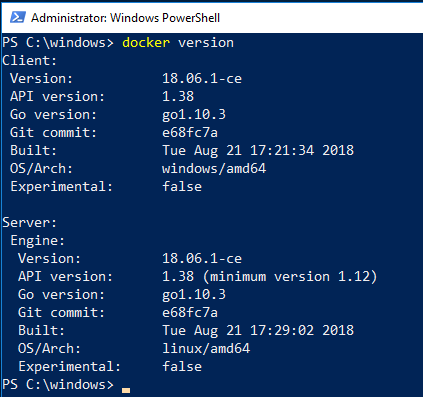
Now you can run your first docker command! I like to keep it simple and just check the version that docker is running: –

docker version

If you get a client and a server version back you’re good to go!

What you need to do now is pull the 2019 CTP image. I’m going to go for the ubuntu image so run: –

docker pull mcr.microsoft.com/mssql/server:vNext-CTP2.0-ubuntu

When that’s complete, verify that the image is on your machine: –

docker images

So now you can run a container!

docker run -d -p 15789:1433 --env ACCEPT_EULA=Y --env SA_PASSWORD=Testing1122 --name testcontainer mcr.microsoft.com/mssql/server:vNext-CTP2.0-ubuntu

N.B. – For more information on what’s going with this statement, check here

That’ll come back pretty much immediately, to check that the container is running: –

docker ps -a

Then connect in SQL using localhost,15789, and boom!

How awesome is that! An instance of SQL Server 2019 CTP 2.0 up and running on your local machine. If that’s peaked your interest into learning more about containers, I have put a list of all the blog posts I’ve written here.

Thanks for reading and have fun with SQL in containers!