SQL Server and Docker Compose

I used to think that Docker Compose was used solely to spin up multiple containers, in fact I blogged about doing just that here.

That opinion changed when I went to DockerCon in 2018 and had a chance to speak to some Docker Captains who told me that they used compose for everything!

And it makes sense, let’s have a look at spinning up one container running SQL Server 2019: –

docker run -d -p 15789:1433 `
--env ACCEPT_EULA=Y `
--env MSSQL_SA_PASSWORD=Testing1122 `
--name testcontainer `
mcr.microsoft.com/mssql/server:2019-CU5-ubuntu-18.04

Quite a bit to type there, no? Do we really want to be typing that out every time we run a container?

And it gets even worse if we want to persist our databases from one container to another: –

docker container run -d `
-p 15789:1433 `
--volume systemdbs:/var/opt/mssql `
--volume userdbs:/var/opt/sqlserver `
--env MSSQL_SA_PASSWORD=Testing1122 `
--env ACCEPT_EULA=Y `
--env MSSQL_BACKUP_DIR="/var/opt/sqlserver" `
--env MSSQL_DATA_DIR="/var/opt/sqlserver" `
--env MSSQL_LOG_DIR="/var/opt/sqlserver" `
--name testcontainer `
mcr.microsoft.com/mssql/server:2019-CU5-ubuntu-18.04

That’s a lot of typing! And if we try to create a database with the default values set in that statement, we’ll get the following error: –

CREATE FILE encountered operating system error 2(The system cannot find the file specified.) while attempting to open or create the physical file ‘/var/opt/sqlserver/testdatabase.mdf’.

This is because SQL in 2019 runs as non-root. This is a good thing but it means that after the container comes up, we have to run: –

docker exec -u 0 testcontainer bash -c "chown mssql /var/opt/sqlserver"

The solution here is to create a custom image with the volume created and permissions set.

But wouldn’t it be easier to just have to run one command to spin up a custom 2019 image, with volumes created and permissions set?

Enter Docker Compose.

I’ve created a GitHub repository here with all the necessary files: –
https://github.com/dbafromthecold/SqlServerDockerCompose

If we clone that repo down, we’ll get the following: –

Let’s go through each of the files

.gitignore
Standard ignore file, this is to prevent the sapassword.env file from being uploaded to Github

docker-compose.yaml
Compose file that when executed will reference our dockerfile and build us a custom image

dockerfile
File to create a custom SQL 2019 image

sapassword.env
Environment variable file to contain our SA password. We’ll need to create this file, it’s not in the repo

sqlserver.env
Environment variable file that contains all the environment variables required to spin up SQL Server in a container

Let’s dive in a little deeper and first have a look at the dockerfile: –

# build from the Ubuntu 18.04 image
FROM ubuntu:18.04

# create the mssql user
RUN useradd -u 10001 mssql

# installing SQL Server
RUN apt-get update && apt-get install -y wget software-properties-common apt-transport-https
RUN wget -qO- https://packages.microsoft.com/keys/microsoft.asc | apt-key add -
RUN add-apt-repository "$(wget -qO- https://packages.microsoft.com/config/ubuntu/18.04/mssql-server-2019.list)"
RUN apt-get update && apt-get install -y mssql-server

# creating directories
RUN mkdir /var/opt/sqlserver
RUN mkdir /var/opt/sqlserver/data
RUN mkdir /var/opt/sqlserver/log
RUN mkdir /var/opt/sqlserver/backup

# set permissions on directories
RUN chown -R mssql:mssql /var/opt/sqlserver
RUN chown -R mssql:mssql /var/opt/mssql

# switching to the mssql user
USER mssql

# starting SQL Server
CMD /opt/mssql/bin/sqlservr

This file when executed is going to create a custom SQL 2019 image, not from the microsoft images but installed via apt-get (the way you would install SQL on Linux).

It’s based on the Ubuntu 18.04 image and the steps are: –

  1. Pull down the Ubuntu 18.04 image and base this new image off it
  2. Create the mssql user
  3. Install SQL Server as you would on Linux, detailed instructions here
  4. Create the required directories
  5. Change the owner of those directories to the mssql user
  6. Switch over to run the next command as the mssql user
  7. Start SQL Server

Ok, cool. Let’s now have a look at the docker-compose.yaml file: –

version: '3.7'
services:
    sqlserver1:
        build: 
          context: .
          dockerfile: dockerfile
        ports:  
          - "15789:1433"
        env_file:
          - sqlserver.env
          - sapassword.env
        volumes: 
          - sqlsystem:/var/opt/mssql/
          - sqldata:/var/opt/sqlserver/data
          - sqllog:/var/opt/sqlserver/log
          - sqlbackup:/var/opt/sqlserver/backup
volumes:
  sqlsystem:
  sqldata:
  sqllog:
  sqlbackup:

Stepping through this we: –

  1. Define a service called sqlserver1, setting a build context to the current directory and specifying our dockerfile
  2. Set our ports, mapping 15789 on the host to 1433 in the container
  3. Specify our environment variable files
  4. Then set our volumes, matching the directories created in the dockerfile

And finally, let’s have a look at the two environment variable files: –

sqlserver.env

ACCEPT_EULA=Y
MSSQL_DATA_DIR=/var/opt/sqlserver/data
MSSQL_LOG_DIR=/var/opt/sqlserver/log
MSSQL_BACKUP_DIR=/var/opt/sqlserver/backup

sapassword.env

MSSQL_SA_PASSWORD=Testing1122

The SA password is set in a separate file so that we don’t end up putting it somewhere public 🙂
The other file can contain any environment variable for SQL Server, a full list is here.

Awesome stuff. OK, now we can run: –

docker-compose up -d

And we can check the objects created by compose by running: –

docker network ls
docker volume ls
docker image ls
docker container ls

There we can see our custom network, volumes, image, and container up and running!

So we’re good to do our work on SQL Server 2019 and when we’re finished we can just run: –

docker-compose down

That’ll delete our custom network and the container but we’ll still have our custom image and volumes, ready for next time we want to do some work against SQL Server 2019.

Thanks for reading!

Running Azure SQL Database Edge on a Raspberry Pi


Update – October 2020 – This post will take you through the whole process of getting an Azure IoT Hub setup and linking Azure SQL Edge running from a Raspberry Pi to it.

If you want to just run Azure SQL Edge without the IoT Hub, you can follow the MS Docs here: –
https://docs.microsoft.com/en-us/azure/azure-sql-edge/disconnected-deployment


One of the coolest new projects out there is Azure SQL Database Edge: –

https://azure.microsoft.com/en-us/services/sql-database-edge/

This allows SQL to run on ARM devices, just think how many devices are out there that run ARM.

That includes my favourite device, the Raspberry Pi.

So, let’s run through how to get SQL running on a Raspberry Pi!

First, Azure SQL Database Edge is in public preview so we’ll need to sign up here.

Once in the preview we need to set up our Raspberry Pi. We’ll need to use a 64-bit OS (Raspbian is 32-bit) so for this setup we’re going to use Ubuntu 18.04 which can be downloaded here.

Once downloaded, plug the SD card into a laptop and use Rufus to flash the card: –

Enable ssh by dropping a file called ssh onto the boot partition of the SD card (see Section 3 here).

Then plug the SD card into the Pi, and connect the Pi to a router (this avoids having to attach a monitor and keyboard in order to setup a wifi connection).

Power on the Pi and give it a minute to spin up. To find the Pi’s IP address we can use nmap to scan the local network: –

nmap -sP 192.168.1.0/24

Then ssh to the Pi via (default username and password is ubuntu): –

ssh ubuntu@<THE PI IP ADDRESS>

N.B – We’ll be prompted to change our password when we first log in.

Ok, that’s our Pi ready to go. Now, in order to get Azure SQL Database Edge running on it we need to create an IoT Hub in Azure and connect our Pi to it. This will then allow us to create a deployment in Azure that’ll push SQL Edge down to our Pi and run it in a Docker container.

To set the Iot Hub up, we’re going to use the azure-cli.

In order to use the IoT commands we need to make sure that we’ve got at least v2.0.70 of the azure-cli installed:-

az version

N.B. – We can grab the .msi to update azure-cli here.

Now add the azure-iot extension: –

az extension add –-name azure-iot

Log in to azure: –

az login

Create a resource group to hold all the objects that we are going to create: –

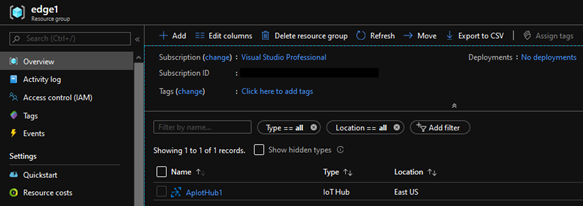
az group create --name edge1 --location eastus

Now we can create an IoT Hub: –

az iot hub create --name ApIotHub1 --resource-group edge1

Register a device with the hub: –

az iot hub device-identity create --device-id raspberry-pi-k8s-1 --hub-name ApIotHub1 --edge-enabled

Retrieve the connection string for the device: –

az iot hub device-identity show-connection-string --device-id raspberry-pi-k8s-1 --hub-name ApIotHub1

Once we have the connection string, we can install the IoT Edge runtime on the Raspberry Pi.

SSH into the Pi: –

ssh ubuntu@<THE PI IP ADDRESS>

Get the repository information: –

curl https://packages.microsoft.com/config/ubuntu/18.04/multiarch/prod.list > ./microsoft-prod.list

Copy the repository to the sources list: –

sudo cp ./microsoft-prod.list /etc/apt/sources.list.d/

Install the MS GPG public key: –

curl https://packages.microsoft.com/keys/microsoft.asc | gpg --dearmor > microsoft.gpg
sudo cp ./microsoft.gpg /etc/apt/trusted.gpg.d/

Now we can install the container runtime. Note that we’re not installing Docker, we’re installing the tools from the Moby project (which is the project that docker is built from, so the commands we’re familiar with, docker run, docker images etc. are available): –

sudo apt-get update && sudo apt-get install –y moby-engine moby-cli

Install the IoT Edge security daemon: –

sudo apt-get install –y iotedge

Now we need to add our connection string to the security daemon config: –

sudo nano /etc/iotedge/config.yaml

Find the section below and add the connection string obtained earlier (remove “connectionString”: from it): –

'provisioning:
source: "manual"
device_connection_string: "CONNECTION STRING' \

Save the changes, exit, and restart the security daemon: –

sudo systemctl restart iotedge

And then confirm that the daemon is running: –

sudo systemctl status iotedge
sudo iotedge check
sudo iotedge list

N.B. – We may have to ctrl+c out of the check command.

We can also check that the agent image is there: –

docker image ls

Ok, everything is setup! Now we can install SQL Edge on the Raspberry Pi!

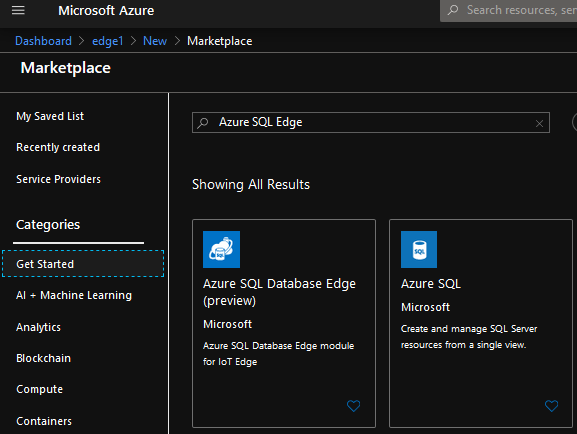
Go back to the portal and search for Azure SQL Edge: –

Select Azure SQL Database Edge Developer and hit Create: –

On the next page, hit Find Device. The Raspberry Pi should be there: –

Select the device and on the next page hit Create: –

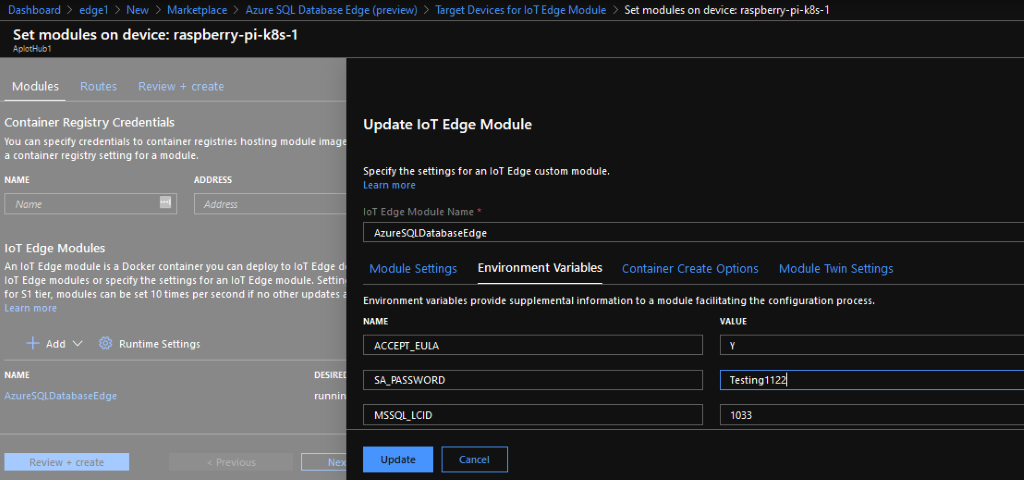
This will take us to a page to configure the deployment: –

Click AzureSQLDatabaseEdge and on the Environment Variables page, enter a SA Password: –

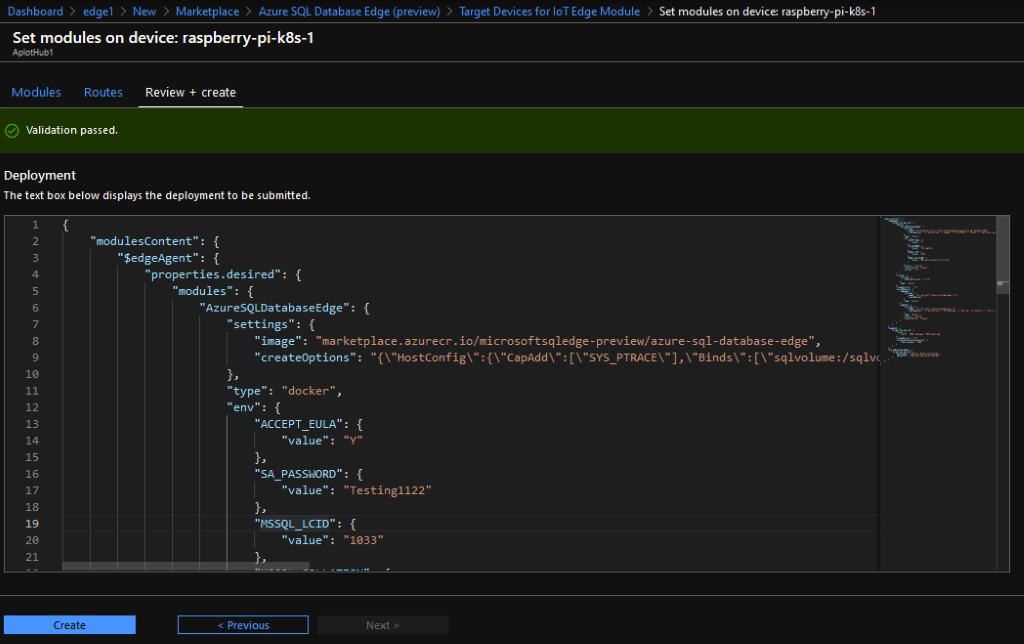
Hit Update and then Review + Create: –

Review the JSON, it should all be OK, and hit Create.

This will take us back to the hub page: –

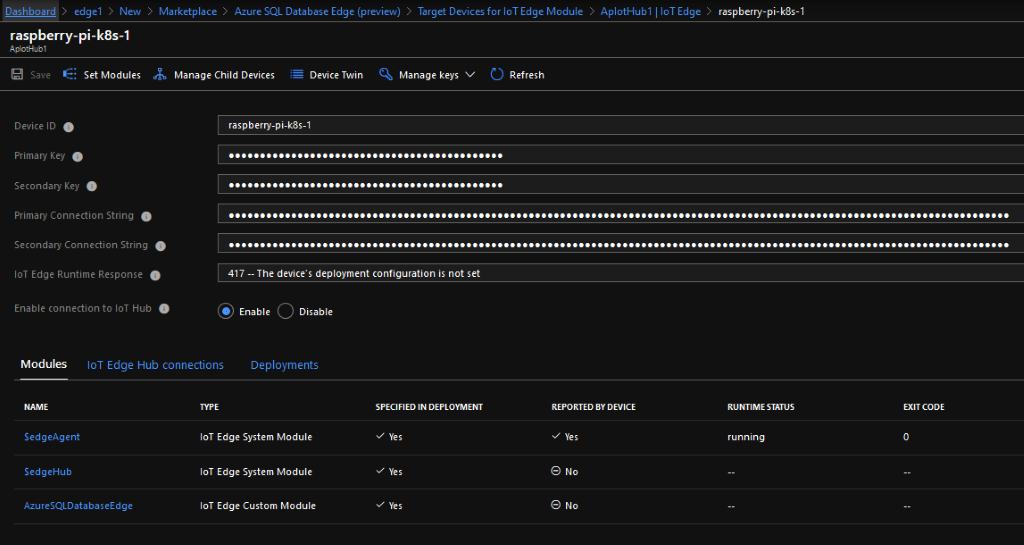
The IoT Edge Module Count should be 3. Click on the device: –

Now we’re waiting for the modules to be deployed to the Raspberry Pi.

After a few minutes we should see (don’t worry if there’s a 500 error, it’ll clear once the images are pulled to the device): –

And on the Pi itself: –

docker image ls

docker container ls

If the container is up and running, we can connect remotely using our Pi’s IP address in SSMS (or ADS): –

And that’s Azure SQL Database Edge running on a Raspberry Pi! How cool is that?!

Thanks for reading!

Using volumes in SQL Server 2019 non-root containers

I’ve seen a few people online asking how to use docker named volumes with the new SQL Server 2019 RTM images. Microsoft changed the way SQL runs within a container for the RTM versions, SQL no longer runs as the root user.

This is a good thing but does throw up some issues when mounting volumes to create databases on.

Let’s run through what the issue is and how to overcome it.

Run a container from the 2019 GDR1 ubuntu image: –

docker container run -d `
-p 15789:1433 `
--volume sqlserver:/var/opt/sqlserver `
--env MSSQL_SA_PASSWORD=Testing1122 `
--env ACCEPT_EULA=Y `
--env MSSQL_BACKUP_DIR="/var/opt/sqlserver" `
--env MSSQL_DATA_DIR="/var/opt/sqlserver" `
--env MSSQL_LOG_DIR="/var/opt/sqlserver" `
--name testcontainer `
mcr.microsoft.com/mssql/server:2019-GDR1-ubuntu-16.04

What we’re going here is mounting a named volume called sqlserver to /var/opt/sqlserver within the container. Then we’re setting the default data, log, and backup location to /var/opt/sqlserver/.

Now if we try and create a database using those defaults: –

CREATE DATABASE [TestDatabase];
GO

Msg 5123, Level 16, State 1, Line 1
CREATE FILE encountered operating system error 2(The system cannot find the file specified.) while attempting to open or create the physical file ‘/var/opt/sqlserver/testdatabase.mdf’.
Msg 1802, Level 16, State 4, Line 1
CREATE DATABASE failed. Some file names listed could not be created. Check related errors.

We get an error message as the SQL instance within the container does not have access to that location because it’s running as the mssql user.

We need to grant the mssql user access to that folder: –

docker exec -u 0 testcontainer bash -c "chown mssql /var/opt/sqlserver"

This will make the mssql user the owner of that folder. -u 0 sets the command to run as the root user and it has access to be able to change the owner of the folder. For more info on docker exec click here.

So we can now create the database: –

However, we would have to run that command every time we spin up a container with named volumes mounted. A better way would be to create a custom image from a Dockerfile that has created that folder within the container and granted the mssql user access: –

FROM mcr.microsoft.com/mssql/server:2019-GDR1-ubuntu-16.04

USER root

RUN mkdir /var/opt/sqlserver

RUN chown mssql /var/opt/sqlserver

ENV MSSQL_BACKUP_DIR="/var/opt/sqlserver"
ENV MSSQL_DATA_DIR="/var/opt/sqlserver"
ENV MSSQL_LOG_DIR="/var/opt/sqlserver"

USER mssql

CMD /opt/mssql/bin/sqlservr

We’re using the USER command to switch to the root user in order to grant access to the folder and then switching back to the mssql user to run SQL.

Create the custom image: –

docker build -t custom2019image .

Now we can run a container from that image: –

docker container run -d `
-p 15789:1433 `
--volume sqlserver:/var/opt/sqlserver `
--env MSSQL_SA_PASSWORD=Testing1122 `
--env ACCEPT_EULA=Y `
--name testcontainer `
custom2019image

And create the database without having to run anything else: –

CREATE DATABASE [TestDatabase];
GO

Hope that helps!

Using the GitHub Package Registry to store container images


UPDATE – October 2020 – Github has now released the Github Container Registry which can be used to store container images. For more information, see here


The GitHub Package Registry is available for beta testing and allows us to store container images in it, basically giving us the same functionality as the Docker Hub.

However the Docker Hub only allows for one private repository per free account whereas the Github package registry is completely private! Let’s run through a simple demo to create a registry and upload an image.

First thing to do is create a personal access token in GitHub. Go to Settings > Developer Settings > Personal Access Tokens

Ensure that the token has the rights set above and click Generate Token

Now we can use that token to login to the package registry: –

TOKEN=XXXXXXXXXXXXXXXXXXXXXXXXXXXXXXXXXXXXXXXX
docker login docker.pkg.github.com -u dbafromthecold -p $TOKEN

Search for a test image. I’m going to use the busybox image which is 2MB: –

docker search busybox

Then pull the image down: –

docker pull busybox:latest

Tag the image with the repo name to be push to. The format is docker.pkg.github.com/USERNAME/REPOSITORY/IMAGE:TAG

docker tag busybox:latest docker.pkg.github.com/dbafromthecold/testrepository/busybox:latest

N.B. – the repo used has to already exist within your github account

Now push the image to the GitHub Package repository: –

docker push docker.pkg.github.com/dbafromthecold/testrepository/busybox:latest

And then you should be able to see the package in GitHub: –

Thanks for reading!

Running SQL Server containers as non-root

Recently I noticed that Microsoft uploaded a new dockerfile to the mssql-docker repository on Github. This dockerfile was under the mssql-server-linux-non-root directory and (you guessed it) allows SQL Server containers to run as non-root.

But why is running a container as root bad? Let’s run through an example.

Using a non-root user: –

Run a SQL Server 2019 container with /etc mounted:-

docker run -d -p 15789:1433 \
--volume /etc:/etc \
--env SA_PASSWORD=Testing1122 \
--env ACCEPT_EULA=Y \
--name testcontainer \
mcr.microsoft.com/mssql/server:2019-RC1-ubuntu

Have a look at the logs: –

docker logs testcontainer

So even though I ran the container as a non-root user, the container is running as root.

Here’s the reason that’s bad. Exec into the container: –

docker exec -it testcontainer bash

Now create a user and add to the super user’s group: –

useradd testuser
passwd testuser
adduser testuser sudo

The user has been created and added to the super user’s group within the container. But if we come out of the container and run: –

cat /etc/group | grep sudo

The user is in the super user group on the host! Which means we can do: –

su testuser

Because we mounted the /etc directory into the container, the user created in the container is also created on the host!

And that’s why running containers as root is bad.


EDIT: November 2019

The new SQL Server 2019 run as a non-root user by default, these images are: –

mcr.microsoft.com/mssql/server:2019-GA-ubuntu-16.04
mcr.microsoft.com/mssql/server:2019-GDR1-ubuntu-16.04

So there’s no need to build your own image but the process below will show you how to (if you want to see how it’s done).


Let’s fix this by running SQL Server 2019 in a non-root container. First thing to do is create a mssql user on the host (you’ll have to run this as a user with sudo rights): –

useradd -M -s /bin/bash -u 10001 -g 0 mssql

N.B. – this user is needed as it’s created in the dockerfile, without it on the host the build will complete but any containers created from the image will crash.

Now, build the image from the dockerfile on Github: –

docker build -t 2019-nonroot .

Let’s try to run this container with /etc mounted: –

docker run -d -p 15799:1433 \
--volume /etc:/etc \
--env SA_PASSWORD=Testing1122 \
--env ACCEPT_EULA=Y \
--name testcontainer2 \
2019-nonroot

We can see that the container is running as the user mssql and it’s errored out as it does not have access to the /etc directory that we tried to mount!

So now that we have the option to run SQL Server in containers as a non-root user, I would absolutely recommend that you do so.

Thanks for reading!