Persisting data in docker containers – Part One

Normally when I work with SQL instances within containers I treat them as throw-away objects. Any modifications that I make to the databases within will be lost when I drop the container.

However, what if I want to persist the data that I have in my containers? Well, there are options to do just that. One method is to mount a directory from the host into a container.

Full documentation can be found here but I’ll run through an example step-by-step here.

First create a directory on the host that we will mount into the container: –

mkdir D:\SQLServer

And now build a container using the -v flag to mount the directory: –

docker run -d -p 15789:1433 -v D:\SQLServer:C:\SQLServer --env ACCEPT_EULA=Y --env sa_password=Testing11@@ --name testcontainer microsoft/mssql-server-windows


So that’s built us a container running an empty instance of SQL Server with the D:\SQLServer directory on the host mounted as C:\SQLServer in the container.

Update – April 2018
Loopback has now been enabled for Windows containers, so we can use localhost,15789 to connect locally. You can read more about it here

Now, let’s create a database on the drive that we’ve mounted in the container. First grab the container private IP (as we’re connecting locally on the host): –

docker inspect testcontainer
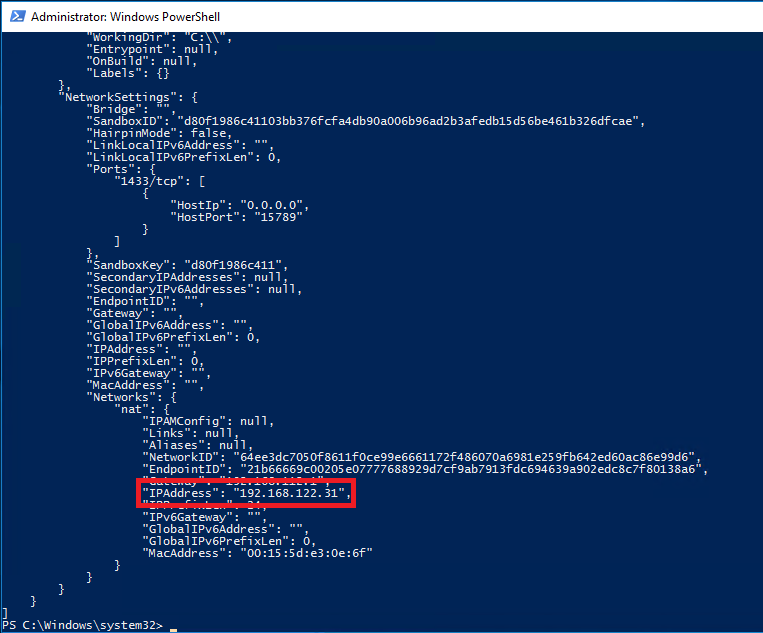

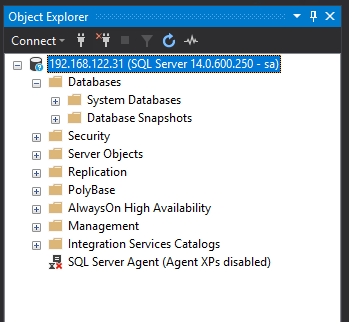
And use it to connect to the SQL instance within the container:-

Now create the database with its files in the mounted directory : –

USE [master];
GO

CREATE DATABASE [TestDB]
	ON PRIMARY 
(NAME = N'TestDB', FILENAME = N'C:\SQLServer\TestDB.mdf')
	LOG ON 
(NAME = N'TestDB_log', FILENAME = N'C:\SQLServer\TestDB_log.ldf')
GO

And let’s create a simple table with some data: –

USE [TestDB];
GO

CREATE TABLE dbo.testtable
(ID INT);
GO

INSERT INTO dbo.testtable
(ID)
VALUES
(10);
GO 100

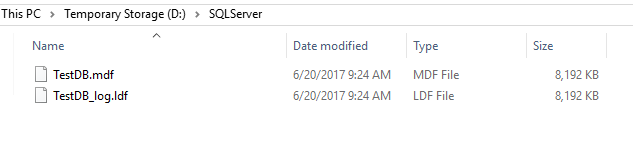
Cool, if we check the directory on the host, we’ll see the database’s files: –

OK, now let’s blow that container away: –

docker stop testcontainer

docker rm testcontainer

If you check the host, the directory with the database files should still be there.

Now, let’s create another container, mounting the directory back in: –

docker run -d -p 15799:1433 -v D:\SQLServer:C:\SQLServer --env ACCEPT_EULA=Y --env sa_password=Testing11@@ --name testcontainer2 microsoft/mssql-server-windows

Same as before, grab the private IP and connect into SQL Server: –


No database! Of course, we need to attach it! So…
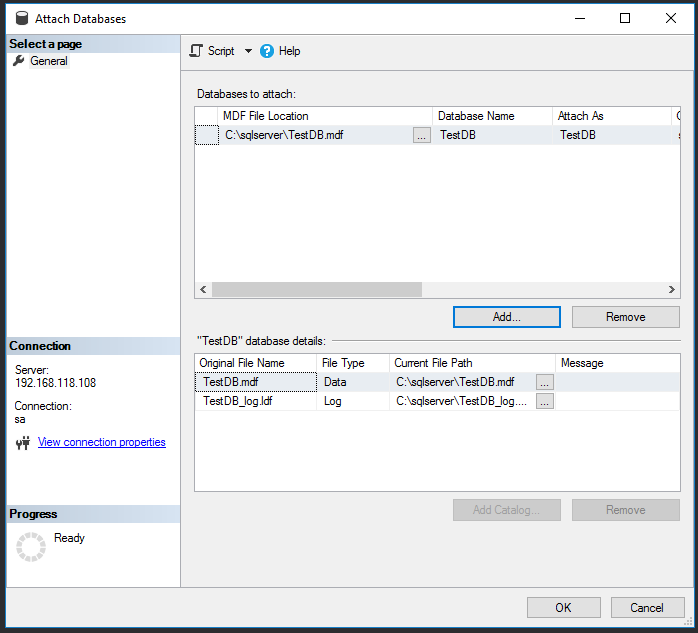

And there it is!
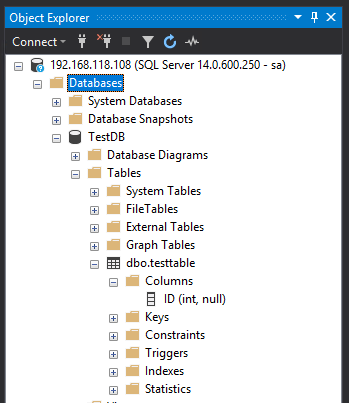

Cool, so a database created in one container has been attached into a SQL instance running in another. Notice that I didn’t detach the database before stopping and then dropping the container. Now, that doesn’t mean that the process of shutting down a container stops the SQL instance gracefully. It’d be interesting to see what happens if a container is stopped whilst queries are running, I bet if we deleted the container without stopping it first the database would be corrupt.

Anyway, using the -v flag to mount directories from the host into a container is one way of persisting data when using docker.

Thanks for reading!

Monday Coffee: SQL Saturday Dublin

Last weekend was SQL Saturday Dublin, and it was a good one.

My session on An introduction to SQL Server & Containers was the first one of the day, scheduled for 8am; now for me that’s great as I tend to get a bit nervous beforehand so having the sessions right at the start gave me less time to stress out.

I have to admit though, I was kinda worried about how many people were going to turn up as not only was my session early on a Saturday morning, the weather was absolutely stunning which does tend to hurt attendance at tech events.

However around 20 people turned up so I was really chuffed and think the session went well. I’ve delivered that session a couple of times now so enjoy presenting it, the feedback I received was all positive and once it was over I could relax and enjoy the day.

The main highlight for me (other than my session of course) was the session on PowerShell ❤ SQL Server: Modern Database Administration presented by Chrissy LeMarie (t) & Rob Sewell (t).

If you’re ever at an event and they are presenting, I can’t recommend that you go to it enough. They have a great dynamic when presenting together and it makes the session really fun. It’s also a plus that the topic they’re presenting about (dbatools.io) is absolutely awesome! If you haven’t checked it out, go and do it now.

SQL Saturday Dublin has prizes for things like best lightening talk, best new speaker etc. Rob & Chrissy won best session which if you check out who else was there (Paul Randal, Kimberly Tripp, Buck Woody…) you can guess at how good that session was!

Other highlights include having probably one of the funniest conversations with a vendor at a technical event (which I won’t go into detail here, I like to keep this blog relatively clean 🙂 ), the lightening talks hosted by the indefatigable Buck Woody (t) and having a couple of beers with everyone in the blazing sunshine afterwards.

If you work with SQL Server and have never been to a SQL Saturday event, I highly recommend that you go as it’s a day of free training from top (present blogger excluded) professionals and it’s a great way of meeting people within the industry. Have a look at the website and find your nearest one.

Have a good week!

Friday Reading 2017-06-16

Been looking forward to this weekend for a while now as it’s SQLSaturday Dublin tomorrow. I did a lightening talk at SQLSat Dublin 2016 and am really chuffed to have a full session this year. There’s a whole bunch of great sessions, Bob and the team always put on a great event. It’s going to be good fun 🙂

Anway, this week I’ve been reading…

Orchestrating SQL Server with Kubernetes
James Anderson (t) shows us how to manage groups of containers with Kubernetes

DB in recovery pending after TLog backup
David Fowler takes us through how he resolved an issue with a db going into recovery pending after a log backup

Simple SQL: Attribute Splitting
Joe Celko takes us through why relational database design is so important

The SQL Hall of Shame
Adam Machanic (t) did a survey on twitter to find out the most useless feature that SQL has ever had. Here’s the results.

OK, I give up. Is Docker now Moby? And what is LinuxKit?
Nice article about Docker’s shift to Moby

Have a good weekend!

Changing default location for docker containers

A question that regularly comes up when I talk about containers is, “can you specify where the containers/images live on the host?”

This is a good question as the install for docker is great because it’s so simple but bad because well, you don’t get many options to configure.

It makes sense that you’d want to move the containers/images off the C:\ drive for many reasons such as leaving the drive for the OS only but also, say you have a super fast SSD on your host that you want to utilise? OK, spinning up containers is quick but that doesn’t mean we can’t make it faster!

So, can you move the location of container and images on the host?

Well, yes!

There’s a switch that you can use when starting up the docker service that will allow you to specify the container/image backend. That switch is -g

Now, I’ve gone the route of not altering the existing service but creating a new one with the -g switch. Mainly because I’m testing and like rollback options but also because I found it easier to do it this way.

So the default location for containers and images is: – C:\ProgramData\docker

OK, let’s run through the commands to create a new service pointing the container/images backend to a custom location.

First we’ll create a new directory on the new drive to host the containers (I’m going to use a location on the E: drive on my host as I’m working in Azure and D: is assigned to the temporary storage drive): –

new-item E:\Containers -type directory

Now stop the existing docker service and disable it: –

stop-service Docker

set-service Docker -StartupType Disabled

get-service Docker

Now we’re going to create a new service pointing the container backend to the new location: –

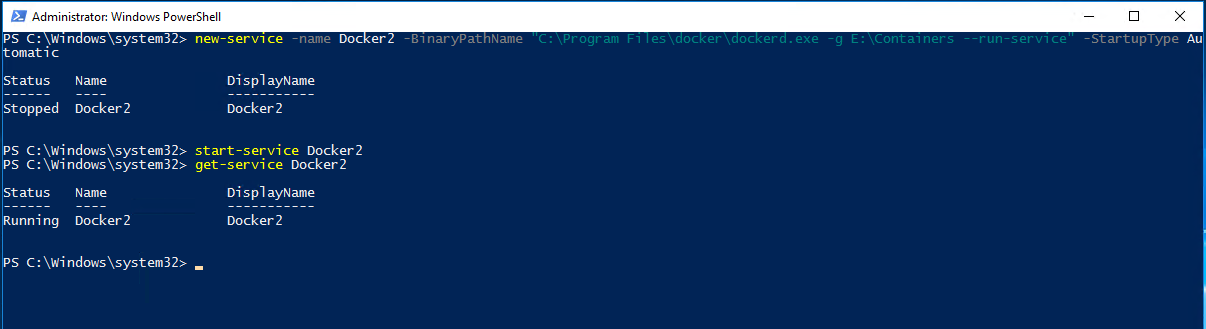
new-service -name Docker2 -BinaryPathName "C:\Program Files\docker\dockerd.exe -g E:\Containers --run-service" -StartupType Automatic

Now start the new service up: –

start-service Docker2

get-service Docker2

And check the new location: –

Cool, the service has generated the required folder structure upon startup and any new images/containers will be stored here.

Once thing to mention is that if you have images and containers in the old location they won’t be available to the new service. I’ve tried copying the files and folder in C:\ProgramData\docker to the new location but keep getting access denied errors on the windowsfilter folder.

To be honest, I haven’t spent much time on that as if you want to migrate your images from the old service to the new one you can export out and then load in by following the instructions here.

Thanks for reading!

GroupBy Conference – SQL Server & Containers

Morning all, busy week last week as I was lucky enough to have my session on SQL Server & Containers in the top ten voted for sessions in GroupBy’s June conference.

This was my first webinar and even though it was nerve wracking, I’m really glad I did it. An online presentation is (of course) very different to presenting in person as you don’t have an audience to gauge how things are going, you just keep ploughing ahead and trust that what you’re presenting works.

I’ve done this session a couple of times beforehand so I know that it works so was happy to chat away in my living room and take questions at the end.

One really cool thing about the session was having Rob Sewell (b|t) & James Anderson (b|t) involved, chatting with them and Brent Ozar at the end was probably the highlight for me.

By the way, both James and Rob presented sessions as well, you can find on the main GroupBy page.

Anyway, in case you missed it, here’s the video: –