I got asked this question last week and it’s a very good one. After all, running Sql Server in Azure Container Services (AKS) does mean exposing a port to the internet to allow connections.
EDIT – Azure Container Services (AKS) has been renamed to Azure Kubernetes Services. Blog title has been updated
So leaving SQL Server listening on the default port can be risky.
Now I know there’s a debate as to whether or not it is worth changing the port that SQL is listening on in order to secure it. My opinion is that it’ll prevent opportunistic attacks by port scanners but would not prevent a directed attack.
So, how do you do it when running SQL Server in Azure Container Services?
Well there’s a couple of options available.
The first one is to change the port that SQL is listening on in the container, open that port on the container, and direct to that port from the service.
The second one is to leave SQL Server listening on the default port and direct a non-default port to port 1433 from the service.
Let’s run through both.
N.B. – Even though I’ll set this up from scratch I’d recommend you read through my previous post on AKS here
In order to set this up, I’ll use the Azure-CLI via Bash for Windows.
First thing to do is install the Azure-CLI: –
echo "deb [arch=amd64] https://packages.microsoft.com/repos/azure-cli/ wheezy main" | \
     sudo tee /etc/apt/sources.list.d/azure-cli.list


sudo apt-key adv --keyserver packages.microsoft.com --recv-keys 52E16F86FEE04B979B07E28DB02C46DF417A0893
sudo apt-get install apt-transport-https
sudo apt-get update && sudo apt-get install azure-cli
And install Kubectl: –
az aks install-cli
Then login to Azure: –
az login
Enable AKS on your Azure subscription: –
az provider register -n Microsoft.ContainerService
Create a resource group: –
az group create --name ApContainerResGrp1 --location centralus
And now we can create the cluster: –
az aks create --resource-group ApContainerResGrp1 --name mySQLK8sCluster1 --node-count 2 --generate-ssh-keys
N.B. – This can take some time
Once that’s complete we need to get credentials to connect to the cluster: –
az aks get-credentials --resource-group ApContainerResGrp1 --name mySQLK8sCluster1
Now test the connection by viewing the nodes in the cluster: –
kubectl get nodes
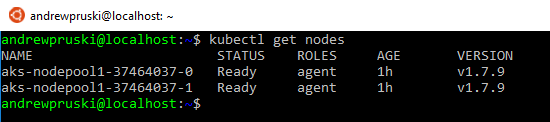
If both nodes come back with a status of Ready, you’re good to go!
Ok, so now let’s create the yaml file to spin up the container and service: –
nano sqlserver.yml
And drop this code into the file: –
apiVersion: apps/v1beta1
kind: Deployment
metadata:
  name: sqlserver
  labels:
    app: sqlserver
spec:
  replicas: 1
  template:
    metadata:
      labels:
        name: sqlserver
    spec:
      containers:
      - name: sqlserver1
        image: microsoft/mssql-server-linux:latest
        ports:
        - containerPort: 4433
        env:
        - name: SA_PASSWORD
          value: "Testing1122"
        - name: ACCEPT_EULA
          value: "Y"
        - name: MSSQL_TCP_PORT
          value: "4433"
---
apiVersion: v1
kind: Service
metadata:
  name: sqlserver-service
spec:
  ports:
  - name: sqlserver
    port: 4433
    targetPort: 4433
  selector:
    name: sqlserver
  type: LoadBalancer
N.B. – Code is also available here
Note the following code in the deployment section: –
        ports:
        - containerPort: 4433
.
.
.
        - name: MSSQL_TCP_PORT
          value: "4433"
This will use an environment variable to change the port that SQL is listening on to 4433 and open that port on the container.
Also note the following code in the service section: –
  ports:
  - name: sqlserver
    port: 4433
    targetPort: 4433
This will open the port 4433 externally and direct any connections to 4433 on the container.
So let’s deploy!
kubectl create -f sqlserver.yml
You can check the deployment process by running: –
kubectl get pods
kubectl get service
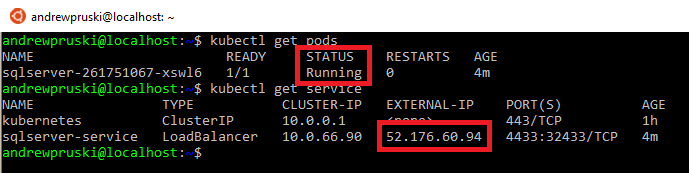
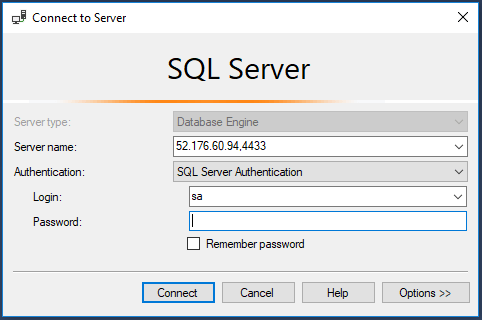
Once the pod has a status of Running and the service has an external IP, we can use the external IP and the port to connect to SQL in SSMS: –
And confirm that Sql is listening on the specified port by checking the log: –
EXEC sp_readerrorlog
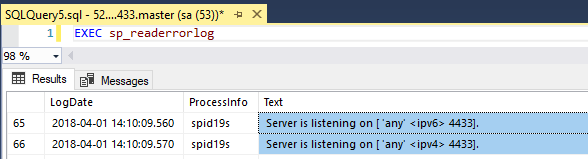
Cool! Sql is listening on a non-default port and we’ve connected to it!
Alright, let’s try the next option.
First thing is to remove the old deployment: –
kubectl delete service sqlserver-service
kubectl delete deployment sqlserver
rm sqlserver.yml
Now let’s create the new yaml file: –
nano sqlsever.yml
And drop the following into it: –
apiVersion: apps/v1beta1
kind: Deployment
metadata:
  name: sqlserver
  labels:
    app: sqlserver
spec:
  replicas: 1
  template:
    metadata:
      labels:
        name: sqlserver
    spec:
      containers:
      - name: sqlserver1
        image: microsoft/mssql-server-linux:latest
        ports:
        - containerPort: 1433
        env:
        - name: SA_PASSWORD
          value: "Testing1122"
        - name: ACCEPT_EULA
          value: "Y"
---
apiVersion: v1
kind: Service
metadata:
  name: sqlserver-service
spec:
  ports:
  - name: sqlserver
    port: 4433
    targetPort: 1433
  selector:
    name: sqlserver
  type: LoadBalancer
N/B. – The code is also available here
Note the following in the service section:-
  ports:
  - name: sqlserver
    port: 4433
    targetPort: 1433
This opens port 4433 on the service and directs it to port 1433 in the container.
Rebuild the deployment: –
kubectl create -f sqlserver.yml
And once that’s created, connect on the service’s external IP and port 4433.
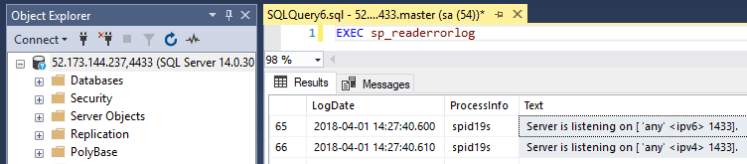
Awesome stuff! SQL is listening on the default port but we’ve connected to the port opened on the service and it has routed it to port 1433 opened on the container.
But which method would I recommend?
How about both! 🙂
Let’s change the default port that SQL is listening on and open a different port in the service!
Again, remove the old deployment: –
kubectl delete service sqlserver-service
kubectl delete deployment sqlserver
rm sqlserver.yml
Recreate the yaml file: –
nano sqlsever.yml
And the drop the following into the file: –
apiVersion: apps/v1beta1
kind: Deployment
metadata:
  name: sqlserver
  labels:
    app: sqlserver
spec:
  replicas: 1
  template:
    metadata:
      labels:
        name: sqlserver
    spec:
      containers:
      - name: sqlserver1
        image: microsoft/mssql-server-linux:latest
        ports:
        - containerPort: 4433
        env:
        - name: SA_PASSWORD
          value: "Testing1122"
        - name: ACCEPT_EULA
          value: "Y"
        - name: MSSQL_TCP_PORT
          value: "4433"
---
apiVersion: v1
kind: Service
metadata:
  name: sqlserver-service
spec:
  ports:
  - name: sqlserver
    port: 15789
    targetPort: 4433
  selector:
    name: sqlserver
  type: LoadBalancer
N.B. – This code is also available here
What’s happening here is that SQL will be configured to listen on port 4433 but we’ll connect externally to the service to port 15789 which is mapped to 4433 on the container.
Now redeploy: –
kubectl create -f sqlserver.yml
Same as before, wait for the container to be created and the service to have an external IP assigned: –
kubectl get pods
kubectl get service
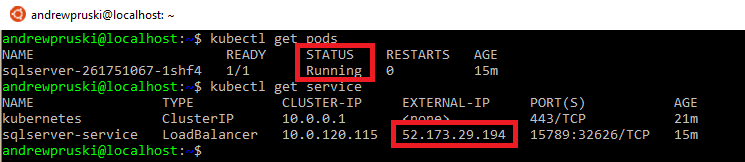
Then use the external IP and the port 15789 to connect in SSMS: –

How cool is that?! SQL is listening on a non-default port and we’ve used a completely different port to connect!
Finally, to tear everything down: –
az group delete --name ApContainerResGrp1
Thanks for reading!


 DBA From The Cold