0

Friday Reading 2016-11-25

Friday again so before I spend a weekend watching sci-fi movies, I’ll be reading:-

Virtue in the Virtual
Tony Davies discusses containerisation and virtualisation technologies and how they could be used to benefit processes within RedGate

Query wait stats in SQL 2016 SP1 Execution Plans
What a cool feature!

Source Control in SSMS
Ken Van Hyning, Engineering Manager of SQL Server Client Tools at Microsoft discuss enabling TFS integration in SSMS
(N.B.- To get this to work you have to uncomment all the lines in the section specified and then run SSMS as administrator. Interestingly enough this unlocks the dark theme but it’s not complete, the custom areas of SSMS won’t change)

Giving back with code
Steph Locke talks about the reasons why you should make the code you write publicly available

SQL Server v.Next—Linux Preview and Ola Hallengren’s Jobs
Joey D’Antoni talks about SQL Server vNext on Linux and gives a quick intro into using Ola Hallengren’s maintenance scripts

4

SQL Server & Containers – Part Two

This post follows on from SQL Server & Containers – Part 1 and will go through how to build custom container images.

Since Part 1 came out Microsoft has released SQL Server vNext which is available in the Docker repository. I used the SQL 2016 Express image in Part 1 but that has now been deprecated so for this part we’ll use one of the new images.

To see what SQL Server images are available for you to download and run as containers, you can run:-

docker search microsoft/mssql-server

searchdockerrepository

So let’s crack on and build a container.

One word before we start however, this post assumes that you’ve installed the docker engine on a Windows Server 2016 installation as detailed in Part 1. If you haven’t installed the Docker engine, go back to Part 1 and follow the instructions, we’ll meet you here 🙂

As before to create a container, we first need to pull an image from the respository. Let’s go for the vNext image.

Open an admin powershell prompt and run:-

docker pull microsoft/mssql-server-windows

And now we can run a container from the image: –

docker run -d -p 15888:1433 -e sa_password=Testing11 -e ACCEPT_EULA=Y microsoft/mssql-server-windows

runningcontainer

We now have a running SQL Server vNext container. Note that the syntax to run the container has changed slightly from the code we ran in Part 1, the difference being
-e sa_password=Testing -e ACCEPT_EULA=Y instead of –env sa_password=Testing

Details of commands needed to run containers are documented in the Docker Hub which we’ll explore further in Part 3.

What we are going to do now is create a database within that container, then stop the container and create a new image from it.

So connect to the container (server IP address and the port we specified in the run command) and run the following SQL scripts:-

CREATE DATABASE [TESTDB];
GO
USE [TESTDB];
GO
CREATE TABLE dbo.DummyData
(PKID INT IDENTITY(1,1) PRIMARY KEY,
 ColA VARCHAR(10),
 ColB VARCHAR(10),
 ColC DATETIME);
GO
INSERT INTO dbo.DummyData
(ColA,ColB,ColC)
VALUES
(REPLICATE('A',10),REPLICATE('B',10),GETUTCDATE());
GO 10

This container now has a custom database in it with some random data. What we’re going to do now is stop that container and create a new image from it, so first run:-

docker stop b71

N.B. – b71 is the first three digits of my container ID. You’ll need to substitute for your container’s ID

Now that the container is stopped we can create a new image: –

docker commit b71 testimage

This will create a new image from our container called testimage which we can view by running:-

docker images

newimages

Great stuff, we’ve created a custom docker image! What’s really cool now is that we can create containers from that image, exactly the same as we did with the generic original image from the repository:-

docker run -d -p 15666:1433 -e sa_password=Testing22 -e ACCEPT_EULA=Y testimage

Once the command has executed you can connect remotely via SSMS using the server name and the port we specified above. The database that we created in the original image will be there, along with the data that we entered!

This is where containers start to come into their own in my opinion. You can build your own custom images and quickly spin up multiple instances that already have all the databases that you require!

Hmmm, you say. That’s great and all but are those custom images only available on the server that I’ve created them on?

Well, yes and no, but that’s something that’ll be covered in Part Three.

0

Monday Coffee 2016-11-21

Well there were quite a few announcements in the SQL Server world last week.

SQL Server vNext CTP was made available for download, the big news there is that that version will be available either on Windows or Linux. The Linux version of SQL has been in private preview for a while but for a lot of people out there (myself included) this was the first time that they could get their hands on the product.

However mad this may sound, SQL running on Linux wasn’t the biggest news for me last week. We’ve all known that Microsoft was going to release a SQL version for Linux for a while now so it wasn’t that much of a shock to the system. What was a shock was the first point in a blog detailing the first service pack for SQL Server 2016.

As of SQL Server 2016 SP 1 many of the features of SQL Server that were previously only available in Enterprise Edition will be available in the other editions where possible.

This is big news for me as what this means is that instead of scaling up our server running Enterprise Edition, we could scale out i.e. – build multiple new servers running SQL Server Standard Edition and split our workload across them for a fraction of the cost of our current Enterprise licence.

I mean OK, not all Enterprise features are available (no online operations for a start) and there is still the CPU and memory limits in the lower editions but the option of scaling out cannot be ignored (for purely fiscal reasons). I can see some interesting design discussions coming my way in the near future, and that’s a good thing.

0

Friday Reading 2016-11-18

Another week almost over so in-between daydreaming about relaxing this weekend I’ll be reading…

https://blogs.msdn.microsoft.com/sqlreleaseservices/sql-server-2016-service-pack-1-sp1-released/
SQL Server 2016 SP1 has been released. If you haven’t read this blog post yet, have a look at the first point when it details what new in SP1

https://www.microsoft.com/en-us/sql-server/sql-server-vnext-including-Linux#resources
SQL Server vNext is out for CTP. This includes SQL for Linux. Grab a copy of Ubuntu 16.04 and get installing!

SQL Server Tail Of Log Caching on NVDIMM
Bob(?) talks about the ability of SQL Server 2016 to use non-volatile memory to cache the tail of the log file (look at the IOPS!)

Microsoft SQL Server Team AMA
Dear Microsoft, where the heck is the dark theme for SSMS???? Seriously…

Code I’m still ashamed of
Bill Sourour talks about code he wrote as a junior developer and the grim functionality behind it

How we make money at StackOverflow
Nick Craver explains how Stack Overflow makes money and how they maintain their business ethics

The tale of the database with no indexes
Devon Leann talks about her strategy for dealing with a database that has no indexes (favourite line “…nary an index was present…” ha!)

10

SQL Server & Containers – Part One

Containers are a hot topic at the moment, there seems to be a new article about them on Hacker News every day and now that Microsoft is supporting containers on Windows Server 2016 I thought it was time to have a look for what that means for us DBAs.

The question is can SQL Server run in a container?

Well, yes! SQL Server can run in containers. I have to admit that the ability to quickly create new instances of SQL Server without having to run through a lengthy (no matter how much you automate it, come on…it’s quite lengthy) install process is very appealing. This would be very useful for dev/qa environments where they need new instances spun up on a regular basis.

So how do you create a SQL container?

The first thing to do is get yourself a copy of Windows Server 2016, install it in a dev environment and get it fully patched. Btw Windows Updates are no longer located in the Control Panel options in Windows Server 2016, go to Settings > Update & Security (same as Windows 10 wouldn’t you know?).

For simplicity I’m going to be using an installation of Windows Server 2016 with the Desktop. You can do this on a core installation but as i’m used to a GUI, I’ll use the GUI.

WARNING! For some reason certain commands fail when copying and pasting. If a command fails try typing it out manually and re-running.


EDIT – If running on Windows 10 you’ll need to install via the .msi from the Docker Store


So the first thing to do is install the docker engine, this only requires two powershell scripts to be run and then a restart of the server. Open up an administrative powershell prompt and run the following: –

Install-Module -Name DockerMsftProvider -Force
Install-Package -Name docker -ProviderName DockerMsftProvider -Force
Restart-Computer -Force

Code source – https://blog.docker.com/2016/09/build-your-first-docker-windows-server-container/

The last line of code will restart the server. Once it’s back up you can verify that the containers feature has been enabled: –
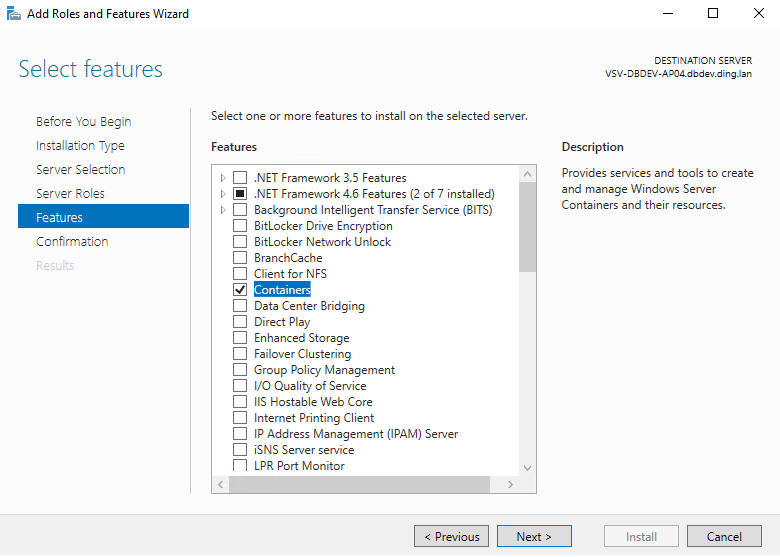
server2016_enablecontainers2

And then you can verify that the Docker Engine is up and responding to request by running: –

docker version

So now let’s find an image in the Docker Hub that we want to use to build containers. To do this, run: –

docker search microsoft/mssql

Now it’s time to build a container that’s running SQL Server 2016 (I’m going to use the SQL 2016 Express Edition image for this demo). Docker requires images to build containers so first thing is to get the image: –

docker pull microsoft/mssql-server-windows-express
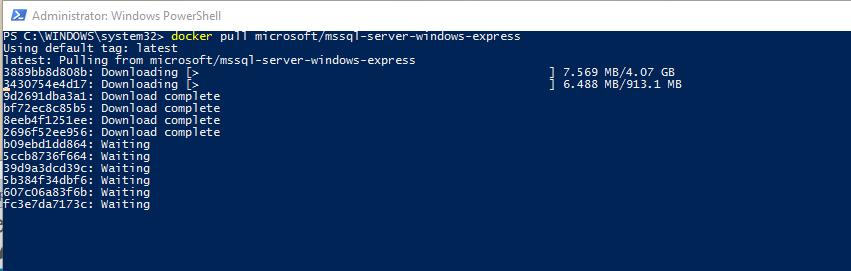
Once this is complete you can view the image downloaded:-

docker images
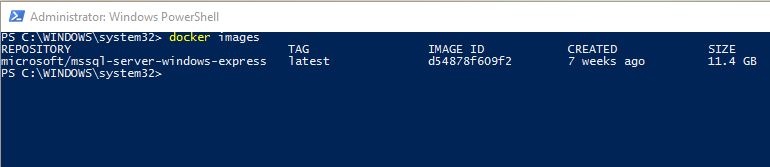
Now we can create a container by running:-

docker run -d -p 15789:1433 --env ACCEPT_EULA=Y ––env sa_password=Testing11@@ --name MyFirstContainer microsoft/mssql-server-windows-express

N.B.- Notice the values after the -p flag. What this is doing is mapping port 1433 (the default) in the container to port 15789 on the host. For more information have a look here.

When that completes, you can view details of the new container by running:-

docker ps

So now we have a container running SQL Server 2016, but how on earth are we going to connect to it?

Update – April 2018
Loopback has now been enabled for Windows containers, so we can use localhost,15789 to connect. You can read more about it here

Well there’s different ways of connecting depending where you are connecting from. If connecting locally you need to find the private IP address assigned to the container. This can be found by running:-

docker inspect MyFirstContainer 
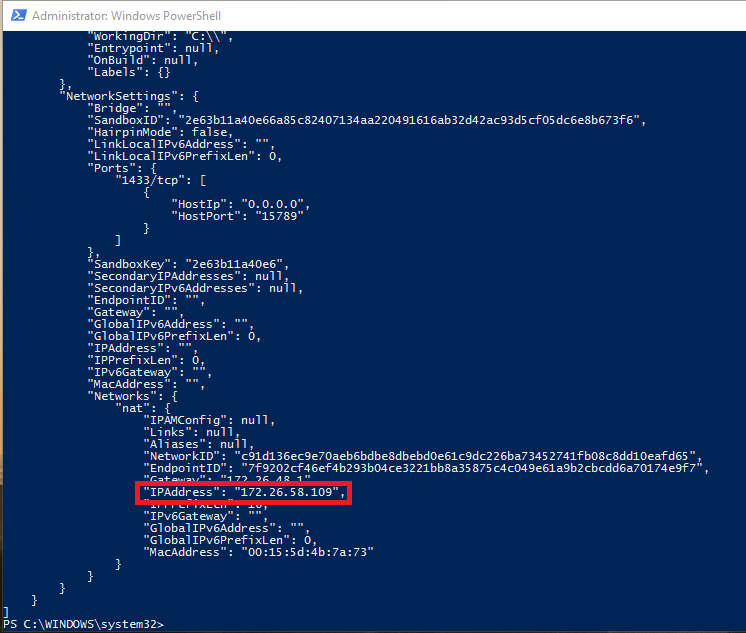
So my container has a private IP address of 172.26.58.109 on the host server. To connect via SSMS I just enter 172.26.58.109 into the connection, enter the user sa & password and boom! I’m in:-
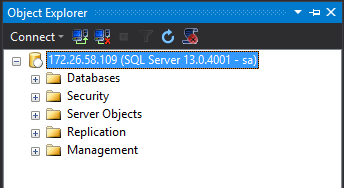
But what about connecting remotely? This isn’t going to be much use if we can’t remotely connect!

Actually connecting remotely is the same as connecting to a named instance. You just use the server’s IP address (not the containers private IP) and the non-default port that we specified when creating the container (remember to allow access to the port in the firewall).
Easy, eh?

Hmmm, I imagine you’re saying to yourself. That’s all well and good but it’s a bit involved and I don’t really see what benefit I’m going to get from setting this up. Well, don’t worry, I’ll cover actually using the software and what benefits it brings in Part Two.
