0

Automatically restarting Docker containers

One of the problems that I’ve encountered since moving my Dev/QA departments to using SQL Server within containers is that the host machine is now a single point of failure.

Now there’s a whole bunch of posts I could write about this but the one point I want to bring up now is…having to start up all the containers after patching the host.

I know, I know…technically I shouldn’t bother. After patching and bouncing the host, the containers should all be blown away and new ones deployed. But this is the real world and sometimes people want to retain the container(s) that they’re working with.

I have found it best practice to stop all containers before restarting the host (with the docker stop command) and then starting them back up (with the docker start command) once the host has come online.

However I need not have bothered! Docker gives you the option of setting a restart policy for your containers with the following options: –

  • no: Never automatically restart (the default)
  • on-failure: Restart if there’s been an issue which isn’t critical
  • unless-stopped: Restart unless Docker stops or is explicitly stopped
  • always: Always restart unless explicitly stopped

Let’s run through a quick test using Docker on Windows Server 2016. First let’s run a container: –

docker run -d -p 15789:1433 --restart always --env ACCEPT_EULA=Y --env SA_PASSWORD=Testing1122 --name testcontainer microsoft/mssql-server-windows

docker ps

I’ve used the always option here, so Docker won’t restart my container, but what happens when I bounce the server?

restart-computer -force

Wait for the server to restart and then I can compare system uptime to container uptime: –

$wmi = Get-WmiObject -Class Win32_OperatingSystem
$wmi.ConvertToDateTime($wmi.LocalDateTime) - $wmi.ConvertToDateTime($wmi.LastBootUpTime)

docker ps
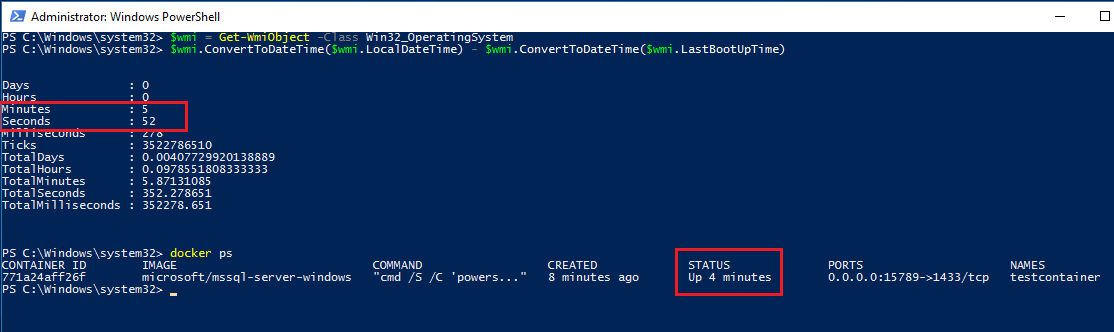
N.B. – code to check system uptime is from here

From the above screen shot I can see that the server came up ~6 mins ago and the container came up ~4 mins ago. OK, there’s a bit of a delay there (probably due to the host OS booting, my Azure VMs aren’t really high spec) but the container has come up automatically! So with this switch there’s no need to have to manually start up all the containers on the host.

I’d recommend specifying this switch for all containers if they are being used for active development as this would be pretty handy if there was ever a case of an unexpected host reboot. I don’t want to have to be running start commands whilst a load of developers are waiting for their SQL instances to spin up 🙂

Thanks for reading!

0

Monday Coffee: SQL Services in Containers

I had an interesting question on twitter last week when I published my post on Running Linux Container on Windows: –

“Does that container support Microsoft ML yet?”

I have absolutely no experience with Machine Learning so really had no clue. But as I had the container up and running I thought I’d give it a quick test by seeing if I could run a Python script. However I didn’t get far: –

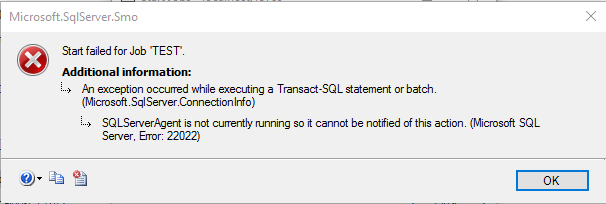
The required services are not installed in the container so no luck. It’s the same with the SQL Agent service, you can enable it and create jobs but when you try and run them: –

The SQL Agent service is there in windows containers but if you try and start it up you’ll get a whole bunch of errors.

So it seems, for now, that it really is just the Database Engine that’s available in containers. That’s really useful on its own but there are a lot of people out there who require the other components of SQL Server. If Microsoft want to see people running SQL in Containers become widespread, then more functionality really needs to be available.

I actually have high hopes for this, especially with the announcement of the Agent running on Linux. Hopefully we’ll see this in containers soon.

Hmm, could try to build a custom image with the Agent…

Have a good week!

0

Friday Reading 2017-07-21

Fun week! I moderated a couple of great sessions for 24 Hours of PASS: Summit Preview. As someone getting into presenting, watching the Pros do it is invaluable.

Here’s the sessions that I moderated: –

PowerShell for DBAs, What’s in it For Me?
Ben Miller gave a great overview of the powershell for DBAs out there just getting into it

Becoming Proficient with Columnstore Indexes
Niko Neugebauer with an introduction to Columnstore Indexes – really handy if you haven’t used them before

On Transactions and Atomic Operations
Gail Shaw with a cool back to basics sessions on how transactions within SQL Server work

Recordings should be up in a week.

I’m also speaking for the PASS Virtualisation chapter next month, at 17:00 (UTC) on the 9th of August. Details are here, hope you can join in!

Have a good weekend!

2

Running Linux Containers on Windows

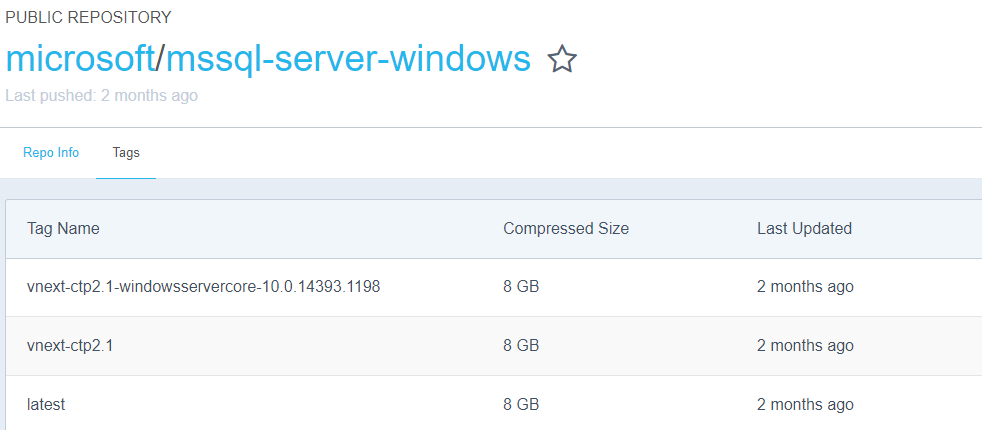
Microsoft have announced the availability of SQL Server 2017 RC1 and I wanted to check it out in a container however it seems that the Windows image hasn’t been updated on the Docker Hub: –

But no matter, running Docker on Windows 10 gives me the option to run Linux containers and the SQL Server 2017 RC1 Linux container image is available on the Docker Hub: –

This post is a step-by-step guide to getting Linux containers running on your Windows 10 machine. The first thing to do is install the Docker Engine.

Installing Docker on Windows 10 is different than installing on Windows Server 2016, you’ll need to grab the Community Edition installer from the Docker Store.

Once installed, you’ll then need to switch the engine from Windows Container to Linux Containers by right-clicking the Docker icon in the taskbar and selecting “Switch to Linux Containers…” : –

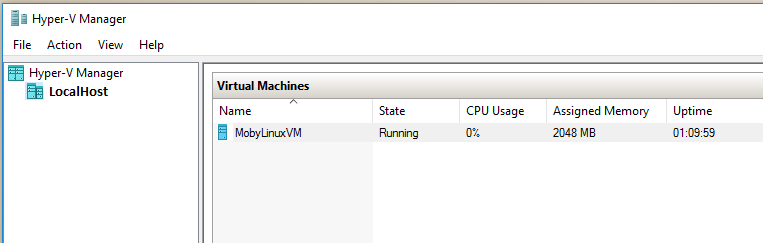
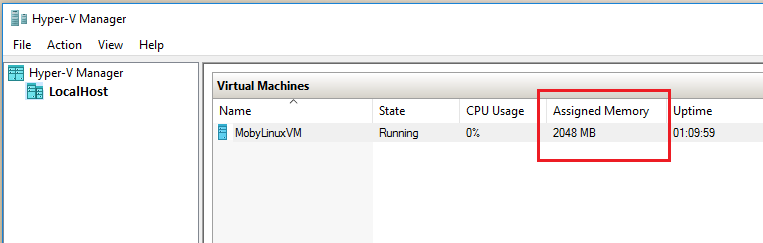
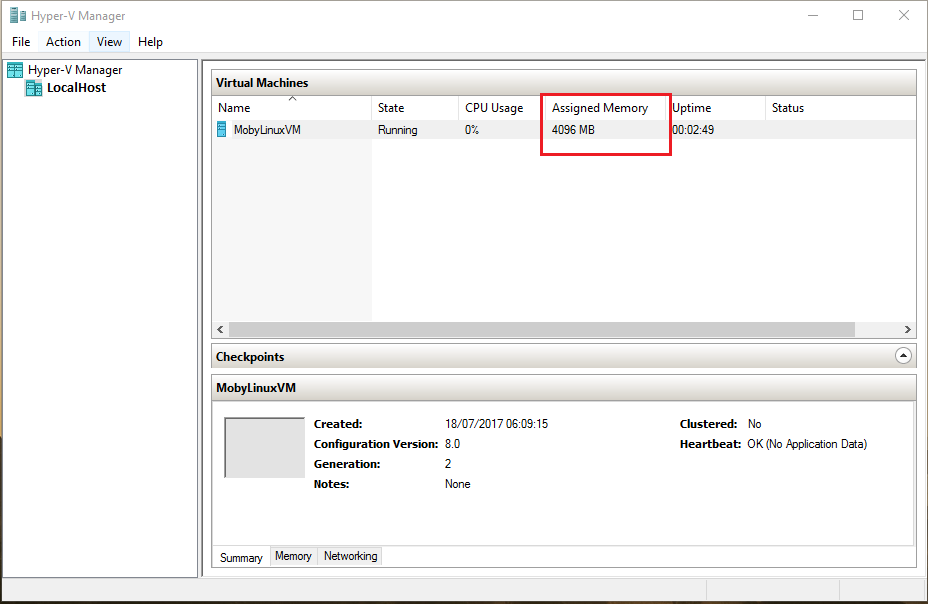
The way Linux containers run on Windows is that they run in a virtual machine, you can see this by opening up Hyper-V Manager: –

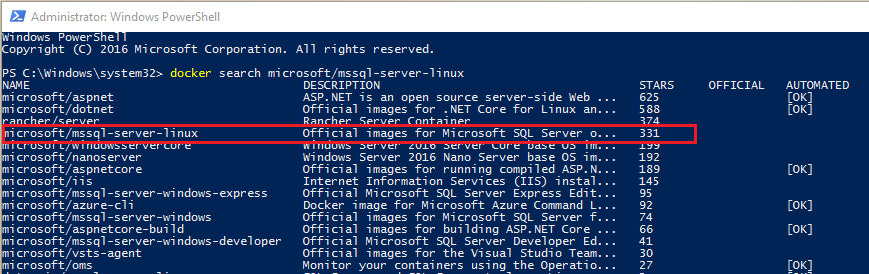
Now the linux image can be pulled from the Docker Hub. To search for the image run: –

docker search microsoft/mssql-server-linux

To pull the image down: –

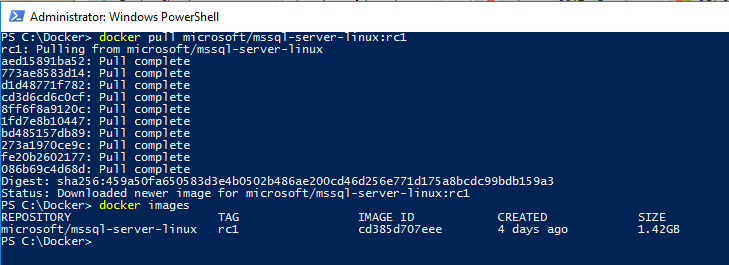
docker pull microsoft/mssql-server-linux:rc1

The first thing I noticed when I did this was, how quick was it to pull the image down? If you’ve pulled the SQL Server Windows images down you’ll know that it takes a bit of time. The Linux image is significantly smaller than the Windows image (1.42GB compared to ~12GB), no idea why that is tbh.

Anyway, a container can be run once the image is down: –

docker run -d -p 15789:1433 --env ACCEPT_EULA=Y --env SA_PASSWORD=Testing1122 --name testcontainer microsoft/mssql-server-linux:rc1

N.B. – both the ACCEPT_EULA and SA_PASSWORD environment variables need to be upper case for the values passed to be accepted. Linux is case sensitive!

To confirm the container is up, run: –

docker ps -a

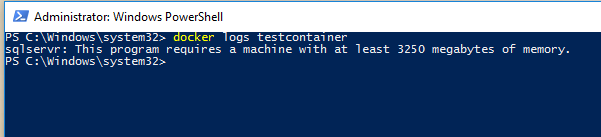
Hmm, something’s gone wrong for me: –

I need to view the container logs in order to find out what’s happened: –

docker logs testcontainer

Oh, the VM that the container is running in only has 2048MB of memory available!

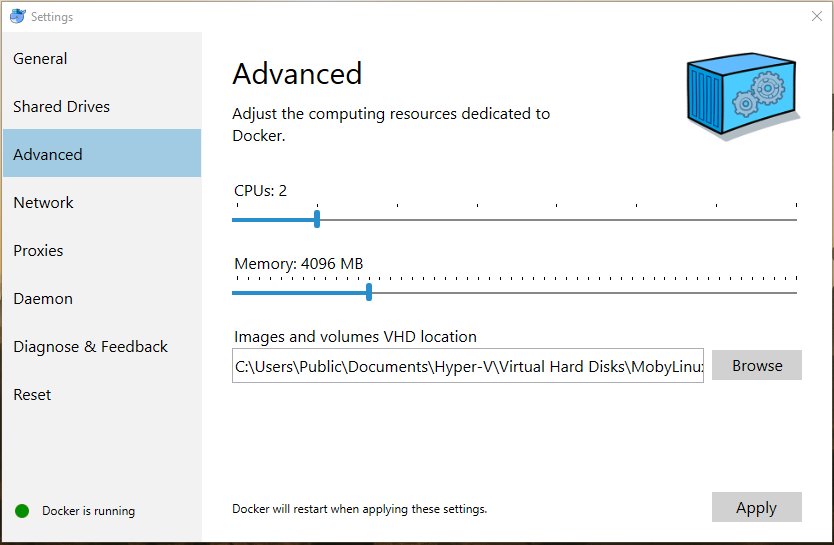
Don’t adjust the memory allocation in Hyper-V Manager however, the changes won’t persist. Instead right-click on the Docker icon in the Taskbar and choose Settings then Advanced: –

The Docker Engine will restart to apply the changes, which can be confirmed in Hyper-V Manager: –

And now the container can be started: –

docker start testcontainer

docker ps

Cool, the container is up and running! Connecting locally is different than connecting to a SQL instance in a Windows container. With Windows containers I would use the docker inspect command to find the private IP address assigned to the container and use that to connect via SSMS.

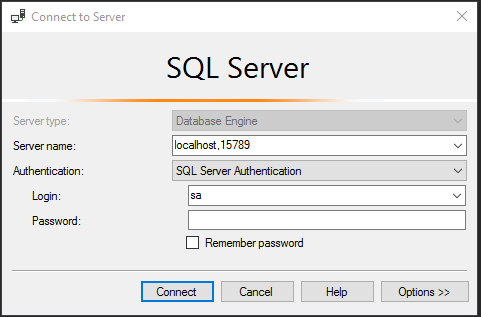
However with linux containers we use the host’s IP address/name and the port number than was specified upon container runtime: –

Enter in the sa password that was specified and: –

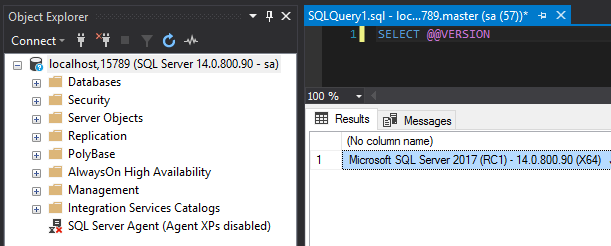
SQL Server 2017 RC1 on Linux running in a container on Windows 10!

I think that’s pretty cool 🙂

Thanks for reading!

0

Monday Coffee: 24 Hours of Pass – Summit Preview

Starting at 12pm (UTC) this Wednesday is the online event 24 Hours of PASS – Summit Preview

For anyone out there who doesn’t know, PASS is the world’s largest community for professional who work with SQL Server. PASS is the organisation which all SQL Saturdays are affiliated too and they have a huge online community in the form of virtual chapters.

Every year they also run PASS Summit in the Autumn, one of the biggest technology conferences in the world.

In the build up to the Summit, the Summit Preview online event offers a “sneak peek” at the content that you’ll find at the Summit with many of the Speakers running one hour webinars over the course of the event.

The full line up is here and it’s completely free, I highly recommend that you check it out.

See you there!