A GUI for Docker Container Administration

I’ve been working with containers for a while now and one of the questions that always gets asked when I demo the technology to people is, is there a graphical user interface out there that can be used to manage containers?

Now, I’m happy with working on the command line and in many ways, I prefer it. But everyone has different preferences so I went out and had a look to see what’s available. It didn’t take me long to run into Portainer who have built exactly what I was looking for. A management UI for Docker.

So let’s run through the setup and then look at the system. There’s a couple of pre-requisities to this I’m afraid, the first one is that you must setup remote administration using TLS on the Docker host that you want to manage via Portainer. I’ve detailed how to do this here.

Also, Portainer doesn’t support managing a local Docker Engine running on Windows so the way I’ve set it up is to run Portainer locally on Windows 10 and then point it at a server running the Docker Engine I want to manage. This means that you’ll need to install Docker locally, you can do that here.

EDIT: Anthony Lapenna (t) has let me know that you can run Portainer outside of docker, so you don’t need to have the engine running on your Windows 10 machine if you don’t want to. Instructions are here (at the bottom of the page).

Ok, so once you’ve got Docker running locally, run the following to see the Portainer image in the Docker Hub: –

docker search portainer

dockersearchportainer

There’s the image that we need at the top, so pull that image down to your local repository: –

docker pull portainer/portainer

dockerpullportainer

Once the image is down, verify that you can connect to the Docker Engine on the remote server from a powershell window on your local machine: –

docker --tlsverify `
  --tlscacert=$env:USERPROFILE\.docker\ca.pem `
  --tlscert=$env:USERPROFILE\.docker\server-cert.pem `
  --tlskey=$env:USERPROFILE\.docker\server-key.pem `
  -H=tcp://XX.XX.XX.XX:2375 images

What I’ve done here is copy the TLS certs generated on the server to my local machine and reference them via $env:USERPROFILE. Full details on setting this up is here.

Also, ignore the warning “Unable to use system certificate pool: crypto/x509: system root pool is not available on Windows“. Apparently it’s benign

If everything is working you should see the same output as running docker images on the server: –
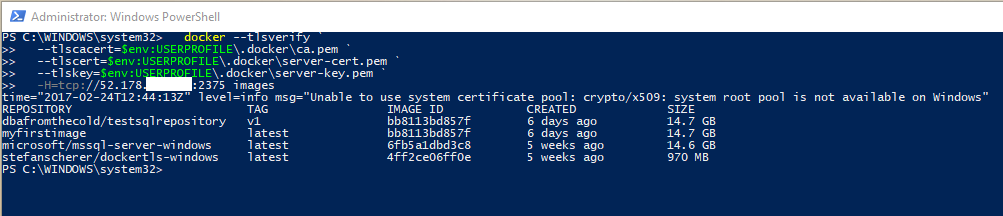
dockerconnectremotely

OK, next step is to copy the certs into your C:\temp folder as the following script will copy them from that location into the container running Portainer. This is needed so that Portainer can connect to the Docker Engine running on the server.

copy-item $env:USERPROFILE\.docker\ca.pem C:\Temp
copy-item $env:USERPROFILE\.docker\server-cert.pem C:\Temp
copy-item $env:USERPROFILE\.docker\server-key.pem C:\Temp

Now we can create and run our Portainer container!

docker run -d -p 9000:9000 --name portainer1 -vC:/temp:C:/temp portainer/portainer -H tcp://XX.XX.XX.XX:2375 --tlsverify --tlscacert=C:/temp\ca.pem --tlscert=C:/temp\server-cert.pem --tlskey=C:/temp\server-key.pem

dockerrunportainer2

Once you’ve verified that the container is up and running you need to grab the private IP assigned to it: –

docker inspect portainer1

dockerinspectportainer

So the private IP address assigned to the container I’ve built is 172.26.17.197 so I’ll enter http://172.26.17.197:9000 into my web browser. If all has gone well you should see: –
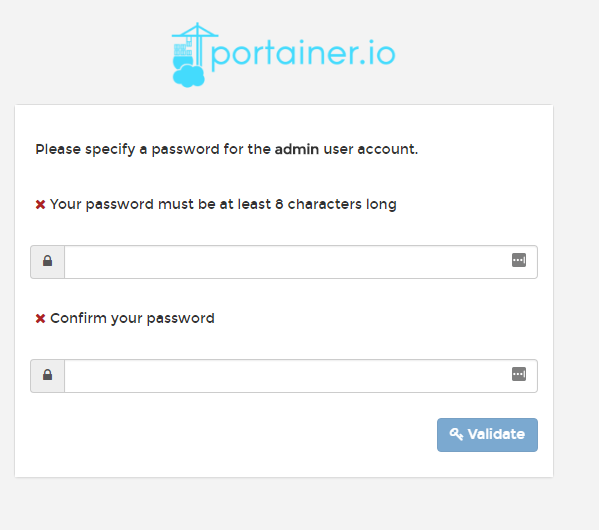
portainersetpassword

Specify a password and then login. You will then see the Portainer dashboard:-

portainerdashboard

Viewing Containers: –

viewingcontainers

Viewing Images: –

viewingimages

It’s a pretty cool UI. Not only can you start/stop existing containers, you can pull new images down. I know it’s a bit fiddly to setup but if you can do this and hand it off to your users (don’t run it on your desktop though)…how much are they going to love you? πŸ™‚

Thanks for reading!

Remotely Administering the Docker Engine on Windows Server 2016

Continuing on my series in working with Docker on Windows, I noticed that I always open up a remote powershell window when working with Docker on servers. Nothing wrong with this, if you want to know how to do that you can follow my instructions here.

However what if we want to connect to the Docker engine remotely? There’s got to be a way to do that right?

Well it’s not quite so straightforward, but there is a way to do it involving a custom image downloaded from the Docker Hub (built by Stefan Scherer [g|t]) whichs creates TLS certs to allow remote connections.

EDIT – I should point out that this is a method of administering a remote docker engine securely. You can expose a docker tcp endpoint and connect without using TLS certificates but given that docker has no built-in security, I’m not going to show you how to do that πŸ™‚

Anyway, let’s go through the steps.

Open up a admin powershell session on your server and navigate to the root of the C: drive.

First we’ll create a folder to download the necessary certificates to: –

cd C:\
mkdir docker

Now we’re going to follow some of the steps outlined by Stefan Scherer here

So first, we need to create a couple more directories: –

cd C:\docker
mkdir server\certs.d
mkdir server\config
mkdir client\.docker

And now we’re going to download a image from Stephan’s docker hub to create the required TLS certificates on our server and drop them in the folders we just created (replace the second IP address with the IP address of your server): –

docker run --rm `
  -e SERVER_NAME=$(hostname) `
  -e IP_ADDRESSES=127.0.0.1,192.168.XX.XX `
  -v "$(pwd)\server:c:\programdata\docker" `
  -v "$(pwd)\client\.docker:c:\users\containeradministrator\.docker" stefanscherer/dockertls-windows
dir server\certs.d
dir server\config
dir client\.docker

dockercerts

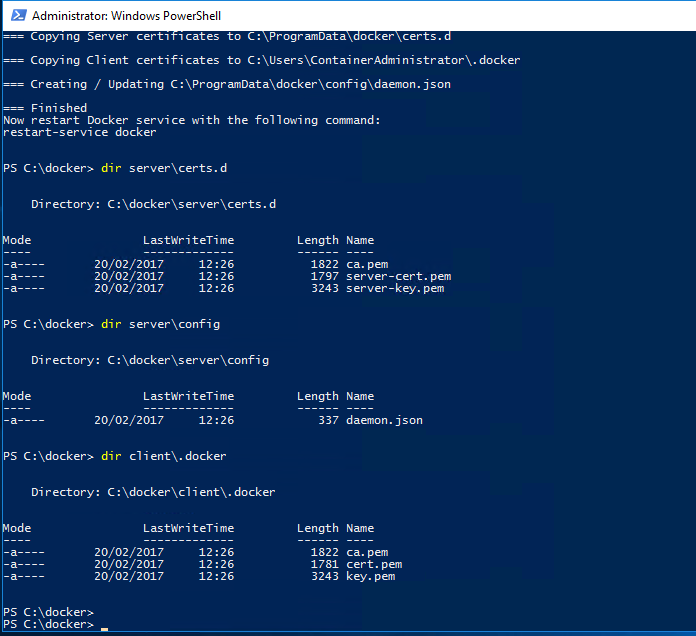
Once complete you’ll see: –

image

Now we need to copy the created certs (and the daemon.json file) to the following locations: –

mkdir C:\ProgramData\docker\certs.d
copy-item C:\docker\server\certs.d\ca.pem C:\ProgramData\docker\certs.d
copy-item C:\docker\server\certs.d\server-cert.pem C:\ProgramData\docker\certs.d
copy-item C:\docker\server\certs.d\server-key.pem C:\ProgramData\docker\certs.d
copy-item C:\docker\server\config\daemon.json C:\ProgramData\docker\config

Also open up the daemon.json file and make sure it looks like this: –

{
    "hosts":  [
                  "tcp://0.0.0.0:2375",
                  "npipe://"
              ],
    "tlscert":  "C:\\ProgramData\\docker\\certs.d\\server-cert.pem",
    "tlskey":  "C:\\ProgramData\\docker\\certs.d\\server-key.pem",
    "tlscacert":  "C:\\ProgramData\\docker\\certs.d\\ca.pem",
    "tlsverify":  true
}

Now restart the docker engine: –

restart-service docker

N.B. – If you get an error, have a look in the application event log. The error messages generated are pretty good in letting you know what’s gone wrong (for a freaking change…amiright??)

Next we need to copy the docker certs to our local machine so that we can reference them when trying to connect to the docker engine remotely

So copy all the certs from C:\ProgramData\docker\certs.d to your user location on your machine, mine is C:\Users\Andrew.Pruski\.docker

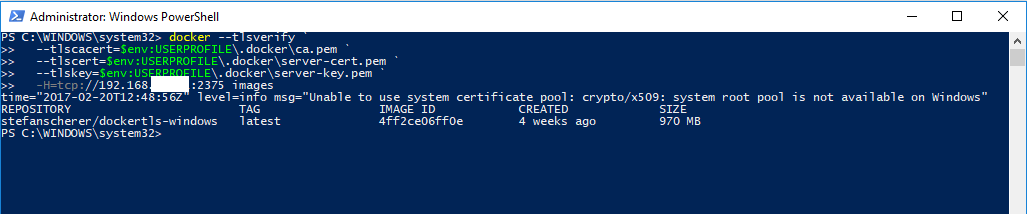
We can then connect remotely via: –

docker --tlsverify `
  --tlscacert=$env:USERPROFILE\.docker\ca.pem `
  --tlscert=$env:USERPROFILE\.docker\server-cert.pem `
  --tlskey=$env:USERPROFILE\.docker\server-key.pem `
  -H=tcp://192.168.XX.XX:2375 version

dockerremoteconnect

Remember that you’ll need to open up port 2375 on the server’s firewall and you’ll need the Docker client on your local machine (if not already installed). Also Microsoft’s article advises that the following warning is benign: –

level=info msg=”Unable to use system certificate pool: crypto/x509: system root pool is not available on Windows”

Whatever that means. Maybe I’ll just stick to the remote powershell sessions πŸ™‚

Thanks for reading!

Viewing container logs

I’ve been going over some demos for a presentation that I’ll be giving this year and I thought I’d write this quick post about something that keeps catching me out…


…but first, a bit of shameless self promotion. I’ll be giving my session on an Introduction to SQL Server & Containers at the following events this year:-

SQL Saturday Iceland on the 18th of March
SQLBits on the 8th of April
SQL Saturday Dublin on the 17th of June

Really looking forward to all three events, containers are a technology that I’ve become quite a fan of and I’m looking forward to sharing what I’ve learnt. So if you’re about at these events come and give my session a visit! πŸ™‚


Anyway as I was running through my demos and building containers I was running the following code: –

docker run -d -p 15999:1433 --name testcontainer microsoft/mssql-server-windows

run-container

All looks good, apart from when I go to check to see if the container is running: –

view-container

I have to run the docker ps command with the -a flag (to show all containers, the default is to only show running containers). Which means my container isn’t running, something’s gone wrong.

So to see what’s happening I can run the docker logs command to see what’s up: –

container-accept-eula

ARGH! I forgot to specify -e ACCEPT_EULA=Y when building the container! This has caught me out more times than I care to admit but it’s cool that there’s a simple command that I can run in order to see what the issue is.

Or I could just build a custom image from a dockerfile and specify -e ACCEPT_EULA=Y in that and not have to worry anymore. I’ve detailed how to do that here.

Thanks for reading!

Creating SQL Containers from a Dockerfile

I’ve been playing around with SQL containers on Windows Sever 2016 a lot recently and well, building empty SQL containers is all fine and dandy but it’s kinda missing the point. What containerization allows you to do is build custom images that are designed for your environment, say with a bunch of databases ready to go (for QA, dev, testing etc.) from which containers can be built in a very short amount of time.

So if you need a new SQL instance spun up for testing? Having a pre-built custom image ready will allow you to do that very rapidly and the simplest way to build a custom image is from a dockerfile.

So let’s go through the process.

This post assumes that you have the docker engine already installed on Windows Server 2016. If you haven’t set that up you can following the instructions on how to do it here.

I’m also going to be running all my powershell commands in a remote session, if you don’t know how to set that up the instructions are here.

First thing to do is verify that your docker engine is running:-

docker version

dockerversion

And that you have a vanilla SQL Server image available:-

docker images

dockerimages

If you don’t you can follow the instructions here to pull an image from the docker repository here.

Now create a directory on your server to hold your dockerfile and database files. I’m going to create C:\Docker\Demo

mkdir c:\docker\demo

Ok, your server is all good to go. What I’m going to do now is:-

  • jump onto my local instance of SQL 2016
  • create a few databases
  • shutdown my instance of SQL
  • copy the database files to my server
  • create a dockerfile to build an SQL container image with those databases available
  • build a new SQL container

Ok, so in my instance of SQL I’m going to run:-

USE [master]
GO

CREATE DATABASE [DatabaseA] ON PRIMARY 
(	NAME		= N'DatabaseA'
	,FILENAME	= N'C:\SQLServer\SQLData\DatabaseA.mdf'
	,SIZE		= 8192 KB
	,MAXSIZE	= UNLIMITED
	,FILEGROWTH = 65536 KB) 
LOG ON 
(	NAME		= N'DatabaseA_log'
	,FILENAME	= N'C:\SQLServer\SQLLog\DatabaseA_log.ldf'
	,SIZE		= 8192 KB
	,MAXSIZE	= 2048 GB
	,FILEGROWTH = 65536 KB)
GO

CREATE DATABASE [DatabaseB] ON PRIMARY
(	NAME		= N'DatabaseB'
	,FILENAME	= N'C:\SQLServer\SQLData\DatabaseB.mdf'
	,SIZE		= 8192 KB
	,MAXSIZE	= UNLIMITED
	,FILEGROWTH = 65536 KB) ,
(	NAME		= N'DatabaseB_Data'
	,FILENAME	= N'C:\SQLServer\SQLData\DatabaseB_Data.ndf'
	,SIZE		= 8192 KB
	,MAXSIZE	= UNLIMITED
	,FILEGROWTH = 65536 KB)
LOG ON 
(	NAME		= N'DatabaseB_log'
	,FILENAME	= N'C:\SQLServer\SQLLog\DatabaseB_log.ldf'
	,SIZE		= 8192 KB
	,MAXSIZE	= 2048 GB
	,FILEGROWTH = 65536 KB)
GO

CREATE DATABASE [DatabaseC] ON PRIMARY 
(	NAME		= N'DatabaseC'
	,FILENAME	= N'C:\SQLServer\SQLData\DatabaseC.mdf'
	,SIZE		= 8192 KB
	,MAXSIZE	= UNLIMITED
	,FILEGROWTH = 65536 KB) 
LOG ON 
(	NAME		= N'DatabaseC_log'
	,FILENAME	= N'C:\SQLServer\SQLLog\DatabaseC_log.ldf'
	,SIZE		= 8192 KB
	,MAXSIZE	= 2048 GB
	,FILEGROWTH = 65536 KB)
GO

Really simple code just to create three databases, one (DatabaseB) has an extra data file as I want to show how to add databases with multiple data files to a SQL container via a docker file.

Once the databases are created, shutdown the instance either through the SQL config manager or run:-

SHUTDOWN WITH NOWAIT

N.B.- This is my local dev instance! Do not run this on anything other than your own dev instance!

Next thing to do is create our dockerfile. Open up your favourite text editor (mine is Notepad++, I’ve tried others but it simply is the best imho) and drop in:-

# using vNext image
FROM microsoft/mssql-server-windows

# create directory within SQL container for database files
RUN powershell -Command (mkdir C:\\SQLServer)

#copy the database files from host to container
COPY DatabaseA.mdf C:\\SQLServer
COPY DatabaseA_log.ldf C:\\SQLServer

COPY DatabaseB.mdf C:\\SQLServer
COPY DatabaseB_Data.ndf C:\\SQLServer
COPY DatabaseB_log.ldf C:\\SQLServer

COPY DatabaseC.mdf C:\\SQLServer
COPY DatabaseC_log.ldf C:\\SQLServer

# set environment variables
ENV sa_password=Testing11@@

ENV ACCEPT_EULA=Y

ENV attach_dbs="[{'dbName':'DatabaseA','dbFiles':['C:\\SQLServer\\DatabaseA.mdf','C:\\SQLServer\\DatabaseA_log.ldf']},{'dbName':'DatabaseB','dbFiles':['C:\\SQLServer\\DatabaseB.mdf','C:\\SQLServer\\DatabaseB_Data.ndf','C:\\SQLServer\\DatabaseB_log.ldf']},{'dbName':'DatabaseC','dbFiles':['C:\\SQLServer\\DatabaseC.mdf','C:\\SQLServer\\DatabaseC_log.ldf']}]"

What this file is going to do is create a container based on the lines of code in the file and then save it as a new custom image (the intermediate container is deleted at the end of the process). Let’s go through it line by line…

FROM microsoft/mssql-server-windows
This is saying to base our image on the original image that we pulled from the docker hub.

RUN powershell -Command (mkdir C:\\SQLServer)
Within the container create a directory to store the database files

COPY DatabaseA.mdf C:\\SQLServer…
Each one of these lines copies the database files into the container

ENV sa_password=Testing11@@
Set the SQL instance’s SA password

ENV ACCEPT_EULA=Y
Accept the SQL Server licence agreement (your container won’t run without this)

ENV attach_dbs=”[{‘dbName’:’DatabaseA’,’dbFiles’:[‘C:\\SQLServer\\DatabaseA.mdf’…
And finally, attach each database to the SQL instance


Name the file dockerfile (no extension), then copy it and the database files to your server into the directory created earlier.

demodirectory

Now we can build our custom image. So in your powershell command window, navigate to the directory with the dockerfile in and run:-

docker build -t demo .

This will build a custom docker image running SQL with our databases. The -t flag will tag the image as demo and don’t forget to include the . as this tells the docker engine to look for a file in the directory called dockerfile.

Once that’s complete, verify the image has been created:-

docker images

dockercustomimage

Awesome stuff! We have our custom image. So let’s create a container from it:-

docker run -d -p 15788:1433 --name democontainer demo

This will create and run a new container based off our image with the host server’s port 15788 mapped to the port 1433 within the container. Once that’s complete, verify that the container is running:-

docker ps

dockercontainer

Haha! Cool! Also, how quick was that??

We have our container up and running. Let’s connect to it remotely via SSMS and check that the databases are there. So use the host server’s IP address and the custom port that we specified when creating the container:-

connectssmstocontainer

And then have a look in object explorer:-

verifydatabasesincontainer

And there you have it. One newly built SQL container from a custom image running our databases.

Imagine being able to spin up new instances of SQL with a full set of databases ready to go in minutes. This is main advantage that container technology gives you, no more waiting to install SQL and then restore databases. Your dev or QA person can simply run one script and off they go.

I really think this could be of significant benefit to many companies and we’re only just starting to explore what this can offer.

Thanks for reading!

SQL Containers and Networking

I recently talked with the guys over at SQL Data Partners on their podcast about SQL Server and containers. It was real good fun and I enjoyed chatting with Carlos Chacon (b|t) and Steve Stedman (b|t)about container technology and my experiences with it so far. Would definitely like to go back on (if they’ll have me πŸ™‚ )

Anyway, during the podcast one of the questions that came up was “How do containers interact with the network resources on the host server?”

To be honest, I wasn’t sure. So rather can try and give a half answer I said to the guys that I didn’t know and I’d have to come back to them.

Career Tip – when working with technology it’s always better to say you don’t know but will research and come back with an answer, than it is to try and blag your way through.

Once the podcast recording was over I started to think about it. Now there’s a bit of a clue in the code when you run a container:-

docker run -d -p 15798:1433 --name TestContainer ImageName

The -p 15798:1433 part of the code specifies which port on the host server maps to a port in the container. So there’s a NAT network in there somewhere?

I went off and did a bit of research and I found the following diagram which details how the containers interact with the host at the network layer:-

container_networks
Image source

In essence the container host’s network connectivity is extended to containers via a Hyper-V virtual switch which containers connect to via either the Host virtual NIC (this is for windows server containers) or a synthetic VM NIC (for Hyper-V containers).

The containers themselves can connect to the host network via different modes.The default is a NAT network that is created by the docker engine onto which container endpoints are automatically attached and this allows for port forwarding from the Host to the containers (which we see in the code earlier in this blog).

This can all be seen by running the following commands:-

To list the docker networks:-

docker network ls

dockernetworks
And there’s our NAT network.

To get the network adapters of a server:-

Get-NetAdapter

networkadapter
There’s the vNIC that the containers use to connect to the virtual switch (I’m running my docker engine in a VM, hence the other hyper-v NIC).

To get the virtual switches of a hyper-v host (remember some hyper-v elements are installed when the container feature is enabled):-

Get-VMSwitch

virtualswitch
And there’s the virtual switch.

So there’s how it works! Thanks for reading.