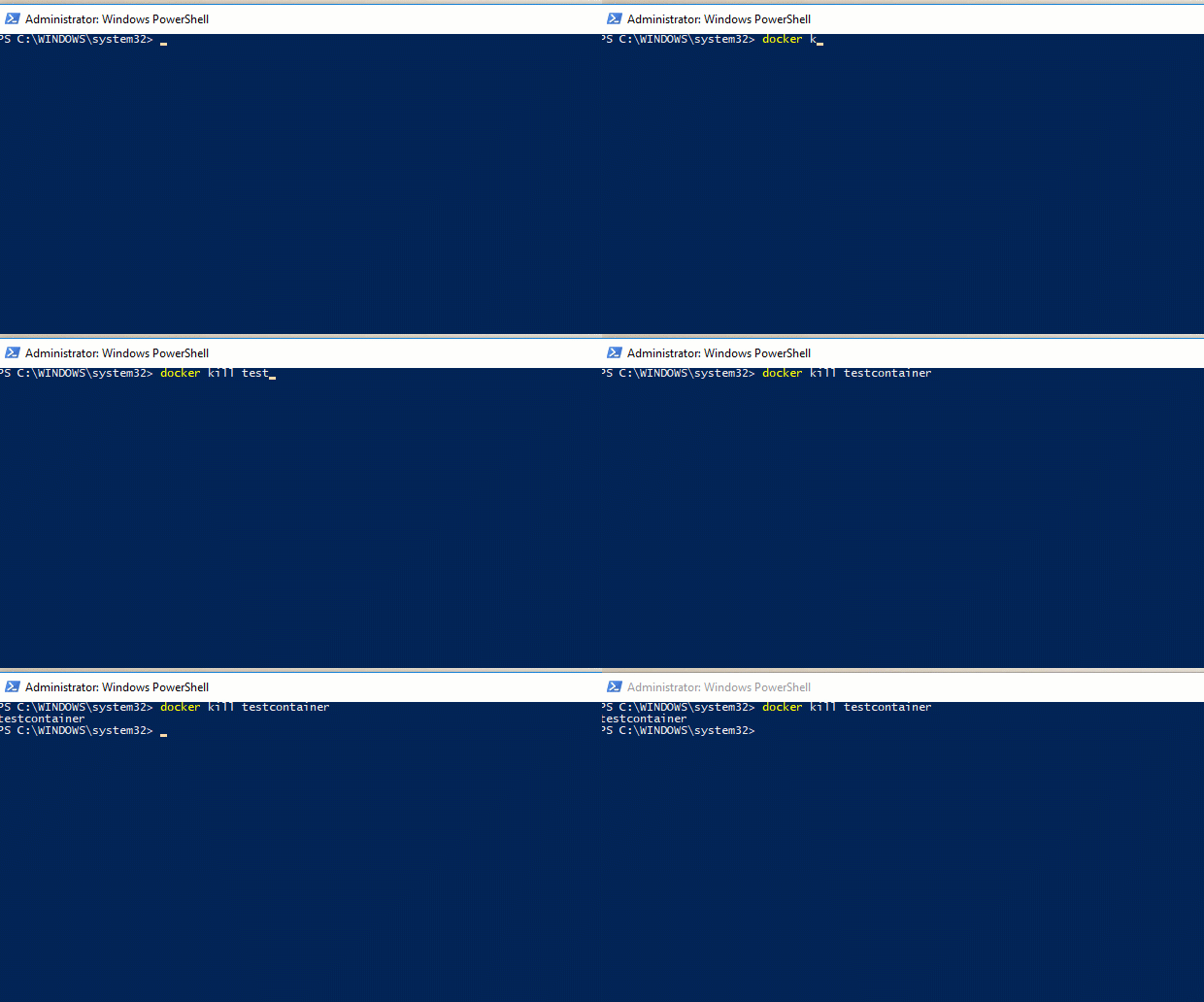
The docker kill command

When running demos and experimenting with containers I always clear down my environment. It’s good practice to leave a clean environment once you’ve finished working.

To do this I blow all my containers away, usually by running the docker stop command.

But there’s a quicker way to stop containers, the docker kill command.

Time the difference for yourself: –

docker run -d -p 15789:1433 --env ACCEPT_EULA=Y --env SA_PASSWORD=Testing11@@ --name testcontainer microsoft/mssql-server-linux

First try the stop command: –

docker stop testcontainer

And then try the kill command: –

docker kill testcontainer

The kill command is pretty much instant right? But what’s the difference?

Well, according to the documentation, the stop command sends a SIGTERM signal to the main process within the container whereas the kill command sends a SIGKILL signal.

There’s a really good article here explaining the differences between the two signals but from what I can gather, the stop command gracefully shuts down the process within the container and the kill command just stops it dead.

Thanks for reading.

Friday Reading 2017-08-04

It’s a bank holiday weekend here in Ireland so I’m looking forward to having the extra day off. Bought a new computer this week so am going to spend a bit of time setting that up (one of my favourite things to do).

One thing to mention is that next week (on the 9th @ 17:00 GMT) I’ll be presenting my SQL Server & Containers session for the Pass Virtualisation Virtual Chapter. Really looking forward to it, you can find out more details here.

Anyway, this week I’ve been reading…

Kubernetes Interactive Tutorials
James Anderson (b|t) recommended this to me a while back but I just haven’t had the chance to look at it. The tutorials are a really good way of getting your toe in the Kubernetes water.

SQL Server 2017 RC2 Now Available
MS Official SQL Server Blog announcing SQL Server 2017 RC2.

Upgrading SQL Server–Day 1
First part of Glenn Berry’s blog series on upgrading and migrating to SQL Server 2016/2017.

Sudo in Powershell
Here’s a module that replicates sudo functionality in Powershell (warning, I haven’t had a chance to fully test this yet).

Jurassic Park: 10 things you might have missed
Fun Den Of Geek article to round the week off.

Have a good weekend!

Running dbatools commands with VS Code tasks

I’ve started to look at the excellent dbatools.io to automate some of the checks that I routinely perform on my SQL instances.

But before I go into this post, I want to say a thank you to Cláudio Silva (t). The powershell commands that are below are based off the code he posted in his excellent blog Have you backed up your SQL logins today?

The first dbatools commands that I looked at are: –

These commands do exactly what they say on the tin. Pretty standard stuff for DBAs but what’s cool is how we can use Visual Studio Code to quickly and easily check that all our databases are being backed up and have a recent (good) CHECK DB.

I’m going to setup two scripts to run the dbatools commands against my SQL instances via Visual Studio Code Tasks.

I don’t have a central management server so I created a database in my local instance of SQL to hold all my server names: –

CREATE DATABASE [DBA];
GO

USE [DBA];
GO

CREATE TABLE [monitoring].[CorporateSQLServers](
	[ServerID] [int] IDENTITY(1,1) NOT NULL,
	[ServerName] [sysname] NOT NULL,
PRIMARY KEY CLUSTERED ([ServerID] ASC) ON [PRIMARY]) 
ON [PRIMARY]
GO

Once the table was created, I added in all the server names that I wanted to perform my checks against.

Next thing was to write the scripts. I took Cláudio’s script and modified (actually simplified would be a better description) it, firstly to get the last backup details of my databases: –

#Requires -module dbatools

#Get a list of instances where you will run the command through
$SQLServers = Invoke-Sqlcmd -ServerInstance "localhost" -Query "SELECT ServerName FROM [DBA].[monitoring].[CorporateSQLServers]"

#For each instance 
$SQLServers | ForEach-Object {
     Get-DbaLastBackup -SqlInstance $_.ServerName
} | Out-GridView -Wait

Then to get the last know good Check DB of all my databases: –

#Requires -module dbatools

#Get a list of instances where you will run the command through
$SQLServers = Invoke-Sqlcmd -ServerInstance "localhost" -Query "SELECT ServerName FROM [DBA].[monitoring].[CorporateSQLServers]"

#For each instance 
$SQLServers | ForEach-Object {
     Get-DbaLastGoodCheckDb -SqlInstance $_.ServerName
} | Out-GridView -Wait

N.B.- The -Wait option is there to prevent the grid output from closing when run as a task

I saved both of these scripts in a directory that Visual Studio Code was pointed at and opened the program.

Then I opened the command palette by running Ctrl + Shift + P and typed Task.

The first option is Configure Task Runner, select that and it will open up the tasks.json file within Visual Studio Code. This is where I can create tasks to run my powershell scripts.

I edited the file with the following code: –

{
    // See https://go.microsoft.com/fwlink/?LinkId=733558
    // for the documentation about the tasks.json format
    "version": "0.1.0",
    "command": "powershell",
    "isShellCommand": true,
    "tasks" : [
        {
            "taskName": "Corporate Database Backup Checks",
            "args": ["-ExecutionPolicy",
                    "Unrestricted",
                    "-NoProfile",
                    "-File","${cwd}/CorporateSQLChecks/LastFullBackup.ps1"],
            "showOutput": "always",
            "suppressTaskName": true
        },
        {
            "taskName": "Corporate Database Integrity Checks",
            "args": ["-ExecutionPolicy",
                    "Unrestricted",
                    "-NoProfile",
                    "-File","${cwd}/CorporateSQLChecks/LastGoodCheckDB.ps1"],
            "showOutput": "always",
            "suppressTaskName": true
        }
    ]
}
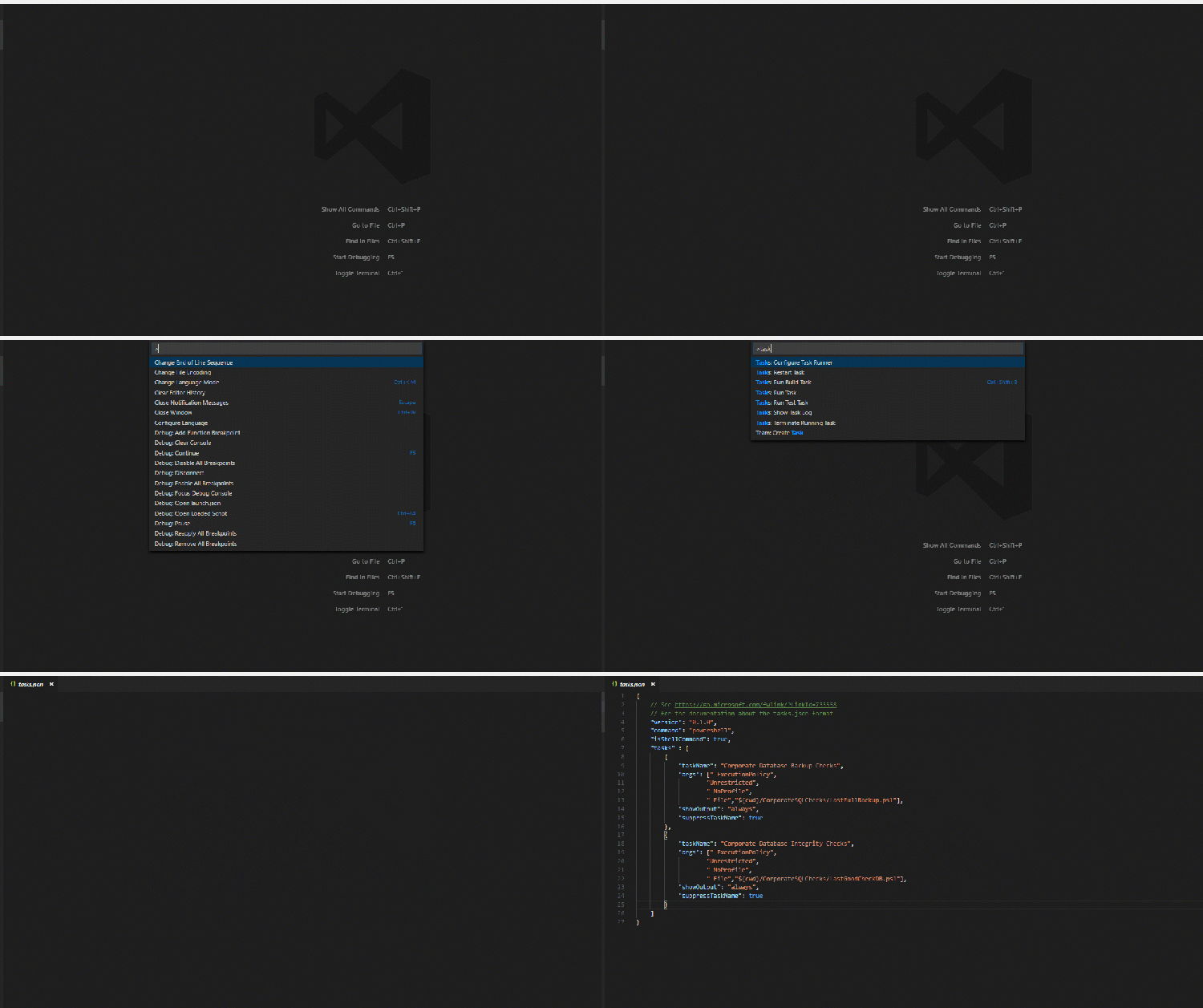
By doing this, I will then get the option to run both my scripts from the Visual Studio Code command palette.

Excellent stuff! I now have a quick and easy way to check that all my databases are being backed up and have a recent Check DB.

Thanks for reading!

Monday Coffee 2017-01-30

Wow, what a week last week was.

The biggest thing that happened was that I got a session at SQL Saturday Iceland! They had loads of submissions and could only pick around 20 so very chuffed to have been one of those selected, cue smug face.

The event is on the 17th of March in Reykjavik and I’ll be talking about one of my favourite subjects, containers. I’ve pretty much written the presentation at this point but I’ve still got over a month to polish it. One thing I am going to do is get my demos down, I’ve got an Azure account so I’ll be building an environment there to use. However from the advice that I’ve been given I’ll also be recording videos of each of the demos so if the presentation technical gremlins raise their heads I won’t have to worry.

It feels like I’ve lived and breathed containers over the last year, it’s a subject that I feel passionate about. I don’t want to go over the top but I think that they’re a game changer, especially when it comes to Dev & Test environments.

Say you have 20 dev and test guys, all working with apps that reference databases in SQL Server. Now whenever a release goes out to production, those environments will also have to be updated to make sure that everyone is working on the same version. There’s tonnes of software out there to automate deployments but what if you could run a powershell script and bam! everyone is on the working on exactly the same version of the database(s) within minutes.

That’s what containers give you, the ability to quickly and easily spin up custom instances of SQL Server.

Another good example of when containers come into their own is patching. Microsoft now recommends applying every CU to your production environment. Are you really going to have to get all those other instances of SQL up to the same patch level as well? You should, no point in testing on one patch level of SQL and then deploying to another.

If your dev guys are using containers it’s no problem. They can blow away their old containers and deploy new ones at the higher patch level. Great stuff eh?

There are other advantages, hey there are disadvantages too but I’m not going to go into all of them here. You’ll have to come to my session 🙂

Have a good week!

Monday Coffee 2017-01-09

I’m almost back into the swing of things now after the Xmas break, that holiday feeling has just about left me.

For most people, there’s a good break over the Xmas period but most IT workers that I know had to be on-call for some or most of the holiday period. Being on-call is part and parcel of being a DBA and I honestly don’t mind doing it but I guess it’s really dependent on how much you get called! Ever been called when out at a restaurant? It does kinda suck…

I’ve been in roles where being on call that evening pretty much guaranteed that I’d be getting a call, which I admit, I wasn’t too keen on. Especially when the factors that lead to a problem with a system were out of my control and I’d just be firefighting the whole time.

I’m lucky now that my current role has allowed me to build a system that very rarely has problems and as such, I very rarely get called. Maybe that’s what being a good DBA (I like to think I am anyway) comes down to?

All the training courses, read articles & blogs, all the extra work that we put in is done so that we get bothered less? 🙂

Have a good week!