A gotcha when switching partitions

When working with partitioning the SWITCH operation has to be my favourite. The ability to move a large amount of data from one table to another as a META DATA ONLY operation is absolutely fantastic.

What’s also cool is that we can switch data into a non-partitioned table. Makes life a bit easier not having to manage two sets of partitions!

However, there is a bit of a gotcha when doing this. Let’s run through a quick demo.

First create a database with a partitioned table: –

CREATE DATABASE [PartitioningDemo]
GO


USE [PartitioningDemo];
GO

CREATE PARTITION FUNCTION PF_PartitionedTable(DATE)
	   AS RANGE RIGHT
    FOR VALUES ('2011-01-01','2012-01-01','2013-01-01',
                '2014-01-01','2015-01-01','2016-01-01',
                '2017-01-01');
GO

CREATE PARTITION SCHEME PS_PartitionedTable
    AS PARTITION PF_PartitionedTable
ALL TO ([PRIMARY]);
GO

CREATE TABLE dbo.PartitionedTable
(ID INT IDENTITY(1,1),
 ColA VARCHAR(10),
 ColB VARCHAR(10),
 CreatedDate DATE)
 ON PS_PartitionedTable(CreatedDate);
GO

For a more in-depth look at what I’m doing, my series on partitioning can be found here

So let’s insert some test data:-

SET NOCOUNT ON;

DECLARE @FromDate date = '2011-01-01';
DECLARE @ToDate date = '2017-01-01';

INSERT INTO dbo.PartitionedTable
SELECT 
    REPLICATE('A',10),
    REPLICATE('B',10),
    DATEADD(DD,FLOOR(RAND()*(DATEDIFF(DD,@FromDate,@ToDate))),@FromDate);
GO 1000

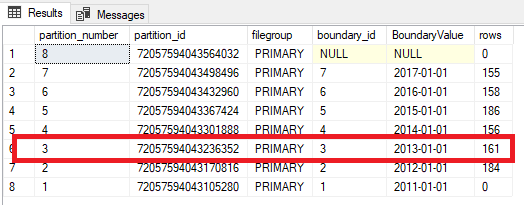
We can check the data and partitions by running: –

SELECT 
	p.partition_number, p.partition_id, fg.name AS [filegroup],
	r.boundary_id, CONVERT(DATE,r.value) AS BoundaryValue, p.rows
FROM 
	sys.tables AS t
INNER JOIN
	sys.indexes AS i ON t.object_id = i.object_id
INNER JOIN
	sys.partitions AS p ON i.object_id = p.object_id AND i.index_id = p.index_id 
INNER JOIN 
    sys.allocation_units a ON a.container_id = p.hobt_id 
INNER JOIN 
    sys.filegroups fg ON fg.data_space_id = a.data_space_id 
INNER JOIN
	sys.partition_schemes AS s ON i.data_space_id = s.data_space_id
INNER JOIN
	sys.partition_functions AS f ON s.function_id = f.function_id
LEFT OUTER JOIN 
	sys.partition_range_values AS r ON f.function_id = r.function_id 
									AND r.boundary_id = p.partition_number
WHERE 
	i.type <= 1 AND a.type = 1
AND 
	t.name = 'PartitionedTable'
ORDER BY 
	p.partition_number 
		DESC;

Now let’s create the “switch” table: –

USE [PartitioningDemo];
GO

CREATE TABLE dbo.PartitionedTable_Switch
(ID INT IDENTITY(1,1),
 ColA VARCHAR(10),
 ColB VARCHAR(10),
 CreatedDate DATE)
 ON [PRIMARY];
GO

N.B. – Keeping it simple, a non-partitioned table on the PRIMARY filegroup (the same filegroup as all my partitions in the “source” table).

OK, let’s switch one of the partitions to the switch table: –

ALTER TABLE [dbo].PartitionedTable
	SWITCH PARTITION 3
TO [dbo].PartitionedTable_Switch;
GO

All good! Worked exactly as expected 🙂

But what happens when say, because of some issue, we need to switch that data back?

ALTER TABLE [dbo].PartitionedTable_Switch
    SWITCH 
TO [dbo].PartitionedTable
    PARTITION 3;
GO
Oh no!

Msg 4982, Level 16, State 1, Line 4
ALTER TABLE SWITCH statement failed. Check constraints of source table ‘PartitioningDemo.dbo.PartitionedTable_Switch’
allow values that are not allowed by range defined by partition 3 on target table ‘PartitioningDemo.dbo.PartitionedTable’.

What’s happened??

Well, we’re trying to insert data into a partition that has constraints on it. The partition has a lower boundary of 2012-01-01 and an upper boundary of 2013-01-01. Meaning that no data can go into that partition that has values in the CreatedDate field that isn’t greater than or equal to 2012-01-01 and less than 2013-01-01.

But our switch table doesn’t have these constraints. SQL thinks that there could be data in the switch table that doesn’t fit into the destination partition.

So we need to tell SQL that the data in the switch table will fit into the partition. And we do that by dropping a constraint onto the table: –

ALTER TABLE dbo.PartitionedTable_Switch
		ADD CONSTRAINT CreatedDate_Switch_CHECK CHECK 
			(CreatedDate >= CONVERT(DATE,'2012-01-01') AND CreatedDate < CONVERT(DATE,'2013-01-01')
            AND CreatedDate IS NOT NULL);
GO

N.B. – notice the IS NOT NULL as well 🙂

And now try the switch again: –

ALTER TABLE [dbo].PartitionedTable_Switch
    SWITCH 
TO [dbo].PartitionedTable
    PARTITION 3;
GO

Woo hoo! We’ve got our data back into our main table. So, you don’t have to partition tables that you want to switch data out to, but just be aware that if you do, you need to be able to switch that data back (just in case).

Thanks for reading!

Indexing and Partitioning

Partitioning tables is a great tool to increase the manageability of your data. Being able to move large amounts of data in and out of a table quickly is incredibly helpful.

However, partitioning comes with a whole bunch of caveats and we need to be aware of what’s going on. This especially applies when creating indexes on partitioned tables, as there are a couple of things we need to be aware of.

So let’s run through a demo so that I can show you how SQL behaves when creating indexes on partitioned tables. First, create a database: –

CREATE DATABASE PartitioningDemo;
GO

And now let’s build a Partition Function & Scheme to partition a table by year: –

USE [PartitioningDemo];
GO

CREATE PARTITION FUNCTION PF_PartitionedTable(DATE)
	   AS RANGE RIGHT
    FOR VALUES ('2017-06-01','2018-01-01','2019-01-01');
GO

CREATE PARTITION SCHEME PS_PartitionedTable
    AS PARTITION PF_PartitionedTable
ALL TO ([PRIMARY]);
GO

N.B. – Keeping it simple, all partitions going to the PRIMARY filegroup. You wouldn’t do this when creating a normal partitioned table but I want to show you the index structure, so for the purposes of this demo, the location of the partitions doesn’t matter.

And now we can create the table. Really simple table, with a DATE column as my partitioning key (the column that defines the partitions): –

CREATE TABLE dbo.PartitionedTable
(ID INT IDENTITY(1,1),
 ColA VARCHAR(10),
 ColB VARCHAR(10),
 CreatedDate DATE)
 ON PS_PartitionedTable(CreatedDate);
GO

Now let’s insert some data into the table: –

SET NOCOUNT ON;
SET STATISTICS IO OFF;

DECLARE @FromDate date = '2017-01-01';
DECLARE @ToDate date = '2018-01-01';

INSERT INTO dbo.PartitionedTable
SELECT 
    REPLICATE('A',10),
    REPLICATE('B',10),
    DATEADD(DD,FLOOR(RAND()*(DATEDIFF(DD,@FromDate,@ToDate))),@FromDate);
GO 1000

Great, now we can look at creating indexes on the table.

First let’s look at creating clustered indexes on this table. Now, when creating a UNIQUE CLUSTERED INDEX on a partitioned table, the partitioning key must be explicitly defined in the index definition.

Try creating this index: –

CREATE UNIQUE CLUSTERED INDEX [IX_ID_PartitionedTable] ON dbo.PartitionedTable
 (ID) 
ON PS_PartitionedTable(CreatedDate);
GO

Whoops!

Msg 1908, Level 16, State 1, Line 26
Column ‘CreatedDate’ is partitioning column of the index ‘IX_ID_PartitionedTable’.
Partition columns for a unique index must be a subset of the index key.

This is generated as we did not specify the CreatedDate column in our index. SQL needs the partitioning key to be explicitly defined in all unique indexes on partitioned tables. This is so that SQL can determine the uniqueness of that index by checking one partition.

So, let’s change the index to be non-unique: –

CREATE CLUSTERED INDEX [IX_ID_PartitionedTable] ON dbo.PartitionedTable
 (ID) 
ON PS_PartitionedTable(CreatedDate);
GO

As it’s non-unique, SQL will create that no problem. But let’s look at what’s happened in the background. I’m going to use DBCC IND & DBCC PAGE to delve into the index. First let’s see what files are assigned to the database: –

EXEC sp_helpfile;
GO

Simple database, so the fileID will be 1 (the .MDF file)

Now look at the pages assigned to the clustered index: –

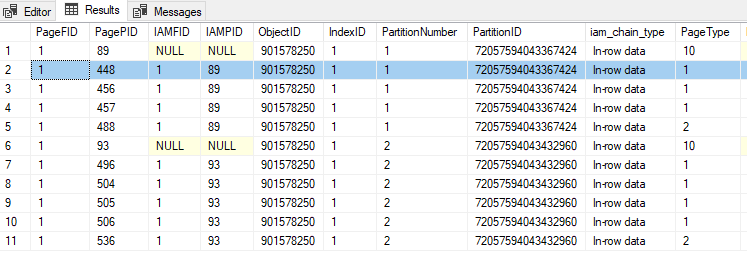
DBCC IND('PartitioningDemo','PartitionedTable',1);
GO

PageID 448 is a data page (type 1) so we’ll drop that into DBCC PAGE along with the FileID and have a look: –

DBCC TRACEON(3604);
GO
DBCC PAGE ('PartitioningDemo',1,448,3);
GO

Looking at that data page, we can see that SQL has added a UNIQUIFIER column. Now this is standard SQL behaviour, SQL does this to all non-unique clustered indexes whether they are on a partitioned table or not.

But also look at the CreatedDate column. It’s after the ID column on the page. If this was a non-partitioned table, we would see that after ColA & ColB (the order the columns are on the table). This has happened because SQL has implicitly added the partitioning key into the index definition, which has changed the physical order of the data on the page.

OK, so what about nonclustered indexes? Well it’s the same story when it comes to unique nonclustered indexes. The partitioning key must be explicitly defined in the index. But what about non-unique nonclustered indexes? Let’s have a look.

Let’s drop the clustered index created previously and create a non-unique nonclustered index: –

DROP INDEX IF EXISTS [IX_ID_PartitionedTable] ON dbo.PartitionedTable;

CREATE NONCLUSTERED INDEX [IX_ColA_PartitionedTable] ON dbo.PartitionedTable
 (ColA) 
ON PS_PartitionedTable(CreatedDate);
GO

N.B. – this is an aligned nonlclustered index. Meaning that is using the same partition scheme and key as the base table, you can read more about aligned and nonaligned nonclustered indexes here.

Let’s do the same to look at the index data: –

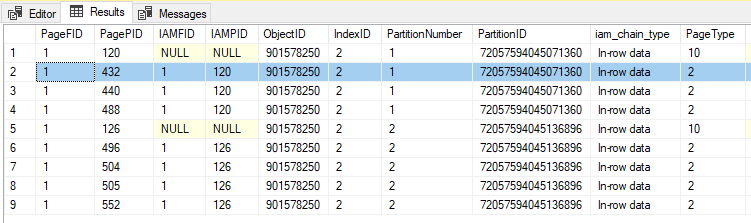
DBCC IND('PartitioningDemo','PartitionedTable',2);
GO

PageID 432 is an index page (type 2) so we’ll drop that into DBCC PAGE along with the FileID and have a look: –

DBCC TRACEON(3604);
GO
DBCC PAGE ('PartitioningDemo',1,432,3);
GO

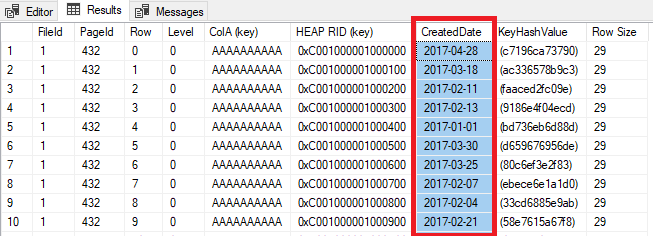
This time I have got my results back in a grid. But look! CreatedDate is there!

SQL has implicitly added the partitioning key to my index as an included column.

OK, but why does this matter? Well, this can catch you out in certain situations. Let’s run a quick test on trying to SWITCH a partition from the table we’ve built.

First let’s create the switch table: –

CREATE TABLE dbo.PartitionedTable_Switch
(ID INT IDENTITY(1,1),
 ColA VARCHAR(10),
 ColB VARCHAR(10),
 CreatedDate DATE)
 ON [PRIMARY];


CREATE NONCLUSTERED INDEX [IX_ColA_PartitionedTable_Switch] ON dbo.PartitionedTable_Switch
 (ColA) 
ON [PRIMARY];
GO

Now, this table is not partitioned. Standard really, non-partitioned table as an archive for old data in the table.

Let’s see what happens when we run a SWITCH operation: –

ALTER TABLE [dbo].PartitionedTable
	SWITCH PARTITION 1
TO [dbo].PartitionedTable_Switch;
GO

Oh no!

Msg 4947, Level 16, State 1, Line 122
ALTER TABLE SWITCH statement failed. There is no identical index in source table ‘PartitioningDemo.dbo.PartitionedTable’
for the index ‘IX_ColA_PartitionedTable_Switch’ in target table ‘PartitioningDemo.dbo.PartitionedTable_Switch’ .

This has happened because even though the t-sql statements for both indexes are the same, the partitioned table’s index has the partitioning key as an included column and the switch table does not.

We can check this by altering the index on the switch table: –

CREATE NONCLUSTERED INDEX [IX_ColA_PartitionedTable_Switch] ON dbo.PartitionedTable_Switch
 (ColA) 
    INCLUDE (CreatedDate)
WITH (DROP_EXISTING=ON)
ON [PRIMARY];
GO

And now the switch will work!

ALTER TABLE [dbo].PartitionedTable
	SWITCH PARTITION 1
TO [dbo].PartitionedTable_Switch;
GO

The best way to prevent this from happening is to create a unique clustered index on your partitioning key (with something like an identity integer column if the key isn’t unique by itself). That way the partitioning key will automatically be in all of your nonclustered indexes.

Thanks for reading!

Update to TRUNCATE TABLE in SQL 2016 (partition support)

Continuing my obsession with partitioning I thought I’d write this quick post about a cool change in SQL Server 2016.

This change allows you to truncate an individual partition, instead of having to switch that partition out to another table and then truncate it. Full details can be found here: – https://msdn.microsoft.com/en-us/library/ms177570.aspx

Here’s a demo, initial setup to create a database, partition function & scheme and then a table: –

CREATE DATABASE [PartitioningDemo]
 ON PRIMARY
(NAME = N'PartitionDemo', FILENAME = N'C:\SQLServer\SQLData\PartitionDemo.mdf', SIZE = 51200KB, MAXSIZE = UNLIMITED, FILEGROWTH = 1024KB), 
 FILEGROUP [DATA] 
(NAME = N'DATA', FILENAME = N'C:\SQLServer\SQLData\DATA.ndf', SIZE = 51200KB, MAXSIZE = UNLIMITED, FILEGROWTH = 1024KB ),
 FILEGROUP [ARCHIVE] 
(NAME = N'ARCHIVE', FILENAME = N'C:\SQLServer\SQLData\ARCHIVE.NDF', SIZE = 51200KB, MAXSIZE = UNLIMITED, FILEGROWTH = 1024KB )
 LOG ON
(NAME = N'PartitionDemo_log', FILENAME = N'C:\SQLServer\SQLLog\PartitionDemo_log.ldf', SIZE = 20480KB, MAXSIZE = 2048GB, FILEGROWTH = 512KB)
GO

USE [PartitioningDemo];
GO

CREATE PARTITION FUNCTION PF_PartitionedTable(DATE)
       AS RANGE RIGHT
    FOR VALUES ('2014-01-01','2015-01-01','2016-01-01');

 
CREATE PARTITION SCHEME PS_PartitionedTable
    AS PARTITION PF_PartitionedTable
TO ([ARCHIVE],[ARCHIVE],[DATA],[DATA]);


CREATE TABLE dbo.PartitionedTable
(PKID INT IDENTITY(1,1),
 ColA VARCHAR(10),
 ColB VARCHAR(10),
 CreatedDate DATE)
 ON PS_PartitionedTable(CreatedDate);
 
CREATE UNIQUE CLUSTERED INDEX [IX_CreatedDate_PartitionedTable] ON dbo.PartitionedTable
 (CreatedDate,PKID) 
ON PS_PartitionedTable(CreatedDate);
GO

Now inserting some data into that table: –

SET NOCOUNT ON;
INSERT INTO dbo.PartitionedTable
(ColA,ColB,CreatedDate)
VALUES
(REPLICATE('A',10),REPLICATE('A',10),'2013-02-01');
GO 1000
 
INSERT INTO dbo.PartitionedTable
(ColA,ColB,CreatedDate)
VALUES
(REPLICATE('A',10),REPLICATE('A',10),'2014-02-01');
GO 1000
 
INSERT INTO dbo.PartitionedTable
(ColA,ColB,CreatedDate)
VALUES
(REPLICATE('A',10),REPLICATE('A',10),'2015-02-01');
GO 1000
 
INSERT INTO dbo.PartitionedTable
(ColA,ColB,CreatedDate)
VALUES
(REPLICATE('A',10),REPLICATE('A',10),'2016-02-01');
GO 1000

Check the data in the partitions: –

SELECT
    t.name AS TableName, i.name AS IndexName, p.partition_number, p.partition_id, 
    --i.data_space_id, f.function_id, f.type_desc, 
    fg.name AS [filegroup], 
    r.boundary_id, r.value AS BoundaryValue, p.rows
    --,r.*
FROM
    sys.tables AS t
INNER JOIN
    sys.indexes AS i ON t.object_id = i.object_id
INNER JOIN
    sys.partitions AS p ON i.object_id = p.object_id AND i.index_id = p.index_id 
INNER JOIN
    sys.allocation_units a ON a.container_id = p.hobt_id 
INNER JOIN
    sys.filegroups fg ON fg.data_space_id = a.data_space_id 
INNER JOIN
    sys.partition_schemes AS s ON i.data_space_id = s.data_space_id
INNER JOIN
    sys.partition_functions AS f ON s.function_id = f.function_id
LEFT OUTER JOIN
    sys.partition_range_values AS r ON f.function_id = r.function_id 
                                    AND r.boundary_id = p.partition_number
WHERE
    t.name = 'PartitionedTable'
AND
    i.type <= 1
AND
    a.type = 1 --in row data only
ORDER BY p.partition_number DESC;

PartitionedTable1

OK, now we can truncate an individual partition by running:-

TRUNCATE TABLE dbo.PartitionedTable WITH (PARTITIONS (1));
GO

Re-checking the data: –
PartitionedTable2

And the data in partition 1 has been removed! We can also remove data from multiple partitions: –

TRUNCATE TABLE dbo.PartitionedTable WITH (PARTITIONS (2,3));
GO

Looking again: –
PartitionedTable3

And the data is gone in both the partitions. Pretty cool! Makes it a lot easier to remove data that has expired and no longer needs to be retained.

Although, it does make it a lot easier to remove data in general…what could go wrong?

(OK, I think that’s enough with the partitioning, need to look at something else…)

Partitioning and filegroup restores

I’ve been playing around with partitioning quite a lot recently and wanted to write a quick post about how it can help you out in a DR situation.

Partitioning is mainly for increasing the manageability of your data but it also has other benefits, one of them being giving you the ability to split a single table across multiple filegroups. This will allow you to keep your current data in one filegroup and, let’s call it historical data, in another. In a DR situation, if you need to bring your current data online quickly and worry about the rest later, this can really help you out.

So let’s run through a quick example.First, create a database:-

CREATE DATABASE [PartitioningDemo]
 ON PRIMARY 
(NAME = N'PartitionDemo', FILENAME = N'C:\SQLServer\SQLData\PartitionDemo.mdf', SIZE = 51200KB, MAXSIZE = UNLIMITED, FILEGROWTH = 1024KB), 
 FILEGROUP [DATA] 
(NAME = N'DATA', FILENAME = N'C:\SQLServer\SQLData\DATA.ndf', SIZE = 51200KB, MAXSIZE = UNLIMITED, FILEGROWTH = 1024KB ),
 FILEGROUP [ARCHIVE] 
(NAME = N'ARCHIVE', FILENAME = N'C:\SQLServer\SQLData\ARCHIVE.NDF', SIZE = 51200KB, MAXSIZE = UNLIMITED, FILEGROWTH = 1024KB )
 LOG ON 
(NAME = N'PartitionDemo_log', FILENAME = N'C:\SQLServer\SQLLog\PartitionDemo_log.ldf', SIZE = 20480KB, MAXSIZE = 2048GB, FILEGROWTH = 512KB)
GO

This database has three filgroups. The PRIMARY (as always), DATA and an ARCHIVE filegroup. What this demo is going to show you is how to bring the PRIMARY and DATA filegroups online first and then bring the ARCHIVE filegroup online afterwards.

So now let’s create a partition scheme and function:-

USE [PartitioningDemo];
GO

CREATE PARTITION FUNCTION PF_PartitionedTable(DATE)
	   AS RANGE RIGHT 
    FOR VALUES ('2014-01-01','2015-01-01','2016-01-01');
GO


CREATE PARTITION SCHEME PS_PartitionedTable
    AS PARTITION PF_PartitionedTable
TO ([ARCHIVE],[ARCHIVE],[DATA],[DATA]);
GO

The table we’re going to build will be partitioned by year, two partitions on the ARCHIVE group and two on the DATA filegroup.

So let’s create the table (and its clustered index): –

CREATE TABLE dbo.PartitionedTable
(PKID INT IDENTITY(1,1),
 ColA VARCHAR(10),
 ColB VARCHAR(10),
 CreatedDate DATE)
 ON PS_PartitionedTable(CreatedDate);


CREATE UNIQUE CLUSTERED INDEX [IX_CreatedDate_PartitionedTable] ON dbo.PartitionedTable
 (CreatedDate,PKID) 
ON PS_PartitionedTable(CreatedDate);
GO

Now insert some data: –

SET NOCOUNT ON;

INSERT INTO dbo.PartitionedTable
(ColA,ColB,CreatedDate)
VALUES
(REPLICATE('A',10),REPLICATE('A',10),'2013-02-01');
GO 1000

INSERT INTO dbo.PartitionedTable
(ColA,ColB,CreatedDate)
VALUES
(REPLICATE('A',10),REPLICATE('A',10),'2014-02-01');
GO 1000

INSERT INTO dbo.PartitionedTable
(ColA,ColB,CreatedDate)
VALUES
(REPLICATE('A',10),REPLICATE('A',10),'2015-02-01');
GO 1000

INSERT INTO dbo.PartitionedTable
(ColA,ColB,CreatedDate)
VALUES
(REPLICATE('A',10),REPLICATE('A',10),'2016-02-01');
GO 1000

Let’s quickly check the data in the partitions:-

SELECT 
	t.name AS TableName, i.name AS IndexName, p.partition_number, p.partition_id, 
	--i.data_space_id, f.function_id, f.type_desc, 
	fg.name AS [filegroup], 
	r.boundary_id, r.value AS BoundaryValue, p.rows
	--,r.*
FROM 
	sys.tables AS t
INNER JOIN
	sys.indexes AS i ON t.object_id = i.object_id
INNER JOIN
	sys.partitions AS p ON i.object_id = p.object_id AND i.index_id = p.index_id 
INNER JOIN 
    sys.allocation_units a ON a.container_id = p.hobt_id 
INNER JOIN 
    sys.filegroups fg ON fg.data_space_id = a.data_space_id 
INNER JOIN
	sys.partition_schemes AS s ON i.data_space_id = s.data_space_id
INNER JOIN
	sys.partition_functions AS f ON s.function_id = f.function_id
LEFT OUTER JOIN 
	sys.partition_range_values AS r ON f.function_id = r.function_id 
									AND r.boundary_id = p.partition_number
WHERE 
	t.name = 'PartitionedTable'
AND 
	i.type <= 1
AND
    a.type = 1 --in row data only
ORDER BY p.partition_number DESC;

DataInPartitionedTable1

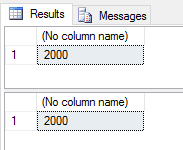
So both filegroups have 2000 rows in them. Now let’s perform a filegroup restore, bringing the PRIMARY & DATA filegroups online first.

Take a full and log backup of the database:-

USE [master];
GO

--FULL DATABASE BACKUP
BACKUP DATABASE [PartitioningDemo]
   TO DISK = 'C:\SQLServer\Backups\PartitioningDemoFullBackup.bak'
   WITH INIT
GO


--LOG BACKUP
BACKUP LOG [PartitioningDemo]
	TO DISK = N'C:\SQLServer\Backups\PartitioningDemoLogBackup.trn'
	WITH NO_TRUNCATE, INIT
GO

OK, now we’re simulating a problem, first take a tail log backup:-

BACKUP LOG [PartitioningDemo]
	TO DISK = N'C:\SQLServer\Backups\PartitioningDemoTailLogBackup.trn'
	WITH INIT, NORECOVERY
GO

And now we’re going to perform a filegroup restore of the PRIMARY and DATA filegroups:-

--PRIMARY filegroup
RESTORE DATABASE [PartitioningDemo] 
   FILEGROUP = 'PRIMARY'
   FROM DISK = 'C:\SQLServer\Backups\PartitioningDemoFullBackup.bak'
   WITH 
   REPLACE, PARTIAL, NORECOVERY;
GO


--DATA filegroup
RESTORE DATABASE [PartitioningDemo] 
   FILEGROUP = 'DATA'
   FROM DISK = 'C:\SQLServer\Backups\PartitioningDemoFullBackup.bak'
   WITH 
   REPLACE, PARTIAL, NORECOVERY;
GO


--Restore transaction log & tail log backups
RESTORE LOG [PartitioningDemo] FROM DISK = N'C:\SQLServer\Backups\PartitioningDemoLogBackup.trn' WITH NORECOVERY;
RESTORE LOG [PartitioningDemo] FROM DISK = N'C:\SQLServer\Backups\PartitioningDemoTailLogBackup.trn' WITH RECOVERY;
GO

Now we can query the table:-

SELECT COUNT(*) FROM [PartitioningDemo].dbo.[PartitionedTable]
WHERE CreatedDate > CONVERT(DATE,'2015-01-01')
GO


--Check access to archive data
SELECT COUNT(*) FROM [PartitioningDemo].dbo.[PartitionedTable]
WHERE CreatedDate < CONVERT(DATE,'2015-01-01')
GO

First query will run fine but the second will generate an error:-
QueryError1

So we still have to restore the ARCHIVE filegroup:-

--Restore ARCHIVE filegroup
RESTORE DATABASE [PartitioningDemo] 
   FILEGROUP = 'ARCHIVE'
   FROM DISK = 'C:\SQLServer\Backups\PartitioningDemoFullBackup.bak'
   WITH 
   NORECOVERY;
GO


--Restore transaction log & tail log backups
RESTORE LOG [PartitioningDemo] FROM DISK = N'C:\SQLServer\Backups\PartitioningDemoLogBackup.trn' WITH NORECOVERY;
RESTORE LOG [PartitioningDemo] FROM DISK = N'C:\SQLServer\Backups\PartitioningDemoTailLogBackup.trn' WITH NORECOVERY;
GO

Bring the database fully online:-

RESTORE DATABASE [PartitioningDemo] WITH RECOVERY;
GO

And re-run the queries against the table:-

SELECT COUNT(*) FROM [PartitioningDemo].dbo.[PartitionedTable]
WHERE CreatedDate > CONVERT(DATE,'2015-01-01')
GO


--Check access to archive data
SELECT COUNT(*) FROM [PartitioningDemo].dbo.[PartitionedTable]
WHERE CreatedDate < CONVERT(DATE,'2015-01-01')
GO

Now both queries will return results:-
QueryResults1

Neat huh? You can see that in a DR situation, if you have a correct partitioning and filegroup strategy in place, you can reduce the amount of time it will take to bring your current data online.

More about filegroup restores: –
https://msdn.microsoft.com/en-ie/library/aa337540.aspx