Using Secrets in Docker Swarm for SQL Server

In a previous post I went through how to run SQL Server in Docker Swarm and in this post I want to continue delving into the Docker Swarm platform by looking at secrets.

Like Kubernetes, Docker Swarm has functionality to store sensitive data in secrets. When running SQL Server in containers we usually have to manually type out the environment variable for the MSSQL_SA_PASSWORD which isn’t great if we want to store that code in a public repository so being able to obfuscate that password is great!

Let’s have a look how it works. I’m going to use my lab detailed in the previous post.

First thing to do is create the secret: –

printf "Testing1122" | docker secret create mssql_sa_secret -

And confirm that the secret has been created: –

docker secret ls


WARNING – the first docker service create statement below doesn’t work! I’ve included it to show how I ended up at my end solution!


Ok, now we can reference the secret in our docker service create statement by using the –secret flag. This mounts the secret in the container at /run/secrets/secret_name which we can then reference in a –env flag.

Now we can create a service in Docker Swarm to run SQL Server, referencing that secret: –

docker service create \
--name sqlswarm1 \
--replicas 1 \
--publish 15789:1433 \
--secret source=mssql_sa_secret \
--env MSSQL_SA_PASSWORD=/run/secrets/mssql_sa_secret \
--env ACCEPT_EULA=Y \
mcr.microsoft.com/mssql/server:2022-CU4-ubuntu-20.04

Confirm that the service is up: –

docker service ls

And let’s connect to SQL from our local machine using the IP address of the manager node in the swarm and the port we specified in the docker service create statement (15789): –

mssql-cli -S 10.0.0.40,15789 -U sa -P Testing1122 -Q "SELECT @@VERSION AS [Version];"

Ah, that didn’t work! Let’s have a look why…

The password should be stored as an environment variable in the container so let’s find the node in the swarm that the container is running on: –

docker service ps sqlswarm1

And then run the following on the node: –

docker exec $(docker ps -aq) printenv

DOH!

It hasn’t taken the values within the file, it’s just taken the text that we entered into the container run statement!

Urgh, this is my fault. I’m referencing the documentation here but the docker service run statement I’m using as a guide is for a mysql container. MySQL has an environment variable that can reference a password file, no such luck with SQL Server.

So how do we reference the password within the file?

NOTE – there might be a better way to do this but this is the way I’ve come up with 🙂

Ok, so let’s get rid of that service: –

docker service rm sqlswarm1

Create an environmentvars.sh file: –

#!/bin/bash

export MSSQL_SA_PASSWORD=$(cat /run/secrets/mssql_sa_password)

In this file we reference the password file and set the environment variable.

Now create a custom image from a dockerfile: –

FROM mcr.microsoft.com/mssql/server:2022-CU4-ubuntu-20.04

USER root

COPY environmentvars.sh /var/opt/mssql/

RUN chown mssql /var/opt/mssql/environmentvars.sh

RUN chmod +x /var/opt/mssql/environmentvars.sh

USER mssql

CMD . /var/opt/mssql/environmentvars.sh && /opt/mssql/bin/sqlservr

Build the custom image: –

docker build -t customsqlimage .

NOTE – As this is a custom image not in a repository we’ll have to build the image on each of the nodes in the cluster

Ok, now we can recreate the service: –

docker service create \
--name sqlswarm1 \
--replicas 1 \
--publish 15789:1433 \
--secret source=mssql_sa_secret,target=mssql_sa_password \
--env ACCEPT_EULA=Y \
customsqlimage
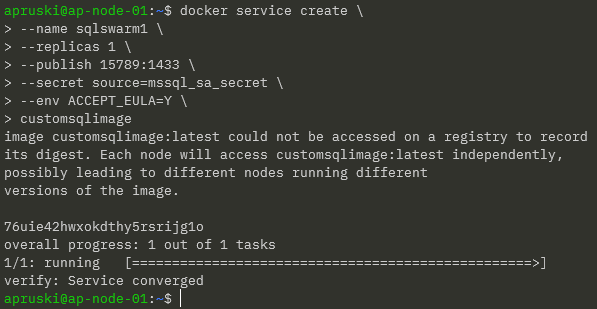
NOTE – We’re removing the ENV for the MSSQL_SA_PASSWORD as it’s handled in the environmentvars.sh file. We also get a warning that the customsqlimage is not available in a registry so Docker will look for local images on each node (which could lead to a mismatch of image versions).

We have our service up so let’s try connect to SQL again: –

mssql-cli -S 10.0.0.40,15789 -U sa -P Testing1122 -Q "SELECT @@VERSION AS [Version];"
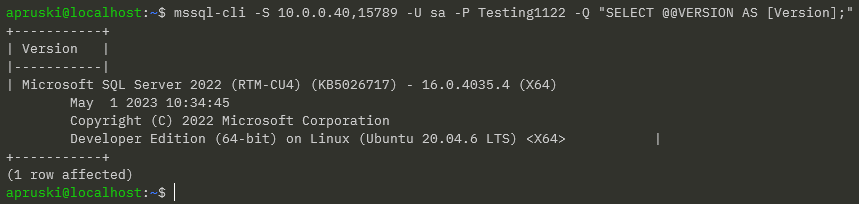
Ah ha! Success!

OK, I admit…not the greatest solution! BUT, we could use that environmentvars.sh file to create more environment variables than just MSSQL_SA_PASSWORD so it could (possibly) be useful?

Thanks for reading!

Running SQL Server in Docker Swarm

I haven’t touched Docker Swarm for a looooong time but I was asked about running SQL Server in Swarm at a conference a while back…so here’s how it can be done!

I have a lab setup on my local machine which consists of three Hyper-V VMs with static IP addresses, that can all communicate with each other: –

  • AP-NODE-01
  • AP-NODE-02
  • AP-NODE-03

So, first thing to do is install docker on each node: –

sudo apt install -y docker.io

Then add our user to the docker group: –

sudo usermod -aG docker apruski

Now we can initialise the “manager” node, aka which node will manage the cluster. This can be thought of as like the control plane in a Kubernetes cluster. Much like a Kubernetes cluster…there are two types of node in Docker Swarm…managers and workers. Again like Kubernetes, a node can perform both roles.

On the VM that’s going to manage the cluster, run the following: –

docker swarm init --advertise-addr <VM IP ADDRESS>

Grab the join script from the output of the previous command and add each node to the cluster: –

docker swarm join \
--token SWMTKN-1-4c6pchrpjf0e35h4wvpq1otjkgc6thrpiriq6pndg8811bxorn-7qxoxclibjlz5nejj027q34yv \
10.0.0.40:2377

Then run the following on the leader node to confirm the cluster: –

docker node ls

And there we have our cluster setup! Pretty simple, eh?

Ok…now let’s look at deploying SQL Server to our cluster. In Docker Swarm, we deploy services to the cluster.

Services in Docker Swarm (unlike services in Kubernetes) define everything that we want to deploy…so we include what we usually would have in a docker container run statement: –

docker service create \
    --name sqlswarm1 \
    --replicas 1 \
    --publish 15789:1433 \
    --env ACCEPT_EULA=Y \
    --env MSSQL_SA_PASSWORD=Testing1122 \
    mcr.microsoft.com/mssql/server:2022-CU4-ubuntu-20.04

Looks pretty much like a docker container run statement yeah? The only difference really is the –replicas=1 statement. This essentially is how many containers we want to run in our service (called tasks in Docker Swarm). As we’re running SQL Server, we only want one running for this service.

Once deployed, we can verify with: –

docker service ls

And if we want some more info (like which node the service is running on), we can run: –

docker service ps sqlswarm1

Cool! So we can see which node in the cluster our SQL container is running on.

If we jump on that node, we can run: –

docker container ls

Which is pretty much what we’re used to seeing when we run SQL Server in a Docker container.

Ok, but how can we connect to SQL in Docker Swarm?

Our container was run with the –publish 15789:1433 flag. This means that we can connect to SQL in the Swarm via any of the nodes’ IP addresses and the port 15789 (kinda like a NodePort service in Kubernetes).

So for example, using the mssql-cli from my laptop: –

mssql-cli -S 10.0.0.40,15789 -U sa -P Testing1122 -Q "SELECT @@VERSION"

But I can use any node IP address: –

Ok, that’s all well and good…but what about the main reason for running in Docker Swarm?

What about high availability?

My service is running on AP-NODE-01…that’s the manager node for the cluster so we probably don’t want our service running there. Let’s move it to another node.

To do that, let’s drain the manager node: –

docker node update --availability drain ap-node-01

Then confirm where the service has moved to: –

docker service ps sqlswarm1

Cool! Our service has moved to AP-NODE-02 and we can see a history of where it has been placed in the Swarm.

We can also confirm that AP-NODE-01 is no longer available to host services: –

docker node ls

Alright, manually moving a service works…but what about a node failure?

The service is running on AP-NODE-02 so let’s shut that node down: –

Let’s see what happened: –

docker service ps sqlswarm1

Haha! Our service has moved to AP-NODE-03! Cool!

So that’s how to get SQL Server running in Docker Swarm and tested for high availability!

Ok, there’s a whole bunch of other stuff that we need to consider (persistent storage for example) which we’ll have a look at in future posts.

Thanks for reading!

Using environment variable files for SQL Server in containers

There are a whole bunch of environment variables that can be used to configure SQL Server when run in a Docker container. You can check out the full list here.

So we could end up with a docker container run statement like this: –

docker container run -d `
--publish 15789:1433 `
--env MSSQL_PID=Developer `
--env MSSQL_SA_PASSWORD=Testing1122 `
--env ACCEPT_EULA=Y `
--env MSSQL_AGENT_ENABLED=True `
--env MSSQL_DATA_DIR=/var/opt/sqlserver/sqldata `
--env MSSQL_LOG_DIR=/var/opt/sqlserver/sqllog `
--env MSSQL_BACKUP_DIR=/var/opt/sqlserver/sqlbackups `
--name sqlcontainer1 `
mcr.microsoft.com/mssql/server:2019-CU12-ubuntu-18.04

Do we really want to be typing all that out every time we run a container? Ok, we could drop this into a script and execute that but another option is to use environment variable files.

Nice and simple, we take all the environment variables in the statement above and drop them into a file on our Docker host: –

MSSQL_PID=Developer
ACCEPT_EULA=Y
MSSQL_AGENT_ENABLED=True
MSSQL_DATA_DIR=/var/opt/sqlserver/sqldata
MSSQL_LOG_DIR=/var/opt/sqlserver/sqllog
MSSQL_BACKUP_DIR=/var/opt/sqlserver/sqlbackups

And now just reference that file in the docker container run statement (I saved my file as C:\Temp\var.env): –

docker container run -d `
--publish 15789:1433 `
--env MSSQL_SA_PASSWORD=Testing1122 `
--env-file C:\temp\var.env `
--name sqlcontainer1 `
mcr.microsoft.com/mssql/server:2019-CU12-ubuntu-18.04

To confirm the variables have been set: –

docker exec sqlcontainer1 printenv

And there they are! We can also use multiple files referenced using the –env-file flag.

Another way of doing is (probably better?) is to use Docker Compose. If you want to learn more about compose, check out the SQL Server & Containers Guide!

Thanks for reading!

Updating SQL Server container memory limits on the fly

When running multiple SQL Server containers on a Docker host we should always be setting CPU and Memory limits for each container (see the flags for memory and cpus here). This helps prevent the whole noisy neighbour situation, where one container takes all the host’s resources and staves the other containers.

But what if we forget to set those limits? Well, no worries…we can update them on the fly!

Let’s have a look. First let’s run a container with no memory limits: –

docker container run -d \
--publish 15789:1433 \
--env ACCEPT_EULA=Y \
--env MSSQL_SA_PASSWORD=Testing1122 \
--name sqlcontainer1 \
mcr.microsoft.com/mssql/server:2019-CU12-ubuntu-18.04

Confirm the container is up and running: –

docker container ls

Now have a look at the stats of the container: –

docker stats

This container is running on a host with 4GB of RAM so pretty much no limit in place. Let’s add a limit: –

docker update sqlcontainer1 --memory 2048MB

N.B. – Thanks to Anthony Nocentino (b|t) for pointing this out to me, I was under the (wrong) impression that limits couldn’t be changed on a running container…so this is really cool.

In fact, if you want a better explanation on container limits I recommend you check out Anthony’s post Container Limits and SQL Server

Anyhoo, now let’s have a look at the limits in place: –

docker stats

Cool! So we’ve set a limit for our running container!

BUT! What if we know how those limits are enforced…can we enforce a limit on a running container without using docker update?

Let’s have a go! First remove the existing container and re-deploy: –

docker container rm sqlcontainer1 -f

docker container run -d \
--publish 15789:1433 \
--env ACCEPT_EULA=Y \
--env MSSQL_SA_PASSWORD=Testing1122 \
--name sqlcontainer1 \
mcr.microsoft.com/mssql/server:2019-CU12-ubuntu-18.04

Confirm, no limit in place: –

docker stats

Same as before.

Right, limits on containers are enforced by control groups (cgroups)…when processes are placed in cgroups those cgroups (for memory, cpu etc.) limit the amount of the host’s resources that a process can use.

And that’s all containers really are…just processes running on the host.

So let’s find the cgroup for the memory limit for the container.

First grab the container ID (have to set the limit as root so switching here): –

sudo su

CONTAINERID=$(docker ps -aq) && echo $CONTAINERID

Then have a look at the memory control group

find /sys/fs/cgroup/ -name *$CONTAINERID*

MEMORYCGROUP=$(find /sys/fs/cgroup/ -name *$CONTAINERID* | grep memory) && echo $MEMORYCGROUP

ls $MEMORYCGROUP

cat $MEMORYCGROUP/memory.limit_in_bytes

So no limit in place. Let’s set a limit and confirm: –

echo 2147483648 > $MEMORYCGROUP/memory.limit_in_bytes

cat $MEMORYCGROUP/memory.limit_in_bytes

Looks good, now let’s check docker stats: –

docker stats

And there’s the limit in place! Kinda cool…working out how Docker is placing resource limits on containers by using cgroups. If you fancy reading more about how container works, check out my SQL Containers From Scratch blog here.

Thanks for reading!

Converting a SQL Server Docker image to a WSL2 Distribution

Windows Subsystem for Linux is probably my favourite feature of Windows 10. It gives us the ability to run full blown linux distributions on our Windows 10 desktop. This allows us to utilise the cool features of linux (grep ftw) on Windows 10.

I’ve been playing around a bit with WSL2 and noticed that you can import TAR files into it to create your own custom distributions.

This means that we can export docker containers and run them as WSL distros!

So, let’s build a custom SQL Server 2019 docker image, run a container, and then import that container into WSL2…so that we have a custom distro running SQL Server 2019.

Note…this is kinda cool as WSL2 is not (currently) a supported platform to install SQL on Linux: –

Anyway, let’s run through the process.

Here’s the dockerfile for the custom SQL Docker image: –

FROM ubuntu:20.04

RUN apt-get update &amp;&amp; apt-get install -y wget software-properties-common apt-transport-https

RUN wget -qO- https://packages.microsoft.com/keys/microsoft.asc | apt-key add -

RUN add-apt-repository "$(wget -qO- https://packages.microsoft.com/config/ubuntu/20.04/mssql-server-2019.list)"

RUN apt-get update &amp;&amp; apt-get install -y mssql-server

CMD /opt/mssql/bin/sqlservr

Pretty standard, following the SQL on Linux install instructions here.

OK, let’s build the image: –

docker build -t sqlserver2019 .

Now run a container from the new custom image: –

docker container run -d `
--publish 1433:1433 `
--env ACCEPT_EULA=Y `
--env MSSQL_SA_PASSWORD=Testing1122 `
--name sqlcontainer1 `
sqlserver2019

Confirm that the container is running: –

docker container ls

OK, now we’re going to rename the instance in the container for no other reason that we want the instance name not to be the container ID when we run it as a WSL2 Distro: –

mssql-cli -S localhost -U sa -P Testing1122 -Q "SELECT @@SERVERNAME AS [InstanceName];"

mssql-cli -S localhost -U sa -P Testing1122 -Q "sp_dropserver [8622203f7381];"

mssql-cli -S localhost -U sa -P Testing1122 -Q "sp_addserver [sqlserver2019], local;"

Stop, then start the container and confirm the rename has been successful: –

docker stop sqlcontainer1

docker start sqlcontainer1

mssql-cli -S localhost -U sa -P Testing1122 -Q "SELECT @@SERVERNAME AS [InstanceName];"

Cool! Now, stop the container again: –

docker stop sqlcontainer1

Right, now we can export the container to a tar file: –

docker export sqlcontainer1 -o C:\temp\sqlcontainer1.tar

Once the export is complete we can then import it into WSL2: –

wsl --import sqlserver2019 C:\wsl-distros\sqlserver2019 C:\temp\sqlcontainer1.tar --version 2

Here’s what the code above is doing…

  • sqlserver2019 – the name of the new WSL distro
  • C:\wsl-distros\sqlserver2019 – The path where the new distro will be stored on disk
  • C:\temp\sqlcontainer1.tar – The location of the tar file we are importing
  • version 2 – WSL version of the new distro

Confirm that the new distro is in WSL2: –

wsl --list --verbose

Great stuff, the distro has been imported. Now we need to start it by running SQL. We’re going to use the setsid command to start up SQL here, as if we didn’t…the SQL log would write to our current session and we’d have to open up another powershell window: –

wsl -d sqlserver2019 bash -c "setsid /opt/mssql/bin/sqlservr"

Verify the distro is running: –

wsl --list --verbose

There’s our distro running! And we also execute ps aux against the distro to see if SQL is running: –

wsl -d sqlserver2019 ps aux

Cool! So now we can connect to SQL running in the distro with (using 127.0.0.1 instead of localhost): –

mssql-cli -S 127.0.0.1 -U sa -P Testing1122 -Q "SELECT @@SERVERNAME"

Excellent stuff! We have a new WSL2 distro running the latest version of SQL Server 2019!

So we can do our work and when we’re finished we can close down the distro with: –

wsl -t sqlserver2019

And if we want to get rid of the new distro completely: –

wsl --unregister sqlserver2019

Pretty cool! Ok, I admit…most people would prefer to run SQL in a container for this kind of stuff BUT it does give us another option…and having more options is always a good thing to have…right?

Right?

Thanks for reading!
