Checking the Microsoft Container Registry for new SQL Server images

A while back I wrote a post on how to retrieve the SQL Server images in the Microsoft Container Registry (MCR).

It’s pretty simple to check the MCR but what about automating that check to alert if there are new images present? Let’s have a look at one method of doing just that with a powershell script using the BurntToast module, and a scheduled task.

Set the location of the gist that holds the existing images: –

$Gist = "https://gist.githubusercontent.com/dbafromthecold/db958d0d05866266bdc721bc8a3a27fb/raw"

N.B. – this is just a text file of all the existing images…I try and keep it up-to-date.

Set the registries to check for new images: –

$Registries = ("https://mcr.microsoft.com/v2/mssql/server/tags/list","https://mcr.microsoft.com/v2/mssql/rhel/server/tags/list")

Retrieve the images from the registries: –

$PulledTags=@()
foreach($Registry in $Registries){
    $PulledTags += ((Invoke-WebRequest $Registry -UseBasicParsing) | ConvertFrom-Json).tags
}

Retrieve the images from the gist (aka get the images that we know about): –

$ReferenceTags = (Invoke-WebRequest $Gist -UseBasicParsing).Content

Check each image in the MCR against the reference. Create a toast notification if there’s a new image: –

foreach($PulledTag in $PulledTags){
    $ExistingTag = $ReferenceTags -match $PulledTag
    if(-not($ExistingTag)){
        $toastParams = @{
        Text = "A new image is available in the MCR! $PulledTag"
        Header = (New-BTHeader -Id 1 -Title "New SQL Server Container Image!")
    }
    New-BurntToastNotification @toastParams
    }
}

Cool! Ok, save that as a script and then create a scheduled task. There were a bunch of new images made available today so I got a few of these popping up…

Thanks for reading!

Installing the mssql-cli on Ubuntu 22.04

I really like the mssql-cli tool. I use it pretty much everyday however it seems like it’s not being maintained anymore and as such, there are issues when trying to install it on Ubuntu 22.04.

The issue with Ubuntu 22.04 is that it has python 3.10 installed by default which the current mssql-cli is not compatible with. I did try installing previous versions of python (3.8 and 3.9) but had no luck so kept the default version.

The steps that follow are how I worked out how to get the mssql-cli installed on an Azure Ubuntu 22.04 fresh install. This is pretty hacky tbh so should only be done on development and test servers.

Also, if you’re running Ubuntu 20.04 only the first steps are required to get the mssql-cli working (as that has python 3.8 installed by default).

First ssh to the VM: –

ssh dbafromthecold@XXXXXXXXXXXXX

Confirm the python version: –

python3 --version

In order to test the mssql-cli we’ll need to spin up a SQL container and to do that we’ll need Docker installed.

The instructions on how to install Docker on Ubuntu are here: – https://docs.docker.com/engine/install/ubuntu/

Once docker is installed, run a SQL container: –

docker container run -d \
--publish 1433:1433 \
--env ACCEPT_EULA=Y \
--env MSSQL_SA_PASSWORD=Testing1122 \
--name sqlcontainer1 \
mcr.microsoft.com/mssql/server:2019-CU15-ubuntu-18.04

Now install pip: –

sudo apt install -y python3-pip

And then install mssql-cli with pip: –

pip install mssql-cli

Add location of mssql-cli to our path: –

export PATH=$PATH:~/.local/bin

N.B. – Add this to .bashrc to make permanent

Ok, now we have the mssql-cli we can test connecting to SQL in our container: –

mssql-cli -S localhost -U sa -P Testing1122 -Q "SELECT @@VERSION"

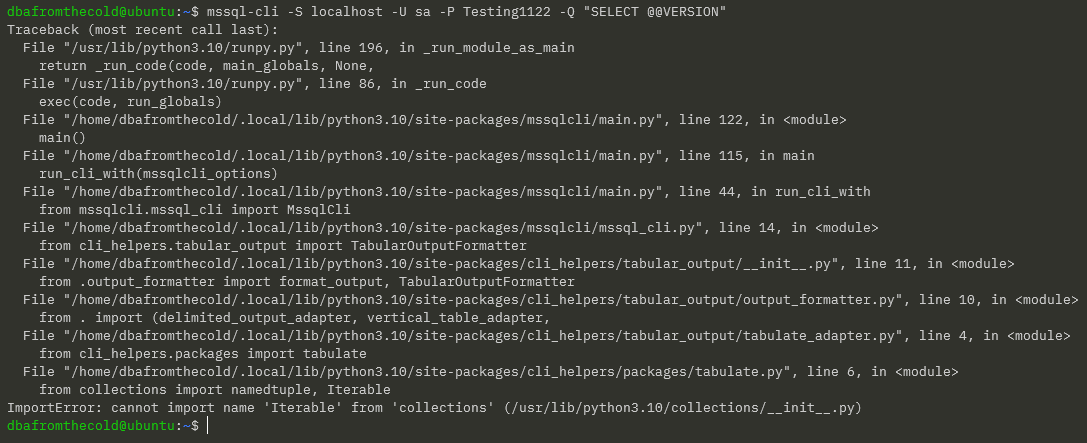
Which gives us this error: –

Ok, let’s have a look at the file: –

cat ~/.local/bin/mssql-cli

The issue is that the reference to python here needs to be updated to python3: –

sed -i 's/python/python3/g' ~/.local/bin/mssql-cli

Confirm the update: –

cat ~/.local/bin/mssql-cli

Test connecting to SQL container again: –

mssql-cli -S localhost -U sa -P Testing1122 -Q "SELECT @@VERSION"

N.B. – if you’re on Ubuntu 20.04 the mssql-cli should now be working

But on Ubuntu 22.04 we get a new error. From looking at the open issues on the mssql-cli issues page on Github…we need to force upgrade the cli-helpers python module: –

pip install cli-helpers --upgrade --force

Test connecting to SQL container again: –

mssql-cli -S localhost -U sa -P Testing1122 -Q "SELECT @@VERSION"

OK new error! Progress 🙂

To resolve this we need to remove references to ownerUri on lines 22 and 93 in the connectionservice.py file: –

vim ~/.local/lib/python3.10/site-packages/mssqlcli/jsonrpc/contracts/connectionservice.py

Test connecting to SQL container again: –

mssql-cli -S localhost -U sa -P Testing1122 -Q "SELECT @@VERSION"

OK that’s pretty clear…install libssl1.0.0: –

wget http://archive.ubuntu.com/ubuntu/pool/main/o/openssl1.0/libssl1.0.0_1.0.2n-1ubuntu5_amd64.deb
sudo dpkg -i libssl1.0.0_1.0.2n-1ubuntu5_amd64.deb

Test connecting to SQL container again: –

mssql-cli -S localhost -U sa -P Testing1122 -Q "SELECT @@VERSION"

Ha, OK another new error!

To resolve this one we need to remove references to owner_uri from lines 91, 93, and 191 in the mssqlcliclient.py file: –

vim ~/.local/lib/python3.10/site-packages/mssqlcli/mssqlcliclient.py

One more test connecting to SQL in the container: –

mssql-cli -S localhost -U sa -P Testing1122 -Q "SELECT @@VERSION" to the server: -

Ha success! I’ve dropped all the commands into this gist

Thanks for reading!

Using environment variable files for SQL Server in containers

There are a whole bunch of environment variables that can be used to configure SQL Server when run in a Docker container. You can check out the full list here.

So we could end up with a docker container run statement like this: –

docker container run -d `
--publish 15789:1433 `
--env MSSQL_PID=Developer `
--env MSSQL_SA_PASSWORD=Testing1122 `
--env ACCEPT_EULA=Y `
--env MSSQL_AGENT_ENABLED=True `
--env MSSQL_DATA_DIR=/var/opt/sqlserver/sqldata `
--env MSSQL_LOG_DIR=/var/opt/sqlserver/sqllog `
--env MSSQL_BACKUP_DIR=/var/opt/sqlserver/sqlbackups `
--name sqlcontainer1 `
mcr.microsoft.com/mssql/server:2019-CU12-ubuntu-18.04

Do we really want to be typing all that out every time we run a container? Ok, we could drop this into a script and execute that but another option is to use environment variable files.

Nice and simple, we take all the environment variables in the statement above and drop them into a file on our Docker host: –

MSSQL_PID=Developer
ACCEPT_EULA=Y
MSSQL_AGENT_ENABLED=True
MSSQL_DATA_DIR=/var/opt/sqlserver/sqldata
MSSQL_LOG_DIR=/var/opt/sqlserver/sqllog
MSSQL_BACKUP_DIR=/var/opt/sqlserver/sqlbackups

And now just reference that file in the docker container run statement (I saved my file as C:\Temp\var.env): –

docker container run -d `
--publish 15789:1433 `
--env MSSQL_SA_PASSWORD=Testing1122 `
--env-file C:\temp\var.env `
--name sqlcontainer1 `
mcr.microsoft.com/mssql/server:2019-CU12-ubuntu-18.04

To confirm the variables have been set: –

docker exec sqlcontainer1 printenv

And there they are! We can also use multiple files referenced using the –env-file flag.

Another way of doing is (probably better?) is to use Docker Compose. If you want to learn more about compose, check out the SQL Server & Containers Guide!

Thanks for reading!

Updating SQL Server container memory limits on the fly

When running multiple SQL Server containers on a Docker host we should always be setting CPU and Memory limits for each container (see the flags for memory and cpus here). This helps prevent the whole noisy neighbour situation, where one container takes all the host’s resources and staves the other containers.

But what if we forget to set those limits? Well, no worries…we can update them on the fly!

Let’s have a look. First let’s run a container with no memory limits: –

docker container run -d \
--publish 15789:1433 \
--env ACCEPT_EULA=Y \
--env MSSQL_SA_PASSWORD=Testing1122 \
--name sqlcontainer1 \
mcr.microsoft.com/mssql/server:2019-CU12-ubuntu-18.04

Confirm the container is up and running: –

docker container ls

Now have a look at the stats of the container: –

docker stats

This container is running on a host with 4GB of RAM so pretty much no limit in place. Let’s add a limit: –

docker update sqlcontainer1 --memory 2048MB

N.B. – Thanks to Anthony Nocentino (b|t) for pointing this out to me, I was under the (wrong) impression that limits couldn’t be changed on a running container…so this is really cool.

In fact, if you want a better explanation on container limits I recommend you check out Anthony’s post Container Limits and SQL Server

Anyhoo, now let’s have a look at the limits in place: –

docker stats

Cool! So we’ve set a limit for our running container!

BUT! What if we know how those limits are enforced…can we enforce a limit on a running container without using docker update?

Let’s have a go! First remove the existing container and re-deploy: –

docker container rm sqlcontainer1 -f

docker container run -d \
--publish 15789:1433 \
--env ACCEPT_EULA=Y \
--env MSSQL_SA_PASSWORD=Testing1122 \
--name sqlcontainer1 \
mcr.microsoft.com/mssql/server:2019-CU12-ubuntu-18.04

Confirm, no limit in place: –

docker stats

Same as before.

Right, limits on containers are enforced by control groups (cgroups)…when processes are placed in cgroups those cgroups (for memory, cpu etc.) limit the amount of the host’s resources that a process can use.

And that’s all containers really are…just processes running on the host.

So let’s find the cgroup for the memory limit for the container.

First grab the container ID (have to set the limit as root so switching here): –

sudo su

CONTAINERID=$(docker ps -aq) && echo $CONTAINERID

Then have a look at the memory control group

find /sys/fs/cgroup/ -name *$CONTAINERID*

MEMORYCGROUP=$(find /sys/fs/cgroup/ -name *$CONTAINERID* | grep memory) && echo $MEMORYCGROUP

ls $MEMORYCGROUP

cat $MEMORYCGROUP/memory.limit_in_bytes

So no limit in place. Let’s set a limit and confirm: –

echo 2147483648 > $MEMORYCGROUP/memory.limit_in_bytes

cat $MEMORYCGROUP/memory.limit_in_bytes

Looks good, now let’s check docker stats: –

docker stats

And there’s the limit in place! Kinda cool…working out how Docker is placing resource limits on containers by using cgroups. If you fancy reading more about how container works, check out my SQL Containers From Scratch blog here.

Thanks for reading!

Running a SQL Server container from scratch

I’ve been interested (obsessed?) with running SQL Server in containers for a while now, ever since I saw how quick and easy it was to spin one up. That interest has led me down some rabbit holes for the last few years as I’ve been digging into exactly how containers work.

The weirdest concept I had to get my head around was that containers aren’t actually a thing.

Containers are just processes running on a host that implement a set of Linux constructs in order to achieve isolation.

So if we know what constructs are used…shouldn’t we be able to build our own container from scratch?

Well as we’re about to see, yes we can! But before that…let’s briefly go over exactly how containers achieve isolation. There’s three main Linux constructs that are used: –

  1. Control Groups
  2. Namespaces
  3. Changing the root of the container

Ok, first one…control groups.

Control groups limit the amount of resources of the host that a container can use. So when we use the cpus or memory flags in a docker container run statement…what’s happening in the background is that control groups are created to enforce those limits.

Next one, namespaces.

If control groups control what a container can use, namespaces control what a container can see. There’s a few of them in practice but the ones I want to mention here are the obviously named Unix Timesharing Namespace and the Process ID (PID) Namespace.

The Unix Timesharing Namespace…sounds complicated but in practice all this does is allow the hostname the container sees to be different to the actual host the container is running on.

Run the following against a container: =

docker exec CONTAINERNAME hostname

You’ll see that the output is different (usually the container ID) that the actual name of the host the container is running on. This is due to the container having its own UTS namespace.

The Process ID namespace is implemented to restrict which processes the container can see.

Run this against a container: –

docker exec CONTAINERNAME ps aux

The output will only show the processes running in the container. This is due to the container having its own process ID namespace.

If you run the following on the host, you’ll see the SQL processes of the container: –

ps aux | grep mssql

So there’s the processes on the host! Different process IDs due to the container running in a process ID namespace but there they are!

Ok, final one…changing the root of the container.

Containers can’t see the whole host’s filesystem, they can only see a subset of that file system. That’s because the root of the container is changed upon start up to some location on the host…and the container can only see from that location down.

Anyway, by using control groups, namespaces, and changing the root of the container…processes are isolated on a host and boom! We have a “container”.

So, we know the constructs involved…let’s put this into practice and build our own container from scratch using Go.

Right…let’s go ahead and build a container from scratch….


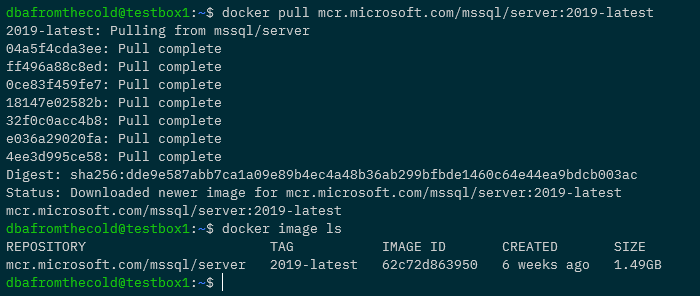
First thing we’re going to do is pull down the latest SQL Server 2019 container image. Yes I know I said we’d be building a container from scratch but bear with me 🙂

docker pull mcr.microsoft.com/mssql/server:2019-latest
Now run a container: –

docker container run -d \
--publish 1433:1433 \
--env ACCEPT_EULA=Y \
--env MSSQL_SA_PASSWORD=Testing1122 \
--name sqlcontainer1 \
mcr.microsoft.com/mssql/server:2019-latest

Confirm SQL is running within the container (mssql-cli can be installed using these instructions): –

mssql-cli -S localhost -U sa -P Testing1122 -Q "SELECT @@VERSION AS [Version];"

Stop the container: –

docker stop sqlcontainer1

Export the container: –

docker export sqlcontainer1 -o sqlcontainer.tar

Create a directory and extract the .tar file to it: –

mkdir sqlcontainer1
tar -xvf sqlcontainer1 -C ./sqlcontainer1

Then list the contents of the directory: –

ls ./sqlcontainer1

Cool! We have extracted the containers filesystem. So we can now use that as the root of our own container, built from scratch!

We’re going to be using Go to run our container from scratch so we’ll need to install it: –

sudo apt-get install golang-go

And now, here is the code to run our container: –

package main

import (
	"fmt"
	"io/ioutil"
	"os"
	"os/exec"
	"path/filepath"
	"strconv"
	"syscall"
)

// go run main.go run <cmd> <args>
func main() {
	switch os.Args[1] {
	case "run":
		run()
	case "child":
		child()
	default:
		panic("help")
	}
}

func run() {
	fmt.Printf("Running %v \n", os.Args[2:])

	cmd := exec.Command("/proc/self/exe", append([]string{"child"}, os.Args[2:]...)...)
	cmd.Stdin = os.Stdin
	cmd.Stdout = os.Stdout
	cmd.Stderr = os.Stderr
	cmd.SysProcAttr = &syscall.SysProcAttr{
		Cloneflags:   syscall.CLONE_NEWUTS | syscall.CLONE_NEWPID | syscall.CLONE_NEWNS,
		Unshareflags: syscall.CLONE_NEWNS,
	}

	must(cmd.Run())
}

func child() {
	fmt.Printf("Running %v \n", os.Args[2:])

	cg()

	cmd := exec.Command(os.Args[2], os.Args[3:]...)
	cmd.Stdin = os.Stdin
	cmd.Stdout = os.Stdout
	cmd.Stderr = os.Stderr

	must(syscall.Sethostname([]byte("sqlcontainer1")))
	must(syscall.Chroot("/home/dbafromthecold/sqlcontainer1"))
	must(os.Chdir("/"))
	must(syscall.Mount("proc", "proc", "proc", 0, ""))
	must(cmd.Run())

	must(syscall.Unmount("proc", 0))
}

func cg() {
	cgroups := "/sys/fs/cgroup/"
	memory := filepath.Join(cgroups, "memory")
	os.Mkdir(filepath.Join(memory, "sqlcontainer1"), 0755)
	must(ioutil.WriteFile(filepath.Join(memory, "sqlcontainer1/memory.limit_in_bytes"), []byte("2147483648"), 0700))

	cpu := filepath.Join(cgroups, "cpu,cpuacct")
	os.Mkdir(filepath.Join(cpu, "sqlcontainer1), 0755)
	must(ioutil.WriteFile(filepath.Join(cpu, "sqlcontainer1/cpu.cfs_quota_us"), []byte("200000"), 0700))

	// Removes the new cgroup in place after the container exits
	must(ioutil.WriteFile(filepath.Join(memory, "sqlcontainer1/notify_on_release"), []byte("1"), 0700))
	must(ioutil.WriteFile(filepath.Join(memory, "ssqlcontainer1/cgroup.procs"), []byte(strconv.Itoa(os.Getpid())), 0700))

	must(ioutil.WriteFile(filepath.Join(cpu, "sqlcontainer1/notify_on_release"), []byte("1"), 0700))
	must(ioutil.WriteFile(filepath.Join(cpu, "sqlcontainer1/cgroup.procs"), []byte(strconv.Itoa(os.Getpid())), 0700))
}

func must(err error) {
	if err != nil {
		panic(err)
	}
}

Now, this is Liz Rice’s Containers From Scratch code, with a couple of (minor) modifications to run SQL.

I’m not going to go through what all of it does, Liz Rice does a far better job of that in her Building Containers From Scratch session. Highly recommend you check out that session.

However I do want to point a couple of things out.

Firstly here: –

Cloneflags:   syscall.CLONE_NEWUTS | syscall.CLONE_NEWPID

This is where we’re creating a new unix timesharing namespace, so the hostname within the container will be different to the actual host the container is running on. And we’re also creating a new process id namespace, so that the container can only see its own processes.

Then we’re changing the hostname the container sees to sqlcontainer1: –

must(syscall.Sethostname([]byte("sqlcontainer1")))

Then changing the root of the container to the location that we extracted the Docker container’s filesystem to: –

must(syscall.Chroot("/home/dbafromthecold/sqlcontainer1"))

Finally, creating a couple of cgroups: –

must(ioutil.WriteFile(filepath.Join(memory, "sqlcontainer1/memory.limit_in_bytes"), []byte("2147483648"), 0700))
must(ioutil.WriteFile(filepath.Join(cpu, "sqlcontainer1/cpu.cfs_quota_us"), []byte("200000"), 0700))

Here we’re creating cgroups to limit the memory available to the container to 2GB, and limiting the number of CPUs to 2.

Right, let’s pull that code down into a directory: –

mkdir container
cd container
curl https://gist.githubusercontent.com/dbafromthecold/139e93907f7eab45a20944d0eaffeb3a/raw/d1d7b71197d70755bc055b9dd06744e50916d657/main.go -o main.go

Awesome stuff, we are ready to run our container!

Switching to the root user, we can run our container and open a shell into it by running: –

sudo su
go run main.go run /bin/bash

Hmm, ok…the terminal now looks different..are we in our container?

Let’s have a look at the hostname: –

hostname
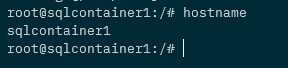
Ah ha! The hostname is set to sqlcontainer1! We are in our container!

OK, let’s spin up SQL Server within it! Firstly we need to create a special file that SQL requires to run :-

mknod -m 444 /dev/urandom c 1 9

Many thanks to Mark Wilkinson (b|t) who figured that one out!

Right, we are good to go! Let’s run SQL in the background: –

/opt/mssql/bin/sqlservr&> /dev/null &

Err, ok…has that worked? Let’s check the processes in the container: –

ps aux

Cool! We have a couple of SQL processes running! And because the container is in a process id namespace…it can only see its own processes.

If we check the processes on the host: –

ps aux | grep mssql

There they are on the host! With different process IDs because of the namespace.

OK, final thing to have a look at…the control groups. We created one for memory and CPU..so let’s have a look at them.

Running on the host (not in the container)…let’s get the memory limit: –

MEMORYLIMIT=$(cat /sys/fs/cgroup/memory/sqlcontainer1/memory.limit_in_bytes)
expr $MEMORYLIMIT / 1024 / 1024

There is the 2GB memory limit for the container being implemented by a control group!

Ok, let’s check the CPU limit: –

cat /sys/fs/cgroup/cpu,cpuacct/sqlcontainer1/cpu.cfs_quota_us

Cool! There’s the CPU limit that was set.

So by using that little piece of Go code, and some knowledge of how containers work in the background…we can spin up our own container built from scratch!

Ok, I admit…this isn’t exactly going to be as stable as running a container in Docker and there’s a few things still missing (port mapping anyone?) but I think it’s really cool to be able to do this. 🙂

Thanks for reading!