One of the changes that’s been brought into the database engine in SQL Server 2017 is the ability to disable the cache that SQL keeps on identity values by using the ALTER DATABASE SCOPED CONFIGURATION command.
What disabling the cache will do is prevent any gaps in the IDs happening if there is an unexpected restart or a failover to a secondary database.
So a caveat to this, I had to play around a bit to get this to work correctly. This is why I drop and recreated the table in the demo below.
If you don’t drop the table and continue to add rows with the cache disabled you’ll need to run the CHECKPOINT command immediately after the ALTER DATABASE statement (otherwise there’ll be a gap in the IDs when the more rows are inserted after the restart).
I’m not entirely sure why this is needed but when I was looking into this I came across this connect item so it seems that odd behaviour around uncontrolled shutdowns and identity columns isn’t unusual. I think I know what’s going on but I don’t want to post anything here that’s incorrect so I’ll just say I’m not sure.
If anyone out there knows why the CHECKPOINT is needed, please let me know!
Anyway, let’s run through a demo showing the difference in behaviour (btw, I’m running this in SQL Server 2017 CTP 2.1.).
First, let’s remind ourselves about the old behaviour so create a test database: –
USE [master];
GO

DROP DATABASE IF EXISTS [TestDB];
GO

CREATE DATABASE [TestDB];
GO
Then create a test table and insert 5 rows: –
USE [TestDB];
GO

CREATE TABLE [dbo].[TestTable]
(PKID INT IDENTITY(1,1) PRIMARY KEY,
 ColA DATETIME);
GO

INSERT INTO [dbo].[TestTable]
(ColA)
VALUES
(GETUTCDATE())
GO  5
Now we’re going to insert another 5 rows within a transaction but we’re not going to commit: –
BEGIN TRAN

INSERT INTO [dbo].[TestTable]
(ColA)
VALUES
(GETUTCDATE())
GO  5
In another query window run the following to simulate a uncontrolled shutdown of the SQL instance: –
SHUTDOWN WITH NOWAIT
Once that’s completed, immediately restart the SQL instance via SQL config manager and open up a new query window and run the following: –
USE [TestDB];
GO

INSERT INTO [dbo].[TestTable]
(ColA)
VALUES
(GETUTCDATE())
GO  5
Now we can check the data in the table: –
SELECT * FROM [dbo].[TestTable]
GO
As expected, there’s a gap in the IDs. Why it jumps to 1002 is discussed in the connect item.
OK, now let’s try running the same code again but this time we will disable the identity cache.
So, reset the demo: –
USE [TestDB];
GO

DROP TABLE IF EXISTS [dbo].[TestTable];
GO

CREATE TABLE [dbo].[TestTable]
(PKID INT IDENTITY(1,1) PRIMARY KEY,
 ColA DATETIME);
GO
OK, now disable the identity cache (leaving the CHECKPOINT there if you want to try without dropping the table): –
ALTER DATABASE SCOPED CONFIGURATION SET IDENTITY_CACHE = OFF
--CHECKPOINT
GO
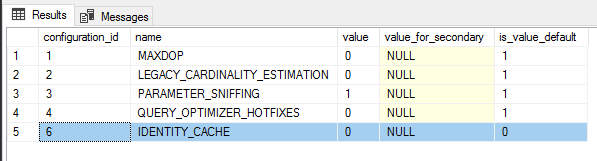
The change can be viewed in the following DMV: –
SELECT * FROM sys.database_scoped_configurations;
GO
OK, now that the cache is disabled we can run the test again: –
INSERT INTO [dbo].[TestTable]
(ColA)
VALUES
(GETUTCDATE())
GO  5
And same transaction again, insert 5 rows but do not commit: –
BEGIN TRAN

INSERT INTO [dbo].[TestTable]
(ColA)
VALUES
(GETUTCDATE())
GO  5
Simulate the uncontrolled shutdown: –
SHUTDOWN WITH NOWAIT
Last thing is to restart the SQL instance and run the INSERTs: –
USE [TestDB];
GO

INSERT INTO [dbo].[TestTable]
(ColA)
VALUES
(GETUTCDATE())
GO  5
Now we can check the data in the table: –
SELECT * FROM [dbo].[TestTable]
GO
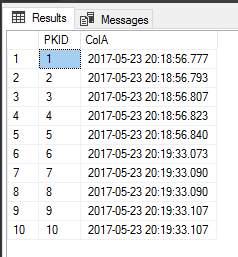
This time no gaps; we have an uninterrupted sequence in the ID column. So now we have an option for preventing gaps in an identity field without having to use trace flag 272 or setup a sequence manually.
Thanks for reading!