EightKB is coming!

The next EightKB is coming on January 27th, kicking off at 2pm UTC.

Once again we have 5 mind melting sessions on 5 in-depth SQL Server internals topics, from 5 top notch speakers.

Registration is free and you can sign up here: – https://eightkb.online/

Let’s have a closer look at the sessions ๐Ÿ™‚


SQL Server Memory Internals & Troubleshooting – Amit Bansal @ 14:15

Welcome to the dungeon.

Yes, SQL Server memory concepts are like entering a dungeon where you are guaranteed to get lost. Itโ€™s dark and complex out there and not many have come back alive.

Join Microsoft Certified Master of SQL Server, Amit Bansal (b|t), and find your way out from the dungeon.

In this deep-dive session, you will understand SQL Server memory architecture, how the database engine consumes memory and how to track memory usage. Complex concepts will be made simple and you will see some light beyond the darkness.

This session will be an eye-opener for you. Assured.


The Ins and Outs of SQL Server Data – Bob Pusateri @ 15:45

While data compression is best-known for reducing a database’s size on disk, it’s also an effective tool for making your queries fly. Come see how reduced disk usage and increased performance mean that with compression, less really can be more!

Join Microsoft Data Platform MVP and MCM, Bob Pusateri (b|t), who will arm you with the knowledge and understanding to capitalize on both of these aspects of SQL Server’s row and page compression features, as well as columnstore and updateable columnstore indexes.

This session will combine a lesson on the internals of compression with real-world scenarios to show you how to determine the most appropriate compression type for any situation.

Since there’s no such thing as a “free lunch” in computing, the drawbacks of these features will also be discussed.


Intelligent Query Processing? Whatโ€™s up with that? – Gail Shaw @ 17:00

One of the major changes in SQL Server 2017 and 2019 is addition of Intelligent Query Processing, which includes a number of improvements to the way queries are optimised and executed.

Join Microsoft Data Platform MVP and MCM, Gail Shaw (b|t), who will show why this is a radical departure from the way that things worked previously and how it can improve the performance of some query forms.

This session will look at the places where Intelligent Query Processing works and compare the performance of queries using these features to see just what kind of improvement it can make.


Latches, Spinlocks, and Lock Free Data Structures – Klaus Aschenbrenner @ 18:30

You know locking and blocking very well in SQL Server? You know how the isolation level influences locking? Perfect!

Join SQL Server expert and author, Klaus Aschenbrenner (b|t) in this session for a deep dive into how SQL Server implements physical locking with lightweight synchronization objects like Latches and Spinlocks. He will cover the differences between both, and their use-cases in SQL Server.

You will learn about best practices how to analyze and resolve Latch- and Spinlock contention for your performance critical workload.

This session will talk about lock free data structures, what they are, and how they are used by the new In-Memory OLTP technology that is part of SQL Server since 2014.


Scaling SQL Server beyond two CPU’s – Thomas Grohser @ 20:00

Join SQL Server Infrastructure Architect and Engineer, Thomas Grohser for this session on how to build and configure a large SQL Server (CPU, Memory, Storage, Network) and how to modify your data model to support the scaling.

The whole talk is based on real world examples with servers as large as 224 cores and over 2 PB of storage.


We are REALLY excited for this event, it’s going to be a blast ๐Ÿ™‚

Hope to see you there!

Provisioning storage for Azure SQL Edge running on a Raspberry Pi Kubernetes cluster

In a previous post we went through how to setup a Kubernetes cluster on Raspberry Pis and then deploy Azure SQL Edge to it.

In this post I want to go through how to configure a NFS server so that we can use that to provision persistent volumes in the Kubernetes cluster.

Once again, doing this on a Raspberry Pi 4 with an external USB SSD. The kit I bought was: –

1 x Raspberry Pi 4 Model B – 2GB RAM
1 x SanDisk Ultra 16 GB microSDHC Memory Card
1 x SanDisk 128 GB Solid State Flash Drive

The initial set up steps are the same as the previous posts, but we’re going to run through them here (as I don’t just want to link back to the previous blog).

So let’s go ahead and run through setting up a Raspberry Pi NFS server and then deploying persistent volumes for Azure SQL Edge.


Flashing the OS

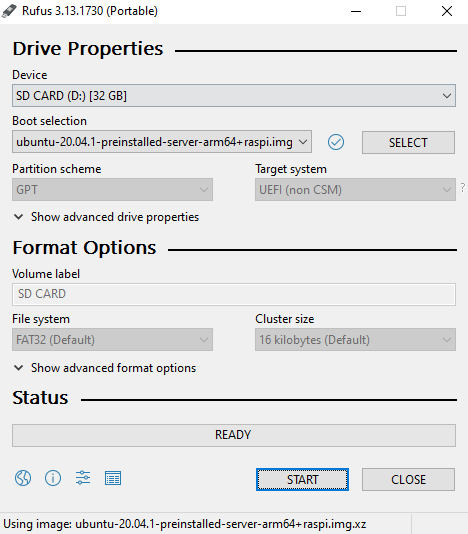
The first thing to do is flash the SD card using Rufus: –

Grab the Ubuntu 20.04 ARM image from the website and flash the SD card: โ€“

Once that’s done, connect the Pi to an internet connection, plug in the USB drive, and then power the Pi on.


Setting a static IP

Once the Pi is powered on, find it’s IP address on the network. Nmap can be used for this: –

nmap -sP 192.168.1.0/24

Or use a Network Analyzer application on your phone (I find the output of nmap can be confusing at times).

Then we can ssh to the Pi: –

ssh pi@192.168.1.xx

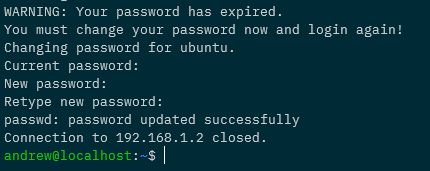
And then change the password of the default ubuntu user (default password is ubuntu): –

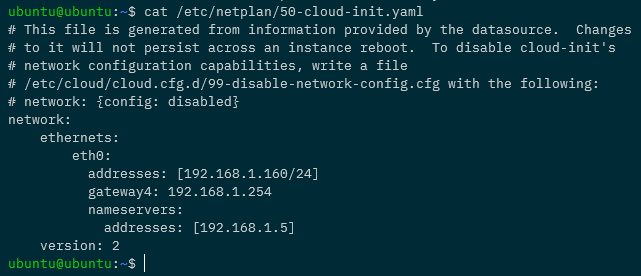
Ok, now we can ssh back into the Pi and set a static IP address. Edit the file /etc/netplan/50-cloud-init.yaml to look something like this: –

eth0 is the network the Pi is on (confirm with ip a), 192.168.1.160 is the IP address I’m setting, 192.168.1.254 is the gateway on my network, and 192.168.1.5 is my dns server (my pi-hole).

There is a warning there about changes not persisting, but they do ๐Ÿ™‚

Now that the file is configured, we need to run: –

sudo netplan apply

Once this is executed it will break the current shell, wait for the Pi to come back on the network on the new IP address and ssh back into it.


Creating a custom user

Let’s now create a custom user, with sudo access, and diable the default ubuntu user.

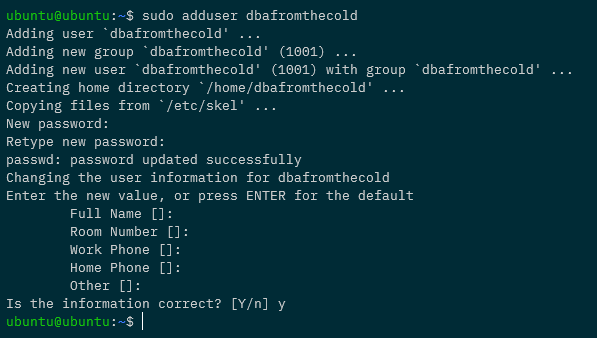
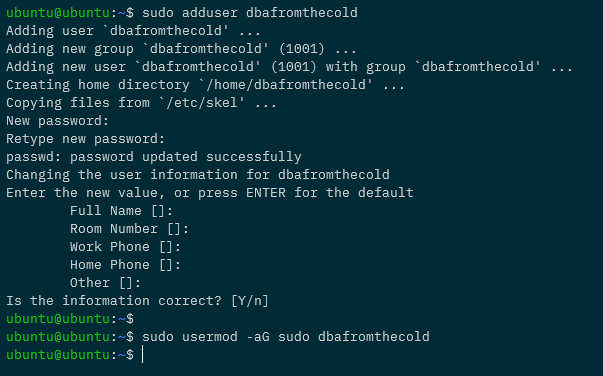
To create a new user: –

sudo adduser dbafromthecold

Add to the sudo group: –

sudo usermod -aG sudo dbafromthecold

Then log out of the Pi and log back in with the new user. Once in, disable the default ubuntu user: –

sudo usermod --expiredate 1 ubuntu

Cool! So we’re good to go to set up key based authentication into the Pi.


Setting up key based authentication

In the post about creating the cluster we already created an ssh key pair to use to log into the Pi but if we needed to create a new key we could just run: –

ssh-keygen

And follow the prompts to create a new key pair.

Now we can copy the public key to the Pi. Log out of the Pi and navigate to the location of the public key: –

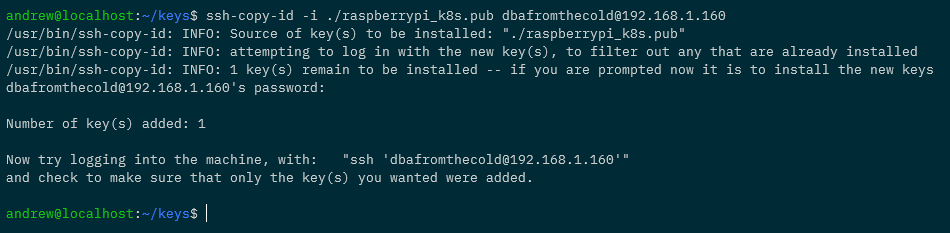
ssh-copy-id -i ./raspberrypi_k8s.pub dbafromthecold@192.168.1.160

Once the key has been copied to the Pi, add an entry for the Pi into the ssh config file: –

Host pi-nfs-server
    HostName 192.168.1.160
    User dbafromthecold
    IdentityFile ~/raspberrypi_k8s

To make sure that’s all working, try logging into the Pi with: –

ssh dbafromthecold@pi-nfs-server

Installing and configuring the NFS server

Great! Ok, now we can configure the Pi. First thing, let’s rename it to pi-nfs-server and bounce: –

sudo hostnamectl set-hostname pi-nfs-server
sudo reboot

Once the Pi comes back up, log back in and install the nfs server itself: –

sudo apt-get install -y nfs-kernel-server

Now we need to find the USB drive on the Pi so that we can mount it: –

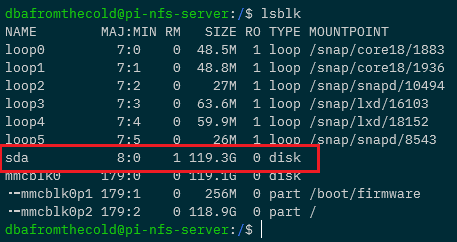
lsblk

And here you can see the USB drive as sda: –

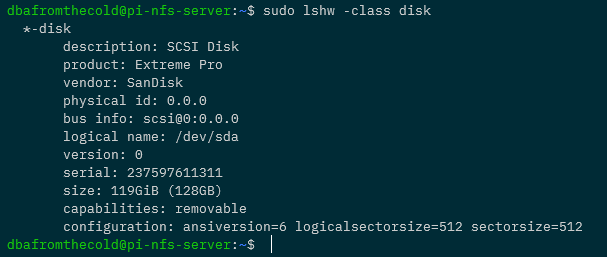
Another way to find the disk is to run: –

sudo lshw -class disk

So we need to get some more information about /dev/sda it in order to mount it: –

sudo blkid /dev/sda

Here you can see the UUID of the drive and that it’s got a type of NTFS.

Now we’re going to create a folder to mount the drive (/mnt/sqledge): –

sudo mkdir /mnt/sqledge/

And then add a record for the mount into /etc/fstab using the UUID we got earlier for the drive: –

sudo vim /etc/fstab

And add (changing the UUID to the value retrieved earlier): –

UUID=242EC6792EC64390 /mnt/sqledge ntfs defaults 0 0

Then mount the drive to /mnt/sqledge: –

sudo mount -a

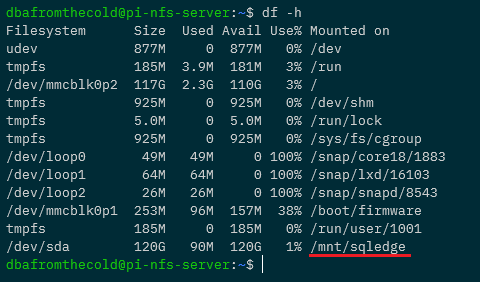
To confirm the disk is mounted: –

df -h

Great! We have our disk mounted. Now let’s create some subfolders for the SQL system, data, and log files: –

sudo mkdir /mnt/sqledge/{sqlsystem,sqldata,sqllog}

Ok, now we need to modify the export file so that the server knows which directories to share. Get your user and group ID using the id command: –

The edit the /etc/exports file: –

sudo vim /etc/exports

Add the following to the file: –

/mnt/sqledge *(rw,all_squash,insecure,async,no_subtree_check,anonuid=1001,anongid=1001)

N.B. – Update the final two numbers with the values from the id command. A full break down of what’s happening in this file is detailed here.

And then update: –

sudo exportfs -ra

Configuring the Kubernetes Nodes

Each node in the cluster needs to have the nfs tools installed: –

sudo apt-get install nfs-common

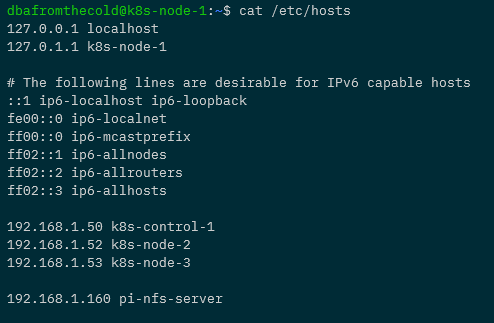
And each one will need a reference to the NFS server in its /etc/hosts file. Here’s what the hosts file on k8s-node-1 now looks like: –


Creating a persistent volume

Excellent stuff! Now we’re good to go to create three persistent volumes for our Azure SQL Edge pod: –

apiVersion: v1
kind: PersistentVolume
metadata:
  name: sqlsystem-pv
spec:
  capacity:
    storage: 1024Mi
  accessModes:
    - ReadWriteOnce
  nfs:
    server: pi-nfs-server
    path: "/mnt/sqledge/sqlsystem"
---
apiVersion: v1
kind: PersistentVolume
metadata:
  name: sqldata-pv
spec:
  capacity:
    storage: 1024Mi
  accessModes:
    - ReadWriteOnce
  nfs:
    server: pi-nfs-server
    path: "/mnt/sqledge/sqldata"
---
apiVersion: v1
kind: PersistentVolume
metadata:
  name: sqllog-pv
spec:
  capacity:
    storage: 1024Mi
  accessModes:
    - ReadWriteOnce
  nfs:
    server: pi-nfs-server
    path: "/mnt/sqledge/sqllog"

What this file will do is create three persistent volumes, 1GB in size (although that will kinda be ignored as we’re using NFS shares), in the ReadWriteOnce access mode, pointing at each of the folders we’ve created on the NFS server.

We can either create the file and deploy or run (do this locally with kubectl pointed at the Pi K8s cluster): –

kubectl apply -f https://gist.githubusercontent.com/dbafromthecold/da751e8c93a401524e4e59266812dc63/raw/d97c0a78887b6fcc41d0e48c46f05fe48981c530/azure-sql-edge-pv.yaml

To confirm: –

kubectl get pv

Now we can create three persistent volume claims for the persistent volumes: –

apiVersion: v1
kind: PersistentVolumeClaim
metadata:
  name: sqlsystem-pvc
spec:
  volumeName: sqlsystem-pv
  accessModes:
    - ReadWriteOnce
  resources:
    requests:
      storage: 1024Mi
---
apiVersion: v1
kind: PersistentVolumeClaim
metadata:
  name: sqldata-pvc
spec:
  volumeName: sqldata-pv
  accessModes:
    - ReadWriteOnce
  resources:
    requests:
      storage: 1024Mi
---
apiVersion: v1
kind: PersistentVolumeClaim
metadata:
  name: sqllog-pvc
spec:
  volumeName: sqllog-pv
  accessModes:
    - ReadWriteOnce
  resources:
    requests:
      storage: 1024Mi

Each one with the same AccessMode and size as the corresponding persistent volume.

Again, we can create the file and deploy or just run: –

kubectl apply -f https://gist.githubusercontent.com/dbafromthecold/0c8fcd74480bba8455672bb5f66a9d3c/raw/f3fdb63bdd039739ef7d7b6ab71196803bdfebb2/azure-sql-edge-pvc.yaml

And confirm with: –

kubectl get pvc

The PVCs should all have a status of Bound, meaning that they’ve found their corresponding PVs. We can confirm this with: –

kubectl get pv


Deploying Azure SQL Edge with persistent storage

Awesome stuff! Now we are good to go and deploy Azure SQL Edge to our Pi K8s cluster with persistent storage! Here’s the yaml file for Azure SQL Edge: –

apiVersion: apps/v1
kind: Deployment
metadata:
  name: sqledge-deployment
spec:
  replicas: 1
  selector:
    matchLabels:
      app: sqledge
  template:
    metadata:
      labels:
        app: sqledge
    spec:
      volumes:
        - name: sqlsystem
          persistentVolumeClaim:
            claimName: sqlsystem-pvc
        - name: sqldata
          persistentVolumeClaim:
            claimName: sqldata-pvc
        - name: sqllog
          persistentVolumeClaim:
            claimName: sqllog-pvc
      containers:
        - name: azuresqledge
          image: mcr.microsoft.com/azure-sql-edge:latest
          ports:
            - containerPort: 1433
          volumeMounts:
            - name: sqlsystem
              mountPath: /var/opt/mssql
            - name: sqldata
              mountPath: /var/opt/sqlserver/data
            - name: sqllog
              mountPath: /var/opt/sqlserver/log
          env:
            - name: MSSQL_PID
              value: "Developer"
            - name: ACCEPT_EULA
              value: "Y"
            - name: SA_PASSWORD
              value: "Testing1122"
            - name: MSSQL_AGENT_ENABLED
              value: "TRUE"
            - name: MSSQL_COLLATION
              value: "SQL_Latin1_General_CP1_CI_AS"
            - name: MSSQL_LCID
              value: "1033"
            - name: MSSQL_DATA_DIR
              value: "/var/opt/sqlserver/data"
            - name: MSSQL_LOG_DIR
              value: "/var/opt/sqlserver/log"
      terminationGracePeriodSeconds: 30
      securityContext:
        fsGroup: 10001

So we’re referencing our three persistent volume clams and mounting them as

  • sqlsystem-pvc – /var/opt/mssql
  • sqldata-pvc – /var/opt/sqlserver/data
  • sqllog-pvc – /var/opt/sqlserver/log

We’re also setting environment variables to set the default data and log paths to the paths mounted by persistent volume claims.

To deploy: –

kubectl apply -f https://gist.githubusercontent.com/dbafromthecold/92ddea343d525f6c680d9e3fff4906c9/raw/4d1c071e9c515266662361e7c01a27cc162d08b1/azure-sql-edge-persistent.yaml

To confirm: –

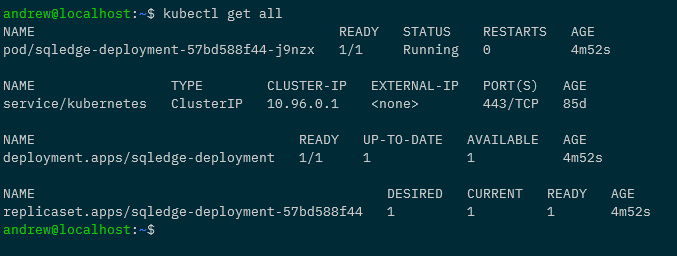
kubectl get all

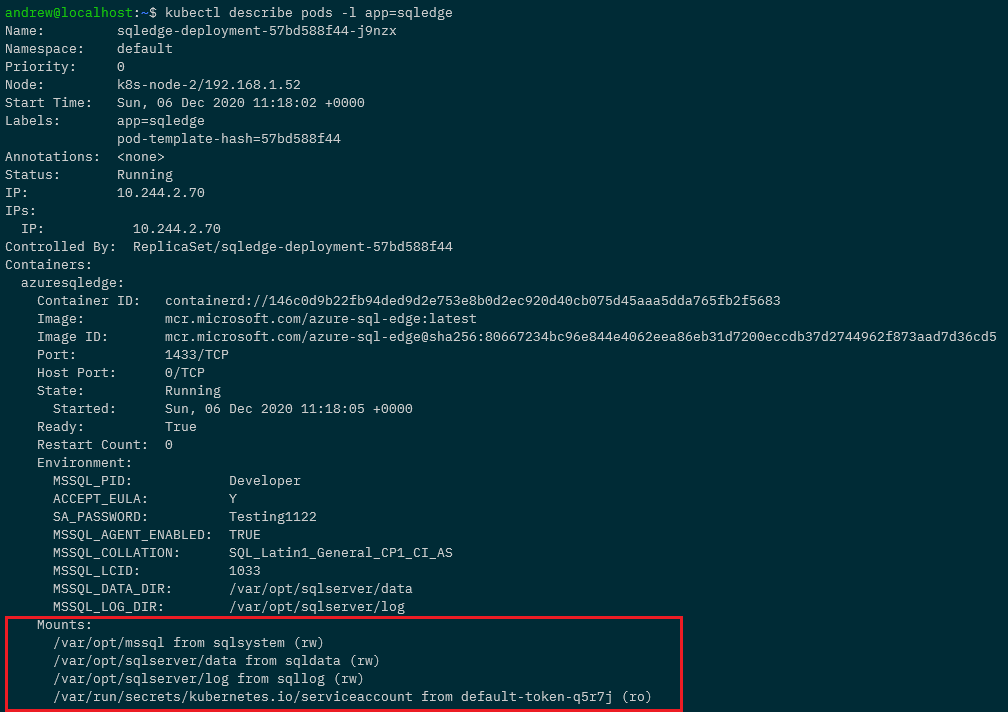
All looks good! To dig in a little deeper: –

kubectl describe pods -l app=sqledge


Testing the persistent volumes

But let’s not take Kubernetes’ word for it! Let’s create a database and see it persistent across pods.

So expose the deployment: –

kubectl expose deployment sqledge-deployment --type=LoadBalancer --port=1433 --target-port=1433

Get the External IP of the service created (provided by MetalLb configured in the previous post): –

kubectl get services

And now create a database with the mssql-cli: –

mssql-cli -S 192.168.1.101 -U sa -P Testing1122 -Q "CREATE DATABASE [testdatabase];"

Confirm the database is there: –

mssql-cli -S 192.168.1.101 -U sa -P Testing1122 -Q "SELECT [name] FROM sys.databases;"

Confirm the database files: –

mssql-cli -S 192.168.1.101 -U sa -P Testing1122 -Q "USE [testdatabase]; EXEC sp_helpfile;"

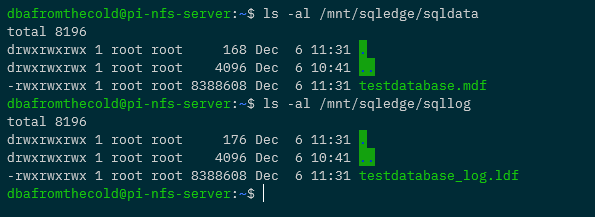
We can even check on the NFS server itself: –

ls -al /mnt/sqledge/sqldata
ls -al /mnt/sqledge/sqllog

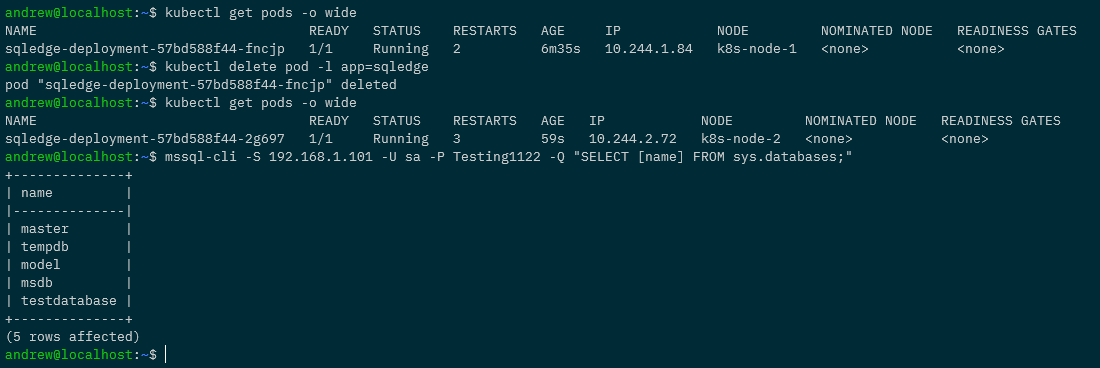
Ok, so the “real” test. Let’s delete the existing pod in the deployment and see if the new pod has the database: –

kubectl delete pod -l app=sqledge

Wait for the new pod to come up: –

kubectl get pods -o wide

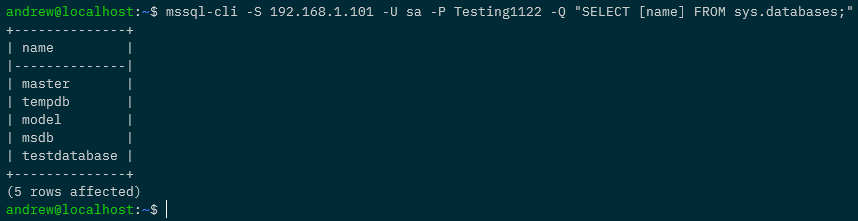
And then see if our database is in the new pod: –

mssql-cli -S 192.168.1.101 -U sa -P Testing1122 -Q "SELECT [name] FROM sys.databases;"

And that’s it! We’ve successfully built a Pi NFS server to deploy persistent volumes to our Raspberry Pi Kubernetes cluster so that we can persist databases from one pod to another! Phew!

Thanks for reading!

Updating my Kubernetes Raspberry Pi Cluster to containerd


EDIT – December 2021 – Unfortunately the steps documented here no longer work for the newer versions of containerd and runc. I will update once I get the steps working again.


There’s been a lot of conversations happening on twitter over the last couple of days due to the fact that Docker is deprecated in Kubernetes v1.20.

If you want to know more about the reason why I highly recommend checking out this twitter thread.

I’ve recently built a Raspberry Pi Kubernetes cluster so I thought I’d run through updating them in-place to use containerd as the container runtime instead of Docker.


DISCLAIMER – You’d never do this for a production cluster. For those clusters, you’d simply get rid of the existing nodes and bring new ones in on a rolling basis. This blog is just me mucking about with my Raspberry Pi cluster to see if the update can be done in-place without having to rebuild the nodes (as I really didn’t want to have to do that).


So the first thing to do is drain the node (my node is called k8s-node-1) that is to be updated and cordon it:-

kubectl drain k8s-node-1 --ignore-daemonsets

Then ssh onto the node and stop the kubelet: –

systemctl stop kubelet

Then remove Docker: –

apt-get remove docker.io

Remove old dependencies: –

apt-get autoremove

Now unmask the existing containerd service (containerd is used by Docker so that’s why it’s already there): –

systemctl unmask containerd

Install the dependencies required:-

apt-get install unzip make golang-go libseccomp2 libseccomp-dev btrfs-progs libbtrfs-dev

OK, now we’re following the instructions to install containerd from source detailed here.

I installed from source as I tried to use apt-get to install (as detailed here on the Kubernetes docs) but it wouldn’t work for me. No idea why, didn’t spend to much time looking and tbh, I haven’t installed anything from source before so this was kinda fun (once it worked).

Anyway, doing everything as root, grab the containerd source: –

go get -d github.com/containerd/containerd

Now grab protoc and install: –

wget -c https://github.com/google/protobuf/releases/download/v3.11.4/protoc-3.11.4-linux-x86_64.zip
sudo unzip protoc-3.11.4-linux-x86_64.zip -d /usr/local

Get the runc code: –

go get -d github.com/opencontainers/runc

Navigate to the downloaded package (check your $GOPATH variable) mine was set to ~/go so cd into it and use make to build and install: –

cd ~/go/src/github.com/opencontainers/runc
make
make install

Now we’re going to do the same thing with containerd itself: –

cd ~/go/src/github.com/containerd/containerd
make
make install

Cool. Now copy the containerd.service file to systemd to create the containerd service: –

cp containerd.service /etc/systemd/system/
chmod 644 /etc/systemd/system/containerd.service

And start containerd: –

systemctl daemon-reload
systemctl start containerd
systemctl enable containerd

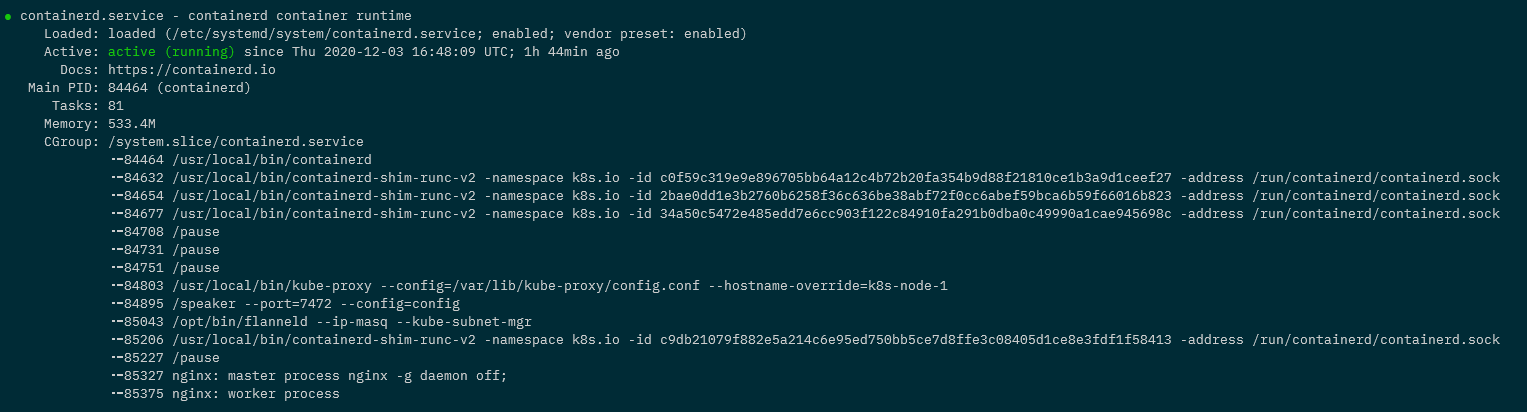
Let’s confirm containerd is up and running: –

systemctl status containerd

Awesome! Nearly done, now we need to update the kubelet to use containerd as it defaults to docker. We can do this by running: –

sed -i 's/3.2/3.2 --container-runtime=remote --container-runtime-endpoint=unix:\/\/\/run\/containerd\/containerd.sock/g' /var/lib/kubelet/kubeadm-flags.env

The flags for the kubelet are detailed here

I’m using sed to append the flags to the cluster but if that doesn’t work, edit manually with vim:-

vim /var/lib/kubelet/kubeadm-flags.env

And the following flags need to be added: –

–container-runtime=remote –container-runtime-endpoint=unix:///run/containerd/containerd.sock

OK, now that’s done we can start the kubelet: –

systemctl start kubelet

And confirm that it’s working:-

systemctl status kubelet


N.B. – Scroll to the right and we can see the new flags

Finally, uncordon the node. So back on the local machine:-

kubectl uncordon k8s-node-1

Run through that for all the worker nodes in the cluster. I did the control node as well following these instructions (didn’t drain/cordon it) and it worked a charm!

kubectl get nodes -o wide

Thanks for reading!

Building a Raspberry Pi cluster to run Azure SQL Edge on Kubernetes

A project I’ve been meaning to work on for a while has been to build my own Kubernetes cluster running on Raspberry Pis.

I’ve been playing around with Kubernetes for a while now and things like Azure Kubernetes Service are great tools to learn but I wanted something that I’d built from the ground up.

Something that I could tear down, fiddle with, and rebuild to my heart’s content.

So earlier this year I finally got around to doing just that and with Azure SQL Edge going GA with a disconnected mode I wanted to blog about my setup.

Here’s what I bought: –

1 x Raspberry Pi 4 Model B – 8BG RAM
3 x Raspberry Pi 4 Model B – 4GB RAM
4 x SanDisk Ultra 32 GB microSDHC Memory Card
1 x Pi Rack Case for Raspberry Pi 4 Model B
1 x Aukey USB Wall Charger Adapter 6 Ports
1 x NETGEAR GS308 8-Port Gigabit Ethernet Network Switch
1 x Bunch of ethernet cables
1 x Bunch of (short) USB cables

OK, I’ve gone a little overboard with the Pis and the SD cards. You won’t need an 8GB Raspberry Pi for the control node, the 4GB model will work fine. The 2GB model will also probably work but that would be really hitting the limit.

For the SD cards, 16GB will be more than enough (I went with a 64GB card for the control node, which is definite overkill).

In fact, you could just buy one Raspberry Pi and do everything I’m going to run through here on it. I went with a 4 node cluster (1 control node and 3 worker nodes) just because I wanted to tinker.

What follows in this blog is the complete build, from setting up the cluster, configuring the OS, to deploying Azure SQL Edge.

So let’s get to it!

Yay, delivery day!


Flashing the SD Cards

The first thing to do is flash the SD cards. I used Rufus but Etcher would work as well.

Grab the Ubuntu 20.04 ARM image from the website and flash all the cards: –

Once that’s done, it’s assembly time!


Building the cluster
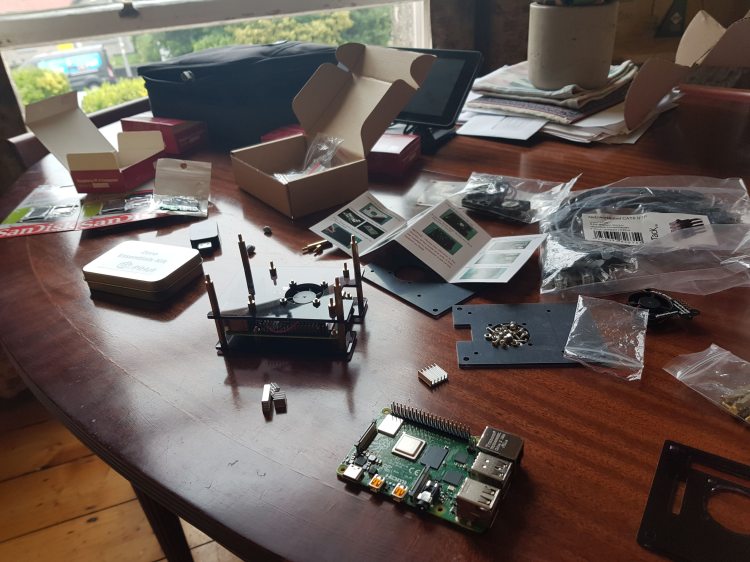
So…many…little…screws…

But done! Now it’s time to plug it all in.

Plug all the SD cards into the Pis. Connect the USB hub to the mains and then plug the switch into your router. It’s plug and play so no need to mess around.

Once they’re connected, plug the Pis into the switch and then power them up (plug them into the USB Hub): –

(Ignore the zero in the background, it’s running pi-hole which I also recommend you check out!)


Setting a static IP address for each Raspberry Pi

We’re going to set a static IP address for each Pi on the network. Not doing anything fancy here with subnets, we’re just going to assign the Pis IP addresses that are currently not in use.

To find the Pis on the network with their current IP address we can run: –

nmap -sP 192.168.1.0/24

Tbh – nmap works but I usually use a Network Analyser app on my phone…it’s just easier (the output of nmap can be confusing).

Pick one Pi that’s going to be the control node and let’s ssh into it: –

ssh ubuntu@192.168.1.xx

When we first try to ssh we’ll have to change the ubuntu user password: –

The default password is ubuntu. Change the password to anything you want, we’re going to be disabling the ubuntu user later anyway.

Once that’s done ssh back into the Pi.

Ok, now that we’re back on the Pi run: –

sudo nano /etc/netplan/50-cloud-init.yaml

And update the file to look similar to this: –

network:
ethernets:
  eth0:
    addresses: [192.168.1.53/24]
    gateway4: 192.168.1.254
    nameservers:
      addresses: [192.168.1.5]
  version: 2

192.168.1.53 is the address I’m setting for the Pi, but it can be pretty much anything on your network that’s not already in use. 192.168.1.254 is the gateway on my network, and 192.168.1.5 is my DNS server (the pi-hole), you can use 8.8.8.8 if you want to.

There’ll also be a load of text at the top of the file saying something along the lines of “changes here won’t persist“. Ignore it, I’ve found the changes do persist.

DISCLAIMER – There’s probably another (better?) way of setting a static IP address on Ubuntu 20.04, this is just what I’ve done and works for me.

Ok, once the file is updated we run: –

sudo netplan apply

This will freeze your existing ssh session. So close that and open another terminal…wait for the Pi to come back up on your network on the new IP address.


Creating a custom user on all nodes

Let’s not use the default ubuntu user anymore (just because). We’re going to create a new user, dbafromthecold (you can call your user anything you want ๐Ÿ™‚ ): –

sudo adduser dbafromthecold

Run through the prompts and then add the new user to the sudo group: –

sudo usermod -aG sudo dbafromthecold

Cool, once that’s done, exit out of the Pi and ssh back in with the new user and run: –

sudo usermod --expiredate 1 ubuntu

This way no-one can ssh into the Pi using the default user: –


Setting up key based authentication for all nodes

Let’s now set up key based authentication (as I cannot be bothered typing out a password every time I want to ssh to a Pi).

I’m working in WSL2 here locally (I just prefer it) but a powershell session should work for everything we’re going to be running.

Anyway in WSL2 locally run: –

ssh-keygen
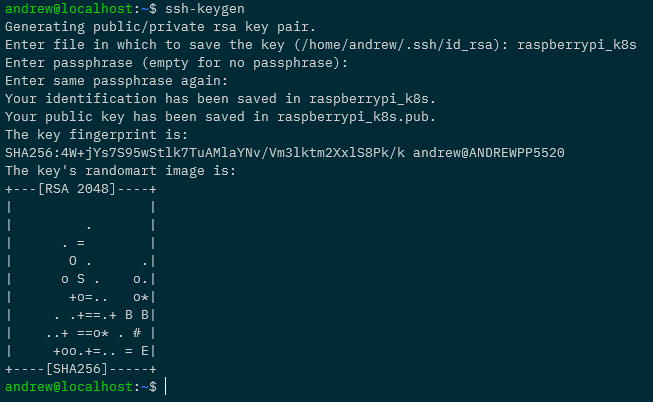
Follow the prompt to create the key. You can add a passphrase if you wish (I didn’t).

Ok, now let’s copy that to the pi: –

cat ./raspberrypi_k8s.pub | ssh dbafromthecold@192.168.1.53 "mkdir -p ~/.ssh && touch ~/.ssh/authorized_keys && chmod -R go= ~/.ssh && cat >> ~/.ssh/authorized_keys"

What this is going to do is copy the public key (raspberrypi_k8s.pub) up to the pi and store it as /home/dbafromthecold/.ssh/authorized_keys

This will allow us to specify the private key when connecting to the pi and use that to authenticate.

We’ll have to log in with the password one more time to get this working, so ssh with the password…and then immediately log out.

Now try to log in with the key: –

ssh -i raspberrypi_k8s dbafromthecold@192.168.1.53

If that doesn’t ask for a password and logs you in, it’s working!

As the Pi has a static IP address we can setup a ssh config file. So run: –

echo "Host k8s-control-1
HostName 192.168.1.53
User dbafromthecold
IdentityFile ~/raspberrypi_k8s" > ~/.ssh/config

I’m going to call this Pi k8s-control-1, and once this file is created, I can ssh it to by: –

ssh k8s-control-1

Awesome stuff! We have setup key based authentication to our Pi!


Configuring the OS on all nodes

Next thing to do is rename the pi (to match the name we’ve given in our ssh config file): –

sudo hostnamectl set-hostname k8s-control-1
sudo reboot

That’ll rename the Pi to k8s-control-1 and then restart it. Wait for it to come back up and ssh in.

And we can see by the prompt and the hostname command…our Pi has been renamed!

Ok, now update the Pi: –

sudo apt-get update
sudo apt-get upgrade

N.B. – This could take a while.

After that completes…we need to enable memory cgroups on the Pi. This is required for the Kubernetes installation to complete successfully so run:-

sudo nano /boot/firmware/cmdline.txt

and add

cgroup_enable=memory

to the end, so it looks like this: –

and then reboot again: –

sudo reboot

Installing Docker on all nodes

Getting there! Ok, let’s now install our container runtime…Docker.

sudo apt-get install -y docker.io

Then set docker to start on server startup: –

sudo systemctl enable docker

And then, so that we don’t have to use sudo each time we want to run a docker command: –

sudo usermod -aG docker dbafromthecold

Log out and then log back into the Pi for that to take effect. To confirm it’s working run: –

docker version

And now…let’s go ahead and install the components for kubernetes!


UPDATE – As of Kubernetes v1.20 Docker is deprecated as a container runtime. Containerd or CRI-O are the recommended container runtimes. I ran through the process of updating this cluster to containerd here


Installing Kubernetes components on all nodes

So we’re going to use kubeadm to install kubernetes but we also need kubectl (to admin the cluster) and the kubelet (which is an agent that runs on each Kubernetes node and isn’t installed via kubeadm).

So make sure the following are installed: –

sudo apt-get install -y apt-transport-https curl

Then add the Kubernetes GPG key: –

curl -s https://packages.cloud.google.com/apt/doc/apt-key.gpg | sudo apt-key add -

Add Kubernetes to the sources list: –

cat <<EOF | sudo tee /etc/apt/sources.list.d/kubernetes.list
deb https://apt.kubernetes.io/ kubernetes-xenial main
EOF

Ok, I know that the 20.04 code name isn’t xenial, it’s focal but if you use kubernetes-focal you’ll get this when running apt-get update: –

E: The repository ‘https://apt.kubernetes.io kubernetes-focal Release’ does not have a Release file.

So to avoid that error, we’re using xenial.

Anyway, now update sources on the box: –

sudo apt-get update

And we’re good to go and install the Kubernetes components: –

sudo apt-get install -y kubelet=1.19.2-00 kubeadm=1.19.2-00 kubectl=1.19.2-00

Going for version 1.19.2 for this install….absolutely no reason for it other than to show you that you can install specific versions!

Once the install has finished run the following: –

sudo apt-mark hold kubelet kubeadm kubectl

That’ll prevent the applications from being accidentally updated.


Building the Control Node

Right, we are good to go and create our control node! Kubeadm makes this simple! Simply run: –

sudo kubeadm init | tee kubeadm-init.out

What’s happening here is we’re creating our control node and saving the output to kubeadm-init.out.

This’ll take a few minutes to complete but once it does, we have a one node Kubernetes cluster!

Ok, so that we can use kubectl to admin the cluster: –

mkdir -p $HOME/.kube
sudo cp -i /etc/kubernetes/admin.conf $HOME/.kube/config
sudo chown $(id -u):$(id -g) $HOME/.kube/config

And now…we can run: –

kubectl get nodes

Don’t worry about the node being in a status of NotReady…it’ll come online after we deploy a pod network.

So let’s setup that pod network to allow the pods to communicate with each other. We’re going to use Weave for this: –

kubectl apply -f "https://cloud.weave.works/k8s/net?k8s-version=$(kubectl version | base64 | tr -d '\n')"

A couple of minutes after that’s deployed, we’ll see the node becoming Ready: –

And we can check all the control plane components are running in the cluster: –

kubectl get pods -n kube-system
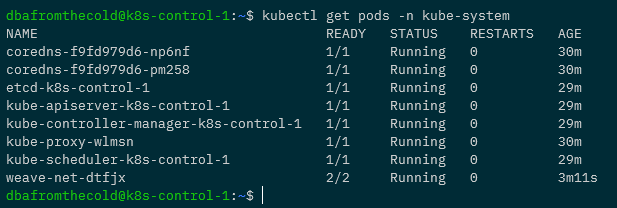
Now we have a one node Kubernetes cluster up and running!


Deploying a test application on the control node

Now that we have our one node cluster, let’s deploy a test nginx application to make sure all is working.

The first thing we need to do is remove the taint from the control node that prevents user applications (pods) from being deployed to it. So run: –

kubectl taint nodes $(hostname) node-role.kubernetes.io/master:NoSchedule-

And now we can deploy nginx: –

kubectl run nginx --image=nginx

Give that a few seconds and then confirm that the pod is up and running: –

kubectl get pods -o wide

Cool, the pod is up and running with an IP address of 10.32.0.4. We can run curl against it to confirm the application is working as expected: –

curl 10.32.0.4
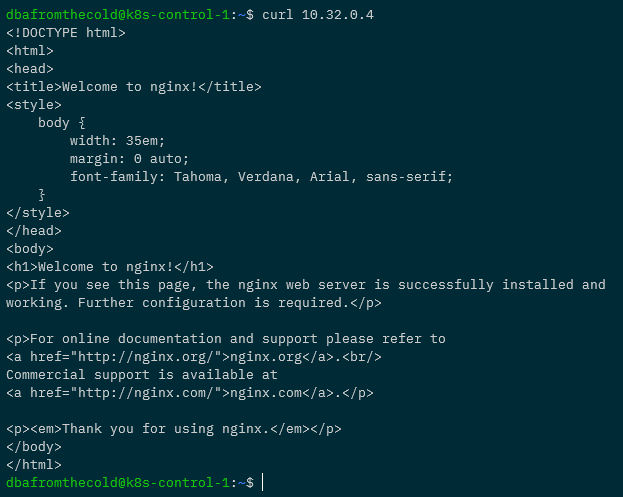
Boom! We have the correct response so we know we can deploy applications into our Kubernetes cluster! Leave the pod running as we’re going to need it in the next section.

Don’t do this now but if you want to add the taint back to the control node, run: –

kubectl taint nodes $(hostname) node-role.kubernetes.io/master:NoSchedule

Deploying MetalLb on the control node

There are no SQL client tools that’ll run on ARM infrastructure (at present) so we’ll need to connect to Azure SQL Edge from outside of the cluster. The way we’ll do that is with an external IP provided by a load balanced service.

In order for us to get those IP addresses we’ll need to deploy MetalLb to our cluster. MetalLb provides us with external IP addresses from a range we specify for any load balanced services we deploy.

To deploy MetalLb, run: –

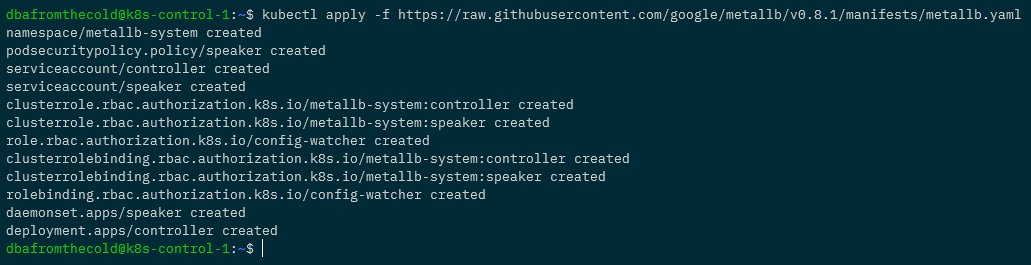
kubectl apply -f https://raw.githubusercontent.com/google/metallb/v0.8.1/manifests/metallb.yaml

And now we need to create a config map specifying the range of IP addresses that MetalLb can use: –

apiVersion: v1
kind: ConfigMap
metadata:
ย  namespace: metallb-system
ย  name: config
data:
ย  config: |
ย  ย  address-pools:
ย  ย  - name: default
ย  ย  ย  protocol: layer2
ย  ย  ย  addresses:
ย  ย  ย    - 192.168.1.100-192.168.1.110

What we’re doing here is specifying the IP range that MetalLb can assign to load balanced services as 192.168.1.100 to 192.168.1.110

You can use any range you want, just make sure that the IPs are not in use on your network.

Create the file as metallb-config.yaml and then deploy into the cluster: –

kubectl apply -f metallb-config.yaml

OK, to make sure everything is working…check the pods in the metallb-system namespace: –

kubectl get pods -n metallb-system

If they’re up and running we’re good to go and expose our nginx pod with a load balanced service:-

kubectl expose pod nginx --type=LoadBalancer --port=80 --target-port=80

Then confirm that the service created has an external IP: –

kubectl get services

Awesome! Ok, to really confirm everything is working…try to curl against that IP address from outside of the cluster (from our local machine): –

curl 192.168.1.100
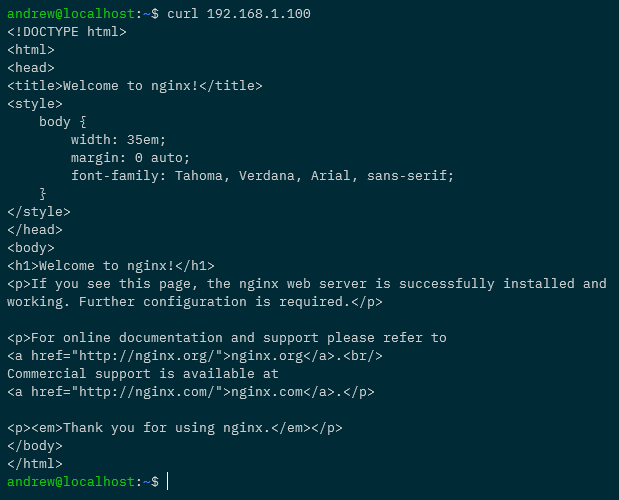
Woo hoo! All working, we can access applications running in our cluster externally!

Ok, quick tidy up…remove the pod and the service: –

kubectl delete pod nginx
kubectl delete service nginx

And now we can add the taint back to the control node: –

kubectl taint nodes $(hostname) node-role.kubernetes.io/master:NoSchedule

Joining the other nodes to the cluster

Now that we have the control node up and running, and the worker nodes ready to go…let’s add them into the cluster!

First thing to do (on all the nodes) is add entries for each node in the /etc/hosts file. For example on my control node I have the following: –

192.168.1.54 k8s-node-1
192.168.1.55 k8s-node-2
192.168.1.56 k8s-node-3

Make sure each node has entries for all the other nodes in the cluster in the file…and then we’re ready to go!

Remember when we ran kubeadm init on the control node to create the cluster? At the end of the output there was something similar to: –

sudo kubeadm join k8s-control-1:6443 --token f5e0m6.u6hx5k9rekrt1ktk \
--discovery-token-ca-cert-hash sha256:fd3bed4669636d1f2bbba0fd58bcddffe6dd29bde82e0e80daf985a77d96c37b

Don’t worry if you didn’t save it, it’s in the kubeadm-init.out file we created. Or you can run this on the control node to regenerate the command: –

kubeadm token create --print-join-command

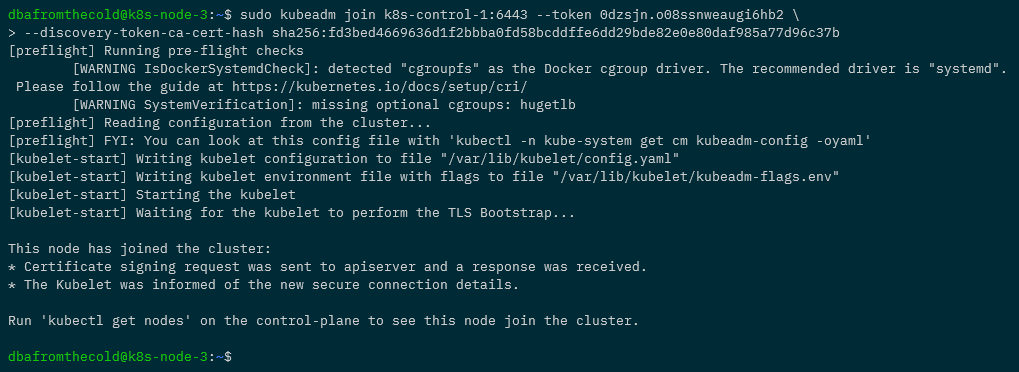
So let’s run that join command on each of the nodes: –
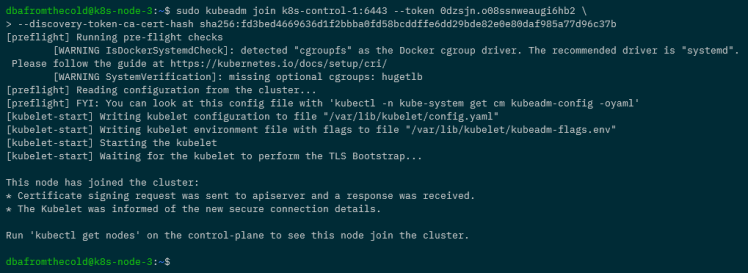
Once that’s done, we can confirm that all the nodes have joined and are ready to go by running: –

kubectl get nodes
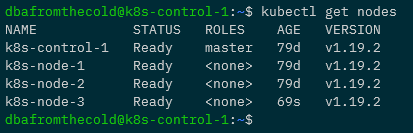
Fantastic stuff, we have a Kubernetes cluster all built!


External kubectl access to cluster

Ok, we don’t want to be ssh’ing into the cluster each time we want to work with it, so let’s setup kubectl access from our local machine. What we’re going to do is grab the config file from the control node and pull it down locally.

Kubectl can be installed locally from here

Now on our local machine run: –

mkdir $HOME/.kube

And then pull down the config file: –

scp k8s-control-1:/home/dbafromthecold/.kube/config $HOME/.kube/

And to confirm that we can use kubectl locally to administer the cluster: –

kubectl get nodes

Wooo! Ok, phew…still with me? Right, it’s now time to (finally) deploy Azure SQL Edge to our cluster.


Running Azure SQL Edge

Alrighty, we’ve done a lot of config to get to this point but now we can deploy Azure SQL Edge. Here’s the yaml file to deploy: –

apiVersion: apps/v1
kind: Deployment
metadata:
  name: sqledge-deployment
spec:
  replicas: 1
  selector:
    matchLabels:
      app: sqledge
  template:
    metadata:
      labels:
        app: sqledge
    spec:
      containers:
        - name: azuresqledge
          image: mcr.microsoft.com/azure-sql-edge:latest
          ports:
            - containerPort: 1433
          env:
            - name: MSSQL_PID
              value: "Developer"
            - name: ACCEPT_EULA
              value: "Y"
            - name: SA_PASSWORD
              value: "Testing1122"
            - name: MSSQL_AGENT_ENABLED
              value: "TRUE"
            - name: MSSQL_COLLATION
              value: "SQL_Latin1_General_CP1_CI_AS"
            - name: MSSQL_LCID
              value: "1033"
      terminationGracePeriodSeconds: 30
      securityContext:
        fsGroup: 10001
---
apiVersion: v1
kind: Service
metadata:
  creationTimestamp: null
  name: sqledge-deployment
spec:
  ports:
  - port: 1433
    protocol: TCP
    targetPort: 1433
  selector:
    app: sqledge
  type: LoadBalancer

What this is going to do is create a deployment called sqledge-deployment with one pod running Azure SQL Edge and expose it with a load balanced service.

We can either create a deployment.yaml file or deploy it from a Gist like this: –

kubectl apply -f https://gist.githubusercontent.com/dbafromthecold/1a78438bc408406f341be4ac0774c2aa/raw/9f4984ead9032d6117a80ee16409485650258221/azure-sql-edge.yaml

Give it a few minutes for the Azure SQL Edge deployment to be pulled down from the MCR and then run: –

kubectl get all
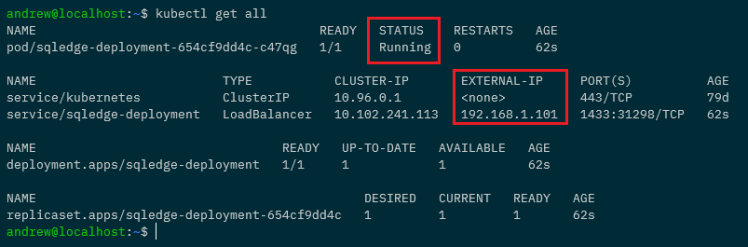
If all has gone well, the pod will have a status of Running and we’ll have an external IP address for our service.

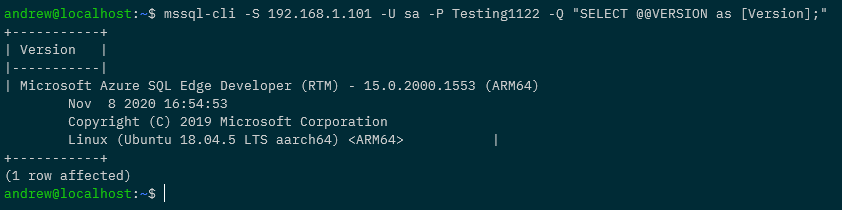
Which means we can connect to it and run a SQL command: –

mssql-cli -S 192.168.1.101 -U sa -P Testing1122 -Q "SELECT @@VERSION as [Version];"
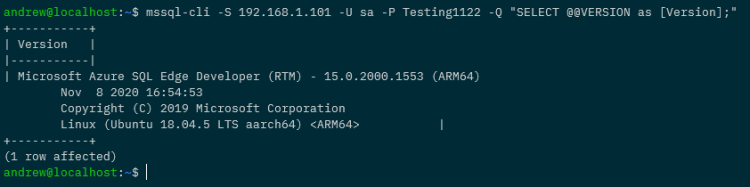

N.B. – I’m using the mssql-cli here but you can use SSMS or ADS.

And that’s it! We have Azure SQL Edge up and running in our Raspberry Pi Kubernetes cluster and we can connect to it externally!

Thanks for reading!

Differences between using a Load Balanced Service and an Ingress in Kubernetes

What is the difference between using a load balanced service and an ingress to access applications in Kubernetes?

Basically, they achieve the same thing. Being able to access an application that’s running in Kubernetes from outside of the cluster, but there are differences!

The key difference between the two is that ingress operates at networking layer 7 (the application layer) so routes connections based on http host header or url path. Load balanced services operate at layer 4 (the transport layer) so can load balance arbitrary tcp/udp/sctp services.

Ok, that statement doesn’t really clear things up (for me anyway). I’m a practical person by nature…so let’s run through examples of both (running everything in Kubernetes for Docker Desktop).

What we’re going to do is spin up two nginx pages that will serve as our applications and then firstly use load balanced services to access them, followed by an ingress.

So let’s create two nginx deployments from a custom image (available on the GHCR): –

kubectl create deployment nginx-page1 --image=ghcr.io/dbafromthecold/nginx:page1
kubectl create deployment nginx-page2 --image=ghcr.io/dbafromthecold/nginx:page2

And expose those deployments with a load balanced service: –

kubectl expose deployment nginx-page1 --type=LoadBalancer --port=8000 --target-port=80
kubectl expose deployment nginx-page2 --type=LoadBalancer --port=9000 --target-port=80

Confirm that the deployments and services have come up successfully: –

kubectl get all

Ok, now let’s check that the nginx pages are working. As we’ve used a load balanced service in k8s in Docker Desktop they’ll be available as localhost:PORT: –

curl localhost:8000
curl localhost:9000

Great! So we’re using the external IP address (local host in this case) and a port number to connect to our applications.

Now let’s have a look at using an ingress.

First, let’s get rid of those load balanced services: –

kubectl delete service nginx-page1 nginx-page2

And create two new cluster IP services: –

kubectl expose deployment nginx-page1 --type=ClusterIP --port=8000 --target-port=80
kubectl expose deployment nginx-page2 --type=ClusterIP --port=9000 --target-port=80

So now we have our pods running and two cluster IP services, which aren’t accessible from outside of the cluster: –

The services have no external IP so what we need to do is deploy an ingress controller.

An ingress controller will provide us with one external IP address, that we can map to a DNS entry. Once the controller is up and running we then use an ingress resources to define routing rules that will map external requests to different services within the cluster.

Kubernetes currently supports GCE and nginx controllers, we’re going to use an nginx ingress controller.

To spin up the controller run: –

kubectl apply -f https://raw.githubusercontent.com/kubernetes/ingress-nginx/controller-v0.40.2/deploy/static/provider/cloud/deploy.yaml

We can see the number of resources that’s going to create its own namespace, and to confirm they’re all up and running: –

kubectl get all -n ingress-nginx

Note the external IP of “localhost” for the ingress-nginx-controller service.

Ok, now we can create an ingress to direct traffic to our applications. Here’s an example ingress.yaml file: –

apiVersion: networking.k8s.io/v1
kind: Ingress
metadata:
  name: ingress-testwebsite
  annotations:
    kubernetes.io/ingress.class: "nginx"
spec:
  rules:
  - host: www.testwebaddress.com
    http:
      paths:
       - path: /pageone
         pathType: Prefix
         backend:
           service:
             name: nginx-page1
             port:
               number: 8000
       - path: /pagetwo
         pathType: Prefix
         backend:
           service:
             name: nginx-page2
             port:
               number: 9000

Watch out here. In Kubernetes v1.19 ingress went GA so the apiVersion changed. The yaml above won’t work in any version prior to v1.19.

Anyway, the main points in this yaml are: –

  annotations:
    kubernetes.io/ingress.class: "nginx"

Which makes this ingress resource use our ingress nginx controller.

  rules:
  - host: www.testwebaddress.com

Which sets the URL we’ll be using to access our applications to http://www.testwebaddress.com

       - path: /pageone
         pathType: Prefix
         backend:
           service:
             name: nginx-page1
             port:
               number: 8000
       - path: /pagetwo
         pathType: Prefix
         backend:
           service:
             name: nginx-page2
             port:
               number: 9000

Which routes our requests to the backend cluster IP services depending on the path (e.g. – http://www.testwebaddress.com/pageone will be directed to the nginx-page1 service)

You can create the ingress.yaml file manually and then deploy to Kubernetes or just run: –

kubectl apply -f https://gist.githubusercontent.com/dbafromthecold/a6805ca732eac278e902bbcf208aef8a/raw/e7e64375c3b1b4d01744c7d8d28c13128c09689e/testnginxingress.yaml

Confirm that the ingress is up and running (it’ll take a minute to get an address): –

kubectl get ingress


N.B. – Ignore the warning (if you get one like in the screen shot above), we’re using the correct API version

Finally, we now also need to add an entry for the web address into our hosts file (simulating a DNS entry): –

127.0.0.1 www.testwebaddress.com

And now we can browse to the web pages to see the ingress in action!

And that’s the differences between using load balanced services or an ingress to connect to applications running in a Kubernetes cluster. The ingress allows us to only use the one external IP address and then route traffic to different backend services whereas with the load balanced services, we would need to use different IP addresses (and ports if configured that way) for each application.

Thanks for reading!