Checking SQL Configuration with Pester & Dbatools

I know, I know, there’s loads of different ways to test the configuration of SQL Server but I’ve started playing around with Pester recently and it’s pretty cool!

The script I’ve written here will use Pester & Dbatools to check all settings in sys.configurations against values stored in a .csv file. The script will then alter the settings in SQL Server if they differ. So be warned!! 🙂

Here’s the script: –

Import-Module Pester
Import-Module dbatools

[string]$SqlServer = ''

$csv = Import-Csv .\ExampleServerConfigValues.csv
foreach($row in $csv){
        $ConfigName = $row.Name
        $ConfigValue = $row.Value

        $ConfigTest = Invoke-Pester -Script @{Path = '.\Test-SqlConfig.ps1'; `
            Parameters = @{SqlServer = $SqlServer; `
                ConfigName = $ConfigName; `
                    ConfigValue = $ConfigValue}} `
                        -TestName '*Testing configuration*' `
                            -PassThru

        $ConfigTest.TestResult.foreach{
            if($_.Result -ne "Passed"){
                Write-Host "Setting $ConfigName on $SqlServer..." -ForegroundColor Yellow
                    Set-DbaSpConfigure -SqlInstance $SqlServer -ConfigName $ConfigName -Value $ConfigValue
            }
        }   
    }

N.B. – This can easily be altered to reference, say, a Central Management Server that holds the server names to test and the desired config values

The Pester test [.\Test-SqlConfig.ps1] that it’s referencing is: –

param(
    [Parameter(Mandatory)] 
    [ValidateNotNullOrEmpty()]
    [string]$SqlServer,
    [string]$ConfigName,
    [string]$ConfigValue
)

Describe "Testing configuration $ConfigName of Sql Instance $SqlServer"{
    Context "SqlConfig"{
        It "$ConfigName should be $ConfigValue"{
            $value = Get-DbaSpConfigure -SqlServer $SqlServer -Config $ConfigName
            $value.ConfiguredValue | Should be $ConfigValue
        }
    }
}

N.B. – This code is also on GitHub here.

So run the first script and, BOOM!
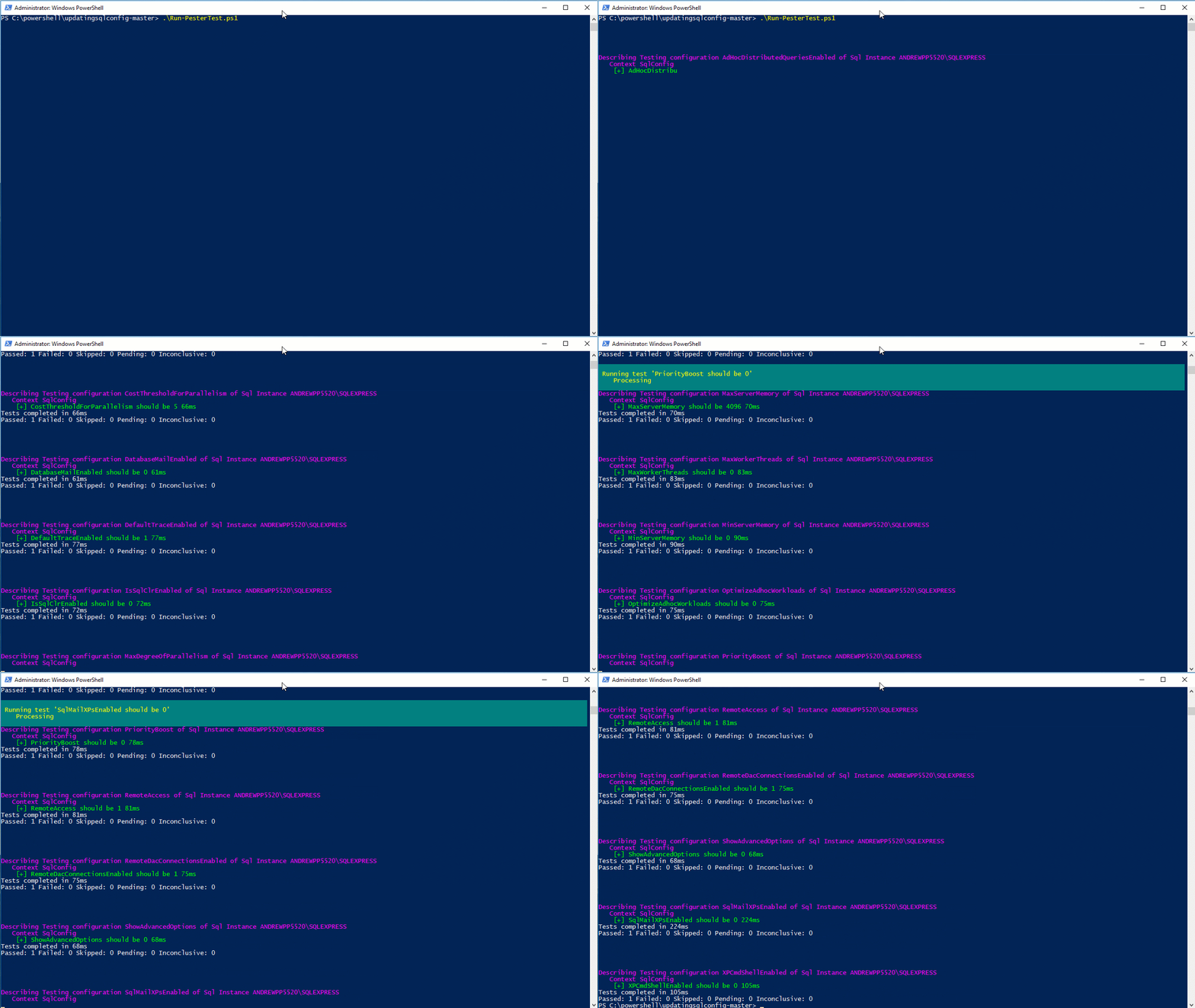
One Pester test running!

What I like about this is that it can be easily dropped into a job scheduler (e.g.- Jenkins) and then you’ve got a way to routinely check (and correct) all the configuration settings of the SQL instances that you monitor.

Thanks for reading!
Friday Reading 2017-11-17

Fun week, lots of stuff to organise and prepare for! Whilst I’ve had some downtime I’ve been reading…

Write your first Pester test today
Rob (t) takes us through the steps to write a Pester test (something I’ve been meaning to do for ages)

How To Enlarge Your Columns With No Downtime
Gianluca (t) demonstrates how to make column enlargement less painful

Do not pass GO
Monica Rathbun (t) talks about the GO statement in SSMS

Streamlining SQL Server Management Objects (SMO) in PowerShell Core
Max Trinidad’s (t) cool post on using SMO objects

Introducing Visual Studio Live Share
VS Blog detailing the new Live Share feature (this looks very cool)

Have a good weekend!

Running SQL Server in Kubernetes on Azure Kubernetes Services (AKS)

I’ve previously blogged about running SQL Server in ACS but Microsoft has now released a new version still called Azure Container Services (AKS instead of ACS however) but now specifically tailored to building Kubernetes clusters.


EDIT – Azure Container Services (AKS) has been renamed to Azure Kubernetes Services. Blog title has been updated


There are some differences to the original ACS (making the process simpler) so let’s run through setting up a Kubernetes cluster running SQL Server in AKS.

Ok, first thing to do is install the CLI (I’m going to work from a Bash shell on my desktop): –

echo "deb [arch=amd64] https://packages.microsoft.com/repos/azure-cli/ wheezy main" | \
     sudo tee /etc/apt/sources.list.d/azure-cli.list
	 
	 
sudo apt-key adv --keyserver packages.microsoft.com --recv-keys 52E16F86FEE04B979B07E28DB02C46DF417A0893
sudo apt-get install apt-transport-https
sudo apt-get update && sudo apt-get install azure-cli

Check the version of the CLI installed (make sure it’s at least version 2.0.20): –

az --version

Then login to Azure in the shell (and follow the instructions): –

az login

As AKS is still in preview a flag needs to be enabled on your Azure subscription.
To do this run: –

az provider register -n Microsoft.ContainerService

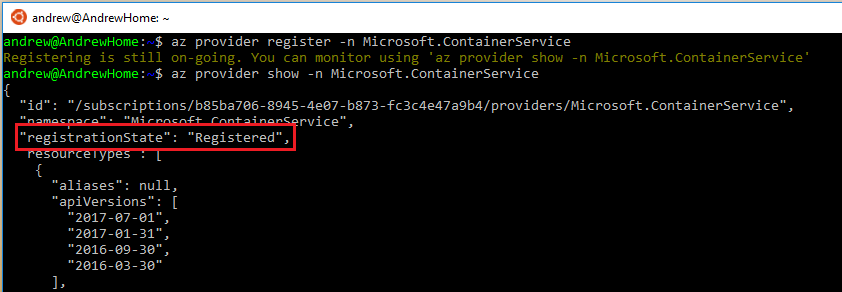
You can check that the flag has been successfully enabled by running: –

az provider show -n Microsoft.ContainerService

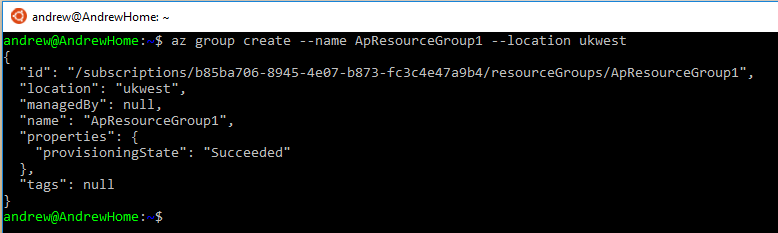
Cool. Now we’re good to go with setting up a Kubernetes cluster! Same as the original ACS, a resource group needs to be created to hold all the objects in the cloud: –

az group create --name ApResourceGroup1 --location ukwest

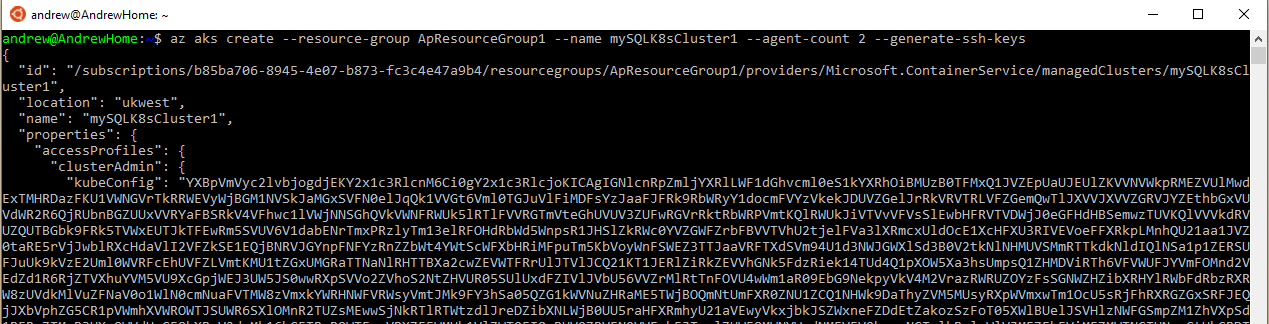
And now the cluster can be created. I’m going to create a two node cluster by running: –

az aks create --resource-group ApResourceGroup1 --name mySQLK8sCluster1 --node-count 2 --generate-ssh-keys


EDIT: updated agent-code to node-count has this switch seems to have changed since I wrote this post

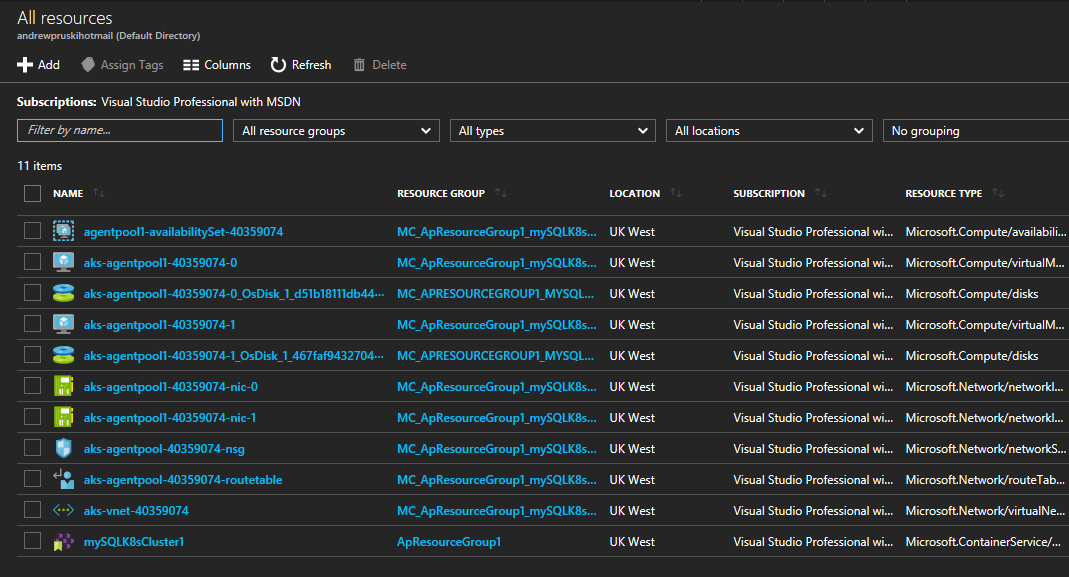
What’s cool about this is the amount of objects it’s creating in the background: –

All that from one line of code!

Once that’s complete, Kubectl needs to be installed locally to manage the cluster: –

az aks install-cli

And then I need to connect my local shell to the cluster: –

az aks get-credentials --resource-group ApResourceGroup1 --name mySQLK8sCluster1

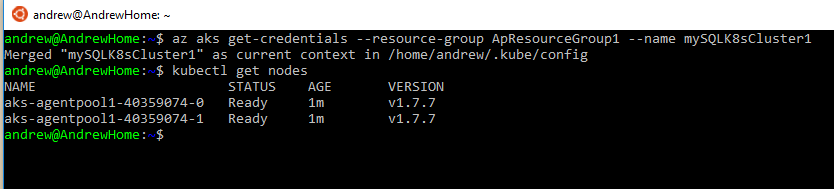
Ok, let’s check the nodes in the cluster: –

kubectl get nodes

Awesome, I have two nodes up and running in my cluster!

Next thing to do is spin up SQL Server in a container within the cluster. To do this I’m going to build it from a yaml file: –

nano sqlserver.yml

And drop the following into it: –

apiVersion: apps/v1beta1
kind: Deployment
metadata:
  name: sqlserver
  labels:
    app: sqlserver
spec:
  replicas: 1
  template:
    metadata:
      labels:
        name: sqlserver
    spec:
      containers:
      - name: sqlserver1
        image: microsoft/mssql-server-linux:latest
        ports:
        - containerPort: 1433
        env:
        - name: SA_PASSWORD
          value: "Testing1122"
        - name: ACCEPT_EULA
          value: "Y"
---
apiVersion: v1
kind: Service
metadata:
  name: sqlserver-service
spec:
  ports:
  - name: sqlserver
    port: 1433
    targetPort: 1433
  selector:
    name: sqlserver
  type: LoadBalancer

This will spin up a container within the cluster (as a deployment) and create a load balanced service with an external IP so that I can connect to SQL Server from my desktop. So now run: –

kubectl create -f sqlserver.yml

Once that’s complete we can run some commands to view the objects created. To check the SQL Server container created: –

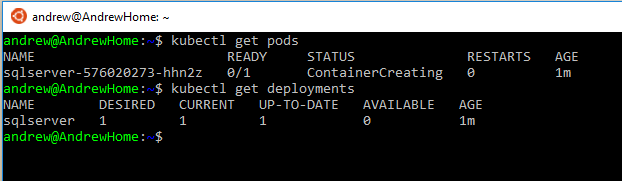
kubectl get pods

To check on the deployment:-

kubectl get deployments

And finally, to check on the service: –

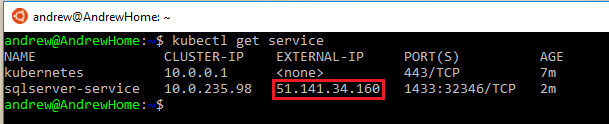
kubectl get service

Once the service has an external IP, I can use that to connect to SQL Server within my Kubernetes cluster in AKS!

How awesome is that! Microsoft have made this a nice and simple way of getting into running Kubernetes in Azure. I’m going to play around with this some more 🙂

Last thing, to remove all the objects built in this demo you just need to run: –

az group delete --name ApResourceGroup1

Thanks for reading!

Blogging for four years!

I find it absolutely amazing that I’ve been writing this blog for four years. My first ever post My 5 pieces of advice for new DBAs was published way back in November 2013.

I started out writing one post per month, just on areas that I was working on or topics that I found interesting. Over the last year I ramped that up to one technical post a week, one editorial, and on Fridays a post linking to articles I’d been reading. The difference that’s made has been phenomenal!


(hits on my blog by year)

Ok, obviously just publishing more posts a week wouldn’t cause that increase in hits. 2017 has been a really exciting year for me as I found a topic that I really enjoy writing about and have started regularly presenting session about it (give you three guesses what that topic is 🙂 )

I’m really proud of what I’ve accomplished this year and 2018 looks to be even more exciting. I’m working on a couple of new sessions and there’s a load of great events coming up.

It still blows my mind that when I started out presenting it was just to see if I could do it (just like starting this blog was) and now I’m working on different presenting techniques to deliver the best session that I can.

Hope you all had an amazing 2017, bring 2018 on!

Thank you for reading!