I’ve been playing around with SQL containers on Windows Sever 2016 a lot recently and well, building empty SQL containers is all fine and dandy but it’s kinda missing the point. What containerization allows you to do is build custom images that are designed for your environment, say with a bunch of databases ready to go (for QA, dev, testing etc.) from which containers can be built in a very short amount of time.
So if you need a new SQL instance spun up for testing? Having a pre-built custom image ready will allow you to do that very rapidly and the simplest way to build a custom image is from a dockerfile.
So let’s go through the process.
This post assumes that you have the docker engine already installed on Windows Server 2016. If you haven’t set that up you can following the instructions on how to do it here.
I’m also going to be running all my powershell commands in a remote session, if you don’t know how to set that up the instructions are here.
First thing to do is verify that your docker engine is running:-
docker version
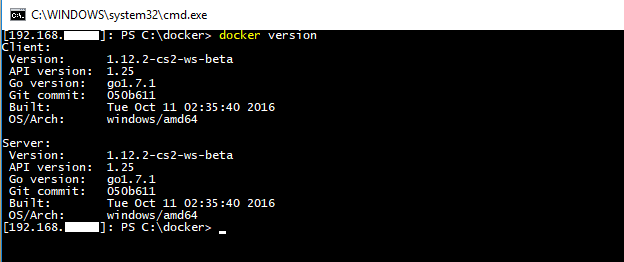
And that you have a vanilla SQL Server image available:-
docker images
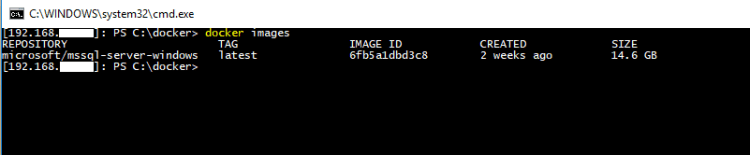
If you don’t you can follow the instructions here to pull an image from the docker repository here.
Now create a directory on your server to hold your dockerfile and database files. I’m going to create C:\Docker\Demo
mkdir c:\docker\demo
Ok, your server is all good to go. What I’m going to do now is:-
- jump onto my local instance of SQL 2016
- create a few databases
- shutdown my instance of SQL
- copy the database files to my server
- create a dockerfile to build an SQL container image with those databases available
- build a new SQL container
Ok, so in my instance of SQL I’m going to run:-
USE [master]
GO

CREATE DATABASE [DatabaseA] ON PRIMARY
(	NAME		= N'DatabaseA'
	,FILENAME	= N'C:\SQLServer\SQLData\DatabaseA.mdf'
	,SIZE		= 8192 KB
	,MAXSIZE	= UNLIMITED
	,FILEGROWTH = 65536 KB)
LOG ON
(	NAME		= N'DatabaseA_log'
	,FILENAME	= N'C:\SQLServer\SQLLog\DatabaseA_log.ldf'
	,SIZE		= 8192 KB
	,MAXSIZE	= 2048 GB
	,FILEGROWTH = 65536 KB)
GO

CREATE DATABASE [DatabaseB] ON PRIMARY
(	NAME		= N'DatabaseB'
	,FILENAME	= N'C:\SQLServer\SQLData\DatabaseB.mdf'
	,SIZE		= 8192 KB
	,MAXSIZE	= UNLIMITED
	,FILEGROWTH = 65536 KB) ,
(	NAME		= N'DatabaseB_Data'
	,FILENAME	= N'C:\SQLServer\SQLData\DatabaseB_Data.ndf'
	,SIZE		= 8192 KB
	,MAXSIZE	= UNLIMITED
	,FILEGROWTH = 65536 KB)
LOG ON
(	NAME		= N'DatabaseB_log'
	,FILENAME	= N'C:\SQLServer\SQLLog\DatabaseB_log.ldf'
	,SIZE		= 8192 KB
	,MAXSIZE	= 2048 GB
	,FILEGROWTH = 65536 KB)
GO

CREATE DATABASE [DatabaseC] ON PRIMARY
(	NAME		= N'DatabaseC'
	,FILENAME	= N'C:\SQLServer\SQLData\DatabaseC.mdf'
	,SIZE		= 8192 KB
	,MAXSIZE	= UNLIMITED
	,FILEGROWTH = 65536 KB)
LOG ON
(	NAME		= N'DatabaseC_log'
	,FILENAME	= N'C:\SQLServer\SQLLog\DatabaseC_log.ldf'
	,SIZE		= 8192 KB
	,MAXSIZE	= 2048 GB
	,FILEGROWTH = 65536 KB)
GO
Really simple code just to create three databases, one (DatabaseB) has an extra data file as I want to show how to add databases with multiple data files to a SQL container via a docker file.
Once the databases are created, shutdown the instance either through the SQL config manager or run:-
SHUTDOWN WITH NOWAIT
N.B.- This is my local dev instance! Do not run this on anything other than your own dev instance!
Next thing to do is create our dockerfile. Open up your favourite text editor (mine is Notepad++, I’ve tried others but it simply is the best imho) and drop in:-
# using vNext image
FROM microsoft/mssql-server-windows

# create directory within SQL container for database files
RUN powershell -Command (mkdir C:\\SQLServer)

#copy the database files from host to container
COPY DatabaseA.mdf C:\\SQLServer
COPY DatabaseA_log.ldf C:\\SQLServer

COPY DatabaseB.mdf C:\\SQLServer
COPY DatabaseB_Data.ndf C:\\SQLServer
COPY DatabaseB_log.ldf C:\\SQLServer

COPY DatabaseC.mdf C:\\SQLServer
COPY DatabaseC_log.ldf C:\\SQLServer

# set environment variables
ENV sa_password=Testing11@@

ENV ACCEPT_EULA=Y

ENV attach_dbs="[{'dbName':'DatabaseA','dbFiles':['C:\\SQLServer\\DatabaseA.mdf','C:\\SQLServer\\DatabaseA_log.ldf']},{'dbName':'DatabaseB','dbFiles':['C:\\SQLServer\\DatabaseB.mdf','C:\\SQLServer\\DatabaseB_Data.ndf','C:\\SQLServer\\DatabaseB_log.ldf']},{'dbName':'DatabaseC','dbFiles':['C:\\SQLServer\\DatabaseC.mdf','C:\\SQLServer\\DatabaseC_log.ldf']}]"
What this file is going to do is create a container based on the lines of code in the file and then save it as a new custom image (the intermediate container is deleted at the end of the process). Let’s go through it line by line…
FROM microsoft/mssql-server-windows
This is saying to base our image on the original image that we pulled from the docker hub.
RUN powershell -Command (mkdir C:\\SQLServer)
Within the container create a directory to store the database files
COPY DatabaseA.mdf C:\\SQLServer…
Each one of these lines copies the database files into the container
ENV sa_password=Testing11@@
Set the SQL instance’s SA password
ENV ACCEPT_EULA=Y
Accept the SQL Server licence agreement (your container won’t run without this)
ENV attach_dbs=”[{‘dbName’:’DatabaseA’,’dbFiles’:[‘C:\\SQLServer\\DatabaseA.mdf’…
And finally, attach each database to the SQL instance
Name the file dockerfile (no extension), then copy it and the database files to your server into the directory created earlier.
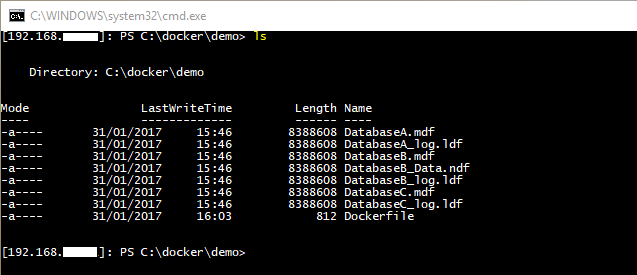
Now we can build our custom image. So in your powershell command window, navigate to the directory with the dockerfile in and run:-
docker build -t demo .
This will build a custom docker image running SQL with our databases. The -t flag will tag the image as demo and don’t forget to include the . as this tells the docker engine to look for a file in the directory called dockerfile.
Once that’s complete, verify the image has been created:-
docker images

Awesome stuff! We have our custom image. So let’s create a container from it:-
docker run -d -p 15788:1433 --name democontainer demo
This will create and run a new container based off our image with the host server’s port 15788 mapped to the port 1433 within the container. Once that’s complete, verify that the container is running:-
docker ps

Haha! Cool! Also, how quick was that??
We have our container up and running. Let’s connect to it remotely via SSMS and check that the databases are there. So use the host server’s IP address and the custom port that we specified when creating the container:-
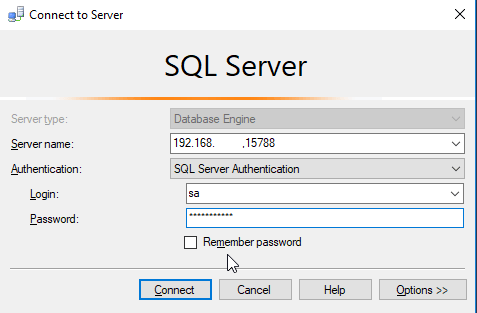
And then have a look in object explorer:-
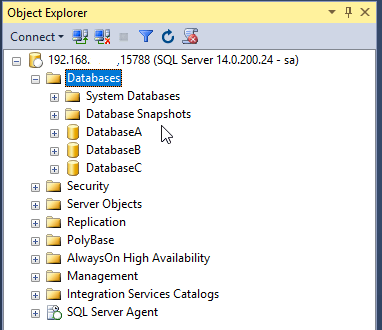
And there you have it. One newly built SQL container from a custom image running our databases.
Imagine being able to spin up new instances of SQL with a full set of databases ready to go in minutes. This is main advantage that container technology gives you, no more waiting to install SQL and then restore databases. Your dev or QA person can simply run one script and off they go.
I really think this could be of significant benefit to many companies and we’re only just starting to explore what this can offer.
Thanks for reading!


 DBA From The Cold