4

Remotely Administering the Docker Engine on Windows Server 2016

Continuing on my series in working with Docker on Windows, I noticed that I always open up a remote powershell window when working with Docker on servers. Nothing wrong with this, if you want to know how to do that you can follow my instructions here.

However what if we want to connect to the Docker engine remotely? There’s got to be a way to do that right?

Well it’s not quite so straightforward, but there is a way to do it involving a custom image downloaded from the Docker Hub (built by Stefan Scherer [g|t]) whichs creates TLS certs to allow remote connections.

EDIT – I should point out that this is a method of administering a remote docker engine securely. You can expose a docker tcp endpoint and connect without using TLS certificates but given that docker has no built-in security, I’m not going to show you how to do that 🙂

Anyway, let’s go through the steps.

Open up a admin powershell session on your server and navigate to the root of the C: drive.

First we’ll create a folder to download the necessary certificates to: –

cd C:\
mkdir docker

Now we’re going to follow some of the steps outlined by Stefan Scherer here

So first, we need to create a couple more directories: –

cd C:\docker
mkdir server\certs.d
mkdir server\config
mkdir client\.docker

And now we’re going to download a image from Stephan’s docker hub to create the required TLS certificates on our server and drop them in the folders we just created (replace the second IP address with the IP address of your server): –

docker run --rm `
  -e SERVER_NAME=$(hostname) `
  -e IP_ADDRESSES=127.0.0.1,192.168.XX.XX `
  -v "$(pwd)\server:c:\programdata\docker" `
  -v "$(pwd)\client\.docker:c:\users\containeradministrator\.docker" stefanscherer/dockertls-windows
dir server\certs.d
dir server\config
dir client\.docker

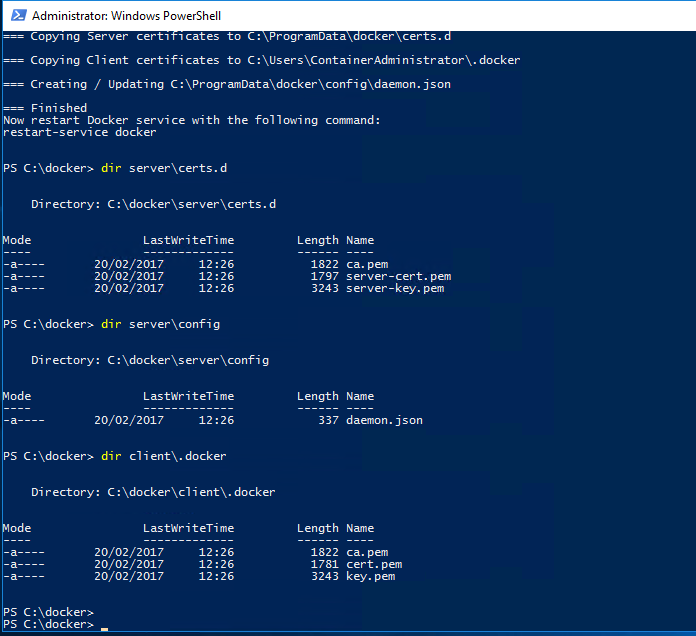
dockercerts

Once complete you’ll see: –

image

Now we need to copy the created certs (and the daemon.json file) to the following locations: –

mkdir C:\ProgramData\docker\certs.d
copy-item C:\docker\server\certs.d\ca.pem C:\ProgramData\docker\certs.d
copy-item C:\docker\server\certs.d\server-cert.pem C:\ProgramData\docker\certs.d
copy-item C:\docker\server\certs.d\server-key.pem C:\ProgramData\docker\certs.d
copy-item C:\docker\server\config\daemon.json C:\ProgramData\docker\config

Also open up the daemon.json file and make sure it looks like this: –

{
    "hosts":  [
                  "tcp://0.0.0.0:2375",
                  "npipe://"
              ],
    "tlscert":  "C:\\ProgramData\\docker\\certs.d\\server-cert.pem",
    "tlskey":  "C:\\ProgramData\\docker\\certs.d\\server-key.pem",
    "tlscacert":  "C:\\ProgramData\\docker\\certs.d\\ca.pem",
    "tlsverify":  true
}

Now restart the docker engine: –

restart-service docker

N.B. – If you get an error, have a look in the application event log. The error messages generated are pretty good in letting you know what’s gone wrong (for a freaking change…amiright??)

Next we need to copy the docker certs to our local machine so that we can reference them when trying to connect to the docker engine remotely

So copy all the certs from C:\ProgramData\docker\certs.d to your user location on your machine, mine is C:\Users\Andrew.Pruski\.docker

We can then connect remotely via: –

docker --tlsverify `
  --tlscacert=$env:USERPROFILE\.docker\ca.pem `
  --tlscert=$env:USERPROFILE\.docker\server-cert.pem `
  --tlskey=$env:USERPROFILE\.docker\server-key.pem `
  -H=tcp://192.168.XX.XX:2375 version
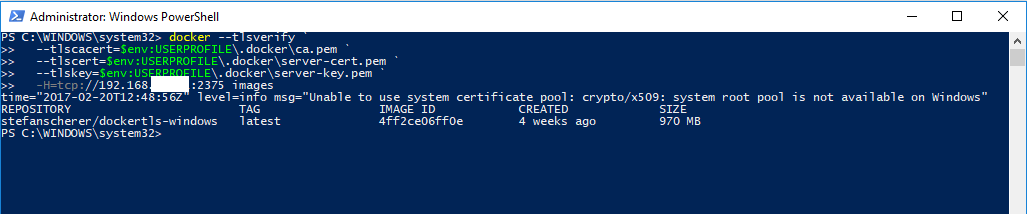
dockerremoteconnect

Remember that you’ll need to open up port 2375 on the server’s firewall and you’ll need the Docker client on your local machine (if not already installed). Also Microsoft’s article advises that the following warning is benign: –

level=info msg=”Unable to use system certificate pool: crypto/x509: system root pool is not available on Windows”

Whatever that means. Maybe I’ll just stick to the remote powershell sessions 🙂

Thanks for reading!

0

Monday Coffee 2017-02-20

No rugby on last weekend so I didn’t have anything to distract me from working. On another note, my flat has never been cleaner!

So last week Microsoft announced Availability Groups for SQL Server on Linux.

This is a big announcement as one of the first things I noticed when playing around with a SQL instance on Linux was the lack of high availability features. (I wrote a post on manually setting up transaction log shopping here).

Microsoft hasn’t released a stripped down version of Availability Groups either. They’ve said in the post that:-

all capabilities that make Availability Groups a flexible, integrated and efficient HADR solution are available on Linux as well

So are we looking at SQL on Linux moving towards an edition that will rival its windows counterpart in features and usability? I think that’s what Microsoft’s end goal will be, a platform independent relation database system.

That for us as SQL Server DBAs mean interesting times ahead. In the future not only will we be looking at the usual options when building our SQL Server instances, we’ll be looking at the pros and cons of the supporting operating system and then making our decisions. Could lead to some interesting design room discussions.

I’ve said before that I think this is great. It’s opening up a whole new world to me as a DBA, I love learning new areas of technology so I can’t wait to get my hands on this and start playing around.

Have a good week!

0

Friday Reading 2017-02-17

Is it me or is February dragging? Anyway, mixed in with this crazy week I’ve been reading: –

SQL Server vs SQL Server vNext
Henrico Bekker runs through a performance comparison of SQL Server against SQL Server on Linux

What Are FeFETs?
Article about a new memory type (FeFETs) that Startup FMC is developing

SQL Server in a Azure VM – What’s new
Channel 9 video in which Luis Vargas goes through what’s new for SQL Server in Azure

New Flagship Xeon E5 and E7 Processors
Glen Berry looks at the new Xeon processors

Altering a Job Step on Hundreds of SQL Servers with PowerShell
Rob Sewell details how he was able to make an alteration to hundreds of backup jobs in 5 mins (in an airport no less)

Have a good weekend!

2

Viewing container logs

I’ve been going over some demos for a presentation that I’ll be giving this year and I thought I’d write this quick post about something that keeps catching me out…


…but first, a bit of shameless self promotion. I’ll be giving my session on an Introduction to SQL Server & Containers at the following events this year:-

SQL Saturday Iceland on the 18th of March
SQLBits on the 8th of April
SQL Saturday Dublin on the 17th of June

Really looking forward to all three events, containers are a technology that I’ve become quite a fan of and I’m looking forward to sharing what I’ve learnt. So if you’re about at these events come and give my session a visit! 🙂


Anyway as I was running through my demos and building containers I was running the following code: –

docker run -d -p 15999:1433 --name testcontainer microsoft/mssql-server-windows

run-container

All looks good, apart from when I go to check to see if the container is running: –

view-container

I have to run the docker ps command with the -a flag (to show all containers, the default is to only show running containers). Which means my container isn’t running, something’s gone wrong.

So to see what’s happening I can run the docker logs command to see what’s up: –

container-accept-eula

ARGH! I forgot to specify -e ACCEPT_EULA=Y when building the container! This has caught me out more times than I care to admit but it’s cool that there’s a simple command that I can run in order to see what the issue is.

Or I could just build a custom image from a dockerfile and specify -e ACCEPT_EULA=Y in that and not have to worry anymore. I’ve detailed how to do that here.

Thanks for reading!

0

Monday Coffee 2017-02-13

Man, if there was an award for procrastinating I’d definitely be in with a shout for today (I write these posts on the weekend).

So I’m half writing this sitting on my balcony with a beer, one eye on the Italy v Ireland Six Nations game and trying not to think about all the work I should be doing.

Anyway one thing I’ve been thinking about is documentation. Nobody likes doing it but oh boy did it help me out last week.

We had one of our production servers fail during a RAM upgrade. No biggie as it was a passive node in a cluster but whilst we were writing up our steps to rebuild one of my colleagues forwarded a wiki page detailing the server’s configuration. Awesome stuff, we had a complete list of what we needed to do, the thing that made me laugh was that it was written….by me.

I honestly don’t remember writing that document and yes, it was slightly out of date but it had steps on it which we would have completely forgotten to do if we didn’t have it.

So yes, writing documentation sucks but it’s one of those chores that can really help you out.

So don’t put it off, get that code/server spec/process documented. You’ll thank yourself in the end.

Have a good week.