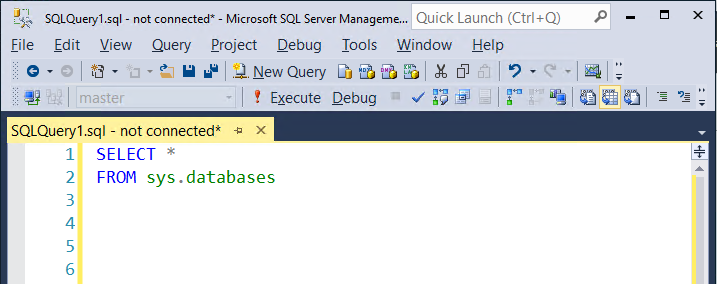
Query Store functionality in earlier versions of SQL Server

One of the best features introduced in SQL Server 2016 was the Query Store. Having the ability to see which queries had regressed (gotten bad plans) over a period of time was pretty much a game changer imho. But many of us are still labouring away on earlier versions of SQL Server so we don’t get to work with this great new feature.

Until now, with the release of OpenQueryStore

If you haven’t heard of OpenQueryStore, it’s an open source project designed to, you guessed it, bring Query Store functionality to earlier versions of SQL Server (2008 to 2014).

When I heard about this project I immediately went onto the GitHub site, downloaded the repository and read through the installation instructions. I’ve been playing around with it for a while and this week was given a preview of the v2.0 release (which has now been released).

v2.0 provides two different install options for OpenQueryStore, Classic or Centralized.

Classic behaves in a similar fashion to Query Store in 2016 by monitoring an individual database whereas Centralized is installed in one “management” database and you specify which databases in the SQL instance you wish to monitor.

I went for Centralized mode and installation is a cinch, just download the repo and then run the Install.ps1 script: –

.\Install.ps1 -SqlInstance "SQL2012" -Database "DBA" -OQSMode "Centralized" -SchedulerType "SQL Agent"

After the script has run, the installer gives advice on what to do next: –

So I needed to INSERT a row into oqs.[monitored_databases] for each database I wanted to monitor, setup a schedule for the SQL Agent job (I set the job to run every minute), then run the UPDATE against oqs.[collection_metadata] and OpenQueyStore will begin collecting data.


A word of caution here. I used the SQL Agent data collection method. There is another option to run using Service Broker but if you do this the install script will run: –

ALTER DATABASE [<your db>] SET ENABLE_BROKER;

This requires an exclusive lock on the database so watch out!


After a while you’ll be able to run the reports that come with the download to get an overview of your system. This is the main dashboard: –

OpenQueryStore Main Dashboard

Here’s the Wait Stats report: –

OpenQueryStore Wait Statistics

These reports are great for a quick overview of the database monitored. Nicely laid out and with a quick glance I can see if there are any immediate causes for concern.

However, the real benefit of OpenQueryStore is in the data collected. The installation creates the following objects within the database: –

  • [oqs].[activity_log]
  • [oqs].[collection_metadata]
  • [oqs].[intervals]
  • [oqs].[monitored_databases]
  • [oqs].[plan_dbid]
  • [oqs].[plans]
  • [oqs].[queries]
  • [oqs].[query_runtime_stats]
  • [oqs].[wait_stats]

So there’s an absolute wealth of data to dig through! The reports provide query IDs so I can drop one into say: –

DECLARE @queryID SMALLINT;

SELECT TOP 1
    rs.[query_id]
    ,rs.[interval_id]
    ,rs.[last_execution_time]
    ,rs.[execution_count]
    ,rs.[avg_rows]
    ,rs.[last_logical_reads]
    ,rs.[avg_logical_reads]
    ,rs.[last_logical_writes]
    ,rs.[avg_logical_writes]
    ,q.[query_statement_text]
    ,p.[plan_handle]
FROM [oqs].[query_runtime_stats] rs
INNER JOIN [oqs].[Queries] q ON rs.[query_id] = q.[query_id]
INNER JOIN [oqs].[Plans] p ON q.[plan_id] = p.[plan_id]
WHERE rs.[query_id] = @queryID
ORDER BY rs.[interval_id] DESC;
GO

And then view all the execution stats of this query. Pretty cool, eh?

If you’re working with SQL Server versions 2008 to 2014 I’d highly recommend that you install this on a development box and start investigating the data that it’s collecting. As with any new system, set it up and monitor to see what it’s doing but I haven’t seen anything untoward.

The project is in (very) active development so keep an eye on the twitter account for more updates.

Thanks for reading!

Presenting with SQL Server Management Studio

Short one this week as it’s the usual madness on the lead up to Xmas!

One of the cool things that was mentioned in the AMA that the SQL Server Team did back in November was a quick and easy way to setup SSMS for presenting.

N.B. – This only works with v17.0 which can be grabbed in the usual place.

Load up SSMS and hit Ctrl + Q to take you to the quick launch bar. Then type PresentON and that’s it! You’re setup for using SSMS whilst presenting!

So here’s a screen shot of SSMS with a simple query in it:-

presenting1

And this is the same query after running PresentON:-

presenting2

To reverse the process, simply type PresentOFF into the quick launch bar!

From what I can see, the main difference is that the text size has been taken up to 14 from 10, which may not be enough but it’s a start. Be pretty cool if, in a future version, you could customise this!

Of course, if you don’t have v17.0 (and I must admit, the part about it not being recommended for production use is a bit worrying) you can always follow Paul Randal’s guide on how manually setup SSMS for presenting and then save it as a template.

Drag & Drop Table & Column Names in SSMS

I was working with a developer the other day and he was typing out each table name and all the column names he needed when working in Management Studio. He didn’t know that you can drag a table or column from object explorer into the query window and thinking about it, I didn’t know for ages when I first started with SQL.

It seems obvious but if you haven’t seen it before then how would you know that you could do that? Maybe you’d work it out but I thought I’d write this quick post to show anyone out there who wasn’t aware of this. What’s also really cool is that you can drag the columns folder from object explorer into the query window and it’ll drop all the columns from the table. So much better than typing out all the column names (even with intellisense) or using SELECT *

gif4

Query shortcuts in SQL Server Management Studio

Tired of typing out the same queries day after day? Well query shortcuts in SSMS are for you!

Following on from my last post Changing connection colours in SSMS I thought I’d write another quick about this cool but also often unused feature in SSMS.

These shortcuts allow you to run pre-determined queries by assigning a hot key within SSMS. To do this in SSMS go to Tools > Options > Environment > Keyboard

queryshortcuts2

From there you can set the query to the hot key you want to use. Nice and easy!

In nearly all of the instances of SQL Server that I look after, I’ve installed Adam Machanic’s excellent sp_whoisactive. By adding the above shortcut into SSMS I can run it quickly and easily in any instance that I’ve connected to. It’s really handy and I’d definitely recommend you install it and set a query shortcut up for it.

Thanks for reading!

Changing connection colours in SQL Server Management Studio

A simple but effective setting in SQL Server Management Studio is using custom colours to identify which server you are about to execute a query on. It’s simple to setup but not everyone who uses SSMS is aware of it so I thought I’d quickly run through the steps here.

Open up SSMS, go to View > Registered Servers

regservers

So I’ve got different groups for Staging, Production, Corporate etc. If you haven’t got these setup it’s pretty easy. Right click on Local Server Groups and pick New Server Group. Enter in a group new and hit OK. Then right click on your new group and select New Server Registration:-

newregserver

Fill out the details and then hit the top tab Connection Properties:-

connectionproperties

The custom colour option will allow you to set whatever colour you want when you use that registered server to open a T-SQL window. Typically I use red for production, orange for staging, blue for development and, green for my local instances.

It’s a simple enough setting but it’s stopped my from making god knows how many mistakes!