BUILTIN\Administrators in SQL Server on Linux

When I first started working with SQL on Linux one of the first things I did was to remove the default the [BUILTIN\Administrators] login. This is pretty much standard practice with SQL on Windows as we don’t want administrators on the server to have automatic sysadmin rights into the SQL instance.

But this login makes no sense on Linux as there is no administrators group, so it should be dropped…right?

However, there’s a catch. In the Frequently Asked Questions about SQL Server on Linux here: –

Dropping Builtin\administrators for SQL Server on Linux breaks execution of some of the system stored procedures. We suggest to not remove or drop the Builtin\administrator account from SQL Server on Linux/containers.

One of these stored procedures is sp_readerrorlog. Let’s see what happens.

I’m connected into my SQL on Linux instance in SSMS and am going to drop the login: –

DROP LOGIN [BUILTIN\Administrators];

And now try to read the error log: –

EXEC sp_readerrorlog;

And we get the following error: –

Argh! OK, let’s try to recreate: –

CREATE LOGIN [BUILTIN\Administrators] FROM WINDOWS;

And we get another error: –

That’s pretty much expected but, how can we fix this?

To get the login back, we need to rebuild the system databases. Not ideal I know!

So stop the SQL instance: –

sudo systemctl stop mssql-server

Rebuild the system databases: –

sudo -u mssql /opt/mssql/bin/sqlservr --force-setup

Control+C once the setup has completed and restart the SQL instance: –

sudo systemctl start mssql-server

However, if we now try connecting to the SQL instance: –

Bah, we need to set the SA password again! Stop the instance: –

sudo systemctl stop mssql-server

Set the SA password: –

sudo /opt/mssql/bin/mssql-conf set-sa-password

Btw, if you see an error saying that the SA password was unable to be set, try logging in anyway as sometimes the errors lie! 🙂


EDIT – 2023-12-18 – The false error message is documented here: –
https://learn.microsoft.com/en-us/sql/linux/sql-server-linux-release-notes-2022

Thanks Randolph!


Now start the SQL instance again: –

sudo systemctl start mssql-server

And now you should be able to log in and see that the [BUILTIN\Administrators] login is back: –

You will now also be able to run sp_readerrorlog. The sysadmin rights can be removed from that login and sp_readerrorlog will continue to run, so that’s at least one thing that can be restricted.

Something to watch out for when working with SQL on Linux.

Thanks for reading!

Creating a user for a STONITH resource in vSphere

I previously blogged about how to create a STONITH resource for a pacemaker cluster in VMWare virtual machines.

Ok, I have a confession…you need to specify credentials when creating the resource to connect to vSphere, and the credentials I used had admin rights.

Not great…I shouldn’t have done that (yes yes, it’s a lab but still).

So, how can we create a user in vSphere that only has the required permissions that the STONITH resource needs (it needs to be able to power on/off the machines in the pacemaker cluster).

First thing to do is create a user in vSphere: –

Then we create a role that only has permissions to power on/off machines: –

Then we assign that role and user to the VMs in the cluster. Go to the virtual machine > permissions > add > select the user and the role we just created.

Now we can test!

sudo crm node fence <<SERVERNAME>>

We should now see the server reboot in vSphere…all is working!

To make sure that the user can only reboot the machines in the cluster, remove the user from one machine in the cluster and try the test again.

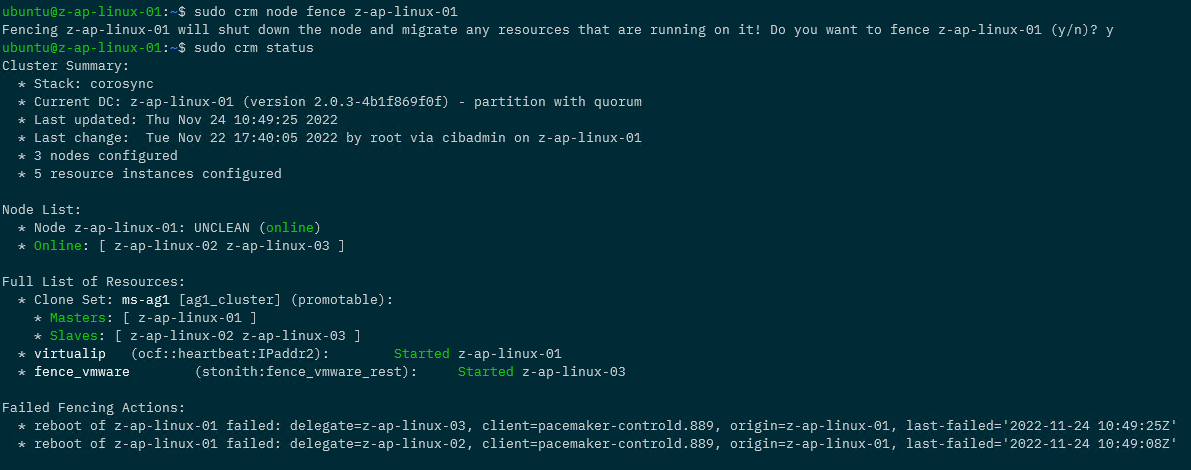
The machine should not reboot in vSphere and we should see a failed fencing action in the cluster: –

N.B. – in order to remove the failed notification run: –

stonith_admin --cleanup --history=<<SERVERNAME>>

Including that as trying to work that out drove me mad! 🙂

OK, so that’s how to configure a user for a STONITH resource so we don’t have to use admin credentials.

Thanks for reading!

Creating a STONITH resource for a pacemaker cluster on VMWare virtual machines

A while back I wrote a post about creating a pacemaker cluster to run SQL Server availability group using the new Ubuntu images in Azure.

Recently I had to create another pacemaker cluster, this time on-premises using VMWare virtual machines. The steps to create the pacemaker cluster and deploy an availability group where pretty much the same as in my original post (minus any Azure marlarkey) but one step was different, creating the STONITH resource.

A STONITH resource is needed in a pacemaker cluster as this is what prevents the dreaded split brain scenario…two nodes thinking that they’re the primary node. If the resource detects a failed node in the cluster it’ll restart that node, hopefully allowing it to come up in the correct state.

There are different types of STONITH resources, in my original post I used a fence_azure_arm type, not available to me for my on-premises cluster.

So which type do you use and how do you configure it?

N.B. – This was a three node cluster running Ubuntu 20.04 and I configured it using crmsh

In order to list which types are available, run:-

crm ra list stonith

There are a few ones related to VMWare, I ended up going with the fence_vmware_rest type.

To test the resource before deploying: –

fence_vmware_rest -a <VSPHERE IP ADDRESS> -l <LOGIN> -p <PASSWORD> --ssl-insecure -z -o list | egrep "(<NODE1>|<NODE2>|<NODE3>)"
fence_vmware_rest -a <VSPHERE IP ADDRESS> -l <LOGIN> -p <PASSWORD> --ssl-insecure -z -o status -n <NODE1>

Now we can create the resource: –

sudo crm configure primitive fence_vmware stonith:fence_vmware_rest \
params \
ipaddr="<VSPHERE IP ADDRESS>" \
action=reboot \
login="<LOGIN>" \
passwd="<PASSWORD>" \
ssl=1 ssl_insecure=1 \
pcmk_reboot_timeout=900 \
power_timeout=60 \
op monitor \
interval=3600 \
timeout=120

There are a whole load of properties that can be set, to check them out run: –

crm ra info stonith:fence_vmware_rest

We can also configure additional properties: –

sudo crm configure property cluster-recheck-interval=2min
sudo crm configure property start-failure-is-fatal=true
sudo crm configure property stonith-timeout=900

A good explanation of these properties can be found here.

Now enable the STONITH resource: –

sudo crm configure property stonith-enabled=true

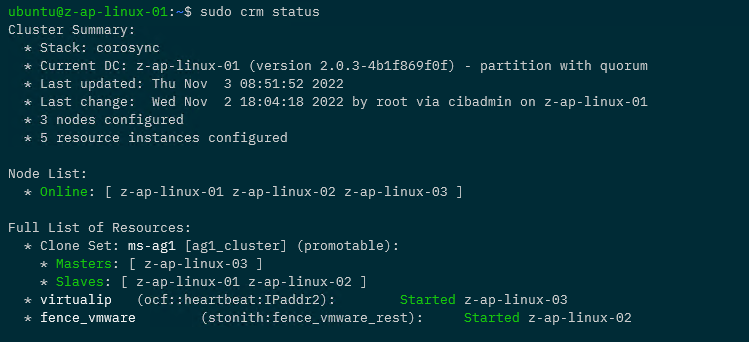
Now that the resource has been created and enabled, confirm the cluster status: –

sudo crm status

Awesome, we have our STONITH resource up and running in the cluster!

If you want to test the resource, this will fence a node: –

sudo crm node fence <NODE>

So that’s how to deploy a STONITH resource for a pacemaker cluster on VMWare virtual machines. If you want to see the whole process of creating the cluster, the code is available here.

One word of caution, there are a lot of STONITH and cluster properties that can be set…please remember to test your configuration fully before deploying to production!

Thanks for reading!

Running SQL Server in Windows Subsystem for Linux (WSL)

I previously wrote a post on how to convert a SQL Server Docker image to a Windows Subsystem for Linux distribution.

I did this because if you tried to run SQL Server in WSL before now, you’ll be presented with this error: –

This happens because up until now, WSL did not support systemd. However recently Microsoft announced systemd support for WSL here: –
https://devblogs.microsoft.com/commandline/systemd-support-is-now-available-in-wsl/

This is pretty cool and gives us another option for running SQL Server locally on linux (great for testing and getting to grips with the Linux platform).

So how can we get this up and running?


Before going any further, the minimum version required for to get this running is OS version 10.0.22000.0 (a recent version of Windows 11).

I tried getting this to work on Windows 10, but no joy I’m afraid

UPDATE – 2022-11-23 – Microsoft have now made this available on Windows 10 (but I have not tested it I’m afraid) – the announcement is here: –
https://devblogs.microsoft.com/commandline/the-windows-subsystem-for-linux-in-the-microsoft-store-is-now-generally-available-on-windows-10-and-11/


First thing to do is get WSL up to the version that supports systemd. It’s only currently available through the store to Windows Insiders but you can download the installer from here: –
https://github.com/microsoft/WSL/releases

Run the installer once downloaded and then confirm the version of WSL: –

Now install a distro to run SQL Server on from the Microsoft Store: –

N.B. – I’m using Ubuntu 20.04.5 for this…I did try with Ubuntu 22.04 but couldn’t get it to work.

Once installed and log into WSL…update and upgrade: –

sudo apt update
sudo apt upgrade

Cool, ok now we are going to enable systemd in WSL. Create a /etc/wsl.conf file and drop in the following: –

[boot]
systemd=true

Exit out of WSL and then run: –

wsl --shutdown

Jump straight back into WSL and run the following to confirm systemd is running: –

systemctl list-unit-files --type=service

Great stuff, now we can run through the usual SQL install process (detailed here)

Import the GPG keys: –

wget -qO- https://packages.microsoft.com/keys/microsoft.asc | sudo apt-key add -

Register the repository: –

sudo add-apt-repository "$(wget -qO- https://packages.microsoft.com/config/ubuntu/20.04/mssql-server-preview.list)"

Update and install SQL Server: –

sudo apt-get update
sudo apt-get install -y mssql-server

Once that’s complete, you’ll be able to configure SQL Server with mssql-conf: –

sudo /opt/mssql/bin/mssql-conf setup

Confirm SQL Server is running: –

We can also confirm the processes running by: –

ps aux | grep mssql

Finally, connect to SQL Server in SSMS (using 127.0.0.1 not localhost): –

And there we have it, SQL Server running in a Windows Subsystem for Linux distro!

Thanks for reading!

Installing the mssql-cli on Ubuntu 22.04

I really like the mssql-cli tool. I use it pretty much everyday however it seems like it’s not being maintained anymore and as such, there are issues when trying to install it on Ubuntu 22.04.

The issue with Ubuntu 22.04 is that it has python 3.10 installed by default which the current mssql-cli is not compatible with. I did try installing previous versions of python (3.8 and 3.9) but had no luck so kept the default version.

The steps that follow are how I worked out how to get the mssql-cli installed on an Azure Ubuntu 22.04 fresh install. This is pretty hacky tbh so should only be done on development and test servers.

Also, if you’re running Ubuntu 20.04 only the first steps are required to get the mssql-cli working (as that has python 3.8 installed by default).

First ssh to the VM: –

ssh dbafromthecold@XXXXXXXXXXXXX

Confirm the python version: –

python3 --version

In order to test the mssql-cli we’ll need to spin up a SQL container and to do that we’ll need Docker installed.

The instructions on how to install Docker on Ubuntu are here: – https://docs.docker.com/engine/install/ubuntu/

Once docker is installed, run a SQL container: –

docker container run -d \
--publish 1433:1433 \
--env ACCEPT_EULA=Y \
--env MSSQL_SA_PASSWORD=Testing1122 \
--name sqlcontainer1 \
mcr.microsoft.com/mssql/server:2019-CU15-ubuntu-18.04

Now install pip: –

sudo apt install -y python3-pip

And then install mssql-cli with pip: –

pip install mssql-cli

Add location of mssql-cli to our path: –

export PATH=$PATH:~/.local/bin

N.B. – Add this to .bashrc to make permanent

Ok, now we have the mssql-cli we can test connecting to SQL in our container: –

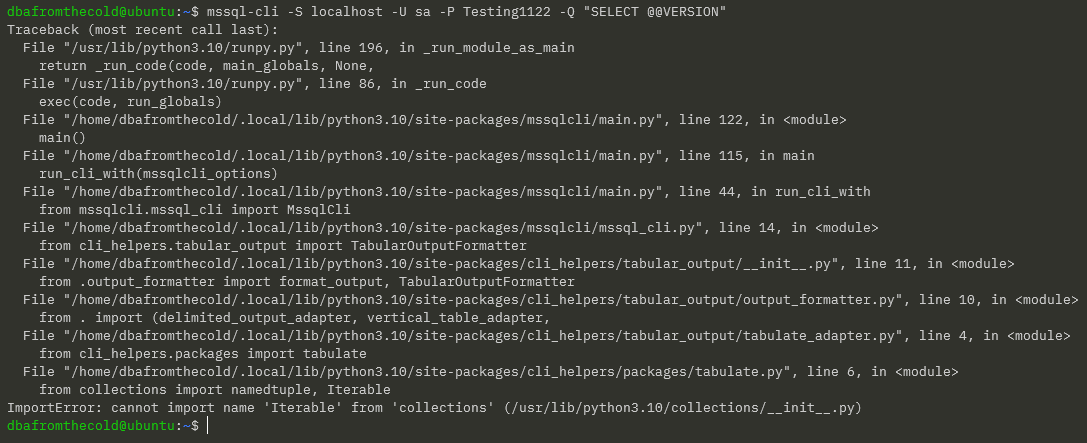
mssql-cli -S localhost -U sa -P Testing1122 -Q "SELECT @@VERSION"

Which gives us this error: –

Ok, let’s have a look at the file: –

cat ~/.local/bin/mssql-cli

The issue is that the reference to python here needs to be updated to python3: –

sed -i 's/python/python3/g' ~/.local/bin/mssql-cli

Confirm the update: –

cat ~/.local/bin/mssql-cli

Test connecting to SQL container again: –

mssql-cli -S localhost -U sa -P Testing1122 -Q "SELECT @@VERSION"

N.B. – if you’re on Ubuntu 20.04 the mssql-cli should now be working

But on Ubuntu 22.04 we get a new error. From looking at the open issues on the mssql-cli issues page on Github…we need to force upgrade the cli-helpers python module: –

pip install cli-helpers --upgrade --force

Test connecting to SQL container again: –

mssql-cli -S localhost -U sa -P Testing1122 -Q "SELECT @@VERSION"

OK new error! Progress 🙂

To resolve this we need to remove references to ownerUri on lines 22 and 93 in the connectionservice.py file: –

vim ~/.local/lib/python3.10/site-packages/mssqlcli/jsonrpc/contracts/connectionservice.py

Test connecting to SQL container again: –

mssql-cli -S localhost -U sa -P Testing1122 -Q "SELECT @@VERSION"

OK that’s pretty clear…install libssl1.0.0: –

wget http://archive.ubuntu.com/ubuntu/pool/main/o/openssl1.0/libssl1.0.0_1.0.2n-1ubuntu5_amd64.deb
sudo dpkg -i libssl1.0.0_1.0.2n-1ubuntu5_amd64.deb

Test connecting to SQL container again: –

mssql-cli -S localhost -U sa -P Testing1122 -Q "SELECT @@VERSION"

Ha, OK another new error!

To resolve this one we need to remove references to owner_uri from lines 91, 93, and 191 in the mssqlcliclient.py file: –

vim ~/.local/lib/python3.10/site-packages/mssqlcli/mssqlcliclient.py

One more test connecting to SQL in the container: –

mssql-cli -S localhost -U sa -P Testing1122 -Q "SELECT @@VERSION" to the server: -

Ha success! I’ve dropped all the commands into this gist

Thanks for reading!