In my previous post I went through how to deploy SQL Server to Kubernetes using Helm in which I used the SQL Server chart that is available in the Helm Hub.
That’s great but what if we want to create our own charts? Let’s run through creating a simple SQL Server chart and deploying to Kubernetes (AKS).
First, ensure that Tiller (the server-side component of Helm) is installed on your cluster: –
helm init

Then create a directory to deploy the new chart into: –
mkdir C:\Helm
Navigate to the new directory: –
cd C:\Helm
And now create the new chart!
helm create testsqlchart
OK, what that has done is create an empty chart so we need to drop in our yaml configuration files.
Navigate to templates directory: –
cd testsqlchart/templates
Remove the template yaml files: –
rm deployment.yaml
rm service.yaml
rm ingress.yaml
Re-create deployment.yaml: –
apiVersion: apps/v1beta1
kind: Deployment
metadata:
  name: sqlserver
spec:
  replicas: 1
  template:
    metadata:
      labels:
        name: sqlserver
    spec:
      containers:
      - name: sqlserver1
        image: mcr.microsoft.com/mssql/server:2019-CTP2.2-ubuntu
        ports:
        - containerPort: 1433
        env:
        - name: SA_PASSWORD
          value: "Testing1122"
        - name: ACCEPT_EULA
          value: "Y"
Re-create service.yaml file: –
apiVersion: v1
kind: Service
metadata:
  name: sqlserver-service
spec:
  ports:
  - name: sqlserver
    port: 1433
    targetPort: 1433
  selector:
    name: sqlserver
  type: LoadBalancer
N.B. – Be careful when doing this, I’ve found that sometimes that Helm doesn’t like the format of the files. Re-creating in VS Code seems to do the trick.
Go back one directory: –
cd C:\Helm
And now we can test a deployment with –dry-run: –
helm install --dry-run --debug ./testsqlchart
If you get the following error: –
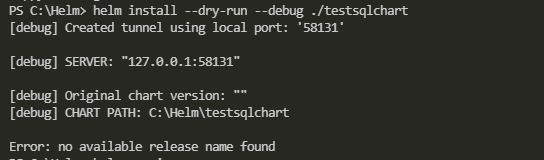
Tiller needs to be re-initialised: –
# delete current tiller deployment
kubectl delete deployment tiller-deploy --namespace kube-system

# create a service account
kubectl create serviceaccount --namespace kube-system tiller

# create clusterrolebinding
kubectl create clusterrolebinding tiller-cluster-rule --clusterrole=cluster-admin --serviceaccount=kube-system:tiller

# re-initialise tiller
helm init --service-account tiller --upgrade
Once the dry run returns no errors, you’re good to go!
helm install ./testsqlchart --name testsqlserver

To check the status: –
helm list

And you can monitor the creation of the deployment/service by running the usual kubectl commands: –
kubectl get deployments

kubectl get pods

kubectl get services
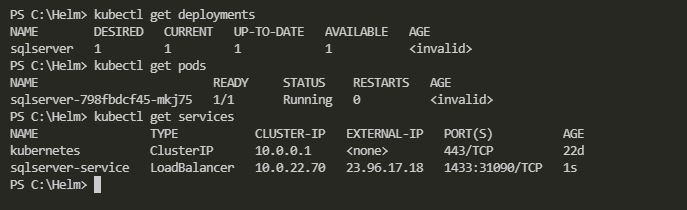
And that’s a custom SQL Server chart deployed into Kubernetes. SQL can be accessed by using the external IP of the service created.
Finally, to delete the deployed chart: –
helm delete testsqlserver
Thanks for reading!


 DBA From The Cold