Changing the port for SQL Server in Azure Kubernetes Services

I got asked this question last week and it’s a very good one. After all, running Sql Server in Azure Container Services (AKS) does mean exposing a port to the internet to allow connections.


EDIT – Azure Container Services (AKS) has been renamed to Azure Kubernetes Services. Blog title has been updated


So leaving SQL Server listening on the default port can be risky.

Now I know there’s a debate as to whether or not it is worth changing the port that SQL is listening on in order to secure it. My opinion is that it’ll prevent opportunistic attacks by port scanners but would not prevent a directed attack.

So, how do you do it when running SQL Server in Azure Container Services?

Well there’s a couple of options available.

The first one is to change the port that SQL is listening on in the container, open that port on the container, and direct to that port from the service.

The second one is to leave SQL Server listening on the default port and direct a non-default port to port 1433 from the service.

Let’s run through both.

N.B. – Even though I’ll set this up from scratch I’d recommend you read through my previous post on AKS here


In order to set this up, I’ll use the Azure-CLI via Bash for Windows.

First thing to do is install the Azure-CLI: –

echo "deb [arch=amd64] https://packages.microsoft.com/repos/azure-cli/ wheezy main" | \
     sudo tee /etc/apt/sources.list.d/azure-cli.list
      
      
sudo apt-key adv --keyserver packages.microsoft.com --recv-keys 52E16F86FEE04B979B07E28DB02C46DF417A0893
sudo apt-get install apt-transport-https
sudo apt-get update && sudo apt-get install azure-cli

And install Kubectl: –

az aks install-cli

Then login to Azure: –

az login

Enable AKS on your Azure subscription: –

az provider register -n Microsoft.ContainerService

Create a resource group: –

az group create --name ApContainerResGrp1 --location centralus

And now we can create the cluster: –

az aks create --resource-group ApContainerResGrp1 --name mySQLK8sCluster1 --node-count 2 --generate-ssh-keys

N.B. – This can take some time

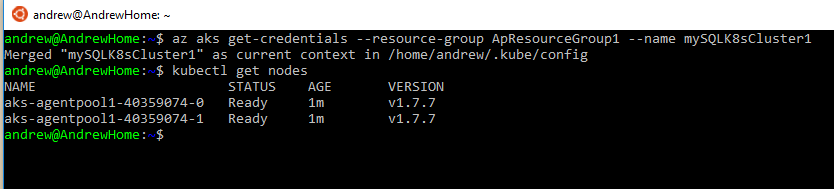
Once that’s complete we need to get credentials to connect to the cluster: –

az aks get-credentials --resource-group ApContainerResGrp1 --name mySQLK8sCluster1

Now test the connection by viewing the nodes in the cluster: –

kubectl get nodes
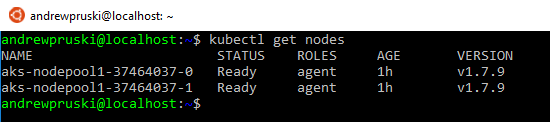
If both nodes come back with a status of Ready, you’re good to go!

Ok, so now let’s create the yaml file to spin up the container and service: –

nano sqlserver.yml

And drop this code into the file: –

apiVersion: apps/v1beta1
kind: Deployment
metadata:
  name: sqlserver
  labels:
    app: sqlserver
spec:
  replicas: 1
  template:
    metadata:
      labels:
        name: sqlserver
    spec:
      containers:
      - name: sqlserver1
        image: microsoft/mssql-server-linux:latest
        ports:
        - containerPort: 4433
        env:
        - name: SA_PASSWORD
          value: "Testing1122"
        - name: ACCEPT_EULA
          value: "Y"
        - name: MSSQL_TCP_PORT
          value: "4433"
---
apiVersion: v1
kind: Service
metadata:
  name: sqlserver-service
spec:
  ports:
  - name: sqlserver
    port: 4433
    targetPort: 4433
  selector:
    name: sqlserver
  type: LoadBalancer

N.B. – Code is also available here

Note the following code in the deployment section: –

        ports:
        - containerPort: 4433
.
.
.
        - name: MSSQL_TCP_PORT
          value: "4433"

This will use an environment variable to change the port that SQL is listening on to 4433 and open that port on the container.

Also note the following code in the service section: –

  ports:
  - name: sqlserver
    port: 4433
    targetPort: 4433

This will open the port 4433 externally and direct any connections to 4433 on the container.

So let’s deploy!

kubectl create -f sqlserver.yml

You can check the deployment process by running: –

kubectl get pods
kubectl get service

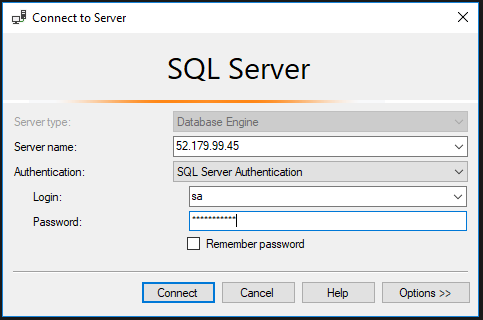
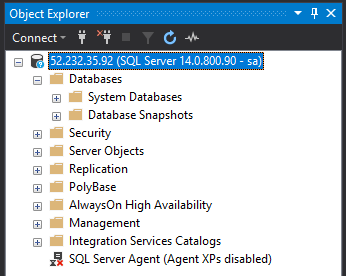
Once the pod has a status of Running and the service has an external IP, we can use the external IP and the port to connect to SQL in SSMS: –

And confirm that Sql is listening on the specified port by checking the log: –

EXEC sp_readerrorlog

Cool! Sql is listening on a non-default port and we’ve connected to it!

Alright, let’s try the next option.

First thing is to remove the old deployment: –

kubectl delete service sqlserver-service
kubectl delete deployment sqlserver
rm sqlserver.yml

Now let’s create the new yaml file: –

nano sqlsever.yml

And drop the following into it: –

apiVersion: apps/v1beta1
kind: Deployment
metadata:
  name: sqlserver
  labels:
    app: sqlserver
spec:
  replicas: 1
  template:
    metadata:
      labels:
        name: sqlserver
    spec:
      containers:
      - name: sqlserver1
        image: microsoft/mssql-server-linux:latest
        ports:
        - containerPort: 1433
        env:
        - name: SA_PASSWORD
          value: "Testing1122"
        - name: ACCEPT_EULA
          value: "Y"
---
apiVersion: v1
kind: Service
metadata:
  name: sqlserver-service
spec:
  ports:
  - name: sqlserver
    port: 4433
    targetPort: 1433
  selector:
    name: sqlserver
  type: LoadBalancer

N/B. – The code is also available here

Note the following in the service section:-

  ports:
  - name: sqlserver
    port: 4433
    targetPort: 1433

This opens port 4433 on the service and directs it to port 1433 in the container.

Rebuild the deployment: –

kubectl create -f sqlserver.yml

And once that’s created, connect on the service’s external IP and port 4433.

Awesome stuff! SQL is listening on the default port but we’ve connected to the port opened on the service and it has routed it to port 1433 opened on the container.

But which method would I recommend?

How about both! 🙂

Let’s change the default port that SQL is listening on and open a different port in the service!

Again, remove the old deployment: –

kubectl delete service sqlserver-service
kubectl delete deployment sqlserver
rm sqlserver.yml

Recreate the yaml file: –

nano sqlsever.yml

And the drop the following into the file: –

apiVersion: apps/v1beta1
kind: Deployment
metadata:
  name: sqlserver
  labels:
    app: sqlserver
spec:
  replicas: 1
  template:
    metadata:
      labels:
        name: sqlserver
    spec:
      containers:
      - name: sqlserver1
        image: microsoft/mssql-server-linux:latest
        ports:
        - containerPort: 4433
        env:
        - name: SA_PASSWORD
          value: "Testing1122"
        - name: ACCEPT_EULA
          value: "Y"
        - name: MSSQL_TCP_PORT
          value: "4433"
---
apiVersion: v1
kind: Service
metadata:
  name: sqlserver-service
spec:
  ports:
  - name: sqlserver
    port: 15789
    targetPort: 4433
  selector:
    name: sqlserver
  type: LoadBalancer

N.B. – This code is also available here

What’s happening here is that SQL will be configured to listen on port 4433 but we’ll connect externally to the service to port 15789 which is mapped to 4433 on the container.

Now redeploy: –

kubectl create -f sqlserver.yml

Same as before, wait for the container to be created and the service to have an external IP assigned: –

kubectl get pods
kubectl get service

Then use the external IP and the port 15789 to connect in SSMS: –

How cool is that?! SQL is listening on a non-default port and we’ve used a completely different port to connect!

Finally, to tear everything down: –

az group delete --name ApContainerResGrp1

Thanks for reading!

Configuring Persistent Storage for SQL Server in Azure Kubernetes Services

I’ve been playing around with SQL Server running in Kubernetes in Azure Container Services (AKS) for a while now and I think that the technology is really cool.


EDIT – Azure Container Services (AKS) has been renamed to Azure Kubernetes Services. Blog title has been updated


You can get a highly available instance of SQL Server up and running with a few lines of code! Ok, there’s a bit of setup to do but once you get that out of the way, you’re good to go.

One thing that has been missing though, is persistent storage. Any changes made to the SQL instance would have been lost if the pod that it was running in failed and was brought back up.

Until now.

I’ve been looking at Kubernetes persistent volumes but was really scratching my head on trying to get it to work. Thankfully Microsoft has now published how to do this: – https://docs.microsoft.com/en-us/sql/linux/tutorial-sql-server-containers-kubernetes

Let’s have a look at how this works. You don’t need to have read any of my previous articles to follow the code here, all you need is an Azure account.

I’m going to run in Bash for Windows but you can install the Azure-Cli for the command line (all the commands are the same). The MSI is available here.

If you are running in Bash for Windows the first thing to do is install Azure-CLI: –

echo "deb [arch=amd64] https://packages.microsoft.com/repos/azure-cli/ wheezy main" | \
     sudo tee /etc/apt/sources.list.d/azure-cli.list
      
sudo apt-key adv --keyserver packages.microsoft.com --recv-keys 52E16F86FEE04B979B07E28DB02C46DF417A0893
sudo apt-get install apt-transport-https
sudo apt-get update && sudo apt-get install azure-cli

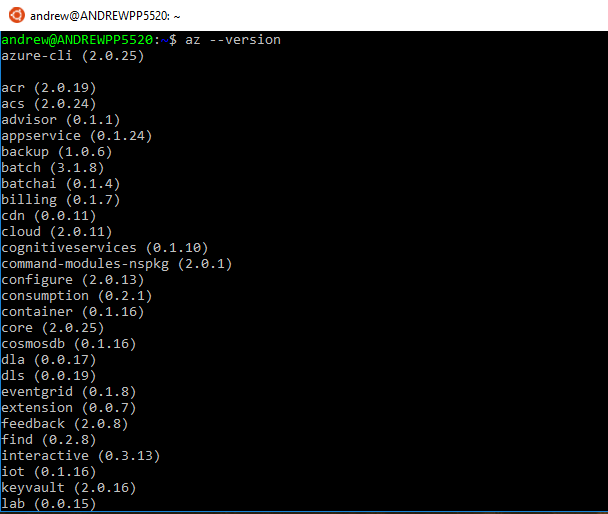
Then whether you’re running in Bash for Windows or the command line, after the install confirm that it has been successful by running:-

az --version

Now log into Azure: –

az login

This is an odd process but hey, it seems to work.

Once the login process is complete, the resource group to hold all the objects of the Kubernetes cluster can be created: –

az group create --name ApResourceGroup1 --location eastus


I created the resource group in eastus because as much as I tried, I kept getting errors when using other locations (e.g. – ukwest)

After the resource group is created, the cluster can be built: –

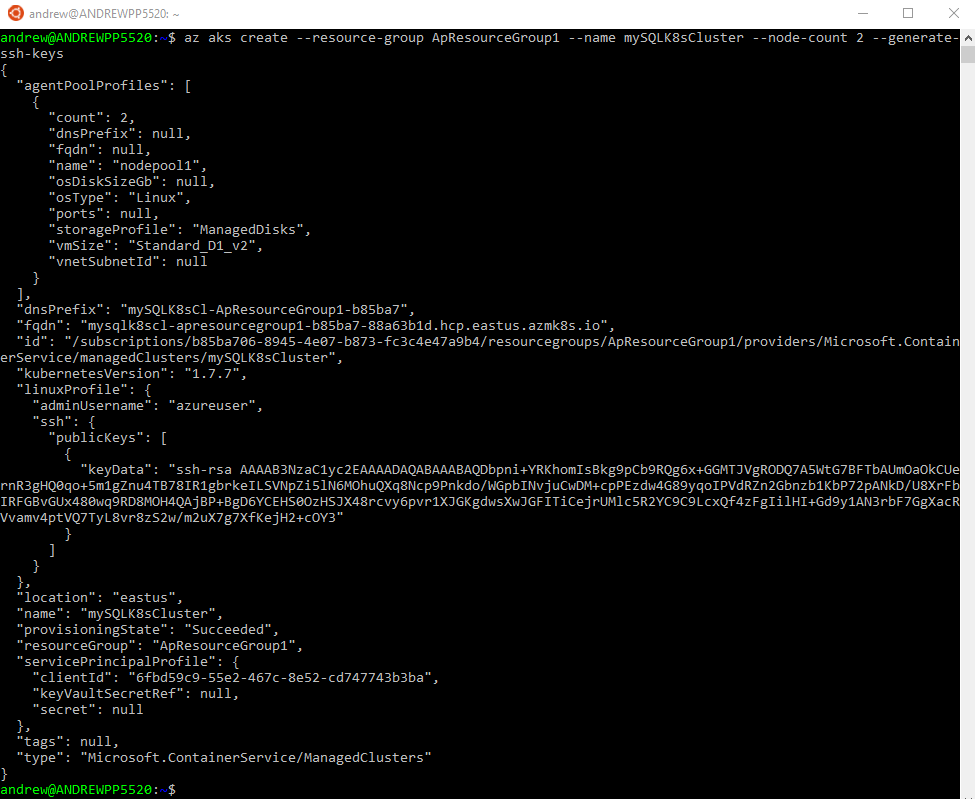
az aks create --resource-group ApResourceGroup1 --name mySQLK8sCluster --node-count 2 --generate-ssh-keys

I find it incredibly cool that this can be done with one line of code. Log into Azure and see the amount of resources this one line creates in the background.

Anyway, to manage the cluster, install kubectl: –

az aks install-cli

Grab credentials in order to connect and manage the cluster: –

az aks get-credentials --resource-group=ApResourceGroup1 --name=mySQLK8sCluster

Cool! The cluster is setup and we can connect. This can be tested by running: –

kubectl get nodes

There are the two nodes of the cluster and it is ready to host a sql instance in a pod.

The persistent volume and SQL instance are created by referencing .yml files on the Microsoft page but instead of having to copy/paste I’ve dropped the two files into a Github repo. The only change I’ve made is that the image that used is my custom linux image with the agent installed (as I like to have the agent available).

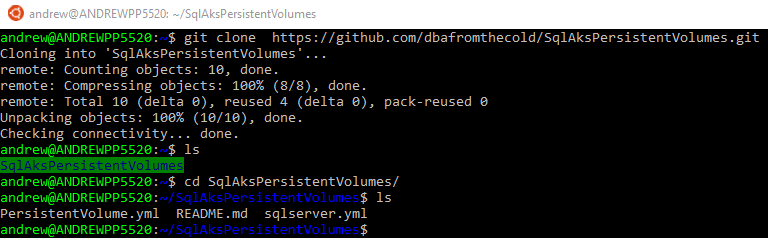
To clone the repo to your local machine: –

git clone  https://github.com/dbafromthecold/SqlAksPersistentVolumes.git

Navigate to the files. The first file we will use is the PersistentVolume.yml file.

kind: StorageClass
apiVersion: storage.k8s.io/v1beta1
metadata:
     name: azure-disk
provisioner: kubernetes.io/azure-disk
parameters:
  storageaccounttype: Standard_LRS
  kind: Managed
---
kind: PersistentVolumeClaim
apiVersion: v1
metadata:
  name: mssql-data
  annotations:
    volume.beta.kubernetes.io/storage-class: azure-disk
spec:
  accessModes:
  - ReadWriteOnce
  resources:
    requests:
      storage: 8Gi

What this does is setup a storage class (as an Azure-Disk) and then specifies a persistent volume claim. It is the persistent volume claim that we will use to attach to the SQL Server instance within the pod.

To create the persistent volume & claim: –

kubectl apply -f PersistentVolume.yml

To confirm the volume and claim have been created: –

kubectl describe pvc mssql-data

kubectl describe pv

Now that the storage is provisioned, the SQL instance can be setup.

But before the SQL instance is created, there’s one more step that needs to be done. Previously when I’ve worked with SQL in AKS I’ve specified the SA password in the .yml file used to create the pod that contains the instance.

This isn’t secure so instead of doing that, let’s create a secret to hold the password: –

kubectl create secret generic mssql --from-literal=SA_PASSWORD="Testing1122"

Great! So here’s the .yml file that will create the instance of SQL: –

apiVersion: apps/v1beta1
kind: Deployment
metadata:
  name: mssql-deployment
spec:
  replicas: 1
  template:
    metadata:
      labels:
        app: mssql
    spec:
      terminationGracePeriodSeconds: 10
      containers:
      - name: mssql
        image: microsoft/mssql-server-linux
        ports:
        - containerPort: 1433
        env:
        - name: ACCEPT_EULA
          value: "Y"
        - name: SA_PASSWORD
          valueFrom:
            secretKeyRef:
              name: mssql
              key: SA_PASSWORD 
        volumeMounts:
        - name: mssqldb
          mountPath: /var/opt/mssql
      volumes:
      - name: mssqldb
        persistentVolumeClaim:
          claimName: mssql-data
---
apiVersion: v1
kind: Service
metadata:
  name: mssql-deployment
spec:
  selector:
    app: mssql
  ports:
    - protocol: TCP
      port: 1433
      targetPort: 1433
  type: LoadBalancer

What this does is spin up a pod with our SQL instance running from my custom image dbafromthecold/sqlserverlinuxagent:latest. It then maps the persistent volume claim to /var/opt/mssql to our pod (this is the important step). Finally, creates a service so that we can connect to the instance using the service’s external IP and the password specified in the secret.

To create the SQL pod and service: –

kubectl apply -f sqlserver.yml

Wait a few minutes for the pod to come online. Check this by running: –

kubectl get pods

Once the pod is up and running, check the service for the external IP: –

kubectl get service

The external IP is used to connect to SQL within the cluster: –

In previous posts I’ve written, HA is provided to the SQL instance by respawning the pod if the current one running fails. However, data within the instance is not persisted (aka any new databases/data will be lost when the pod is respawned).

But now that we have implemented a persistent volume, the SQL instance and its databases should be available in a new pod if there’s a failure.

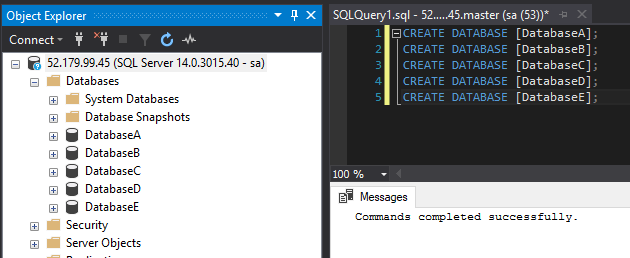
Let’s test this by creating some databases: –

CREATE DATABASE [DatabaseA];
CREATE DATABASE [DatabaseB];
CREATE DATABASE [DatabaseC];
CREATE DATABASE [DatabaseD];
CREATE DATABASE [DatabaseE];

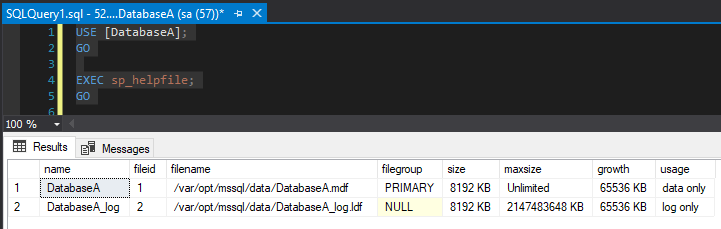
The trick here is that the databases were created using the default settings.

USE [DatabaseA];
GO

EXEC sp_helpfile;
GO

The database files were created in /var/opt/mssql/data which is on the volume that we mapped to the persistent volume claim. This means that if the existing pod fails, the database files will be retained and available in the new pod.

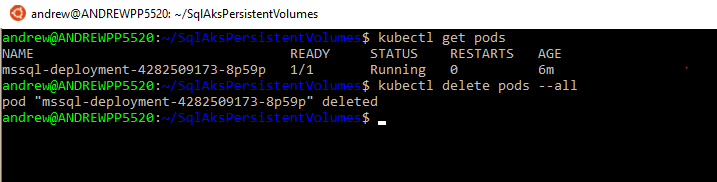
To simulate a failure, manually delete the pod: –

kubectl delete pods --all

The old pod will be terminated and a new one automatically created: –

kubectl get pods

Once that pod is up and running, reconnect to SQL (using the same external IP of the service).

And the databases are there! The original instance within the pod has been deleted but a new pod running SQL Server and the persistent volume was automatically created!

This means that we can deploy a SQL instance within AKS that can recover from a failure with no data loss. And that, to me, is awesome.

OK, it’s not perfect. It can error out when you’re setting up (ping me if you run into any problems), the new pod takes a little too long to come online, and there’s still no windows authentication but it’s looking pretty promising!

Last thing, to remove all the objects built in this demo you just need to run: –

az group delete --name ApResourceGroup1

Thanks for reading!
Running SQL Server in Kubernetes on Azure Kubernetes Services (AKS)

I’ve previously blogged about running SQL Server in ACS but Microsoft has now released a new version still called Azure Container Services (AKS instead of ACS however) but now specifically tailored to building Kubernetes clusters.


EDIT – Azure Container Services (AKS) has been renamed to Azure Kubernetes Services. Blog title has been updated


There are some differences to the original ACS (making the process simpler) so let’s run through setting up a Kubernetes cluster running SQL Server in AKS.

Ok, first thing to do is install the CLI (I’m going to work from a Bash shell on my desktop): –

echo "deb [arch=amd64] https://packages.microsoft.com/repos/azure-cli/ wheezy main" | \
     sudo tee /etc/apt/sources.list.d/azure-cli.list
	 
	 
sudo apt-key adv --keyserver packages.microsoft.com --recv-keys 52E16F86FEE04B979B07E28DB02C46DF417A0893
sudo apt-get install apt-transport-https
sudo apt-get update && sudo apt-get install azure-cli

Check the version of the CLI installed (make sure it’s at least version 2.0.20): –

az --version

Then login to Azure in the shell (and follow the instructions): –

az login

As AKS is still in preview a flag needs to be enabled on your Azure subscription.
To do this run: –

az provider register -n Microsoft.ContainerService

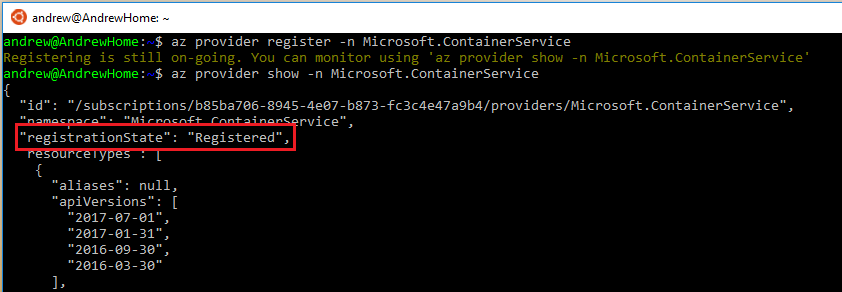
You can check that the flag has been successfully enabled by running: –

az provider show -n Microsoft.ContainerService

Cool. Now we’re good to go with setting up a Kubernetes cluster! Same as the original ACS, a resource group needs to be created to hold all the objects in the cloud: –

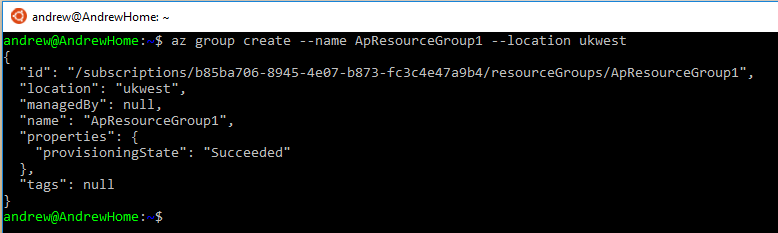
az group create --name ApResourceGroup1 --location ukwest

And now the cluster can be created. I’m going to create a two node cluster by running: –

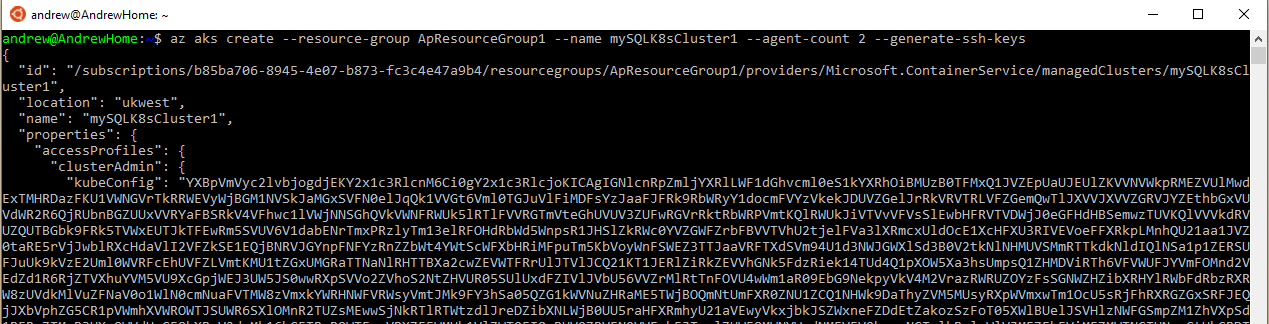
az aks create --resource-group ApResourceGroup1 --name mySQLK8sCluster1 --node-count 2 --generate-ssh-keys


EDIT: updated agent-code to node-count has this switch seems to have changed since I wrote this post

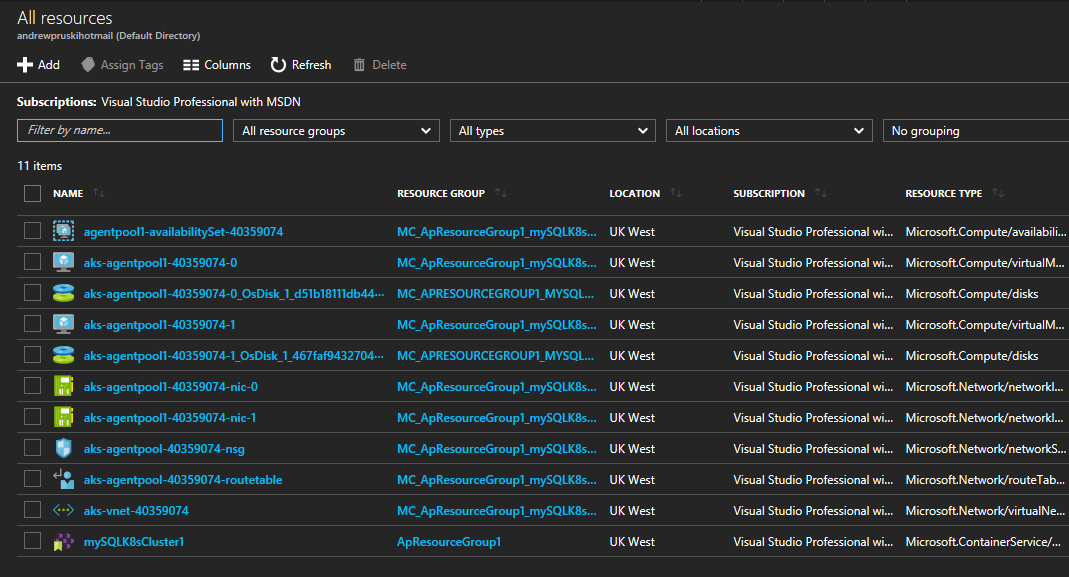
What’s cool about this is the amount of objects it’s creating in the background: –

All that from one line of code!

Once that’s complete, Kubectl needs to be installed locally to manage the cluster: –

az aks install-cli

And then I need to connect my local shell to the cluster: –

az aks get-credentials --resource-group ApResourceGroup1 --name mySQLK8sCluster1

Ok, let’s check the nodes in the cluster: –

kubectl get nodes

Awesome, I have two nodes up and running in my cluster!

Next thing to do is spin up SQL Server in a container within the cluster. To do this I’m going to build it from a yaml file: –

nano sqlserver.yml

And drop the following into it: –

apiVersion: apps/v1beta1
kind: Deployment
metadata:
  name: sqlserver
  labels:
    app: sqlserver
spec:
  replicas: 1
  template:
    metadata:
      labels:
        name: sqlserver
    spec:
      containers:
      - name: sqlserver1
        image: microsoft/mssql-server-linux:latest
        ports:
        - containerPort: 1433
        env:
        - name: SA_PASSWORD
          value: "Testing1122"
        - name: ACCEPT_EULA
          value: "Y"
---
apiVersion: v1
kind: Service
metadata:
  name: sqlserver-service
spec:
  ports:
  - name: sqlserver
    port: 1433
    targetPort: 1433
  selector:
    name: sqlserver
  type: LoadBalancer

This will spin up a container within the cluster (as a deployment) and create a load balanced service with an external IP so that I can connect to SQL Server from my desktop. So now run: –

kubectl create -f sqlserver.yml

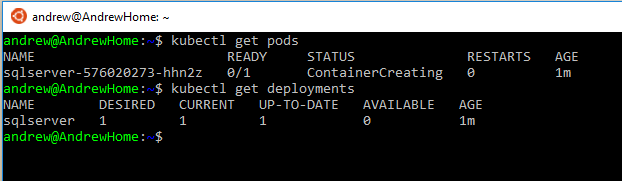
Once that’s complete we can run some commands to view the objects created. To check the SQL Server container created: –

kubectl get pods

To check on the deployment:-

kubectl get deployments

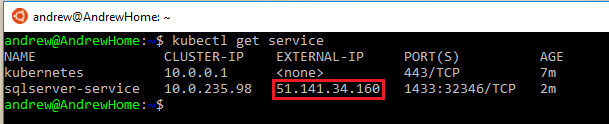
And finally, to check on the service: –

kubectl get service

Once the service has an external IP, I can use that to connect to SQL Server within my Kubernetes cluster in AKS!

How awesome is that! Microsoft have made this a nice and simple way of getting into running Kubernetes in Azure. I’m going to play around with this some more 🙂

Last thing, to remove all the objects built in this demo you just need to run: –

az group delete --name ApResourceGroup1

Thanks for reading!
Exploring the Kubernetes dashboard in Azure Container Services

Last week I went through how to run SQL Server in Kubernetes on Azure Container Services (ACS)

This week I want to explore the built-in Kubernetes dashboard which is available in ACS by default. (N.B. – You will need to have run through the steps in my last post to follow here)

The Kubernetes dashboard is available in a pod but can only be seen by running an additional flag with the kubectl get pods command: –

kubectl get pods --all-namespaces

In order to access the dashboard the kubectl proxy command needs to be run which starts a proxy to the Kubernetes API server:-

kubectl proxy

The dashboard then becomes available at http://localhost:8001/ui

From the dashboard all the objects that were created in my last post can be viewed, such as the pod created (on the main page): –

The nodes of the cluster: –

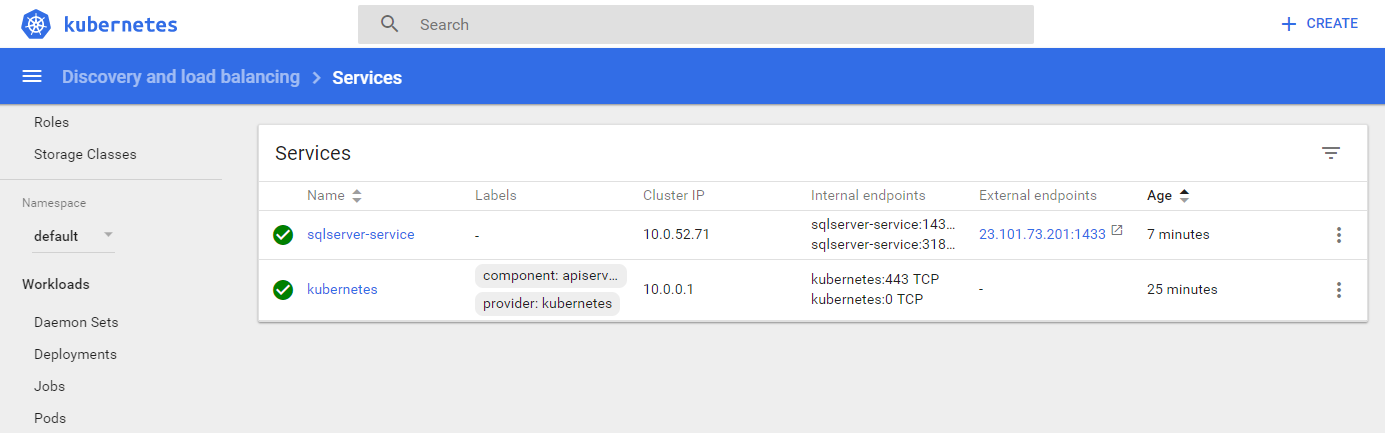
And the service created in order to access SQL within the pod: –

But not only can existing objects be viewed, new ones can be created.

In my last post I created a single pod running SQL Server, I want to move on from that as you’d generally never just deploy one pod. Instead you would create what’s called a deployment.

The dashboard makes it really simple to create deployments. Just click Deployments on the right-hand side menu and fill out the details: –

Don’t forget to click on Advanced Details and enter in the environment variables required.

At a minimum variables for ACCEPT_EULA (otherwise the container will not run) and SA_PASSWORD (otherwise you will not be able to connect to SQL Server) need to be specified: –

Hit Deploy and then the following screen will show the progress of the deployment: –

The new objects will have a green tick next to them once the deployment is complete: –

The external IP used to connect to SQL within the pod created can be found by clicking on the newly created service (found on the right-hand side menu).

That IP can then be dropped into SSMS (along with the SA username and password set) and boom! A connection to SQL Server running in a Kubernetes pod that was created via a deployment from the dashboard: –

Thanks for reading!
Running SQL Server in Kubernetes on Azure Container Services

NOVEMBER 2017 UPDATE – Microsoft has now released a new version of Azure Container Services (AK) specifically for Kubernetes. I’ve blogged about it here


I’ve been meaning to get to grips with Kubernetes for a while now but I have to admit, I was completely overwhelmed when I first approached the subject. There’s so much information and documentation out there, it’s difficult to know where to start.

What really helped was James Anderson’s (t) excellent post on Orchestrating SQL Server with Kubernetes

After working through the instructions in James’ post and playing with Minikube for a while, I wanted to try setting up and configuring a larger Kubernetes cluster.

Back in July Microsoft announced Azure Container Services (ACS) so I started learning how to spin up SQL Server containers in a Kubernetes cluster in that environment.

This post will detail how to build a three node Kubernetes cluster, running a SQL Server container in ACS.

In order to follow the steps in this post you will need Bash on Windows installed and a Azure account

The first thing to do is install azure-cli: –

echo "deb [arch=amd64] https://packages.microsoft.com/repos/azure-cli/ wheezy main" | \
     sudo tee /etc/apt/sources.list.d/azure-cli.list
	 
sudo apt-key adv --keyserver packages.microsoft.com --recv-keys 417A0893
sudo apt-get install apt-transport-https
sudo apt-get update && sudo apt-get install azure-cli	 

Confirm the install: –

az --version

Now log in to Azure by running the following: –

az login

Bit of an odd login process imho. Copy the link into a web browser and then enter the code when prompted. You’ll then be taken to the Azure login page, enter your details and then close the page when prompted.

I don’t really understand why a username and password aren’t enough but anyway, once logged in we can then start building a cluster.

First thing to create is a resource group to hold all the objects in the cluster: –

az group create --name apresgroup --location westeurope

Now the cluster can be created.

The following script will create a three node Kubernetes cluster. With one linux master node and two windows nodes (where we will run our SQL container).

To setup the cluster run (this will take some time as it’s creating VMs and all the other object required for the cluster): –

az acs create --orchestrator-type=kubernetes \
    --resource-group apresgroup \
    --name=myK8sSQLCluster \
    --agent-count=2 \
    --generate-ssh-keys \
    --windows --admin-username andrew \
    --admin-password Testing1122

Great stuff, we have a three node cluster up and running in ACS! The next thing to do is install kubectl which is a command line interface for managing Kubernetes clusters.

To install kubectl run: –

az acs kubernetes install-cli

Verify the install (don’t worry about the error): –

kubectl version

Cool, so far so good. Next thing to do is connect kubectl to the cluster.

To allow kubectl to connect to cluster: –

az acs kubernetes get-credentials --resource-group=apresgroup --name=myK8sSQLCluster

Ok, we’re connected. Let’s have a look at the cluster nodes.

To view the nodes in the cluster run:-

kubectl get nodes

Excellent we have our three node cluster, our master and two agents. Now we can build our container running SQL Server.

To do this we will create a yaml file locally which will contain the configuration of our container.

So create a yaml file that will spin up the containers in a Kubernetes pod: –

nano sqlserver.yaml

And enter the following into the file: –

apiVersion: v1
kind: Pod
metadata:
  name: sqlserver
  labels:
    name: sqlserver
spec:
  containers:
  - name: sqlserver1
    image: microsoft/mssql-server-windows:latest
    ports:
    - containerPort: 1433
    env:
    - name: SA_PASSWORD
      value: "Testing1122"
    - name: ACCEPT_EULA
      value: "Y"
  nodeSelector:
    beta.kubernetes.io/os: windows

This will create one pod which will have one container running SQL Server 2017. We can use the file to spin up the pod with the container by running: –

kubectl apply -f sqlserver.yaml

The pod will be created quite quickly but it takes a bit of time for the container within it to be spun up (9 minutes in my setup). This is probably due to the fact that the process has to pull the container image down from the docker hub.

To check the status of the pod/container run: –

kubectl get pods

Once the container has been spun up, the pod will have a status of running: –

Great stuff! All looks good! We have a pod up and running. But is SQL Server?

The following script will check that SQL is running within the pod: –

kubectl logs sqlserver

Looks pretty good to me! SQL is up and has accepted the config value within our yaml file to change the SA password. But how are we going to connect to it?

What we need to do now is define a Kubernetes service. A service is a level of abstraction over pods to allow connections to the containers within the pods regardless of where the pod is located in the cluster. So let’s setup a service.

To do this, create a yaml file locally to define the service: –

nano service.yaml

Enter the following code into the yaml file: –

kind: Service
apiVersion: v1
metadata:
  name: sqlserver-service
spec:
  ports:
  - name: sqlserver
    port: 1433
    targetPort: 1433
  selector:
    name: sqlserver
  type: LoadBalancer

Note the type of service we’re creating. A type of LoadBalancer does exactly what you expect. It creates a Azure Load Balancer to allow external connections into the pods mapped to the service.

Also note that with the all these objects I’m not trying to do anything fancy with the ports that they’re listening on. I’m setting all the ports to the SQL Server default of 1433.

OK, run the following to create the service: –

kubectl create -f service.yaml

Now we’re waiting for the service to be assigned an external IP that we can use to connect to SQL Server.

To check the status of the service: –

kubectl get svc

After a period of time (7 minutes in my setup) the service will be assigned an external IP address: –

Excellent stuff! We can now drop that external IP into SSMS to connect to SQL: –

Enter in the sa username and password that we defined in the yaml file used to create the pod and boom!

We’re connected 🙂

So that’s how to setup SQL Server running in a container on a Kubernetes cluster in Azure Container Services. Phew!

This is a really simple setup, there’s so much more to explore with Kubernetes and ACS but I hope that gives you a good grounding to be able to play around with this yourself.

Hopefully in the next few weeks I’ll be able to write a couple more posts about exploring what this technology stack has to offer.

By the way, if you don’t want to leave everything running after following these steps there’s a simple command that will delete all the objects created: –

az group delete --name apresgroup

Thanks for reading!