One of the things about working with SQL in Docker is that you kinda have to use the images that are on the Docker Hub. Now this is great if you want SQL Server 2016 or 2017 but what about earlier versions?
Now, this is a bit involved so I should point out WinDocks.com. They have a great product which allows earlier versions of SQL Server to run in containers on earlier versions of Windows Server which means you don’t have to go through all this.
But I wanted to try this to see if I could get it done. I’ve noticed that there aren’t any images for SQL Server 2014 SP2 Developer Edition on the Docker Hub (not that I can find anyway) so I thought I’d build one myself.
TL;DR – If you want to skip all of this you can download the image I’ve build from the Docker Hub by running:-
docker pull dbafromthecold/sqlserver2014dev:sp2
I’m running all of this on my Windows 10 machine but there are a few things you’ll need before we get started: –
Pre-requisites
- The microsoft/windowsservercore image downloaded from the Docker Hub
- Windows Server 2016 installation media extracted to
C:\Docker\Builds\Windows
- SQL Server 2014 SP2 Developer Edition installation media extracted to C:\Docker\Builds\SQLServer2014\sql_server_2014_dev_sp2
First thing to do is build an image of Windows Server 2016 Core with .Net 3.5 installed. So first we will create a container running windows server 2016 with the installation media copied into it. Then we’ll install .Net 3.5.
So, build the container: –
docker run -it -v C:\Docker\Builds\Windows\en_windows_server_2016_x64_dvd_9718492\sources:C:\install --name buildcontainer1 microsoft/windowsservercore
This will copy the files under the source folder to C:\install within the container. Once the container is up and running, the -it switch will open a remote session into the container. So then we run: –
cd c:\install

powershell

Install-WindowsFeature –name NET-Framework-Core –source c:\install\sources\sxs
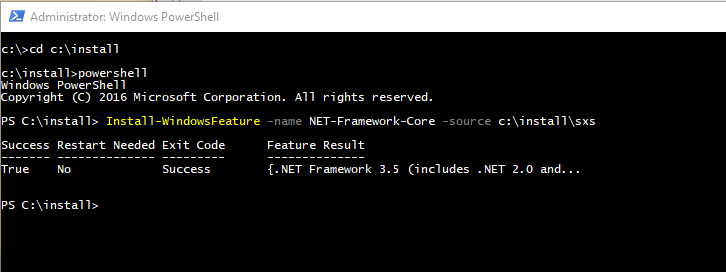
Cool, so exit out of that container and commit it as a new image: –
docker commit buildcontainer1 windowscorenet
I then tagged the image with my docker repository name so that I could push it to the cloud (so that you can use it): –
docker tag windowscorenet dbafromthecold/windowsservercore:v1
Now that we have the base image created we can build an image running SQL Server 2014 from a dockerfile.
Here’s the code in the dockerfile: –
# using my windows server core image
FROM dbafromthecold/windowsservercore:v1

LABEL maintainer "Andrew Pruski"

# create directory to hold iso
RUN powershell -Command (mkdir C:\SQL2014)

# copy media into container
COPY sql_server_2014_dev_sp2 C:\SQL2014

# install SQL Server
RUN C:\SQL2014\setup.exe /q /ACTION=Install /FEATURES=SQLENGINE /INSTANCENAME=MSSQLSERVER /SECURITYMODE=SQL /SAPWD=Testing1122 /SQLSVCACCOUNT="NT AUTHORITY\System" /SQLSYSADMINACCOUNTS="BUILTIN\Administrators" /TCPENABLED=1 /IACCEPTSQLSERVERLICENSETERMS

# remove installation media
RUN powershell -Command (rm C:\SQL2014 -recurse)

# make sure service is set to automatic
RUN powershell -Command (set-service MSSQLSERVER -StartupType Automatic)

# switch shell to powershell
SHELL ["powershell", "-Command", "$ErrorActionPreference = 'Stop'; $ProgressPreference = 'SilentlyContinue';"]

COPY start.ps1 /
WORKDIR /

ENV SA_PASSWORD _
ENV ACCEPT_EULA _

# run start.ps1
CMD .\start -sa_password $env:SA_PASSWORD -ACCEPT_EULA $env:ACCEPT_EULA -Verbose
N.B. – this is available on my Github here
Most of the code is self-explanatory but I do want to mention the final few lines: –
# switch shell to powershell
SHELL ["powershell", "-Command", "$ErrorActionPreference = 'Stop'; $ProgressPreference = 'SilentlyContinue';"]

COPY start.ps1 /
WORKDIR /

ENV SA_PASSWORD _
ENV ACCEPT_EULA _

# run start.ps1
CMD .\start -sa_password $env:SA_PASSWORD -ACCEPT_EULA $env:ACCEPT_EULA -Verbose
This switches the shell to use powershell. I didn’t do this earlier in the dockerfile as trying to install SQL 2014 using powershell kept throwing errors. Once we’re using powershell it then copies a script called start.ps1 into the container.
This script is a slightly modified version of the script from the official Microsoft Github repository
Here’s the code for the script: –
# script from offical MS repo: - https://github.com/Microsoft/mssql-docker/blob/master/windows/mssql-server-windows/start.ps1

param(
[Parameter(Mandatory=$false)]
[string]$sa_password,

[Parameter(Mandatory=$false)]
[string]$ACCEPT_EULA
)


if($ACCEPT_EULA -ne "Y" -And $ACCEPT_EULA -ne "y")
{
	Write-Verbose "ERROR: You must accept the End User License Agreement before this container can start."
	Write-Verbose "Set the environment variable ACCEPT_EULA to 'Y' if you accept the agreement."

    exit 1
}

# start the service
Write-Verbose "Starting SQL Server"
start-service MSSQLSERVER

if($sa_password -ne "_")
{
    Write-Verbose "Changing SA login credentials"
    $sqlcmd = "ALTER LOGIN sa with password=" +"'" + $sa_password + "'" + ";ALTER LOGIN sa ENABLE;"
    & sqlcmd -Q $sqlcmd
}


Write-Verbose "Started SQL Server."

$lastCheck = (Get-Date).AddSeconds(-2)
while ($true)
{
    Get-EventLog -LogName Application -Source "MSSQL*" -After $lastCheck | Select-Object TimeGenerated, EntryType, Message
    $lastCheck = Get-Date
    Start-Sleep -Seconds 2
}
The script runs when a container starts and performs the following actions: –
– Checks that the end user licence agreement has been accepted
– Changes the SA password
– Start a infinite loop
Now, what’s with the infinite loop? Well, without this the container (when spun up with the -d flag) will auto-close immediately. Docker containers need some defined process to be running otherwise they will shut down.
I fully admit that this is kinda hacky and not great. But that’s how Microsoft have stopped containers from auto-closing and I’ve been looking into this quite a bit and haven’t been able to come up with any other ways.
Also, it does mean that we can run SQL commands automatically when a container starts up (that’s how the SA password is changed). I’m going to have a think on that as I’m pretty sure there’s some cool stuff that can be done.
Anyway now we can build the image, so run: –
docker build -t sqlserver2014dev:sp2 C:\Docker\Builds\SQLServer2014
Awesome stuff! But has it worked? Can we spin up a new container and have SQL 2014 up and running? Let’s give it a whirl: –
docker run -d -i -p 14567:1433 --env ACCEPT_EULA=Y --SA_PASSWORD=Testing1122 --name testcontainer2014 sqlserver2014dev:sp2
Now we need to get the IP address that the container is listening on: –
Update – April 2018
Loopback has now been enabled for Windows containers, so we can use localhost,14567 to connect locally. You can read more about it here
docker inspect testcontainer2014
My container is listening on port 172.26.126.99 so I’ll open up SSMS on my local machine, enter the sa username/password and: –
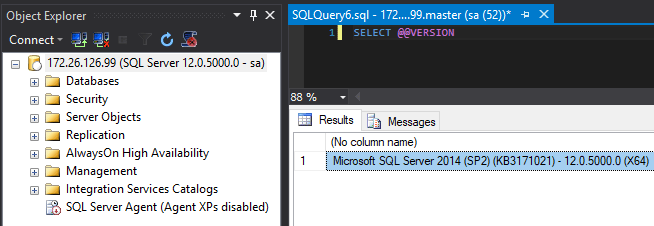
SQL Server 2014 SP2 Developer Edition running in a container that’s been build from a custom image. Cool, eh?
What I like is that I’ve used this dockerfile as a base to build a SQL Server 2012 image as well. You can view all the images I’ve pushed to the Docker Hub by running: –
docker search dbafromthecold
And if you want to build an image yourself, all the different dockerfiles I’ve created are on my Github
Thanks for reading!


 DBA From The Cold