Setting up SQL Server replication in containers

Last week I saw a thread on twitter about how to get replication setup for SQL Server running in a container. Now I know very little about replication, it’s not an area of SQL that I’ve had a lot of exposure to but I’m always up for figuring stuff out (especially when it comes to SQL in containers).

So let’s run through how to set it up here.

First, create a dockerfile to build an image from the SQL Server 2019 CTP 2.2 image with the SQL Server Agent enabled: –

FROM mcr.microsoft.com/mssql/server:2019-CTP2.2-ubuntu

RUN /opt/mssql/bin/mssql-conf set sqlagent.enabled true 

CMD /opt/mssql/bin/sqlservr

Now build the image: –

docker build -t sqlreplication .

The next step is to create a custom docker network: –

docker network create repnet

Confirm the network has been created: –

docker network ls

This stage is the key, containers running on the same network can communicate with each other by container name or IP address. More information about docker networking can be found here.

Once the network is created, run two containers using the network: –

docker run -d -p 15111:1433 `
    --env ACCEPT_EULA=Y --env SA_PASSWORD=Testing1122 `
        --net repnet `
            --name container1 `
                sqlreplication 

docker run -d -p 15222:1433 `
    --env ACCEPT_EULA=Y --env SA_PASSWORD=Testing1122 `
        --net repnet `
            --name container2 `
                sqlreplication 

The last (docker) step is to create a directory within container1 for the replication data: –

docker exec -it container1 mkdir /var/opt/mssql/data/ReplData/

And that’s it docker-wise! We can now setup replication within SQL itself. The steps below are taken from the Microsoft documentation here that goes through how to setup replication for SQL on Linux (slightly modified but not by much).

So let’s run through and see it in action!

Connect to container1 and create the database, table, and insert data that we want to replicate: –

USE [master];
GO

CREATE DATABASE [Sales];
GO

USE [SALES];
GO
 
CREATE TABLE CUSTOMER([CustomerID] [int] NOT NULL, [SalesAmount] [decimal] NOT NULL);
GO
 
INSERT INTO CUSTOMER (CustomerID, SalesAmount) VALUES (1,100),(2,200),(3,300);
GO

Connect to container2 and create (just) the database to receive the replicated data: –

USE [master];
GO

CREATE DATABASE [Sales];
GO

Connect back to container1 and configure the distributor (following the MS example the publisher will also be the distributor): –

USE [master];
GO
 
DECLARE @distributor AS SYSNAME;
DECLARE @distributorlogin AS SYSNAME;
DECLARE @distributorpassword AS SYSNAME;
DECLARE @Server SYSNAME;
 
SELECT @Server = @@servername;
 
SET @distributor = @Server;
SET @distributorlogin = N'sa';
SET @distributorpassword = N'Testing1122';
 
EXEC sp_adddistributor @distributor = @distributor;
 
EXEC sp_adddistributiondb @database = N'distribution'
    ,@log_file_size = 2
    ,@deletebatchsize_xact = 5000
    ,@deletebatchsize_cmd = 2000
    ,@security_mode = 0
    ,@login = @distributorlogin
    ,@password = @distributorpassword;
GO

USE [distribution];
GO
 
DECLARE @snapshotdirectory AS NVARCHAR(500);
 
SET @snapshotdirectory = N'/var/opt/mssql/data/ReplData/';
 
IF (NOT EXISTS (SELECT * FROM sysobjects WHERE name = 'UIProperties' AND type = 'U '))
    CREATE TABLE UIProperties (id INT);
 
IF (EXISTS (SELECT * FROM::fn_listextendedproperty('SnapshotFolder', 'user', 'dbo', 'table', 'UIProperties', NULL, NULL)))
    EXEC sp_updateextendedproperty N'SnapshotFolder'
        ,@snapshotdirectory
        ,'user'
        ,dbo
        ,'table'
        ,'UIProperties'
ELSE
    EXEC sp_addextendedproperty N'SnapshotFolder'
        ,@snapshotdirectory
        ,'user'
        ,dbo
        ,'table'
        ,'UIProperties';
GO

Configure the publisher: –

USE [distribution];
GO

DECLARE @publisher AS SYSNAME;
DECLARE @distributorlogin AS SYSNAME;
DECLARE @distributorpassword AS SYSNAME;
DECLARE @Server SYSNAME;

SELECT @Server = @@servername;

SET @publisher = @Server;
SET @distributorlogin = N'sa';
SET @distributorpassword = N'Testing1122';

EXEC sp_adddistpublisher @publisher = @publisher
	,@distribution_db = N'distribution'
	,@security_mode = 0
	,@login = @distributorlogin
	,@password = @distributorpassword
	,@working_directory = N'/var/opt/mssql/data/ReplData'
	,@trusted = N'false'
	,@thirdparty_flag = 0
	,@publisher_type = N'MSSQLSERVER';
GO

Configure the publication job run: –

USE [Sales];
GO

DECLARE @replicationdb AS SYSNAME;
DECLARE @publisherlogin AS SYSNAME;
DECLARE @publisherpassword AS SYSNAME;

SET @replicationdb = N'Sales';
SET @publisherlogin = N'sa';
SET @publisherpassword = N'Testing1122';

EXEC sp_replicationdboption @dbname = N'Sales'
	,@optname = N'publish'
	,@value = N'true';

EXEC sp_addpublication @publication = N'SnapshotRepl'
	,@description = N'Snapshot publication of database ''Sales'' from Publisher ''''.'
	,@retention = 0
	,@allow_push = N'true'
	,@repl_freq = N'snapshot'
	,@status = N'active'
	,@independent_agent = N'true';

EXEC sp_addpublication_snapshot @publication = N'SnapshotRepl'
	,@frequency_type = 1
	,@frequency_interval = 1
	,@frequency_relative_interval = 1
	,@frequency_recurrence_factor = 0
	,@frequency_subday = 8
	,@frequency_subday_interval = 1
	,@active_start_time_of_day = 0
	,@active_end_time_of_day = 235959
	,@active_start_date = 0
	,@active_end_date = 0
	,@publisher_security_mode = 0
	,@publisher_login = @publisherlogin
	,@publisher_password = @publisherpassword;
GO

Create the articles: –

USE [Sales];
GO

EXEC sp_addarticle @publication = N'SnapshotRepl'
	,@article = N'customer'
	,@source_owner = N'dbo'
	,@source_object = N'customer'
	,@type = N'logbased'
	,@description = NULL
	,@creation_script = NULL
	,@pre_creation_cmd = N'drop'
	,@schema_option = 0x000000000803509D
	,@identityrangemanagementoption = N'manual'
	,@destination_table = N'customer'
	,@destination_owner = N'dbo'
	,@vertical_partition = N'false';
GO

Configure the subscription run, note the name of the subscriber (it’s the name of the second container): –

USE [Sales];
GO

DECLARE @subscriber AS SYSNAME
DECLARE @subscriber_db AS SYSNAME
DECLARE @subscriberLogin AS SYSNAME
DECLARE @subscriberPassword AS SYSNAME

SET @subscriber = N'container2'
SET @subscriber_db = N'Sales'
SET @subscriberLogin = N'sa'
SET @subscriberPassword = N'Testing1122'

EXEC sp_addsubscription @publication = N'SnapshotRepl'
	,@subscriber = @subscriber
	,@destination_db = @subscriber_db
	,@subscription_type = N'Push'
	,@sync_type = N'automatic'
	,@article = N'all'
	,@update_mode = N'read only'
	,@subscriber_type = 0;

EXEC sp_addpushsubscription_agent @publication = N'SnapshotRepl'
	,@subscriber = @subscriber
	,@subscriber_db = @subscriber_db
	,@subscriber_security_mode = 0
	,@subscriber_login = @subscriberLogin
	,@subscriber_password = @subscriberPassword
	,@frequency_type = 1
	,@frequency_interval = 0
	,@frequency_relative_interval = 0
	,@frequency_recurrence_factor = 0
	,@frequency_subday = 0
	,@frequency_subday_interval = 0
	,@active_start_time_of_day = 0
	,@active_end_time_of_day = 0
	,@active_start_date = 0
	,@active_end_date = 19950101;
GO

Cool! Now we can run the Agent jobs: –

USE [msdb]; 
GO

DECLARE @job1 SYSNAME;

SELECT @job1 = name FROM msdb.dbo.sysjobs
WHERE name LIKE '%-Sales-SnapshotRepl-1'

EXEC dbo.sp_start_job @job1
GO


USE [msdb];
GO

DECLARE @job2 SYSNAME;

SELECT @job2 = name FROM msdb.dbo.sysjobs
WHERE name LIKE '%-Sales-SnapshotRepl-CONTAINER2-1'
 
EXEC dbo.sp_start_job @job2
GO

Awesome stuff, let’s check the data over on container2: –

SELECT * from [Sales].[dbo].[CUSTOMER]
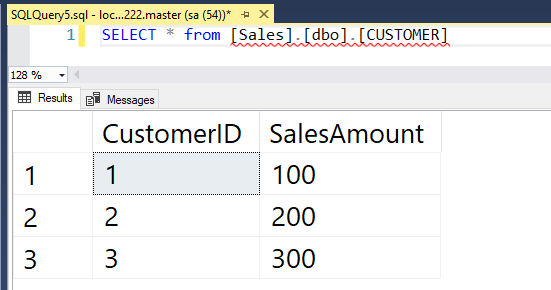
Great stuff! We have data being replicated from a SQL instance in one container to a SQL instance in another container 🙂

Thanks for reading!

Attaching databases via a dockerfile – UPDATE

This has been bugging me for a while but I just haven’t had a chance to get around to revisiting it…you can read the original post I wrote here

In that post I came up with a way to attach databases to SQL running in a linux container. There’s an environment variable you can use in windows containers (attach_dbs) that provides the ability to attach database data and log files to a SQL instance running within a container.

Sadly this doesn’t exist for linux containers so the what I came up with was: –

HEALTHCHECK --interval=10s  \
    CMD /opt/mssql-tools/bin/sqlcmd -S . -U sa -P Testing11@@ \
        -Q "CREATE DATABASE [DatabaseA] ON (FILENAME = '/var/opt/sqlserver/DatabaseA.mdf'),(FILENAME = '/var/opt/sqlserver/DatabaseA_log.ldf') FOR ATTACH"

Now this works a treat. It waits ten seconds for the SQL instance to come up within the container and then runs the sqlcmd script below.

The problem with this is, it’s a bit of a hack. The HEALTHCHECK command isn’t designed to run once, it’ll carry on running every 10 seconds once the container comes up…not great.

So, what’s the better way of doing it?

I sat down this weekend and started to write scripts to run the SQL statement above. However I ran into a bit of an issue, each time I ran a script like thus: –

sleep 10s

/opt/mssql-tools/bin/sqlcmd -S . -U sa -P Testing11@@ \
-Q "CREATE DATABASE [DatabaseA] ON (FILENAME = '/var/opt/sqlserver/DatabaseA.mdf'),(FILENAME = '/var/opt/sqlserver/DatabaseA_log.ldf') FOR ATTACH"

The script would error out or I would end up with a dead container. I tried a few alternatives, for example retrying the sql statement until I got a exit code of 0, but no dice.

So what was the fix? Well I was flipping through Bob Ward’s (t) excellent Pro SQL Server on Linux one evening and there was the answer!

The trick is to create two scripts called entrypoint.sh and attach-db.sh

attach-db.sh looks like this: –

sleep 15s

/opt/mssql-tools/bin/sqlcmd -S . -U sa -P Testing1122 \
-Q "CREATE DATABASE [DatabaseA] ON (FILENAME = '/var/opt/sqlserver/DatabaseA.mdf'),(FILENAME = '/var/opt/sqlserver/DatabaseA_log.ldf') FOR ATTACH"

Pretty standard right? Wait 15 seconds and then run the CREATE DATABASE statement.

But the real trick is in the entrypoint.sh script: –

/var/opt/sqlserver/attach-db.sh & /opt/mssql/bin/sqlservr

Huh? The attach-db.sh script is called before the SQL binary??

Yep, even though it’s a bit counter-initiative (well for me anyway), what’s happening here is that the attach-db.sh script is called, starts waiting, and then SQL is spun up. Then once SQL is up and running, the CREATE DATABASE statement is executed.

Containers need a process to be running in order for them to stay up, so without the SQL binary being called after the attach-db.sh script the container will shut down. That’s the issue that I was having (amongst others).

I’ve been playing around with this and ended up with the following dockerfile: –

So the docker looks like this: –

# base this image of the SQL 2017 latest image
FROM microsoft/mssql-server-linux:latest

# make a directory within the container
RUN mkdir /var/opt/sqlserver

# copy attach-db.sh into container
COPY attach-db.sh /var/opt/sqlserver

# copy database files into container
COPY DatabaseA.mdf /var/opt/sqlserver
COPY DatabaseA_log.ldf /var/opt/sqlserver

# use the ENTRYPOINT command to execute the script and start SQL Server
ENTRYPOINT /var/opt/sqlserver/attach-db.sh & /opt/mssql/bin/sqlservr

I’ve removed the entrypoint.sh script and replaced it with ENTRYPOINT command within the dockerfile. The ENTRYPOINT command specifies what will run when the container starts up, so in this case the attach-db.sh script and then SQL Server.

Boom! Once the image is created from the dockerfile, a container can be spun up, and there will be the database!

Thanks for reading!

Running a SQL Server Azure Container Instance in a virtual network

Up until now Azure Container Instances only had one option to allow us to connect. That was assigning a public IP address that was directly exposed to the internet.

Not really great as exposing SQL Server on port 1433 to the internet is generally a bad idea: –

Now I know there’s a lot of debated about whether or not you should change the port that SQL is listening on to prevent this from happening. My personal opinion is, that if someone wants to get into your SQL instance, changing the port isn’t going to slow them down much. However, a port change will stop opportunistic hacks (such as the above).

But now we have another option. The ability to deploy a ACI within a virtual network in Azure! So let’s run through how to deploy.

First thing, I’m going to be using the azure-cli. Deploying to a virtual network is a new feature so you’ll need to upgrade to v2.0.46. On windows it’s pretty simple, go to here and download the .msi. If you’re on linux (or running in WSL) run:-

sudo apt-get update && sudo apt-get install --only-upgrade -y azure-cli

OK, now log in to azure: –

az login

Create a resource group (this is currently only supported in (westeurope & westus): –

az group create --name containers1 --location westeurope

Now create azure container instance!

az container create \
    --resource-group containers1 \
    --image mcr.microsoft.com/mssql/server:vNext-CTP2.0-ubuntu \
    --name testcontainer1 \
    --ports 1433 \
    --vnet-name aci_vnet1 \
    --vnet-address-prefix 10.0.0.0/16 \
    --subnet aci_subnet1 \
    --subnet-address-prefix 10.0.0.0/24 \
    --environment-variables ACCEPT_EULA=Y SA_PASSWORD=Testing1122

How simple is that? We don’t need to create the virtual network beforehand. It will be created for us. Also note, I’m using the new SQL 2019 running on Ubuntu image.

If you want to create the virtual network before hand, here’s how to do it. First create the virtual network: –

az network vnet create --resource-group containers1 --name aci_vnet1

And now create the subnet: –

az network vnet subnet create --resource-group container1 \ 
    --vnet-name aci_vnet1 --name aci_subnet1 \
        --address-prefix 10.0.0.0/24 \
          --delegation

Note the –delegation option. This is required for the subnet to be used for ACIs but once set, that subnet cannot be used for anything other than Azure Container Instances.

You can have a look at the delegation options by running: –

az network vnet subnet list-available-delegations --resource-group containers1

And now you can deploy an ACI: –

az container create \
    --resource-group containers1 \
    --image mcr.microsoft.com/mssql/server:vNext-CTP2.0-ubuntu \
    --name testcontainer1 \
    --ports 1433 \
    --vnet-name aci_vnet1 \
    --subnet aci_subnet1 \
    --environment-variables ACCEPT_EULA=Y SA_PASSWORD=Testing1122

To check that the container has been created successfully: –

az container show –name testcontainer1 –resource-group containers1

Once up and running the container will have an IP within the virtual network. So that means you’ll need another resource within the network (on a different subnet) in order to connect. I’ve been using a Ubuntu jump box with the mssql-cli installed.

Full code is in this gist

N.B. – There does seem to be an issue currently when trying to delete a subnet that has been delegated for ACIs. I’m speaking with MS about it and will update this post once it is resolved.

EDIT 2018-10-06 – The network resources have to be manually deleted. The scripts to do that are in this gist

Thanks for reading!

Running SQL Server 2019 CTP in a Docker container

If you’ve been anywhere near social media this week you may have seen that Microsoft has announced SQL Server 2019.

I love it when a new version of SQL is released. There’s always a whole new bunch of features (and improvements to existing ones) that I want to check out. What I’m not too keen on however is installing a preview version of SQL Server on my local machine. It’s not going to be there permanently and I don’t want the hassle of having to uninstall it.

This is where containers come into their own. We can run a copy of SQL Server without it touching our local machine.

The post below will run through step-by-step how to install docker and get an instance of SQL Server 2019 up and running.

First, go to the Docker Store and download the Docker for Windows Community Edition (CE). Yes, unfortunately this is going to ask you to register but that gives you access to the Docker Hub which is pretty cool (for more info on that, see here).

Double click the .msi and accept the default setting of linux containers (yep, going to run SQL on Linux on Windows 10! For more information on this, check here).

You’ll then get the installation dialog: –

You’ll be asked to log out and log back in once the install is complete: –

Once you log back in, Docker will start automatically. It’ll scan your system to verify that the prerequisites are all there (the hyper-v and containers feature). If not, it’ll prompt you: –

Let your system restart and then log back in. Docker will start automatically: –

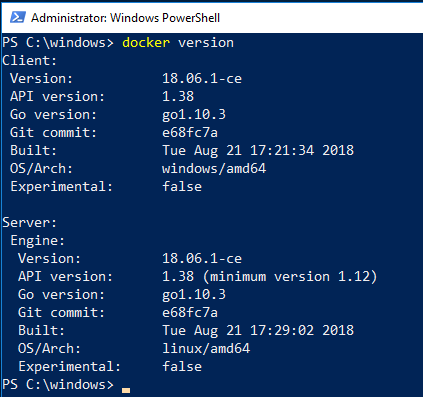
Now you can run your first docker command! I like to keep it simple and just check the version that docker is running: –

docker version

If you get a client and a server version back you’re good to go!

What you need to do now is pull the 2019 CTP image. I’m going to go for the ubuntu image so run: –

docker pull mcr.microsoft.com/mssql/server:vNext-CTP2.0-ubuntu

When that’s complete, verify that the image is on your machine: –

docker images

So now you can run a container!

docker run -d -p 15789:1433 --env ACCEPT_EULA=Y --env SA_PASSWORD=Testing1122 --name testcontainer mcr.microsoft.com/mssql/server:vNext-CTP2.0-ubuntu

N.B. – For more information on what’s going with this statement, check here

That’ll come back pretty much immediately, to check that the container is running: –

docker ps -a

Then connect in SQL using localhost,15789, and boom!

How awesome is that! An instance of SQL Server 2019 CTP 2.0 up and running on your local machine. If that’s peaked your interest into learning more about containers, I have put a list of all the blog posts I’ve written here.

Thanks for reading and have fun with SQL in containers!

Taking the Linux plunge – Update

It’s been a couple of weeks now since I took the plunge and bought myself a Dell XPS 13 running Ubuntu 16.04.

And to be honest, so far so good! The machine itself is absolutely fantastic and apart from one issue now resolved, Ubuntu has been great to use. I used it to present my partitioning session at the Dublin User Group this week and all went well. Using SQL in a docker container and SQL Operations Studio, my demos worked no problem.

Have to admit, the only gripe I have is that there’s a windows key instead of a key with the Ubuntu logo 🙂

So once I had booted up the first thing I did was uninstall Chrome and Chromium. After that, I went and installed: –

Firefox– with DuckDuckGo as my homepage
Docker
SQL Operations Studio
Visual Studio Code
Powershell
Remmina
Franz
Spotify
Whatever – Evernote client for Linux
Keybase

OK, there’s a couple of obvious ones in there but maybe a couple that are new to you.

If you haven’t heard of Franz, it’s awesome. One of my pet peeves these days is the amount of comms apps that I have to have open. Slack, Google Hangouts, Teams, email etc. it’s a bit of a nightmare. Franz solves that issue by combining them all into one app, ok it’s a bit of a memory hog but that’s kinda to be expected.

Another app not everyone may be familiar with is Keybase. Keybase is a security app that provides public keys, encrypted chat, and an encrypted filesystem. The filesystem offering is why I went for it, you can install OneDrive on Linux but it’s a bit of a hassle and I’m not a particular fan of Dropbox so am glad that I have another option (even if it is ANOTHER chat app, and it doesn’t integrate with Franz 😦 )

One final thing to mention is Gitpitch. Gitpitch is a markdown presentation service that integrates with Github/Gitlab/Bitbucket. You write your presentation in markdown, push it to a repo, and the service renders your presentation online (which you can then download).

I used GitPitch for my presentation to the Dublin User Group this week and was a bit concerned at first as my markdown skills are, ahem, not great. You can see the presentation I wrote here, I’m really pleased with the results. I also really enjoyed creating that presentation, which is new for me as I hate writing powerpoint slides. Am going to spend some more time this weekend seeing what else the service can do.

So all in all, am really pleased with my new toy. If you’re thinking about switching to Linux, I highly recommend that you do, what’s the worst that could happen? 🙂

Have a good weekend!