Friday Reading 2017-10-27

Morning all! PASS Summit is coming next week but unfortunately I can’t make it this year. I hope everyone who is going has a blast, learns some cool stuff, and meets great people.

Instead I’ll be presenting at the Southampton SQL User Group next Wednesday. Looking forward to this as I love presenting about containers and have been writing new demos to show off 🙂

This week I have been reading/watching…

Understanding container standards
Video explaining all the components of containers and the standards that govern their interactions

Introducting the preview of Azure Container Services (AKS)
Azure blog announcing the preview of AKS, the new Azure managed Kubernetes service

Container Orchestration Simplified with Managed Kubernetes in Azure Container Service (AKS)
Here’s a 15 min channel 9 video giving a quick overview of AKS

Best Jenkins tutorials, videos, courses & books 2017
Nice summary of Jenkins tutorials

DockerCon Europe 2017 Videos
All the sessions from last week’s DockerCon

Have a good weekend!

Enabling the SQL Server Agent in Linux Containers

EDIT 3 – November 2019 – There is an environment variable that can now be used to enable the SQL Server Agent, MSSQL_AGENT_ENABLED

docker run -d -p 15789:1433 `
--env ACCEPT_EULA=Y `
--env SA_PASSWORD=Testing1122 `
--env MSSQL_AGENT_ENABLED=True `
--name testcontainer `
mcr.microsoft.com/mssql/server:2019-GDR1-ubuntu-16.04

A full list of environment variables available for SQL Server can be found here


EDIT 2 – May 2018 – Thanks to Jon & Russell’s comments for pointing out that as of SQL 2017 CU4 the Agent no longer needs to be installed separately, just enabled. I have updated the code here and on Github to reflect that change

There is also the option to enable the agent in the microsoft/mssql-server-linux:latest image, just run the line of code below to enable the agent from within the container.


EDIT – Feb 2017 – Justin Hartman (t) pointed out that the original code here no longer works but a fix has been provided by Microsoft. I’ve updated the image in DockerHub and the code here and in my Github repository


At SQL Saturday Holland a few weeks ago I was (surprise, surprise) chatting about containers and mentioned that I hadn’t been able to get the SQL Agent working.

Now, one of the benefits of attending SQL Saturdays is that you get to pick the brains of a lot of very clever people and luckily for me, Jan Van Humbeek (blog|twitter) was there.

Jan said that he had gotten the SQL Agent running in Linux containers so I asked if he could send on his code and he very kindly obliged.

So, the disclaimer for this blog post is that I didn’t write the code here, Jan did. All I’ve done is drop it into a dockerfile so that an image can be built. Thank you very much Jan!

Here’s the dockerfile to build an image with the Agent installed: –

# building from ubuntu
FROM ubuntu:16.04

# install curl & sudo & apt-transport-https
RUN apt-get update && apt-get install -y curl sudo && apt-get install -y apt-transport-https

# Import the public repository GPG keys
RUN curl https://packages.microsoft.com/keys/microsoft.asc | apt-key add -

# Register the Microsoft SQL Server Ubuntu repository
RUN curl https://packages.microsoft.com/config/ubuntu/16.04/mssql-server-2017.list | tee /etc/apt/sources.list.d/mssql-server.list

# update package list 
RUN apt-get update -y

# install sql server
RUN apt-get install -y mssql-server

# enable the agent
RUN sudo /opt/mssql/bin/mssql-conf set sqlagent.enabled true 

# start sql server 
CMD /opt/mssql/bin/sqlservr

N.B. – This dockerfile is also available on my Github

Ok, so I then dropped this docker into C:\docker\builds\linuxwithagent and built the image: –

docker build -t linuxwithagent C:\docker\builds\linuxwithagent

This does throw a few errors but will successfully build an image. A container can then be run: –

docker run -d -p 15789:1433 --env ACCEPT_EULA=Y --env SA_PASSWORD=Testing11@@ --name testcontainer linuxwithagent

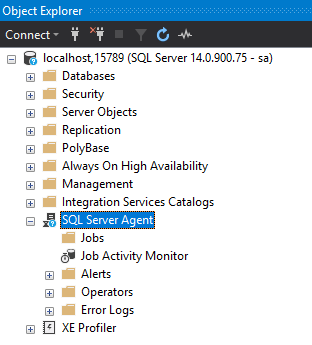
Once the container is running, connect via SSMS and the agent will be available.

I’ve made this image available on the docker hub. You can pull it down by running: –

docker pull dbafromthecold/sqlserverlinuxagent:latest

Thanks for reading!

Event Organisers

Over the last few weeks I’ve spoken at a few conferences, the last of those being SQL Relay.

For those of you who aren’t familiar with SQL Relay, it’s unique in that it’s not one event. SQL Relay is five events starting on Monday in one location and then a different location in the UK every day until the Friday.

As I was speaking at four of those locations I got myself a place on a bus hired by the organisers to take them and other speakers to each of the event locations. This gave me an insight into the sheer amount of work that’s required to host such an event.

Hint, it’s a lot of work

Don’t get me wrong, I knew organising events is hard work but knowing and seeing are two completely different things! Holding one event is hard enough but five in a row? The organisers of SQL Relay are some of the most hardworking and motivated people I’ve ever met.

Best thing about them though? On the Friday, the last event, even though they were shattered beyond belief, they were smiling and joking with attendees.

So hat’s off to event organisers everywhere, you mad mad bunch 🙂

Have a good week!

Limiting resources available to containers

One question that I get asked regularly is, “can you limit the host resources to individual containers?”

This is a great question as you don’t want one container consuming all the resources on your host, starving all the other containers.

It’s actually really simple to limit the resources available to containers, there’s a couple of switches that can be specified at runtime. For example: –

docker run -d -p 15789:1433 `
		--cpus=2 --memory=2048m `
			--env ACCEPT_EULA=Y --env SA_PASSWORD=Testing11@@ `
				--name testcontainer microsoft/mssql-server-linux:2017-GA

What I’ve done here is use the cpus and memory switches to limit that container to a maximum of 2 CPUs and 2GB of RAM. There are other options available, more info is available here.

Simple, eh? But it does show something interesting.

I’m running Docker on my Windows 10 machine, using Linux containers. The way this works is by spinning up a Hyper-V Linux VM to run the containers (you can read more about this here).

When that Linux VM first spins up it only has 2GB of RAM available to it. This isn’t enough to run SQL containers, if you try you’ll get the following error: –

The Linux VM has to have at least 3250MB of RAM available to it in order to run a SQL Server container. But when you run an individual container you can limit that container to less than 3250MB, as I’ve done here.

But how do you decide what limits to impose? Well, there’s always trial and error (it’s served me well) or use the docker stats command.

What I’d recommend doing is spinning up a few containers using docker compose, running some workload against them, and then monitoring using: –

docker stats

This way you can monitor the resources consumed by the containers and make an informed decision when it comes to setting limits.

Thanks for reading!

Monday Coffee: Long hours worked

Last week I asked the following question on twitter: –

I had a load of responses from a lot of DBAs out there who have worked some crazy shifts, you can see all the responses here

My personal record is due to a data centre migration. We moved all our physical kit from on-site to a data centre. I racked up 23 hours straight, followed by another 14 hours.

Pretty heavy going but nowhere near some of the responses I had (seriously there were some mammoth shifts in there).

I’m not sure how everyone else feels about these kinds of shifts. They’re definitely not enjoyable when they’re happening but I kind of hold onto mine as a badge of honour. Something that every DBA goes through and it’s one of those experiences that I feel has made me a more seasoned DBA.

Saying that, I don’t want any 20+ hour shifts again any time soon 🙂

Have a good (hopefully not too long) week!