Friday Reading 2016-11-18

Another week almost over so in-between daydreaming about relaxing this weekend I’ll be reading…

https://blogs.msdn.microsoft.com/sqlreleaseservices/sql-server-2016-service-pack-1-sp1-released/
SQL Server 2016 SP1 has been released. If you haven’t read this blog post yet, have a look at the first point when it details what new in SP1

https://www.microsoft.com/en-us/sql-server/sql-server-vnext-including-Linux#resources
SQL Server vNext is out for CTP. This includes SQL for Linux. Grab a copy of Ubuntu 16.04 and get installing!

SQL Server Tail Of Log Caching on NVDIMM
Bob(?) talks about the ability of SQL Server 2016 to use non-volatile memory to cache the tail of the log file (look at the IOPS!)

Microsoft SQL Server Team AMA
Dear Microsoft, where the heck is the dark theme for SSMS???? Seriously…

Code I’m still ashamed of
Bill Sourour talks about code he wrote as a junior developer and the grim functionality behind it

How we make money at StackOverflow
Nick Craver explains how Stack Overflow makes money and how they maintain their business ethics

The tale of the database with no indexes
Devon Leann talks about her strategy for dealing with a database that has no indexes (favourite line “…nary an index was present…” ha!)

SQL Server & Containers – Part One

Containers are a hot topic at the moment, there seems to be a new article about them on Hacker News every day and now that Microsoft is supporting containers on Windows Server 2016 I thought it was time to have a look for what that means for us DBAs.

The question is can SQL Server run in a container?

Well, yes! SQL Server can run in containers. I have to admit that the ability to quickly create new instances of SQL Server without having to run through a lengthy (no matter how much you automate it, come on…it’s quite lengthy) install process is very appealing. This would be very useful for dev/qa environments where they need new instances spun up on a regular basis.

So how do you create a SQL container?

The first thing to do is get yourself a copy of Windows Server 2016, install it in a dev environment and get it fully patched. Btw Windows Updates are no longer located in the Control Panel options in Windows Server 2016, go to Settings > Update & Security (same as Windows 10 wouldn’t you know?).

For simplicity I’m going to be using an installation of Windows Server 2016 with the Desktop. You can do this on a core installation but as i’m used to a GUI, I’ll use the GUI.

WARNING! For some reason certain commands fail when copying and pasting. If a command fails try typing it out manually and re-running.


EDIT – If running on Windows 10 you’ll need to install via the .msi from the Docker Store


So the first thing to do is install the docker engine, this only requires two powershell scripts to be run and then a restart of the server. Open up an administrative powershell prompt and run the following: –

Install-Module -Name DockerMsftProvider -Force
Install-Package -Name docker -ProviderName DockerMsftProvider -Force
Restart-Computer -Force

Code source – https://blog.docker.com/2016/09/build-your-first-docker-windows-server-container/

The last line of code will restart the server. Once it’s back up you can verify that the containers feature has been enabled: –

server2016_enablecontainers2

And then you can verify that the Docker Engine is up and responding to request by running: –

docker version

So now let’s find an image in the Docker Hub that we want to use to build containers. To do this, run: –

docker search microsoft/mssql

Now it’s time to build a container that’s running SQL Server 2016 (I’m going to use the SQL 2016 Express Edition image for this demo). Docker requires images to build containers so first thing is to get the image: –

docker pull microsoft/mssql-server-windows-express
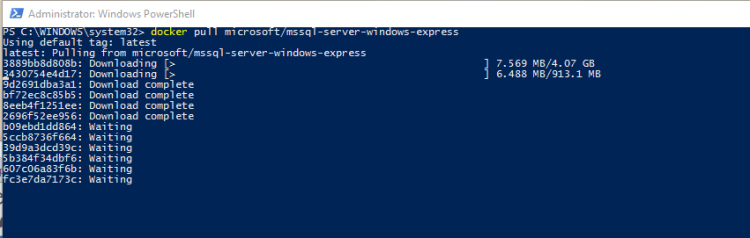
Once this is complete you can view the image downloaded:-

docker images
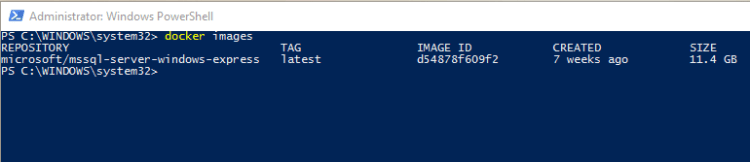
Now we can create a container by running:-

docker run -d -p 15789:1433 --env ACCEPT_EULA=Y ––env sa_password=Testing11@@ --name MyFirstContainer microsoft/mssql-server-windows-express

N.B.- Notice the values after the -p flag. What this is doing is mapping port 1433 (the default) in the container to port 15789 on the host. For more information have a look here.

When that completes, you can view details of the new container by running:-

docker ps

So now we have a container running SQL Server 2016, but how on earth are we going to connect to it?

Update – April 2018
Loopback has now been enabled for Windows containers, so we can use localhost,15789 to connect. You can read more about it here

Well there’s different ways of connecting depending where you are connecting from. If connecting locally you need to find the private IP address assigned to the container. This can be found by running:-

docker inspect MyFirstContainer 
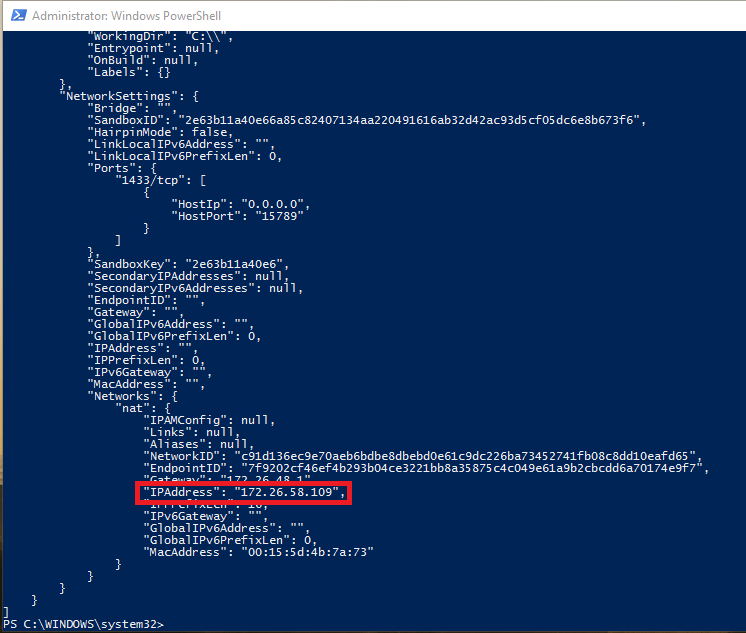
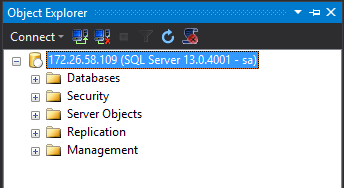
So my container has a private IP address of 172.26.58.109 on the host server. To connect via SSMS I just enter 172.26.58.109 into the connection, enter the user sa & password and boom! I’m in:-
But what about connecting remotely? This isn’t going to be much use if we can’t remotely connect!

Actually connecting remotely is the same as connecting to a named instance. You just use the server’s IP address (not the containers private IP) and the non-default port that we specified when creating the container (remember to allow access to the port in the firewall).
Easy, eh?

Hmmm, I imagine you’re saying to yourself. That’s all well and good but it’s a bit involved and I don’t really see what benefit I’m going to get from setting this up. Well, don’t worry, I’ll cover actually using the software and what benefits it brings in Part Two.


Monday Coffee 2016-11-14

Communication in the workplace.

With the release of Microsoft Teams we now have a dazzlingly array of software designed to increase communication between workers and departments in the workplace. There’s the old staple that is email, instant messengers such as Skype for Business and now relatively new systems such as Teams, Yammer or Slack.

I have to admit that I’m kinda on the Slack fanboy bandwagon. I find it a much better tool than Skype for Business mainly due to the fact that I find it less intrusive in my daily work. When someone sends me a message on Skype I find that I’m obliged to respond immediately whereas with Slack I feel I have the option to finish what I’m doing and then get back to whoever messaged me. Anyone else feel like that or am I on my own in that way of thinking?

Another feature that’s helped me out a lot is the ability to send messages to an entire channel. Before I would send an email to a certain department’s group address and wait for a response but now I can post in a channel and (hopefully) someone will get back to me.

Slack’s big problem will be Teams. A lot of companies will already be paying for Office 365 which Teams will come with, so why pay extra for Slack? I’ve had a brief look at Teams and the functionality that’s there is pretty much exactly the same as Slack so I think it’s a no-brainer that companies will prefer using Teams. Or…will they though? Slack’s user interface is a lot better than Teams (what’s with the purple?) and Slack also has the ability for me to be logged into different sites in the same app.

For instance, I have my work’s Slack but I’m also logged into the SQL Server & Irish Tech communities. This has given me access to a huge online tech presence who I can talk to and draw resources from. So I don’t really want to give that up, I guess in the end I’ll end up having email, Slack, Skype for Business and Teams open whilst working. Ah well…could be worse.

Friday Reading 2016-11-11

It’s Friday so no releases to Production today (ha!) which means in-between my code reviews, server audits and other tasks I’ll be reading the following…

Speaking? You? Go on.
Rob Sewell talks about why you should be presenting and gives his tips.

Public Speaking: A Primer
Paul Randal with a pretty detailed post on tips for presenting.

Build And Run Your First Docker Windows Server Container
Containers are a hot topic at the moment, this article guides you through creating a docker Windows container on Windows 10 and Windows Server 2016.

Edge running in a VM
Anyone out there actually using Edge? Well, here’s some (oldish) news.

Sega Genesis returns to production — in Brazil
The Sega Genesis (or Mega Drive for us Brits) has apparently been resurrected in Brazil! Bit of a blast from the past.

That’s it from me, have a good weekend.

Drag & Drop Table & Column Names in SSMS

I was working with a developer the other day and he was typing out each table name and all the column names he needed when working in Management Studio. He didn’t know that you can drag a table or column from object explorer into the query window and thinking about it, I didn’t know for ages when I first started with SQL.

It seems obvious but if you haven’t seen it before then how would you know that you could do that? Maybe you’d work it out but I thought I’d write this quick post to show anyone out there who wasn’t aware of this. What’s also really cool is that you can drag the columns folder from object explorer into the query window and it’ll drop all the columns from the table. So much better than typing out all the column names (even with intellisense) or using SELECT *

gif4