0

Chaos Engineering and SQL Server

Recently I’ve been delving into Chaos Engineering, reading books, watching videos, listening to podcasts etc. and I find it really intriguing….I mean, it just sounds exciting, right?
CHAOS Engineering!

N.B.- if you want a great resource for how to get into Chaos Engineering, I’d recommend Learning Chaos Engineering by Russ Miles. I’m using concepts and methods from that book to base this (hopefully) series of posts focusing on SQL Server but if you want a more in-depth dive…grab a copy of the book.

OK, before we move onto applying to SQL Server…first, a bit of history.

Back in 2010 Netflix migrated their platform to the cloud. When they did so they decided to adopt a mindset of: –

The best way to avoid failure is to fail constantly

The idea behind this is that if the platform cannot withstand a (semi)controlled outage, how will it react to an uncontrolled outage?

Out of that mindset came Chaos Monkey. A tool that’s designed to randomly terminate instances within their environment. Sounds nuts, right?

This is where Chaos Engineering comes from. So what exactly is it?

Principlesofchaos.org defines Chaos Engineering as: –

Chaos Engineering is the discipline of experimenting on a system in order to build confidence in the system’s capability to withstand turbulent conditions in production.

Chaos Engineering is a practice in which we run experiments against a system to see if it reacts the way we expect it to when it encounters a failure.

We’re not trying to break things here…Chaos Engineering is not breaking things in production.

If I said to my boss that we’re now going to be experiencing an increased amount of outages because, “I AM AN ENGINEER OF CHAOS”, I’d be marched out the front door pretty quickly.

What we’re doing is investigating our systems to see if they will fail when faced with certain conditions.

We don’t even have to touch production with our tests, and to be honest, I’d recommend running in a development or sandbox environment for you first few experiments. As long as the configuration of the SQL instances in those environments mirrors your production servers then you can definitely get some benefit from running chaos experiments in them.

Now, I know what you’re thinking. “Is Chaos Engineering really just a buzz phrase for resilience testing?”.

Well, yep. Resilience testing is pretty much what we’re doing here but hey, Chaos Engineering sounds cooler.

Anyway, moving on….So how can we apply Chaos Engineering to SQL Server?

The first thing we need to do is identify a potential weakness in SQL Server and the best way to do that is by performing a Past Incident Analysis.

Performing a past incident analysis is a great way to start looking for potential weaknesses/failures in your environment. The main reason being, we want to run a Chaos experiment for a condition that is likely to happen. There’s really no point in running an experiment against a perceived failure/weakness that’s never going to happen (or is extremely unlikely) because we want to get some actionable results from these tests.

The end goal here is to increase our confidence in our systems so that we know that they will react as we expect them to when they encounter failure.

So we want to identify an potential failure that’s pretty likely to happen and could potentially have a significant impact.

If an incident analysis hasn’t thrown up any candidates another good method is to perform a Likelihood-Impact analysis.
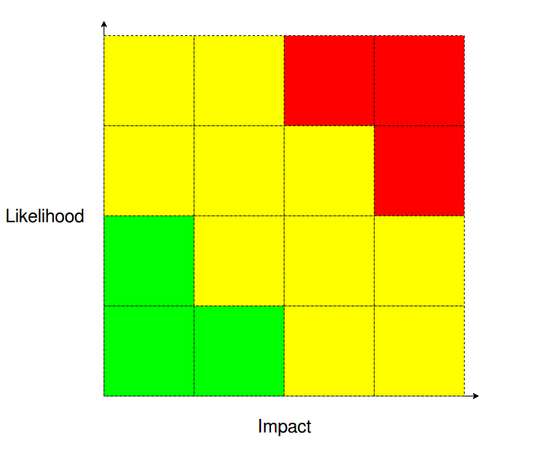
You sit your team down and think about all the ways SQL Server (and the systems around it) can possibly fail.

N.B. – this is really good fun

Then you rank each failure it terms of how likely it is and how impact of an impact it would have. After doing this, you’ll end up with a couple (few?) failures in the red areas of the graphs…you first candidates for your Chaos experiments 🙂

OK, let’s think about some failures…

High Availability
We have a two node cluster hosting an availability group. One test we could run is to failover the availability group to make sure that it’s working as we expect it to. Now we could run

ALTER AVAILABILITY GROUP [NAME] FAILOVER

but that’s a very sanitised way of failing over the AG. How about running a Chaos experiment that shuts down the primary node? Wouldn’t that be a more realistic test of how the AG could fail out in the “wild”?

Monitoring
We don’t just have to test SQL Server…we can test the systems around it. So how about our monitoring systems? Say we run a query against a (test) database that fills the transaction log? When did we get alerted? Did we only get an alert once the log had filled up or did we get preemptive alerts? Did we only get an alert when there was an issue? Is that how we want our monitoring systems to behave? Monitoring systems are vital to our production environments so testing them is an absolute must.

Backups
When was the last time we tested our backups? If we needed to perform a point-in-time restore of a production database right now, would we be able to do it quickly and easily? Or would we be scrambling round getting scripts together? A restore strategy is absolutely something that we want to work when we need it to so we can run experiments to test it on a regular basis (dbatools is awesome for this).

Disaster recovery
OK, let’s go nuclear for the last one. Do we have a DR solution in place? When was the last time the we tested failing over to it? We really don’t want to be enacting our DR strategy for the first time when production is down (seriously).

Those are just a few examples of areas that we can test…there are hundreds of others that can be run. Literally any system or process in production can have a Chaos Engineering experiment run against it.

So now that we’ve identified some failures, we need to pick one and run an experiment…which I’ll discuss in an upcoming post.

Thanks for reading!

0

Looking forward to 2020

2019 was a busy year for me. I presented sessions in over 10 countries, averaging speaking at two conferences per month. I also helped organise Data Relay and attended all five days which is always a fun (yet tiring) experience.

All in all, I thoroughly enjoyed myself last year and I hope 2020 brings more of the same! I do intend on not speaking at as many conferences this year although to be honest I did say that at the start of 2019.

I do want to get back into blogging more often this year. I didn’t publish as often as I wanted to last year and the simple reason for that was….time. So this year I plan on getting some cool stuff out there.

I’m currently writing this in Dublin airport waiting to head over to London to present my Chaos Engineering for SQL Server session at Conf42.com. I’ve been diving into the world of Chaos Engineering recently so hope to get a few posts out about it in the next few months.

I’ll also be continuing to explore running SQL Server in Docker containers and on Kubernetes. There’s so much great stuff happening in those areas that it can be difficult to keep up at times! The two main things I’m looking forward to are running SQL Server Edge on a Raspberry Pi (if they ever give me access to the container image) and WSL 2 going GA.

Another thing I’ve been enjoying is delving into the world of Linux. I’ve been using Ubuntu as my primary OS for a while now but had to refresh my laptop over Christmas in order to install Windows 10 as it’s needed for an upcoming project that I’m working on (can’t say too much about that at the moment but it’s quite exciting!). So I installed Windows 10 and then decided to install Fedora 31 instead of re-installing Ubuntu.

I can’t really say why I went for Fedora. There’s a tonne of distros out there (I seriously looked at Manjaro) but I guess the main reason was that Microsoft has two linux SQL Server 2019 container images, one for Ubuntu and one for Red Hat. Plus I suffer from Shiny Tech Syndrome so wanted to try something new.

I’ve also recently purchased a Pinebook Pro. I needed a backup laptop for when I travel (at least that’s what I’m telling myself) so nabbed one. The price can’t be argued with ($200) and the reviews online are all very positive so am looking forward to getting my hands on it. One of the really cool things is that it will boot from a SD card so I’ll get to try out Manjaro after all! 🙂 I’ll definitely be posting a review about it once I’ve had it for a couple of weeks (in fact that might get wrapped up into a larger post about either my linux experiences so far or my current travel kit…haven’t decided yet).

Finally to mention, I’ve also started helping organise a brand new conference in Ireland, Data Céilí. This conference is run by the team behind SQL Saturday Dublin and the response we’ve had so far as been amazing. We’ll be selecting sessions in the next couple of weeks and then prompting the heck out of it!

I reckon that should be enough projects to keep me occupied for the foreseeable future.

Thanks for reading and I hope 2020 is a blast.

0

Remote sessions at Data Céilí

At Data Céilí 2020 we want to be as green as possible and one idea we’ve had is to run a Green Track that will host remote sessions from speakers around the world.

This track will allow speakers to present without clocking up the associated air miles. It will also allow for speakers who can’t make the trip to Ireland to present their sessions from the comfort of their own home.

If you’d like to submit a session for our Green Track, the call for speakers is open until the 31st of January. Select the Green Session option from the drop down: –

The Green Track sessions are completely separate from the other on-site sessions, so if you’ve submitted a regular session it won’t be considered for the Green Track.

We think this will be a great way of expanding the range of speakers that we can host at our first event and should be good fun!

Data Céilí is brought to you by the team behind SQL Saturday Dublin and Cork, the event will run be held at Trinity College in the centre of Dublin, with pre-cons on the 9th of July 2020 and the main event on the 10th.

Hope to see you there!

0

Using volumes in SQL Server 2019 non-root containers

I’ve seen a few people online asking how to use docker named volumes with the new SQL Server 2019 RTM images. Microsoft changed the way SQL runs within a container for the RTM versions, SQL no longer runs as the root user.

This is a good thing but does throw up some issues when mounting volumes to create databases on.

Let’s run through what the issue is and how to overcome it.

Run a container from the 2019 GDR1 ubuntu image: –

docker container run -d `
-p 15789:1433 `
--volume sqlserver:/var/opt/sqlserver `
--env MSSQL_SA_PASSWORD=Testing1122 `
--env ACCEPT_EULA=Y `
--env MSSQL_BACKUP_DIR="/var/opt/sqlserver" `
--env MSSQL_DATA_DIR="/var/opt/sqlserver" `
--env MSSQL_LOG_DIR="/var/opt/sqlserver" `
--name testcontainer `
mcr.microsoft.com/mssql/server:2019-GDR1-ubuntu-16.04

What we’re going here is mounting a named volume called sqlserver to /var/opt/sqlserver within the container. Then we’re setting the default data, log, and backup location to /var/opt/sqlserver/.

Now if we try and create a database using those defaults: –

CREATE DATABASE [TestDatabase];
GO

Msg 5123, Level 16, State 1, Line 1
CREATE FILE encountered operating system error 2(The system cannot find the file specified.) while attempting to open or create the physical file ‘/var/opt/sqlserver/testdatabase.mdf’.
Msg 1802, Level 16, State 4, Line 1
CREATE DATABASE failed. Some file names listed could not be created. Check related errors.

We get an error message as the SQL instance within the container does not have access to that location because it’s running as the mssql user.

We need to grant the mssql user access to that folder: –

docker exec -u 0 testcontainer bash -c "chown mssql /var/opt/sqlserver"

This will make the mssql user the owner of that folder. -u 0 sets the command to run as the root user and it has access to be able to change the owner of the folder. For more info on docker exec click here.

So we can now create the database: –

However, we would have to run that command every time we spin up a container with named volumes mounted. A better way would be to create a custom image from a Dockerfile that has created that folder within the container and granted the mssql user access: –

FROM mcr.microsoft.com/mssql/server:2019-GDR1-ubuntu-16.04

USER root

RUN mkdir /var/opt/sqlserver

RUN chown mssql /var/opt/sqlserver

ENV MSSQL_BACKUP_DIR="/var/opt/sqlserver"
ENV MSSQL_DATA_DIR="/var/opt/sqlserver"
ENV MSSQL_LOG_DIR="/var/opt/sqlserver"

USER mssql

CMD /opt/mssql/bin/sqlservr

We’re using the USER command to switch to the root user in order to grant access to the folder and then switching back to the mssql user to run SQL.

Create the custom image: –

docker build -t custom2019image .

Now we can run a container from that image: –

docker container run -d `
-p 15789:1433 `
--volume sqlserver:/var/opt/sqlserver `
--env MSSQL_SA_PASSWORD=Testing1122 `
--env ACCEPT_EULA=Y `
--name testcontainer `
custom2019image

And create the database without having to run anything else: –

CREATE DATABASE [TestDatabase];
GO

Hope that helps!

0

Using the GitHub Package Registry to store container images


UPDATE – October 2020 – Github has now released the Github Container Registry which can be used to store container images. For more information, see here


The GitHub Package Registry is available for beta testing and allows us to store container images in it, basically giving us the same functionality as the Docker Hub.

However the Docker Hub only allows for one private repository per free account whereas the Github package registry is completely private! Let’s run through a simple demo to create a registry and upload an image.

First thing to do is create a personal access token in GitHub. Go to Settings > Developer Settings > Personal Access Tokens

Ensure that the token has the rights set above and click Generate Token

Now we can use that token to login to the package registry: –

TOKEN=XXXXXXXXXXXXXXXXXXXXXXXXXXXXXXXXXXXXXXXX
docker login docker.pkg.github.com -u dbafromthecold -p $TOKEN

Search for a test image. I’m going to use the busybox image which is 2MB: –

docker search busybox

Then pull the image down: –

docker pull busybox:latest

Tag the image with the repo name to be push to. The format is docker.pkg.github.com/USERNAME/REPOSITORY/IMAGE:TAG

docker tag busybox:latest docker.pkg.github.com/dbafromthecold/testrepository/busybox:latest

N.B. – the repo used has to already exist within your github account

Now push the image to the GitHub Package repository: –

docker push docker.pkg.github.com/dbafromthecold/testrepository/busybox:latest

And then you should be able to see the package in GitHub: –

Thanks for reading!