Operating system error 995 when adding a database to an availability group

I was adding databases to an availability group (SQL Server 2017 CU20 instance) the other day and one database failed to automatically seed to the secondary.

When I looked in the SQL Server error log I saw this error message: –

BackupIoRequest::ReportIoError: write failure on backup device ‘{GUID}’. Operating system error 995(The I/O operation has been aborted because of either a thread exit or an application request.).

Followed up by: –

Automatic seeding of availability database ‘databasename’ in availability group ‘availabilitygroup’ failed with a transient error. The operation will be retried.

BackupVirtualDeviceFile::RequestDurableMedia: Flush failure on backup device ‘{GUID}’. Operating system error 995(The I/O operation has been aborted because of either a thread exit or an application request.).

Write on “{GUID}” failed: 995(The I/O operation has been aborted because of either a thread exit or an application request.)

A nonrecoverable I/O error occurred on file “{GUID}:” 995(The I/O operation has been aborted because of either a thread exit or an application request.).

OK I was a little concerned…until I went and checked the secondary.

The issue was, even though I’d created the file paths on the secondary for the data files…I hadn’t created the file path for the database’s log file.

So I removed the database from the availability group, created the file path for the database’s log file, and readded to the availability group.

This time the database automatically seeded over to the secondary no problem…phew!

Thanks for reading!

Enabling the SQL Server Agent in Linux Containers

EDIT 3 – November 2019 – There is an environment variable that can now be used to enable the SQL Server Agent, MSSQL_AGENT_ENABLED

docker run -d -p 15789:1433 `
--env ACCEPT_EULA=Y `
--env SA_PASSWORD=Testing1122 `
--env MSSQL_AGENT_ENABLED=True `
--name testcontainer `
mcr.microsoft.com/mssql/server:2019-GDR1-ubuntu-16.04

A full list of environment variables available for SQL Server can be found here


EDIT 2 – May 2018 – Thanks to Jon & Russell’s comments for pointing out that as of SQL 2017 CU4 the Agent no longer needs to be installed separately, just enabled. I have updated the code here and on Github to reflect that change

There is also the option to enable the agent in the microsoft/mssql-server-linux:latest image, just run the line of code below to enable the agent from within the container.


EDIT – Feb 2017 – Justin Hartman (t) pointed out that the original code here no longer works but a fix has been provided by Microsoft. I’ve updated the image in DockerHub and the code here and in my Github repository


At SQL Saturday Holland a few weeks ago I was (surprise, surprise) chatting about containers and mentioned that I hadn’t been able to get the SQL Agent working.

Now, one of the benefits of attending SQL Saturdays is that you get to pick the brains of a lot of very clever people and luckily for me, Jan Van Humbeek (blog|twitter) was there.

Jan said that he had gotten the SQL Agent running in Linux containers so I asked if he could send on his code and he very kindly obliged.

So, the disclaimer for this blog post is that I didn’t write the code here, Jan did. All I’ve done is drop it into a dockerfile so that an image can be built. Thank you very much Jan!

Here’s the dockerfile to build an image with the Agent installed: –

# building from ubuntu
FROM ubuntu:16.04

# install curl & sudo & apt-transport-https
RUN apt-get update && apt-get install -y curl sudo && apt-get install -y apt-transport-https

# Import the public repository GPG keys
RUN curl https://packages.microsoft.com/keys/microsoft.asc | apt-key add -

# Register the Microsoft SQL Server Ubuntu repository
RUN curl https://packages.microsoft.com/config/ubuntu/16.04/mssql-server-2017.list | tee /etc/apt/sources.list.d/mssql-server.list

# update package list 
RUN apt-get update -y

# install sql server
RUN apt-get install -y mssql-server

# enable the agent
RUN sudo /opt/mssql/bin/mssql-conf set sqlagent.enabled true 

# start sql server 
CMD /opt/mssql/bin/sqlservr

N.B. – This dockerfile is also available on my Github

Ok, so I then dropped this docker into C:\docker\builds\linuxwithagent and built the image: –

docker build -t linuxwithagent C:\docker\builds\linuxwithagent

This does throw a few errors but will successfully build an image. A container can then be run: –

docker run -d -p 15789:1433 --env ACCEPT_EULA=Y --env SA_PASSWORD=Testing11@@ --name testcontainer linuxwithagent

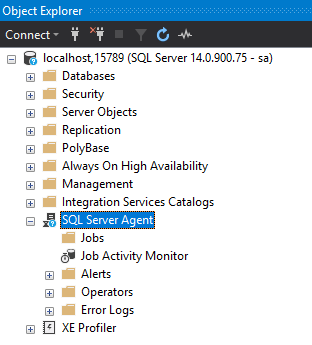
Once the container is running, connect via SSMS and the agent will be available.

I’ve made this image available on the docker hub. You can pull it down by running: –

docker pull dbafromthecold/sqlserverlinuxagent:latest

Thanks for reading!
Attaching databases via a dockerfile


There’s been an update posted about this topic here-

Attaching databases via a dockerfile – UPDATE


Last week I presented my session on SQL Server & Containers for the PASS Virtualization Group and during my prep I noticed that there’s some functionality available to Windows containers and not Linux containers.

One of the (if not the) main benefits of working with SQL in a container is that you can create a custom image to build container from that has all of your development databases available as soon as the container comes online.

This is really simple to do with Windows containers. Say I want to attach DatabaseA that has one data file (DatabaseA.mdf) and a log file (DatabaseA_log.ldf): –

ENV attach_dbs="[{'dbName':'DatabaseA','dbFiles':['C:\\SQLServer\\DatabaseA.mdf','C:\\SQLServer\\DatabaseA_log.ldf']}]"

Nice and simple! One line of code and any containers spun up from the image this dockerfile creates will have DatabaseA ready to go.

However this functionality is not available when working with Linux containers. Currently you cannot use an environment variable to attach a database to a SQL instance running in a Linux container.

This was a problem for me as I wanted to change things up a little for the Virtualization Group’s webinar. I wanted to show all the code in my slides running on Windows Server but do my demos on my Windows 10 desktop but working with Linux containers. I wanted to do this as I thought it would be cool to show how you can work with SQL on Linux from Windows.

I started doing some research online and there are different work arounds to attaching the database into SQL in a Linux container but they all involved separate scripts outside of the dockerfile. I wanted to keep things simple, only show minor changes from Windows containers so I had to get a bit creative.

Here’s what I came up with: –

HEALTHCHECK --interval=10s  \
	CMD /opt/mssql-tools/bin/sqlcmd -S . -U sa -P Testing11@@ \
		-Q "CREATE DATABASE [DatabaseA] ON (FILENAME = '/var/opt/sqlserver/DatabaseA.mdf'),(FILENAME = '/var/opt/sqlserver/DatabaseA_log.ldf') FOR ATTACH"

EDIT – 2018-12-11 – Finally came back to this and blogged about attaching databases via a script here

A bit more involved but it performs the same functions as the attach_dbs environment variable in the dockerfile for Windows containers. Here’s what each part of the code does: –

# Instruct docker to wait for 10 seconds (to allow SQL to initialise) and then perform a check to ensure the container is running as expected
HEALTHCHECK --interval=10s

# Use sqlcmd to connect to the SQL instance within the container
CMD /opt/mssql-tools/bin/sqlcmd -S . -U sa -P Testing11@@

# Runs a SQL script to attach the database
-Q "CREATE DATABASE [DatabaseA] ON (FILENAME = '/var/opt/sqlserver/DatabaseA.mdf'),(FILENAME = '/var/opt/sqlserver/DatabaseA_log.ldf') FOR ATTACH"

So that’s how you can get the same result, an image in which you can create containers with DatabaseA available on startup, whether you are working with Linux or Windows containers by running: –

docker build -t demoimage <pathtodockerfilelocation>

If you want to see the full dockefiles, I’ve made both the Windows and Linux versions that I use for my demos available on my GitHub here.

Thanks for reading!

SELECT…INTO in SQL Server 2017

One of the new options available in SQL Server 2017 is the ability to specify a filegroup when using SELECT..INTO to create a table.

Previous versions would create the new table on the PRIMARY filegroup which isn’t ideal so this is a pretty nifty option imho. Let’s run through a quick demo for which I’m going to restore the AdventureWorks database that’s available here.

The first thing to do once the database has been restored is to set the database to the SQL 2017 compatibility level:-

USE [master]
GO

ALTER DATABASE [AdventureWorks] SET COMPATIBILITY_LEVEL = 140
GO

Then I’m going to add a new filegroup to the database (so that I can create my new table on it): –

USE [master];
GO

ALTER DATABASE [AdventureWorks] ADD FILEGROUP [TempData]
GO

ALTER DATABASE [AdventureWorks] ADD FILE 
(	NAME = N'AdventureWorks_TempData', 
	FILENAME = N'C:\Program Files\Microsoft SQL Server\MSSQL14.MSSQLSERVER\MSSQL\DATA\AdventureWorks_TempData.ndf' , 
	SIZE = 8192KB , 
	FILEGROWTH = 65536KB ) TO FILEGROUP [TempData]
GO

Now I can run the SELECT…INTO statement using the new ON FILEGROUP option. I’m going to run an example SELECT statement to capture Sales in the UK: –

USE [AdventureWorks];
GO

SELECT c.CustomerID, c.AccountNumber, p.FirstName, p.LastName, p.EmailAddress

	INTO dbo.CollectedData ON TempData

FROM Sales.Customer c
INNER JOIN Sales.CustomerPII p ON c.CustomerID = p.CustomerID
INNER JOIN Sales.SalesTerritory t ON p.TerritoryID = t.TerritoryID
WHERE t.Name = 'United Kingdom';
GO

Once that has completed I can check that the new table is on the filegroup that I specified by running: –

SELECT f.name AS [Filegroup]
FROM sys.indexes i
INNER JOIN sys.filegroups f ON i.data_space_id = f.data_space_id
INNER JOIN sys.objects o ON i.object_id = o.object_id
WHERE o.name = 'CollectedData'
GO

Pretty cool huh? So what’s the benefits of this?

Well, this allows us to have a separate filegroup for all user created tables (in this manner). The files behind that filegroup could be on a separate drive allowing you to separate the IO of these processes away from the day-to-day database operations.

What it comes down to is that it gives us more flexibility when working with data and that’s a good thing, right?

Finally, I did have a go a specifying a memory optimised filegroup but unfortunately it’s not supported.

Now that would be really useful as it would be blazingly fast. Hopefully something for a future version?

Thanks for reading!

Running Linux Containers on Windows

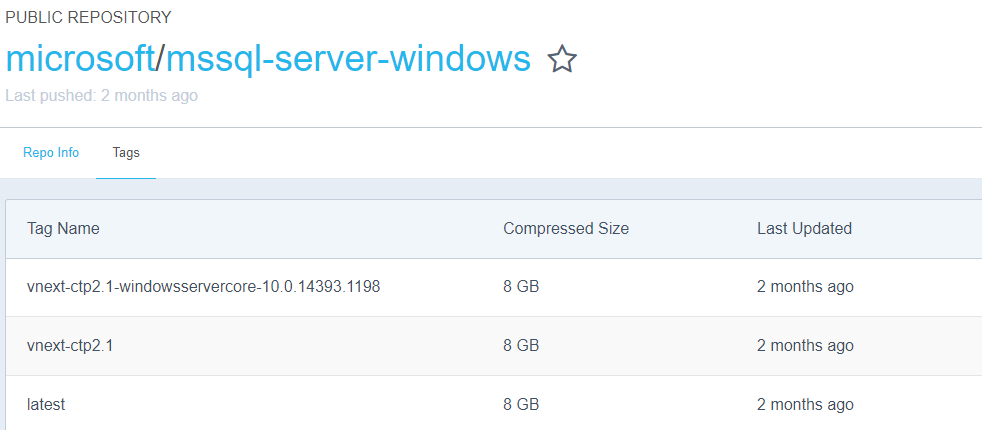
Microsoft have announced the availability of SQL Server 2017 RC1 and I wanted to check it out in a container however it seems that the Windows image hasn’t been updated on the Docker Hub: –

But no matter, running Docker on Windows 10 gives me the option to run Linux containers and the SQL Server 2017 RC1 Linux container image is available on the Docker Hub: –

This post is a step-by-step guide to getting Linux containers running on your Windows 10 machine. The first thing to do is install the Docker Engine.

Installing Docker on Windows 10 is different than installing on Windows Server 2016, you’ll need to grab the Community Edition installer from the Docker Store.

Once installed, you’ll then need to switch the engine from Windows Container to Linux Containers by right-clicking the Docker icon in the taskbar and selecting “Switch to Linux Containers…” : –

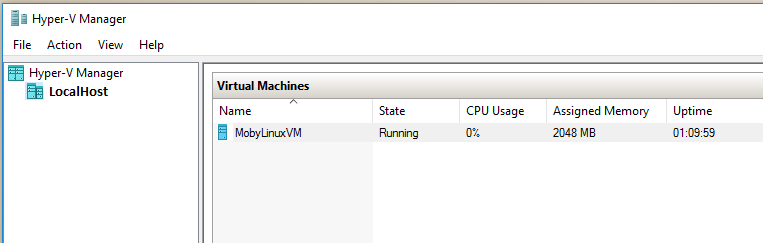
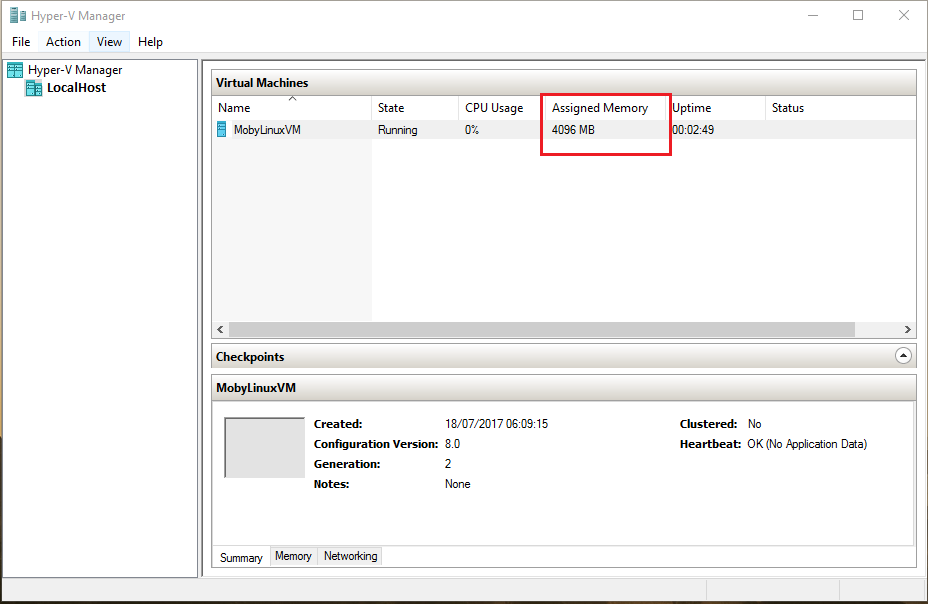
The way Linux containers run on Windows is that they run in a virtual machine, you can see this by opening up Hyper-V Manager: –

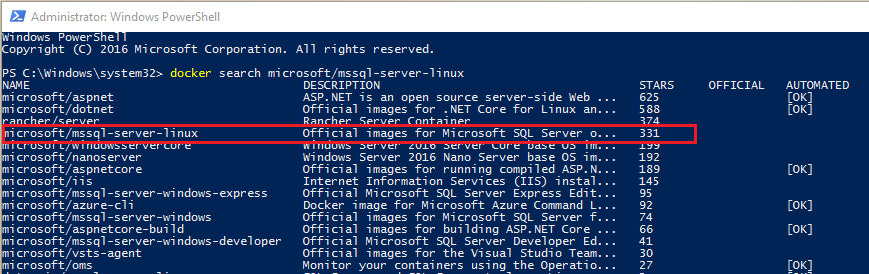
Now the linux image can be pulled from the Docker Hub. To search for the image run: –

docker search microsoft/mssql-server-linux

To pull the image down: –

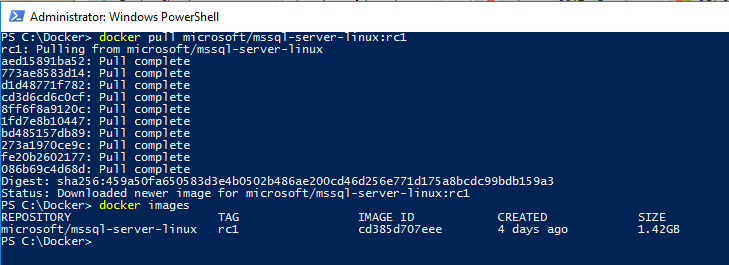
docker pull microsoft/mssql-server-linux:rc1

The first thing I noticed when I did this was, how quick was it to pull the image down? If you’ve pulled the SQL Server Windows images down you’ll know that it takes a bit of time. The Linux image is significantly smaller than the Windows image (1.42GB compared to ~12GB), no idea why that is tbh.

Anyway, a container can be run once the image is down: –

docker run -d -p 15789:1433 --env ACCEPT_EULA=Y --env SA_PASSWORD=Testing1122 --name testcontainer microsoft/mssql-server-linux:rc1

N.B. – both the ACCEPT_EULA and SA_PASSWORD environment variables need to be upper case for the values passed to be accepted. Linux is case sensitive!

To confirm the container is up, run: –

docker ps -a

Hmm, something’s gone wrong for me: –

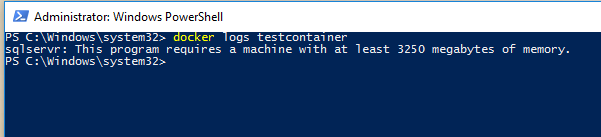
I need to view the container logs in order to find out what’s happened: –

docker logs testcontainer

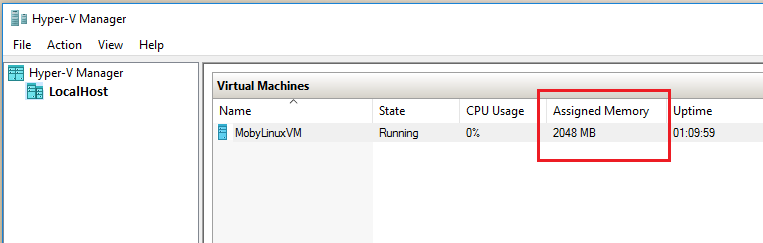
Oh, the VM that the container is running in only has 2048MB of memory available!

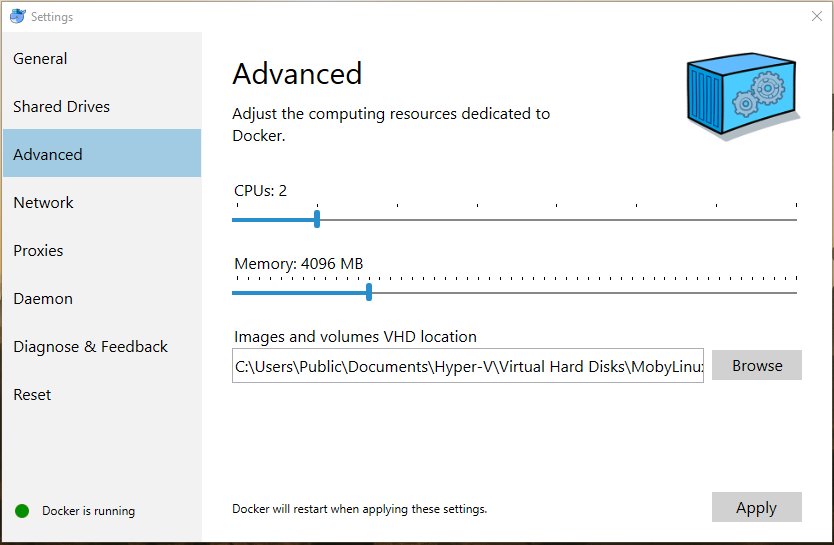
Don’t adjust the memory allocation in Hyper-V Manager however, the changes won’t persist. Instead right-click on the Docker icon in the Taskbar and choose Settings then Advanced: –

The Docker Engine will restart to apply the changes, which can be confirmed in Hyper-V Manager: –

And now the container can be started: –

docker start testcontainer

docker ps

Cool, the container is up and running! Connecting locally is different than connecting to a SQL instance in a Windows container. With Windows containers I would use the docker inspect command to find the private IP address assigned to the container and use that to connect via SSMS.

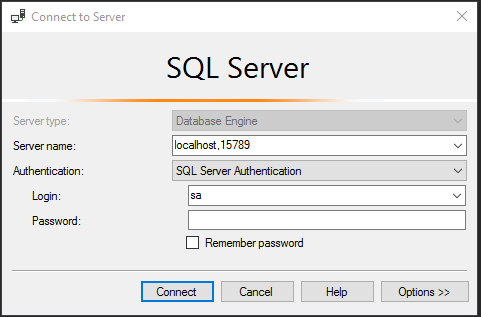
However with linux containers we use the host’s IP address/name and the port number than was specified upon container runtime: –

Enter in the sa password that was specified and: –

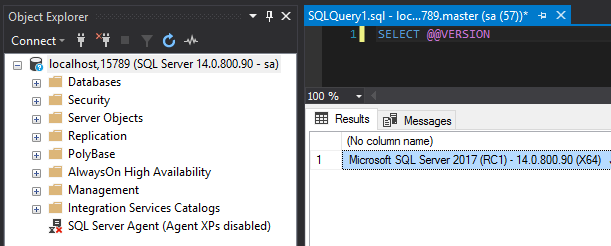
SQL Server 2017 RC1 on Linux running in a container on Windows 10!

I think that’s pretty cool 🙂

Thanks for reading!