SQL Server & Containers – Part Three

This post follows on from Part Two in which we created a custom docker image. We’ll now look at pushing that custom image up to the Docker repository.

Let’s quickly check that we have our custom image, so run (in an admin powershell session):-

docker images

If you’ve followed Part One & Part Two you should see:-

customimagespart3

If you don’t have testimage there, go back to Part Two and follow the instructions. Don’t worry, we’ll wait 🙂

Ok, what we’re going to do now is push that image up to the Docker repository. You’ll need an account for this so go to https://cloud.docker.com/ and create an account (don’t worry, it’s free).

dockercloudsignup

Once you’re signed up and logged in, click on the Repositories link on the left hand side and then click on the Create button (over on the right): –

createrepository

Give your repository a name and then click the button to make it private (seriously, otherwise it’ll be available for everyone to download!) and hit Create.

On the next screen you should see the following over on the right:-

dockercommands

This is the code to push your custom image into your repository! Pretty cool but there’s a couple of things that we need to do first.

Back on your server we need to connect to the repository that we just setup. Really simple to do, just run the following:-

docker login

And enter in the login details that you specified when you created your Docker account.

dockerlogin

Ok, one more thing to do before we can push the image up to the repository. We need to “tag” the image. So run: –

docker tag testimage dbafromthecold/testsqlrepository:v1

N.B.- Replace my repository’s name with your own 🙂

What I’ve essentially done here is rebrand the custom image as a new image that belongs to my repository, tagged as v1. You can verify this by running:-

docker images

customimagespart3_2

You can see that a new image is there with the name of my repository.

Now that that’s all done we can push the image to the repository using the command that was given to us when we created our repository online:-

docker push dbafromthecold/testsqlrepository:v1

pushimage

Good stuff, we’ve successfully pushed a custom Docker image into our own Docker repository! We can check this online in our repository by hitting the Tags tab:-

dockerrepository

And there it is, our image in our repository tagged as v1! The reason that I’ve tagged it as v1 is that if I make any changes to my image, I can push the updated image to my repository as v2, v3, v4 etc…

Still with me? Awesome. Final thing to do then is pull that image down from the repository on a different server. If you don’t have a different server don’t worry. What we’ll do is clean-up our existing server so it looks like a fresh install. If you do have a different server to use (lucky you) you don’t need to do this bit!

So first we’ll logout of docker:-

docker logout

dockerlogout

And then we’ll delete our custom images:-

docker rmi testimage dbafromthecold/testsqlrepository:v1

dockerdeleteimages

And now we have a clean docker daemon to test pulling images from the repository! If you have a new server to use, it’s time to jump back in!

So log into your repository:-

docker login

And now we can pull our image down from our repository: –

docker pull dbafromthecold/testsqlrepository:v1

dockerpullimage
N.B.- I’m seeing “Already Exists” as I’m running this on the same server as I created and then deleted the image.

Once that has completed, you can check that the image is there by running:-

docker images

dockerviewimages2

And there’s the image that we’ve pulled from our repository! And we can use it to create containers!

So that’s how you can create a custom image that can be shared across multiple servers!

Hmmm, I can hear you saying (seriously??:-)). That’s all well and good but I’m not using SQL Server vNext in any of my test/dev/qa environment so this isn’t going to be of much use. Is there a way of getting earlier versions of SQL in containers?

Well, would you believe it? Yes there is! I’ll go over one such option in Part Four.

SQL Server & Containers – Part Two

This post follows on from SQL Server & Containers – Part 1 and will go through how to build custom container images.

Since Part 1 came out Microsoft has released SQL Server vNext which is available in the Docker repository. I used the SQL 2016 Express image in Part 1 but that has now been deprecated so for this part we’ll use one of the new images.

To see what SQL Server images are available for you to download and run as containers, you can run:-

docker search microsoft/mssql-server

searchdockerrepository

So let’s crack on and build a container.

One word before we start however, this post assumes that you’ve installed the docker engine on a Windows Server 2016 installation as detailed in Part 1. If you haven’t installed the Docker engine, go back to Part 1 and follow the instructions, we’ll meet you here 🙂

As before to create a container, we first need to pull an image from the respository. Let’s go for the vNext image.

Open an admin powershell prompt and run:-

docker pull microsoft/mssql-server-windows

And now we can run a container from the image: –

docker run -d -p 15888:1433 -e sa_password=Testing11 -e ACCEPT_EULA=Y microsoft/mssql-server-windows

runningcontainer

We now have a running SQL Server vNext container. Note that the syntax to run the container has changed slightly from the code we ran in Part 1, the difference being
-e sa_password=Testing -e ACCEPT_EULA=Y instead of –env sa_password=Testing

Details of commands needed to run containers are documented in the Docker Hub which we’ll explore further in Part 3.

What we are going to do now is create a database within that container, then stop the container and create a new image from it.

So connect to the container (server IP address and the port we specified in the run command) and run the following SQL scripts:-

CREATE DATABASE [TESTDB];
GO
USE [TESTDB];
GO
CREATE TABLE dbo.DummyData
(PKID INT IDENTITY(1,1) PRIMARY KEY,
 ColA VARCHAR(10),
 ColB VARCHAR(10),
 ColC DATETIME);
GO
INSERT INTO dbo.DummyData
(ColA,ColB,ColC)
VALUES
(REPLICATE('A',10),REPLICATE('B',10),GETUTCDATE());
GO 10

This container now has a custom database in it with some random data. What we’re going to do now is stop that container and create a new image from it, so first run:-

docker stop b71

N.B. – b71 is the first three digits of my container ID. You’ll need to substitute for your container’s ID

Now that the container is stopped we can create a new image: –

docker commit b71 testimage

This will create a new image from our container called testimage which we can view by running:-

docker images

newimages

Great stuff, we’ve created a custom docker image! What’s really cool now is that we can create containers from that image, exactly the same as we did with the generic original image from the repository:-

docker run -d -p 15666:1433 -e sa_password=Testing22 -e ACCEPT_EULA=Y testimage

Once the command has executed you can connect remotely via SSMS using the server name and the port we specified above. The database that we created in the original image will be there, along with the data that we entered!

This is where containers start to come into their own in my opinion. You can build your own custom images and quickly spin up multiple instances that already have all the databases that you require!

Hmmm, you say. That’s great and all but are those custom images only available on the server that I’ve created them on?

Well, yes and no, but that’s something that’ll be covered in Part Three.

SQL Server & Containers – Part One

Containers are a hot topic at the moment, there seems to be a new article about them on Hacker News every day and now that Microsoft is supporting containers on Windows Server 2016 I thought it was time to have a look for what that means for us DBAs.

The question is can SQL Server run in a container?

Well, yes! SQL Server can run in containers. I have to admit that the ability to quickly create new instances of SQL Server without having to run through a lengthy (no matter how much you automate it, come on…it’s quite lengthy) install process is very appealing. This would be very useful for dev/qa environments where they need new instances spun up on a regular basis.

So how do you create a SQL container?

The first thing to do is get yourself a copy of Windows Server 2016, install it in a dev environment and get it fully patched. Btw Windows Updates are no longer located in the Control Panel options in Windows Server 2016, go to Settings > Update & Security (same as Windows 10 wouldn’t you know?).

For simplicity I’m going to be using an installation of Windows Server 2016 with the Desktop. You can do this on a core installation but as i’m used to a GUI, I’ll use the GUI.

WARNING! For some reason certain commands fail when copying and pasting. If a command fails try typing it out manually and re-running.


EDIT – If running on Windows 10 you’ll need to install via the .msi from the Docker Store


So the first thing to do is install the docker engine, this only requires two powershell scripts to be run and then a restart of the server. Open up an administrative powershell prompt and run the following: –

Install-Module -Name DockerMsftProvider -Force
Install-Package -Name docker -ProviderName DockerMsftProvider -Force
Restart-Computer -Force

Code source – https://blog.docker.com/2016/09/build-your-first-docker-windows-server-container/

The last line of code will restart the server. Once it’s back up you can verify that the containers feature has been enabled: –

server2016_enablecontainers2

And then you can verify that the Docker Engine is up and responding to request by running: –

docker version

So now let’s find an image in the Docker Hub that we want to use to build containers. To do this, run: –

docker search microsoft/mssql

Now it’s time to build a container that’s running SQL Server 2016 (I’m going to use the SQL 2016 Express Edition image for this demo). Docker requires images to build containers so first thing is to get the image: –

docker pull microsoft/mssql-server-windows-express

Once this is complete you can view the image downloaded:-

docker images

Now we can create a container by running:-

docker run -d -p 15789:1433 --env ACCEPT_EULA=Y ––env sa_password=Testing11@@ --name MyFirstContainer microsoft/mssql-server-windows-express

N.B.- Notice the values after the -p flag. What this is doing is mapping port 1433 (the default) in the container to port 15789 on the host. For more information have a look here.

When that completes, you can view details of the new container by running:-

docker ps

So now we have a container running SQL Server 2016, but how on earth are we going to connect to it?

Update – April 2018
Loopback has now been enabled for Windows containers, so we can use localhost,15789 to connect. You can read more about it here

Well there’s different ways of connecting depending where you are connecting from. If connecting locally you need to find the private IP address assigned to the container. This can be found by running:-

docker inspect MyFirstContainer 

So my container has a private IP address of 172.26.58.109 on the host server. To connect via SSMS I just enter 172.26.58.109 into the connection, enter the user sa & password and boom! I’m in:-

But what about connecting remotely? This isn’t going to be much use if we can’t remotely connect!

Actually connecting remotely is the same as connecting to a named instance. You just use the server’s IP address (not the containers private IP) and the non-default port that we specified when creating the container (remember to allow access to the port in the firewall).
Easy, eh?

Hmmm, I imagine you’re saying to yourself. That’s all well and good but it’s a bit involved and I don’t really see what benefit I’m going to get from setting this up. Well, don’t worry, I’ll cover actually using the software and what benefits it brings in Part Two.

SQL Server 2016 – Perform Volume Maintenance

One of the server settings that I always enable when configuring a new instance of SQL is database instant file initialisation

In case you don’t know what this is, it is a setting that can be granted to the service account that the SQL database engine runs under that prevents SQL Server from “zeroing out” new space when a data file is created or expanded.

This improves the performance of CREATE/ALTER DATABASE statements, RESTORE statements and AUTOGROWTH operations. A full detailed article to how and why can be found here.

It’s cool to see that you can now enable this when installing SQL Server: –

SQL2016 Perform Volume Maintenance

I can’t think of any downside to having this enabled (off the top of my head, there’s probably one or two) and it’s good to see that Microsoft know that most people enable it so adding it as an option in the installer is great imho.

SQL 2016 – Dynamic Data Masking

One of the new features that’s coming with SQL Server 2016 is Dynamic Data Masking. DDM is designed to allow DBAs to limit exposure of sensitive data within a database with minimal (if any) changes required to existing queries.

How often have you seen a column in a database…in plain text…called password?? ARGH.

I really like the idea of being able to mask data without having to change any existing queries in the database. But how does it work? Well, SQL doesn’t do anything to the data itself but when a select statement retrieves data a “masking” function is applied to the columns (I won’t blame you if you just rolled your eyes and said “well…duh” when reading that last statement). These functions can be:-

Default: Changes column values to xxxx

MASKED WITH (FUNCTION = 'default()'))

Email: Changes email address to XXXX@XXXX.com

MASKED WITH (FUNCTION = 'email()')

Random: Replaces numeric data with range of values specified. Example shown will replace data with values from 1 to 100.

MASKED WITH (FUNCTION = 'random(1,100)')

Custom: A user defined type that can mask characters specified. Example shown masks all characters apart from the first and last with XXX.

MASKED WITH (FUNCTION = 'partial(1,"XXX",1)')

These functions can be applied when the table is created or added afterwards by running a ALTER TABLE statement. But enough of me explaining, let’s create a database for testing: –

USE [master];
GO

CREATE DATABASE [DDM_Demo];
GO

Now we can create a table, specifying the masking function inline: –

USE [DDM_Demo];
GO

CREATE TABLE dbo.Users
(UserID			INT IDENTITY(1,1) PRIMARY KEY,
 Forename		VARCHAR(20),
 Surname		VARCHAR(20),
 Username		VARCHAR(20),
 Email			VARCHAR(50) MASKED WITH (FUNCTION = 'email()'),
 AccountPassword	VARCHAR(50) MASKED WITH (FUNCTION = 'default()'));
GO

This will create a pretty simple table with the columns Email and AccountPassword masked with the email and default functions respectively. To see how they work insert some test data: –

INSERT INTO dbo.Users
(Forename,Surname,Username,Email,AccountPassword)
VALUES
('Andrew','Pruski','APruski','dbafromthecold@gmail.com','123456ABCDE');
GO

But I’m guessing your a sysadmin in your test instance (if you’re not, what’s going on there?) so in order to see the data masking in action, we need a new login & user: –

CREATE LOGIN [DDM_Login] WITH PASSWORD = 'testing', CHECK_POLICY=OFF,CHECK_EXPIRATION=OFF;
CREATE USER [DDM_User] FOR LOGIN [DDM_Login];
ALTER ROLE [db_datareader] ADD MEMBER [DDM_User];
GO

Now run a SELECT statement with under the new account’s credentials: –

EXECUTE AS USER = 'DDM_User';
SELECT * FROM dbo.Users ;
REVERT;
GO

ddm1

Cool! The data has been masked to the user. If we want this user to be able to see the data, we can run: –

GRANT UNMASK TO DDM_User;
GO

Now re-run the SELECT statement: –

EXECUTE AS USER = 'DDM_User';
SELECT * FROM dbo.Users;
REVERT;
GO

ddm2

And now the user can see the data. To remove the access: –

REVOKE UNMASK TO [DDM_User];
GO

To add a new column with masking (this time using the custom function): –

ALTER TABLE dbo.Users
ALTER COLUMN Surname ADD MASKED WITH (FUNCTION = 'partial(1,"XXX",1)');
GO
EXECUTE AS USER = 'DDM_User';
SELECT * FROM dbo.Users ;
REVERT;
GO

ddm3

The column has now been masked with a custom function. To remove the data masking function from the column, run: –

ALTER TABLE dbo.Users
ALTER COLUMN Surname DROP MASKED;
GO

N.B. – As far as I can tell, adding/dropping the data masking function is a meta-data only operation (if anyone knows otherwise, let me know!).

Obviously there are some limitations around columns that can have masking applied. Masking cannot be applied to: –

  • Columns already encrypted
  • Filestream
  • Sparse columns
  • Computed columns

There is a caveat with computed columns however, if a computed column depends on a masked column then the computed column WILL be masked. Also, masked columns cannot be part of a key for a full text index.

A final word of caution with this feature…THIS IS NOT ENCRYPTION! It is exactly what it says it is, a mask. This can be seen by having a look at the data on the page: –

DBCC IND('DDM_Demo','Users',1);
GO

DBCC TRACEON(3604);
GO
DBCC PAGE ('DDM_Demo',1,232,3);
GO

N.B. – For more info on DBCC IND & DBCC PAGE go here:- http://strictlysql.blogspot.ie/2010/08/dbcc-ind-dbcc-page-intro.html

ddm4

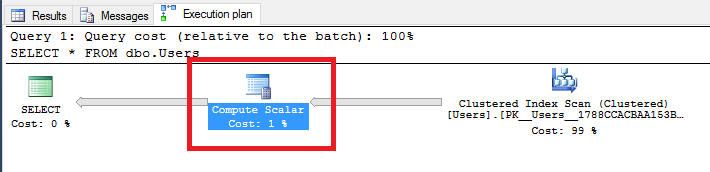
The data can be seen in plain text on disk, the masking function only comes into play when reading the data. I’ve been playing around with this and, I can’t see any huge performance impact incurred when having to mask the data. SQL does report a extra operator when reading the data: –

GRANT SHOWPLAN TO DDM_User;
GO

EXECUTE AS USER = 'DDM_User';
SELECT * FROM dbo.Users ;
REVERT;
GO

ddm5

That COMPUTE SCALAR operator isn’t there usually when running a bog standard select against a table but I’ve tried inserting 1,000,000 rows into the table, selecting from it, then dropping the masking, re-running the select and comparing the performance statistics but cannot see any (significant) impact. Here’s the code I used to test (have a go at running it yourself): –

--Switching off performance metrics for the inserts
SET STATISTICS TIME OFF;
SET STATISTICS IO OFF;
SET NOCOUNT ON;
GO

--Inserting a load of rows to the table
--I know this is horrible code!!!!!!!!!!!!!!!!!!!!!!!!!
DECLARE @Counter INT = 0;

WHILE @Counter <= 1000000
BEGIN

    INSERT INTO dbo.Users
    (Forename,Surname,Username,Email,AccountPassword)
    VALUES
    ('TestForename' + CONVERT(SYSNAME,@Counter),
     'TestSurname'  + CONVERT(SYSNAME,@Counter),
     'TestUsername' + CONVERT(SYSNAME,@Counter),
	'testemail'    + CONVERT(SYSNAME,@Counter) + '@gmail.com',
	'TestPassword' + CONVERT(SYSNAME,@Counter));
    
    SET @Counter = @Counter + 1
END


--Allowing the user to see the execution plan
GRANT SHOWPLAN TO DDM_User;
GO

--Cleaning out the data from the buffer pool
DBCC DROPCLEANBUFFERS;
GO

--Running the initial select
SET STATISTICS IO ON;
SET STATISTICS TIME ON;
EXECUTE AS USER = 'DDM_User';
SELECT * FROM dbo.Users ;
REVERT;
GO

--Dropping the masking
ALTER TABLE dbo.Users
ALTER COLUMN Email DROP MASKED
ALTER TABLE dbo.Users
ALTER COLUMN AccountPassword DROP MASKED;
GO

--Cleaning out the data from the buffer pool (again)
DBCC DROPCLEANBUFFERS;
GO

--Re-running the SELECT without the masking
SET STATISTICS IO ON;
SET STATISTICS TIME ON;
EXECUTE AS USER = 'DDM_User';
SELECT * FROM dbo.Users ;
REVERT;
GO

I have seen a minor increase in execution times but nothing that makes me worried. I am aware that this is a very simple test so any “gremlins” may not be apparent so as ever with a new feature, if you’re going to implement it, get it on a test system and hammer the thing!

Thanks for reading.