Creating Hyper-V VMs with Powershell

This month’s T-SQL Tuesday is hosted by Rob Sewell (b|t) and surprise, surprise, it focuses on Powershell 🙂 so I thought I’d write a quick post on how I’ve streamlined a pretty much weekly task that I perform, creating VMs.

I’m constantly spinning up VMs and then blowing them away. Ok, using the Hyper-V GUI isn’t too bad but when I’m creating multiple machines it can be a bit of a pain.

So here’s the details on the script I’ve written, hopefully it could be of some use to you too.

First check that your machine has the Hyper-V powershell module installed: –

Get-Module

If it’s not installed, you can either enable through the GUI: –

Or via script: –

Install-WindowsFeature -Name Hyper-V-PowerShell

N.B. – You won’t need to do this if, like me, you’re working with Hyper-V Server 2012 R2

Then you’re good to go creating VMs! All you need is the ISO for the OS that you want the machine to run.

Here’s the code: –

$BootDevice     = Read-Host -Prompt "Set VM boot device"
$ServerName     = Read-Host -Prompt "Enter VM Name"
$VMGeneration   = Read-Host -Prompt "Enter VM Generation"
[int]$VMMemoryGB= Read-Host -Prompt "Set VM Memory (GB)"
$VMCPU          = Read-Host -Prompt "Set Number of CPUs"
$NetworkAdapter = Read-Host -Prompt "Set Network Adapter"
$VHDPath        = Read-Host -Prompt "Set VHD Path"
[int]$VHDSizeGB = Read-Host -Prompt "Set VHD Size (GB)" 
$SecureBoot     = Read-Host -Prompt "Secure Boot On/Off"
$ISOPath        = Read-Host -Prompt "Set ISO Path"


$VMMemory  = ((($VMMemoryGB*1024)*1024)*1024)
$VHDSize   = ((($VHDSizeGB*1024)*1024)*1024)


New-VM -BootDevice $BootDevice -Name $ServerName -Generation $VMGeneration -MemoryStartupBytes $VMMemory -SwitchName $NetworkAdapter -NewVHDPath $VHDPath -NewVHDSizeBytes $VHDSize

Set-VMProcessor $ServerName -Count $VMCPU

Set-VMFirmware -VMName $ServerName -EnableSecureBoot $SecureBoot

Set-VMDvdDrive -VMName $ServerName -Path $ISOPath

Either copy the script here or download it from my GitHub.

Now, I’ve got this saved on my Hyper-V host as CreateNewVM.ps1 and I execute it through a remote powershell session. Here it is in action: –

Thanks for reading!

Parsing Docker Commands

Bit of a powershell themed post this week as I haven’t had that much time to research so this one falls firmly into the “what I’ve been doing this week” category.

My company moved to using containers a while ago now, it’s been really fun setting up and I’ve written about the architecture and process (here)

But, so that you don’t have to click the above link, I’ll quickly recap what we’re doing now.

We use containers but aren’t on Windows Server 2016 or SQL Server 2016 so we’re using a product called Windocks that allows earlier versions of SQL Server to run in containers on earlier versions of Windows Server.

We have a physical host running the Windocks daemon and all our app VMs contact the host to build and reference SQL instances within containers. Each container is built from a custom image that contains stripped down versions of our production databases that we call baselines.

Each month (it’ll be more frequent soon) we update the custom image by: –

  • Creating new baselines of our production databases from backups
  • Committing those backups to TFS
  • Deleting the old image from docker repository
  • Building a new image from a dockerfile referencing those backups
  • Committing the new image

What I’ve been working on is the automation of the new image once new baselines are checked into source control.

One of the requirements that’s come out of this is the ability to parse the docker images & docker ps commands.

These commands give you an overview of what’s on your docker host, the images you have in your repository and what containers you have (and what state they’re in).

What I needed to do was parse those commands so I could work out things like: –

  • What images do we have available?
  • What version are those images (when were they built)?
  • What size are the images?
  • How many containers have been built?
  • When were the containers built?
  • What state are the containers in?

I needed to be able to gather this information and pass it into commands so that my scripts would be able to work out how to proceed. So I’ve written a bit of code in order to do just that.

This is a bit of a change for me, I usually just drop code into my posts but as it’s still a work in process, what I’ve done is create a GitHub account and uploaded the script. You can find it here: – https://github.com/dbafromthecold/parsedockercommands

Really simple to use, just change the variables at the top to your environment and you’re off. The only slightly tricky bit is making sure that your docker engine is configured for remote administration but I’ve also fully detailed how to set that up here.

What you’ll end up with is two arrays holding details of all the images and containers on your host which you can then use for, well, whatever!

There’s probably better ways of doing this but it’s always fun to work out how to do this yourself. I’m more than open to suggestions on how to improve the script so let me know if you have anything. 🙂

Thanks for reading!

Setting up powershell remote sessions

Hey guys, differing from usual this is a quick post on setting up powershell remote sessions. I know you can remotely connect to powershell sessions using the Server Manager that comes with Windows Remote Administration Tools but it’s a bit of a clicky process and I like to eliminate using the mouse as much as possible.

Disclaimer! I’m not a scripter, there are probably much better ways of doing this but I’ll show you the way I set it up and how to fix any errors you may come across.

So here goes, first thing to do is check that the Windows Remote Management service (WinRM) is running, so open a powershell session (as an admin) and run:-

Get-Service WinRM

If it’s not running, start the service:-

Start-Service WinRM

And now enable powershell remoting:-

Enable-PSRemoting -force

Next thing to do is check your trusted hosts lists, so run:-

cd wsman::localhost
cd Client
dir

N.B. – I’m going to the Client via two cd commands as going straight to wsman::localhost\Client sometimes generates an error (not sure why TBH). If you get errors, try each command separately.

If the host you want to remote to isn’t in the list, run the following (changing the RemoteComputer1,RemoteComputer2 to your servers): –

winrm s winrm/config/client '@{TrustedHosts="RemoteComputer1,RemoteComputer2"}'

Btw, if you see this error:-
WinRM Error

Restart the WinRM service: –

Stop-Service WinRm
Start-Service WinRm

Cool, so now we can connect to a remote powershell session on the servers entered into the list. Save this simple script somewhere: –

Param (
    [string]$Server,
    [string]$Credential
      )

Enter-PSSession -ComputerName $Server -Credential $Credential

Which can be called by a .BAT file, passing in the parameters:-

powershell -NoExit -ExecutionPolicy Bypass -File 'PATH TO THE PS1 File' -Server YOURSERVER -Credential YOURLOGIN

N.B. – Use the -Credential parameter if your server is in a different domain (like a Staging or QA environment).

This .BAT file can be called via a cool program like Launchy and voila, a remote powershell session!

Shutting down multiple servers with Powershell

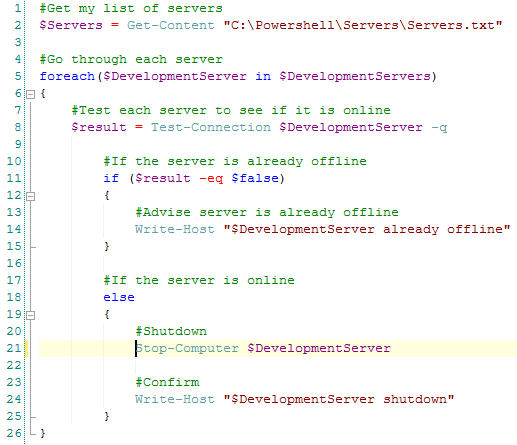
I’ve recently helped a company move their infrastructure to a new data centre. Part of this involved shutting down a large number of virtual development application servers. I don’t often shut down servers (maybe an occasional bounce after patching) so I thought about how I wanted to approach it as I wanted the process to be as quick and as painless as possible.

I decided that rather than go to each server individually in vCentre I used that marvelous tool, powershell (I say marvelous now, there have been times when I’ve cursed it, repeatedly).

I’m not THE SQL DBA WITH A BEARD but I do like to have a go with powershell, here’s how I scripted it:-

PowershellShutDownServers

Nice and simple, and as I had over 50 servers to go through saved me a load of time!

Quick note – don’t use this script for shutting down any SQL Server boxes, unless you really don’t care about the databases on them.