Replacing VS Code with Vim

OK so maybe not replacing, this is more like emulating VS Code in Vim.

Disclaimer – I like VS Code and I won’t be uninstalling it anytime soon and I’m not recommending people do.

However, I feel it can be overkill for 90% of the work that I do. So I’ve been playing around with Vim to see if it will give me what I want.

What I really want is a light weight text editor that allow me to run commands in a terminal…that’s it!

So here’s what my Vim setup looks like: –

I have a file system explorer on the left, a code editor panel to the right, and a terminal open below that. I can select code in the editor and pass it down to the terminal.

Ok, I’ll admit…configuring Vim can be daunting, especially when (like myself) you have limited experience with it. BUT it is endlessly customisable and can do pretty much anything you need.

Let’s go through my setup, starting with the file tree explorer which is NERDTree.

I’m not using any Vim plugin manager. I just cloned the NERDTree repo down, and dropped it into: –

~\vimfiles\pack\vendor\start

Then once in Vim I can run :NERDTree and voila! It opens up on the left hand side.

That’s the only plugin I currently have. There are thousands of Vim plugins but I’m trying to keep this setup as lightweight as possible so I haven’t installed any others.

Ok, time for the rest of the configuration…which is all done in my vimrc file.

First thing is to switch NERDTree to a minimal UI config: –

let NERDTreeMinimalUI=1

OK, now to configure the shell. I want to use powershell v7 as my default shell (without that annoying startup message), so I dropped this into the file: –

set shell=pwsh\ -nologo

Then I enabled syntax highlighting in the editor: –

syntax on

And I also wanted the current line to be highlighted in the editor: –

set cursorline
highlight CursorLine cterm=NONE ctermbg=0

Cool, ok now for some shortcuts. To use Ctrl+/ to switch between the editor and the terminal: –

noremap <C-/> <C-w>j
tnoremap <C-/> <C-w>k

And to use Ctrl+; to execute code from the editor in the terminal: –

noremap <C-;> Y<C-W>j<C-W>"0<C-W>k

Now to open NERDTree and a terminal on Vim startup: –

autocmd vimenter * below terminal
autocmd vimenter * NERDTree

Then I’m setting a couple of aliases for the terminal and NERDTree: –

cabbrev bterm below term
cabbrev ntree NERDTree

Finally, some generic Vim settings: –

set number
set nocompatible
set backspace=indent,eol,start
set nowrap
set nobackup
set noswapfile
set noundofile

My whole vimrc file is available here. It’s very much a work in progress as I find myself constantly tweaking it 🙂

But that’s how I’ve got Vim configured…coupled with the Windows Terminal and powershell profile settings…it’s pretty awesome!

Ok, it’ll never have all the features that VS Code does but this was fun to configure and play around with.

Thanks for reading!
Running Powershell code in Vim

I’ve been mucking about with Vim a bit recently and recently found myself (for reasons unknown tbh) writing powershell scripts in it.

Once I’d written a script, I would exit Vim to run it…however…that got me thinking, can I run powershell scripts directly in Vim?


DISCLAIMER – There’s no real reason to do this, I’d recommend using Visual Studio Code if you’re working with powershell. This is just a bit of fun 🙂


Anyway, there does seem to be a bunch of different ways to run code directly from Vim but I thought I’d share the way I’ve been doing it.

First things first, let’s install Vim. The easiest way to do so is via chocolately: –

choco install vim-tux

Once that’s installed we’re good to go! Let’s create a simple test file: –

New-Item C:\temp\test.ps1

And now open it in Vim: –

vim C:\temp\test.ps1

Let’s run something simple to try it out, add the following to test.ps1: –

$psversiontable.psversion

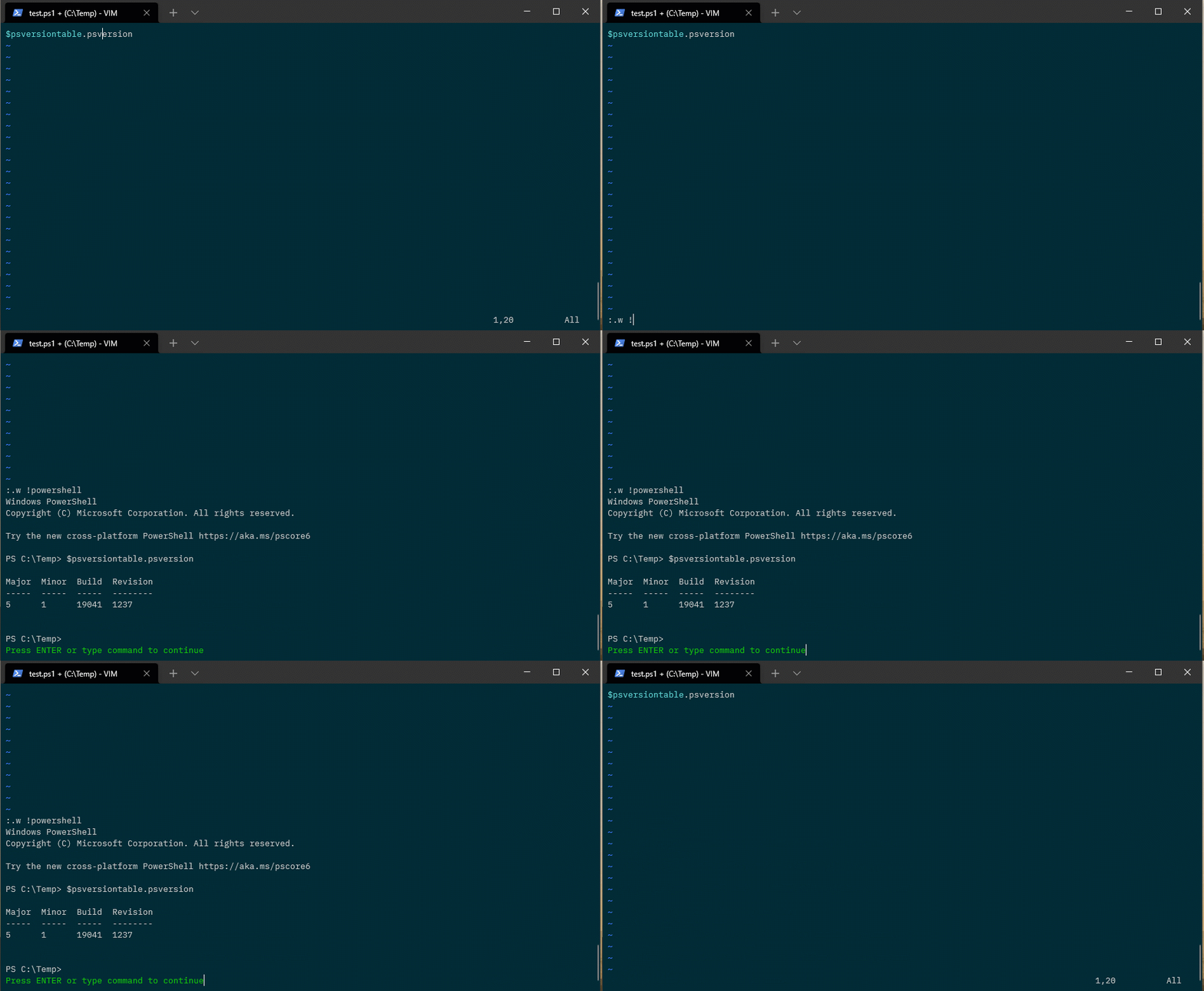
Ok, to run that line of powershell, hit esc and then type: –

:.w !powershell

And hit enter!

What this is doing is sending that one line to powershell which is then executing it. But what if we want to execute multiple lines of code?

To do that, we hit v to enter visual mode in Vim, then select the lines we want to execute with j, and then enter: –

: w !powershell

Vim will automatically add in ‘<,’> after the colon which indicates the selected lines.

So say we wanted to retrieve the versions of a bunch of SQL instances with this: –

Import-Module sqlserver

$Servers = Get-Content C:\temp\sqlserver.txt

foreach($Server in $Servers){
    Invoke-SqlCmd -ServerInstance $Server -Query "SELECT @@VERSION"
}

We can do that (somewhat) easily!

Kinda cool, eh?

Oh, and if you want to get rid of that annoying logo that pops up when powershell starts…add this to your vimrc file: –

cnoreabbrev powershell powershell -nologo

N.B. – The vimrc file usually lives at C:\users\USERNAME\vimfiles\vimrc, you may need to create the folder and the file itself.

Ok, not the most practical way of running powershell code but I thought it was kinda cool 🙂

Thanks for reading!

Comparing two SQL instances

Last week I was working on a couple of SQL instances that contained databases which were part of an Always On availability group, with one server being the primary and the other the secondary.

I needed to make sure that the secondary had all the databases that were on the primary (darn you auto seeding!!). The problem was that these instances had over 200 databases which meant checking them was no simple task.

Now I know there’s a few ways to do this but the method I used is a simple & quick way of comparing databases on two SQL instances using the powershell cmdlet

Compare-Object

What this does is pretty much what it says on the tin. The cmdlet takes two objects and compares them based on a input property (in this case it’ll be database names).

Here’s the code: –

$InstanceA = ''
$InstanceB = ''

$SqlQuery = 'SELECT name FROM sys.databases'

$DatabasesA = Invoke-SqlCmd2 -sqlinstance $InstanceA -query $SqlQuery

$DatabasesB = Invoke-SqlCmd2 -SqlInstance $InstanceB -query $SqlQuery

Compare-Object -ReferenceObject $DatabasesA -DifferenceObject $DatabasesB -Property "name"

Let’s run a quick test to show the output. Say I have two SQL instances with the following databases: –

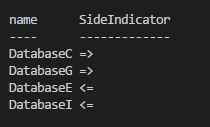
If I run the script, I will get the following: –

This is telling me that Databases C & G exist in Instance B but not Instance A and that Databases E & I exist in Instance A but not in Instance B.

The script runs very quickly (even with a large amount of dbs) and gives a nice, easy to understand output that allowed me to work out which databases needed to be reseeded in my AG.

Of course, the $SqlQuery variable can be changed so that it can return other properties of the instances for comparison so this really is a nice way to compare two SQL instances.

Thanks for reading!

Using Windows stored credentials to connect to SQL in containers

I work with SQL Server in containers pretty much exclusively when testing code and one of my real bug bears is that SQL Server in containers does not support Windows authentication (unless you’re using Windocks).

So when I’m working I find it quite annoying to have to specify a SA username & password when I want to connect.

OK, I can use Get-Credential, assign to a variable, and then reference that in a connection string but I want something a bit more permanent especially as I always use the same password for all my containers (shoot me, it’s local dev 🙂 )

What I’ve setup on my laptop is a stored credential using the CredentialManager powershell module.

Here’s how it works, first I create the credential: –

Import-Module CredentialManager

New-StoredCredential -Target "SqlDocker" -UserName "sa" -Password "Testing1122" -Persist LocalMachine

The -Persist LocalMachine allows me to reference this credential in other sessions as the default scope is session only. I can check this in another session by running: –

Get-StoredCredential -Target "SqlDocker"

So now run a container (using the same credentials as stored above): –

docker run -d -p 15789:1433 `
    --env ACCEPT_EULA=Y `
        --env SA_PASSWORD=Testing1122 `
            --name testcontainer microsoft/mssql-server-linux:latest

And now use the credential to connect to the container. I’m going to drop it into the dbatools Connect-DbaInstance cmdlet to pull information back about the SQL instance within the container: –

# set credential to variable
$cred = Get-StoredCredential -Target "SqlDocker"

# connect to Sql using credential
$srv = Connect-DbaInstance 'localhost,15789' -Credential $cred
    $srv.Edition
    $srv.HostDistribution
    $srv.HostPlatform
    $srv.Version

Boom! Connected to the SQL instance within the container using the stored credential. No more fudging passwords when typing out commands 🙂

Thanks for reading!

Checking SQL Configuration with Pester & Dbatools

I know, I know, there’s loads of different ways to test the configuration of SQL Server but I’ve started playing around with Pester recently and it’s pretty cool!

The script I’ve written here will use Pester & Dbatools to check all settings in sys.configurations against values stored in a .csv file. The script will then alter the settings in SQL Server if they differ. So be warned!! 🙂

Here’s the script: –

Import-Module Pester
Import-Module dbatools

[string]$SqlServer = ''

$csv = Import-Csv .\ExampleServerConfigValues.csv
foreach($row in $csv){
        $ConfigName = $row.Name
        $ConfigValue = $row.Value

        $ConfigTest = Invoke-Pester -Script @{Path = '.\Test-SqlConfig.ps1'; `
            Parameters = @{SqlServer = $SqlServer; `
                ConfigName = $ConfigName; `
                    ConfigValue = $ConfigValue}} `
                        -TestName '*Testing configuration*' `
                            -PassThru

        $ConfigTest.TestResult.foreach{
            if($_.Result -ne "Passed"){
                Write-Host "Setting $ConfigName on $SqlServer..." -ForegroundColor Yellow
                    Set-DbaSpConfigure -SqlInstance $SqlServer -ConfigName $ConfigName -Value $ConfigValue
            }
        }   
    }

N.B. – This can easily be altered to reference, say, a Central Management Server that holds the server names to test and the desired config values

The Pester test [.\Test-SqlConfig.ps1] that it’s referencing is: –

param(
    [Parameter(Mandatory)] 
    [ValidateNotNullOrEmpty()]
    [string]$SqlServer,
    [string]$ConfigName,
    [string]$ConfigValue
)

Describe "Testing configuration $ConfigName of Sql Instance $SqlServer"{
    Context "SqlConfig"{
        It "$ConfigName should be $ConfigValue"{
            $value = Get-DbaSpConfigure -SqlServer $SqlServer -Config $ConfigName
            $value.ConfiguredValue | Should be $ConfigValue
        }
    }
}

N.B. – This code is also on GitHub here.

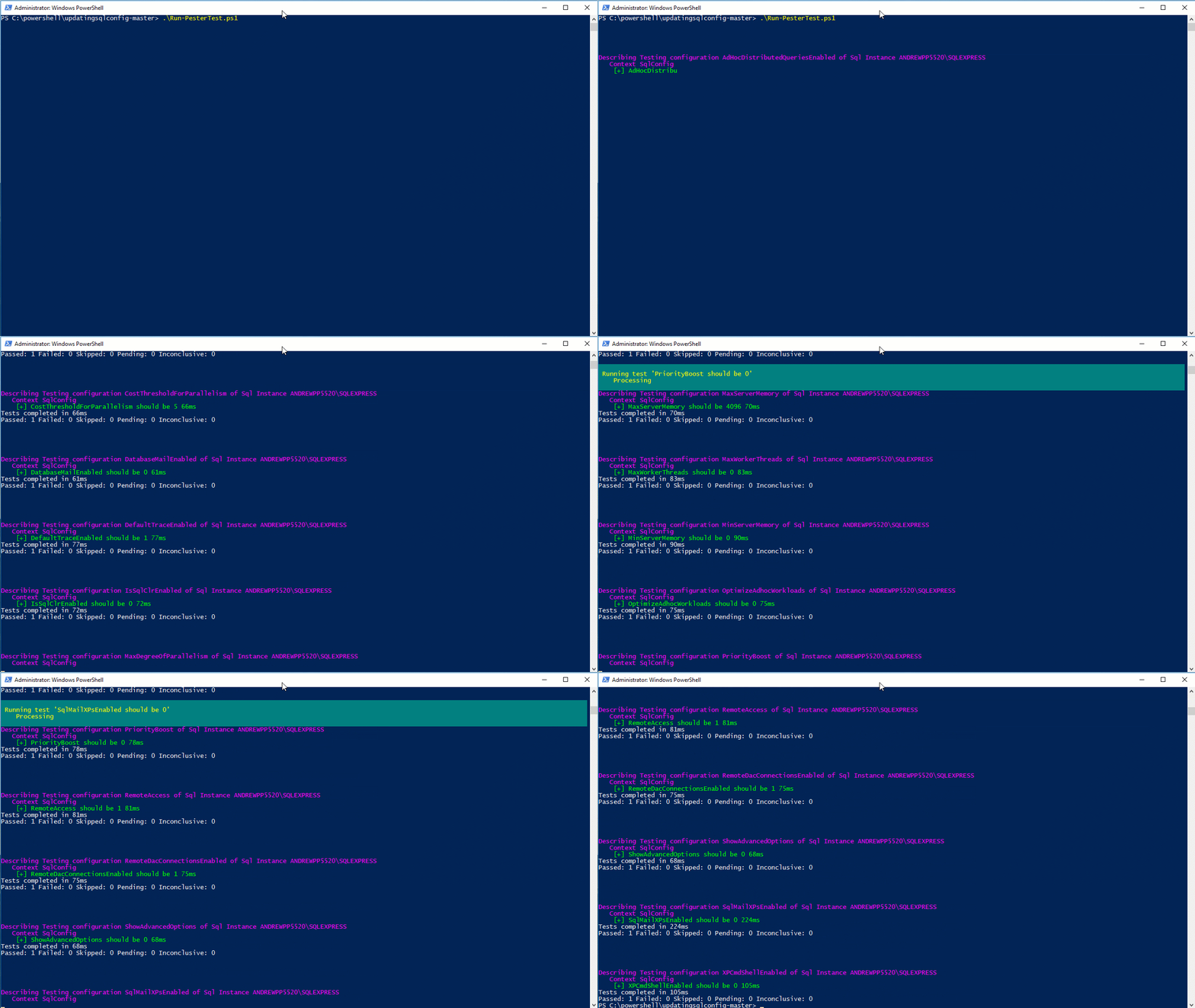
So run the first script and, BOOM!

One Pester test running!

What I like about this is that it can be easily dropped into a job scheduler (e.g.- Jenkins) and then you’ve got a way to routinely check (and correct) all the configuration settings of the SQL instances that you monitor.

Thanks for reading!