Query Store functionality in earlier versions of SQL Server

One of the best features introduced in SQL Server 2016 was the Query Store. Having the ability to see which queries had regressed (gotten bad plans) over a period of time was pretty much a game changer imho. But many of us are still labouring away on earlier versions of SQL Server so we don’t get to work with this great new feature.

Until now, with the release of OpenQueryStore

If you haven’t heard of OpenQueryStore, it’s an open source project designed to, you guessed it, bring Query Store functionality to earlier versions of SQL Server (2008 to 2014).

When I heard about this project I immediately went onto the GitHub site, downloaded the repository and read through the installation instructions. I’ve been playing around with it for a while and this week was given a preview of the v2.0 release (which has now been released).

v2.0 provides two different install options for OpenQueryStore, Classic or Centralized.

Classic behaves in a similar fashion to Query Store in 2016 by monitoring an individual database whereas Centralized is installed in one “management” database and you specify which databases in the SQL instance you wish to monitor.

I went for Centralized mode and installation is a cinch, just download the repo and then run the Install.ps1 script: –

.\Install.ps1 -SqlInstance "SQL2012" -Database "DBA" -OQSMode "Centralized" -SchedulerType "SQL Agent"

After the script has run, the installer gives advice on what to do next: –

So I needed to INSERT a row into oqs.[monitored_databases] for each database I wanted to monitor, setup a schedule for the SQL Agent job (I set the job to run every minute), then run the UPDATE against oqs.[collection_metadata] and OpenQueyStore will begin collecting data.


A word of caution here. I used the SQL Agent data collection method. There is another option to run using Service Broker but if you do this the install script will run: –

ALTER DATABASE [<your db>] SET ENABLE_BROKER;

This requires an exclusive lock on the database so watch out!


After a while you’ll be able to run the reports that come with the download to get an overview of your system. This is the main dashboard: –

OpenQueryStore Main Dashboard

Here’s the Wait Stats report: –

OpenQueryStore Wait Statistics

These reports are great for a quick overview of the database monitored. Nicely laid out and with a quick glance I can see if there are any immediate causes for concern.

However, the real benefit of OpenQueryStore is in the data collected. The installation creates the following objects within the database: –

  • [oqs].[activity_log]
  • [oqs].[collection_metadata]
  • [oqs].[intervals]
  • [oqs].[monitored_databases]
  • [oqs].[plan_dbid]
  • [oqs].[plans]
  • [oqs].[queries]
  • [oqs].[query_runtime_stats]
  • [oqs].[wait_stats]

So there’s an absolute wealth of data to dig through! The reports provide query IDs so I can drop one into say: –

DECLARE @queryID SMALLINT;

SELECT TOP 1
    rs.[query_id]
    ,rs.[interval_id]
    ,rs.[last_execution_time]
    ,rs.[execution_count]
    ,rs.[avg_rows]
    ,rs.[last_logical_reads]
    ,rs.[avg_logical_reads]
    ,rs.[last_logical_writes]
    ,rs.[avg_logical_writes]
    ,q.[query_statement_text]
    ,p.[plan_handle]
FROM [oqs].[query_runtime_stats] rs
INNER JOIN [oqs].[Queries] q ON rs.[query_id] = q.[query_id]
INNER JOIN [oqs].[Plans] p ON q.[plan_id] = p.[plan_id]
WHERE rs.[query_id] = @queryID
ORDER BY rs.[interval_id] DESC;
GO

And then view all the execution stats of this query. Pretty cool, eh?

If you’re working with SQL Server versions 2008 to 2014 I’d highly recommend that you install this on a development box and start investigating the data that it’s collecting. As with any new system, set it up and monitor to see what it’s doing but I haven’t seen anything untoward.

The project is in (very) active development so keep an eye on the twitter account for more updates.

Thanks for reading!

Identifying failed queries with extended events

Back to some core SQL this week and one of my favourite features, extended events.

Introduced in SQL Server 2008 they are a big improvement on SQL profiler, in the amount of information that can be tracked (more) and the impact that they have on the system (less).

If you are still using profiler, please stop now! 🙂

One of the sessions that I have constantly running on SQL Server instances that I monitor is one to capture information on failed queries. You need to know what queries are failing on your production instances and why.

So let’s go through setting the session up, here’s the script to setup the extended event (remember to change the file paths for the filename and meta-data file!): –

CREATE EVENT SESSION [FailedQueries] ON SERVER 
ADD EVENT sqlserver.error_reported 
	(ACTION(sqlserver.client_app_name, sqlserver.client_hostname,  
		sqlserver.database_name, sqlserver.sql_text, sqlserver.username) 
	WHERE ([package0].[greater_than_int64]([severity], (10)))) 

ADD TARGET package0.event_file (SET 
	filename = N'C:\SQLServer\XEvents\FailedQueries.xel'
	,metadatafile = N'C:\SQLServer\XEvents\FailedQueries.xem'
	,max_file_size = (5)
	,max_rollover_files = (10))

WITH (STARTUP_STATE = ON)
GO

The new extended event can be viewed under Object Explorer > Management > Extended Events in SSMS: –

What this is going to do is create an extended event that will automatically startup when the SQL instance starts and capture all errors recorded that have a severity level greater than 10.

Full documentation on severity levels can be found here but levels 1 through 10 are really just information and you don’t need to worry about them.

I’ve also added in some extra information in the ACTION section (for bits and bobs that aren’t automatically included) and have set the maximum number of files that can be generated to 10, each with a max size of 5MB.

I’ve left pretty much everything else out for clarity but more details on the options that are available when creating sessions can be found here.

Let’s start the session up: –

ALTER EVENT SESSION [FailedQueries] ON SERVER 
	STATE = START;
GO

Now you can watch the queries be recorded live by right clicking in SSMS and selecting “Watch Live Data”…

…but I want to show you how to parse the events recorded in the file. Let’s test the event by running: –

SELECT 1/0;

Which will obviously fail!

So now we can parse the event, this requires a little XQuery but it’s not too bad (also, remember to change the filepath!): –

SELECT
	[XML Data],
	[XML Data].value('(/event[@name=''error_reported'']/@timestamp)[1]','DATETIME')				AS [Timestamp],
	[XML Data].value('(/event/action[@name=''database_name'']/value)[1]','varchar(max)')		AS [Database],
	[XML Data].value('(/event/data[@name=''message'']/value)[1]','varchar(max)')				AS [Message],
	[XML Data].value('(/event/action[@name=''sql_text'']/value)[1]','varchar(max)')				AS [Statement]
FROM
	(SELECT 
		OBJECT_NAME				 AS [Event], 
		CONVERT(XML, event_data) AS [XML Data]
	FROM 
		sys.fn_xe_file_target_read_file
	('C:\SQLServer\XEvents\FailedQueries*.xel',NULL,NULL,NULL)) as FailedQueries;
GO

So there we have the XML generated by the extended event and we’ve parsed it into readable columns!

Now with larger files XQuery can be heavy intense on resources so what I tend to do is copy the event’s files to my local machine before parsing; so just be wary when running.

As I said earlier I always have this event running on instances of SQL that I monitor. There really shouldn’t be any impact in doing so as (hopefully) there aren’t that many queries that fail in the instance. As ever though, test this thoroughly before going anywhere near production with it.

Thanks for reading!

Update to DBCC LOGINFO in SQL Server 2017

One of the new features included in SQL Server 2017 that Microsoft has detailed here is a new DMF called sys.dm_db_log_info

This new DMF is intended to replace the (not so) undocumented DBCC LOGINFO command. I say undocumented as I’ve seen tonnes of blog posts about it but never an official Microsoft page.

This is great imho, we should all be analyzing our database’s transaction log and this will help us to just that. Now there are other undocumented functions that allow us to review the log (fn_dblog and fn_dump_dblog, be careful with the last one).

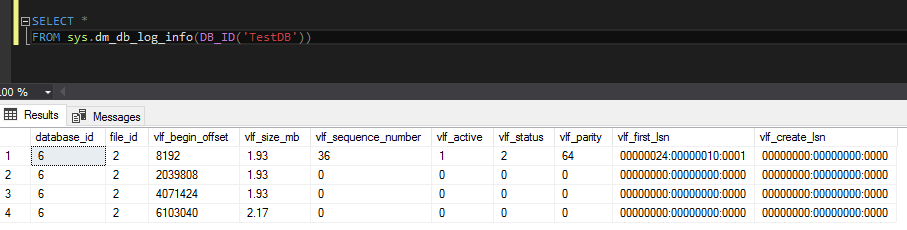
So, let’s run the new command. It’s really, really simple to get details of the log for a database called TestDB: –

SELECT *
FROM sys.dm_db_log_info(DB_IB('TestDB'));
GO

I’m not going to go through what each of the columns are but the main ones that I’d initially focus on (based on my previous usage of DBCC LOGINFO) are: –

  • vlf_size_mb
  • vlf_active
  • vlf_status

So, at a glance I can see the active part of the log and its size. We could also set up this to run on a schedule so that we could also track the internal usage of the log, pretty cool eh?

One of the other columns that’s caught my eye is: – vlf_first_lsn

DBCC LOGINFO gave us the LSN of the record that created the VLF but now we have the first LSN in the VLF which means that we can track where in the log a particular transaction was recorded (without having to use the older functions).

I like this as DBCC LOGINFO was undocumented but everyone was using it so Microsoft has now supplied an official DMF that we can use that not only replicates the information in the old command but improves upon it.

Thanks for reading!

Identifying large queries using Extended Events

Following on from my last blog post I now want to run through how to identify large queries using Extended Events.

Extended Events were introduced in SQL Server 2008 and allow monitoring to be run against a server with a lower performance impact than profiler sessions and server side traces.

There’s now a nice GUI in SQL Server 2012 in which you can setup your Extended Event session but I always like to start with creating a session using T-SQL:-

USE [master];
GO

CREATE EVENT SESSION [QueriesWith200kReads] ON SERVER 
ADD EVENT sqlserver.sql_batch_completed(
    ACTION(sqlserver.client_hostname,sqlserver.database_name,sqlserver.session_id,sqlserver.sql_text,sqlserver.tsql_stack,sqlserver.username)
    WHERE ([logical_reads]>200000))
ADD TARGET package0.event_file(SET filename=N'C:\SQLServer\XEvents\QueriesWith200kReads.xel')
GO

The script above will capture all SQL batches executed on the server that perform over 200,000 reads. I’ve set the target as a .XEL file and have defined what information to capture.

The session can then be started:-

ALTER EVENT SESSION [QueriesWith200kReads]
ON SERVER
STATE = START;
GO

While the session is running, the following can be executed to see how many queries have been captured:-

SELECT COUNT(*)
FROM sys.fn_xe_file_target_read_file
 ('C:\SQLServer\XEvents\QueriesWith200kReads*.xel',NULL,NULL,NULL);
GO

To query the data, XQUERY can be used. The below script grabs all the data from the session in a CTE and then combines it to give an overall view so that we can see which queries are being executed the most and are causing the most pain!

WITH CTE_ExecutedSQLStatements AS
(SELECT
	[XML Data],
	[XML Data].value('(/event[@name=''sql_statement_completed'']/@timestamp)[1]','DATETIME')	AS [Time],
	[XML Data].value('(/event/data[@name=''duration'']/value)[1]','int')						AS [Duration],
	[XML Data].value('(/event/data[@name=''cpu_time'']/value)[1]','int')						AS [CPU],
	[XML Data].value('(/event/data[@name=''logical_reads'']/value)[1]','int')					AS [logical_reads],
	[XML Data].value('(/event/data[@name=''physical_reads'']/value)[1]','int')					AS [physical_reads],
	[XML Data].value('(/event/action[@name=''sql_text'']/value)[1]','varchar(max)')				AS [SQL Statement]
FROM
	(SELECT 
		OBJECT_NAME				 AS [Event], 
		CONVERT(XML, event_data) AS [XML Data]
	FROM 
		sys.fn_xe_file_target_read_file
	('C:\SQLServer\XEvents\QueriesWith200kReads*.xel',NULL,NULL,NULL)) as v)

SELECT
	[SQL Statement]		AS [SQL Statement],
	SUM(Duration)		AS [Total Duration],
	SUM(CPU)			AS [Total CPU],
	SUM(Logical_Reads)	AS [Total Logical Reads],
	SUM(Physical_Reads) AS [Total Physical Reads]
FROM
	CTE_ExecutedSQLStatements
GROUP BY
	[SQL Statement]
ORDER BY
	[Total Logical Reads] DESC
GO

But what if we want to change the session? In SQL Server 2012 a GUI was introduced so sessions can be setup and changed easily.

At the moment, the session picks up queries that are performing over 200,000 logical reads. What if we wanted to also include any queries that are performing a large amount of physical reads?

In order to do this, in Object Explorer go to Management > Extended Events > Sessions.

XEvents Blog - Pic 1

Right click the session and then go to properties.

XEvents Blog - Pic 2

Go to Events.

XEvents Blog - Pic 3

Click configure.

XEvents Blog - Pic 4

Click the filter tab.

XEvents Blog - Pic 5

Select OR in the And/Or box and then select Physical Reads, Greater than (>) and 10000 in the adjacent boxes.

XEvents Blog - Pic 6

Then either click OK or Script. I always script out the changes that I have made so that I can re-create the session if needed:-

ALTER EVENT SESSION [QueriesWith200kReads] ON SERVER 
DROP EVENT sqlserver.sql_batch_completed

ALTER EVENT SESSION [QueriesWith200kReads] ON SERVER 
ADD EVENT sqlserver.sql_batch_completed(
    ACTION(sqlserver.client_hostname,sqlserver.database_name,sqlserver.session_id,sqlserver.sql_text,sqlserver.tsql_stack,sqlserver.username)
    WHERE (([package0].[greater_than_uint64]([logical_reads],(200000))) OR ([physical_reads]>(10000))))
GO

Finally there is also the ability to watch events as they are captured (think profiler session with a lot less impact).

Again in Object Explorer go to Management > Extended Events > Sessions.
Right click the session and select Watch Live Data.

XEvents Blog - Pic 7

Columns can be added by right clicking the existing columns and selecting Choose Columns.

And there you have it, how to setup and alter an Extended Event session using scripts and/or the GUI.

Identifying large queries using Server Side Traces

Who are your worst offenders? By offenders I mean, queries that are consuming the most resources on your server(s).

I know Extended Events have a lower impact but I like server side traces. Not only because once you’ve set one up, setting up others is very simple but also because there’s a really good tool called ClearTrace that can be used to analyse the output.

I’ll cover using Extended Events in a future blog post.

So let’s go through a server side trace. First create the trace:-

DECLARE @TraceID		INT
DECLARE @MaxFileSize	BIGINT = 52 
DECLARE @EndTime		DATETIME = DATEADD (hour, 24, getdate());
DECLARE @FileName		NVARCHAR(200) = '<TRACE FILEPATH>'
DECLARE @options		INT = 0

EXEC sp_trace_create 
	@traceID OUTPUT,
	@options		= @options, 
	@tracefile		= @FileName, 
	@maxfilesize	= @MaxFileSize, 
	@stoptime		= @EndTime

PRINT @TraceID

Full details on the sp_trace_create stored procedure can be found here:- http://technet.microsoft.com/en-us/library/ms190362.aspx

The script above has created a trace, with a file in the specified location that will be a maximum size of 52MB and will run for 24 hours.

Store the output of PRINT @TraceID and replace in the following scripts with the value.

Next set the events that the trace will capture:-

--RPC:Completed [EventID 10]
EXEC sp_trace_setevent <TraceID>, 10, 1,  1 --TextData
EXEC sp_trace_setevent <TraceID>, 10, 2,  1 --BinaryData
EXEC sp_trace_setevent <TraceID>, 10, 6,  1 --NTUserName
EXEC sp_trace_setevent <TraceID>, 10, 9,  1 --ClientProcessID
EXEC sp_trace_setevent <TraceID>, 10, 10, 1 --ApplicationName
EXEC sp_trace_setevent <TraceID>, 10, 11, 1 --LoginName
EXEC sp_trace_setevent <TraceID>, 10, 12, 1 --SPID
EXEC sp_trace_setevent <TraceID>, 10, 13, 1 --Duration
EXEC sp_trace_setevent <TraceID>, 10, 14, 1 --StartTime
EXEC sp_trace_setevent <TraceID>, 10, 15, 1 --EndTime
EXEC sp_trace_setevent <TraceID>, 10, 16, 1 --Reads
EXEC sp_trace_setevent <TraceID>, 10, 17, 1 --Writes
EXEC sp_trace_setevent <TraceID>, 10, 18, 1 --CPU
EXEC sp_trace_setevent <TraceID>, 10, 35, 1 --DatabaseName

--SQL:BatchCompleted [EventID 12]
EXEC sp_trace_setevent <TraceID>, 12, 1,  1 --TextData
EXEC sp_trace_setevent <TraceID>, 12, 2,  1 --BinaryData
EXEC sp_trace_setevent <TraceID>, 12, 6,  1 --NTUserName
EXEC sp_trace_setevent <TraceID>, 12, 9,  1 --ClientProcessID
EXEC sp_trace_setevent <TraceID>, 12, 10, 1 --ApplicationName
EXEC sp_trace_setevent <TraceID>, 12, 11, 1 --LoginName
EXEC sp_trace_setevent <TraceID>, 12, 12, 1 --SPID
EXEC sp_trace_setevent <TraceID>, 12, 13, 1 --Duration
EXEC sp_trace_setevent <TraceID>, 12, 14, 1 --StartTime
EXEC sp_trace_setevent <TraceID>, 12, 15, 1 --EndTime
EXEC sp_trace_setevent <TraceID>, 12, 16, 1 --Reads
EXEC sp_trace_setevent <TraceID>, 12, 17, 1 --Writes
EXEC sp_trace_setevent <TraceID>, 12, 18, 1 --CPU
EXEC sp_trace_setevent <TraceID>, 12, 35, 1 --DatabaseName

Full details on the sp_trace_setevent stored procedure can be found here:- http://technet.microsoft.com/en-us/library/aa260314(v=sql.80).aspx

The scripts above will set the trace to capture the events RPC:completed & SQL:BatchCompleted. It will capture the TextData, BinaryData, NTUserName, ClientProcessID, ApplicationName, LoginName, SPID, Duration, StartTime, EndTime, Reads, Writes & CPU columns of each event.

Then filter the events:-

DECLARE @Value BIGINT = 500000

EXEC sp_trace_setfilter 2, 16, 0, 4, @Value

Full details on the sp_trace_setfilter stored procedure can be found here:- http://technet.microsoft.com/en-us/library/aa260322(v=SQL.80).aspx

The script above will filter all events captured, only retaining queries that perform over 500,000 reads. The trace can then be started:-

EXEC sp_trace_setstatus <TraceID>, 1

Whilst the trace is running it can be queried it by running the following:-

SELECT TOP (10)
	DatabaseName, LoginName, ApplicationName, Starttime, Endtime, 
	((Duration/1000)/1000)/60 AS [Duration (mins)], Reads,
	TextData
FROM 
	fn_trace_gettable('<TRACE FILEPATH>', DEFAULT)
ORDER BY 
	reads DESC;
GO

You can also get information on the traces running on the server:-

SELECT TraceID, Property, Value FROM ::fn_trace_getinfo(DEFAULT);
GO

Once the trace has completed, ClearTrace can be used to analyse the output:- http://www.scalesql.com/cleartrace/

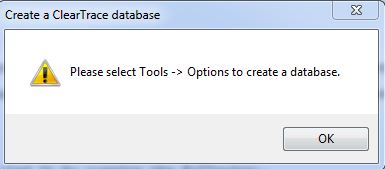
Download the .zip and extract the .exe. The program doesn’t require an install so double click and the program will ask you to setup the database connection:-

ClearTrace - Please choose database

Click on OK, then go to Tools > Options and enter the details of the server and database and then click Save.

ClearTrace - Main Screen

On the main screen, click Browse to navigate and then select your trace file. Click on OK and then Import Files.
Wait for the import to finish (which can take some time if it is a large file).

ClearTrace - Results Page

You then have several options for viewing the data. I won’t go through them all but I always tick the Display Averages box and start off by ordering by Reads.

And there you have it! The program gives a quick and easy way to view the most expensive queries captured allowing you to see what is happening on your server.