Building a pacemaker cluster to deploy a SQL Server availability group in Azure

There are new Ubuntu Pro 20.04 images available in the Azure marketplace with SQL Server 2019 pre-installed so I thought I’d run through how to create a three node pacemaker cluster with these new images in order to deploy a SQL Server availability group.

Disclaimer – The following steps will create the cluster but will not have been tested in a production environment. Any HA configuration for SQL Server needs to be thoroughly tested before going “live”.

Ok, in order to get started we will need the azure-cli installed locally in order to create our VMs for the cluster.

The steps that we are going to run through to create the cluster and deploy an availability group are: –

    1. Create VMs in Azure
    2. Install and configure pacemaker cluster
    3. Create the availability group
    4. Add colocation and promotion constraints
    5. Configure fencing resource on pacemaker cluster
    6. Test manual failover of availability group
    All the code for these steps is also available in a Github repo here

    Creating the VMs

    First thing to do is login to azure locally in a powershell window: –

    az login
    

    We can check which VM images are available: –

    az vm image list --all --offer "sql2019-ubuntupro2004"
    az vm image list --all --offer "windows-11"
    

    Set resource group name: –

    $resourceGroup = "linuxcluster"
    

    Set a username and password for access to VMs: –

    $Username = "dbafromthecold"
    $Password = "XXXXXXXXXXXXX"
    

    Create the resource group: –

    az group create --name $resourceGroup --location eastus
    

    Create availability set for the VMs: –

    az vm availability-set create `
    --resource-group $resourceGroup `
    --name $resourceGroup-as1 `
    --platform-fault-domain-count 2 `
    --platform-update-domain-count 2
    

    Create a virtual network: –

    az network vnet create `
    --resource-group $resourceGroup `
    --name $resourceGroup-vnet `
    --address-prefix 192.168.0.0/16 `
    --subnet-name $resourceGroup-vnet-sub1 `
    --subnet-prefix 192.168.0.0/24
    

    Create the VMs for the cluster using the Ubuntu Pro 20.04 image with SQL Server 2019 CU13 Developer Edition: –

    $Servers=@("ap-server-01","ap-server-02","ap-server-03")
    
    foreach($Server in $Servers){
    az vm create `
    --resource-group "$resourceGroup" `
    --name $server `
    --availability-set "$resourceGroup-as1" `
    --size "Standard_D4s_v3" `
    --image "MicrosoftSQLServer:sql2019-ubuntupro2004:sqldev_upro:15.0.211020" `
    --admin-username $Username `
    --admin-password $Password `
    --authentication-type password `
    --os-disk-size-gb 128 `
    --vnet-name "$resourceGroup-vnet" `
    --subnet "$resourceGroup-vnet-sub1" `
    --public-ip-address '""'
    }
    

    Now that we have the three VMs for the cluster, we need to create a jump box so that we can access them as the three servers do not have a public IP address (generally speaking, opening up SQL Server to the internet is a bad idea, and we’re not going to do that here)

    So create a public IP address for jump box: –

    az network public-ip create `
    --name "ap-jump-01-pip" `
    --resource-group "$resourceGroup"
    

    And then create the jump box running Windows 11: –

    az vm create `
    --resource-group "$resourceGroup" `
    --name "ap-jump-01" `
    --availability-set "$resourceGroup-as1" `
    --size "Standard_D4s_v3" `
    --image "MicrosoftWindowsDesktop:windows-11:win11-21h2-pro:22000.318.2111041236" `
    --admin-username $Username `
    --admin-password $Password `
    --os-disk-size-gb 128 `
    --vnet-name "$resourceGroup-vnet" `
    --subnet "$resourceGroup-vnet-sub1" `
    --public-ip-address "ap-jump-01-pip"
    

    Once the jump box is up, RDP to it using the public IP address and install the following: –
    Visual Studio Code
    SQL Server Management Studio
    Azure-Cli

    Install and configure pacemaker

    Now we’re almost ready to create the pacemaker cluster. But before that, we need to configure the SQL instances.

    On the jump box, ssh into each of the three servers. Once connected, enable the SQL Server Agent and enable availability groups: –

    sudo /opt/mssql/bin/mssql-conf set sqlagent.enabled true
    sudo /opt/mssql/bin/mssql-conf set hadr.hadrenabled 1
    sudo systemctl restart mssql-server
    

    Set the sa password for the SQL instances: –

    sudo systemctl stop mssql-server
    sudo /opt/mssql/bin/mssql-conf set-sa-password
    sudo systemctl start mssql-server
    

    Check status of firewall, it’s disabled by default and we’re going to leave it that way (for this lab setup): –

    sudo ufw status
    

    Add records of other servers in the cluster to /etc/hosts: –

    sudo vim /etc/hosts
    

    So for example, on ap-server-01: –

    192.168.0.4 ap-server-01
    192.168.0.5 ap-server-02
    192.168.0.6 ap-server-03
    192.168.0.10 ap-server-10
    

    N.B. – ap-sever-10 is going to be the listener name for the availability group.

    Now we can install the required packages to create the cluster: –

    sudo apt-get install -y pacemaker pacemaker-cli-utils crmsh resource-agents fence-agents csync2 python3-azure
    

    Create an authentication key on the primary server: –

    sudo corosync-keygen
    

    Copy the key generated to other servers: –

    sudo scp /etc/corosync/authkey dbafromthecold@ap-server-02:~
    sudo scp /etc/corosync/authkey dbafromthecold@ap-server-03:~
    

    Move the key from the home directory to /etc/corosync on other servers: –

    sudo mv authkey /etc/corosync/authkey
    

    OK now we can create the cluster. We do this by editing the /etc/corosync/corosync.conf file on the primary server: –

    sudo vim /etc/corosync/corosync.conf
    

    The corosync.conf file should look like this: –

    totem {
    version: 2
    cluster_name: ap-cluster-01
    transport: udpu
    crypto_cipher: none
    crypto_hash: none
    }
    
    logging {
    fileline: off
    to_stderr: yes
    to_logfile: yes
    logfile: /var/log/corosync/corosync.log
    to_syslog: yes
    debug: off
    logger_subsys {
    subsys: QUORUM
    debug: off
    }
    }
    
    quorum {
    provider: corosync_votequorum
    }
    
    nodelist {
    node {
    name: ap-server-01
    nodeid: 1
    ring0_addr: 10.0.0.4
    }
    node {
    name: ap-server-02
    nodeid: 2
    ring0_addr: 10.0.0.5
    }
    node {
    name: ap-server-03
    nodeid: 3
    ring0_addr: 10.0.0.6
    }
    }
    

    N.B. – I’ve stripped out all the comments from the file. The nodelist section is essentially where we are configuring our cluster, make sure that is correct.

    Copy the corosync.conf file to other nodes: –

    sudo scp /etc/corosync/corosync.conf dbafromthecold@ap-server-02:~
    sudo scp /etc/corosync/corosync.conf dbafromthecold@ap-server-03:~
    

    Replace the default corosync.conf file on other nodes: –

    sudo mv corosync.conf /etc/corosync/
    

    Restart pacemaker and corosync: –

    sudo systemctl restart pacemaker corosync
    

    Then confirm the status of the cluster: –

    sudo crm status
    

    Creating the availability group

    Now that the cluster has been built, we can create the availability group.

    First thing is to start the availability group extended event on each of the servers: –

    ALTER EVENT SESSION AlwaysOn_health ON SERVER WITH (STARTUP_STATE=ON);
    GO
    

    Create a certificate on primary server: –

    CREATE MASTER KEY ENCRYPTION BY PASSWORD = 'PASSWORD';
    CREATE CERTIFICATE dbm_certificate WITH SUBJECT = 'dbm';
    BACKUP CERTIFICATE dbm_certificate
    TO FILE = '/var/opt/mssql/data/dbm_certificate.cer'
    WITH PRIVATE KEY (
    FILE = '/var/opt/mssql/data/dbm_certificate.pvk',
    ENCRYPTION BY PASSWORD = 'PASSWORD'
    );
    

    Copy the certificate to other servers: –

    sudo su
    cd /var/opt/mssql/data
    scp dbm_certificate.* dbafromthecold@ap-server-02:~
    scp dbm_certificate.* dbafromthecold@ap-server-03:~
    exit
    

    Copy the cert to /var/opt/mssql/data on the other servers and grant the mssql user access: –

    sudo su
    cp /home/dbafromthecold/dbm_certificate.* /var/opt/mssql/data/
    chown mssql:mssql /var/opt/mssql/data/dbm_certificate.*
    exit
    

    Back in SQL, create the certificate on the other servers: –

    CREATE MASTER KEY ENCRYPTION BY PASSWORD = 'PASSWORD';
    CREATE CERTIFICATE dbm_certificate
    FROM FILE = '/var/opt/mssql/data/dbm_certificate.cer'
    WITH PRIVATE KEY (
    FILE = '/var/opt/mssql/data/dbm_certificate.pvk',
    DECRYPTION BY PASSWORD = 'PASSWORD'
    );
    

    Now, create the availability group endpoints on all three servers: –

    CREATE ENDPOINT [Hadr_endpoint]
    AS TCP (LISTENER_PORT = 5022)
    FOR DATABASE_MIRRORING (
    ROLE = ALL,
    AUTHENTICATION = CERTIFICATE dbm_certificate,
    ENCRYPTION = REQUIRED ALGORITHM AES
    );
    ALTER ENDPOINT [Hadr_endpoint] STATE = STARTED;
    

    Create a login for pacemaker on all three servers: –

    USE [master]
    GO
    CREATE LOGIN [pacemakerLogin] with PASSWORD= N'PASSWORD';
    ALTER SERVER ROLE [sysadmin] ADD MEMBER [pacemakerLogin];
    GO
    

    Create password file on all three servers so that pacemaker can retrieve the credentials and connect to the SQL instances: –

    echo 'pacemakerLogin' >> ~/pacemaker-passwd
    echo 'PASSWORD' >> ~/pacemaker-passwd
    sudo mv ~/pacemaker-passwd /var/opt/mssql/secrets/passwd
    sudo chown root:root /var/opt/mssql/secrets/passwd
    sudo chmod 400 /var/opt/mssql/secrets/passwd
    

    N.B. – pacemaker runs as root so that’s why we’re setting the owner of the file to root and restricting permissions

    Now we can go ahead and create the availability group with 3 nodes to provide quorum. There’s no concept of file share or disk witnesses in pacemaker so that’s why the cluster has to have an odd number of nodes. SQL Standard edition only allows for 2 nodes but you can deploys a “configuration only” SQL Express instance. This instance acts similarly to a witness instance in database mirroring. It’ll never host the availability group but has a vote in the cluster.

    But here we’re running the Developer Edition of SQL so we will go ahead and deploy the three node availability group.

    Run this on the primary server: –

    CREATE AVAILABILITY GROUP [ag1]
    WITH (CLUSTER_TYPE = EXTERNAL)
    FOR REPLICA ON
    N'ap-server-01'
    WITH (
    ENDPOINT_URL = N'tcp://ap-server-01:5022',
    AVAILABILITY_MODE = SYNCHRONOUS_COMMIT,
    FAILOVER_MODE = EXTERNAL,
    SEEDING_MODE = AUTOMATIC
    ),
    N'ap-server-02'
    WITH (
    ENDPOINT_URL = N'tcp://ap-server-02:5022',
    AVAILABILITY_MODE = SYNCHRONOUS_COMMIT,
    FAILOVER_MODE = EXTERNAL,
    SEEDING_MODE = AUTOMATIC
    ),
    N'ap-server-03'
    WITH(
    ENDPOINT_URL = N'tcp://ap-server-03:5022',
    AVAILABILITY_MODE = SYNCHRONOUS_COMMIT,
    FAILOVER_MODE = EXTERNAL,
    SEEDING_MODE = AUTOMATIC
    );
    ALTER AVAILABILITY GROUP [ag1] GRANT CREATE ANY DATABASE;
    GO
    

    Then join the secondaries to the availability group: –

    ALTER AVAILABILITY GROUP [ag1] JOIN WITH (CLUSTER_TYPE = EXTERNAL);
    ALTER AVAILABILITY GROUP [ag1] GRANT CREATE ANY DATABASE;
    

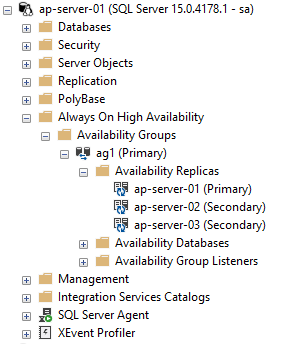
    The primary SQL instance should now look like this: –
    Grant the pacemaker login permissions to availability group: –

    GRANT ALTER, CONTROL, VIEW DEFINITION ON AVAILABILITY GROUP::ag1 TO [pacemakerLogin];
    GRANT VIEW SERVER STATE TO [pacemakerLogin];
    GO
    

    Before we create the availability group resource in pacemaker, we need to disable STONITH: –

    sudo crm configure property stonith-enabled=false
    

    N.B. – I’ll cover what this is later in the setup, ignore any warnings for this on the following commands.

    Ok, now we have the availability group in SQL we need to create the availability group resource in pacemaker.

    To do this we’re going to jump into the crm shell and create a couple of resources: –

    sudo crm
    
    configure
    
    primitive ag1_cluster \
    ocf:mssql:ag \
    params ag_name="ag1" \
    meta failure-timeout=60s \
    op start timeout=60s \
    op stop timeout=60s \
    op promote timeout=60s \
    op demote timeout=10s \
    op monitor timeout=60s interval=10s \
    op monitor timeout=60s on-fail=demote interval=11s role="Master" \
    op monitor timeout=60s interval=12s role="Slave" \
    op notify timeout=60s
    
    ms ms-ag1 ag1_cluster \
    meta master-max="1" master-node-max="1" clone-max="3" \
    clone-node-max="1" notify="true"
    
    commit
    

    The first resource created [ag1_cluster] is the availability group resource. After that, we’re creating a primary/secondary resource [ms-ag1] in pacemaker and adding the availability group resource to it. What this will do is say that the availability group resource will run on all three servers in the cluster but only one of those servers will be the primary.

    To view availability group resource: –

    sudo crm resource status ms-ag1
    

    Now we can check the status of the cluster: –

    sudo crm status
    

    N.B. – Pacemaker still uses outdated terminology to refer to the primary and secondary servers in the cluster. Hopefully this will be updated in the future.

    OK, we have our availability group created in both SQL and pacemaker. Let’s test adding database to it (running on the primary SQL instance): –

    USE [master];
    GO
    
    CREATE DATABASE [testdatabase1];
    GO
    
    BACKUP DATABASE [testdatabase1] TO DISK = N'/var/opt/mssql/data/testdatabase1.bak';
    BACKUP LOG [testdatabase1] TO DISK = N'/var/opt/mssql/data/testdatabase1.trn';
    GO
    
    ALTER AVAILABILITY GROUP [ag1] ADD DATABASE [testdatabase1];
    GO
    

    Once that’s complete we should see the database on all three servers in the cluster: –
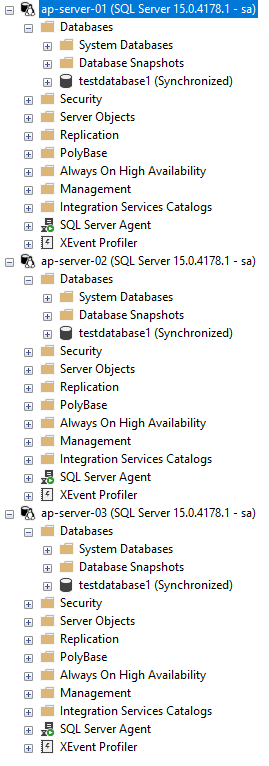
    Ok, next thing to do is create the listener resource in pacemaker: –

    sudo crm configure primitive virtualip \
    ocf:heartbeat:IPaddr2 \
    params ip=192.168.0.10
    

    Now go and create an internal load balancer in Azure the same way that one is created when deploying SQL Server availability groups on Windows: –
    https://docs.microsoft.com/en-us/azure/azure-sql/virtual-machines/windows/availability-group-load-balancer-portal-configure

    N.B. – the Load Balancer requirement will be removed in the future (blog is for Windows but the option for Linux is coming): –
    https://techcommunity.microsoft.com/t5/azure-sql-blog/simplify-azure-sql-virtual-machines-ha-and-dr-configuration-by/ba-p/2882897

    Now create the load balancer resource in pacemaker: –

    sudo crm configure primitive azure-load-balancer azure-lb params port=59999
    

    We’re going to be applying colocation and promotion constraints to the listener and load balancer resources in the pacemaker cluster. In order to not have to apply the constraints individually to both resources, we’re going to create a group resource and add both the listener and load balancer resources to it: –

    sudo crm configure group virtualip-group azure-load-balancer virtualip
    

    Now confirm the cluster status: –

    sudo crm status
    

    And then create the listener on the primary SQL instance: –

    ALTER AVAILABILITY GROUP [ag1] ADD LISTENER N'ap-server-10' (
    WITH IP
    ((N'192.168.0.10', N'255.255.255.0')), PORT=1433);
    GO
    

    Once this is complete we can now connect to the listener in SQL Server via the IP address (an entry in the jumpbox’s hosts file will be needed to connect via the listener name)

    Adding colocation and promotion constraints to the pacemaker cluster

    In order to ensure that the listener and availability group resources always run on the same server in the cluster we are going to create a colocation constraint: –

    sudo crm configure colocation ag-with-listener INFINITY: virtualip-group ms-ag1:Master
    

    What this is doing is saying that the group containing the listener and load balancer resource will always run on the server that is the primary node in the availability group.

    OK, now we are going to create a promotion/ordering constraint: –

    sudo crm configure order ag-before-listener Mandatory: ms-ag1:promote virtualip-group:start
    

    What this is doing is saying that when a failover occurs, bring the availability group online on the new primary server and then start the listener on that server.

    To view the constraints: –

    sudo crm configure show ag-with-listener
    sudo crm configure show ag-before-listener
    

    Install and configure fencing on the cluster

    What we’re going to do now is configure fencing on the cluster. Fencing is the isolation of a failed node in a cluster which is performed by a STONITH resource. STONITH stands for, Shoot the other node in the head, a bit melodramtic maybe but, that’s exactly what it does. It’ll restart the failed node, allowing to go down, reset, come back up and rejoin the cluster, hopefully bringing the cluster into a healthy state

    Register a new application in Azure Active Directory and create a secret: –

      1. Go to Azure Active Directory in the portal and make a note of the Tenant ID.
      2. Click “App Registrations” on the left hand side menu and then click “New Registration”
      3. Enter a Name and then select “Accounts in this organization directory only”
      4. Select Application Type Web, enter http://localhost as a sign-on URL then click “Register”
      5. Click “Certificates and secrets” on the left hand side menu, then click “New client secret”
      6. Enter a description and select an expiry period
      7. Make a note of the value of the secret, it is used as the password below and the secret ID, it is used as the username below.
      8. Click “Overview” and make a note of the Application ID. It is used as the login below
      Create a json file called fence-agent-role.json and add the following (adding your subscription id): –

      {
      "Name": "Linux Fence Agent Role-ap-server-01-fence-agent",
      "Id": null,
      "IsCustom": true,
      "Description": "Allows to power-off and start virtual machines",
      "Actions": [
      "Microsoft.Compute/*/read",
      "Microsoft.Compute/virtualMachines/powerOff/action",
      "Microsoft.Compute/virtualMachines/start/action"
      ],
      "NotActions": [
      ],
      "AssignableScopes": [
      "/subscriptions/XXXXXXXX-XXXX-XXXX-XXXX-XXXXXXXXXXXX"
      ]
      }
      

      Create a custom role from the json file in a powershell session on the jumpbox: –

      az role definition create --role-definition fence-agent-role.json
      

      Now assign role and application to the VMs in the cluster: –

        1. For each of the VMs in the cluster, click “Access Control (IAM)” left hand side menu.
        2. Click Add a role assignment (use the classic experience).
        3. Select the role created above.
        4. In the Select list, enter the name of the application created earlier.
        OK, now we can create the STONITH resource using values from above and your subscription ID: –

        sudo crm configure primitive fence-vm stonith:fence_azure_arm \
        params \
        action=reboot \
        resourceGroup="linuxcluster" \
        username="XXXXXXXX-XXXX-XXXX-XXXX-XXXXXXXXXXXX" \
        login="XXXXXXXX-XXXX-XXXX-XXXX-XXXXXXXXXXXX" \
        passwd="XXXXXXXX-XXXX-XXXX-XXXX-XXXXXXXXXXXX" \
        tenantId="XXXXXXXX-XXXX-XXXX-XXXX-XXXXXXXXXXXX" \
        subscriptionId="XXXXXXXX-XXXX-XXXX-XXXX-XXXXXXXXXXXX" \
        pcmk_reboot_timeout=900 \
        power_timeout=60 \
        op monitor \
        interval=3600 \
        timeout=120
        

        And finally, set the STONITH properties: –

        sudo crm configure property cluster-recheck-interval=2min
        sudo crm configure property start-failure-is-fatal=true
        sudo crm configure property stonith-timeout=900
        sudo crm configure property concurrent-fencing=true
        sudo crm configure property stonith-enabled=true
        

        Confirm cluster status: –

        sudo crm status
        

        And there we have the fencing agent.

        Performing a manual failover

        Now we have all the resources configured on the cluster, we can test failing over the availability group. In a pacemaker cluster, we can’t failover the availability group using t-sql: –

        ALTER AVAILABILITY GROUP [ag1] FAILOVER
        

        We have to do it in pacemaker: –

        sudo crm resource move ms-ag1 ap-server-02
        

        What this will do is create a move constraint on the availability group resource, saying that it needs to be on ap-server-02. Once the availability group has moved, the group containing the listener and load balancer resources will also move (if we have our colocation and promotion constraints right).

        Once the failover is complete, confirm the status of the cluster: –

        sudo crm status
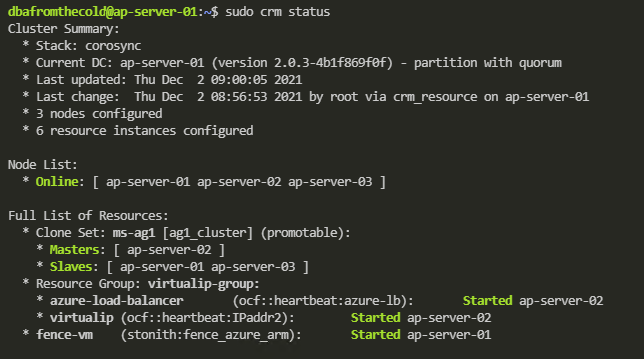
        

        Now we can see that all the resources (barring the fencing resource which has moved to ap-server-01) are on the new primary! Manual failover complete!

        One final thing to do is remove that move constraint from the availability group resource.

        To view the constraint: –

        sudo crm resource constraints ms-ag1
        

        And then to delete the constraint: –

        sudo crm configure delete cli-prefer-ms-ag1
        

        And that’s it! We have successfully deployed an availability group to a pacemaker cluster in Azure and tested a manual failover.

        Thanks for reading!

        Deploying SQL Server to an Azure Container Instance using Terraform – Part Two

        In a previous post I went through how to deploy SQL Server running in an Azure Container Instance using Terraform.

        In that post, I used hardcoded variables in the various .tf files. This isn’t great to be honest as in order to change those values, we’d need to update each .tf file. It would be better to replace the hardcoded values with variables whose values can be set in one separate file.

        So let’s update each value with a variable in the .tf files.

        First file to update is the providers.tf file: –

        provider "azurerm" {
        version         = "1.24.0"
        subscription_id = "aaaaaaaa-aaaa-aaaa-aaaa-aaaaaaaaaaaa"
        tenant_id       = "bbbbbbbb-bbbb-bbbb-bbbb-bbbbbbbbbbbb"
        client_id       = "cccccccc-cccc-cccc-cccc-cccccccccccc"
        client_secret   = "dddddddd-dddd-dddd-dddd-dddddddddddd"
        }
        

        Replace the values in the file with the following: –

        provider "azurerm" {
        version         = "1.24.0"
        subscription_id = "${var.subId}"
        tenant_id       = "${var.tenantId}"
        client_id       = "${var.clientId}"
        client_secret   = "${var.clientSecret}"
        }
        

        Now that we have referenced variables in the files we need to define those variables. First create a file to hold the variables: –

        mkdir variables.tf
        

        And then drop in the following: –

        variable "subId" {
        description = "please provide subscription Id"
        type        = "string"
        }
        
        variable "tenantId" {
        description = "please provide tenant Id"
        type        = "string"
        }
        
        variable "clientId" {
        description = "please provide client Id"
        type        = "string"
        }
        
        variable "clientSecret" {
        description = "please provide client secret"
        type        = "string"
        }
        

        OK, so we have defined the variables that we referenced in the providers.tf file. However, we haven’t set any values for those variables.

        If we left the files like this, when we deploy we would be asked to manually enter values for the variables. What we now need to do is create another file where we can set the variable values.

        First thing to do is create a directory called vars: –

        new-item vars -type directory
        

        And now create a file to hold the values (notice that its extension is .tfvars to distinguish it from the other files): –

        cd vars
        new-item aci.tfvars
        

        Drop the original hardcoded values in: –

        subId = "aaaaaaaa-aaaa-aaaa-aaaa-aaaaaaaaaaaa"
        tenantId = "bbbbbbbb-bbbb-bbbb-bbbb-bbbbbbbbbbbb"
        clientId = "cccccccc-cccc-cccc-cccc-cccccccccccc"
        clientSecret = "dddddddd-dddd-dddd-dddd-dddddddddddd"
        

        And now we’re good to go! But before we deploy, let’s have another look at the azurecontainerinstance.tf file: –

        resource "azurerm_container_group" "testcontainergroup1" {
        name                = "testcontainergroup1"
        location            = "${azurerm_resource_group.azurecontainerinstances.location}"
        resource_group_name = "${azurerm_resource_group.azurecontainerinstances.name}"
        ip_address_type     = "public"
        dns_name_label      = "testcontainergroup1"
        os_type             = "Linux"
        
        container {
        name   = "testcontainer"
        image  = "mcr.microsoft.com/mssql/server:2019-CTP2.5-ubuntu"
        cpu    = "1.0"
        memory = "2.0"
        
        ports {
        port     = 1433
        protocol = "TCP"
        }
        
        environment_variables = {
        "ACCEPT_EULA" = "Y"
        "SA_PASSWORD" = "Testing1122"
        }
        }
        }
        

        We’re already using variables for the resource group and location (which reference the resource group created in the resourcegroup.tf file) but let’s add in variables for the container name, image, and sa password: –

        resource "azurerm_container_group" "testcontainergroup1" {
        name                = "testcontainergroup1"
        location            = "${azurerm_resource_group.azurecontainerinstance2.location}"
        resource_group_name = "${azurerm_resource_group.azurecontainerinstance2.name}"
        ip_address_type     = "public"
        dns_name_label      = "testcontainergroup1"
        os_type             = "Linux"
        
        container {
        name   = "${var.containerName}"
        image  = "${var.containerImage}"
        cpu    = "1.0"
        memory = "2.0"
        
        ports {
        port     = 1433
        protocol = "TCP"
        }
        
        environment_variables = {
        "ACCEPT_EULA" = "Y"
        "SA_PASSWORD" = "${var.saPassword}"
        }
        }
        }
        

        Cool, now we need to update the variables.tf file: –

        variable "subId" {
        description = "please provide subscription Id"
        type        = "string"
        }
        
        variable "clientId" {
        description = "please provide client Id"
        type        = "string"
        }
        
        variable "clientSecret" {
        description = "please provide client secret"
        type        = "string"
        }
        
        variable "tenantId" {
        description = "please provide tenant Id"
        type        = "string"
        }
        
        variable "saPassword" {
        description = "please provide an SA password"
        type        = "string"
        }
        
        variable "containerImage" {
        description = "please provide container image"
        type        = "string"
        }
        
        variable "containerName" {
        description = "please provide container name"
        type        = "string"
        }
        

        And drop in the values to the aci.tfvars file: –

        subId = "aaaaaaaa-aaaa-aaaa-aaaa-aaaaaaaaaaaa"
        tenantId = "bbbbbbbb-bbbb-bbbb-bbbb-bbbbbbbbbbbb"
        clientId = "cccccccc-cccc-cccc-cccc-cccccccccccc"
        clientSecret = "dddddddd-dddd-dddd-dddd-dddddddddddd"
        saPassword = "Testing1122"
        containerImage = "mcr.microsoft.com/mssql/server:2019-CTP2.5-ubuntu"
        containerName = "testcontainer1"
        

        Before we deploy, let’s format these files: –

        terraform fmt
        

        Really love that feature. If you run it at the root of your project it will format all your files for you 🙂

        Now we can test the deployment (notice we’re referencing the aci.tfvars file): –

        terraform plan -var-file "./vars/aci.tfvars"
        

        If all looks good (the values for the variables are being picked up), we can deploy: –

        terraform apply -var-file "./vars/aci.tfvars"
        

        What’s great about using variables like this is that we now don’t have to touch the .tf files where we define our resources. If we want to say, deploy a different image to an ACI we just have to update the containerImage variable in the aci.tfvars file.

        This also means that if we push this project to a github repo we can ignore the vars directory, so no sensitive information is exposed (such as the sa password for our SQL instance).

        Thanks for reading!

        Deploying SQL Server to an Azure Container Instance using Terraform – Part One

        A couple of weeks ago I attended John Martin’s (t) Terraform pre-con at Data in Devon. I’ve been hearing about Terraform recently so was excited to check it out.

        John’s pre-con was absolutely fantastic, he provided a great insight into Terraform and I highly recommend it to anyone who’s looking at learning it to sign up if you see it at a future event.

        So armed with my new found knowledge, I wanted to go about deploying SQL Server into an Azure Container Instance using Terraform. This blog is the first in a series where I’ll go through how to use Terraform. This post will get SQL Server up and running in an ACI and then future posts will go a bit deeper.

        To follow along with this blog you will need the following tools: –

        Terraform
        Azure CLI
        VSCode
        Terraform extension for VSCode
        Azure Terraform extension for VSCode

        OK, let’s go through building the required Terraform files to deploy SQL Server to an Azure Container Instance.

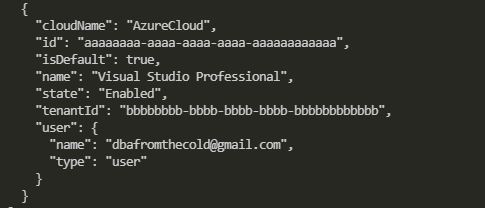
        First, log into your Azure account: –

        az login
        

        az-login.JPG

        Make a note of the id and tenantId.

        Next, create a service principal which we will reference to allow Terraform to create resources in Azure. Make a note of the appid and secret: –

        az ad sp create-for-rbac --role="Contributor" --scopes="/subscriptions/aaaaaaaa-aaaa-aaaa-aaaa-aaaaaaaaaaaa"
        

        Create service principal.JPG

        Ok, now we can start creating Terraform files.

        Let’s create a directory for the terraform files and navigate to it: –

        mkdir Terraform-ACI
        
        cd Terraform-ACI
        

        The first file to create is a providers file. This tells Terraform that we will be working in Azure so it will pull down the relevant plugin: –

        new-item providers.tf
        

        Now drop the following into the providers.tf file (using the values you noted above): –

        provider "azurerm" {
        version = "1.24.0"
        subscription_id = "aaaaaaaa-aaaa-aaaa-aaaa-aaaaaaaaaaaa"
        tenant_id = "bbbbbbbb-bbbb-bbbb-bbbb-bbbbbbbbbbbb"
        client_id = "cccccccc-cccc-cccc-cccc-cccccccccccc"
        client_secret = "dddddddd-dddd-dddd-dddd-dddddddddddd"
        }
        

        The first resource we’ll create in Azure is a resource group to hold the ACI: –

        new-item resourcegroup.tf
        

        Drop the following into the resource group file

        resource "azurerm_resource_group" "azurecontainerinstances" {
        name = "azurecontainerinstances"
        location = "eastus"
        }
        

        Note the format of the file, it’s laid out as: –

        resource "RESOURCE_TYPE" "RESOURCE_NAME" {
        attribute_name = "attribute_value"
        }
        

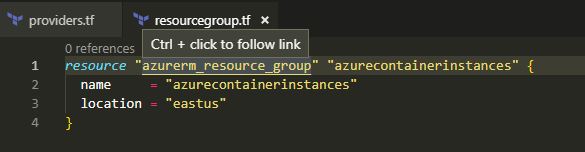
        The RESOURCE_NAME is the name of the resource that will be referenced in Terraform. It can look a little confusing as in the code above I’ve called the resource name in Terraform the same name as the name of the resource group in Azure (the name attribute).

        What’s cool is with the Azure Terraform VSCode extension, we can click on the RESOURCE_TYPE field and it will take us to the documentation for that resource. Makes things a lot easier!

        Resource Group.JPG

        Ok, now that we have a resource group we can create the Terraform file to deploy the Azure Container Instance into it: –

        new-item azurecontainerinstance.tf
        

        Drop the following into the file: –

        resource "azurerm_container_group" "testcontainergroup1" {
        name = "testcontainergroup1"
        location = "${azurerm_resource_group.azurecontainerinstances.location}"
        resource_group_name = "${azurerm_resource_group.azurecontainerinstances.name}"
        ip_address_type = "public"
        dns_name_label = "testcontainergroup1"
        os_type = "Linux"
        
        container {
        name = "testcontainer"
        image = "mcr.microsoft.com/mssql/server:2019-CTP2.5-ubuntu"
        cpu = "1.0"
        memory = "2.0"
        
        ports {
        port = 1433
        protocol = "TCP"
        }
        
        environment_variables = {
        "ACCEPT_EULA" = "Y"
        "SA_PASSWORD" = "Testing1122"
        }
        }
        }
        

        What this is going to do is create an Azure Container Instance Group with one container it in, running SQL Server 2019 CTP 2.5. It’ll be publicly exposed to the internet on port 1433 (I’ll cover fixing that in a future post) so we’ll get a public IP that we can use to connect to.

        Notice that the location and resource_group_name are set using variables that retrieve the values of the resource group are going to create.

        Cool! We are ready to go!

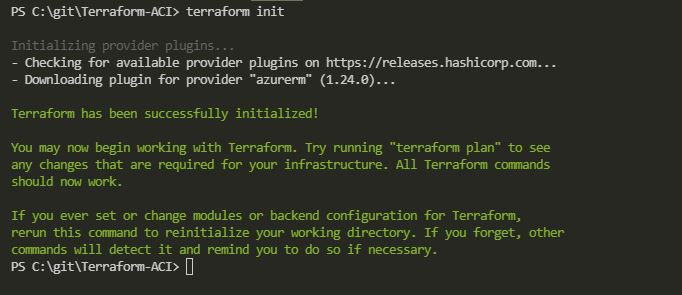
        Initialise the directory: –

        terraform init
        

        Terraform init.JPG

        One cool feature of Terraform is the ability to format all the files (seriously love this): –

        terraform fmt
        

        And now we can test the deployment (also love this feature): –

        terraform plan
        

        Terraform Plan.JPG

        If all looks good, we can deploy!

        terraform apply
        

        Awesome stuff. Terraform will give us updates on how the deployment is doing: –

        Terraform-ACI-1.gif

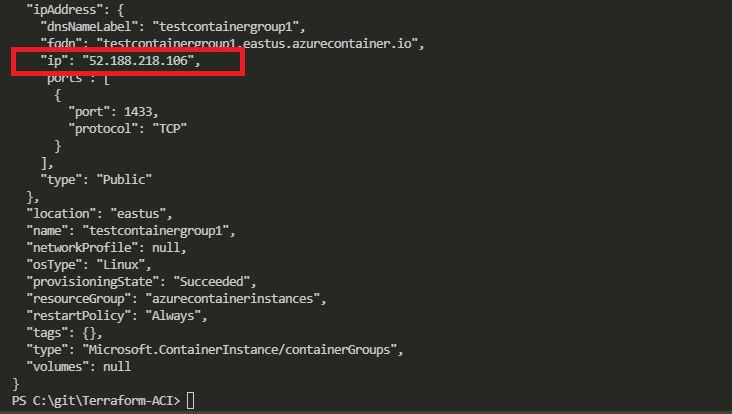
        To get the IP address of the new Azure Container Instance: –

        az container show --name testcontainergroup1 --resource-group azurecontainerinstances
        

        Show Container Details.JPG

        Drop that IP Address into SSMS or ADS: –

        Azure Data Studio.JPG

        And boom! We are connected to SQL Server 2019 CTP2.5 running in an Azure Container Instance deployed with Terraform.

        If you want to tear down what’s just been built, you can run: –

        terraform destroy
        

        Thanks for reading!

        Creating custom SQL Server Helm charts

        In my previous post I went through how to deploy SQL Server to Kubernetes using Helm in which I used the SQL Server chart that is available in the Helm Hub.

        That’s great but what if we want to create our own charts? Let’s run through creating a simple SQL Server chart and deploying to Kubernetes (AKS).

        First, ensure that Tiller (the server-side component of Helm) is installed on your cluster: –

        helm init
        

        Then create a directory to deploy the new chart into: –

        mkdir C:\Helm
        

        Navigate to the new directory: –

        cd C:\Helm
        

        And now create the new chart!

        helm create testsqlchart
        

        OK, what that has done is create an empty chart so we need to drop in our yaml configuration files.

        Navigate to templates directory: –

        cd testsqlchart/templates
        

        Remove the template yaml files: –

        rm deployment.yaml
        rm service.yaml
        rm ingress.yaml
        

        Re-create deployment.yaml: –

        apiVersion: apps/v1beta1
        kind: Deployment
        metadata:
          name: sqlserver
        spec:
          replicas: 1
          template:
            metadata:
              labels:
                name: sqlserver
            spec:
              containers:
              - name: sqlserver1
                image: mcr.microsoft.com/mssql/server:2019-CTP2.2-ubuntu
                ports:
                - containerPort: 1433
                env:
                - name: SA_PASSWORD
                  value: "Testing1122"
                - name: ACCEPT_EULA
                  value: "Y"
        

        Re-create service.yaml file: –

        apiVersion: v1
        kind: Service
        metadata:
          name: sqlserver-service
        spec:
          ports:
          - name: sqlserver
            port: 1433
            targetPort: 1433
          selector:
            name: sqlserver
          type: LoadBalancer
        

        N.B. – Be careful when doing this, I’ve found that sometimes that Helm doesn’t like the format of the files. Re-creating in VS Code seems to do the trick.

        Go back one directory: –

        cd C:\Helm
        

        And now we can test a deployment with –dry-run: –

        helm install --dry-run --debug ./testsqlchart
        

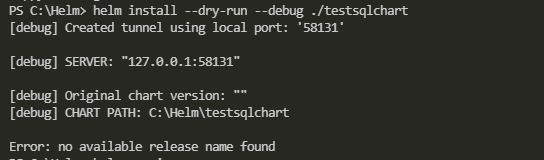
        If you get the following error: –

        Tiller needs to be re-initialised: –

        # delete current tiller deployment
        kubectl delete deployment tiller-deploy --namespace kube-system
        
        # create a service account
        kubectl create serviceaccount --namespace kube-system tiller
        
        # create clusterrolebinding
        kubectl create clusterrolebinding tiller-cluster-rule --clusterrole=cluster-admin --serviceaccount=kube-system:tiller
        
        # re-initialise tiller
        helm init --service-account tiller --upgrade
        

        Once the dry run returns no errors, you’re good to go!

        helm install ./testsqlchart --name testsqlserver
        

        To check the status: –

        helm list
        

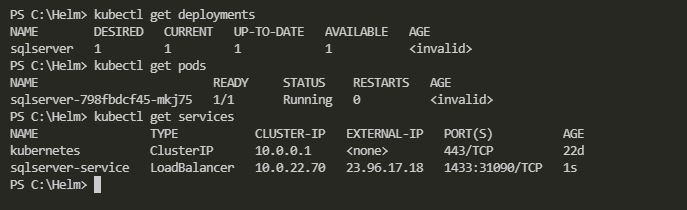
        And you can monitor the creation of the deployment/service by running the usual kubectl commands: –

        kubectl get deployments
        
        kubectl get pods
        
        kubectl get services
        

        And that’s a custom SQL Server chart deployed into Kubernetes. SQL can be accessed by using the external IP of the service created.

        Finally, to delete the deployed chart: –

        helm delete testsqlserver
        

        Thanks for reading!

        Azure Kubernetes Service Error – LoadBalancer type service external IP stays pending

        Last week I was working on my Azure Kubernetes Service cluster when I ran into a rather odd issue. I’d created a service with a type of LoadBalancer in order to get an external IP to connect to SQL Server running in a pod from my local machine.

        I’ve done this quite a few times at this point so wasn’t expecting anything out of the ordinary.

        However, my service never got it’s external IP address. It remained in a state of pending: –

        N.B. – The images in this post are taken after the issue was resolved as I didn’t think at the time to screen shot everything 😦

        I knew something was wrong after about 20 minutes as the IP should have definitely come up by then.

        So I delved into the service by running: –

        kubectl describe service sqlserver-service
        

        And was greeted with the following: –

        Error creating load balancer (will retry): failed to ensure load balancer for service default/sqlserver-service: azure.BearerAuthorizer#WithAuthorization: Failed to refresh the Token for request to https://management.azure.com/subscriptions/subscriptionID/resourceGroups/MC_containers1_SQLK8sCluster1_eastus/providers/Microsoft.Network/loadBalancers?api-version=2017-09-01: StatusCode=0 — Original Error: adal: Refresh request failed. Status Code = ‘401’. Response body: {“error”:”invalid_client”,”error_description”:”AADSTS70002: Error validating credentials. AADSTS50012: Invalid client secret is provided.\r\nTrace ID: 17d1f0ce-6c11-4f8e-895d-29194d973900\r\nCorrelation ID: 3e11d85c-77bf-4041-a41d-267bfd5f066c\r\nTimestamp: 2019-01-23 18:58:59Z”,”error_codes”:[70002,50012],”timestamp”:”2019-01-23 18:58:59Z”,”trace_id”:”17d1f0ce-6c11-4f8e-895d-29194d973900″,”correlation_id”:”3e11d85c-77bf-4041-a41d-267bfd5f066c”}

        Yikes! What’s happened there?

        I logged a case with MS Support and when they came back to me, they advised that the service principal that is spun up in the background had expired. This service principal is required to allow the cluster to interact with the Azure APIs in order to create other Azure resources.

        When a service is created within AKS with a type of LoadBalancer, a Load Balancer is created in the background which provides the external IP I was waiting on to allow me to connect to the cluster.

        Because this principal had expired, the cluster was unable to create the Load Balancer and the external IP of the service remained in the pending state.

        So I needed to update the service principal so that it was no longer expired. In order to update the service principal I needed two pieces of information. The clientId of the cluster and a secret used for the service principal password. This wasn’t the easiest process in the world so I’ll run through how to do it here.

        First, log into Azure:-

        az login
        

        Then get the clientId of your cluster: –

        az aks show --resource-group RESOURCEGROUPNAME --name CLUSTERNAME --query "servicePrincipalProfile.clientId" --output tsv
        

        To confirm that the principal is expired: –

        az ad sp credential list --id CLIENTID
        

        Check the endDate value highlighted above. If it’s past the current date, that’s your issue!

        You may have noticed that mine is set 10 years from now. This is because I’m running these commands to get screenshots after I’ve fixed the issue…I figured 10 years should be long enough 🙂

        The way I got the secret was to ssh onto one of the nodes in my cluster. This is a little involved but I’ll go through it step-by-step.

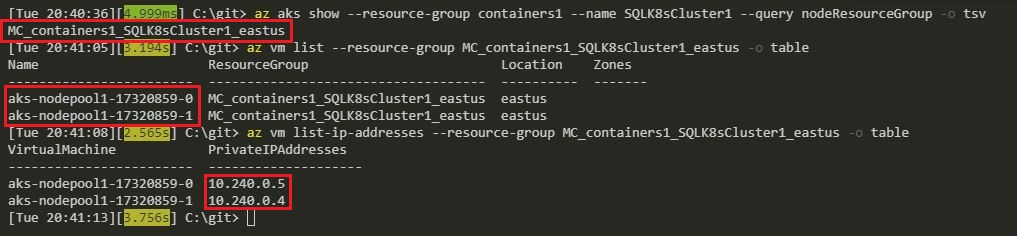
        Resources for an AKS cluster are created in a separate resource group (for….reasons). To get that resource group name run: –

        az aks show --resource-group RESOURCEGROUPNAME --name CLUSTERNAME --query nodeResourceGroup -o tsv
        

        Then grab the nodes in the cluster (RESOURCEGROUPNAME2 is the output of the above command): –

        az vm list --resource-group RESOURCEGROUPNAME2 -o table
        

        And then get the IP address of each node: –

        az vm list-ip-addresses --resource-group RESOURCEGROUPNAME2 -o table
        

        OK, now that I had the node details I could copy my SSH public key into one of them.

        The ssh keys were generated when I created the cluster using the –generate-ssh-keys flag. If you didn’t specify this you’ll need to generate the keys before continuing on.

        So I copied my public key into one of the nodes: –

        az vm user update \
          --resource-group RESOURCEGROUPNAME2 \
          --name NODENAME \
          --username azureuser \
          --ssh-key-value id_rsa.pub
        

        N.B. – I found it easiest to navigate to the directory that held my ssh keys before running this script

        Then I spun up a pod with openssh-client installed so that I could ssh into one of the nodes from within the cluster (the nodes aren’t accessible externally).

        To do this I created a docker image from the Alpine:latest image and installed the client. Pushed it to the Docker Hub and then ran: –

        kubectl run -it --rm aks-ssh --image=dbafromthecold/alpine_ssh:latest
        

        N.B. – the dbafromthecold/alpine_ssh:latest image is public so this will work for you as well

        In a separate command prompt I got the name of the pod:-

        kubectl get pods
        

        And then copied my private ssh key into the pod:-

        kubectl cp id_rsa PODNAME:/id_rsa
        

        Once the key was copied in, I closed that window and went back to the original window where I had run the pod and changed the permissions on the private key: –

        chmod 0600 id_rsa
        

        And then I was able to ssh into one of the nodes:-

        ssh -i id_rsa azureuser@NODEIPADDRESS
        

        The secret is contained in a json file (as aadClientSecret). To grab it I ran: –

        sudo cat /etc/kubernetes/azure.json
        

        Once I had that information I could exit the node, then the pod, and update the service principal: –

        az ad sp credential reset --name CLIENTID--password SECRET --years 10
        

        I confirmed that the service principal had been updated: –

        az ad sp credential list --id CLIENTID
        

        And was then able to deploy a loadbalancer type service, and get an external IP!

        kubectl get services
        

        Phew 🙂

        Hope that helps anyone who runs into the same issue!